A

Alexandru Florea

2
Workflows

Workflows by Alexandru Florea

Workflow preview: Chat with Gemini AI through local CLI via SSH
Free intermediate

Chat with Gemini AI through local CLI via SSH

This workflow allows you to integrate the Google Gemini CLI into your n8n AI Agents. It is designed for self-hosted n8n instances and enables you to chat with the Gemini CLI running on your local machine or server via SSH. This is powerful for users who want to utilize the free tier of Gemini via Google's CLI tools or need the AI to interact with local files on the host server. ## How it works * **AI Agent**: The main workflow uses a LangChain AI Agent with a custom tool. * **Custom Tool**: When the agent needs to answer, it calls a sub-workflow ("Gemini CLI Worker"). * **SSH Execution**: The sub-workflow connects to your host machine via SSH, executes the `gemini` command with your prompt, and returns the CLI's standard output to the chat. ## Set up steps 1. **Prerequisites**: You must have [Node.js](https://nodejs.org/) (v20+) and the `gemini-chat-cli` installed on your host machine. 2. **Split the Workflows**: * Copy the bottom section (Sub-workflow). * Paste it into a new workflow, name it "Gemini CLI Worker", and **Save** it. * Note the ID of this new workflow. 3. **Configure the Main Workflow**: * Open the **Call 'Gemini CLI'** node. * In the "Workflow ID" field, select the "Gemini CLI Worker" workflow you just saved. 4. **Configure SSH**: * Open the **Execute a command** node in the sub-workflow. * Configure your SSH credentials (IP, Username, Password/Key) to allow n8n to connect to the host where Gemini CLI is installed.

A
Alexandru Florea
Internal Wiki
16 Dec 2025
410
0
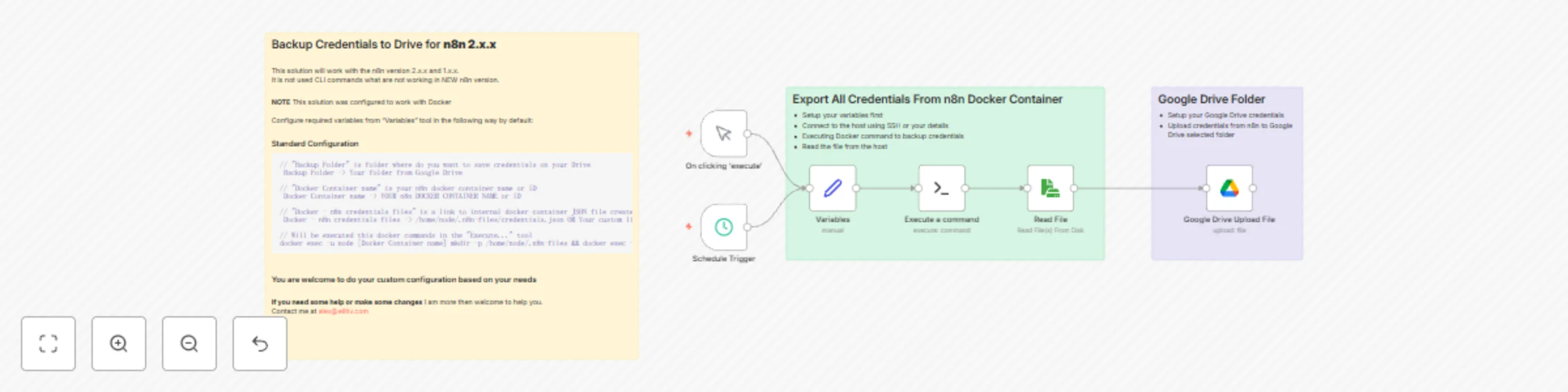
Workflow preview: Automated credentials backup to Google Drive via SSH and Docker
Free intermediate

Automated credentials backup to Google Drive via SSH and Docker

This workflow automates the backup of decrypted n8n credentials from a self-hosted Docker instance to Google Drive. It allows you to export credentials on n8n versions 2.x.x (where old CLI commands may not work) without accessing the server terminal manually. ## How it works * **Configuration**: Defines the Docker container name and file paths using a centralized variables node. * **SSH Execution**: Connects to the host machine via SSH and executes the `n8n export:credentials` command inside the specified Docker container. * **File Retrieval**: Reads the newly created decrypted JSON file from the host filesystem. * **Cloud Upload**: Uploads the JSON file to a specified folder in Google Drive with a timestamped filename. ## Set up steps * **Configure Variables**: Open the "Variables" node and enter your `Docker Container name` (usually `n8n` or an ID). * **SSH Connection**: Configure the "Execute a command" (SSH) node with your host machine's IP, username, and SSH key/password. * **Google Drive Auth**: Authenticate the "Google Drive Upload File" node with your Google credentials. * **Select Folder**: In the "Google Drive Upload File" node, select the specific folder on your Drive where you want the backups to be saved. * **Schedule**: (Optional) Adjust the "Schedule Trigger" to your preferred backup frequency (default is set to run periodically).

A
Alexandru Florea
DevOps
16 Dec 2025
113
0