D

Dean Pike

5
Workflows

Workflows by Dean Pike

Workflow preview: Create RAG-ready knowledge bases from websites using Apify, Gemini & Supabase
Free advanced

Create RAG-ready knowledge bases from websites using Apify, Gemini & Supabase

Convert any website into a searchable vector database for AI chatbots. Submit a URL, choose scraping scope, and this workflow handles everything: scraping, cleaning, chunking, embedding, and storing in Supabase. ## What it does - Scrapes websites using Apify (3 modes: full site unlimited, full site limited, single URL) - Cleans content (removes navigation, footer, ads, cookie banners, etc) - Chunks text (800 chars, markdown-aware) - Generates embeddings (Google Gemini, 768 dimensions) - Stores in Supabase vector database ## Requirements - Apify account + API token - Supabase database with pgvector extension - Google Gemini API key ## Setup 1. Create Supabase `documents` table with embedding column (vector 768). *[Run this SQL query](https://docs.langchain.com/oss/javascript/integrations/vectorstores/supabase) in your Supabase project to enable the vector store setup* 2. Add your Apify API token to all three "Run Apify Scraper" nodes 3. Add Supabase and Gemini credentials 4. Test with small site (5-10 pages) or single page/URL first ## Next steps Connect your vector store to an AI chatbot for RAG-powered Q&A, or build semantic search features into your apps. **Tip:** Start with page limits to test content quality before full-site scraping. Review chunks in Supabase and adjust Apify filters if needed for better vector embeddings. --- ## Sample Outputs **Apify actor "runs" in Apify Dashboard from this workflow** ![](https://i.postimg.cc/NMBqXSWs/Screenshot-2025-11-06-190813.png) **Supabase `docuemnts` table with scraped website content ingested in chunks with vector embeddings** ![](https://i.postimg.cc/W4m0x8MG/Screenshot-2025-11-06-154326.png)

D
Dean Pike
Document Extraction
6 Nov 2025
220
0
Workflow preview: AI candidate screening pipeline: LinkedIn to Telegram with Gemini & Apify
Free advanced

AI candidate screening pipeline: LinkedIn to Telegram with Gemini & Apify

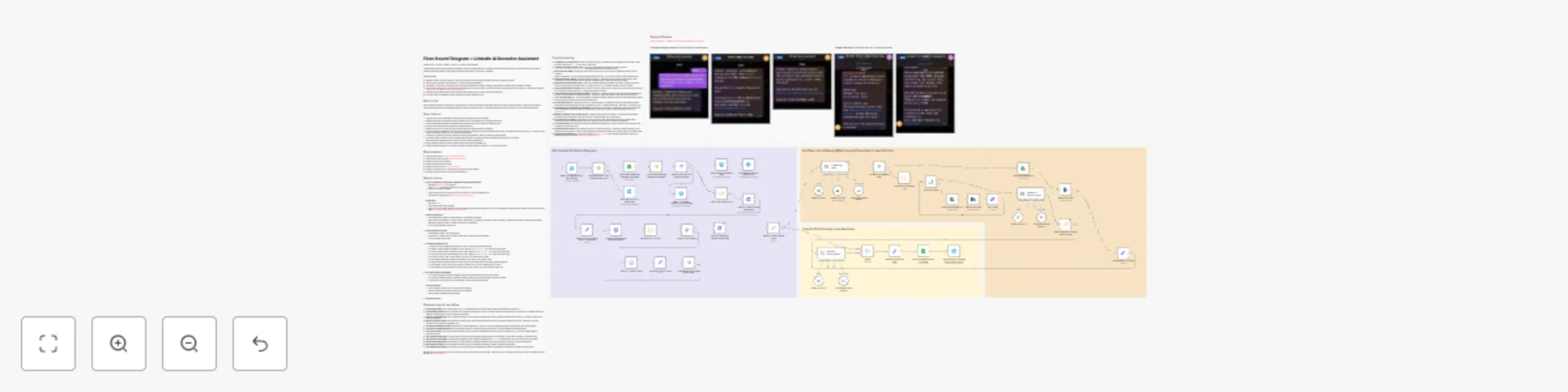
*LinkedIn URL → Scrape → Match → Screen → Decide, all automated* This workflow automatically processes candidate LinkedIn profiles shared via Telegram, intelligently matches them to job descriptions, performs AI-powered screening analysis, and sends actionable summaries to your team in Telegram. ### Good to know - Handles LinkedIn profile scraping via Apify API (extracts full profile data including experience, education, skills) - Built-in spam prevention: limits users to 3 LinkedIn profile submissions - Two-stage JD matching: prioritizes role mentioned in candidate's Telegram message, falls back to LinkedIn profile analysis if needed - Uses Google Gemini API for AI screening (generous free tier and rate limits, typically enough to avoid paying for API requests - check latest pricing at [Google AI Pricing](https://ai.google.dev/pricing) and [rate limits documentation](https://ai.google.dev/gemini-api/docs/rate-limits)) - Automatic polling mechanism checks Apify extraction status up to 10 times (15-second intervals) - Complete audit trail logged in Google Sheets with unique submission IDs ## Who's it for Hiring teams and recruiters who want to streamline first-round screening for candidates who share LinkedIn profiles directly. Perfect for companies accepting applications via messaging platforms (Telegram, WhatsApp, etc.), especially useful fortech-savvy audiences and remote/global hiring. ## How it works 1. Telegram bot receives message containing LinkedIn profile URL from candidate 2. Validates URL format and checks spam prevention (max 3 submissions per Telegram username) 3. Sends confirmation message to candidate and notifies internal talent team via Telegram group 4. Extracts clean LinkedIn URL and initiates Apify scraping job 5. Polls Apify API up to 10 times (15-second intervals) until profile extraction completes 6. AI agent matches candidate to best-fit job description by analyzing Telegram message context first (if candidate mentioned a role), or LinkedIn profile content as fallback (selects up to 3 potential JD matches) 7. If multiple JDs matched, second AI agent selects the single best fit based on detailed profile analysis 8. AI recruiter agent analyzes LinkedIn profile against selected JD and generates structured screening report (strengths, weaknesses, risk/reward factors, overall fit score 0-10 with justification) 9. Logs complete analysis to Google Sheets tracker with unique submission ID 10. Sends formatted summary to Telegram group with candidate details, matched JD, and overall fit score ## Requirements - Telegram Bot Token ([Create bot via @BotFather](https://t.me/botfather)) - Apify account with API token ([Sign up for free tier](https://apify.com/)) - Google Drive account (OAuth2) - Google Sheets account (OAuth2) - Google Gemini API key ([Get free key here](https://makersuite.google.com/app/apikey)) - Google Drive folder for Job Descriptions (as PDFs or Google Docs) - Telegram group for internal talent team notifications ## How to set up 1. **Create Telegram bot and internal Telegram chat group with new bot**: - Message [@BotFather](https://t.me/botfather) on Telegram - Send `/newbot` and follow instructions to create your bot - Save the API token provided - Create Telegram group chat and invite your new bot + invite the @GetIDs bot - Note down the group chat ID ([How to get group chat ID](https://docs.google.com/document/d/1fGM9sZM_QcH8WU33mUYZeT5vyhjRq0S4WlsU0opcxTQ/edit?usp=sharing)) 2. **Setup Apify**: - Sign up at [Apify](https://apify.com/) - Get your API token from Settings - Note: Free tier includes sufficient scraping credits for testing and production ($0.01 per successful LinkedIn profile enriched, a free monthly limit of $5.00) - [LinkedIn profile scraper "actor" details](https://apify.com/dev_fusion/linkedin-profile-scraper) 3. **Create Google Sheet**: - Create new sheet named "LinkedIn Profile AI Candidate Screening" - Add columns: Submission ID, Date, LinkedIn Profile URL, First Name, Last Name, Email (if known), Telegram Username, Strengths, Weaknesses, Risk Factor, Reward Factor, JD Match, Overall Fit, Justification - Copy the spreadsheet ID from URL 4. **Setup Google Drive folder**: - Create folder named "Job Descriptions" - Upload your JD files (PDFs or Google Docs) with clear, descriptive filenames - Copy the folder ID from URL 5. **Configure workflow nodes**: - In "Receive Telegram Msg to Recruiter Bot" node: Add Telegram API credentials - In "Extract LinkedIn Profile Information" node: Replace `YOUR_APIFY_API_TOKEN` with your Apify token - In "Check LinkedIn Profile Extraction Status" node: Replace `YOUR_APIFY_API_TOKEN` with your Apify token - In "Get Fully Extracted LinkedIn Profile Data" node: Replace `YOUR_APIFY_API_TOKEN` with your Apify token - In "Access JD Files" node: Update folder ID to your "Job Descriptions" folder - In "Get All Rows Matching Telegram Username" node: Select your Google Sheet - In "Add Candidate Analysis in GSheet" node: Select your Google Sheet and verify column mappings - In "Send Msg to Internal Talent Group" node: Update chat ID to your Telegram group chat ID - In "Send Review Completed Msg to Talent Group" node: Update chat ID and Google Sheet URL 6. **Add your company description**: - In "JD Matching Agent" system message: Replace company description with your details - In "Detailed JD Matching Agent" system message: Replace company description with your details - In "Recruiter Scoring Agent" system message: Update company description 7. **Test the workflow**: - Send a LinkedIn profile URL to your bot from Telegram - Monitor execution to ensure all nodes run successfully - Check Google Sheets for logged results 8. **Activate workflow** ## Customizing this workflow - **Change spam limits**: Edit "Spam Check: Sent <4 LinkedIn Profiles?" node to adjust maximum submissions (currently 3) - **Adjust polling attempts**: Edit "Checked 10x for LinkedIn Profile Data?" node to change maximum polling attempts (currently 10) or modify wait time in "Wait for LinkedIn Profile" node (currently 15 seconds) - **Change JD matching logic**: Edit "JD Matching Agent" node prompt to adjust how LinkedIn profiles are matched to roles (e.g., weight current role vs. overall experience) - **Modify screening criteria**: Edit "Recruiter Scoring Agent" node system message to focus on specific qualities (culture fit, leadership potential, technical depth, industry experience, etc.) - **Add more messaging platforms**: Add nodes to support WhatsApp, Discord, or other messaging platforms using similar URL-based triggers - **Customize Telegram messages**: Edit notification nodes to change formatting, add emojis, or include additional candidate data - **Auto-proceed logic**: Add IF node after screening to auto-proceed candidates with fit score above threshold (e.g., 8+/10) and trigger different notification paths - **Add candidate responses**: Connect nodes to automatically message candidates back via Telegram (confirmation, rejection, interview invite) - **Add interview scheduling**: For approved candidates, send Telegram message with Cal.com or Calendly link so they can book their interview - **Enrich with additional data**: Add nodes to cross-reference candidate data with other sources (GitHub, Twitter/X, company websites) - **Multi-language support**: Add translation nodes to support candidates submitting profiles in different languages - **Add human approval step**: Create buttons in Telegram group messages for instant Approve/Reject decisions that update Google Sheets **Pro tip**: Add your Telegram bot to your company's careers page with instructions like: "Want fast-track screening? Share your LinkedIn profile with our AI recruiter: [@YourBotName](https://t.me/YourBotName)" ## Troubleshooting * **Telegram bot not responding**: Ensure bot token is correct in "Receive Telegram Msg to Recruiter Bot" node, and users have sent `/start` to your bot at least once * **"LinkedIn profile URL invalid" error**: Check that candidates are sending full URLs in format `https://www.linkedin.com/in/username` (not shortened links or text without URL) * **Apify extraction failing**: Verify Apify API token is correctly set in all three HTTP Request nodes ("Extract LinkedIn Profile Information", "Check LinkedIn Profile Extraction Status", "Get Fully Extracted LinkedIn Profile Data") * **LinkedIn extraction timeout**: Increase polling attempts in "Checked 10x for LinkedIn Profile Data?" node (currently 10) or increase wait time in "Wait for LinkedIn Profile" node (currently 15 seconds) * **Spam check blocking valid users**: Check "Get All Rows Matching Telegram Username" node is pointing to correct Google Sheet, and adjust limit in "Spam Check: Sent <4 LinkedIn Profiles?" node if needed * **JD matching returns no results**: Check "Access JD Files" node folder ID points to your Job Descriptions folder, and JD files are named clearly (e.g., "Marketing Director JD.pdf") * **JD matching is not relevant for my company**: Update the "Company Description" in the System Messages in all three AI agent nodes ("JD Matching Agent", "Detailed JD Matching Agent", "Recruiter Scoring Agent") * **"Can't find matching JD"**: Ensure candidate's Telegram message mentions role name OR their LinkedIn profile clearly indicates relevant experience for available JDs * **Google Sheets errors**: Verify sheet name is "LinkedIn Profile AI Candidate Screening" and column headers exactly match workflow expectations (Submission ID, Date, LinkedIn Profile URL, First Name, Last Name, etc.) * **Telegram group notifications not appearing**: Verify chat ID is correct in "Send Msg to Internal Talent Group" and "Send Review Completed Msg to Talent Group" nodes (use negative number for group chats, e.g., `-4954246611`) * **Missing candidate data in Google Sheets**: LinkedIn profile may be incomplete - verify Apify successfully extracted data by checking "Get Fully Extracted LinkedIn Profile Data" node output * **Loop counter not working**: Check "Restore Loop Counter" code node references correct node names ("Checked 10x for LinkedIn Profile Data?" and "Initialize Loop Counter to Poll for Completion") * **401/403 API errors**: Re-authorize all OAuth2 credentials (Google Drive, Google Sheets) and verify Apify and Telegram API tokens are valid * **AI analysis quality issues**: Edit system prompts in "JD Matching Agent", "Detailed JD Matching Agent", and "Recruiter Scoring Agent" nodes to refine screening criteria and provide more context about your hiring needs * **Gemini API rate limit errors**: Check your usage at [Google AI Studio](https://aistudio.google.com/) and consider upgrading to paid tier if exceeding free tier limits (see [rate limits documentation](https://ai.google.dev/gemini-api/docs/rate-limits)) ## Sample Outputs ### [Google Sheets - LinkedIn AI Candidate Screening - sample](https://docs.google.com/spreadsheets/d/19ZzSG-MyFgdvruWhTozuimYBG-QSvaPhHmqMJqdmJpM/edit?usp=sharing) ### Telegram messages between AI recruiter bot and job applicant ![](https://i.postimg.cc/7L1rTsv8/telegram5.jpg) ![](https://i.postimg.cc/rpG2thBv/telegram4.jpg) ![](https://i.postimg.cc/8Cdgry22/telegram3.jpg) ### Telegram messages from AI recruiter bot in internal group chat ![](https://i.postimg.cc/1z01NWkb/telegram2.jpg) ![](https://i.postimg.cc/3wQHNMcz/telegram1.jpg)

D
Dean Pike
HR
22 Oct 2025
943
0
Workflow preview: Automate full agreement lifecycle with JotForm, approvals, Signwell e-signatures & tracking
Free advanced

Automate full agreement lifecycle with JotForm, approvals, Signwell e-signatures & tracking

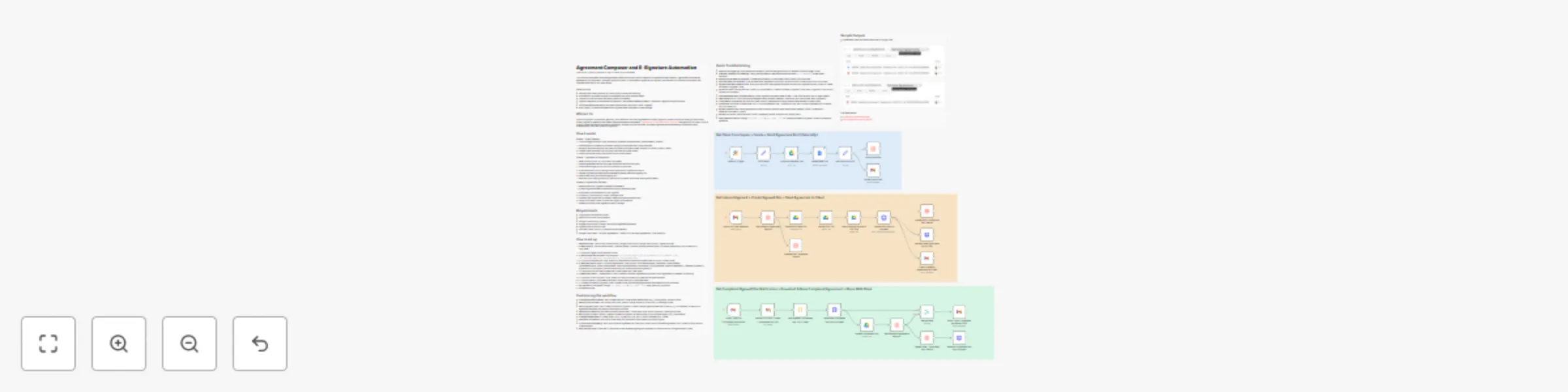
*Client Form → Draft → Approve → Sign → Deliver, fully automated* This workflow automates the entire agreement lifecycle from client form submission to signed document delivery. It generates personalized agreements from templates, manages internal approvals, orchestrates e-signatures via Signwell, and delivers fully executed documents with complete audit trails in n8n Data Tables. ### Good to know - Handles client data collection via JotForm with custom field mapping - Automatically populates Google Doc templates with client-specific details - Internal approval workflow with email-based confirmation - Signwell integration for embedded e-signatures - **test mode enabled by default** - disable for legally binding documents - Complete lifecycle tracking in n8n Data Tables (draft → approval → sent → signed) - Auto-cleanup: removes documents from Signwell after completion to save storage ## Who's it for Service businesses, consultants, agencies, and freelancers who send agreements to clients regularly. Perfect for anyone wanting to avoid other costly e-signature platforms with limited API and automation capabilities. [Signwell has an affordable entry level tier](https://www.signwell.com/pricing/) with generous API limits. If you're looking to eliminate manual document preparation, have an approval workflow, and track signatures while maintaining professional client communication, then this solution is a good fit. ## How it works ### Phase 1: Draft Creation 1. JotForm trigger captures client submission (company name, address, contact details, position) 2. Standardizes form data and duplicates Google Doc template with custom filename 3. Replaces template variables with client information (company name, address, full name, position, dates) 4. Creates clean document URL and logs initial record to Data Tables 5. Emails internal team with draft review link and client details ### Phase 2: Approval & Preparation 1. Gmail monitors inbox for "Approved" reply email 2. Fetches agreement record from Data Tables and marks as approved 3. Downloads Google Doc as PDF and uploads to Drive folder 4. Grants temporary public sharing access (required for Signwell file import) 5. Creates Signwell document with embedded signature fields and signing URL 6. Emails client with personalized signing link 7. Revokes public sharing access for security and updates Data Tables with Signwell details ### Phase 3: Signature & Delivery 1. Gmail monitors for Signwell completion notification 2. Extracts signed document download link from notification email 3. Downloads fully executed PDF from Signwell 4. Uploads to "Final Versions" folder in Google Drive 5. Updates Data Tables with completion status and final document URLs 6. Sends confirmation email to client with signed PDF attached 7. Deletes document from Signwell to free up storage ## Requirements - JotForm account (free tier works) - Gmail account with OAuth2 access - Google Drive account (OAuth2) - Google Docs account (OAuth2) with a draft Agreement template - Signwell account with API key - n8n Data Tables (built-in, no external service needed) - Google Drive folders: "Services Agreements - Drafts" and "Services Agreements - Final Versions" ## How to set up 1. **Add credentials**: JotForm API, Gmail OAuth2, Google Drive OAuth2, Google Docs OAuth2, Signwell API key 2. **Create JotForm**: Build form with fields: Company Name, Company Address (address field), Full Name (name field), Your Position/Job Title, Email 3. In "JotForm Trigger" node: select your form 4. **Create Google Doc template**: Add variables `{{clientCompanyName}}`, `{{clientFullName}}`, `{{clientNamePosition}}`, `{{clientCompanyAddress}}`, `{{agreementDate1}}`, `{{agreementDate2}}` 5. In "Copy and Rename File" node: select your template document and update folder ID to your "Drafts" folder 6. **Create Data Table**: Name it "Services Agreements" with columns: documentFileName, clientEmail, clientFullName, clientNamePosition, clientCompanyName, clientCompanyAddress, documentUrl, approvalStatus, sentDocumentPdfUrl, sentDate, signwellUrl, signwellDocID, docSigned, finalExecutedDocGDrive, finalExecutedDocSignwellUrl 7. In "Insert Row" and all "Get/Update Row" nodes: select your Data Table 8. **Create Gmail labels**: "_AGREEMENTS" with 2 nested (sublabels) Agreement-Approvals" and "Agreement-Completed" for filtering 9. In "Check for Email Approval" node: select your approval label and update internal email address 10. In "Check Email for Completed Notification" node: select your completed label 11. In "Create Document in Signwell" node: update API key and adjust signature field coordinates for your document 12. **Set Signwell to live mode**: Change `"test_mode": true` to `"test_mode": false` when ready for production 13. Activate workflow ## Customizing this workflow - **Change template variables**: Edit "Update New File" node to add/remove fields (e.g., pricing, terms, scope of work) - **Modify approval email**: Edit "Share Email Draft" node to change recipient, subject line, or message format - **Adjust Signwell fields**: Edit "Create Document in Signwell" node to change signature/date field positions (x, y coordinates) to match your agreement template, and add any other fields you'd like - **Add approval deadline**: Add Wait node with timeout after "Share Email Draft" to auto-remind for pending approvals - **Multi-signer support**: Modify "Create Document in Signwell" recipients array to add multiple signers (e.g., both parties) - **Change storage folders**: Update folder IDs in "Upload PDF File" and "Upload Completed Doc" nodes - **Add Slack notifications**: Add Slack nodes after key milestones (draft created, approved, signed) - **Custom client messaging**: Edit "Send Prepared Agreement to Client" and "Send Client Completed Agreement PDF" nodes for personalized communication - **Add reminder logic**: Insert Wait + Send Email nodes between signing and completion to remind client if not signed within X days ## Quick Troubleshooting * **JotForm not triggering**: Verify webhook is active in JotForm settings and form ID matches "JotForm Trigger" node * **Template variables not replacing**: Check variable names in template doc exactly match `{{variableName}}` format (case-sensitive) * **Wrong internal email for approval**: Update email address in "Share Email Draft" node to your own email * **Approval email not detected**: Confirm Gmail label "Agreement-Approvals" exists and reply contains exact word "Approved" * **Signwell document creation fails**: Verify PDF has public sharing enabled before API call AND Signwell API key is valid in "Create Document in Signwell" node * **Signature fields in wrong position**: Adjust x/y coordinates in "Create Document in Signwell" node (test in Signwell UI first to find correct pixel positions) * **Completed document not downloading**: Check Signwell completion email format - Code node extracts link via regex pattern * **Data Tables errors**: Ensure documentFileName exactly matches between "Insert Row" and "Get/Update Row" operations * **Client emails not sending**: Re-authorize Gmail OAuth2 credentials and verify sender name/address in Gmail nodes * **Drive folder not found**: Update folder IDs in "Copy and Rename File", "Upload PDF File", and "Upload Completed Doc" nodes to your own folder IDs * **Signwell deletion fails**: Verify signwellDocID was correctly stored in Data Tables before deletion (check "Update Row - Additional Doc Details" output) * **401/403 API errors**: Re-authorize all OAuth2 credentials (Gmail, Google Drive, Google Docs) * **Test mode documents**: Change `"test_mode": true` to `"test_mode": false` in "Create Document in Signwell" node for production signatures ## Sample Outputs - Agreement Drafts and Final folders/files in Google Drive ![](https://i.postimg.cc/Jz6kpcxG/Screenshot-2025-10-20-115200.png) ![](https://i.postimg.cc/T3D6sTJ6/Screenshot-2025-10-20-115457.png) ### File References - [Agreement Template (sample)](https://docs.google.com/document/d/1Nz2sAkDiIxMylzec7vNqOwjP2RRIeV8VOip4UWh2JD8/edit?usp=sharing) - [Final Agreement Signed (sample)](https://drive.google.com/file/d/1zV4iQ1SDiofNQ9fNXWSABa7-ki0Txhvz/view?usp=sharing)

D
Dean Pike
Document Extraction
20 Oct 2025
206
0
Workflow preview: Fast-track CV screening with AI analysis from Gmail to Slack and Google Sheets
Free advanced

Fast-track CV screening with AI analysis from Gmail to Slack and Google Sheets

*CV → Match → Screen → Decide, all automated* This workflow automatically processes candidate CVs from email, intelligently matches them to job descriptions, performs AI-powered screening analysis, and sends actionable summaries to your team in Slack. ### Good to know - Handles both PDF and Word document CVs automatically - Two-stage JD matching: prioritizes role mentioned in candidate's email, falls back to CV analysis if needed - Uses Google Gemini API for AI screening (generous free tier and rate limits, typically enough to avoid paying for API requests, but check latest pricing at [Google AI Pricing](https://ai.google.dev/pricing)) - All CVs stored in Google Drive with standardized naming (candidate name + date/time) - Complete audit trail logged in Google Sheets ## Who's it for Hiring teams and recruiters who want to automate first-round CV screening while maintaining quality. Perfect for companies receiving high volumes of applications across multiple roles, especially in tech, sales, or automation-focused positions. ## How it works 1. Gmail monitors inbox for CVs with specific label and downloads attachments 2. Detects file type (PDF or Word) and converts/standardizes format for text extraction 3. AI agent matches candidate to best-fit job description by analyzing email context first (if candidate mentioned a role), or CV content as fallback (selects up to 3 potential JD matches) 4. If multiple JDs matched, second AI agent selects the single best fit 5. AI recruiter agent analyzes CV against selected JD and generates structured screening report (strengths, weaknesses, risk/reward factors, overall fit score 0-10 with justification) 6. Extracts candidate details (name, email) from CV text 7. Logs complete analysis to Google Sheets tracker 8. Sends formatted summary to Slack with Proceed/Reject action buttons for instant team decisions ## Requirements - Gmail account with API access - Google Drive account (OAuth2) - Google Sheets account (OAuth2) - Slack workspace with bot permissions - Google Gemini API key ([Get free key here](https://makersuite.google.com/app/apikey)) - Google Drive folders: one for CVs, one for Job Descriptions (as PDFs or Google Docs) ## How to set up 1. Add credentials: Gmail OAuth2, Google Drive OAuth2, Google Sheets OAuth2, Slack OAuth2, Google Gemini API 2. Create Gmail label (e.g., "CV-Screening") for incoming candidate emails 3. In "Receive CV via Email" node: select your Gmail label for filtering 4. Create two Google Drive folders: "Candidate CVs" and "Job Descriptions" 5. In "Upload CV - PDF" and "Stream Doc/Docx File" nodes: update folder ID to your "Candidate CVs" folder 6. In "Access JD Files" node: update folder ID to your "Job Descriptions" folder 7. Create Google Sheet named "AI Candidate Screening" with columns matching the [sample AI Candidate Screening sheet](https://docs.google.com/spreadsheets/d/16HebkHqsM2ZE_IdJzQk1mDE3i2-HwsUqa5gEwXaF-7A/edit?usp=sharing) 8. In "Append row in sheet" node: select your Google Sheet 9. In "Send Candidate Screening Confirmation" node: select your Slack channel 10. Activate workflow ## Customizing this workflow - **Change JD matching logic**: Edit "JD Matching Agent" node prompt to adjust how CVs are matched to roles (e.g., weight technical skills vs. experience). - **Change "Company Description" in AI prompts**: Insert your "Company Description" in System Message sections in "JD Matching Agent" and "Detailed JD Matching Agent" nodes - **Modify screening criteria**: Edit "Recruiter Scoring Agent" node system message to focus on specific qualities (culture fit, leadership, technical depth, etc.) - **Add more storage locations**: Add nodes to save CVs to other systems (Notion, Airtable, ATS platforms) - **Customize Slack message**: Edit "Send Candidate Screening Confirmation" node to change formatting, add more context, or include additional candidate data - **Auto-proceed logic**: Add IF node after screening to auto-proceed candidates with fit score above threshold (e.g., 8+/10) - **Add email responses**: Connect nodes to automatically email candidates (confirmation, rejection, interview invite) - **Add human-in-the-loop**: Sub-workflow triggered by Slack response or email response, to update Sheet with approve/reject status - **Add candidate email responses + interview scheduling**: For approved candidates, trigger email to candidate with Cal.com or Calendly link so they can book their interview ## Quick Troubleshooting * **No CVs being processed**: Check Gmail label is correctly set in "Receive CV via Email" node and emails are being labeled * **Word documents failing**: Verify "Stream Doc/Docx File" node has correct parent folder ID and Google Drive credentials authorized * **JD matching returns no results**: Check "Access JD Files" node folder ID points to your Job Descriptions folder, and JD files are named clearly (e.g., "Marketing Director JD.pdf") * **JD matching is not relevant for my company**: Update the "Company Description" in the System Messages in the "JD Matching Agent" and "Detailed JD Matching Agent" nodes * **"Can't find matching JD"**: Ensure candidate's email mentions role name OR their CV clearly indicates relevant experience for available JDs * **Google Sheets errors**: Verify sheet name is "AI Candidate Screening" and column headers exactly match workflow expectations (Submission ID, Date, CV, First Name, etc.) * **Slack message not appearing**: Re-authorize Slack credentials and confirm channel ID in "Send Candidate Screening Confirmation" node * **Missing candidate name/email**: CV text must be readable - check PDF extraction quality or try converting complex CVs to simpler format * **401/403 API errors**: Re-authorize all OAuth2 credentials (Gmail, Google Drive, Google Sheets, Slack) * **AI analysis quality issues**: Edit system prompts in "JD Matching Agent" and "Recruiter Scoring Agent" nodes to refine screening criteria ## Sample Outputs - [Google Sheets - AI Candidate Screening - sample](https://docs.google.com/spreadsheets/d/16HebkHqsM2ZE_IdJzQk1mDE3i2-HwsUqa5gEwXaF-7A/edit?usp=sharing) ![](https://i.postimg.cc/HkHfhQCW/Screenshot-2025-10-16-145031.png) ![](https://i.postimg.cc/HxhmGjtj/Screenshot-2025-10-16-145423.png) - Slack confirmation message ![](https://i.postimg.cc/mgwGLcgw/Screenshot-2025-10-16-135446.png) ## Acknowledgments This workflow was inspired by [Nate Herk's YouTube demonstration](https://www.youtube.com/watch?v=M0s6O8xtVUE) on building a resume analysis system. This implementation builds upon that foundation by adding dynamic job description matching (initial + detailed JD matching agents), Slack Block Kit integration with interactive buttons, updated Google Drive API methods for document handling, and enhanced candidate data capture in Google Sheets.

D
Dean Pike
HR
16 Oct 2025
567
0
Workflow preview: Convert Fathom meeting transcripts to formatted Google Docs with AI summaries
Free advanced

Convert Fathom meeting transcripts to formatted Google Docs with AI summaries

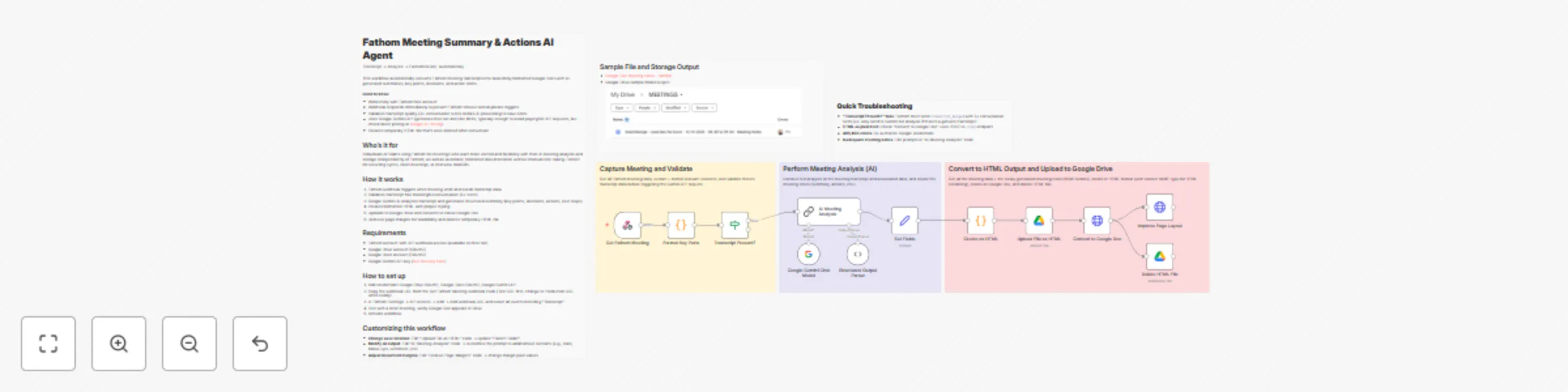
*Transcript → AI Analysis → Formatted Doc* This workflow automatically converts Fathom meeting transcripts into beautifully formatted Google Docs with AI-generated summaries, key points, decisions, and action items. ### Good to know - Works fully with Fathom free account - Webhook responds immediately to prevent Fathom timeout and duplicate triggers - Validates transcript quality (3+ conversation turns) before AI processing to save costs - Uses Google Gemini API (generous free tier and rate limits, typically enough to avoid paying for API requests, but check latest pricing at [Google AI Pricing](https://ai.google.dev/pricing)) - Creates temporary HTML file that's auto-deleted after conversion ## Who's it for Individuals or teams using Fathom for meetings who want more control and flexibility with their AI meeting analysis and storage independently of Fathom, as well as automatic, formatted documentation without manual note-taking. Perfect for recurring syncs, client meetings, or interview debriefs. ## How it works 1. Fathom webhook triggers when meeting ends and sends transcript data 2. Validates transcript has meaningful conversation (3+ turns) 3. Google Gemini AI analyzes transcript and generates structured summary (key points, decisions, actions, next steps) 4. Creates formatted HTML with proper styling 5. Uploads to Google Drive and converts to native Google Doc 6. Reduces page margins for readability and deletes temporary HTML file ## Requirements - Fathom account with API webhook access (available on free tier) - Google Drive account (OAuth2) - Google Docs account (OAuth2) - Google Gemini API key ([Get free key here](https://makersuite.google.com/app/apikey)) ## How to set up 1. Add credentials: Google Drive OAuth2, Google Docs OAuth2, Google Gemini API 2. Copy the webhook URL from the Get Fathom Meeting webhook node (Test URL first, change to Production URL when ready) 3. In Fathom: Settings → API Access → Add → Add webhook URL and select all events including "Transcript" 4. Test with a short meeting, verify Google Doc appears in Drive 5. Activate workflow ## Customizing this workflow - **Change save location**: Edit "Upload File as HTML" node → update "Parent Folder" - **Modify AI output**: Edit "AI Meeting Analysis" node → customize the prompt to add/remove sections (e.g., risks, follow-ups, sentiment, etc) - **Adjust document margins**: Edit "Reduce Page Margins" node → change margin pixel values - **Add notifications**: E.g. add Slack/Email node after "Convert to Google Doc" to notify team when summary is ready ## **Quick Troubleshooting** * **"Transcript Present?" fails**: Fathom must send `transcript_merged` with 3+ conversation turns (i.e. only send to Gemini for analysis if there's a genuine transcript) * **HTML as plain text**: Check "Convert to Google Doc" uses POST to `/copy` endpoint * **401/403 errors**: Re-authorize Google credentials * **Inadequate meeting notes**: Edit prompts in "AI Meeting Analysis" node ## Sample File and Storage Output - [Google Doc meeting notes - sample](https://docs.google.com/document/d/1tCC90dIpgb8NtuOJ_jSTCPn4MxORB-XcvwdeljYzC9w/edit?usp=drive_link) - Google Drive sample folder output: ![](https://i.postimg.cc/MH8Vtny4/Sample-Google-Drive-Output.png)

D
Dean Pike
Document Extraction
13 Oct 2025
780
0