X

xerang

1
Workflow

Workflows by xerang

Workflow preview: Googleform submission to create a Github issue bug report
Free advanced

Googleform submission to create a Github issue bug report

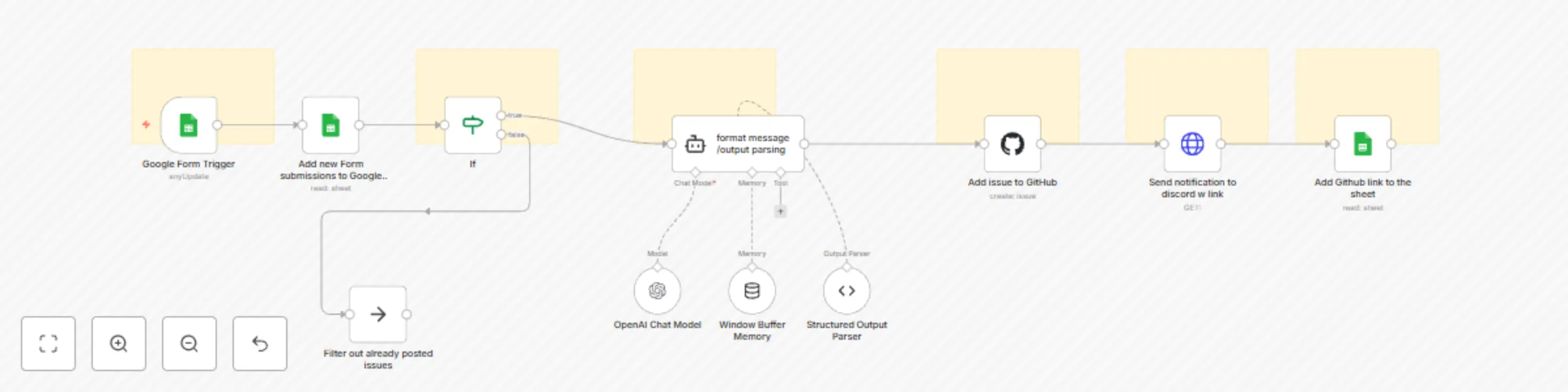
# Automated Workflow for Google Form Submissions, GitHub Issues, and Discord Notifications This workflow streamlines how new Google Form submissions are processed by automatically creating GitHub issues and sending real-time notifications to a Discord channel through a webhook. --- ## Who Is This Template For? - **Developers** looking to centralize bug reporting and issue tracking. - **Project Managers** seeking an efficient way to log tasks and updates. - **QA Teams** that need a fast, automated process for reporting and resolving issues. --- ## Workflow Overview 1. **Google Form Trigger** - The workflow begins with a **Google Sheets Trigger** node that checks for new form submissions every minute. 2. **Add New Form Submissions to Google Sheets** - Each new submission is recorded in a dedicated Google Sheet for easy reference and archiving. 3. **Filter Out Already Posted Issues** - An **If** node checks if the issue is already posted on GitHub by looking for an existing GitHub link in the sheet. 4. **Format Message / Output Parsing** - If the issue is new, an **OpenAI Chat Model** node generates a structured output, including a title, description, and suggested fix. 5. **Add Issue to GitHub** - The structured output is used to create a new issue in the specified GitHub repository. 6. **Send Notification to Discord** - A Discord webhook is triggered to send a notification to your chosen channel, including a link to the newly created GitHub issue. 7. **Add GitHub Link to the Sheet** - The GitHub issue link is added back to the Google Sheet for easy cross-referencing. --- ## Setup Steps ### 1. Google Sheets Setup - **Create/Designate a Google Sheet:** Ensure it’s set to receive form submissions. - **Configure the Trigger Node:** Provide the correct document ID and sheet name in the Google Sheets Trigger node. ### 2. OpenAI Configuration - **API Credentials:** Set up the OpenAI Chat Model node with valid OpenAI API credentials. - **Prompt Definition:** Create a prompt that formats the form submission data into a structured output (e.g., title, description, suggested fix). ### 3. GitHub Configuration - **OAuth Credentials:** Configure the GitHub node with your GitHub OAuth credentials. - **Target Repository:** Specify the repository where new issues should be created. ### 4. Discord Webhook - **Webhook URL:** Obtain a webhook URL from your Discord server. - **Notification Setup:** Use the HTTP Request node to send notifications to your chosen Discord channel. ### 5. Google Sheets Update - **Document & Sheet Name:** Provide the same Google Sheet details used in the first step. - **Add GitHub Link:** Update the corresponding row with the newly created GitHub issue link. --- ## Recommended Google Sheet Columns - **Timestamp**: Automatically recorded when the form is submitted. - **Issue Title**: Generated by the OpenAI Chat Model. - **Issue Description**: Detailed breakdown of the issue. - **GitHub Link**: Automatically populated once the issue is created. - **Discord Notification Status** (optional): Indicates whether the notification was sent successfully. --- ## Additional Notes - **Duplicate Prevention**: The conditional logic ensures existing issues aren’t recreated on GitHub. - **AI-Powered Formatting**: OpenAI helps structure the issue details, providing clarity for developers. - **Real-Time Alerts**: Discord notifications keep your entire team updated on new issues as they arise.

x
xerang
Project Management
19 Feb 2025
540
0