Chris Jadama
Workflows by Chris Jadama
Voice-to-Ideas: Transcribe Telegram Voice Notes with OpenAI Whisper to Google Sheets
## Voice-to-Ideas: Auto-Transcribe Telegram Voice Notes to Google Sheets ### Who it's for Creators, entrepreneurs, writers, and anyone who wants to capture ideas quickly without typing. This workflow is ideal for storing thoughts, content ideas, brainstorms, reminders, or voice memos on the go. ### What it does This workflow listens for Telegram voice messages, sends the audio to OpenAI Whisper for transcription, and saves the raw text directly into a Google Sheet. No formatting or additional processing is applied. The exact transcription from the audio is stored as-is. ### How it works 1. A Telegram Trigger detects when you send a voice message to your bot. 2. The Telegram node downloads the audio file. 3. OpenAI Whisper transcribes the voice note into text. 4. The raw transcription is appended to Google Sheets along with the current date. ### Requirements - Telegram bot token (created via BotFather) - OpenAI API key with Whisper transcription enabled - Google Sheets credentials connected in n8n - A Google Sheet with **two columns**: - **Notes** (stores the transcription text) - **Date** (timestamp of the voice note) ### Setup steps 1. Create a Telegram bot with BotFather and connect Telegram credentials in n8n. 2. Add your OpenAI API key to the OpenAI node. 3. Connect Google Sheets credentials in n8n. 4. Create a Google Sheet with two columns: **Notes** and **Date**. 5. Send a voice message to your Telegram bot to test the workflow.
Generate YouTube chapter timestamps with GPT and SupaData transcripts
## YouTube Chapter Auto-Description with AI This n8n template automatically adds structured timestamp chapters to your latest YouTube video’s **description** using your RSS feed, SupaData for transcript extraction, and an AI tool for chapter generation. Ideal for creators who want every video to include chapter markers without doing it manually. --- ### Good to Know - SupaData extracts full transcripts from YouTube videos via URL. - The AI chapter generator converts long transcripts into formatted timestamps with short titles. - This workflow edits the existing **video description** and appends the chapters to the bottom. --- ### How It Works 1. The **RSS Feed Trigger** detects new uploads from your YouTube channel. 2. The workflow checks Airtable to prevent duplicate processing. 3. Transcript is fetched using **SupaData API**. 4. The total video duration is extracted from the transcript. 5. AI is prompted to generate well-formatted chapter timestamps. 6. The existing description is fetched from YouTube. 7. The chapters are appended and pushed back via the YouTube API. --- ### How to Use - Start with the **Manual Trigger** to test the setup. - Replace it with the **RSS Trigger** once you're ready for automation. - Chapters are added only if the video hasn't been processed before. --- ### Requirements - **YouTube OAuth2** credentials in n8n - **SupaData API Key** - **Airtable account** (for optional deduplication logic) --- ### Customizing This Workflow - Change the chapter format, or instruct the AI to use emojis, bold titles, or include sections like "sponsor" or "Q&A". - Replace the RSS Trigger with a webhook if using a different publishing process.
Auto-track YouTube stats & channel data in Notion database
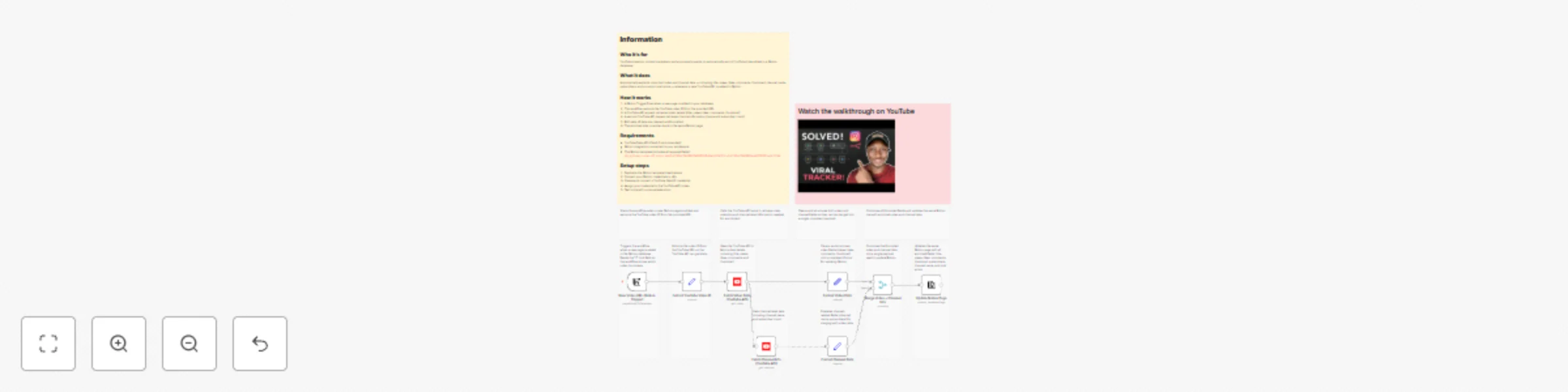
## **Who it's for** YouTube creators, content marketers, and anyone who wants to automatically enrich YouTube links added to a Notion database. ## **What it does** Automatically extracts important video and channel data — including title, views, likes, comments, thumbnail, channel name, subscribers, and a custom viral score — whenever a new YouTube URL is added to Notion. ## **How it works** 1. A Notion Trigger fires when a new page is added to your database. 2. The workflow extracts the YouTube video ID from the provided URL. 3. A YouTube API request retrieves video details (title, views, likes, comments, thumbnail). 4. A second YouTube API request retrieves channel information (name and subscriber count). 5. Both sets of data are cleaned and formatted. 6. The enriched data is written back to the same Notion page. ## **Requirements** - YouTube Data API (OAuth2 recommended) - Notion integration connected to your workspace - This Notion template (includes all required fields): https://lunar-curler-d17.notion.site/2a71d9a77486807a9006d048aa512d16?v=2a71d9a7748680eda620000ca9c112a4 ## **Setup steps** 1. Duplicate the Notion template linked above. 2. Connect your Notion credentials in n8n. 3. Create and connect a YouTube OAuth2 credential. 4. Assign your credential to the YouTube API nodes. 5. Test once with a manual execution.