A

Amit Mehta

12
Workflows

Workflows by Amit Mehta

Workflow preview: Automate paid Zoom meetings with Stripe, Gmail & Google Sheets tracking
Free advanced

Automate paid Zoom meetings with Stripe, Gmail & Google Sheets tracking

### **Streamline Your Zoom Meetings with Secure, Automated Stripe Payments** This comprehensive workflow automates the entire process of setting up a paid online event, from scheduling a Zoom meeting and creating a Stripe payment link to tracking participants and sending confirmation emails. #### **How it Works** This workflow has two primary, distinct branches: Event Creation and Participant Registration. **Event Creation Flow (Triggered via Form):** - An administrator submits details (title, price, date/time) via a form. - The workflow creates a new Zoom meeting with a unique password. - It creates a Stripe Product and a Payment Link. - A dedicated Google Sheet tab is created for tracking participants. - An email is sent to the event organizer with all the details, including the Zoom link, payment link, and participant list URL. **Participant Registration Flow (Triggered via Stripe Webhook):** - A webhook is triggered when a Stripe payment is completed (checkout.session.completed). - The participant's details are added to the dedicated Google Sheet tab. - A confirmation email is sent to the participant with the Zoom link and password. - A notification email is sent to the event organizer about the new registration. #### **Use Cases** - **Webinar Sales**: Automate setup and registration for paid webinars. - **Consulting/Coaching Sessions**: Streamline the booking and payment process for group coaching calls. - **Online Classes**: Handle registration, payment, and access distribution for online courses or classes. #### **Setup Instructions** 1. **Credentials**: Add credentials for: - **Zoom**: For creating the meeting. - **Google**: You need both Gmail and Google Sheets credentials. - **Stripe**: For creating products and handling payment webhooks. 2. **Google Sheet**: Create a new, blank Google Sheet to hold meeting and participant information. 3. **Config Node**: Fill the Config node with: - currency (e.g., EUR). - sheet_url (the URL of the Google Sheet you created). - teacher_email (the organizer/host's email). #### **Workflow Logic** The workflow splits into two logical parts handled by an if node: **Part A: Event Creation (Triggered by Creation Form)** 1. **Trigger**: Creation Form (Form Trigger). 2. **Check**: if is creation flow (If) evaluates to true. 3. **Zoom**: Create Zoom meeting creates the session. 4. **Stripe Product**: Create Stripe Product creates a product and price in Stripe. 5. **Stripe Link**: Create payment link generates the public payment link, embedding Zoom and sheet metadata. 6. **Google Sheet**: Create participant list creates a new sheet tab for the event. 7. **Email Host**: Send email to teacher notifies the host of the successful setup. **Part B: Participant Registration (Triggered by On payment)** 1. **Trigger**: On payment (Stripe Trigger - checkout.session.completed). 2. **Format**: Format participant extracts customer details. 3. **Google Sheet**: Add participant to list appends the new participant's info to the event's sheet. 4. **Email Participant**: Send confirmation to participant sends the Zoom access details. 5. **Email Host**: Notify teacher sends a registration alert. #### **Node Descriptions** | Node Name | Description | |-----------|-------------| | **Creation Form** | A form trigger used to input the event's required details (title, price, start date/time). | | **On payment** | A Stripe trigger that listens for the checkout.session.completed event, indicating a successful payment. | | **Create Zoom meeting** | Creates a new Zoom meeting, calculating the start time based on the form inputs. | | **Create Stripe Product** | Posts to the Stripe API to create a new product and price based on the form data. | | **Create payment link** | Creates a Stripe Payment Link, embedding Zoom meeting and Google Sheet ID metadata. | | **Create participant list** | Creates a new tab (named dynamically) in the configured Google Sheet for event tracking. | | **Add participant to list** | Appends a new row to the event's Google Sheet tab upon payment completion. | | **Send email to teacher / Notify teacher** | Sends emails to the host/organizer for creation confirmation and new participant registration, respectively. | | **Send confirmation to participant** | Sends the welcome email to the paying customer with the Zoom access details retrieved from the Stripe metadata. | #### **Customization Tips** - **Email Content**: You are encouraged to adapt the email contents in the Gmail nodes to fit your branding and tone. - **Currency**: Change the currency in the Config node. - **Zoom Password**: The password is set to a random 4-character string; you can modify the logic in the Create Zoom meeting node. - **Stripe Price**: The price is sent to Stripe in the smallest currency unit (e.g., cents, * 100). #### **Suggested Sticky Notes for Workflow** - **Setup**: "Add Your credentials [Zoom, Google, Stripe]. Note: For Google, you need to add Gmail and Google Sheet. Create a new Google Sheet. Keep this sheet blank for now. And fill the config node." - **Creation Form**: "Your journey to easy event management starts here. Click this node, copy the production URL, and keep it handy. It's your personal admin tool for quickly creating new meetings." - **Customize**: "Feel free to adapt email contents to your needs." - **Config**: "Setup your flow". #### **Required Files** - 2DT5BW5tOdy87AUl_Streamline_Your_Zoom_Meetings_with_Secure,_Automated_Stripe_Payments.json: The n8n workflow export file. - A new, blank Google Sheet (URL configured in the Config node). #### **Testing Tips** - **Test Creation**: Run the Creation Form to trigger the Part A flow. Verify that a Zoom meeting and Stripe Payment Link are created, a new Google Sheet tab appears, and the host receives the setup email. - **Test Registration**: Simulate a successful payment to the generated Stripe link to trigger the Part B flow. Verify that the participant is added to the Google Sheet, receives the confirmation email with Zoom details, and the host receives the notification. #### **Suggested Tags & Categories** - #Stripe - #Zoom - #Payment - #E-commerce - #GoogleSheets - #Gmail - #Automation - #Webinar

A
Amit Mehta
CRM
30 Sep 2025
127
0
Workflow preview: AI-powered multi-platform social media content factory with dynamic system prompts & GPT-4o
Free advanced

AI-powered multi-platform social media content factory with dynamic system prompts & GPT-4o

### Automated Social Media Content Publishing Factory + System Prompt Composition This workflow is a powerful automation for creating and publishing social media content. It uses AI to generate content and images based on external prompts and schemas, and routes the final posts to various social media platforms. #### **How it Works** This workflow operates as a "Content Publishing Factory". It generates platform-optimized content for platforms like LinkedIn, Instagram, Facebook, X (Twitter), Threads, and YouTube Shorts. A key feature is its dynamic system prompt and output schema composition, which pulls content from external Google Docs to ensure consistency. The workflow can also create images to match the content and send the final draft for approval via email before publishing. #### **Use Cases** - **Centralized Content Management**: Store and manage all system prompts and schemas in Google Docs for easy team collaboration and version control. - **Brand Consistency**: Ensure a consistent brand voice across all social media platforms by centralizing brand guidelines and content rules. - **Automated Publishing**: Automate content creation, image generation, and publishing, reducing manual effort and design bottlenecks. - **Fact-checking and Contextual Relevance**: Incorporate real-time research and fact-checking into content to ensure accuracy and relevance. #### **Setup Instructions** 1. **Google Docs**: Create two Google Docs: one for the social media schema and one for the system prompt, and update the respective node IDs in the workflow. 2. **API Credentials**: Provide credentials for the following services: - **OpenAI**: For the AI agents and content creation. - **SerpAPI**: For the web search tool to perform research. - **Gmail**: For sending content for approval and notifications. - **Google Drive**: For archiving images and final posts. - **Social Media Platforms**: You'll need credentials for the platforms you wish to publish to (X, Instagram, Facebook, LinkedIn, etc.). - **Image Hosting**: The workflow uses imgbb.com to host generated images, requiring an API key. #### **Workflow Logic** 1. **Routing Agent**: The Social Media Router Agent receives a user prompt and uses a toolWorkflow node to route the request to the appropriate content generation workflow. 2. **Prompt & Schema Composition**: The workflow fetches the system prompt and platform-specific schemas from Google Docs, parses them, and composes a dynamic prompt for the AI agent. 3. **Content Creation**: The Social Media Content Creator agent uses the composed prompt and a web search tool to generate platform-optimized content and an image suggestion. 4. **Image Generation & Archiving**: The workflow generates an image from the AI suggestion using an external service and archives both the image and the final post content in Google Drive. 5. **Approval Process**: The draft content is sent to a Gmail address for approval. 6. **Publishing**: If the content is approved, the Social Media Publishing Router node directs the content to the correct publishing node for the specified platform (e.g., X Post, Instagram Image, Facebook Post, etc.). #### **Node Descriptions** | Node Name | Description | |-----------|-------------| | **When chat message received** | A trigger node that initiates the workflow based on a chat message. | | **Social Media System Prompt** | A Google Docs node that retrieves the main system prompt for the AI agent. | | **Social Media Schema** | A Google Docs node that retrieves the JSON schema for each social media platform's output. | | **Social Media Content Creator** | An AI agent that generates content based on user prompts, system prompts, and schemas, using a web search tool for research. | | **pollinations.ai1** | An HTTP Request node that generates an image from a text prompt using an external service. | | **Gmail User for Approval** | Sends a draft of the social media post for approval and pauses the workflow until a decision is made. | | **Social Media Publishing Router** | A Switch node that routes the workflow to the correct publishing node based on the user's selected platform. | | **X Post, Instagram Post, Facebook Post, LinkedIn Post** | These nodes publish the final, approved content to their respective social media platforms. | #### **Customization Tips** - You can replace the pollinations.ai image generation service with any other online service that produces an image file. - Replace the gpt-4o and gpt-4o-mini models with other LLMs and web search tools to suit your needs. - Adjust the content and parameters for each social media platform to better fit your brand and audience. #### **Suggested Sticky Notes for Workflow** - ** Start Here**: "Update all Social Media Platform Credentials as required. Adjust parameters and content for each platform to suit your needs". - **External System Prompt and Schema**: "Create Google Doc for the Social Media Schema and copy the provided schema. Update the Google Doc ID in the Social Media Schema node.". - **Create Post Image**: "Replace pollinations.ai with any online image generation service that produces an image file you can download". - **Social Media Content Creator**: "Replace Chat model with other LLMs and test out the results. Add more tools or try other web search tools to suit your use case." #### **Testing Tips** - Start the workflow with a manual trigger and verify that the social media content and a related image are generated and sent for approval via Gmail. - Approve the content in the Gmail email to test the publishing side of the workflow. - Check the specified social media accounts to confirm that the post was published correctly. #### **Suggested Tags & Categories** - SocialMedia - Automation - AI - ContentCreation - Publishing - GoogleDocs - OpenAI

A
Amit Mehta
Social Media
23 Sep 2025
1316
0
Workflow preview: Auto-generate SEO product titles & descriptions with GPT-4o-mini for Printify
Free advanced

Auto-generate SEO product titles & descriptions with GPT-4o-mini for Printify

### **N8N Workflow: Printify Automation - Update Title and Description - AlexK1919** This workflow automates the process of getting products from Printify, generating new titles and descriptions using OpenAI, and updating those products. #### **How it Works** This workflow automatically retrieves a list of products from a Printify store, processes them to generate new titles and descriptions based on brand guidelines and custom instructions, and then updates the products on Printify with the new information. It also interacts with Google Sheets to track the status of the products being processed. The workflow can be triggered both manually or by an update in a Google Sheet. #### **Use Cases** - **E-commerce Automation**: Automating content updates for a Printify store. - **Marketing & SEO**: Generating SEO-friendly or seasonal content for products using AI. - **Product Management**: Batch-updating product titles and descriptions without manual effort. #### **Setup Instructions** 1. **Printify API Credentials**: Set up httpHeaderAuth credentials for Printify to allow the workflow to get and update products. 2. **OpenAI API Credentials**: Provide an API key for OpenAI in the openAiApi credentials. 3. **Google Sheets Credentials**: The workflow requires two separate Google Sheets credentials: one for the trigger (googleSheetsTriggerOAuth2Api) and another for appending/updating data (googleSheetsOAuth2Api). 4. **Google Sheets Setup**: You need a Google Sheet to store product information and track the status of the updates. The workflow is linked to a specific spreadsheet. 5. **Brand Guidelines**: The **Brand Guidelines + Custom Instructions** node must be updated with your specific brand details and any custom instructions for the AI. #### **Workflow Logic** 1. **Trigger**: The workflow can be triggered manually or by an update in a Google Sheet when the upload column is changed to "yes". 2. **Get Product Info**: It fetches the shop ID and then a list of all products from Printify. 3. **Process Products**: The product data is split, and the workflow loops through each product. 4. **AI Content Generation**: For each product, the **Generate Title and Desc** node uses OpenAI to create a new title and description based on the original content, brand guidelines, and custom instructions. 5. **Google Sheets Update**: The workflow appends the product information and a "Product Processing" status to a Google Sheet. It then updates the row with the newly generated title and description, and changes the status to "Option added". 6. **Printify Update**: The **Printify - Update Product** node sends a PUT request to the Printify API to apply the new title and description to the product. #### **Node Descriptions** | Node Name | Description | |-----------|-------------| | **When clicking 'Test workflow'** | A manual trigger for testing the workflow. | | **Google Sheets Trigger** | An automated trigger that starts the workflow when the upload column in the Google Sheet is updated. | | **Printify - Get Shops** | Fetches the list of shops associated with the Printify account. | | **Printify - Get Products** | Retrieves all products from the specified Printify shop. | | **Brand Guidelines + Custom Instructions** | A Set node to store brand guidelines and custom instructions for the AI. | | **Generate Title and Desc** | An OpenAI node that generates a new title and description based on the provided inputs. | | **GS - Add Product Option** | Appends a new row to a Google Sheet to track the processing status of a product. | | **Update Product Option** | Updates an existing row in the Google Sheet with the new product information and status. | | **Printify - Update Product** | A PUT request to the Printify API to update a product with new information. | #### **Customization Tips** - You can swap out the Printify API calls with similar services like Printful or Vistaprint. - Modify the Brand Guidelines + Custom Instructions node to change the brand name, tone, or specific instructions for the AI. - Change the number of options the workflow should generate by modifying the Number of Options node. - You can change the OpenAI model used in the **Generate Title and Desc** node, for example, from gpt-4o-mini to another model. #### **Suggested Sticky Notes for Workflow** - "Update your Brand Guidelines before running this workflow. You can also add custom instructions for the AI node." - "You can swap out the API calls to similar services like Printful, Vistaprint, etc." - "Set the Number of Options you'd like for the Title and Description" #### **Required Files** - 1V1gcK6vyczRqdZC_Printify_Automation_-_Update_Title_and_Description_-_AlexK1919.json: The main n8n workflow export for this automation. - The Google Sheets template for this workflow. #### **Testing Tips** - Run the workflow with the manual trigger to see the flow from start to finish. - Change the upload column in the Google Sheet to "yes" to test the automated trigger. - Verify that the new titles and descriptions are correctly updated on Printify. #### **Suggested Tags & Categories** - Printify - OpenAI

A
Amit Mehta
Content Creation
23 Sep 2025
481
0
Workflow preview: Extract and analyze web data with Bright Data & Google Gemini
Free advanced

Extract and analyze web data with Bright Data & Google Gemini

This workflow performs structured data extraction and data mining from a web page by combining the capabilities of Bright Data and Google Gemini. #### **How it Works** This workflow focuses on extracting structured data from a web page using Bright Data's Web Unlocker Product. It then uses n8n's AI capabilities, specifically Google Gemini Flash Exp, for information extraction and custom sentiment analysis. The results are sent to webhooks and saved as local files. #### **Use Cases** - **Data Mining**: Automating the process of extracting and analyzing data from websites. - **Web Scraping**: Gathering structured data for market research, competitive analysis, or content aggregation. - **Sentiment Analysis**: Performing custom sentiment analysis on unstructured text. #### **Setup Instructions** 1. **Bright Data Credentials**: You need to have an account and a Web Unlocker zone with Bright Data. Update the Header Auth account credentials in the **Perform Bright Data Web Request** node. 2. **Google Gemini Credentials**: Provide your Google Gemini(PaLM) Api account credentials for the AI-related nodes. 3. **Configure URL and Zone**: In the **Set URL and Bright Data Zone** node, set the web URL you want to scrape and your Bright Data zone. 4. **Update Webhook**: Update the Webhook Notification URL in the relevant HTTP Request nodes. #### **Workflow Logic** 1. **Trigger**: The workflow is triggered manually. 2. **Set Parameters**: It sets the target URL and the Bright Data zone. 3. **Web Request**: The workflow performs a web request to the specified URL using Bright Data's Web Unlocker. The output is formatted as markdown. 4. **Data Extraction & Analysis**: The markdown content is then processed by multiple AI nodes to: - Extract textual data from the markdown. - Perform topic analysis with a structured response. - Analyze trends by location and category with a structured response. 5. **Output**: The extracted data and analysis are sent to webhooks and saved as JSON files on disk. #### **Node Descriptions** | Node Name | Description | |-----------|-------------| | **When clicking 'Test workflow'** | A manual trigger node to start the workflow. | | **Set URL and Bright Data Zone** | A Set node to define the URL to be scraped and the Bright Data zone to be used. | | **Perform Bright Data Web Request** | An httpRequest node that performs the web request to Bright Data's API to retrieve the content. | | **Markdown to Textual Data Extractor** | An AI node that uses Google Gemini to convert markdown content into plain text. | | **Google Gemini Chat Model** | A node representing the Google Gemini model used for the data extraction. | | **Topic Extractor with the structured response** | An AI node that performs topic analysis and outputs the results in a structured JSON format. | | **Trends by location and category with the structured response** | An AI node that analyzes and clusters emerging trends by location and category, outputting a structured JSON. | | **Initiate a Webhook Notification...** | These nodes send the output of the AI analysis to a webhook. | | **Create a binary file...** | Function nodes that convert the JSON output into binary format for writing to a file. | | **Write the topics/trends file to disk** | readWriteFile nodes that save the binary data to a local file (d:\topics.json and d:\trends.json). | #### **Customization Tips** - Change the web URL in the **Set URL and Bright Data Zone** node to scrape different websites. - Modify the AI prompts in the AI nodes to customize the analysis (e.g., change the sentiment analysis criteria). - Adjust the output path in the readWriteFile nodes to save the files to a different location. #### **Suggested Sticky Notes for Workflow** - **Note**: "This workflow deals with the structured data extraction by utilizing Bright Data Web Unlocker Product... Please make sure to set the web URL of your interest within the 'Set URL and Bright Data Zone' node and update the Webhook Notification URL". - **LLM Usages**: "Google Gemini Flash Exp model is being used... Information Extraction is being used for the handling the custom sentiment analysis with the structured response". #### **Required Files** - 1GOrjyc9mtZCMvCr_Structured_Data_Extract,_Data_Mining_with_Bright_Data_&_Google_Gemini.json: The main n8n workflow export for this automation. #### **Testing Tips** - Run the workflow and check the webhook to verify that the extracted data is being sent correctly. - Confirm that the d:\topics.json and d:\trends.json files are created on your disk with the expected structured data. #### **Suggested Tags & Categories** - Engineering - AI

A
Amit Mehta
Engineering
18 Sep 2025
223
0
Workflow preview: Two-factor authentication with ClickSend voice calls and email verification
Free advanced

Two-factor authentication with ClickSend voice calls and email verification

### **N8N Workflow: Send and Check TTS (Text-to-speech) Voice Calls with Email Verification** This workflow automates a two-factor verification process using a voice call and an email. It is designed to send a text-to-speech (TTS) voice call with a verification code and, upon successful voice verification, to send an email with a second verification code. #### **How it Works** This workflow automates the process of sending voice calls for verification and combines it with email verification. It uses the ClickSend API for the voice call and an SMTP integration for sending the email. #### **Use Cases** - Two-factor authentication (2FA) for user registration or login. - Automated verification for phone numbers and email addresses. - Building a custom verification system for web applications. #### **Setup Instructions** 1. **ClickSend API**: Register on ClickSend and obtain your API Key. In the **Send Voice** node, create a Basic Auth credential using your ClickSend username and API Key as the password. 2. **SMTP Credentials**: In the **Send Email** node, you must set up your SMTP credentials for the sender's email. #### **Workflow Logic** 1. **Trigger**: The workflow is started by submitting a form. 2. **Set Voice Code**: The workflow sets a predefined voice verification code. 3. **Send Voice Call**: A voice call is made to the provided phone number using the ClickSend API, where a synthesized voice reads the code. 4. **Verify Voice Code**: A form appears to prompt the user to enter the voice code they received. 5. **Conditional Check**: An If node checks if the entered voice code is correct. 6. **Set Email Code & Send Email**: If the voice code is correct, a second code is set, and an email is sent to the user with that code. 7. **Verify Email Code**: The user is then prompted to enter the code from the email. 8. **Final Check**: A final If node verifies the email code. The workflow either leads to a Success message or a Fail email code message. #### **Node Descriptions** | Node Name | Description | |-----------|-------------| | **On form submission** | This trigger node presents a form to the user to collect their phone number, desired voice, language, email, and name. | | **Set voice code** | A Set node that defines the verification code for the voice call. | | **Code for voice** | A Code node that adds spaces between the digits of the voice code to make it sound clearer during the call. | | **Send Voice** | This httpRequest node sends a POST request to the ClickSend API to initiate the TTS voice call. | | **Verify voice code** | A form node that prompts the user to enter the code they received via the voice call. | | **Is voice code correct?** | An If node that checks if the code entered by the user matches the predefined voice code. | | **Set email code** | A Set node that defines the verification code for the email. | | **Send Email** | This node uses an SMTP credential to send an email to the user with their verification code. | | **Verify email code** | A form node that prompts the user to enter the code they received via email. | | **Is email code correct?** | An If node that checks if the code entered by the user matches the predefined email code. | | **Success** | A form node that displays a success message upon completion of both verifications. | | **Fail voice code** | A form node that displays a failure message if the voice code is incorrect. | | **Fail email code** | A form node that displays a failure message if the email code is incorrect. | #### **Customization Tips** - You can change the verification codes by modifying the values in the **Set voice code** and **Set email code** nodes. - The form can be customized to change the fields, labels, and dropdown options for voice and language. - The email content and subject can be customized in the **Send Email** node. #### **Suggested Sticky Notes for Workflow** - **STEP 1**: "Register here to ClickSend and obtain your API Key... In the node 'Send Voice' create a 'Basic Auth' with the username you registered and the API Key provided as your password". - **STEP 2**: "Set the verification code for this explanatory flow... In the node 'Send Email' set the sender". - **STEP 3**: "Submit the form and you will receive a call to the phone number you entered where the selected voice will tell you the content of the text you wrote". - **Set voice code**: "Set the code that will be spoken in the verification phone call". - **Set email code**: "Set the code that will be sent in the verification email". #### **Required Files** - 1g8EAij2RwhNN70t_xSend_and_check_TTS_(Text-to-speech)_voice_calls_end_email_verification.json: The n8n workflow export file for this automation. #### **Testing Tips** - Run the workflow and submit the form with your phone number and email. - Check your phone for the voice call and listen for the code. - Enter the correct voice code in the next form and submit. - Check your email for the second verification code. - Enter the correct email code to test the success path, or an incorrect one to test the failure path. #### **Suggested Tags & Categories** - #Verification - #Voice - #Email - #API - #Authentication

A
Amit Mehta
Support Chatbot
18 Sep 2025
78
0
Workflow preview: Automate newsletter creation & client delivery with GPT-4O, Google Sheets
Free advanced

Automate newsletter creation & client delivery with GPT-4O, Google Sheets

## How it Works This workflow automates the complete **newsletter management process** from content creation to client delivery, using **Google Sheets**, **AI content generation**, **Google Drive**, and **Gmail**. Whether you're a content creator, marketing agency, or small business owner, this workflow helps you **automate newsletter creation** and **manage client communications** with built-in approval workflows — all triggered from a simple spreadsheet. ## 🎯 Use Case Ideal for: - **Marketing Teams** streamlining newsletter distribution - **Agencies** managing multiple client newsletters - **Content Creators** automating regular communications - **Small Businesses** maintaining customer engagement ## Setup Instructions ### 1. Upload the Spreadsheet - File name: `Newsletter_Management` - Sheet structure: | ID | Topic | Client Name | Client Email | Status | Created Date | Send Date | - Add newsletter topics and set their `Status` as `Pending` ### 2. Configure Google Sheets Nodes Connect your **Google account** to: - `Get topic from newsletter sheet` - `Pick records to send email to client` - `Get Client email address` - `Update Status as Generated` - `Update status as Sent` ### 3. Add API Credentials - **OpenAI API Key** → for AI content generation - **Google Drive Access** → for document storage - **Gmail Account** → for sending newsletters and notifications ### 4. Activate the Workflow Once live, the workflow will: 1. **Manual Path**: Generate newsletter content from pending topics 2. **Scheduled Path**: Send approved newsletters to clients automatically 3. Track status updates throughout the entire process 4. Store generated content in Google Drive 5. Send admin notifications and client emails ## 🔁 Workflow Logic ### Main Workflow (Content Generation) 1. **Trigger**: Manual activation for newsletter creation 2. **Retrieve**: Pending topics from Google Sheets 3. **Validate**: Status confirmation (Pending only) 4. **Generate**: AI-powered HTML newsletter content 5. **Store**: Upload to Google Drive 6. **Notify**: Send completion email to admin 7. **Update**: Mark status as "Generated" ### Scheduled Workflow (Client Distribution) 1. **Trigger**: Schedule-based activation 2. **Retrieve**: Approved newsletters from Google Sheets 3. **Validate**: Status confirmation (Approved only) 4. **Lookup**: Client email addresses 5. **Loop**: Process multiple recipients 6. **Send**: Personalized newsletters via Gmail 7. **Update**: Mark status as "Sent" ## 🧩 Node Descriptions | Node Name | Description | |-----------|-------------| | When clicking 'Test workflow' | Manual trigger to start newsletter generation | | Get topic from newsletter sheet | Retrieves pending newsletter topics from Google Sheets | | Validate Status as Pending | Checks whether status is 'Pending' for processing | | Create HTML for Newsletter | AI-powered content generation using OpenAI | | Prepare Data to create word doc | Formats generated content for document creation | | Upload doc to google drive | Stores completed newsletters in Google Drive | | Send an email to admin | Notifies administrators of completion | | Update Status as Generated | Marks processed items as 'Generated' | | Schedule Trigger | Automated trigger for client email distribution | | Pick records to send email to client | Retrieves approved newsletters for sending | | Validate Status as Approved | Ensures only approved content is processed | | Get Client email address | Fetches client contact information | | Loop Over Items | Processes multiple newsletter recipients | | Send email to client | Delivers personalized newsletters via Gmail | | Update status as Sent | Marks newsletters as successfully delivered | ## 🛠️ Customization Tips - Modify AI prompts for different content styles and tones - Add Slack notifications instead of or alongside Gmail - Export to different formats (PDF, Word, etc.) - Schedule multiple sending times for different client segments - Add approval workflows with webhook triggers - Integrate with CRM systems for client management ## 📒 Suggested Sticky Notes for Workflow | Node/Section | Sticky Note Content | |--------------|---------------------| | Manual Trigger | "Click to start newsletter generation process" | | AI Content Generation | "Customize prompts here for different newsletter styles" | | Google Drive Upload | "Organized storage - change folder structure as needed" | | Gmail Admin Notification | "Update admin email addresses and notification templates" | | Schedule Trigger | "Set optimal sending times for your audience" | | Client Email Loop | "Handles bulk sending - monitors for delivery errors" | | Status Updates | "Maintains audit trail - prevents duplicate processing" | ## 📎 Required Files | File Name | Purpose | |-----------|---------| | Newsletter_Management.xlsx | Google Sheet to manage topics, clients, and status tracking | | Client_Database.xlsx | Client contact information and preferences | | Newsletter_Workflow.json | Main n8n workflow export for this automation | ## 🧪 Testing Tips - Add one test topic with status = `Pending` and run manual trigger - Verify AI content generation produces quality HTML - Check Google Drive upload and folder organization - Test admin email delivery and formatting - Add test client with valid email for scheduled workflow - Monitor workflow logs for API responses and errors - Confirm status updates occur at each step ## 🏷 Suggested Tags & Categories - #Newsletter - #EmailMarketing - #ContentGeneration - #ClientCommunication - #Automation - #GoogleWorkspace - #AIContent - #MarketingAutomation - #WorkflowManagement - #BusinessProcess ## 🔧 Prerequisites - Google Workspace account (Sheets, Drive, Gmail) - OpenAI API account with GPT-4 access - n8n instance (Cloud or self-hosted) - Basic understanding of Google Sheets and email marketing ## 📊 Expected Performance - **Setup Time**: 30-45 minutes - **Monthly Executions**: 100-500 (varies by newsletter frequency) - **Processing Time**: 2-5 minutes per newsletter - **Scalability**: Handles 100+ clients efficiently ## 🚨 Important Notes - Ensure proper Google API permissions are configured - Monitor OpenAI API usage and rate limits - Set up error handling for failed email deliveries - Regularly backup your Google Sheets data - Test thoroughly before production deployment ## 💡 Advanced Features - **Approval Workflows**: Add manual approval steps between generation and sending - **A/B Testing**: Create multiple versions and track performance - **Analytics Integration**: Connect with Google Analytics for tracking - **Multi-language Support**: Generate content in different languages - **Dynamic Personalization**: Use client data for personalized content

A
Amit Mehta
Social Media
5 Jul 2025
7312
0
Workflow preview: AI-Powered Cold Calling Automation with Vapi.ai, GPT-4o & Google Sheets
Free advanced

AI-Powered Cold Calling Automation with Vapi.ai, GPT-4o & Google Sheets

# 📞AI-Powered Cold Calling Automation with Vapi.ai, GPT-4o & Google Sheets ## Overview **Transform your lead list into an AI-powered calling machine.** This workflow automates your entire cold calling process using Vapi's conversational AI to initiate calls, qualify leads, capture detailed insights, and manage intelligent follow-ups - achieving 10x more calls than manual efforts while maintaining personalized, professional conversations. Built for sales teams, recruiters, and customer success professionals who need to scale outreach without sacrificing quality or adding headcount. ## 🎯 Use Cases ### Sales & Business Development - **Lead Qualification**: Auto-dial new leads to assess interest and budget - **Demo Scheduling**: Book meetings with qualified prospects automatically - **Re-engagement**: Win back cold leads with personalized outreach - **Product Launches**: Announce new features to your entire customer base ### Recruitment & HR - **Candidate Screening**: Conduct first-round interviews at scale - **Interview Scheduling**: Coordinate availability without back-and-forth - **Reference Checks**: Automate reference verification calls - **Offer Follow-ups**: Ensure candidates received and understood offers ### Customer Success - **Onboarding Calls**: Welcome new customers with consistent messaging - **Renewal Reminders**: Proactively reach out before contract expiration - **Upsell Campaigns**: Identify expansion opportunities through conversations - **NPS Surveys**: Gather voice feedback for authentic insights ### Market Research - **Customer Interviews**: Collect qualitative feedback at scale - **Product Validation**: Test new concepts with target audiences - **Competitive Intelligence**: Understand why customers chose competitors - **Industry Surveys**: Gather market trends through conversational data ## ⚙️ How it Works The workflow operates through two parallel processes: ### Process 1: Call Initiation (Manual/On-Demand) 1. **Trigger**: Manual start or scheduled batch processing 2. **Lead Retrieval**: Fetches leads marked "Pending" or "Retry Scheduled" from Google Sheets 3. **Validation**: Checks retry count (max 5 attempts) and routes accordingly 4. **API Call**: Sends request to Vapi with lead details and AI assistant configuration 5. **Status Update**: Marks lead as "Call Initiated" with unique call ID 6. **Batch Processing**: Loops through all eligible leads with controlled pacing ### Process 2: Result Collection (Every 10 Minutes) 1. **Schedule Trigger**: Automatic execution every 10 minutes 2. **Active Call Check**: Identifies all "Call Initiated" records 3. **Result Fetching**: Retrieves call outcomes from Vapi API 4. **Data Processing**: Extracts recordings, transcripts, summaries, and interest scores 5. **Sheet Update**: Writes complete results or schedules retry for missed calls 6. **Team Notification**: Sends Slack alerts on batch completion ## 📋 Setup Instructions ### Prerequisites - **n8n Instance**: Version 1.0.0+ (self-hosted or cloud) - **Google Account**: With Sheets API enabled - **Vapi Account**: Active subscription with API access - **Slack Workspace**: Optional, for notifications ### Step 1: Prepare Your Lead Database Create a Google Sheet with these exact columns (case-sensitive): ``` Customer_id | Name | Phone Number | Email | Status | Recording URL | Transcript | Summary | Interest | Call Duration | Retry count | Last attempt | Call ID ``` **Initial Setup:** - `Customer_id`: Unique identifier (e.g., LEAD001) - `Name`: Full name for personalization - `Phone Number`: International format (+14155551234) - `Email`: For follow-up campaigns - `Status`: Set to "Pending" - `Retry count`: Set to 0 - Other fields: Leave empty (auto-populated) ### Step 2: Configure Vapi AI Assistant 1. **Create Your AI Voice Agent** - Log into [vapi.ai](https://vapi.ai) - Navigate to Assistants → Create New - Design your conversation flow - Configure voice settings (gender, accent, speed) - Set up objection handling - Save and copy the `Assistant ID` 2. **Set Up Phone Number** - Go to Phone Numbers → Purchase/Import - Select local or toll-free number - Configure caller ID settings - Copy the `Phone Number ID` ### Step 3: Import & Configure Workflow 1. **Import to n8n** - Download `Cold_calling_loop.json` - In n8n: Import → From File - Select the JSON file 2. **Connect Credentials** - **Google Sheets**: OAuth2 authentication - **Vapi API**: HTTP Header Auth - Name: `Authorization` - Value: `Bearer YOUR_API_KEY` - **Slack**: OAuth2 (optional) 3. **Update Configuration** - All Google Sheets nodes: Select your spreadsheet - HTTP Request nodes: Update `assistantId` and `phoneNumberId` - Slack nodes: Choose notification channels ### Step 4: Test & Deploy 1. Add test lead with your phone number 2. Execute workflow manually 3. Answer call and complete conversation 4. Verify results in Google Sheet 5. Activate workflow for production ## 🔄 Workflow Logic Explained ### Status Flow Diagram ``` [New Lead: Pending] → [Call Initiated] → [Completed/Failed] ↓ [Retry Scheduled] ← (if failed & retry < 5) ``` ### Key Decision Points 1. **Retry Limit Check (If1 Node)** - Condition: `Retry count ≤ 5` - True: Proceed with call - False: Mark as "Max Retries Reached" 2. **Call Completion Check (If2 Node)** - Validates: Recording exists, transcript available, analysis complete - Success: Update with full results - Failure: Schedule retry with incremented counter 3. **Status Routing (If4 Node)** - "Pending": Direct to call queue - "Retry Scheduled": Add wait period before calling ## 📊 Node Reference Guide ### Core Processing Nodes | Node | Type | Purpose | Configuration | |------|------|---------|---------------| | Get Leads from Sheet1 | Google Sheets | Fetches eligible leads | Filter: Status = "Pending" OR "Retry Scheduled" | | HTTP Request | HTTP | Initiates Vapi call | POST to api.vapi.ai/call with assistant config | | Loop Over Items | Split In Batches | Processes leads individually | Batch size: 1, ensures sequential processing | | Get Call Data | HTTP | Retrieves call results | GET from api.vapi.ai/call?id={callId} | | Edit Fields2 | Set | Formats result data | Maps Vapi response to sheet columns | ### Status Management Nodes | Node | Updates | Trigger | |------|---------|---------| | Update Status - Calling1 | "Call Initiated" | After successful API call | | Update Status - Calling | "Done" + results | When call completed successfully | | Update Status - for Missed call | "Retry Scheduled" | When call failed/no answer | | Update Status - Calling3 | "Retry Done" | After retry limit reached | ### Control Flow Nodes | Node | Function | Logic | |------|----------|-------| | If1 | Retry validation | Checks retry count ≤ 5 | | If2 | Result validation | Verifies call completion | | Wait | Retry delay | Pauses before retry attempt | | Merge | Path combination | Unifies success/retry flows | ## 🛠️ Customization Guide ### 1. Modify Retry Strategy ```javascript // Add to Code node for progressive delays const retryCount = $json["Retry count"]; const delays = { 1: 30, // 30 minutes 2: 120, // 2 hours 3: 1440, // Next day 4: 2880, // 2 days 5: 10080 // 1 week }; return { waitMinutes: delays[retryCount] || 60 }; ``` ### 2. Add Business Hours Check ```javascript // Add before HTTP Request node const now = new Date(); const hour = now.getHours(); const day = now.getDay(); const isWeekday = day >= 1 && day <= 5; const isBusinessHours = hour >= 9 && hour <= 17; if (!isWeekday || !isBusinessHours) { throw new Error('Outside calling hours'); } ``` ### 3. Enhance Lead Context ```json { "assistantId": "your-assistant-id", "phoneNumberId": "your-phone-id", "customer": { "number": "+{{ $json['Phone Number'] }}", "name": "{{ $json.Name }}", "customData": { "company": "{{ $json.Company }}", "lastPurchase": "{{ $json['Last Purchase Date'] }}", "accountValue": "{{ $json['Account Value'] }}", "preferredProduct": "{{ $json['Product Interest'] }}" } } } ``` ## 💡 Sticky Notes Configuration ### Note 1: Status Progression **Location**: Near Google Sheets nodes ``` 📊 LEAD STATUS FLOW: Pending → Call Initiated → Done/Retry Scheduled Retry Scheduled → Call Initiated → Done/Failed ⚠️ Max retries: 5 attempts ❌ Failed = No answer after 5 tries ✅ Done = Call completed with results ``` ### Note 2: Phone Format Requirements **Location**: Near HTTP Request nodes ``` 📱 PHONE NUMBER FORMAT: ✅ Correct: +14155551234 ❌ Wrong: (415) 555-1234 ❌ Wrong: 415-555-1234 Must include: - Plus sign (+) - Country code - No spaces or symbols ``` ### Note 3: Vapi Setup Checklist **Location**: At workflow start ``` 🔧 VAPI CONFIGURATION: □ Assistant ID copied from Vapi □ Phone Number ID from Vapi □ API Key in credentials □ Credits available □ Assistant tested in playground ``` ### Note 4: Performance Guidelines **Location**: Near Loop nodes ``` ⚡ OPTIMIZATION TIPS: • Batch size: 10-20 leads • Call hours: 9 AM - 5 PM local • Delay between calls: 5 seconds • Monthly archive old records • Monitor Vapi credit usage ``` ### Common Issues & Solutions #### 🔴 "Authentication Failed" **Cause**: Expired or invalid credentials **Fix**: 1. Re-authenticate Google Sheets OAuth 2. Verify Vapi API key is active 3. Check credential permissions #### 🔴 "Call Not Initiating" **Cause**: Invalid phone format or Vapi configuration **Fix**: 1. Ensure phone includes country code 2. Verify Vapi account has credits 3. Test assistant in Vapi playground 4. Check assistant and phone IDs #### 🔴 "Missing Results" **Cause**: Call still processing or webhook failure **Fix**: 1. Wait 3-5 minutes for processing 2. Check Vapi dashboard directly 3. Verify Get Call Data node query 4. Review If2 conditions #### 🔴 "Infinite Loop" **Cause**: Status not updating correctly **Fix**: 1. Check retry count increment logic 2. Verify status update mappings 3. Clear test data and restart #### 🔴 "No Slack Notifications" **Cause**: Bot permissions or channel access **Fix**: 1. Invite bot to channel 2. Verify OAuth scopes 3. Test Slack node individually ## 📁 Required Files & Resources | File | Description | Location | |------|-------------|----------| | `Cold_calling_loop.json` | Complete workflow configuration | Main workflow file | | `lead_template.xlsx` | Google Sheets template with headers | Sample data file | ## 🏷️ Tags & Categories ### Primary Category **Sales & Marketing Automation** ### Workflow Tags `cold-calling` `vapi-ai` `voice-automation` `lead-generation` `ai-sales` `google-sheets` `outbound-calling` `sales-automation` `conversational-ai` `crm-automation` ### Use Case Tags `b2b-sales` `recruitment` `customer-success` `market-research` `appointment-setting` `lead-qualification` `follow-up-automation` ### Integration Tags `vapi` `google-sheets` `slack` `voice-ai` `telephony` ## 🚀 Future Enhancements ### Planned Features - **CRM Integration**: Direct sync with Salesforce/HubSpot - **Multi-language**: Support for 10+ languages - **SMS Follow-up**: Automated text after calls - **Analytics Dashboard**: Real-time performance metrics - **Sentiment Analysis**: Emotional intelligence scoring ### Community Roadmap - Webhook support for real-time updates - Custom voice training options - A/B testing for scripts - Predictive best time to call - Integration with calendar systems ## 📞 Support & Resources Support email : [email protected]

A
Amit Mehta
Lead Nurturing
17 Jun 2025
1198
0
Workflow preview: Google Sheets duplication & enrichment automation
Free advanced

Google Sheets duplication & enrichment automation

## How it Works ## This workflow reads sheet details from a source Google Spreadsheet, creates a new spreadsheet, replicates the sheet structure, enriches the content by reading data, and writes it into the corresponding sheets in the new spreadsheet. The process is looped for every sheet, providing an automated way to duplicate and transform structured data. ## 🎯 Use Case ## - Automate duplication and data enrichment for multi-sheet Google Spreadsheets - Replicate templates across new documents with consistent formatting - Data team workflows requiring repetitive structured Google Sheets setup ## Setup Instructions ## ### 1. Required Google Sheets - You must have a source spreadsheet with multiple sheets. - The destination spreadsheet will be created automatically. ### 2. API Credentials - **Google Sheets OAuth2** – connect to both read and write spreadsheets. - **HTTP Request Auth** – if external API headers are needed. ### 3. Configure Fields in Write Sheet - Ensure you define appropriate columns and mapping for the destination sheet. ## 🔁 Workflow Logic ## 1. **Manual Trigger**: Starts the flow on user demand. 2. **Create New Spreadsheet**: Generates a blank spreadsheet. 3. **HTTP Request**: Retrieves all sheet names from the source spreadsheet. 4. **JavaScript Code**: Extracts titles and metadata from the HTTP response. 5. **Loop Over Sheets**: Iterates through each sheet retrieved. 6. **Delete Default Sheet**: Removes the placeholder 'Sheet1'. 7. **Create Sheets**: Replicates each original sheet in the new document. 8. **Read Spreadsheet1**: Pulls data from the matching original sheet. 9. **Write Sheet**: Appends the data to the newly created sheets. ## 🧩 Node Descriptions ## | Node Name | Description | |-----------|-------------| | Manual Trigger | Starts the workflow manually by user test. | | Create New Spreadsheet | Creates a new Google Spreadsheet for output. | | HTTP Request | Fetches metadata from the source spreadsheet including sheet names. | | Code | Processes sheet metadata into a list for iteration. | | Loop Over Items | Loops over each sheet to replicate and populate. | | Google Sheets2 | Deletes the default 'Sheet1' from the new spreadsheet. | | Create Sheets | Creates a new sheet matching each source sheet. | | Read Spreadsheet1 | Reads data from the source sheet. | | Write sheet | Writes the data into the corresponding new sheet. | ## 🛠️ Customization Tips ## - Adjust the Google Sheet title to be dynamic or user-input driven - Add filtering logic before writing data - Append custom audit columns like 'Timestamp' or 'Processed By' - Enable logging or Slack alerts after each sheet is created ## 📎 Required Files ## | File Name | Purpose | |-----------|---------| | My_workflow_4.json | Main workflow JSON file for sheet duplication and enrichment | ## 🧪 Testing Tips ## - Test with a spreadsheet containing 2–3 simple sheets - Validate whether all sheets are duplicated - Check if columns and data structure remain intact - Watch for authentication issues in Google Sheets nodes ## 🏷 Suggested Tags & Categories ## #GoogleSheets #Automation #DataEnrichment #Workflow #Spreadsheet

A
Amit Mehta
Document Extraction
11 Jun 2025
844
0
Workflow preview: Automated news summarizer with GPT-4o + email delivery
Free intermediate

Automated news summarizer with GPT-4o + email delivery

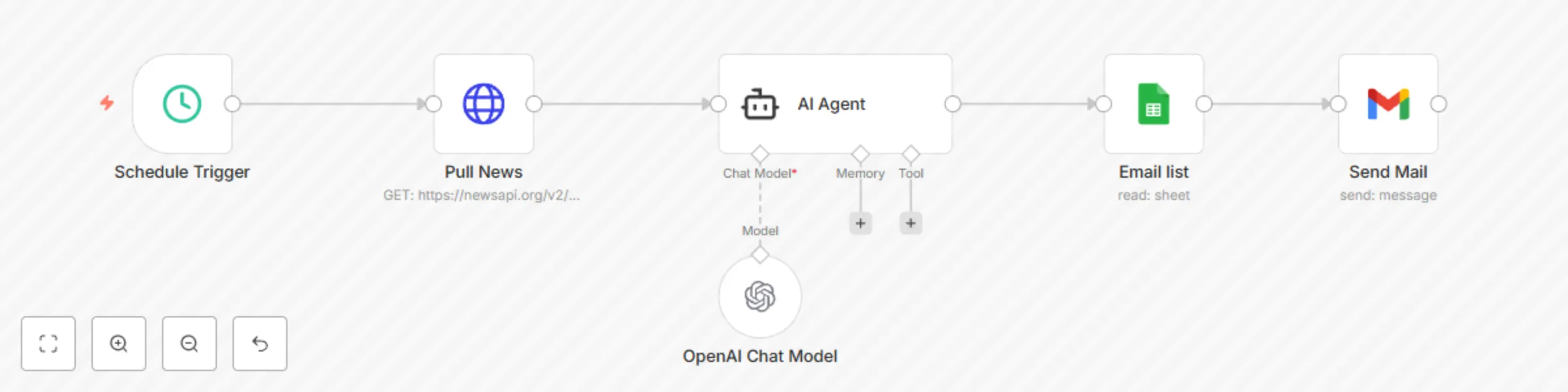
## How it Works ## This workflow fetches top news headlines every 10 minutes from NewsAPI, summarizes them using OpenAI's GPT-4o model, and sends a concise email digest to a list of recipients defined in a Google Spreadsheet. It's ideal for anyone who wants to stay updated with the latest news in a short, digestible format. ## 🎯 Use Case ## - Professionals who want summarized daily news - Newsletters or internal communication updates - Teams that require contextual summaries of the latest events ## Setup Instructions ## ### 1. Upload the Spreadsheet - File name: `Emails` - Column: `Email` with recipient addresses ### 2. Configure Google Sheets Nodes - Connect your Google account to: - `Email List` - `Send Email` ### 3. Add API Credentials - **NewsAPI Key** → for fetching top headlines - **OpenAI API Key** → for summarizing headlines - **Gmail Account** → for sending the email digest ### 4. Activate the Workflow - Once active, the workflow runs every 10 minutes via a cron trigger - Summarized news is sent to the list of emails in the spreadsheet ## 🔁 Workflow Logic ## 1. **Trigger**: Every 10 minutes via Cron 2. **Fetch News**: HTTP request to NewsAPI for top headlines 3. **Summarize**: Headlines are passed to OpenAI's GPT-4o for 5-bullet summary 4. **Read Recipients**: Google Sheet is used to collect email recipients 5. **Send Email**: Summary is formatted and sent via Gmail ## 🧩 Node Descriptions ## | Node Name | Description | |-----------|-------------| | Cron | Triggers the workflow every 10 minutes. | | HTTP Request - NewsAPI | Fetches top news headlines using NewsAPI. | | Set | Formats or structures raw news data before processing. | | AI Agent | Summarizes the news content using OpenAI into 5 bullet points. | | Email List | Reads recipient email addresses from the 'Emails' Google Spreadsheet. | | Send Email | Sends the email digest to all recipients using Gmail. | ## 🛠️ Customization Tips ## - Modify the AI prompt for tone, length, or content type - Send summaries to Slack, Telegram, or Notion instead of Gmail - Adjust cron interval for more/less frequent updates - Change email formatting (HTML vs plain text) ## 📎 Required Files ## | File Name | Purpose | |-----------|---------| | Emails spreadsheet | Google Sheet containing the list of email recipients | | daily_news.json | Main n8n workflow file to automate daily news digest | ## 🧪 Testing Tips ## - Add 1–2 test email addresses in your spreadsheet - Temporarily change the Cron node to run every minute for testing - Check email inbox for delivery and formatting - Inspect the execution logs for API errors or formatting issues ## 🏷 Suggested Tags & Categories ## #News #OpenAI #Automation #Email #Digest #Marketing

A
Amit Mehta
Social Media
11 Jun 2025
1927
0
Workflow preview: YouTube comment scraper & analyzer with GPT-4o + email summary report
Free advanced

YouTube comment scraper & analyzer with GPT-4o + email summary report

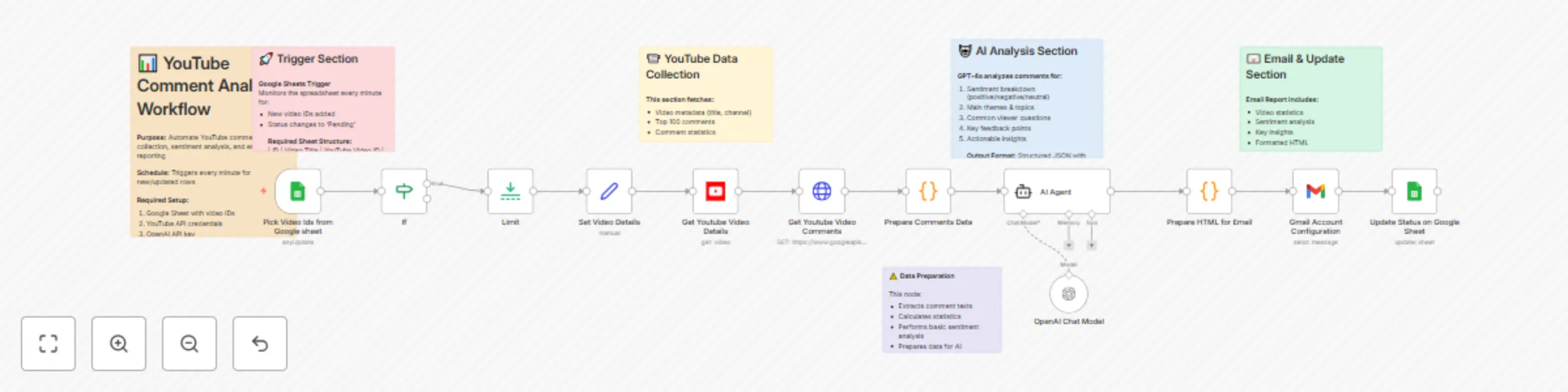
## How it Works ## This workflow automates the collection and analysis of **YouTube comments** from a video and sends a **summary report via email**, using **Google Sheets**, the **YouTube API**, **OpenAI (GPT-4o)**, and **Gmail**. Whether you're a content creator, brand manager, or social media analyst, this workflow helps you **automate sentiment analysis** and **receive insights** directly in your inbox — all triggered from a simple spreadsheet. ## 🎯 Use Case Ideal for: - **YouTubers** monitoring audience sentiment - **Marketing teams** analyzing campaign feedback - **Community managers** summarizing engagement ## Setup Instructions ## ### 1. Upload the Spreadsheet - File name: `Youtube_Video` - Sheet structure: | ID | Video Title | YouTube Video ID | Status | - Add video IDs and set their `Status` as `Pending` ### 2. Configure Google Sheets Nodes Connect your **Google account** to: - `Pick Video IDs from Google Sheet` - `Update Status on Google Sheet` ### 3. Add API Credentials - **YouTube API Key** → for comment + video scraping nodes - **OpenAI API Key** → for analyzing comments - **Gmail Account** → for sending the summary email ### 4. Activate the Workflow Once live, the workflow will: 1. Watch for new or updated rows in the spreadsheet 2. Scrape comments using the YouTube API 3. Analyze sentiment and key themes via GPT-4o 4. Send a formatted HTML email with the summary 5. Update the spreadsheet status to `Mail sent` ## 🔁 Workflow Logic 1. **Trigger**: New/updated row in Google Sheet 2. **Retrieve**: YouTube video metadata + comments 3. **Analyze**: Comments using GPT-4o 4. **Email**: Summary report via Gmail 5. **Update**: Spreadsheet status to `Mail sent` ## 🧩 Node Descriptions | Node Name | Description | |-----------|-------------| | Pick Video IDs from Google Sheet | Watches the spreadsheet and retrieves pending video IDs | | If | Checks whether status is 'Pending' | | Limit | Restricts the number of processed rows | | Set Video Details | Prepares video info (e.g., title, channel) | | Get YouTube Video Details | Fetches metadata (title, channel, etc.) | | Get YouTube Video Comments | Pulls top-level comments using YouTube API | | Prepare Comments Data | Formats comment text for OpenAI | | AI Agent | Summarizes comments using OpenAI's GPT-4o | | Prepare HTML for Email | Converts summary into HTML for email body | | Gmail Account Configuration | Sends the email report via Gmail | | Update Status on Google Sheet | Marks the row as 'Mail sent' | ## 🛠️ Customization Tips - Change the AI prompt for tone, length, or custom metrics - Send results to Slack or Telegram instead of Gmail - Export summaries to Notion, Airtable, or PDF - Schedule it daily/weekly for recurring analysis ## 📒 Suggested Sticky Notes for Workflow | Node/Section | Sticky Note Content | |--------------|---------------------| | Pick Video IDs from Google Sheet | "Triggers on new YouTube videos in your spreadsheet" | | AI Agent | "Uses OpenAI to generate an analysis summary – customize prompt as needed" | | Gmail | "Sends summary report – you can update subject, recipients, or style" | | Update Status | "Marks video as processed to avoid duplicate runs" | ## 📎 Required Files | File Name | Purpose | |-----------|---------| | Youtube_Video | Google Sheet to hold YouTube video IDs and status | | Youtube_Comment_Scraper.json | Main n8n workflow export for this automation | ## 🧪 Testing Tips - Add one test video with a valid YouTube video ID and status = `Pending` - Monitor the workflow logs to confirm API responses - Confirm summary delivery in your inbox - Verify that status updates in the sheet ## 🏷 Suggested Tags & Categories - #YouTube - #OpenAI - #Automation - #Marketing - #Email - #Analytics

A
Amit Mehta
Market Research
11 Jun 2025
2518
0
Workflow preview: LinkedIn post automation with AI (GPT-4o) generation & Slack approval
Free advanced

LinkedIn post automation with AI (GPT-4o) generation & Slack approval

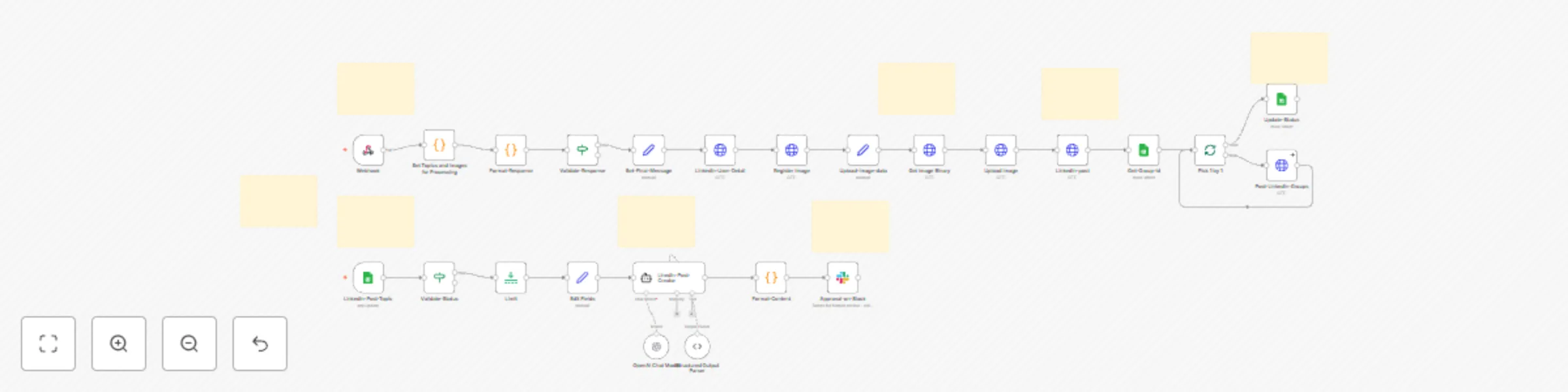
# LinkedIn Post Automation with AI Generation (Gpt-4o) & Slack Approval ## How it Works ## This workflow automates the creation and publishing of **LinkedIn posts** with **AI-generated content** and **human approval** via **Slack**, using **Google Sheets**, **OpenAI (GPT-4)**, **Slack Interactive Messages**, and the **LinkedIn API**. Whether you're a social media manager, content creator, or marketing professional, this workflow helps you **maintain consistent LinkedIn presence** and **scale content creation** while keeping human oversight — all managed from a simple spreadsheet. ## 🎯 Use Case Ideal for: - **Content Marketers** managing multiple LinkedIn accounts - **Personal Brand Builders** maintaining regular posting schedule - **Agencies** handling client social media presence - **Teams** requiring content approval workflows ## Setup Instructions ## ### 1. Prepare the Spreadsheet - File name: `Linkedin Post` - Main sheet structure: | ID | Linkedin Post Title | Status | Image URL | - Groups sheet structure: | GroupIds | - Add post topics and set their `Status` as `Pending` ### 2. Configure Google Sheets Nodes Connect your **Google account** to: - `Linkedin-Post-Topic` (Trigger node) - `Update-Status` - `Get-Group-id` ### 3. Add API Credentials - **OpenAI API Key** → for GPT-4 content generation - **Slack OAuth Token** → for approval messages - **LinkedIn Access Token** → for posting content - **HTTP Header Auth** → Bearer token for LinkedIn API ### 4. Configure Webhooks - Set up **Slack Interactive Components** webhook - Point Request URL to your N8N webhook endpoint - Enable interactive messages in Slack app ### 5. Activate the Workflow Once live, the workflow will: 1. Monitor spreadsheet for new topics every minute 2. Generate LinkedIn post using GPT-4 3. Send to Slack for approval/editing 4. Upload image to LinkedIn 5. Publish to profile and groups 6. Update spreadsheet status to `Posted` ## 🔁 Workflow Logic 1. **Trigger**: New/updated row with `Pending` status 2. **Generate**: AI creates engaging LinkedIn post 3. **Approve**: Slack message for review/edit 4. **Process**: Handle approval response 5. **Upload**: Register and upload image 6. **Publish**: Post to LinkedIn profile & groups 7. **Update**: Mark as `Posted` in sheet ## 🧩 Node Descriptions | Node Name | Description | |-----------|-------------| | Linkedin-Post-Topic | Monitors spreadsheet for new post topics | | Validate-Status | Filters only 'Pending' items | | Limit | Processes one item at a time | | Linedin-Post-Creator | Generates post content using GPT-4 | | Format-Content | Prepares content for Slack display | | Approval-on-Slack | Sends interactive approval message | | Webhook | Receives Slack button responses | | Format-Response | Extracts edited content from Slack | | Set-Final-Message | Prepares approved content | | Linkedin-User-Detail | Fetches LinkedIn user info | | Register Image | Initiates LinkedIn image upload | | Upload Image | Uploads image to LinkedIn | | Linkedin-post | Publishes to personal profile | | Get-Group-id | Retrieves LinkedIn group IDs | | Post-Linkedin-Groups | Posts to multiple groups | | Update-Status | Marks as completed in sheet | ## 🛠️ Customization Tips - Adjust AI prompt for brand voice and hashtags - Change Slack approver or add multiple reviewers - Modify posting schedule with delay nodes - Add analytics tracking with additional API calls - Filter groups based on specific criteria - Include URL shortening for tracking ## 📒 Suggested Sticky Notes for Workflow | Node/Section | Sticky Note Content | |--------------|---------------------| | Linkedin-Post-Topic | "Triggers every minute for new posts in your spreadsheet" | | Validate-Status | "Filters to process only 'Pending' items - prevents duplicates" | | Linedin-Post-Creator | "Uses GPT-4 to generate LinkedIn content - customize prompt for your brand voice" | | Approval-on-Slack | "Sends for human review - edit the Slack user to change approver" | | Webhook | "Receives approval responses - ensure URL is configured in Slack app" | | Register Image | "Initiates LinkedIn media upload - requires valid image URL from sheet" | | Linkedin-post | "Publishes to your profile - update with your LinkedIn credentials" | | Post-Linkedin-Groups | "Posts to multiple groups - add group IDs in Groups sheet" | | Update-Status | "Marks as 'Posted' to prevent reprocessing" | ## 💡 AI Prompt Configuration The workflow uses a sophisticated prompt that: - Creates compelling hooks - Includes 3-4 informative paragraphs - Adds engagement questions - Inserts relevant emojis - Generates 4-6 hashtags - Formats with proper spacing ## 🔒 Security & Permissions **LinkedIn App Requirements:** - `r_liteprofile` - Read profile data - `r_emailaddress` - Access email - `w_member_social` - Post content - `rw_organization_admin` - Group posting **Slack Bot Permissions:** - `chat:write` - Send messages - `im:write` - Direct messages - `users:read` - User information ## 📎 Required Components | Component | Purpose | |-----------|---------| | Google Sheet | Store post topics and status | | LinkedIn App | API access for posting | | Slack App | Interactive approval flow | | OpenAI Account | GPT-4 content generation | | N8N Instance | Workflow execution | ## 🧪 Testing Tips - Start with one test topic marked as `Pending` - Verify Slack message appears correctly - Test both "Approve" and "Edit" buttons - Check image upload completes - Confirm post appears on LinkedIn - Verify status updates to `Posted` ## ⚠️ Common Issues & Solutions **LinkedIn API Errors:** - Token expiration → Refresh access token - Rate limits → Add delays between posts - Group restrictions → Check posting permissions **Slack Integration:** - Missing responses → Verify webhook URL - Button not working → Check interactive components - User not found → Confirm Slack user ID **Image Upload Failures:** - Invalid URL → Validate image accessibility - Size limits → Compress images under 10MB - Format issues → Use JPEG or PNG only ## 📊 Workflow Benefits - **Time Savings**: 80% reduction in content publishing time - **Consistency**: Regular posting schedule maintained - **Quality Control**: Human review ensures brand standards - **Scalability**: Handle multiple accounts and groups - **Flexibility**: Easy to modify and extend ## 📎 Required Files | File Name | Purpose | |-----------|---------| | Linkedin Post | Google Sheet to hold post topics and status | ## 🏷 Suggested Tags & Categories - #LinkedIn - #AI - #ContentAutomation - #SocialMedia - #Slack - #GPT4 - #Marketing - #WorkflowAutomation

A
Amit Mehta
Social Media
29 May 2025
2825
0
Workflow preview: Auto-post LinkedIn updates from spreadsheet topics using GPT-4o
Free intermediate

Auto-post LinkedIn updates from spreadsheet topics using GPT-4o

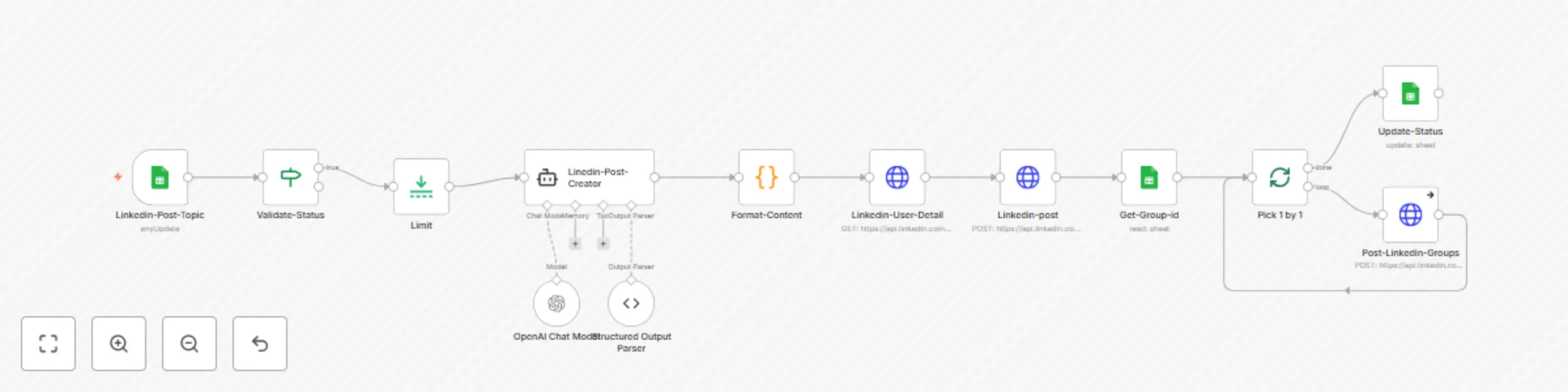
## How it works: ## This workflow automates the entire LinkedIn content distribution process — from AI-powered post creation to auto-posting on both personal LinkedIn profiles and LinkedIn groups, using GPT-4o and Google Sheets as the content source and control panel. 1. Auto-generates professional LinkedIn posts from spreadsheet topics using GPT-4o. 2. Posts to your LinkedIn profile and multiple groups. 3. Updates status to avoid duplicate posting. 4. Fully customizable and reusable with your spreadsheet. ## Set up Steps 1. Create and Upload the Spreadsheet 1. Name it: Linkedin Post 2. Sheet1 (for post topics): Columns: ID | Linkedin Post Title | Status 3. Add post titles under Linkedin Post Title 4. Set Status to Pending 5. Create new sheet name as "Groups" (for group distribution): Column: GroupIds 6. Add LinkedIn Group IDs, one per row 2. Connect Google Sheets Nodes 1. Connect your Google account to these nodes: 1. Linkedin Post topic (Reads post topics) 2. Get group id (Reads LinkedIn groups) 3. Update Status (Writes back the status after posting) 3. Configure GPT-4o (OpenAI) 1. Add your OpenAI API key in the Linkedin Post creator node 2. This node will generate high-quality content from your topic titles 4. Connect LinkedIn Account 1. Add your LinkedIn credentials in the Linkedin user detail node 2. Ensure appropriate permissions to post on profile and groups 5. Activate the Workflow : Once live, the workflow will: 1. Monitor the Google Sheet for Pending posts. 2. Generate content via GPT-4o. 3. Post to: 1. Your LinkedIn Profile 2. Each LinkedIn Group listed in the Groups sheet 4. Update the post Status to Posted ## Customization Tips ## Want to personalize this template? 1. Change AI tone or style in the OpenAI node prompt 2. Add a scheduler node if you'd like to post at fixed intervals 3. Use a Slack or Telegram approval step before posting 4. Integrate analytics tools to track post performance ## Suggested Sticky Notes for Workflow ## | Node or Section | Sticky Note Content | | ---------------------- | --------------------------------------------------------------------------- | | `Linkedin Post topic` | Reads the topic titles and statuses from Sheet1 | | `OpenAI (GPT-4o)` | Generates content using topic title — you can modify the tone/prompt here | | `Linkedin user detail` | Your personal LinkedIn credentials — required to post | | `Group loop` | Iterates through LinkedIn Group IDs and posts the content | | `Update Status` | Updates spreadsheet so the topic isn't re-posted |

A
Amit Mehta
Social Media
23 May 2025
568
0