A

Adam Janes

6
Workflows

Workflows by Adam Janes
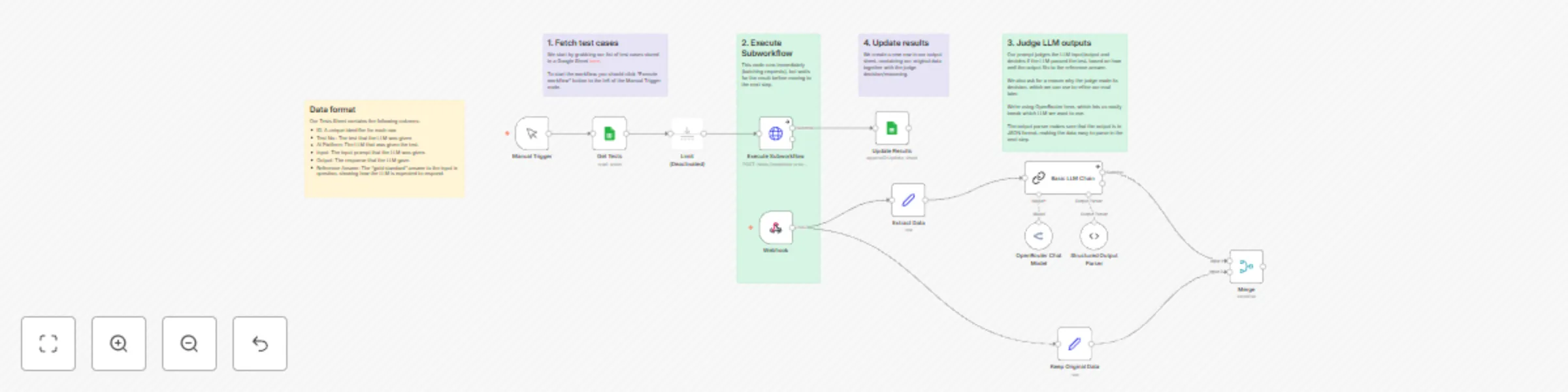
Workflow preview: Automate LLM testing with GPT-4 judge & Google Sheets tracking
Free advanced

Automate LLM testing with GPT-4 judge & Google Sheets tracking

## How it works - The workflow loads a list of test cases from a Google Sheet (previous results stored from an LLM) - For each test case, we execute a call to an LLM judge in parallel (using HTTP Request + Webhook nodes) - The judge uses the Input, Output, and Reference Answer fields from the spreadsheet to mark each LLM response as Pass/Fail - The results are logged into a separate sheet in the same Sheets file. ## Set up steps: - Add your credentials for Google Sheets and OpenRouter (or replace the OpenRouter node with your favourite chat model). - Make a copy of the example Sheet to populate it with you own test data. - Run the workflow with the Execute Workflow button next to the Manual Trigger node.

A
Adam Janes
Engineering
16 Jul 2025
538
0

Workflow preview: Generate personalized sales emails with LinkedIn data & Claude 3.7 via OpenRouter
Free advanced

Generate personalized sales emails with LinkedIn data & Claude 3.7 via OpenRouter

## How it works - The automation loads rows from a Google Sheet of leads that you want to contact. - It makes a Google search via Apify for LinkedIn links based on the First name / Last name / Company. - Another Apify actor fetches the right LinkedIn profile based on the first profile which is retuned - The same process is done for the company that the lead works for, giving extra context. If the lead has a current company listed on their LinkedIn, we use that URL to do the lookup, rather than doing a separate Google search. - A call is made to OpenRouter to get an LLM to generate an email based on a prompt designed to do personalized outreach. - An email is sent via a Gmail node. ## Set up steps - Connect your Google Sheets + Gmail accounts to use these APIs. - Make an account with Apify and enter your credentials. - Set your details in the "Set My Data" node to customize the workflow to revolve around your company + value proposition. I would recommend changing the prompt in the "Generate Personalized Email" node to match the tone of voice that you want your agent to have. You can change the guidelines to e.g. change whether the agent introduces itself, and give more examples in the style you want to make the output better.

A
Adam Janes
Lead Nurturing
5 Jul 2025
14765
0
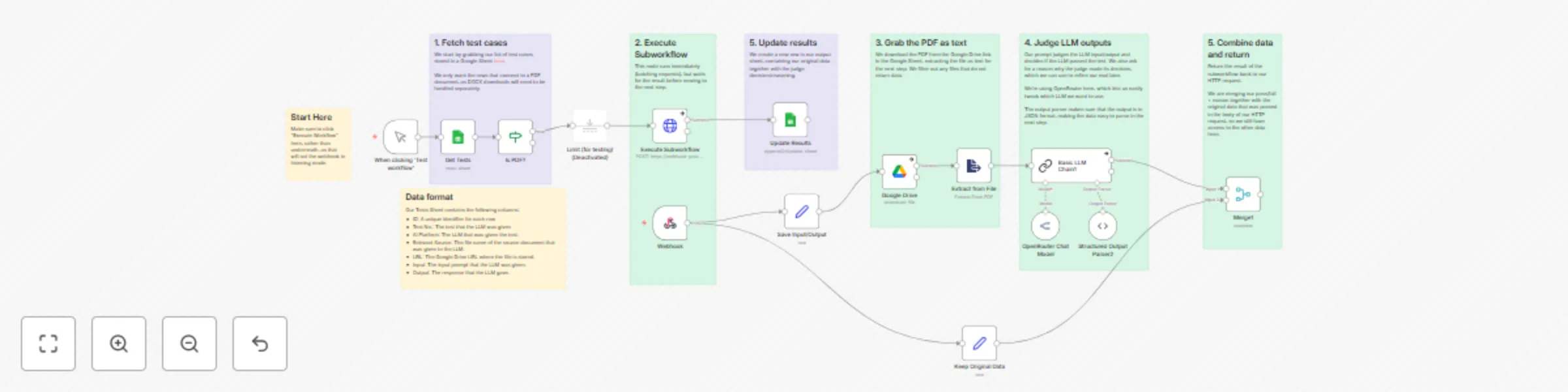
Workflow preview: Benchmark LLM performance on legal documents with Google Sheets and OpenRouter
Free advanced

Benchmark LLM performance on legal documents with Google Sheets and OpenRouter

This workflow demonstrates a simple way to run evals on a set of test cases stored in a Google Sheet. The example we are using comes from an info extraction task dataset, where we tested 6 different LLMs on 18 different test cases. This workflow extends the functionality of my simple eval for benchmarking legal tasks [here](https://n8n.io/workflows/4712-simple-eval-for-legal-benchmarking/). Rather than running executions sequentially (waiting for each one to respond before making another request), we use parallel processing to fire 2 requests every second. You can see our sample data in this spreadsheet [here](https://docs.google.com/spreadsheets/d/10l_gMtPsge00eTTltGrgvAo54qhh3_twEDsETrQLAGU/edit?usp=sharing) to get started. Once you have this working for our dataset, you can plug in your own test cases matching different LLMs to see how it works with your own data. ## How it works - Pull our test cases from Google Sheets. - For each case, fire off an HTTP request to a webhook. - That webhook grabs the relevant source file from Google Drive and converts it to text. - The text gets sent to an LLM via Open Router (so we can easily swap out models). - Results come back and are logged in Google Sheets. ## Set up steps: - Add your credentials for Google Sheets, Google Drive, and [OpenRouter](https://openrouter.ai/). - Make a copy of the [original data spreadsheet](https://docs.google.com/spreadsheets/d/10l_gMtPsge00eTTltGrgvAo54qhh3_twEDsETrQLAGU/edit?usp=sharing) so that you can edit it yourself. You will need to plug your version in the Update Results node to see the spreadsheet update on each run of the loop.

A
Adam Janes
Engineering
20 Jun 2025
661
0

Workflow preview: Simple eval for legal benchmarking
Free advanced

Simple eval for legal benchmarking

This workflow demonstrates a simple way to run evals on a set of test cases stored in a Google Sheet. The example we are using comes from an info extraction task dataset, where we tested 6 different LLMs on 18 different test cases. You can see our sample data in this spreadsheet [here](https://docs.google.com/spreadsheets/d/10l_gMtPsge00eTTltGrgvAo54qhh3_twEDsETrQLAGU/edit?usp=sharing) to get started. Once you have this working for our dataset, you can plug in your own test cases matching different LLMs to see how it works with your own data. ## How it works: - It loads test cases from Google Sheets. - For each row in our Google Sheet, it grabs the source document, converting it to text. - Our "LLM judge" passes the input/output of each LLM to GPT-4.1 to evaluate each test case (Pass/Fail + Reason). - It logs the outcome to a Google Sheet. - A 0.5s pause between each request gets around OpenAI's API rate limits. ## Set up steps: - Add your credentials for Google Sheets, Google Drive, and [OpenRouter](https://openrouter.ai/). - Make a copy of the [original data spreadsheet](https://docs.google.com/spreadsheets/d/10l_gMtPsge00eTTltGrgvAo54qhh3_twEDsETrQLAGU/edit?usp=sharing) so that you can edit it yourself. You will need to plug your version in the Update Results node to see the spreadsheet update on each run of the loop.

A
Adam Janes
Engineering
6 Jun 2025
666
0

Workflow preview: Voice-to-email response system with Telegram, OpenAI Whisper & Gmail
Free advanced

Voice-to-email response system with Telegram, OpenAI Whisper & Gmail

This workflow gives you the ability to reply to a long email with a voice note, rather than having to type everything out. ChatGPT will format your audio response and create an email draft for you. ### How it works When a new email arrives in your inbox, the workflow checks if it needs a response, and it it does, it sends a message to you on Telegram via a VoiceEmailer bot. When you reply to that message with an audio message, the second part of this workflow is triggered. It checks if the message is in the right format, transcribes the audio, and creates a draft response that shows up in the same email thread. ### Set up steps - Add your credentials for Gmail and OpenAI - Create an Telegram bot following the instructions [here](https://core.telegram.org/bots/tutorial). - Connect your telegram credentials so the workflow will use your bot. - Turn on the workflow, and message the bot from your telegram. Find the Chat ID from the Executions tab of your workflow, and enter it in as a variable. ![Screenshot 20250508 at 12.23.57.png](fileId:1296)

A
Adam Janes
Personal Productivity
8 May 2025
3723
0

Workflow preview: Auto-generate meeting attendee research with GPT-4o, Google Calendar, and Gmail
Free advanced

Auto-generate meeting attendee research with GPT-4o, Google Calendar, and Gmail

### How it works: Whenever a new event is scheduled on your Google Calendar, this workflow generates a Meeting Briefing email, giving an overview of each person on the call and the company they work for. It makes use of the [web search](https://platform.openai.com/docs/guides/tools-web-search?api-mode=responses) tool on the OpenAI Responses API to make lookups. The workflow triggers when a new event is added to the calendar, loops over each attendee, generating reports on each person and their company, collates the results, and sends the briefing as an email. ### Set up steps: - Add your credentials for Google Calendar (for viewing events) and Gmail (to send the email) - Add your OpenAI credentials as a Header Auth on the Company Search and Person Search nodes. - Name: Authorization - Value: Bearer {{ YOUR_API_KEY }} - Edit the "Edit Fields" node with the email that you want to send the briefing to, and a short bit of context about yourself.

A
Adam Janes
Personal Productivity
30 Apr 2025
8199
0