K

Konstantin

3
Workflows

Workflows by Konstantin

Workflow preview: Create an AI Telegram bot using Google Drive, Qdrant, and OpenAI GPT-4.1
Free advanced

Create an AI Telegram bot using Google Drive, Qdrant, and OpenAI GPT-4.1

### How it works This workflow creates an intelligent Telegram bot with a knowledge base powered by Qdrant vector database. The bot automatically processes documents uploaded to Google Drive, stores them as embeddings, and uses this knowledge to answer questions in Telegram. It consists of two independent flows: **document processing** (Google Drive → Qdrant) and **chat interaction** (Telegram → AI Agent → Telegram). ### Step-by-step **Document Processing Flow:** * **New File Trigger:** The workflow starts when the **New File Trigger** node detects a new file created in the specified Google Drive folder (polling every 15 minutes). * **Download File:** The **Download File** (Google Drive) node downloads the detected file from Google Drive. * **Text Splitting:** The **Split Text into Chunks** node splits the document text into chunks of 3000 characters with 300 character overlap for optimal embedding. * **Load Document Data:** The **Load Document Data** node processes the binary file data and prepares it for vectorization. * **OpenAI Embeddings:** The **OpenAI Embeddings** node generates vector embeddings for each text chunk. * **Insert into Qdrant:** The **Insert into Qdrant** node stores the embeddings in the Qdrant vector database collection. * **Move to Processed Folder:** After successful processing, the **Move to Processed Folder** (Google Drive) node moves the file to a "Qdrant Ready" folder to keep files organized. **Telegram Chat Flow:** * **Telegram Message Trigger:** The **Telegram Message Trigger** node receives new messages from the Telegram bot. * **Filter Authorized User:** The **Filter Authorized User** node checks if the message is from an authorized chat ID (26899549) to restrict bot access. * **AI Agent Processing:** The **AI Agent** receives the user's message text and processes it using the fine-tuned GPT-4.1 model with access to the Qdrant knowledge base tool. * **Qdrant Knowledge Base:** The **Qdrant Knowledge Base** node retrieves relevant information from the vector database to provide context for the AI agent's responses. * **Conversation Memory:** The **Conversation Memory** node maintains conversation history per chat ID, allowing the bot to remember context. * **Send Response to Telegram:** The **Send Response to Telegram** node sends the AI-generated response back to the user in Telegram. ### Set up steps Estimated set up time: 15 minutes 1. **Google Drive Setup:** * Add your Google Drive OAuth2 credentials to the **New File Trigger**, **Download File**, and **Move to Processed Folder** nodes. * Create two folders in your Google Drive: one for incoming files and one for processed files. * Copy the folder IDs from the URLs and update them in the **New File Trigger** (folderToWatch) and **Move to Processed Folder** (folderId) nodes. 2. **Qdrant Setup:** * Add your Qdrant API credentials to the **Insert into Qdrant** and **Qdrant Knowledge Base** nodes. * Create a collection in your Qdrant instance (e.g., "Test-youtube-adept-ecom"). * Update the collection name in both Qdrant nodes. 3. **OpenAI Setup:** * Add your OpenAI API credentials to the **OpenAI Chat Model** and **OpenAI Embeddings** nodes. * (Optional) Replace the fine-tuned model ID in **OpenAI Chat Model** with your own model or use a standard model like `gpt-4-turbo`. 4. **Telegram Setup:** * Create a Telegram bot via [@BotFather](https://t.me/botfather) and obtain the bot token. * Add your Telegram bot credentials to the **Telegram Message Trigger** and **Send Response to Telegram** nodes. * Update the authorized chat ID in the **Filter Authorized User** node (replace `26899549` with your Telegram user ID). 5. **Customize System Prompt (Optional):** * Modify the system message in the **AI Agent** node to customize your bot's personality and behavior. * The current prompt is configured for an n8n automation expert creating social media content. 6. **Activate the Workflow:** * Toggle "Active" in the top-right to enable both the Google Drive trigger and Telegram trigger. * Upload a document to your Google Drive folder to test the document processing flow. * Send a message to your Telegram bot to test the chat interaction flow.

K
Konstantin
Internal Wiki
28 Dec 2025
126
0

Workflow preview: AI chatbot for Max Messenger with voice recognition (GigaChat +SaluteSpeech)
Free advanced

AI chatbot for Max Messenger with voice recognition (GigaChat +SaluteSpeech)

**Name:** AI Chatbot for Max Messenger with Voice Recognition (GigaChat + Sber) **Description:** ### How it works This workflow powers an intelligent, conversational AI bot for Max messenger that can understand and respond to both **text and voice messages**. The bot uses GigaChat AI with built-in memory, allowing it to remember the conversation history for each unique user and answer follow-up questions. Voice messages are transcribed using Sber SmartSpeech. It's a complete solution for creating an engaging, automated assistant within your Max bot, using Russian AI services. ### Step-by-step * **Max Trigger:** The workflow starts when the **Max Trigger** node receives a new message sent to your Max bot. * **Access Control:** The **Check User** node verifies the sender's user ID against an allowed list. This prevents unauthorized users from accessing your bot. * **Access Denied Response:** If the user is not authorized, the **Access Denied** node sends a polite rejection message. * **Message Type Routing:** The **Text/Attachment** (Switch) node checks if the message contains plain text or has attachments (voice, photo, file). * **Attachment Processing:** If an attachment is detected, the **Download Attachment** (HTTP Request) node retrieves it, and the **Attachment Router** (Switch) node determines its type (voice, photo, or file). * **Voice Transcription:** For voice messages, the workflow gets a Sber access token via **Get Access Token** (HTTP Request), merges it with the audio file, and sends it to **Get Response** (HTTP Request) which uses Sber SmartSpeech API to transcribe the audio to text. * **Input Unification:** The **Voice to Prompt** node converts transcribed text into a prompt, while **Text to Prompt** does the same for plain text messages. Both paths merge at the **Combine** node. * **AI Agent Processing:** The unified prompt is passed to the **AI Agent**, powered by **GigaChat Model** and using **Simple Memory** to retain the last 10 messages per user (using Max `user_id` as the session key). * **Response Delivery:** The AI-generated response is sent back to the user via the **Send Message** node. ### Set up steps Estimated set up time: 15 minutes 1. **Get Max bot credentials:** Visit https://business.max.ru/ to create a bot and obtain API credentials. Add these credentials to **Max Trigger**, **Send Message**, and **Access Denied** nodes. 2. **Add GigaChat credentials:** Register for GigaChat API access and add your credentials to the **GigaChat Model** node. 3. **Add Sber credentials:** Obtain Sber SmartSpeech API credentials and add them to **Get Access Token** and **Get Response** nodes (HTTP Header Auth). 4. **Configure access control:** Open the **Check User** node and change the `user_id` value (currently 50488534) to your own Max user ID. This ensures only you can use the bot during testing. 5. **Customize bot personality:** Open the **AI Agent** node and edit the system message to change the bot's name, behavior, and add your own contact information or links. 6. **Test the bot:** Activate the workflow and send a text or voice message to your Max bot to verify it responds correctly. ### Notes This workflow is specifically designed for Russian-speaking users and uses Russian AI services (GigaChat and Sber SmartSpeech) as alternatives to OpenAI. Make sure you have valid API access to both services before setting up this workflow.

K
Konstantin
Support Chatbot
22 Dec 2025
239
0
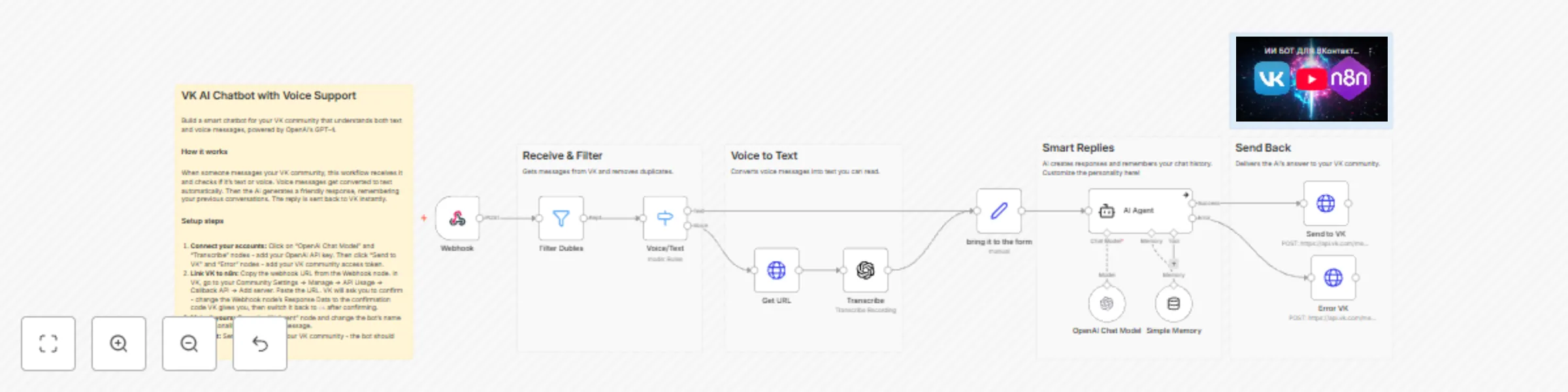
Workflow preview: Conversational VK bot with GPT-4 mini & Whisper voice transcription
Free advanced

Conversational VK bot with GPT-4 mini & Whisper voice transcription

### How it works This workflow powers an intelligent, conversational AI bot for VK that can understand and respond to both **text and voice messages**. The bot uses an AI agent with built-in memory, allowing it to remember the conversation history for each unique user (or in each chat) and answer follow-up questions. It's a complete solution for creating an engaging, automated assistant within your VK group. ### Step-by-step * **VK Webhook (Trigger):** The workflow starts when the **Webhook** node receives a new message from your VK group. * **Duplicate Filtering:** The data immediately passes through the **Filter Dubles** node, which checks for the `x-retry-counter` header. This is a crucial step to prevent processing duplicate retry requests sent by the VK API. * **Voice or Text Routing:** A **Voice/Text** (Switch) node checks if the message contains text (`message.text`) or a voice attachment (`audio_message.link_mp3`). * **Voice Transcription:** If it's a voice note, the **Get URL** (HTTP Request) node downloads the audio file. The file is then passed to the **Transcribe** (OpenAI) node, which uses the Whisper model to convert the audio to text. * **Input Unification:** Both the original text (from the 'Text' path) and the newly transcribed text (from the 'Voice' path) are routed to the **Set Prompt** node. This node standardizes the input into a single `prompt` variable. * **AI Agent Processing:** The `prompt` variable is passed to the **AI Agent**. This agent is powered by an **OpenAI Chat Model** and uses **Simple Memory** to retain conversation history, using the VK **`peer_id`** as the `sessionKey`. This allows it to maintain a separate history for both private messages and group chats. * **Response Generation:** The successful AI response is passed to the **Send to VK** (HTTP Request) node, which sends the message back to the user. * **Error Handling:** The **AI Agent** node has error handling enabled (`onError`). If it fails, the flow is redirected to the **Error** (HTTP Request) node, which sends a fallback message to the user. ### Set up steps Estimated set up time: 10 minutes 1. Add your OpenAI credentials to the **OpenAI Chat Model** and **Transcribe** nodes. 2. Add your VK group's API Bearer Token credentials to the two **HTTP Request** nodes named **Send to VK** and **Error**. 3. **Webhook Setup (Important\!):** This is a two-stage process: confirmation and operation. * Copy the **Production Webhook URL** from the **Webhook** node. * **Stage A: Confirm Address (One-time)** * In the **Webhook** node settings, set `Response Mode` to `On Received`. * In `Options` -\> `Response Data`, temporarily paste the confirmation string that VK provides. * Activate the workflow (toggle "Active" in the top-right). * Paste the URL into your VK group's Callback API settings (Management -\> API -\> Callback API) and click "Confirm". * **Stage B: Operational Mode (Permanent)** * Return to the **Webhook** node. * Set `Response Mode` to **`Immediate`**. * In `Options` -\> `Response Data`, type the word **`ok`** (lowercase). * Save and reactivate the workflow. The bot is now live. 4. (Optional) Customize the system prompt in the **AI Agent** node to define your bot's name and personality.

K
Konstantin
Support Chatbot
7 Nov 2025
145
0