Ziad Adel
Workflows by Ziad Adel
Automate LinkedIn post summaries to Slack with AI and Apify
## Turn LinkedIn Noise Into Weekly Slack Insights 🚀 What if your team could skim the *best* of LinkedIn in 2 minutes instead of scrolling for hours? This workflow transforms raw LinkedIn posts into a **bite-sized Slack digest** — summarized, grouped, and delivered automatically every week. --- ## ⚡ What It Does - **Scrapes Posts Automatically**: Pulls fresh posts from LinkedIn profiles you specify (via Apify). - **Summarizes with AI**: Condenses each post into **2–3 bullets** (≤15 words). - **Keeps It Lean**: Digest capped at **500 words total**. - **Organized by Author**: See exactly who said what, without searching. - **Delivers to Slack**: Neatly formatted digest drops in your channel on schedule, with post links in thread replies. --- ## 🛠 How It Works 1. **Google Sheets → Profile URLs** Add LinkedIn profile URLs into a Google Sheet tab — this is your watchlist. 2. **Apify Scraper → Posts** Fetches up to 10 posts per profile within the past 7 days. 3. **Clean & Format** Code nodes strip out clutter (hashtags, broken links, escapes). 4. **OpenAI Summarizer** AI rewrites posts into concise bullets and trims the digest under 500 words. 5. **Slack Delivery** Digest posts directly in Slack every Sunday morning, with original links attached as thread replies. --- ## ✅ Pre-conditions / Requirements - **Google Sheets API credentials** connected in n8n. - **Apify account + API Token** for the LinkedIn profile posts actor. - **OpenAI API Key** for summarization. - **Slack Bot Token** with permission to post messages in your chosen channel. - Profiles you want to track must be publicly viewable or accessible to Apify. --- ## 🎛 Customization Options - **Schedule**: Change the Cron node if you prefer daily or monthly digests. - **Batch Size**: Default is 5 profiles per batch — increase or decrease for performance. - **Summaries**: Adjust OpenAI system prompt to allow longer or shorter bullet points. - **Filters**: Extend `extendOutputFunction` to exclude reposts, sponsored posts, or keep specific authors only. - **Slack Output**: Change formatting, channel, or send as direct message instead of posting in a channel. --- ## 💡 Why This Is Valuable - Saves your team **3–5 hours/week** of scrolling. - Keeps everyone updated with **actionable insights, not filler**. - Turns a chaotic LinkedIn feed into a **signal-only digest**. - Positions you as the one who always brings the smartest highlights to the table. --- ## 🎯 Best For - Founders who want LinkedIn insights without endless scrolling. - Marketing and growth teams tracking thought leaders. - Operators who want *signal over noise*, delivered straight to Slack. --- No more mindless scrolling. Just sharp insights, automatically packaged. ✅
Automated task reminders & daily recaps using Google Sheets and Slack
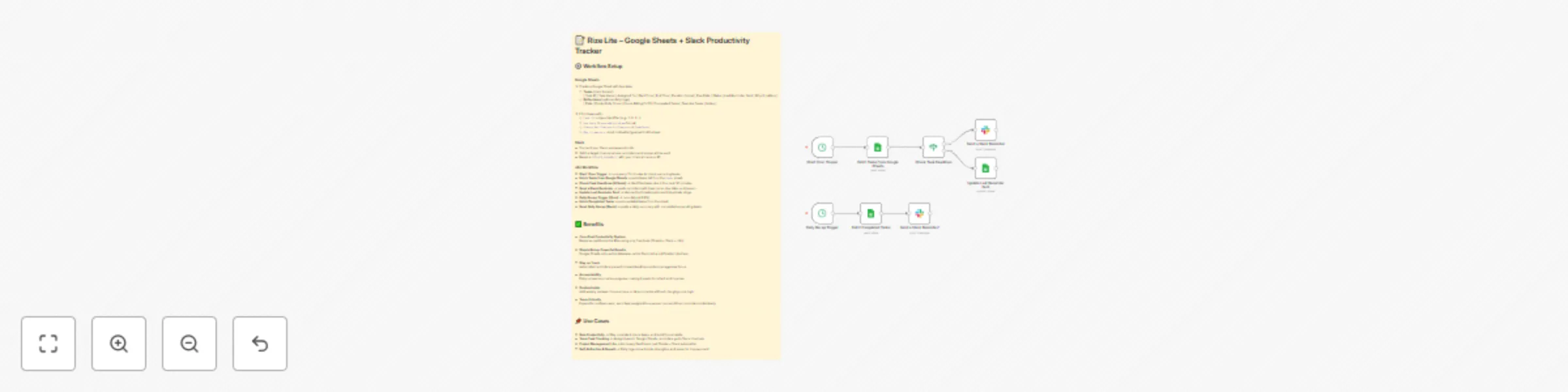
## What This Workflow Does This workflow transforms Google Sheets into a **lightweight productivity engine** and connects it to Slack for **automated reminders and daily recaps**. No extra SaaS, no extra cost – just a simple system that keeps you on track and accountable. --- ## Pre-conditions / Requirements Before you start, make sure you have: - A Google account with access to **Google Sheets**. - A Slack workspace where you can post reminders and summaries. - An n8n instance (self-hosted or cloud) with: - **Google Sheets credentials** connected. - **Slack credentials** connected. --- ## How It Works 1. **Task Tracking in Google Sheets** - Add tasks with columns: Task ID, Task Name, Due Date, Status, and Why it matters. - The workflow checks for tasks that are due soon or overdue. 2. **Automated Slack Reminders** - Every 15 minutes, the workflow scans for tasks due in the next 30 minutes. - Slack sends a ping with the task name, deadline, and reason. 3. **Daily Recap at 6 PM** - Slack posts a summary of how many tasks you completed vs how many are still pending. - Encourages reflection and accountability. 4. **Duplicate Protection** - Each task has a "Last Reminder Sent" column so you don’t get spammed with repeat messages. --- ## Customization Options - **Reminder Frequency**: Change the Cron node to check tasks every 5, 10, 30 minutes, or hourly. - **Daily Recap Time**: Adjust the daily Cron node (default: 6 PM) to match your schedule. - **Slack Channel**: Point reminders and recaps to a private DM, a public channel, or multiple channels. - **Task Fields**: Add columns like `Priority`, `Assigned To`, or `Category` and adjust Slack messages accordingly. - **Weekly Review**: Extend the workflow with another Cron node on Sundays to send a weekly productivity score. - **Reflection Logs**: Add automation to write daily results into a second tab for trend tracking. --- ## Benefits - ✅ **Eliminate missed deadlines** with proactive reminders. - ✅ **Daily accountability** inside Slack – no extra dashboards. - ✅ **Zero SaaS costs** – only Sheets, Slack, and n8n. - ✅ **Fully customizable** to match your workflow, team, or habits. - ✅ **Scales easily** from solo use to team task tracking. --- ## Use Cases - Solo founders or freelancers who want a **cheap but powerful task manager**. - Small teams who live in Slack and want **lightweight accountability**. - Productivity enthusiasts who want **flexibility and control** without being locked into another SaaS.
Automatic FTP file backup to Google Drive with scheduled sync
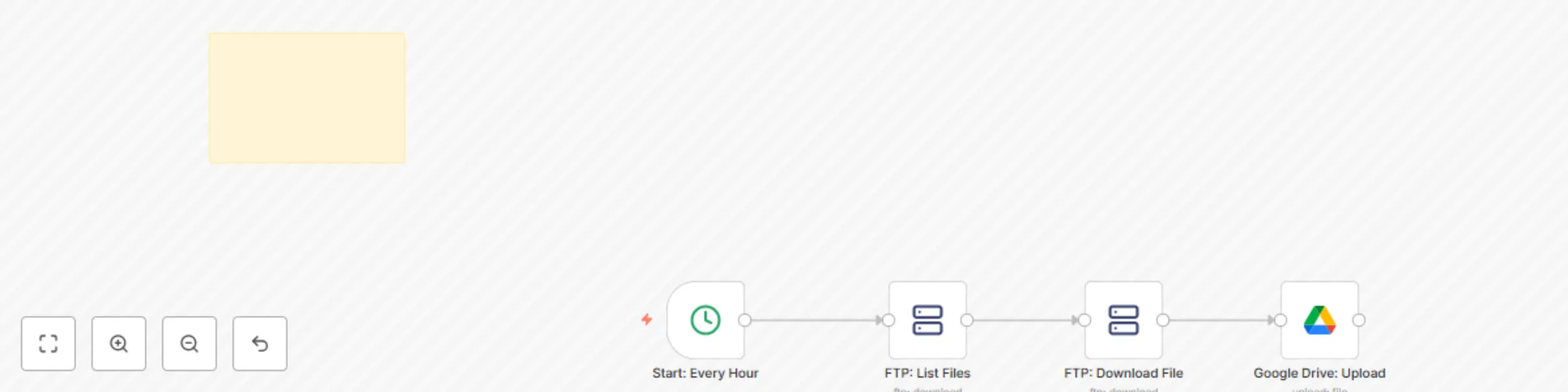
## What this workflow does This workflow automatically **downloads files from an FTP folder** and **uploads them to Google Drive**. It’s useful for backup, reporting, or syncing data between systems. ## How it works 1. **Cron Trigger** runs on a schedule (default: every hour). 2. **FTP List node** checks the specified folder on your FTP server. 3. **FTP Download node** fetches each file found. 4. **Google Drive Upload node** saves the file into your chosen Google Drive folder. ## Pre-conditions / Requirements - An active FTP server with accessible login credentials. - A Google account with access to the Drive folder you want to sync into. - Make sure the target Google Drive folder exists, and copy its Folder ID. - Ensure files in your FTP folder have unique names if you want to avoid overwriting in Google Drive. ## Setup - **FTP:** Add your FTP credentials and replace `{{FTP_FOLDER}}` with the path of the folder you want to sync. - **Google Drive:** Connect your Google Drive account and replace `{{GDRIVE_FOLDER_ID}}` with the folder ID where files should be stored. - Adjust the Cron schedule (e.g. daily, weekly) depending on how often you need the sync. ## Customization Options - **File filtering:** Add an *IF node* after the FTP List node to only download files matching certain extensions (e.g., `.csv`, `.pdf`). - **File renaming:** Use a *Set node* to rename files before uploading to Google Drive (helpful for timestamping or avoiding duplicates). - **Archiving:** Add a second Google Drive or FTP Upload node to store processed files in an archive folder. - **Error handling:** Connect an *Error Trigger* to notify you via Slack or email if a file transfer fails. ## Benefits & Use Cases — FTP to Google Drive File Sync ## Benefits - **Hands-free backups:** Automatically transfers files from FTP to Google Drive. - **Data security:** Ensures files are stored in cloud storage with built-in redundancy. - **Reliability:** Reduces risk of missed uploads or manual errors. - **Scalable:** Works with any FTP folder and Google Drive directory. ## Use Cases - Regularly back up reports or exports from legacy systems (ERP, CRM, POS). - Sync daily logs or CSVs into Google Drive for analytics and team access. - Automate delivery of partner or client files without manual uploads. - Centralize files from multiple FTP sources into one Drive folder.
Send daily Mailchimp subscriber reports to Slack
## What this workflow does This workflow sends a **daily Slack report** with the current number of subscribers in your Mailchimp list. It’s a simple way to keep your marketing or growth team informed without logging into Mailchimp. ## How it works 1. **Cron Trigger** starts the workflow once per day (default: 09:00). 2. **Mailchimp node** retrieves the total number of subscribers for a specific list. 3. **Slack node** posts a formatted message with the subscriber count into your chosen Slack channel. ## Pre-conditions / Requirements - A Mailchimp account with API access enabled. - At least one Mailchimp audience list created (you’ll need the List ID). - A Slack workspace with permission to post to your chosen channel. - n8n connected to both Mailchimp and Slack via credentials. ## Setup 1. **Cron Trigger** - Default is set to 09:00 AM daily. Adjust the time or frequency as needed. 2. **Mailchimp: Get Subscribers** - Connect your Mailchimp account in n8n credentials. - Replace `{{MAILCHIMP_LIST_ID}}` with the List ID of the audience you want to monitor. - To find the List ID: Log into Mailchimp → Audience → All contacts → Settings → Audience name and defaults. 3. **Slack: Send Summary** - Connect your Slack account in n8n credentials. - Replace `{{SLACK_CHANNEL}}` with the name of the channel where the summary should appear (e.g., `#marketing`). - The message template can be customized, e.g., include emojis, or additional Mailchimp stats. ## Customization Options - **Multiple lists:** Duplicate the Mailchimp node for different audience lists and send combined stats. - **Formatting:** Add more details like new subscribers in the last 24h by comparing with previous runs (using Google Sheets or a database). - **Notifications:** Instead of Slack, send the update to email or Microsoft Teams by swapping the output node. ## Benefits - **Automation:** Removes the need for manual Mailchimp checks. - **Visibility:** Keeps the whole team updated on subscriber growth in real time. - **Motivation:** Celebrate growth milestones directly in team channels. ## Use Cases - Daily subscriber growth tracking for newsletters. - Sharing metrics with leadership without giving Mailchimp access. - Monitoring the effectiveness of campaigns in near real time.
Automated lead-to-client pipeline with Google Sheets email notifications & time tracking
## Google Sheets CRM Automations: Lead Stages → Emails, Client Tracking & Delivery Duration *Turn a simple Google Sheet into a lightweight CRM powered by n8n.* --- ## Overview This template monitors edits in your **Leads** and **Clients** tabs and reacts automatically: - **Qualified?** → sends a Cal.com booking email - **Stage → Awaiting Proposal** → sends a “proposal coming soon” email - **Stage → Won** → appends the client to **Clients** with a **Start Date & Time** - **Clients: Project Status → Delivered** → stamps **End Date & Time** and computes **Time to Deliver** (e.g., `2d 5h 30m`) --- ## What This Template Does - **Lead Qualification → Email**: When you mark **Qualified?** in **Leads**, a booking email is sent automatically. - **Awaiting Proposal → Email**: Sends a heads-up email that a proposal is coming soon. - **Won → Client Append**: Adds the client to **Clients** and records the start timestamp. - **Delivered → Completion Metrics**: Looks up the client, stamps the end timestamp, and calculates the delivery duration. --- ## How It Works 1. **Google Apps Script → Webhooks (onEdit)** - A small Apps Script (provided in the workflow’s Sticky Note) watches the sheet and posts JSON to these n8n webhooks: - `/webhook/lead-stage-changed` - `/webhook/lead-qualified` - `/webhook/client-status-changed` 2. **n8n Flow & Branching** - **lead-stage-changed** - If **Awaiting Proposal** → send proposal heads-up email - If **Won** → format timestamp → append to **Clients** - **lead-qualified** - If `qualified = true` → send **Cal.com** booking email - **client-status-changed** - If **Delivered** → lookup client row → stamp **End Date & Time** → compute **Time to Deliver** → update row --- ## Prerequisites - Google Sheet with two tabs: **Leads** and **Clients** - Gmail account (or use your preferred email/notification node) - n8n instance with: - **Google Sheets OAuth2** credentials - **Gmail OAuth2** credentials (if using the Gmail node) **Suggested columns** - **Leads**: `Name (A)`, `Client Email (C)`, `Lead Source (D)`, `Stage (E)`, `Qualified? (H)` - **Clients**: `Name (A)`, `Client Email (C)`, `Project Status (D)`, `Start Date & Time (F)`, `End Date & Time (G)`, `Time to Deliver (H)` --- ## Setup Steps 1. **Copy/prepare the Google Sheet** - Ensure both **Leads** and **Clients** tabs exist with the columns above. 2. **Install the Apps Script** - In Google Sheets: **Extensions → Apps Script** → paste the script from the workflow’s Sticky Note. - Replace webhook URLs with your n8n endpoints: - `https://{{YOUR_N8N_DOMAIN}}/webhook/lead-stage-changed` - `https://{{YOUR_N8N_DOMAIN}}/webhook/lead-qualified` - `https://{{YOUR_N8N_DOMAIN}}/webhook/client-status-changed` - Run `createInstallableTrigger()` once to enable `onEdit`. 3. **Open the workflow in n8n & replace placeholders** - `{{GOOGLE_SHEETS_DOC_ID}}` - `{{LEADS_GID}}` - `{{CLIENTS_GID}}` - `{{CAL_COM_BOOKING_URL}}` - `{{SENDER_NAME}}` - `{{GMAIL_CREDENTIAL_ID}}`, `{{GMAIL_CREDENTIAL_NAME}}` - `{{GSHEETS_CREDENTIAL_ID}}`, `{{GSHEETS_CREDENTIAL_NAME}}` 4. **Connect credentials** - Authorize **Google Sheets OAuth2** and **Gmail OAuth2** (or switch to SMTP/another email node). 5. **Activate & test** - Toggle **Qualified?** on a test row or change **Stage** to **Awaiting Proposal/Won**. - Verify the email, client append, and duration updates flow end-to-end. --- ## Customization Ideas - Swap **Gmail** with **SMTP**, **Outlook**, or **Slack** messages. - Add a **Stage = Lost** branch to trigger a re-engagement sequence. - Add guards to prevent duplicate appends to **Clients**. - Localize email copy and date formats. --- ## Troubleshooting - **Nothing triggers**: Confirm Apps Script URLs and that `createInstallableTrigger()` was run. - **Wrong tab/GID**: Open each tab and copy its `gid` from the URL; update placeholders. - **Credential errors**: Re-authorize Google Sheets/Gmail OAuth2 in n8n. - **Wrong first name**: Ensure `Name` in **Leads** follows `First Last`; the workflow splits the first token. --- ## Video Walkthrough Demo [Screen Studio Template Demo Video](https://screen.studio/share/f3sNqd9N?private-access=eyJhbGciOiJIUzI1NiIsInR5cCI6IkpXVCJ9.eyJzaGFyZWFibGVMaW5rSWQiOiJjMTMyZjY0Ny1hODg3LTQzNzctYWUwMi1kMzgyM2E5ZmI2OTkiLCJpYXQiOjE3NTU0MzEyNzB9.6PquB48GkV8T6Ytsg9kVEK1eDaBge9yqxS4jKyTbVXg)