Beex
Workflows by Beex
Send welcome WhatsApp messages to new HubSpot contacts with Beex templates
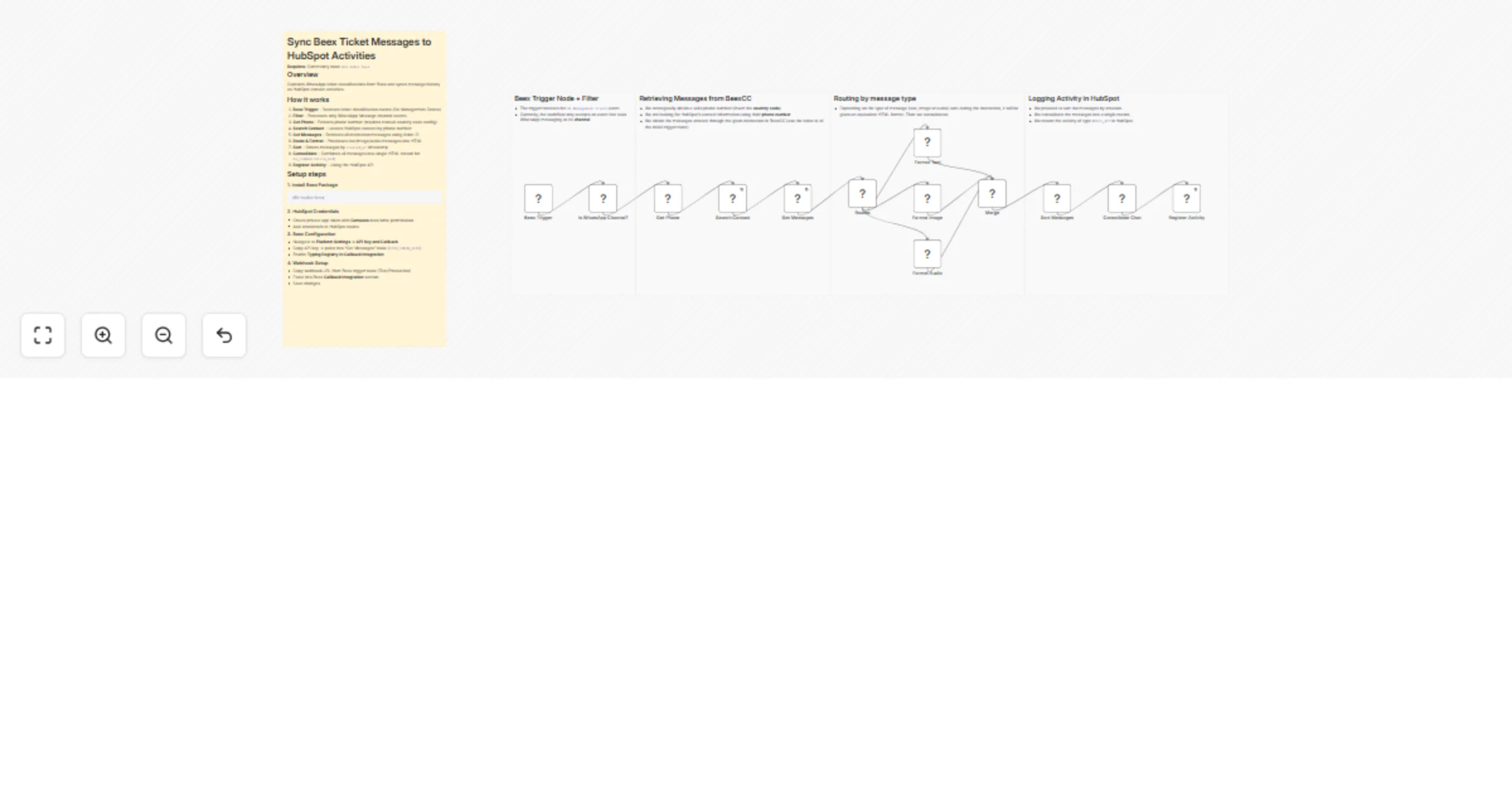
## Summary This workflow listens for HubSpot contact creation events via a webhook, standardizes the data, and sends a WhatsApp message using a predefined first contact template from Beex. ## How It Works 1. **Configure Webhook**: The workflow is triggered when HubSpot fires the `On Contact Created` event. 2. **Get Contact**: Retrieves the contact's ID and extracts relevant data from the HubSpot event. 3. **Validate Contact**: Filters contacts to ensure they meet the requirements in this case, having valid (non-null) email and phone numbers. 4. **Set Fields**: Transforms the HubSpot data by selecting only relevant fields, renaming them for clarity, and preparing them for the template. Key tasks include extracting the `phone_number` and `country_code` (removing the "+" symbol) and setting the `associated_values` as required by the template. The exact template name must be specified manually in this node. 5. **Send Template**: Sends a welcome message via WhatsApp using the template configured in Beex. This node requires a `Queue ID`, which is generated based on the template configuration in Beex (see the setup section below for details). ## Setup Instructions 1. **Install Beex Nodes**: Before importing the template, install the Beex trigger and node packages using the following package name: ``` n8n-nodes-beex ``` 2. **Configure HubSpot Credentials**: Set up your HubSpot connection with the following: - Access Token (typically from a private app) - Read permissions for **Contacts** objects - Configured webhook URL (usually from a private application) - *Note: The webhook URL can be found in the initial node. Make sure to distinguish between test mode and production mode.*  3. **Configure Beex Credentials**: For Beex users with platform access (for trial requests, contact [email protected]): - Navigate to **Platform Settings** → **API Key & Callback**. - Copy your API key and paste it into the Beex node (Send Template) in n8n.  4. **Configure Template in Beex**: - On the Beex platform, go to the *Connections* section in the side menu and select *Templates*. - Select an identifier (a number through which the WhatsApp template will be sent to your contacts). - Click to request a new template. - Enter a **Template Name** and **Display Name**. The "Template Name" is what you'll reference in your workflow's Set Fields node. - Complete any additional required fields. - Configure the template message content. Note that associated values are wrapped in `{{1}}`, which corresponds to the configurable parameter set in the Set Fields node.  - Optionally, add buttons to the template. - Once the template request is submitted, wait for approval. After approval, associate the template with a campaign and queue to obtain the **Queue ID** needed for the Send Template node. ## Requirements - **HubSpot**: An account with a private application token and read permissions for **Contacts** objects. - **HubSpot**: A private application with a configured webhook. - **Beex**: An account with permissions to send templates. - **Beex**: A properly configured and approved template with an associated Queue ID. ## Customization Options - **Additional Filtering**: You can add a filter immediately after the webhook that receives the contact creation event to limit the sources from which you obtain new contacts (for example, contacts from a specific HubSpot form). - **Get Contact**: For this workflow, the contact's first name is used in the template. If your template requires additional associated values, you can retrieve more properties from the HubSpot node by adding them to the properties list. - **Contact Filtering**: Add filters to control which contacts should trigger the WhatsApp template based on your business logic. - **Set Fields**: Use this node to further customize and transform the data received from HubSpot. For example, you can standardize phone numbers by region or add custom logic for field mapping. - **Send Template**: The WhatsApp template is fully customizable within Beex. Refer to the template configuration section to ensure all associated values are properly mapped.
Automatically sync Beex leads to HubSpot (Create & Update)
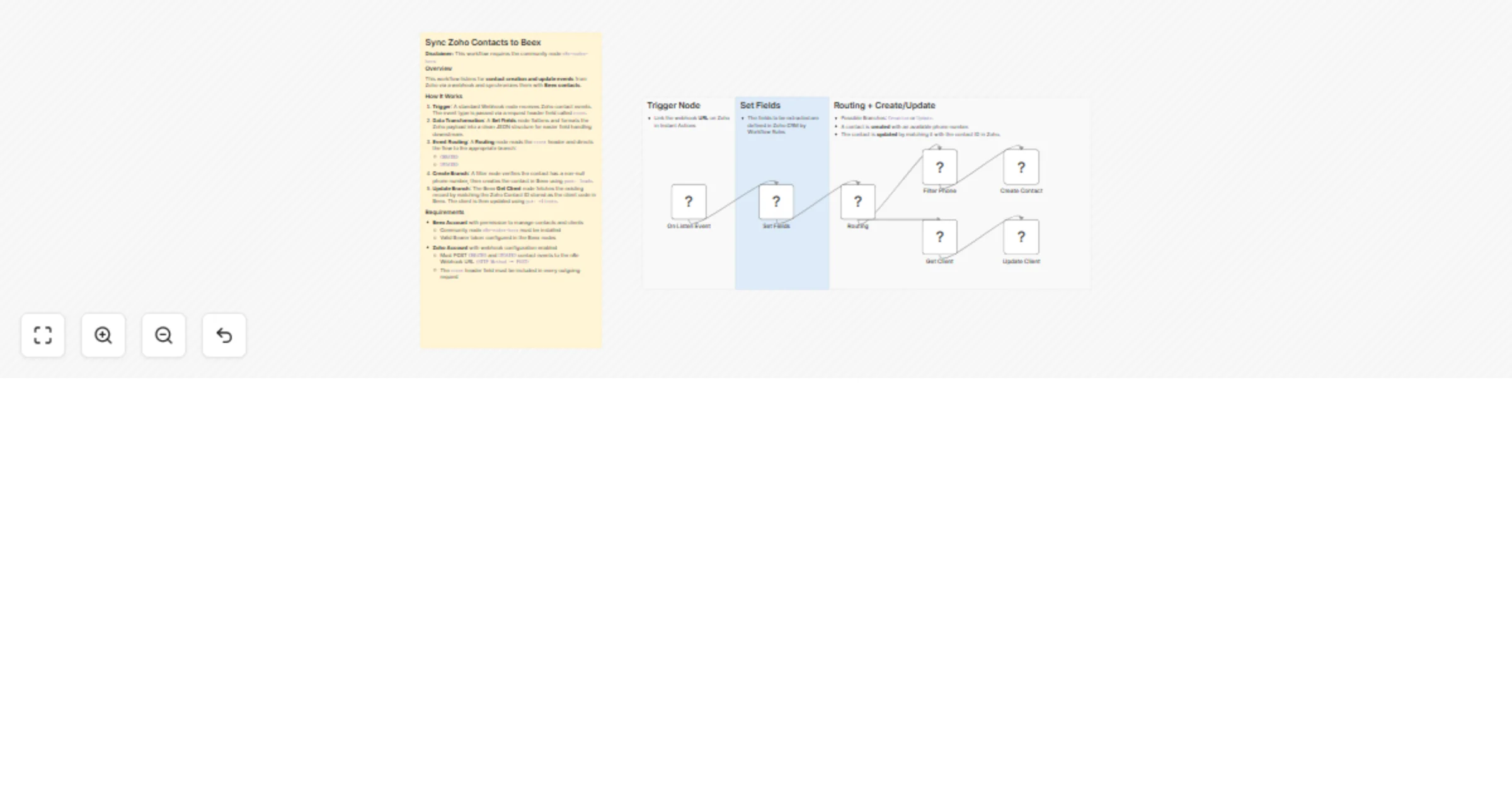
## Summary Automatically sync your Beex leads to HubSpot by handling both creation and update events in real time. ## How It Works 1. **Trigger Activation:** The workflow is triggered when a lead is created or updated in Beex.  2. **Data Transformation:** The nested data structure from the Beex Trigger is flattened into a simple JSON format for easier processing.  3. **Email Validation:** The workflow verifies that the lead contains a valid email address (non-null), as this field serves as the unique identifier in HubSpot. 4. **Field Mapping:** Configure the fields (via drag and drop) that will be used to create or update a contact in HubSpot. ⚠️ **Important:** Field names must exactly match the contact property names defined in HubSpot.  5. **Event Routing:** The workflow routes the action based on the event type received: `contact_create` or `contact_update`. 6. **Branch Selection:** If the event is `contact_create`, the workflow follows the upper branch; otherwise, it continues through the lower branch. 7. **API Request Execution:** The corresponding HTTP request is executed POST to create a new contact or PUT to update an existing one both using the same JSON body structure. ## Setup Instructions 1. **Install Beex Nodes:** Before importing the template, install the Beex trigger and node using the following package name: ``` n8n-nodes-beex ``` 2. **Configure HubSpot Credentials:** Set up your HubSpot credentials with: - Access Token (typically from a private app) - Read/Write permissions for **Contacts** objects  3. **Configure Beex Credentials:** For Beex users with platform access (for trial requests, contact [email protected]): - Navigate to **Platform Settings** → **API Key & Callback** - Copy your API key and paste it into the Beex Trigger node in n8n   4. **Set Up Webhook URL:** Copy the Webhook URL (Test/Production) from the Beex Trigger Node and paste it into the Callback Integration section in Beex. Save your changes.  ## Requirements - **HubSpot:** An account with a Private App Token and Read/Write permissions for **Contacts** objects. - **Beex:** An account with lead generation permissions and a Bearer Token configured in the Trigger Node. - **Event Configuration:** In the Beex platform's **API Key & Callback** section, enable the following events: - "Update general and custom contact data" - "Networking"  ## Customization Options - **Contact Filtering:** Add filters to control which Beex leads should sync to HubSpot. - **Identifier Configuration:** By default, only leads with a valid email address are processed to ensure accurate matching in HubSpot CRM. You can modify this logic to apply additional restrictions. - **Field Mapping:** The "Set Fields Update" node is the primary customization point. Here you can map Beex fields to HubSpot properties for both creation and update operations (see Step 4 in How It Works). - **Field Compatibility:** Ensure that Beex custom fields are compatible with HubSpot's default or custom properties; otherwise, API calls will fail due to schema mismatches.
Automatic re-engagement for inactive Shopify customers via Beex
## Summary Re-engage your customers with your Shopify store through a personalized contact sequence. ## How it works 1. The workflow is triggered by a Scheduler Trigger and immediately reviews your Shopify customers by retrieving their last_order_id. 2. For customers with a non-null last_order_id, the workflow proceeds to fetch detailed order information from Shopify, including the order closing date and the products involved. 3. Based on the order date, the workflow calculates the number of days the customer has been inactive. If this period exceeds a defined threshold (e.g., 30 days), the corresponding records are sent via API to Beex, where each customer enters a multi-step contact sequence that may include WhatsApp, email, and other channels. Example: "Customers can then expect to receive a limited-time discount coupon invitation as part of the reactivation strategy".  ## How to set up 1. Before importing the template, make sure to install the Beex node using the following package name: n8n-nodes-beex 2. Configure your Shopify credentials according to your store’s settings. You will need to provide: - Your store subdomain - Your Access Token - Your App Secret Key 3. For Beex users with platform access (if you need a trial, please contact [email protected]), go to the main dashboard and navigate to: Platform Settings → API KEY & Callback There, you can retrieve your API key and insert it into the corresponding Beex node within n8n.  ## Requirements - You need accounts for: - Beex (omnichannel contact platform) - Shopify (E-commerce platform builder) - You need in Beex (Node): - Portfolio ID - Sequence ID - The above determines the sequence of contact that customers are subjected to. ## How to customize - You can also change the threshold to define from what extent you consider that a client is inactive. - You can configure a particular sequence in Beex to contact your inactive customers to insert them into the node.