Yves Tkaczyk
Workflows by Yves Tkaczyk
Enhance product photos with Google Gemini AI for e-commerce catalog
## Automated image processing for e-commerce product catalog ### Use cases * Monitor a Google Drive folder, process each image based on the prompt defined in `Workflow Configuration` and save the new image to the specified output Google Drive folder. * Maintain a processing log in Google Sheets. 👍 This use case can be extended to any scenario requiring batch image processing, for example, unifying the look and feel of team photos on a company website. ### How it works * Trigger: Watches a Google Drive folder for new or updated files. * Downloads the image, processes it using Google Gemini (Nano Banana), and uploads the new image to the specified output folder. ### How to use * Google Drive and Google Sheets nodes: * Create Google credentials with access to Google Drive and Google Sheets. [Read more about Google Credentials](https://docs.n8n.io/integrations/builtin/credentials/google/). * Update **all** Google Drive and Google Sheets nodes (6 nodes total) to use these credentials * Gemini AI node: * Create Google Gemini(PaLM) Api credentials. [Read more about Google Gemini(PaLM) credentials](https://docs.n8n.io/integrations/builtin/credentials/googleai/). * Update the `Edit Image` node to use the Gemini Api credentials. * Create a Google Sheets spreadsheet following the steps in `Google Sheets Configuration` (see right ➡️). Ensure the spreadsheet can be accessed as `Editor` by the account used for the Google Credentials. * Create input and output directories in Google Drive. Ensure these directories are accessible by the account used for the credentials. * Update the `File Created`, `File Updated` and `Workflow Configuration` node following the steps in the green Notes (see right ➡️). ### Requirements * Google account with Google API access * Google AI Studio account with ability to create a Google Gemini API key. * Basic n8n knowledge: understanding of triggers, expressions, and credential management ### Who’s it for Anyone wanting to batch process images for product catalog. Other use cases are applicable. Please [reach out](https://www.linkedin.com/in/ytkaczyk/) reach out if you need help customizing this workflow. ### 🔒 Security All credentials are stored securely using n8n's credential system. The only potentially sensitive information stored in the workflow is the Google Drive folder and Sheet IDs. These should be secured according to your organization’s needs. ### Need Help? Reach out on [LinkedIn](https://www.linkedin.com/in/ytkaczyk/) or Ask in the [Forum](https://community.n8n.io/)!
Parse PDF, DOCX & images with Mistral OCR via Google Drive with Slack alerts
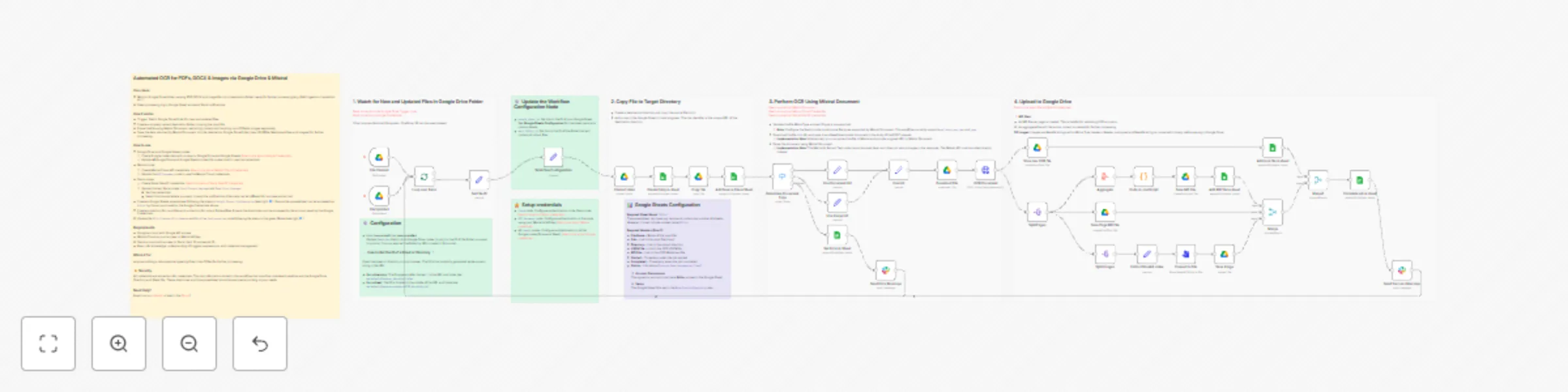
### Use cases * Monitor Google Drive folder, parsing PDF, DOCX and image file into a destination folder, ready for further processing (e.g. RAG ingestion, translation, etc.) * Keep processing log in Google Sheet and send Slack notifications. ### How it works * Trigger: Watch Google Drive folder for new and updated files. * Create a uniquely named destination folder, copying the input file. * Parse the file using Mistral Document, extracting content and handling non-OCRable images separately. * Save the data returned by Mistral Document into the destination Google Drive folder (raw JSON file, Markdown files, and images) for further processing. ### How to use * Google Drive and Google Sheets nodes: * Create Google credentials with access to Google Drive and Google Sheets. [Read more about Google Credentials](https://docs.n8n.io/integrations/builtin/credentials/google/). * Update **all** Google Drive and Google Sheets nodes (14 nodes total) to use the credentials * Mistral node: * Create Mistral Cloud API credentials. [Read more about Mistral Cloud Credentials](https://docs.n8n.io/integrations/builtin/credentials/mistral/). * Update the `OCR Document` node to use the Mistral Cloud credentials. * Slack nodes: * Create Slack OAuth2 credentials. [Read more about Slack OAuth2 credentials](https://docs.n8n.io/integrations/builtin/credentials/slack/#using-oauth2) * Update the two Slack nodes: `Send Success Message` and `Send Error Message`: * Set the credentials * Select the channel where you want to send the notifications (channels can be different for success and errors). * Create a Google Sheets spreadsheet following the steps in `Google Sheets Configuration`. Ensure the spreadsheet can be accessed as `Editor` by the account used by the Google Credentials above. * Create a directory for input files and a directory for output folders/files. Ensure the directories can be accessed by the account used by the Google Credentials. * Update the `File Created`, `File Updated` and `Workflow Configuration` node following the steps in the green Notes. ### Requirements * Google account with Google API access * Mistral Cloud account access to Mistral API key. * Slack account with access to Slack client ID and secret ID. * Basic n8n knowledge: understanding of triggers, expressions, and credential management ### Who’s it for Anyone building a data pipeline ingesting files to be OCRed for further processing. ### 🔒 Security All credentials are stored as n8n credentials. The only information stored in this workflow that *could* be considered sensitive are the Google Drive Directory and Sheet IDs. These directories and the spreadsheet should be secured according to your needs. ### Need Help? Reach out on [LinkedIn](https://www.linkedin.com/in/ytkaczyk/) or Ask in the [Forum](https://community.n8n.io/)!
Secure GitHub webhooks with HMAC256 signature validation
### Use cases * Ensure that the calls to the workflow's webhook are (a) originating from the correct GitHub repository and (b) haven't been tampered with. ### How it works * When a secret is provided in a GitHub webhook configuration, a `x-hub-signature-256` header is added to the webhook. * `Compute HMAC256` computes the HMAC256 signature similarly to how it was computed by GitHub. * `Validate HMAC256` tests for the equality of the computed value and the value provided by the header. * If the values are equal then 200 is returned to GitHub and the workflow continues * If the values are NOT equal then 401 is returned and the workflow ends. * __Note:__ The `Stop and Error` step is optional and can be removed. Removing it means that the workflow completes successfully while still returning 401 to GitHub. This means that you will not be able to easily track malicious or incorrect calls to your webhook from n8n. ### How to use * Add the steps (1) and (2) of the workflow to your current workflow receiving webhook calls from GitHub. * Update the `Secret` field in the `Compute HMAC256` node with the same value as the secret stored in the `Secret` field in the GitHub webhook definition. ### Requirements * GitHub account and repository. * GitHub webhook setup with a `Secret` key. Key can be of any length and should be generated with a key or password generator. ### Who’s it for Developers or DevOps engineers who want to ensure secure webhook communication between GitHub and n8n. ### How to customize the workflow * This is a building block for your own workflow. If you use this workflow as a base, replace step (3) with your own business logic. * You can modify the Stop and Error node to log unauthorized requests or trigger alerts. ### ⚠️ Warning The secret is stored in plain text in the workflow. You should take this into consideration if the workflow is committed to source control or shared in any other way. ### Need Help? Reach out on [LinkedIn](https://www.linkedin.com/in/ytkaczyk/) or Ask in the [Forum](https://community.n8n.io/)!