Yoshino Haruki
Workflows by Yoshino Haruki
Automate image portfolio organization with GPT-4o Vision, Google Drive and Notion
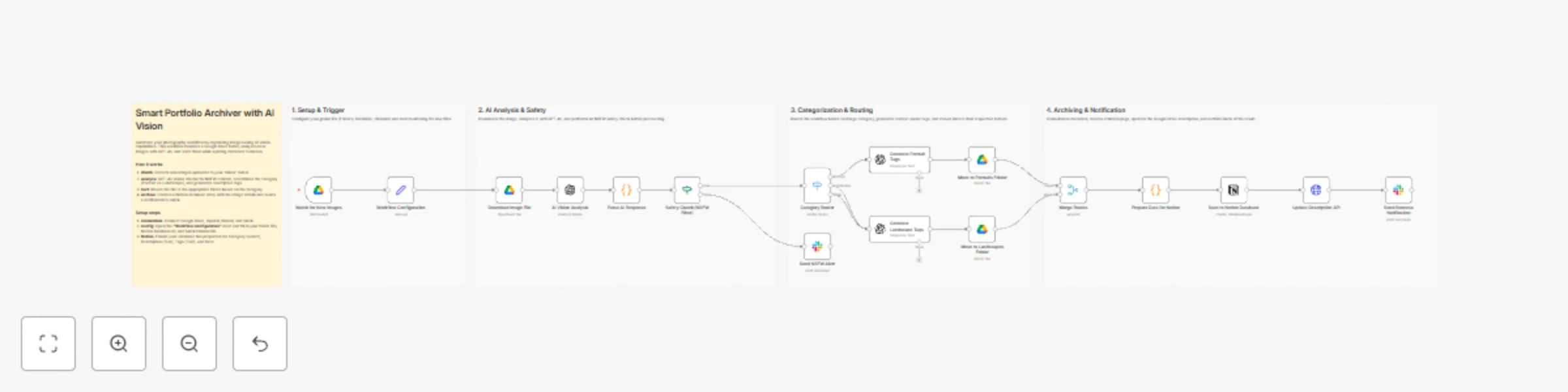
## Overview This template is ideal for photographers, graphic designers, and creative professionals who manage large volumes of visual assets. It is also perfect for Digital Asset Managers looking for a customizable, automated solution to organize files without manual tagging. ## What it does When a new image is uploaded to a designated "Inbox" folder in Google Drive, the workflow performs the following actions: - **AI Analysis**: Uses GPT-4o to analyze the image content, generating a description, extracting dominant colors, and determining the category (e.g., Portrait vs. Landscape). - **Safety Check**: Runs an AI-based NSFW filter. If inappropriate content is detected, the process stops, and a warning is sent to Slack. - **Smart Sorting**: Automatically moves the file into the correct subfolder based on its category. - **Contextual Tagging**: Generates specific tags (e.g., "smile, natural light" for portraits) and updates the file metadata. - **Archiving**: Creates a comprehensive entry in a Notion Database with the image link, tags, and description. - **Notification**: Sends a success alert to Slack with a summary of the archived asset. ## How to set up This workflow is designed to be plug-and-play using a central configuration node. 1. **Credentials**: Connect your Google Drive, OpenAI, Notion, and Slack accounts in n8n. 2. **Set Variables**: Open the node named **"Workflow Configuration"**. Replace the placeholder IDs with your actual Folder IDs (for Inbox, Portraits, and Landscapes), Notion Database ID, and Slack Channel ID. 3. **Prepare Notion**: Create a Database in Notion with the following properties: - Category (Select) - Description (Rich Text) - Image URL (URL) - Tags (Rich Text) - Date (Date) ## Requirements - **n8n Version**: 1.0 or later. - **OpenAI API**: Access to the **gpt-4o** model is recommended for accurate vision analysis. - **Google Drive**: A specific folder structure (Inbox, Portraits, Landscapes). - **Notion**: A dedicated database for the portfolio. - **Slack**: A channel for notifications. ## How to customize - **Add Categories**: You can expand the "Category Router" (Switch node) to include more specific genres like "Architecture," "Macro," or "Street," and add corresponding paths. - **Adjust Prompts**: Modify the system prompts in the AI nodes to change the language of the output or the style of the generated tags. - **Change Output**: Connect to Airtable or Excel instead of Notion if you prefer a different database system.
Create film location database with Google Maps, AI analysis & Google Sheets
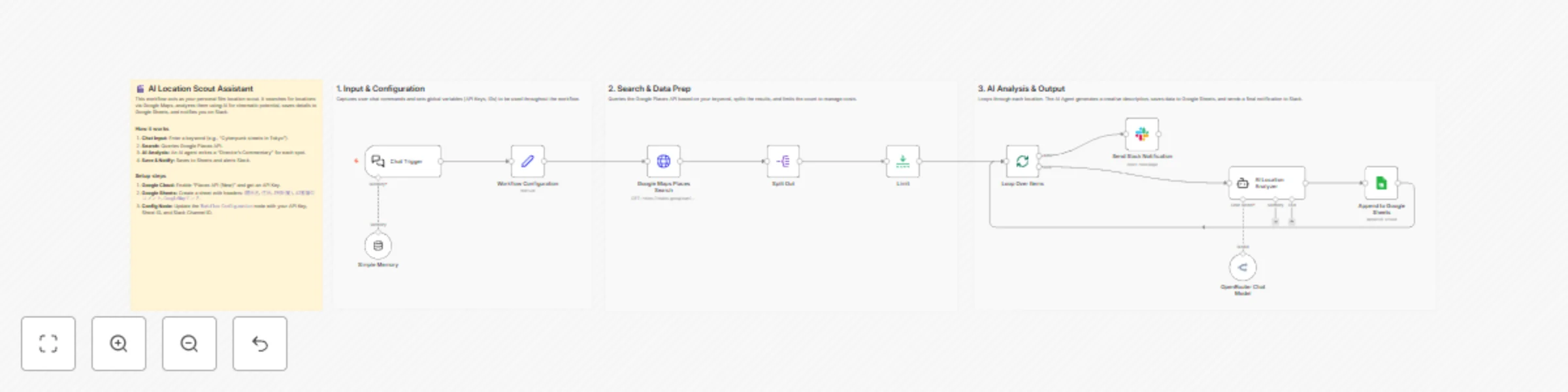
## Who is this for? This workflow is ideal for **filmmakers, video producers, content creators, and location managers** who need to quickly build a database of potential shooting locations without manual research and data entry. ## How it works 1. **Chat Input**: Start the workflow via the n8n chat interface and enter a search query (e.g., "Quiet cafes in Kyoto" or "Cyberpunk streets"). 2. **Search**: The workflow queries the **Google Maps Places API** to find matching real-world locations. 3. **AI Analysis**: An AI agent (via OpenRouter) reviews the location details and writes a short, creative "Director's Commentary" highlighting its cinematic appeal. 4. **Data Entry**: The location name, address, rating, Google Maps link, and the AI's commentary are automatically saved to a **Google Sheet**. 5. **Notification**: Once all locations are processed, a summary link is sent to your **Slack** channel. ## Prerequisites * **n8n Version**: 1.0 or later * **Google Cloud Platform**: API Key with "Places API (New)" enabled. * **Google Sheets**: A formatted sheet (see setup below). * **Slack**: An App/Bot token with chat writing permissions. * **OpenRouter** (or OpenAI/Anthropic): API Key for the LLM. ## How to set up 1. **Google Sheet**: Create a new sheet with the following headers in the first row: * `場所名` (Name) * `住所` (Address) * `評価(星)` (Rating) * `AI監督のコメント` (AI Comment) * `GoogleMapリンク` (Link) 2. **Credentials**: Configure your credentials for Google Maps, Google Sheets, Slack, and OpenRouter within n8n. 3. **Configuration Node**: Open the node named **"Workflow Configuration"** and input your specific details: * `googleMapsApiKey`: Your Google Cloud API key. * `slackChannelId`: The Channel ID where you want notifications (e.g., C0123456). * `googleSheetId`: The string of characters found in your Google Sheet URL. ## Customization * **Adjust Results**: Change the **Limit** node settings to process more locations per run (default is set to 2 to save API credits during testing). * **Change Persona**: Edit the "System Prompt" in the **AI Location Analyzer** node to change the AI's tone (e.g., from "Film Director" to "Real Estate Agent" or "Travel Blogger"). * **Swap LLM**: You can easily replace the OpenRouter node with an OpenAI or Anthropic node if you prefer a different model.
Gap-time cafe finder with OpenRouter AI, Google Calendar, Maps & Slack alerts
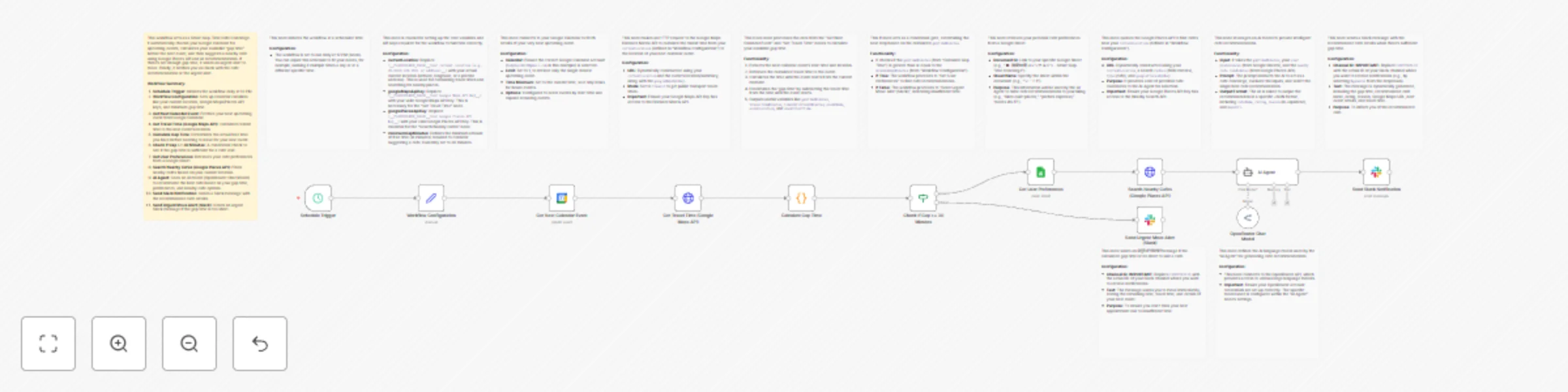
Who’s it for This template is ideal for busy professionals, students, or anyone with a dynamic schedule who wants to optimize their brief periods of free time. If you frequently find yourself with unexpected gaps between meetings and wish for intelligent, personalized suggestions on where to grab a coffee or get some work done, this workflow is for you. How it works / What it does The workflow begins by checking your Google Calendar for your next event at a scheduled time. It then calculates the travel time from your current location to your next event's venue using Google Maps. This allows it to determine your actual "gap time" – the usable free time before you need to start moving. If you have a sufficient gap (e.g., 30 minutes or more), the workflow fetches your preferred cafe criteria from a Google Sheet and searches for nearby cafes using Google Places. An AI agent then processes this information, along with your available gap time, to recommend the best cafe suited to your needs. This recommendation, complete with ratings and a Google Maps link, is sent directly to your Slack channel. Conversely, if the gap time is too short to comfortably visit a cafe, the workflow sends an urgent Slack alert, reminding you to prepare for your next appointment and providing essential details. How to set up Import the Workflow: Import this workflow into your n8n instance. Configure API Keys: In the "Workflow Configuration" node, replace the placeholders for googleMapsApiKey and googlePlacesApiKey with your actual API keys. Ensure these keys have access to the Google Maps Distance Matrix API and Google Places API (Nearby Search). Also, update currentLocation with your default or most frequent starting location (latitude/longitude or address). Google Calendar Credentials: Authenticate the "Get Next Calendar Event" node with your Google Calendar account. Select the calendar you wish to monitor. Google Sheets Credentials: Authenticate the "Get User Preferences" node with your Google Sheets account. Create a Google Sheet to store your cafe preferences (e.g., "Likes quiet places", "Prefers espresso", "Needs Wi-Fi"). Update the "Document ID" and "Sheet Name" in this node to point to your preference sheet. OpenRouter Credentials: Authenticate the "OpenRouter Chat Model" with your OpenRouter API key. Slack Credentials: Authenticate both "Send Slack Notification" and "Send Urgent Move Alert (Slack)" nodes with your Slack account. In both Slack nodes, update the channelId to your desired Slack channel where you want to receive notifications (e.g., #general, or a specific DM channel). Activate the Workflow: Once all configurations are complete, activate the workflow. Requirements An n8n instance (self-hosted or cloud). Google Account with Google Calendar and Google Sheets. Google Cloud Project with activated Google Maps Platform APIs (Distance Matrix API, Places API) and corresponding API Keys. An OpenRouter API Key. A Slack Workspace and API Token (or Webhook URL). How to customize the workflow Scheduling: Adjust the "Schedule Trigger" node to run at different intervals or specific times that best suit your daily routine. Minimum Gap Time: Modify the minimumGapMinutes variable in the "Workflow Configuration" node to set a different threshold for cafe recommendations. Cafe Search Radius: In the "Search Nearby Cafes (Google Places API)" node, you can change the radius parameter to search for cafes within a larger or smaller area. User Preferences: Expand your Google Sheet with more detailed preferences to give the AI agent better context for recommendations (e.g., "vegan options," "good for meetings," "strong coffee"). AI Prompt: Refine the prompt in the "AI Agent" node to guide the AI towards specific types of recommendations or output formats. Slack Message Customization: Edit the text fields in the Slack nodes to personalize the notification messages.