Yatharth Chauhan
Workflows by Yatharth Chauhan
Route feedback by sentiment using Typeform, GCP Natural Language, Notion & Trello
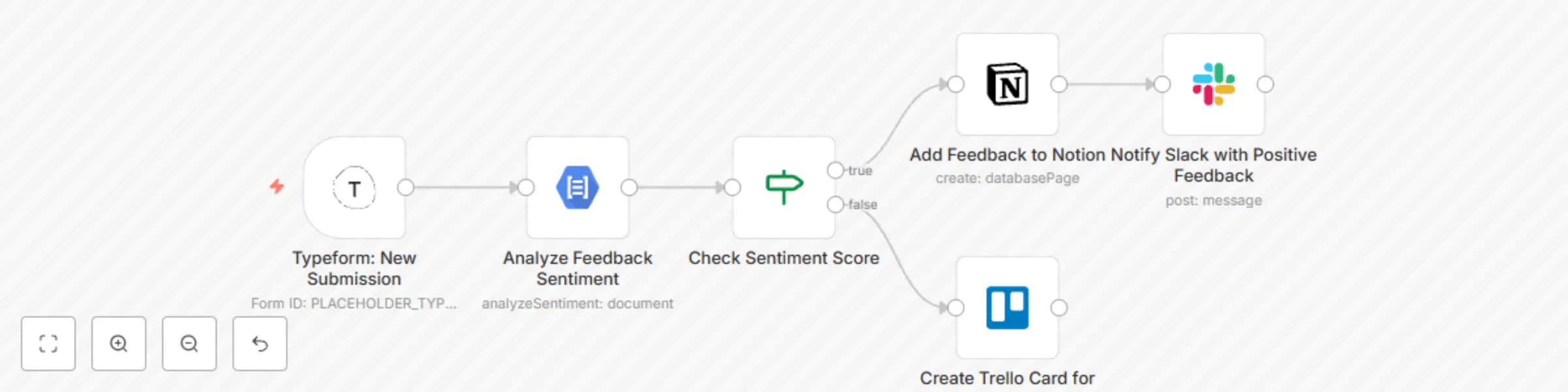
# Feedback Sentiment Workflow (Typeform → GCP → Notion/Slack/Trello) This template ingests feedback from **Typeform**, runs **Google Cloud Natural Language** sentiment analysis, routes based on sentiment, and then creates a **Notion** database page and posts a **Slack** notification for positive items, or creates a **Trello** card for negative items. The flow is designed for **quick setup** and **safe sharing** using placeholders for IDs and credentials. --- ## How it Works 1. **Typeform Trigger** Captures each new submission and exposes answers like **Name** and the long-text **Feedback** field. 2. **Google Cloud Natural Language** Analyzes the feedback text and returns a sentiment score in: `documentSentiment.score` 3. **Check Sentiment Score (IF)** - True branch: Score > 0 → Positive - False branch: Score ≤ 0 → Non-positive 4. **Add Feedback to Notion (True branch)** Creates a new page in a **Notion database** with mapped properties. 5. **Notify Slack (after Notion)** Posts the feedback, author, and score to a Slack channel for visibility. 6. **Create Trello Card (False branch)** Logs non-positive items to a Trello list for follow-up. --- ## Required Accounts - **Google Cloud Natural Language API** enabled (OAuth2 or service credentials). - **Notion integration** with database access to create pages. - **Slack app/bot token** with permission to post to the target channel. - **Typeform account** with a form including: - Long Text feedback question - Name field --- ## Notion Database Columns - **Name (title):** Person name or responder label - **Feedback (rich_text):** Full feedback text - **Sentiment Score (number):** Numeric score from GCP `∈ [-1, 1]` - **Source (select/text):** "Typeform" for provenance - **Submitted At (date):** Timestamp from the trigger --- ## Customization Options - **Sentiment Threshold:** Adjust IF condition (e.g., `≥ 0.25`) for stricter positivity. - **Slack Routing:** Change channel, add blocks/attachments for richer summaries. - **Trello Path:** Point to a triage list and include labels for priority. - **Field Mapping:** Update the expression for feedback question to match Typeform label. - **Database Schema:** Add tags, product area, or customer tier for reporting. --- ## Setup Steps 1. Connect credentials: Typeform, GCP Natural Language, Notion, Slack, Trello. 2. Replace placeholders in workflow JSON: - Form ID - Database ID - Slack Channel - Trello List ID 3. Map fields: Set Feedback + Name expressions from Typeform Trigger output into Notion and Slack. 4. Adjust IF threshold for your definition of "positive". 5. Test with a sample response and confirm: - Notion page creation - Slack notification - Trello card logging ---
Human in the loop email response system (AI + IMAP)
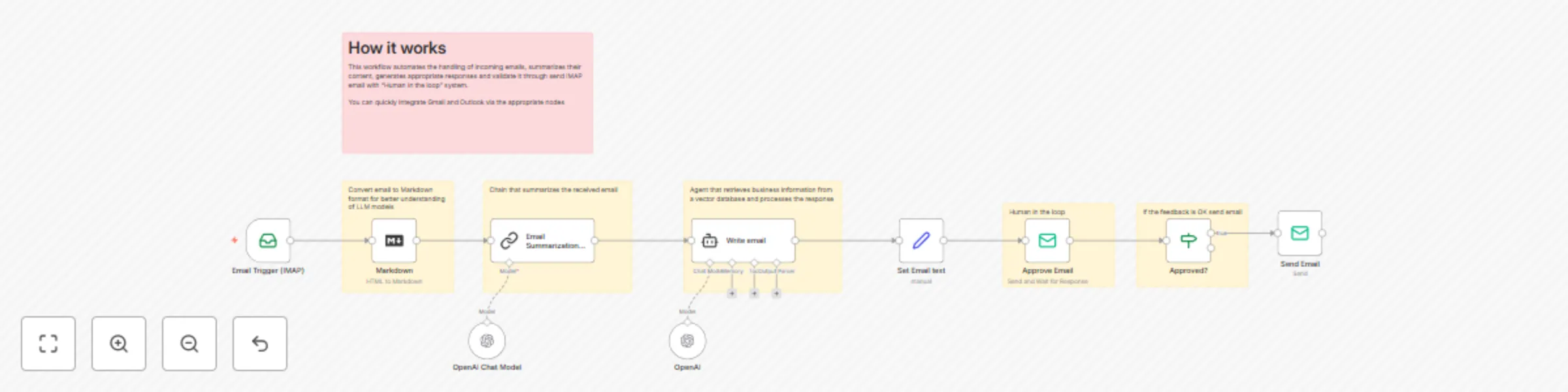
How it works This workflow automates the process of handling incoming emails by: 1. Receiving emails via IMAP. 2. Converting the email to Markdown for better AI understanding. 3. Summarizing the email using an AI model. 4. Drafting a professional reply with AI, based on the summary. 5. Requesting human approval for the AI-generated response. 6. Sending the approved reply back to the original sender. --- Set up steps Estimated time: 10–20 minutes (excluding credential setup) What you’ll need: - IMAP credentials for your email inbox - SMTP credentials for sending emails - OpenAI (or compatible) API key for AI steps Setup outline: 1. Add your IMAP and SMTP credentials to the workflow. 2. Connect your OpenAI (or compatible) account for AI summarization and reply generation. 3. Deploy the workflow in n8n and activate it. 4. Test by sending an email to your connected inbox. Note: Detailed configuration tips and explanations are included as sticky notes inside the workflow for each step.