Yasser Sami
Workflows by Yasser Sami
Extract Amazon product data to Sheets with Olostep API
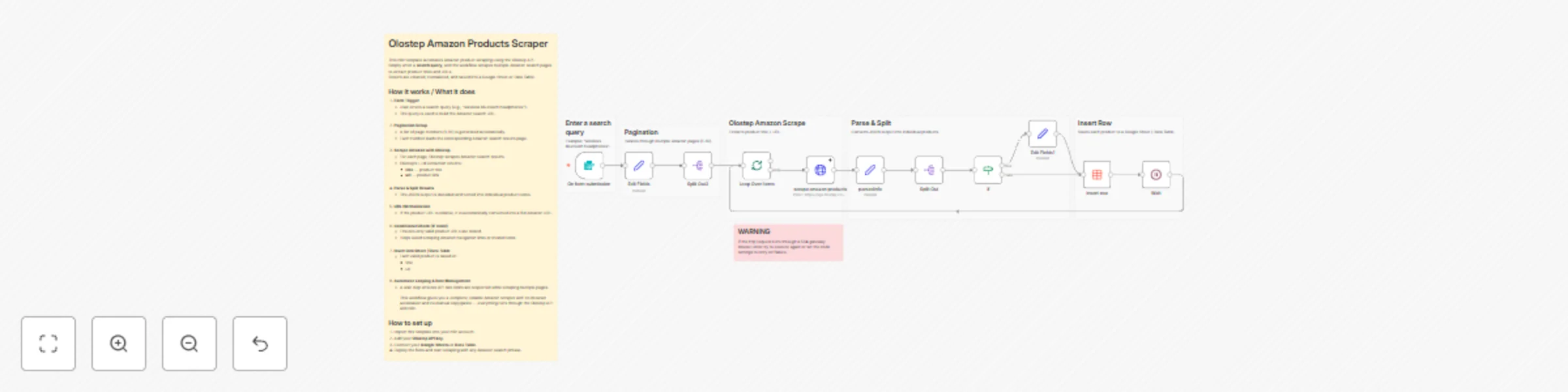
# Olostep Amazon Products Scraper This n8n template automates Amazon product scraping using the Olostep API. Simply enter a **search query**, and the workflow scrapes multiple Amazon search pages to extract product titles and URLs. Results are cleaned, normalized, and saved into a Google Sheet or Data Table. ## Who’s it for - E-commerce analysts researching competitors and pricing - Product sourcing teams - Dropshippers and Amazon sellers - Automation builders who want quick product lists without manual scraping - Growth hackers collecting product data at scale ## How it works / What it does 1. **Form Trigger** - User enters a search query (e.g., “wireless bluetooth headphones”). - The query is used to build the Amazon search URL. 2. **Pagination Setup** - A list of page numbers (1–10) is generated automatically. - Each number loads the corresponding Amazon search results page. 3. **Scrape Amazon with Olostep** - For each page, Olostep scrapes Amazon search results. - Olostep’s LLM extraction returns: - **title** — product title - **url** — product link 4. **Parse & Split Results** - The JSON output is decoded and turned into individual product items. 5. **URL Normalization** - If the product URL is relative, it is automatically converted into a full Amazon URL. 6. **Conditional Check (IF node)** - Ensures only valid product URLs are stored. - Helps avoid scraping Amazon navigation links or invalid items. 7. **Insert into Sheet / Data Table** - Each valid product is saved in: - title - url 8. **Automatic Looping & Rate Management** - A wait step ensures API rate limits are respected while scraping multiple pages. This workflow gives you a complete, reliable Amazon scraper with no browser automation and no manual copy/paste — everything runs through the Olostep API and n8n. ## How to set up 1. Import this template into your n8n account. 2. Add your **Olostep API key**. 3. Connect your **Google Sheets** or **Data Table**. 4. Deploy the form and start scraping with any Amazon search phrase. ## Requirements - Olostep API key - Google Sheets or Data Table - n8n cloud or self-hosted instance ## How to customize the workflow - Add more product fields (price, rating, number of reviews, seller name, etc.). - Extend pagination range (1–20 or more pages). - Add filtering logic (e.g., ignore sponsored results). - Send scraped results to Notion, Airtable, or a CRM. - Trigger via Telegram bot instead of a form. --- 👉 This workflow is perfect for e-commerce research, competitive analysis, or building Amazon product datasets with minimal effort.
Scrape property listings from Zillow with Olostep API and store in data tables
# Zillow Property Scraper Using Olostep API This n8n template automates Zillow property data collection by scraping Zillow search results using the Olostep API. It extracts **property price, link to listing, and location**, removes duplicates, and stores everything in a Google Sheet or Data Table. ## Who’s it for - Real estate analysts and investors researching property markets. - Lead generators needing structured Zillow data. - Freelancers and automation builders collecting housing listings. - Anyone needing fast, clean Zillow data without manual scraping. ## How it works / What it does 1. **Form Trigger** - User enters a Zillow search URL. - This becomes the base Zillow search URL. 2. **Pagination Logic** - A list of page numbers (1–7) is generated. - Each number is used to load the next Zillow search page. 3. **Scrape Zillow Pages with Olostep** - For each page, the Olostep API scrapes the Zillow results. - Olostep’s LLM extraction schema extracts: - **price** - **url** (link to the Zillow listing) - **location** 4. **Parse & Split Results** - Returned JSON is cleaned and converted into individual listing items. 5. **Remove Duplicates** - Ensures each Zillow listing appears only once. 6. **Insert into Google Sheet / Data Table** - Final cleaned listings are inserted row-by-row. - Perfect for filtering, exporting, or further analysis. This workflow gives you a fast, scalable property scraper using Zillow + Olostep — no browser automation, no manual copy/paste. ## How to set up 1. Import the template into n8n. 2. Add your **Olostep API key**. 3. Connect your **Google Sheet or n8n Data Table**. 4. Deploy the form and start scraping by entering a place name. ## Requirements - Olostep API key - Google Sheets account or Data Table - n8n cloud or self-hosted instance ## How to customize the workflow - Add more pages to the pagination array (e.g., 1–20). - Expand the LLM extraction schema to include: - number of bedrooms - number of bathrooms - square footage - property type - Trigger via Telegram or API instead of a form. - Send results to Airtable or Notion instead of Google Sheets. --- 👉 This template gives you an automated Zillow scraper powered by AI extraction — perfect for real estate lead gen or market research.
Scrape business leads from Google Maps and extract decision-maker info with Olostep
# Olostep Google Maps Lead Generation Automation This n8n template automates lead generation by scraping Google Maps using the Olostep API. It extracts **business names, locations, websites, phone numbers, and decision-maker names** (CEO, Founder, etc.) directly from the business website — and saves everything into a Google Sheet. ## Who’s it for - Marketers and agencies doing local business outreach. - SaaS founders looking for prospects. - Freelancers and growth hackers scraping Google Maps leads. - Anyone who wants automated business research without manual data entry. ## How it works / What it does 1. **Form Trigger:** - User submits a form with: **City** + **Business Type** (e.g., "Dentist in Miami"). 2. **Google Maps Scraping:** - The workflow sends the query to the Olostep scraping API. - Extracts: - Business name - Location - Website - Phone number 3. **Clean the Data:** - Parsed JSON is split into items. - A Remove Duplicates node ensures only unique leads continue. 4. **Loop Through Each Business:** - For every business, the workflow triggers a second Olostep scrape — this time on the **business’s website**. - It extracts: - First name of decision-maker - Last name of decision-maker - (Optional) general contact email found on the website 5. **Store the Lead:** - The final combined lead is appended to a Google Sheet with these fields: - Business Name - Location - Website - Phone Number - Decision-Maker Name - Contact Email (if found) 6. **Loop & Wait:** - A wait step ensures you stay within rate limits while scraping multiple websites. This produces a clean, enriched list of leads ready for outreach or CRM import. ## How to set up 1. Import the template into your n8n workspace. 2. Add your **Olostep API key**. 3. Connect **Google Sheets** for output storage. 4. Publish your form to collect search requests. 5. Run the workflow — leads will appear automatically in your sheet. ## Requirements - Olostep API key. - Google Sheets account. - n8n account or self-hosted instance. ## How to customize the workflow - Add CRM destinations (HubSpot, Airtable, Notion). - Expand LLM-extraction to capture: social links, descriptions, ratings, etc. - Add validation rules before saving a lead. - Enable notification steps (Telegram, Slack) when batches finish. - Add additional enrichment steps (e.g., scrape About pages, contact pages, multiple URLs). --- 👉 This workflow gives you a complete lead generation system from Google Maps + business website analysis — with no manual scraping needed.
Build AI-ready knowledge base from Outlook & Notion using Pinecone & GPT-4
# Outlook & Notion Knowledge Base Builder for AI Agents This n8n template lets you automatically **build and maintain an AI-ready knowledge base** from Outlook emails and Notion pages. It stores both sources in a Pinecone vector database so your AI agent can reference them when generating answers, extracting information, or drafting context-aware emails. ## Who’s it for - Teams using Outlook for client or customer communications. - Businesses maintaining documentation or notes in Notion. - Developers or AI builders who want to create custom knowledge bases for intelligent agents. ## How it works / What it does 1. **Outlook Integration:** - When you move an email or thread to a specific folder (e.g., “knowledgebase”), the workflow triggers automatically. - It captures the entire conversation, removes duplicates, and stores it in Pinecone under a namespace called `"emails"`. - The AI agent later uses these stored emails to learn tone, structure, and context for drafting responses. 2. **Notion Integration:** - When a page is added to a designated Notion database, the workflow triggers. - The page content is extracted and embedded into Pinecone under the `"knowledgebase"` namespace. - This allows your agent to use your Notion pages as factual reference material when answering questions. 3. **AI Agent Setup:** - Uses **two Pinecone tools** — one to reference Notion content (knowledge base) and another for emails (style & tone). - Equipped with **Cohere embeddings** for multilingual support and **OpenAI** for conversation or drafting tasks. - When queried, the agent retrieves relevant knowledge from both namespaces to produce accurate, context-rich replies. ## How to set up 1. Import this template into your n8n account. 2. Connect your **Outlook account** and specify which folder to watch (e.g., “knowledgebase”). 3. Connect your **Notion account** and select your target database. 4. Connect your **Pinecone**, **Cohere**, and **OpenAI** credentials. 5. Activate the workflow — new Notion pages and Outlook threads will automatically update your knowledge base. ## Requirements - n8n account. - Microsoft Outlook account. - Notion account and database. - Pinecone account for vector storage. - Cohere API key for embeddings. - OpenAI API key for AI model. ## How to customize the workflow - **Namespaces:** Rename or expand namespaces (e.g., “sales_emails”, “internal_docs”) to organize knowledge types. - **Embeddings Model:** Replace Cohere with OpenAI embeddings if preferred. - **Agent Behavior:** Adjust the agent’s system message to change its tone or purpose (e.g., “act as a sales assistant”). - **Extra Sources:** Extend this workflow to include PDFs, websites, or Slack messages. - **Sync Schedule:** Modify trigger intervals to control how frequently updates are captured. --- This workflow automatically builds a living, AI-powered knowledge base from your Outlook and Notion data — perfect for intelligent support, research, or content generation.
Generate AI LinkedIn Posts with Human Approval via Telegram and GPT
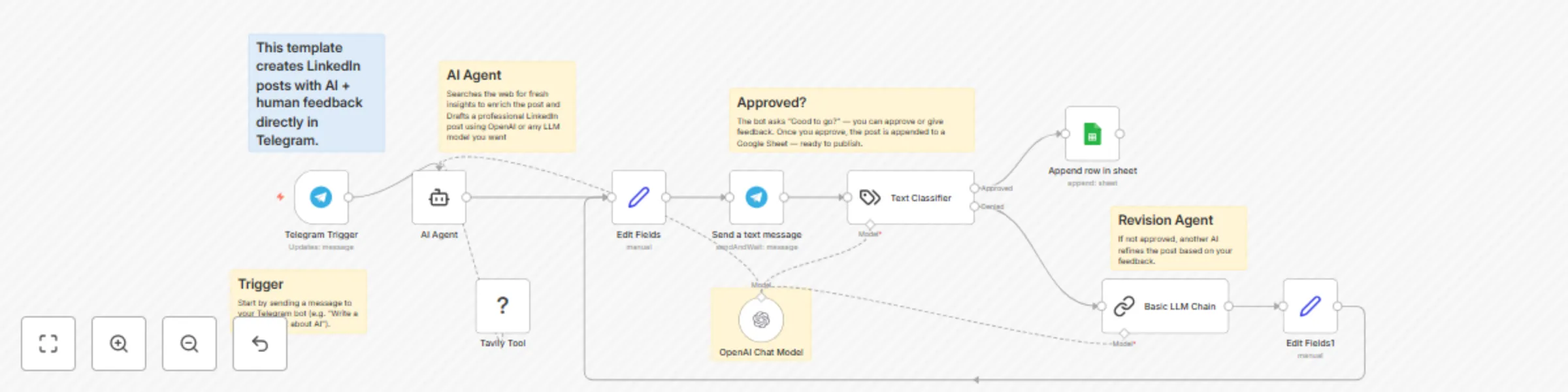
# Human-in-the-Loop LinkedIn Post Generator (Telegram + AI) This n8n template demonstrates how to build a **human-in-the-loop AI workflow** that helps you create professional LinkedIn posts via Telegram. The agent searches the web, drafts content, asks for your approval, and refines it based on your feedback — ensuring every post sounds polished and on-brand. ## Who’s it for - Content creators and marketers who want to save time drafting LinkedIn posts. - SaaS founders or solopreneurs who regularly share updates or insights. - Anyone who wants an AI writing assistant with human control in the loop. ## How it works / What it does 1. **Trigger**: The workflow starts when you send a message to the Telegram bot asking it to write a LinkedIn post (e.g., “Write a LinkedIn post about AI in marketing”). 2. **Research**: The AI agent uses the Tavily tool to search the web and gather context for your topic. 3. **Drafting**: An AI model (OpenAI or Gemini) creates a professional LinkedIn post based on the findings. 4. **Human-in-the-loop**: - The bot sends the draft to you in Telegram and asks: “Good to go?” - If you approve → The post is saved to a Google Sheet, ready to publish. - If you disapprove and give feedback → The feedback is sent to a second AI agent that revises and improves the post. - The improved draft is sent back to you again for final approval. 5. **Finalization**: Once approved, the post is appended to a Google Sheet — your ready-to-post content library. This workflow combines AI creativity with human oversight to produce polished, authentic LinkedIn content every time. ## How to set up 1. Import this template into your n8n account. 2. Connect your **Telegram bot** (via Telegram Trigger and Send Message nodes). 3. Connect your **Google Sheets** account to store approved posts. 4. Set up your **AI model provider** (OpenAI or Gemini) and **Tavily API key** for web search. 5. Activate the workflow and start chatting with your AI writing assistant on Telegram! ## Requirements - n8n account. - Telegram bot token. - OpenAI or Google Gemini account (for text generation). - Tavily API key (for web search). - Google Sheets account (for saving approved posts). ## How to customize the workflow - **Post Tone**: Adjust AI prompts to match your personal voice (professional, storytelling, inspirational, etc.). - **Approval Logic**: Modify the approval step to allow multiple revision loops or add a “draft-only” mode. - **Storage Options**: Instead of Google Sheets, save approved posts to Notion, Airtable, or your CMS. - **Multi-platform**: Extend the same logic for X (Twitter) or Threads by changing the final output destination. - **Branding**: Add your brand guidelines or preferred hashtags to the AI prompts for consistent style. --- This template helps you write better LinkedIn posts faster — keeping you in full control while AI does the heavy lifting.
Automated customer support with GPT-4 knowledge base agent for Gmail
# Customer Support AI Agent for Gmail This n8n template demonstrates how to build an **AI-powered customer support workflow** that automatically handles incoming Gmail messages, classifies them, finds answers from your knowledge base, and sends a personalized reply. ## Who’s it for - SaaS founders or teams who want to automate customer support. - Freelancers and solopreneurs who receive repetitive customer queries. - Companies that want to reduce manual email triage and improve response times. ## How it works / What it does 1. **Trigger**: A new email arrives in Gmail. 2. **Classification**: The workflow uses a text classifier to decide whether the email is customer support-related or not. - If not, it’s ignored. - If yes, it proceeds. 3. **AI Agent**: - Queries a knowledge base (vector database with OpenAI embeddings). - Retrieves the most relevant answer. - Drafts a reply using AI (OpenAI or Google Gemini model). 4. **Post-processing**: - Labels the email in Gmail for organization. - Sends a reply automatically. This ensures that your customers get timely, relevant responses without manual intervention. ## How to set up 1. Import this template into your n8n account. 2. Connect your **Gmail account** in the Gmail Trigger, Label, and Reply nodes. 3. Connect your **AI model provider** (OpenAI or Google Gemini). 4. Configure the **knowledge base embeddings** (upload your docs/FAQ into the vector database). 5. Activate the workflow — and your AI customer support agent is live! ## Requirements - n8n account. - Gmail account (with API access enabled). - OpenAI or Google Gemini account for LLM and embeddings. - Knowledge base data (FAQ, documentation, or past tickets). - Google Drive account for auto update your vector database(with API access enabled). ## How to customize the workflow - **Knowledge Base**: Replace or expand with your own company docs, FAQs, or past conversations. - **Classification Rules**: Train or adjust the classifier to handle more categories (e.g., Sales, Partnership, Technical Support). - **Reply Style**: Customize AI prompts for tone — professional, casual, or friendly. - **Labels**: Change Gmail labels to match your workflow (e.g., “Support,” “Sales,” “Priority”). - **Multi-language**: Add translation steps if your customers speak different languages. --- This template saves you hours of manual email triage and ensures your customers always get quick, accurate responses.