W

Websensepro

5
Workflows

Workflows by Websensepro
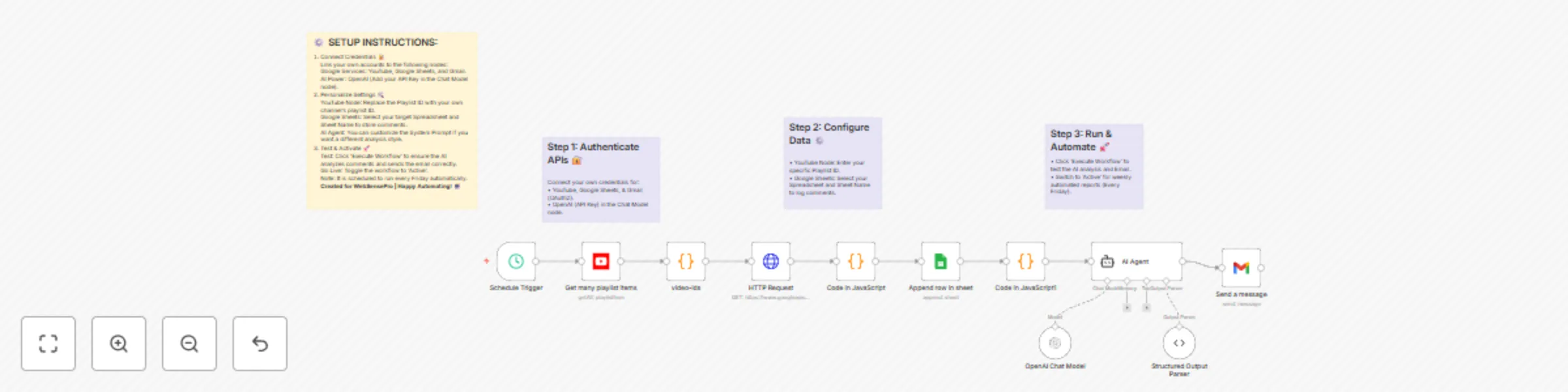
Workflow preview: Generate YouTube video ideas from comments with GPT-4o-mini and Google Sheets
Free advanced

Generate YouTube video ideas from comments with GPT-4o-mini and Google Sheets

#Analyse YouTube Comments via AI Agent and Create Video Topics [![Watch the video](https://img.youtube.com/vi/mdfcb0SyKPw/maxresdefault.jpg)](https://www.youtube.com/watch?v=mdfcb0SyKPw) ## Description Identifying what your audience wants can be a manual and time-consuming process. This workflow automates your content research by analyzing comments from your latest YouTube videos using an AI Agent. Every week, it fetches feedback, stores it in Google Sheets for backup, and uses OpenAI to suggest the **TOP 5 SEO-optimized video topics** based on real viewer requests. The final content strategy is delivered directly to your Gmail inbox, allowing you to focus on creating rather than researching. ## What it Does * **Weekly Trigger:** The workflow starts automatically every Friday (customizable) via the **Schedule Trigger**. * **Fetches Video Data:** It pulls the latest 5 videos from your specified YouTube playlist. * **Retrieves Comments:** Uses the **YouTube API (HTTP Request)** to fetch up to 100 comment threads per video. * **Data Archiving:** All retrieved comments are saved into a **Google Sheet**, ensuring you have a permanent backup of audience feedback. * **AI Analysis:** A **JavaScript node** formats the comments and passes them to an **AI Agent**. Powered by **OpenAI (GPT-4o-mini)**, the agent identifies recurring themes and requests. * **Structured Output:** The **Output Parser** ensures the AI provides exactly 5 video titles in a clean, professional format. * **Email Delivery:** The **Gmail node** sends a summary of the suggested content plan directly to your inbox. ## Use Cases * **YouTube Creators:** Automatically find out what tutorials or "How-to" videos your audience is asking for. * **Social Media Managers:** Generate weekly reports on audience sentiment and demand for clients. * **Educational Channels:** Identify specific pain points or questions students are mentioning in the comments. ## Customization * **YouTube Node:** Replace the `Playlist ID` with the ID of the playlist you want to monitor. * **Google Sheets:** Select your own Spreadsheet and Sheet Name in the **Append row in sheet** node. * **AI Agent Prompt:** You can modify the prompt to change the tone of the titles (e.g., "Make them clickbaity" or "Make them educational"). * **Gmail Node:** Update the "To" email address to your own email. ## Requirements * An **n8n instance** (Cloud or Self-hosted). * **Google Cloud Credentials** (With YouTube Data API v3, Google Sheets API, and Gmail API enabled). * **OpenAI API Key** (For the AI Agent analysis). ## How to Set Up 1. **Connect Credentials:** Link your YouTube, Google Sheets, Gmail, and OpenAI accounts to their respective nodes. 2. **Configure Playlist:** In the "Get many playlist items" node, enter your YouTube Playlist ID. 3. **Select Sheet:** In the "Append row in sheet" node, pick your target Google Sheet. 4. **Update Gmail:** In the "Send a message" node, set your recipient email address. 5. **Activate:** Save the workflow and toggle it to **Active**.

W
Websensepro
Market Research
19 Dec 2025
133
0
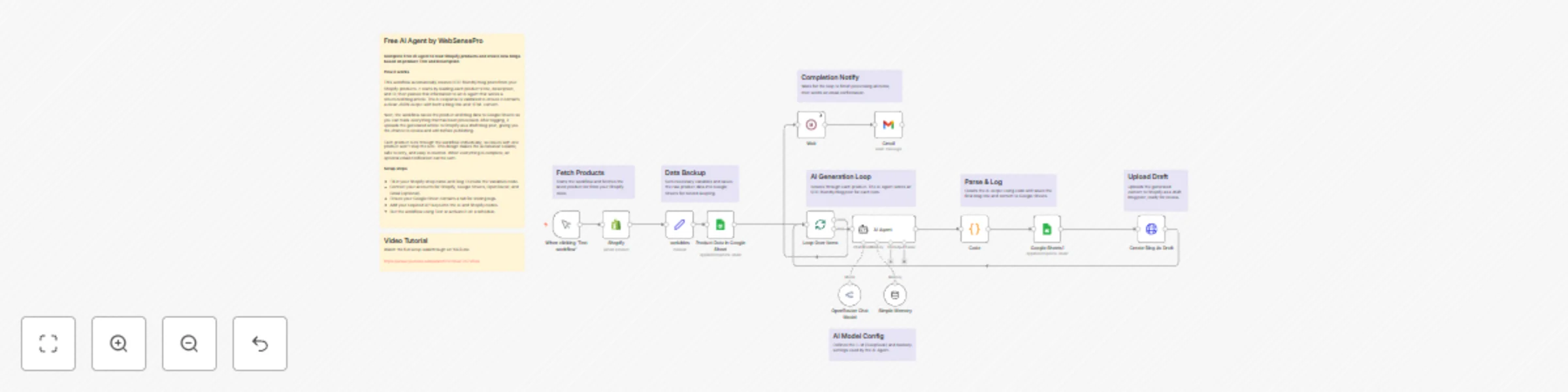
Workflow preview: Transform Shopify products into SEO blog content with DeepSeek AI and Google Sheets
Free advanced

Transform Shopify products into SEO blog content with DeepSeek AI and Google Sheets

## **Overview** Stop struggling with content creation for your e-commerce store. This workflow acts as your automated AI Content Marketer, instantly transforming your Shopify product details into high-quality, SEO-optimized blog posts. It handles everything from reading product data to writing the article and uploading it directly to your store as a draft. #### What this workflow does - Fetches Product Data: Automatically pulls product titles and descriptions directly from your Shopify store (configurable limit). - Data Logging: Backs up the raw product data into Google Sheets for record-keeping before processing. - AI SEO Writing: Uses a powerful LLM (via OpenRouter/DeepSeek) to write a complete, engaging blog post based on the product's features. It generates an SEO-friendly title and formats the body content in clean HTML (headings, bullet points, etc.). - Smart Parsing: A custom Code node ensures the AI's output is strictly formatted as JSON, separating the Blog Title from the Blog Content to prevent errors. - Auto-Drafting in Shopify: Uploads the generated article directly to your specific Shopify Blog ID as a "Draft" (so you can review it before publishing). - Email Notification: Sends a confirmation email via Gmail to let you know your new blog posts are ready for review. #### Setup Requirements To run this workflow, you will need to set up credentials in n8n for the following services: - Shopify Admin API: To fetch products and create articles. (You will need your Shop Name and an Access Token). - OpenRouter (or OpenAI): To power the AI Agent. The template is configured for DeepSeek via OpenRouter, but can be swapped for OpenAI. - Google Sheets: To log product data and generated blog content. - Gmail: To send the completion notification. #### How to use - Configure Variables: Double-click the "Variables" node (Set node) at the start of the workflow. Enter your shop name (e.g., my-store from my-store.myshopify.com) and your blogId (found in the URL when viewing your blog in Shopify Admin). - Connect Google Sheets: Open the Google Sheets nodes and map them to a sheet in your Drive. Ensure your sheet has columns for ID, Title, and Description. - Select AI Model: In the Chat Model node, ensure your API key is connected (OpenRouter is used by default for cost-efficiency). - Run: Execute the workflow. It will process your products and populate your Shopify Blog with new drafts automatically. #### Video Tutorial Watch the full setup guide here: [Guide](https://www.youtube.com/watch?v=RCwFc57V6oo)

W
Websensepro
Content Creation
1 Dec 2025
542
0
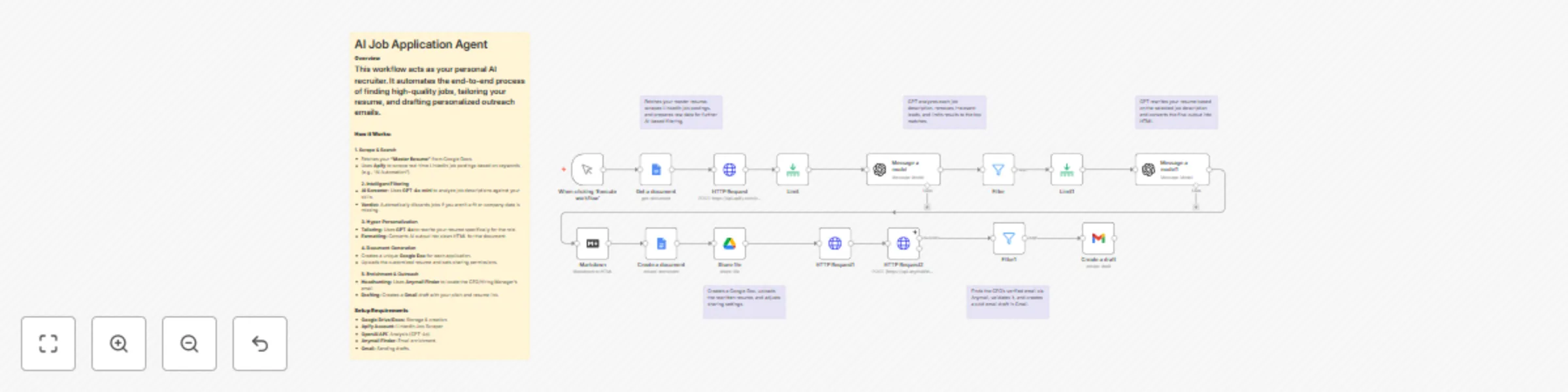
Workflow preview: Automate job applications with AI resume tailoring using GPT-4o, LinkedIn & Gmail
Free advanced

Automate job applications with AI resume tailoring using GPT-4o, LinkedIn & Gmail

## Overview Stop applying manually. This workflow acts as your personal AI recruiter, automating the end-to-end process of finding high-quality jobs, tailoring your resume, and preparing personalized outreach emails to decision-makers. ## What this workflow does * **Scrapes Real-Time Jobs:** Uses Apify to pull live job listings from LinkedIn based on your specific keywords (e.g., "AI Automation"). * **Smart Filtering:** Uses GPT-4o-mini to analyze job descriptions against your skills and automatically discards roles that aren't a good fit. * **Hyper-Personalized Resume:** Uses GPT-4o to rewrite your "Master Resume" specifically for the target job description. * **Document Generation:** Creates a new Google Doc with the tailored resume and automatically sets sharing permissions. * **Decision Maker Enrichment:** Uses Anymail Finder to locate the verified email address of the Company CEO or Hiring Manager. * **Cold Email Draft:** Generates a personalized pitch in Gmail (Drafts folder) with the link to your custom resume attached. ## Setup Requirements To run this workflow, you will need to set up credentials in n8n for the following services. Please ensure you use n8n credentials and do not hardcode API keys into the HTTP nodes: * **Google Drive & Docs:** To read your master resume and create new application files. * **Apify Account:** To run the LinkedIn Job Scraper actor. * **OpenAI API Key:** For logic (GPT-4o-mini) and writing (GPT-4o). * **Anymail Finder API:** To find contact email addresses. * **Gmail:** To create the draft emails. ## How to use 1. **Upload Resume:** Paste your "Master Resume" text into the first Google Docs node or connect your existing file. 2. **Configure Credentials:** Add your API keys in the n8n credentials section for all services listed above. 3. **Set Search Criteria:** Update the JSON body in the Apify node with your desired LinkedIn job search URL. 4. **Run:** Execute the workflow and watch your drafts folder fill up with ready-to-send applications.

W
Websensepro
Personal Productivity
25 Nov 2025
1013
0

Workflow preview: Generate personalized sales follow-ups from Fireflies transcripts with Gemini & Google Drive
Free intermediate

Generate personalized sales follow-ups from Fireflies transcripts with Gemini & Google Drive

**Automatically Generate AI Follow-Up Messages from Fireflies Transcripts** This workflow automates creating personalized follow-up messages for your clients based on meeting transcripts fetched from Fireflies. It ensures the right guest information is captured, the transcript is processed by AI, and the output is stored neatly in Google Drive. **What it Does** 1. **Triggers on New Appointment:** The workflow starts when a new appointment is created in Google Calendar. 2. **Extracts Guest and Appointment Details:** The Edit Fields node extract the guest's email, appointment start/end time, status, and creator. 3. **Fetches Transcript from Fireflies:** The GraphQL node queries Fireflies using the guest email to fetch the meeting transcript, including sentences, participants, and summary. 4. **Skip IF Empty:** The Filter node skip passing the Info to AI Agent if there is no record in Fireflies 5. **Generates Follow-Up Messages via AI:** The AI Agent node (powered by Google Gemini) creates 12 personalized follow-up messages/emails for the guest. - Messages are conversational, concise, and reference topics and pain points mentioned in the call. - The messages are tailored to re-engage the client and guide them towards making a purchase. 6. **Stores Messages in Google Drive:** The Google Drive node saves the AI-generated messages in a specific folder, named after the guest, for easy reference. **Use Cases** - **Missed Follow-Ups:** Automatically create personalized follow-ups after client calls without manual effort. - **Sales & Customer Engagement:** Ensure every client gets context-specific messages, improving engagement and conversion. - **Team Collaboration:** Messages are saved in Google Drive, making it easy for your team to review and send manually if needed. **Customization** - **Transcript Source:** The GraphQL node can be customized to fetch transcripts for specific guests or date ranges. - **Message Personalization:** The AI prompt in AI Agent can be updated to change the tone, style, or length of messages. - **Storage Folder:** You can change the folder in the Google Drive node to organize messages per team, campaign, or client. **Troubleshooting** - **AI Messages Not Generated:** Verify AI Agent node is connected to Google Gemini Chat Model and has correct API credentials. - **Messages Not Saved:** Check the Google Drive folder ID and access permissions. **Requirements** - An N8N instance (self-hosted or cloud). - Google Gemini API credentials. - Google Drive account with proper folder access. - Fireflies API credentials with GraphQL access. **How to Set Up** - **Connect Credentials:** In Google Calendar Node, GraphQL, AI Agent, and Google Drive nodes, select your credentials for Google Calendar, Fireflies, Google Gemini, and Google Drive. - **Set Guest Details Extraction:** Verify the Edit Fields node extracts all required fields (first name, last name, email, appointment times, status). - **Update GraphQL Query:** Ensure the query correctly fetches transcripts by guest email. Adjust if your Fireflies workspace uses different fields. - **Customize AI Prompt:** Update AI Agent with the exact instructions for message generation (number of messages, tone, context, platform). - **Configure Google Drive Storage:** Select the proper folder to save messages, ideally using guest name as file name for easy reference. - **Activate Workflow:** Save and activate the workflow. - **Video Tutorial:** Step by step video instructions present here for beginners [https://youtu.be/5t9xXCz4DzM](https://youtu.be/5t9xXCz4DzM)

W
Websensepro
Lead Nurturing
17 Nov 2025
40
0
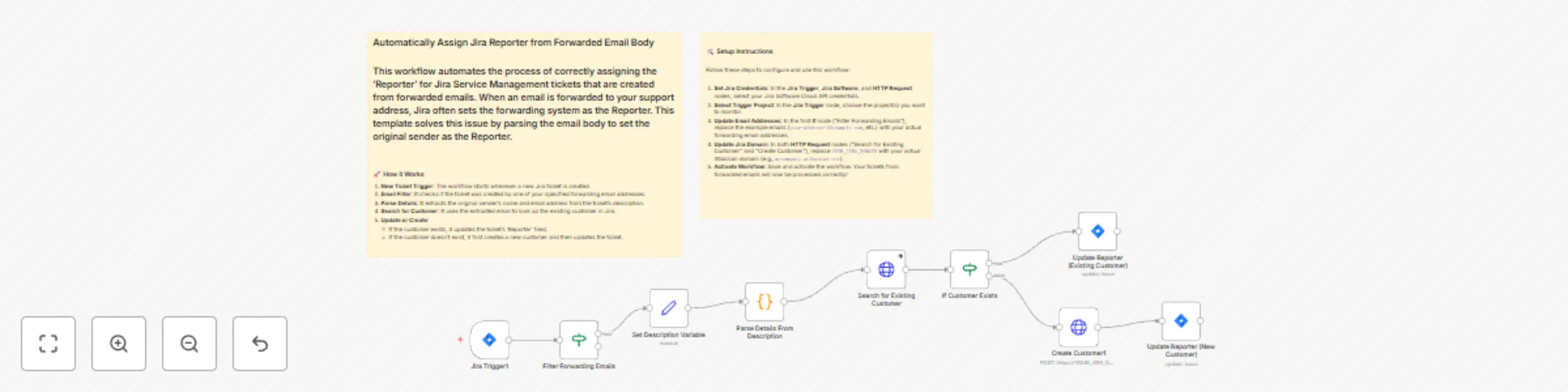
Workflow preview: Automatically assign Jira Service Management reporter from forwarded emails
Free intermediate

Automatically assign Jira Service Management reporter from forwarded emails

## Automatically Assign Jira Service Management Reporter from Forwarded Emails This workflow solves a common problem in Jira Service Management: when an email is forwarded to create a ticket, Jira often sets the forwarding system (e.g., [email protected]) as the reporter, not the original customer. This template automates the process of parsing the original sender's details from the email body and correctly assigning them as the ticket's reporter. If the customer doesn't exist in Jira, a new customer profile is created automatically before the ticket is assigned. ## What it Does 1. **Triggers on New Issue**: The workflow starts when a new issue is created in a specified Jira project. 2. **Filters Forwarded Emails**: An If node checks if the issue was created by one of your internal forwarding email addresses. The workflow only proceeds for these specific issues. 3. **Parses Details**: A Code node uses regular expressions to parse the issue description (the forwarded email's body) and extract the original sender's name and email address. 4. **Searches for Existing Customer**: An HTTP Request node checks if a customer with the extracted email already exists in your Jira Service Desk. 5. **Creates New Customer**: If the customer is not found, another HTTP Request node creates a new customer profile in Jira Service Management. 6. **Assigns Reporter**: Finally, a Jira node updates the issue's "Reporter" field to the existing or newly created customer, ensuring the ticket is correctly associated with the original sender. ## Use Cases - **Shared Support Inboxes**: Automatically process emails sent to a general support inbox (e.g., `[email protected]`) that are then forwarded to Jira. - **Departmental Forwarding**: Handle tickets forwarded from specific departments (e.g., `[email protected]` or `[email protected]`) and assign the original sender correctly. - **Personal Email Forwarding**: Useful when a team member forwards a customer email from their personal inbox to the Jira Service Management-connected address. ## Customization The `Parse Details From Description` node uses a regular expression (regex) to find the sender's email. The default regex is designed for standard forwarded emails that look like this: `From: John Doe <[email protected]>` If your email client forwards emails in a different format, you may need to adjust the regex in the Code node. For example, if your format is `From: [[email protected]]`, you would need to update the regex pattern to match this structure. ## Troubleshooting - **Reporter Not Being Updated**: - Verify that the forwarding email addresses in the `Filter Forwarding Emails` node are correct. - Check the body of the Jira ticket's description to ensure the forwarded email content is present and in a format the regex can parse. - **Customer Not Found/Created**: - Ensure your Jira API credentials have the necessary permissions to search for and create customers in Jira Service Management. - **Workflow Not Triggering**: - Confirm that the Jira Trigger is correctly configured for the right project and that the webhook is active in your Jira instance. ## Requirements - An n8n instance (self-hosted or cloud). - Jira Software Cloud API credentials with Service Management permissions. ## How to Set Up 1. **Connect Credentials**: In the Jira Trigger, Jira, and HTTP Request nodes, select your Jira Software Cloud API credentials. 2. **Configure Trigger**: In the `Jira Trigger` node, select the Jira project you want this workflow to monitor. 3. **Set Filter Emails**: In the `Filter Forwarding Emails` (If) node, replace the placeholder email addresses with the internal email addresses that forward mail to Jira. 4. **Update Jira Domain**: In both HTTP Request nodes (`Search for Existing Customer` and `Create Customer`), replace the `YOUR_JIRA_DOMAIN` placeholder with your actual Atlassian domain (e.g., `my-company.atlassian.net`). 5. **Activate Workflow**: Save and activate the workflow.

W
Websensepro
Ticket Management
29 Oct 2025
243
0