V

Ventsislav Minev

3
Workflows

Workflows by Ventsislav Minev
Workflow preview: UptimeRobot alerts to Telegram with visual verification
Free advanced

UptimeRobot alerts to Telegram with visual verification

# UptimeRobot Alerts to Telegram with Visual Verification **Automatically sends Telegram notifications with optional screenshots when monitors change status (✅ UP/🔴 DOWN/⏸️ PAUSED)** Example Message in Telegram: ![20250707_1250.png](fileId:1708) ## Who Is This For? Teams or individuals needing to: - Get alerts when websites/services go down - Verify outages with visual screenshots - Monitor infrastructure from Telegram ## What Does This Workflow Solve? 🚨 **Missed Alerts**: Get immediate notifications in Telegram 🖼️ **Visual Verification**: Optional screenshot confirmation of outages 📊 **Status Tracking**: Clear records of when issues began/resolved 🔗 **One-Click Access**: Direct links to affected monitors ⏱️ **Time Savings**: No need to check dashboards manually ## Setup Guide ### 1. Pre-Requisites - **UptimeRobot Account**: With at least one monitor configured - **Gmail Account**: To receive alert notifications - **Telegram Account**: To receive alerts (mobile/desktop app recommended) - *(Optional)* **ScreenshotMachine** free/paid account ### 2. Credentials Setup Make sure your n8n instance is connected with: - **Gmail Account** (via OAuth2) - **UptimeRobot API** (via API key) - **Telegram Bot** (via bot token) - *(Optional)* **ScreenshotMachine** (via customer key) ### 3. Configure Your n8n Workflow Nodes #### 1. Alert Trigger - **Gmail Trigger**: Configure to watch for emails from `[email protected]` - Set appropriate polling interval (e.g., every 5 minutes) #### 2. Monitor Configuration - **Conf Node**: Set your preferences: ```json { "take_screenshot": true, "screenshotmachine_secret": "your-secret-here", "screenshotmachine_device": "desktop", "screenshotmachine_dimension": "1366xfull", "screenshotmachine_format": "png" } ``` #### 3. Notification Settings - **Telegram Nodes**: - Set your Chat ID (find with [@getidsbot](https://t.me/getidsbot)) - Customize message formatting if needed #### 4. Service-Specific Setup ##### UptimeRobot: 1. Go to [Dashboard → My Settings → API Settings](https://uptimerobot.com/dashboard#mySettings) 2. Create API key with "Monitor Read" permissions 3. Enable email alerts in monitor settings ##### Telegram Bot: 1. Message [@BotFather](https://t.me/BotFather) to create new bot 2. Get your Chat ID using [@getidsbot](https://t.me/getidsbot) 3. Add bot token to n8n credentials ##### ScreenshotMachine (Optional): 1. Sign up at [screenshotmachine.com](https://www.screenshotmachine.com/) 2. Get Customer Key from account dashboard 3. Set your secret phrase if using hash verification ### Final Steps 1. Test your workflow by manually triggering a monitor status change 2. Verify Telegram notifications arrive as expected 3. Check screenshot quality if enabled 4. Monitor for a few days to fine-tune alert preferences **Happy Monitoring!**

V
Ventsislav Minev
DevOps
8 Jul 2025
608
0
Workflow preview: Google Drive duplicate file manager
Free advanced

Google Drive duplicate file manager

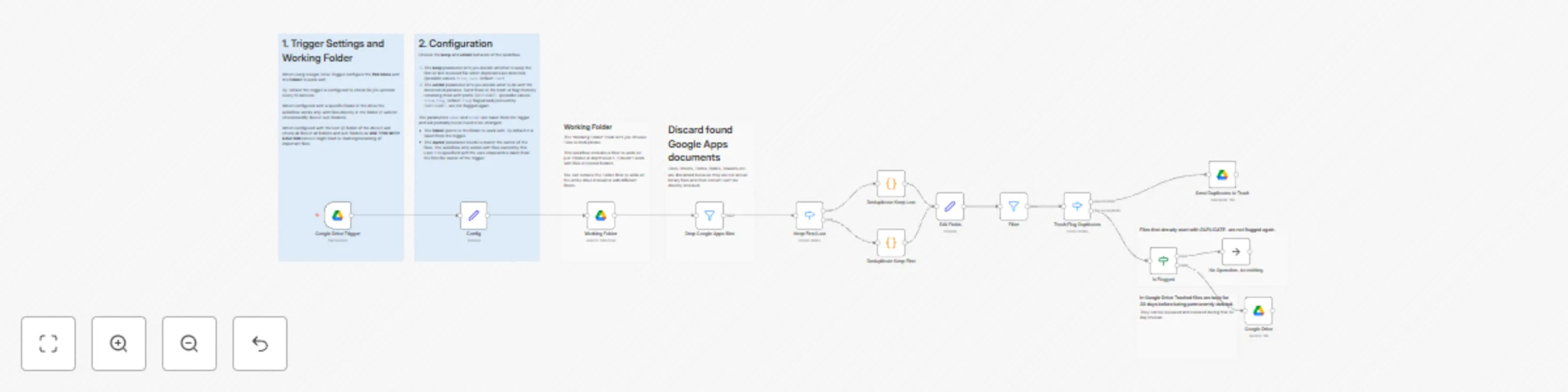
# Google Drive Duplicate File Manager 🧹📁 **Purpose:** Automate the process of finding and managing duplicate files in your Google Drive. **Who's it for?** * Individuals and teams aiming to streamline their Google Drive. * Anyone tired of manual duplicate file cleanup. **What it Solves:** * Saves storage space 💾. * Reduces file confusion 😕➡️🙂. * Automates tedious cleanup tasks 🤖. **How it works:** 1. **Trigger:** Monitors a Google Drive folder for new files. 2. **Configuration:** Sets rules for keeping and handling duplicates. 3. **Find Duplicates:** Identifies duplicate files based on their content (MD5Checksum). 4. **Action:** Either moves duplicates to trash or renames them. **Setup Guide:** 1. **Google Drive Trigger ⏰:** * Set up the trigger to watch a specific folder or your entire drive (use caution with the root folder! ⚠️). * Configure the polling interval (default: every 15 minutes). 2. **Config Node ⚙️:** * **keep:** Choose whether to keep the "first" or "last" uploaded file (default: "last"). * **action:** Select "trash" to delete duplicates or "flag" to rename them with "DUPLICATE-" (default: "flag"). * **owner & folder:** Taken from the trigger. Only change if needed. **Key Considerations:** * **Google Drive API limits:** Be mindful of API usage. * **Folder Scope:** The workflow handles one folder depth by default. (WARNING: If configured to work with the Root folder / all files in all sub-directories are processed so **USE THIS OPTION WITH CAUTION** since the workflow might trash/rename important files) * **Google Apps:** Google docs are ignored since they are not actual binary-files and their content can't be compared. **Enjoy your clean Google Drive! ✨**

V
Ventsislav Minev
File Management
10 Apr 2025
1158
0
Workflow preview: Organize email attachments into Google Drive folders by company with Gmail & Sheets
Free advanced

Organize email attachments into Google Drive folders by company with Gmail & Sheets

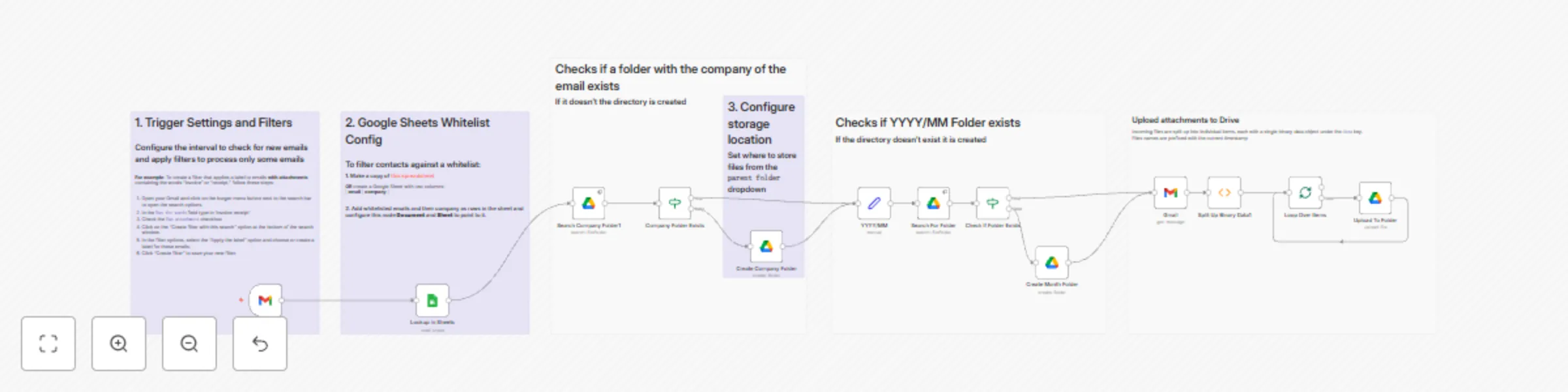
# Automated Email Attachment Organizer *Automatically process labeled emails with attachments into organized Google Drive folders* --- ## Who Is This For? - **Teams or Individuals** needing to: - Automatically sort invoices, receipts, and files. - Organize client documents by date. - Verify sender emails against a whitelist. - Timestamp files to avoid duplicate names. --- ## What Does This Workflow Solve? - 🕒 **Manual Email Sorting**: Saves time by automating the organization of email attachments. - 📂 **Disorganized Cloud Storage**: Ensures attachments are neatly stored in Google Drive folders. - 📧 **Unverified Sender Issues**: Filters and validates emails using a whitelist. - 🔄 **Duplicate Filenames**: Uses timestamps to ensure every file name is unique. --- ## Setup Guide ### 1. Pre-Requisites - **Whitelist Sheet**: Make a copy of the [Example Whitelist Sheet](https://docs.google.com/spreadsheets/d/1tTz9BflstxVL18YG11Ny1eiDj3FcjvtZ619b_bHx8h4/copy) - **Gmail Filter**: Create a filter in Gmail to label emails with attachments. **To Create a Gmail Filter:** 1. Open your Gmail Inbox. 2. Click the search bar and select **"Show search options"**. 3. Enter your criteria (e.g., type `has:attachment`). 4. Click **"Create filter"**. 5. Choose **"Apply the label: Custom_Label"** and save. --- ### 2. Credentials Setup Make sure your n8n instance is connected with: - **Gmail Account**: (via OAuth2) - **Google Drive Account**: (via OAuth2) - **Google Sheets** (via OAuth2) --- ### 3. Configure Your n8n Workflow Nodes #### 1. Trigger and Email Retrieval - **Gmail Trigger**: Setup check interval and filters for emails (i.e. emails labeled with `Custom_Label`) #### 2. Whitelist settings - **Lookup in Sheets**: Searches for a row with the sender email. Configure this node to point to your whitelist spreadsheet containing two columnds: *|email|company|* #### 3. File storage location - Confirue parent folder to create sub-folders and store files into in the **Create Company Folder** node *Parent Folder* dropdown --- ## Final Steps 1. **Test Your Workflow**: Run the workflow to verify emails are processed and files are uploaded correctly. --- Happy Automating!

V
Ventsislav Minev
File Management
8 Apr 2025
4108
0