V

Viktor Klepikovskyi

11
Workflows

Workflows by Viktor Klepikovskyi

Workflow preview: Scrape multi-page websites recursively with Google Sheets storage
Free advanced

Scrape multi-page websites recursively with Google Sheets storage

## Configurable Multi-Page Web Scraper ### Introduction This n8n workflow provides a robust and highly reusable solution for scraping data from paginated websites. Instead of building a complex series of nodes for every new site, you only need to update a simple JSON configuration in the initial Input Node, making your scraping tasks faster and more standardized. ### Purpose The core purpose of this template is to automate the extraction of structured data (e.g., product details, quotes, articles) from websites with multiple pages. It is designed to be fully recursive: it follows the "next page" link until no link is found, aggregates the results from all pages, and cleanly structures the final output into a single list of items. ### Setup and Configuration 1. **Locate the Input Node:** The entire configuration for the scraper is held within the first node of the workflow. 2. **Update the JSON:** Replace the existing JSON content with your target website's details: * `startUrl`: The URL of the first page to begin scraping. * `nextPageSelector`: The CSS selector for the "Next" or "Continue" link element that leads to the next page. This is crucial for the pagination loop. * `fields`: An array of objects defining the data to extract on each page. For each field, specify the `name` (the output key), the `selector` (the CSS selector pointing to the data), and the `value` (the HTML attribute to pull, usually `text` or `href`). 3. **Run the Workflow:** After updating the configuration, execute the workflow. It will automatically loop through all pages and deliver a final, structured list of the scraped data. For a detailed breakdown of the internal logic, including how the loop is constructed using the Set, If, and HTTP Request nodes, please refer to the original blog post: [Flexible Web Scraping with n8n: A Configurable, Multi-Page Template](https://n8nplaybook.com/post/2025/10/flexible-n8n-scraper-template/)

V
Viktor Klepikovskyi
Document Extraction
26 Oct 2025
154
0
Workflow preview: Convert multiple binary files to base64 JSON arrays with no custom code
Free intermediate

Convert multiple binary files to base64 JSON arrays with no custom code

## No-Code: Convert Multiple Binary Files to Base64 ### Introduction This template provides a robust, purely **no-code** solution for a common integration challenge: converting multiple binary files contained within a single n8n item (e.g., after unzipping an archive) into a structured JSON array of Base64 encoded strings. ### Purpose Many external APIs, especially those handling batch file uploads or complex data structures, require files to be submitted as a single JSON payload. This payload typically needs an array containing two elements for each file: the reconstructed file path/name and the Base64 encoded content. This template automatically handles the file isolation, encoding, path reconstruction, and final JSON aggregation, replacing the need for complex custom JavaScript Code nodes. ### Configuration Steps 1. **Input**: Connect your binary data source (e.g., an **HTTP Request** followed by a **Compression** node) to the first node in this template. 2. **Split Out**: This node automatically separates the multiple binary files into individual items. 3. **Extract From File**: This node uses the dynamic expression `{{ $binary.keys()[0] }}` to ensure the correct binary file is targeted and converted to Base64. 4. **Set**: This node uses a conditional expression to reconstruct the full `path` (including the directory, if present) for each file. 5. **Aggregate**: The final node merges all individual items into a single, clean JSON item containing a top-level `files` array, ready for your final API call. For a detailed walkthrough, including the explanation behind the dynamic expressions and why this is superior to the custom code solution, check out the full blog post: [The No-Code Evolution: Base64 Encoding Multiple Files in n8n (Part 2)](https://n8nplaybook.com/post/2025/10/no-code-base64-encoding-in-n8n).

V
Viktor Klepikovskyi
File Management
11 Oct 2025
306
0
Workflow preview: Run multiple tasks in parallel with asynchronous processing and webhooks
Free intermediate

Run multiple tasks in parallel with asynchronous processing and webhooks

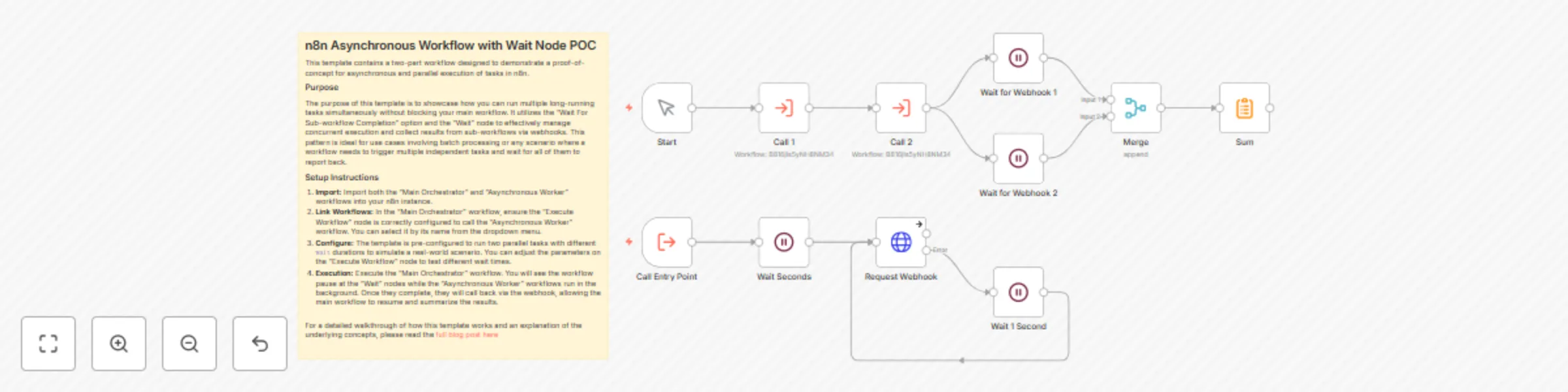
## n8n Asynchronous Workflow with Wait Node POC This template contains a two-part workflow designed to demonstrate a proof-of-concept for asynchronous and parallel execution of tasks in n8n. ### Purpose The purpose of this template is to showcase how you can run multiple long-running tasks simultaneously without blocking your main workflow. It utilizes the "Wait For Sub-workflow Completion" option and the "Wait" node to effectively manage concurrent execution and collect results from sub-workflows via webhooks. This pattern is ideal for use cases involving batch processing or any scenario where a workflow needs to trigger multiple independent tasks and wait for all of them to report back. ### Setup Instructions 1. **Import:** Import both the "Main Orchestrator" and "Asynchronous Worker" workflows into your n8n instance. 2. **Link Workflows:** In the "Main Orchestrator" workflow, ensure the "Execute Workflow" node is correctly configured to call the "Asynchronous Worker" workflow. You can select it by its name from the dropdown menu. 3. **Configure:** The template is pre-configured to run two parallel tasks with different `wait` durations to simulate a real-world scenario. You can adjust the parameters on the "Execute Workflow" node to test different wait times. 4. **Execution:** Execute the "Main Orchestrator" workflow. You will see the workflow pause at the "Wait" nodes while the "Asynchronous Worker" workflows run in the background. Once they complete, they will call back via the webhook, allowing the main workflow to resume and summarize the results. For a detailed walkthrough of how this template works and an explanation of the underlying concepts, please read the [full blog post here](https://n8nplaybook.com/post/2025/09/asynchronous-n8n-workflows-parallel-processing-poc/)

V
Viktor Klepikovskyi
Engineering
14 Sep 2025
1054
0
Workflow preview: Create nested data processing loops using n8n sub-workflows
Free intermediate

Create nested data processing loops using n8n sub-workflows

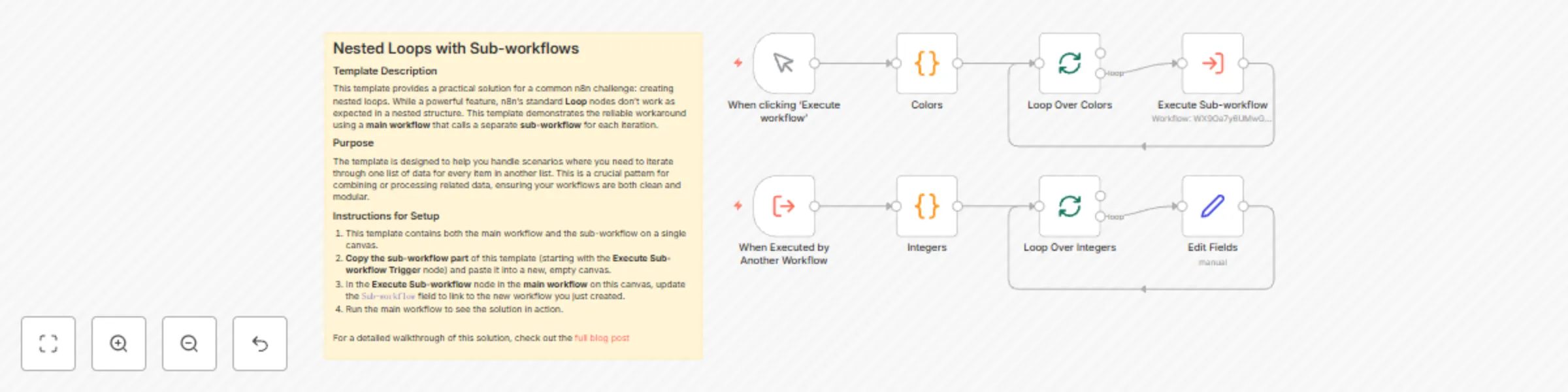
## Nested Loops with Sub-workflows ### Template Description This template provides a practical solution for a common n8n challenge: creating nested loops. While a powerful feature, n8n's standard **Loop** nodes don't work as expected in a nested structure. This template demonstrates the reliable workaround using a **main workflow** that calls a separate **sub-workflow** for each iteration. ### Purpose The template is designed to help you handle scenarios where you need to iterate through one list of data for every item in another list. This is a crucial pattern for combining or processing related data, ensuring your workflows are both clean and modular. ### Instructions for Setup 1. This template contains both the main workflow and the sub-workflow on a single canvas. 2. **Copy the sub-workflow part** of this template (starting with the **Execute Sub-workflow Trigger** node) and paste it into a new, empty canvas. 3. In the **Execute Sub-workflow** node in the **main workflow** on this canvas, update the `Sub-workflow` field to link to the new workflow you just created. 4. Run the main workflow to see the solution in action. For a detailed walkthrough of this solution, check out the [full blog post](https://n8nplaybook.com/post/2025/07/how-to-handle-nested-loops-in-n8n-with-sub-workflows/)

V
Viktor Klepikovskyi
Engineering
13 Sep 2025
342
0
Workflow preview: Create a CRUD REST API with Google Sheets database
Free advanced

Create a CRUD REST API with Google Sheets database

## Simple REST API with Google Sheets ### Introduction This workflow template demonstrates how to quickly and easily create a simple REST API using n8n and a Google Sheet as a no-code database. It's a perfect starting point for building a backend for small applications, prototypes, or internal tools without writing any code. ### Purpose The purpose of this template is to provide a complete, ready-to-use n8n workflow that handles all fundamental CRUD (Create, Read, Update, Delete) operations. The workflow uses a single Webhook trigger to handle POST, GET, PUT, and DELETE requests, allowing you to manage data in your Google Sheet through standard API calls. ### Setup Instructions To get started with this template, follow these steps: 1. **Prepare your Google Sheet:** Create a new Google Sheet and add the following column headers in the first row: `name`, `email`, and `status`. You can use this [example Google Sheet](https://docs.google.com/spreadsheets/d/1bQyl8pGVutkq1LRwK_-6TAAcXwNj4_TipeWHi-qmK1Q/edit?usp=sharing) as a starting point. This sheet will serve as your database. 2. **Authenticate:** In the n8n workflow, connect your Google Account credentials to the Google Sheets nodes. 3. **Select your data:** Choose the Google Sheet and the corresponding sheet name from the drop-down lists in each of the Google Sheets nodes. 4. **Activate:** Save and activate the workflow. 5. Test the API: Use a tool like `curl`, Postman, or Insomnia to test your new API endpoints. The base URL will be your n8n webhook URL followed by `/items`. #### Example `curl` Commands: * **POST (Create):** `curl -X POST YOUR_N8N_WEBHOOK_URL/items -H "Content-Type: application/json" -d '{"name": "Alice", "email": "[email protected]", "status": "active"}'` * **GET (Read All):** `curl -X GET YOUR_N8N_WEBHOOK_URL/items/all` * **GET (Read Single):** `curl -X GET YOUR_N8N_WEBHOOK_URL/items?id=2` * **PUT (Update):** `curl -X PUT YOUR_N8N_WEBHOOK_URL/items?id=2 -H "Content-Type: application/json" -d '{"status": "inactive"}'` * **DELETE (Delete):** `curl -X DELETE YOUR_N8N_WEBHOOK_URL/items?id=2` For more detailed instructions, including building the workflow in n8n, check out the full blog post: [Build a Simple REST API in 10 Minutes with n8n & Google Sheets](https://n8nplaybook.com/post/2025/08/n8n-google-sheets-rest-api/)

V
Viktor Klepikovskyi
Engineering
1 Sep 2025
428
0
Workflow preview: Convert multiple files to base64 with JavaScript code
Free intermediate

Convert multiple files to base64 with JavaScript code

## Base64 Encode Multiple Binary Files with a Code Node This template demonstrates how to handle multiple binary files in n8n by using a Code node to convert them into a Base64 encoded string. It's particularly useful when an API requires file uploads in this format and the standard 'Extract From File' node is not sufficient for batch processing. The workflow starts by downloading a ZIP file, unzipping it to get multiple binary files, and then uses a Code node with custom JavaScript to encode each file individually. ### Instructions 1. Download and import this template into your n8n instance. 2. Run the workflow once to see how it downloads, unzips, and then encodes multiple files. 3. Modify the 'HTTP Request' node to download your own binary file or a ZIP file containing multiple files. 4. Update the 'Code' node if you need to adjust the output format or file paths. 5. Use the output of the 'Code' node in a subsequent node, such as another 'HTTP Request' to send the Base64-encoded files to your desired API. A link to the full blog post is available [here](https://n8nplaybook.com/post/2025/08/from-binary-to-base64-in-n8n/).

V
Viktor Klepikovskyi
File Management
2 Aug 2025
579
0
Workflow preview: Sequential Google Sheets data processing with execution control
Free intermediate

Sequential Google Sheets data processing with execution control

## Preventing Simultaneous Executions of Scheduled Workflows This n8n template provides a robust solution for processing data from Google Sheets in a controlled manner, specifically designed to **prevent simultaneous executions of a scheduled workflow**. This is crucial for maintaining data integrity, avoiding race conditions, and ensuring that your automated processes handle data sequentially. ### What This Workflow Does and Why It's Important Many automated tasks involve processing a list of items, like rows in a Google Sheet. If a workflow is scheduled to run every minute, but a single run takes longer than a minute to complete, you could end up with multiple instances of the same workflow running concurrently. This can lead to: * **Data Duplication**: Processing the same row multiple times. * **Data Corruption**: Inconsistent updates or overwrites. * **Resource Exhaustion**: Overloading your systems or API rate limits. This template solves this by leveraging n8n's **workflow runtime timeout feature**. By setting the workflow's runtime timeout to be equal to or slightly less than its scheduled execution frequency, you ensure that only one instance of the workflow can run at any given time. Once a workflow run successfully completes, it updates a status in your Google Sheet, marking the processed rows and preventing them from being picked up again in subsequent runs. This guarantees sequential, reliable data processing and avoids conflicts. ### Step-by-Step Setup Instructions 1. **Import the Template**: Import this workflow into your n8n instance. 2. **Google Sheets Credential**: Ensure you have a Google Sheets credential configured in n8n and connected to the Google Sheets nodes within the workflow. 3. **Specify Spreadsheet and Sheet Name**: In the "Google Sheet" node, update the Spreadsheet ID and Sheet Name to point to your specific Google Sheet. You can use this [example Google Sheet](https://docs.google.com/spreadsheets/d/1hKwP2_G6EaVSJlqWH1zYMVjarb9cuBx78D_U3HBrdhQ/edit?usp=sharing) for reference. 4. **Configure Processing Logic**: Customize the nodes between the "Read Google Sheet" and "Update Google Sheet" steps to perform your desired data processing logic (e.g., sending emails, updating a CRM, making API calls). 5. **Set Up Schedule**: Activate the workflow and configure its trigger (e.g., "Cron" node) to run on your desired schedule. 6. **Configure Workflow Timeout**: In your n8n workflow settings, set the Workflow Timeout to a value equal to or slightly less than your scheduled execution frequency (e.g., if scheduled every 5 minutes, set timeout to 4 minutes 50 seconds). More details in my [n8n tips blog](https://n8nplaybook.com/post/2025/07/how-to-prevent-concurrent-n8n-workflows/).

V
Viktor Klepikovskyi
Engineering
20 Jul 2025
242
0
Workflow preview: Preventing Google Sheets quota errors during batch processing
Free intermediate

Preventing Google Sheets quota errors during batch processing

## Preventing Google Sheets Quota Errors during Batch Processing This template provides a robust solution for dealing with Google Sheets API rate limits. It is designed for workflows that update a large number of rows in a Google Sheet and frequently fail with "too many requests" errors. The template uses a `Wait` node connected to the error output of the Google Sheets node, creating a retry loop that delays execution for a set period before attempting the update again. To use this template, simply replace the placeholder Google Sheets nodes with your own credentials and sheet. You can find an example Google Sheet for this template [here](https://docs.google.com/spreadsheets/d/1hKwP2_G6EaVSJlqWH1zYMVjarb9cuBx78D_U3HBrdhQ/edit?usp=sharing). For a full explanation of this approach, check out the blog post [here](https://n8nplaybook.com/post/2025/07/handling-google-sheets-api-rate-limits-in-n8n/).

V
Viktor Klepikovskyi
Engineering
12 Jul 2025
90
0
Workflow preview: Advanced retry and delay logic
Free intermediate

Advanced retry and delay logic

## Advanced Retry and Delay Logic This template provides a robust solution for handling API rate limits and temporary service outages in n8n workflows. It overcomes the limitations of the default node retry settings, which cap retries at 5 and delays at 5 seconds. By using a custom loop with a `Set`, `If`, and `Wait` node, this workflow gives you complete control over the number of retries and the delay between them. ### Instructions: 1. Replace the placeholder **HTTP Request** node with your target node (the one that might fail). 2. In the initial **Set Fields** node, modify the `max_tries` value to set the total number of attempts for your workflow. 3. Adjust the `delay_seconds` value to define the initial delay between retries. 4. Optionally, configure the `Edit Fields` node to implement exponential backoff by adjusting the `delay_seconds` expression (e.g., `{{$json.delay_seconds * 2}}`). For a more detailed breakdown and tutorial of this template, you can find additional information [here](https://n8nplaybook.com/post/2025/06/mastering-custom-retry-and-delay-logic-in-n8n/).

V
Viktor Klepikovskyi
Engineering
29 Jun 2025
431
0
Workflow preview: Google Sheets UI for n8n Workflow
Free intermediate

Google Sheets UI for n8n Workflow

## Google Sheets UI for Workflow Control This n8n template provides a practical and efficient way to manage your n8n workflows using Google Sheets as a user-friendly interface. It demonstrates how to leverage a simple spreadsheet to control inputs, capture outputs, and track the processing status of individual data rows, offering a clear and visual overview of your automation tasks. ### Purpose of This Template: The primary purpose of this template is to illustrate how Google Sheets can serve as a dynamic UI for your n8n automations. It's designed for n8n users who need: - A structured method to feed specific data into their workflows. - The ability to selectively trigger workflow execution based on data status. - A centralized place to view and store workflow outputs alongside original inputs. - A simple, no-code solution for managing workflow data without building custom applications. ### Setup Instructions: To use this template, follow these steps: 1. **Create a Google Sheet:** Set up a new Google Sheet ([see the template here](https://docs.google.com/spreadsheets/d/13xu9zKI8yDqs7971qIq9zDCBCnhYzdVq8pdtnQ9vMkI/edit?usp=sharing)) with three columns: `Color`, `Status`, and `Number`. Populate the `Color` column with some sample data (e.g., color names) and set the `Status` for the rows you want to process to `READY`. 2. **Import the n8n Workflow:** Import this n8n template into your n8n instance. 3. **Configure Google Sheets Nodes:** - For the first Google Sheets node (Read operation), ensure it's connected to your newly created Google Sheet and configured to read rows where the `Status` column is `READY`. You will need to authenticate your Google Sheets account. - For the second Google Sheets node (Update operation), ensure it's also connected to the same Google Sheet. The node should automatically map the `row_number`, `Number`, and `Status` fields from the preceding nodes. 4. **Execute the Workflow:** Run the workflow. Observe how it reads `READY` rows, processes them (calculates string length), and updates the `Number` and `Status` columns in your Google Sheet to `DONE`. 5. **Control Execution:** To process new data, simply add new rows to your Google Sheet and set their `Status` to `READY`. Rerunning the workflow will then only process these new entries. For more details and context on this approach, you can refer to the related blog post [here](https://n8nplaybook.com/post/2025/06/google-sheets-as-n8n-ui/).

V
Viktor Klepikovskyi
Miscellaneous
21 Jun 2025
337
0
Workflow preview: Reusable and independently testable sub-workflow
Free intermediate

Reusable and independently testable sub-workflow

## Reusable and Independently Testable Sub-workflow This n8n workflow provides a standardized structure for building and testing sub-workflows in isolation. Its purpose is to help you create robust, reusable, and maintainable automations by enabling you to test the sub-workflow's logic without needing a separate parent workflow. ### Setup Instructions: 1. **Define Sub-workflow Inputs**: Double-click the **Execute Sub-workflow Trigger** node to define the parameters (e.g., `color`) that your sub-workflow will expect from a parent workflow. 2. **Configure Test Data**: Use the `Test Input` node (an **Edit Fields (Set)** node connected to the **Manual Trigger**) to provide sample data for isolated testing. 3. **Connect Inputs**: The `Combine Input` node (an **Edit Fields (Set)** node) is the entry point for your sub-workflow's core logic. It should have two inputs: one from the `Execute Sub-workflow Trigger` and one from the `Test Input` node. 4. **Merge Inputs**: Ensure the `Combine Input` node has the 'Include Other Input Fields' option enabled to merge data from both the live and test paths seamlessly. You can read the full blog post that explains this workflow setup in detail [here](https://n8nplaybook.com/post/2025/06/how-to-test-n8n-subworkflows/).

V
Viktor Klepikovskyi
Engineering
19 Jun 2025
643
0