V

Vigh Sandor

10
Workflows

Workflows by Vigh Sandor

Workflow preview: Network vulnerability scanner with NMAP and automated CVE reporting
Free advanced

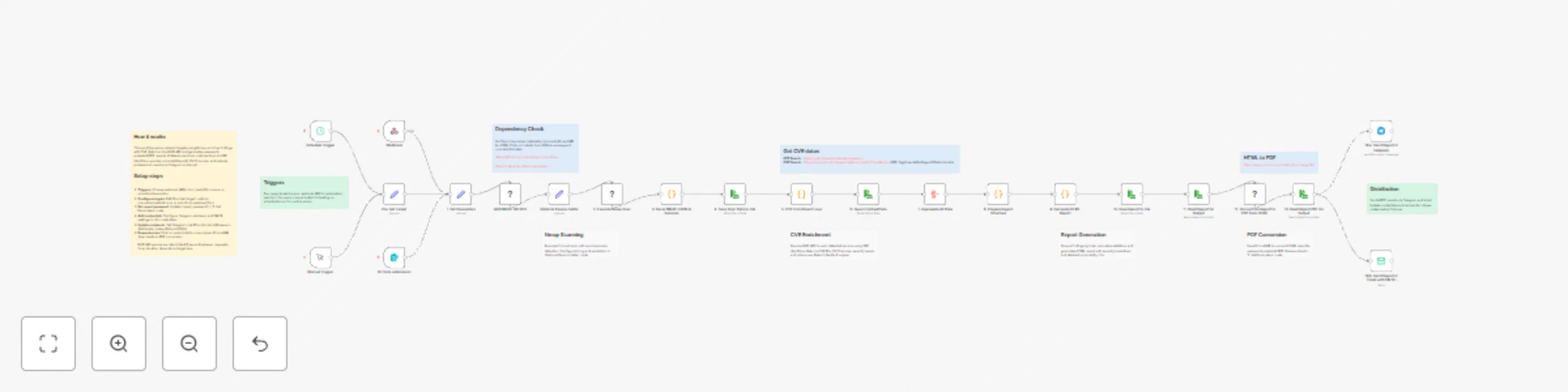
Network vulnerability scanner with NMAP and automated CVE reporting

# Network Vulnerability Scanner (used NMAP as engine) with Automated CVE Report ## Workflow Overview This n8n workflow provides comprehensive network vulnerability scanning with automated CVE enrichment and professional report generation. It performs Nmap scans, queries the National Vulnerability Database (NVD) for CVE information, generates detailed HTML/PDF reports, and distributes them via Telegram and email. ### Key Features - **Automated Network Scanning**: Full Nmap service and version detection scan - **CVE Enrichment**: Automatic vulnerability lookup using NVD API - **CVSS Scoring**: Vulnerability severity assessment with CVSS v3.1/v3.0 scores - **Professional Reporting**: HTML reports with detailed findings and recommendations - **PDF Generation**: Password-protected PDF reports using Prince XML - **Multi-Channel Distribution**: Telegram and email delivery - **Multiple Triggers**: Webhook API, web form, manual execution, scheduled scans - **Rate Limiting**: Respects NVD API rate limits - **Comprehensive Data**: Service detection, CPE matching, CVE details with references ### Use Cases - Regular security audits of network infrastructure - Compliance scanning for vulnerability management - Penetration testing reconnaissance phase - Asset inventory with vulnerability context - Continuous security monitoring - Vulnerability assessment reporting for management - DevSecOps integration for infrastructure testing --- ## Setup Instructions ### Prerequisites Before setting up this workflow, ensure you have: #### System Requirements - n8n instance (self-hosted) with command execution capability - Alpine Linux base image (or compatible Linux distribution) - Minimum 2 GB RAM (4 GB recommended for large scans) - 2 GB free disk space for dependencies - Network access to scan targets - Internet connectivity for NVD API #### Required Knowledge - Basic networking concepts (IP addresses, ports, protocols) - Understanding of CVE/CVSS vulnerability scoring - Nmap scanning basics #### External Services - Telegram Bot (optional, for Telegram notifications) - Email server / SMTP credentials (optional, for email reports) - NVD API access (public, no API key required but rate-limited) ### Step 1: Understanding the Workflow Components #### Core Dependencies **Nmap**: Network scanner - Purpose: Port scanning, service detection, version identification - Usage: Performs TCP SYN scan with service/version detection **nmap-helper**: JSON conversion tool - Repository: https://github.com/net-shaper/nmap-helper - Purpose: Converts Nmap XML output to JSON format **Prince XML**: HTML to PDF converter - Website: https://www.princexml.com - Version: 16.1 (Alpine 3.20) - Purpose: Generates professional PDF reports from HTML - Features: Password protection, print-optimized formatting **NVD API**: Vulnerability database - Endpoint: https://services.nvd.nist.gov/rest/json/cves/2.0 - Purpose: CVE information, CVSS scores, vulnerability descriptions - Rate Limit: Public API allows limited requests per minute - Documentation: https://nvd.nist.gov/developers ### Step 2: Telegram Bot Configuration (Optional) If you want to receive reports via Telegram: #### Create Telegram Bot 1. Open Telegram and search for **@BotFather** 2. Start a chat and send `/newbot` 3. Follow prompts: - **Bot name**: Network Scanner Bot (or your choice) - **Username**: network_scanner_bot (must end with 'bot') 4. BotFather will provide: - **Bot token**: `123456789:ABCdefGHIjklMNOpqrsTUVwxyz` (save this) - Bot URL: `https://t.me/your_bot_username` #### Get Your Chat ID 1. Start a chat with your new bot 2. Send any message to the bot 3. Visit: `https://api.telegram.org/bot&lt;YOUR_BOT_TOKEN&gt;/getUpdates` 4. Find your chat ID in the response 5. Save this chat ID (e.g., `123456789`) #### Alternative: Group Chat ID For sending to a group: 1. Add bot to your group 2. Send a message in the group 3. Check getUpdates URL 4. Group chat IDs are negative: `-1001234567890` #### Add Credentials to n8n 1. Navigate to **Credentials** in n8n 2. Click **Add Credential** 3. Select **Telegram API** 4. Fill in: - **Access Token**: Your bot token from BotFather 5. Click **Save** 6. Test connection if available ### Step 3: Email Configuration (Optional) If you want to receive reports via email: #### Add SMTP Credentials to n8n 1. Navigate to **Credentials** in n8n 2. Click **Add Credential** 3. Select **SMTP** 4. Fill in: - **Host**: SMTP server address (e.g., `smtp.gmail.com`) - **Port**: SMTP port (587 for TLS, 465 for SSL, 25 for unencrypted) - **User**: Your email username - **Password**: Your email password or app password - **Secure**: Enable for TLS/SSL 5. Click **Save** **Gmail Users:** 1. Enable 2-factor authentication 2. Generate app-specific password: https://myaccount.google.com/apppasswords 3. Use app password in n8n credential ### Step 4: Import and Configure Workflow #### Configure Basic Parameters **Locate "1. Set Parameters" Node:** 1. Click the node to open settings 2. Default configuration: - `network`: Input from webhook/form/manual trigger - `timestamp`: Auto-generated (format: yyyyMMdd_HHmmss) - `report_password`: `Almafa123456` (change this!) **Change Report Password:** 1. Edit `report_password` assignment 2. Set strong password: 12+ characters, mixed case, numbers, symbols 3. This password will protect the PDF report 4. Save changes ### Step 5: Configure Notification Endpoints #### Telegram Configuration **Locate "14/a. Send Report in Telegram" Node:** 1. Open node settings 2. Update fields: - **Chat ID**: Replace `-123456789012` with your actual chat ID - **Credentials**: Select your Telegram credential 3. Save changes **Message customization:** - Current: Sends PDF as document attachment - Automatic filename: `vulnerability_report_&lt;timestamp&gt;.pdf` - No caption by default (add if needed) #### Email Configuration **Locate "14/b. Send Report in Email with SMTP" Node:** 1. Open node settings 2. Update fields: - **From Email**: `[email protected]` → Your sender email - **To Email**: `[email protected]` → Your recipient email - **Subject**: Customize if needed (default includes network target) - **Text**: Email body message - **Credentials**: Select your SMTP credential 3. Save changes **Multiple Recipients:** Change `toEmail` field to comma-separated list: ``` [email protected], [email protected], [email protected] ``` **Add CC/BCC:** In node options, add: - `cc`: Carbon copy recipients - `bcc`: Blind carbon copy recipients ### Step 6: Configure Triggers The workflow supports 4 trigger methods: #### Trigger 1: Webhook API (Production) **Locate "Webhook" Node:** - Path: `/vuln-scan` - Method: POST - Response: Immediate acknowledgment "Process started!" - Async: Scan runs in background #### Trigger 2: Web Form (User-Friendly) **Locate "On form submission" Node:** - Path: `/webhook-test/form/target` - Method: GET (form display), POST (form submit) - Form Title: "Add scan parameters" - Field: `network` (required) **Form URL:** ``` https://your-n8n-domain.com/webhook-test/form/target ``` Users can: 1. Open form URL in browser 2. Enter target network/IP 3. Click submit 4. Receive confirmation #### Trigger 3: Manual Execution (Testing) **Locate "Manual Trigger" Node:** - Click to activate - Opens workflow with "Pre-Set-Target" node - Default target: `scanme.nmap.org` (Nmap's official test server) **To change default target:** 1. Open "Pre-Set-Target" node 2. Edit `network` value 3. Enter your test target 4. Save changes #### Trigger 4: Scheduled Scans (Automated) **Locate "Schedule Trigger" Node:** - Default: Daily at 1:00 AM - Uses "Pre-Set-Target" for network **To change schedule:** 1. Open node settings 2. Modify trigger time: - **Hour**: 1 (1 AM) - **Minute**: 0 - **Day of week**: All days (or select specific days) 3. Save changes **Schedule Examples:** - Every day at 3 AM: Hour: 3, Minute: 0 - Weekly on Monday at 2 AM: Hour: 2, Day: Monday - Twice daily (8 AM, 8 PM): Create two Schedule Trigger nodes ### Step 7: Test the Workflow #### Recommended Test Target Use Nmap's official test server for initial testing: - **Target**: `scanme.nmap.org` - **Purpose**: Official Nmap testing server - **Safe**: Designed for scanning practice - **Permissions**: Public permission to scan **Important:** Never scan targets without permission. Unauthorized scanning is illegal. #### Manual Test Execution 1. Open workflow in n8n editor 2. Click **Manual Trigger** node to select it 3. Click **Execute Workflow** button 4. Workflow will start with `scanme.nmap.org` as target #### Monitor Execution Watch nodes turn green as they complete: 1. **Need to Add Helper?**: Checks if nmap-helper installed 2. **Add NMAP-HELPER**: Installs helper (if needed, ~2-3 minutes) 3. **Optional Params Setter**: Sets scan parameters 4. **2. Execute Nmap Scan**: Runs scan (5-30 minutes depending on target) 5. **3. Parse NMAP JSON to Services**: Extracts services (~1 second) 6. **5. CVE Enrichment Loop**: Queries NVD API (1 second per service) 7. **8-10. Report Generation**: Creates HTML/PDF reports (~5-10 seconds) 8. **12. Convert to PDF**: Generates password-protected PDF (~10 seconds) 9. **14a/14b. Distribution**: Sends reports #### Check Outputs Click nodes to view outputs: - **3. Parse NMAP JSON**: View discovered services - **5. CVE Enrichment**: See vulnerabilities found - **8. Prepare Report Structure**: Check statistics - **13. Read Report PDF**: Download report to verify #### Verify Distribution **Telegram:** - Open Telegram chat with your bot - Check for PDF document - Download and open with password **Email:** - Check inbox for report email - Verify subject line includes target network - Download PDF attachment - Open with password --- ## How to Use ### Understanding the Scan Process ### Initiating Scans #### Method 1: Webhook API Use curl or any HTTP client and add "network" parameter in a POST request. **Response:** ``` Process started! ``` Scan runs asynchronously. You'll receive results via configured channels (Telegram/Email). #### Method 2: Web Form 1. Open form URL in browser: ``` https://your-n8n.com/webhook-test/form/target ``` 2. Fill in form: - **network**: Enter target (IP, range, domain) 3. Click **Submit** 4. Receive confirmation 5. Wait for report delivery **Advantages:** - No command line needed - User-friendly interface - Input validation - Good for non-technical users #### Method 3: Manual Execution For testing or one-off scans: 1. Open workflow in n8n 2. Edit "Pre-Set-Target" node: - Change `network` value to your target 3. Click **Manual Trigger** node 4. Click **Execute Workflow** 5. Monitor progress in real-time **Advantages:** - See execution in real-time - Debug issues immediately - Test configuration changes - View intermediate outputs #### Method 4: Scheduled Scans For regular, automated security audits: 1. Configure "Schedule Trigger" node with desired time 2. Configure "Pre-Set-Target" node with default target 3. Activate workflow 4. Scans run automatically on schedule **Advantages:** - Automated security monitoring - Regular compliance scans - No manual intervention needed - Consistent scheduling ### Scan Targets Explained #### Supported Target Formats **Single IP Address:** ``` 192.168.1.100 10.0.0.50 ``` **CIDR Notation (Subnet):** ``` 192.168.1.0/24 # Scans 192.168.1.0-255 (254 hosts) 10.0.0.0/16 # Scans 10.0.0.0-255.255 (65534 hosts) 172.16.0.0/12 # Scans entire 172.16-31.x.x range ``` **IP Range:** ``` 192.168.1.1-50 # Scans 192.168.1.1 to 192.168.1.50 10.0.0.1-10.0.0.100 # Scans across range ``` **Multiple Targets:** ``` 192.168.1.1,192.168.1.2,192.168.1.3 ``` **Hostname/Domain:** ``` scanme.nmap.org example.com server.local ``` #### Choosing Appropriate Targets **Development/Testing:** - Use `scanme.nmap.org` (official test target) - Use your own isolated lab network - Never scan public internet without permission **Internal Networks:** - Use CIDR notation for entire subnets - Scan DMZ networks separately from internal - Consider network segmentation in scan design ### Understanding Report Contents #### Report Structure The generated report includes: **1. Executive Summary:** - Total hosts discovered - Total services identified - Total vulnerabilities found - Severity breakdown (Critical, High, Medium, Low, Info) - Scan date and time - Target network **2. Overall Statistics:** - Visual dashboard with key metrics - Severity distribution chart - Quick risk assessment **3. Detailed Findings by Host:** For each discovered host: - IP address - Hostname (if resolved) - List of open ports and services - Service details: - Port number and protocol - Service name (e.g., http, ssh, mysql) - Product (e.g., Apache, OpenSSH, MySQL) - Version (e.g., 2.4.41, 8.2p1, 5.7.33) - CPE identifier **4. Vulnerability Details:** For each vulnerable service: - **CVE ID**: Unique vulnerability identifier (e.g., CVE-2021-44228) - **Severity**: CRITICAL / HIGH / MEDIUM / LOW / INFO - **CVSS Score**: Numerical score (0.0-10.0) - **Published Date**: When vulnerability was disclosed - **Description**: Detailed vulnerability explanation - **References**: Links to advisories, patches, exploits **5. Recommendations:** - Immediate actions (patch critical/high severity) - Long-term improvements (security processes) - Best practices #### Vulnerability Severity Levels **CRITICAL (CVSS 9.0-10.0):** - Color: Red - Characteristics: Remote code execution, full system compromise - Action: Immediate patching required - Examples: Log4Shell, EternalBlue, Heartbleed **HIGH (CVSS 7.0-8.9):** - Color: Orange - Characteristics: Significant security impact, data exposure - Action: Patch within days - Examples: SQL injection, privilege escalation, authentication bypass **MEDIUM (CVSS 4.0-6.9):** - Color: Yellow - Characteristics: Moderate security impact - Action: Patch within weeks - Examples: Information disclosure, denial of service, XSS **LOW (CVSS 0.1-3.9):** - Color: Green - Characteristics: Minor security impact - Action: Patch during regular maintenance - Examples: Path disclosure, weak ciphers, verbose error messages **INFO (CVSS 0.0):** - Color: Blue - Characteristics: No vulnerability found or informational - Action: No action required, awareness only - Examples: Service version detected, no known CVEs #### Understanding CPE **CPE (Common Platform Enumeration):** - Standard naming scheme for IT products - Used for CVE lookup in NVD database **Workflow CPE Handling:** - Nmap detects service and version - Nmap provides CPE (if in database) - Workflow uses CPE to query NVD API - NVD returns CVEs associated with that CPE - Special case: nginx vendor fixed from `igor_sysoev` to `nginx` ### Working with Reports #### Accessing HTML Report **Location:** ``` /tmp/vulnerability_report_&lt;timestamp&gt;.html ``` **Viewing:** - Open in web browser directly from n8n - Click "11. Read Report for Output" node - Download HTML file - Open locally in any browser **Advantages:** - Interactive (clickable links) - Searchable text - Easy to edit/customize - Smaller file size #### Accessing PDF Report **Location:** ``` /tmp/vulnerability_report_&lt;timestamp&gt;.pdf ``` **Password:** - Default: `Almafa123456` (configured in "1. Set Parameters") - Change in workflow before production use - Required to open PDF **Opening PDF:** 1. Receive PDF via Telegram or Email 2. Open with PDF reader (Adobe, Foxit, Browser) 3. Enter password when prompted 4. View, print, or share **Advantages:** - Professional appearance - Print-optimized formatting - Password protection - Portable (works anywhere) - Preserves formatting #### Report Customization **Change Report Title:** 1. Open "8. Prepare Report Structure" node 2. Find `metadata` object 3. Edit `title` and `subtitle` fields **Customize Styling:** 1. Open "9. Generate HTML Report" node 2. Modify CSS in `&lt;style&gt;` section 3. Change colors, fonts, layout **Add Company Logo:** 1. Edit HTML generation code 2. Add `<img>` tag in header section 3. Include base64-encoded logo or URL **Modify Recommendations:** 1. Open "9. Generate HTML Report" node 2. Find `<h2>Recommendations</h2>` section 3. Edit recommendation text ### Scanning Ethics and Legality 1. **Authorization is Mandatory:** - Never scan networks without explicit written permission - Unauthorized scanning is illegal in most jurisdictions - Can result in criminal charges and civil liability 2. **Scope Definition:** - Document approved scan scope - Exclude out-of-scope systems - Maintain scan authorization documents 3. **Notification:** - Inform network administrators before scans - Provide scan window and source IPs - Have emergency contact procedures 4. **Safe Targets for Testing:** - `scanme.nmap.org`: Official Nmap test server - Your own isolated lab network - Cloud instances you own - Explicitly authorized environments ### Compliance Considerations **PCI DSS:** - Quarterly internal vulnerability scans required - Scan all system components - Re-scan after significant changes - Document scan results **HIPAA:** - Regular vulnerability assessments required - Risk analysis and management - Document remediation efforts **ISO 27001:** - Vulnerability management process - Regular technical vulnerability scans - Document procedures **NIST Cybersecurity Framework:** - Identify vulnerabilities (DE.CM-8) - Maintain inventory - Implement vulnerability management --- ## License and Credits **Workflow:** - Created for n8n workflow automation - Free for personal and commercial use - Modify and distribute as needed - No warranty provided **Dependencies:** - **Nmap**: GPL v2 - https://nmap.org - **nmap-helper**: Open source - https://github.com/net-shaper/nmap-helper - **Prince XML**: Commercial license required for production use - https://www.princexml.com - **NVD API**: Public API by NIST - https://nvd.nist.gov **Third-Party Services:** - Telegram Bot API: https://core.telegram.org/bots/api - SMTP: Standard email protocol --- ## Support For Nmap issues: - Documentation: https://nmap.org/book/ - Community: https://seclists.org/nmap-dev/ For NVD API issues: - Status page: https://nvd.nist.gov - Contact: https://nvd.nist.gov/general/contact For Prince XML issues: - Documentation: https://www.princexml.com/doc/ - Support: https://www.princexml.com/doc/help/ --- ## Workflow Metadata - **External Dependencies**: Nmap, nmap-helper, Prince XML, NVD API - **License**: Open for modification and commercial use --- ## Security Disclaimer This workflow is provided for legitimate security testing and vulnerability assessment purposes only. Users are solely responsible for ensuring they have proper authorization before scanning any network or system. Unauthorized network scanning is illegal and unethical. The authors assume no liability for misuse of this workflow or any damages resulting from its use. Always obtain written permission before conducting security assessments.

V
Vigh Sandor
SecOps
19 Nov 2025
1295
0
Workflow preview: Monitor multiple YouTube channels with real-time RocketChat alerts
Free advanced

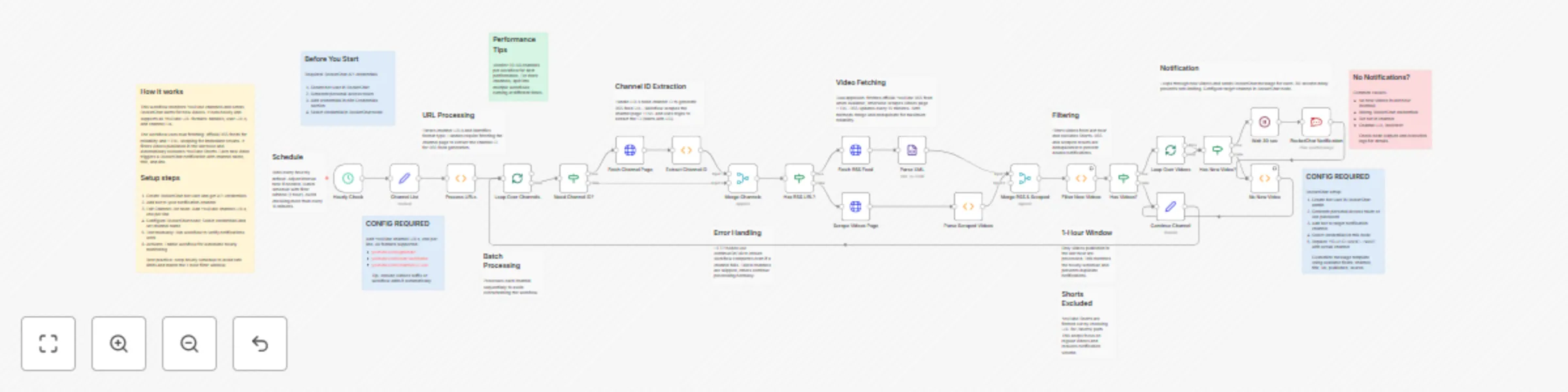
Monitor multiple YouTube channels with real-time RocketChat alerts

## Workflow Overview This n8n workflow provides automated monitoring of YouTube channels and sends real-time notifications to RocketChat when new videos are published. It supports all YouTube URL formats, uses dual-source video fetching for reliability, and intelligently filters videos to prevent duplicate notifications. ### Key Features - **Multi-Format URL Support**: Handles @handle, /user/, and /channel/ URL formats - **Dual Fetching Strategy**: Uses both RSS feeds and HTML scraping for maximum reliability - **Smart Filtering**: Only notifies about videos published in the last hour - **Shorts Exclusion**: Automatically excludes YouTube Shorts from notifications - **Rate Limiting**: 30-second delay between notifications to prevent spam - **Batch Processing**: Processes multiple channels sequentially - **Error Handling**: Continues execution even if one channel fails - **Customizable Schedule**: Default hourly checks, adjustable as needed ### Use Cases Monitor competitor channels, track favorite creators, aggregate content from multiple channels, build content curation workflows, stay updated on educational channels, monitor brand mentions, track news channels for breaking updates. --- ## Setup Instructions ### Prerequisites - n8n instance (self-hosted or cloud) version 1.0+ - RocketChat server with admin or bot access - RocketChat API credentials - Internet connectivity for YouTube access ### Step 1: Obtain RocketChat Credentials **Create Bot User:** 1. Log in to RocketChat as administrator 2. Navigate to Administration → Users → New 3. Fill in details: Name (YouTube Monitor Bot), Username (youtube-bot), Email, Password, Roles (bot) 4. Click Save **Get API Credentials:** 1. Log in as bot user 2. Navigate to My Account → Personal Access Tokens 3. Click Generate New Token 4. Enter token name: n8n YouTube Monitor 5. Copy generated token immediately 6. Note User ID from account settings ### Step 2: Configure RocketChat in n8n 1. Open n8n web interface 2. Navigate to Credentials section 3. Click Add Credential → RocketChat API 4. Fill in: - Domain: Your RocketChat URL (e.g., https://rocket.yourdomain.com) - User: Bot username (e.g., youtube-bot) - Password: Bot password or personal access token 5. Click Save and test connection ### Step 3: Prepare RocketChat Channel 1. Create new channel in RocketChat: youtube-notifications 2. Add bot user to channel: - Click channel menu → Members → Add Users - Search for bot username - Click Add ### Step 4: Collect YouTube Channel URLs **Handle Format:** `https://www.youtube.com/@ChannelHandle` **User Format:** `https://www.youtube.com/user/Username` **Channel ID Format:** `https://www.youtube.com/channel/UCxxxxxxxxxx` All formats supported. Find channel ID in page source or use browser extension. ### Step 5: Import Workflow 1. Copy workflow JSON 2. In n8n: Workflows → Import from File/URL 3. Paste JSON or upload file 4. Click Import ### Step 6: Configure Channel List 1. Locate Channel List node 2. Enter YouTube URLs in channel_urls field, one per line: ``` https://www.youtube.com/@NoCopyrightSounds/videos https://www.youtube.com/@chillnation/videos ``` 3. Include /videos suffix or workflow adds it automatically ### Step 7: Configure RocketChat Notification 1. Locate RocketChat Notification node 2. Replace YOUR-CHANNEL-NAME with your channel name 3. Select RocketChat credential 4. Customize message template if needed ### Step 8: Configure Schedule (Optional) Default: Every 1 hour To change: 1. Open Hourly Check node 2. Modify interval (Minutes, Hours, Days) **Recommended Intervals:** - Every hour (default): Good balance - Every 30 minutes: More frequent - Every 2 hours: Less frequent - Avoid intervals less than 15 minutes **Important:** YouTube RSS updates every 15 minutes. Hourly checks match 1-hour filter window. ### Step 9: Test the Workflow 1. Click Execute Workflow button 2. Monitor execution (green = success, red = errors) 3. Check node outputs: - Channel List: Shows URLs - Filter New Videos: Shows found videos (may be empty) - RocketChat Notification: Shows sent messages 4. Verify notifications in RocketChat **No notifications is normal if no videos posted in last hour.** ### Step 10: Activate Workflow 1. Toggle Active switch in top-right 2. Workflow runs on schedule automatically 3. Monitor RocketChat channel for notifications --- ## How to Use ### Understanding Workflow Execution **Default Schedule: Hourly** - Executes every hour - Checks all channels - Processes videos from last 60 minutes - Prevents duplicate notifications **Execution Duration:** 1-5 minutes for 10 channels. Rate limiting adds 30 seconds per video. ### Adding New Channels 1. Open Channel List node 2. Add new URL on new line 3. Save (Ctrl+S) 4. Change takes effect on next run ### Removing Channels 1. Open Channel List node 2. Delete line or comment out with # at start 3. Save changes ### Changing Check Frequency 1. Open Hourly Check node 2. Modify interval 3. If changing from hourly, update Filter New Videos node: - Find: `cutoffDate.setHours(cutoffDate.getHours() - 1);` - Change -1 to match interval (-2 for 2 hours, -6 for 6 hours) **Important:** Time window should match or exceed check interval. ### Understanding Video Sources **RSS Feed (Primary):** - Official YouTube RSS - Fast and reliable - 5-15 minute delay for new videos - Structured data **HTML Scraping (Fallback):** - Immediate results - Works when RSS unavailable - More fragile **Benefits of dual approach:** - Reliability: If one fails, other works - Speed: Scraping catches videos immediately - Completeness: RSS ensures nothing missed - Videos are deduplicated automatically ### Excluding YouTube Shorts Shorts are filtered by checking URL for /shorts/ path. **To include Shorts:** 1. Open Filter New Videos node 2. Find: `if (videoUrl && !videoUrl.includes('/shorts/'))` 3. Remove the !videoUrl.includes('/shorts/') check ### Rate Limiting **30-second wait between notifications:** - Prevents flooding RocketChat - Allows users to read each notification - Avoids rate limits **Impact:** 5 videos = 2.5 minutes, 10 videos = 5 minutes **To adjust:** Open Wait 30 sec node, change amount field (15-60 seconds recommended) ### Handling Multiple Channels Channels processed sequentially: - Prevents overwhelming workflow - Ensures reliable execution - One failed channel doesn't stop others - Recommend 20-50 channels per workflow --- ## FAQ **Q: How many channels can I monitor?** A: Recommend 20-50 per workflow. Split into multiple workflows for more. **Q: Why use both RSS and scraping?** A: RSS is reliable but delayed. Scraping is immediate but fragile. Both ensures no videos missed. **Q: Can I exclude specific video types?** A: Yes, add filtering logic in Filter New Videos node. Already excludes Shorts. **Q: Will this get my IP blocked?** A: Unlikely with hourly checks. Don't check more than every 15 minutes. **Q: How do I prevent duplicate notifications?** A: Ensure time window matches schedule interval. Already implemented. **Q: What if channel changes handle?** A: Update URL in Channel List node. YouTube maintains redirects. **Q: Can I monitor playlists?** A: Not directly. Would need modifications for playlist RSS feeds. --- ## Technical Reference ### YouTube URL Formats - Handle: `https://www.youtube.com/@handlename` - User: `https://www.youtube.com/user/username` - Channel ID: `https://www.youtube.com/channel/UCxxxxxx` ### RSS Feed Format `https://www.youtube.com/feeds/videos.xml?channel_id=UCxxxxxx` Contains up to 15 recent videos with title, link, publish date, thumbnail. **APIs Used:** YouTube RSS (public), RocketChat API (requires auth) **License:** Open for modification and commercial use

V
Vigh Sandor
Market Research
9 Nov 2025
98
0
Workflow preview: Sign PDF documents with X.509 certificates using PAdES standards
Free advanced

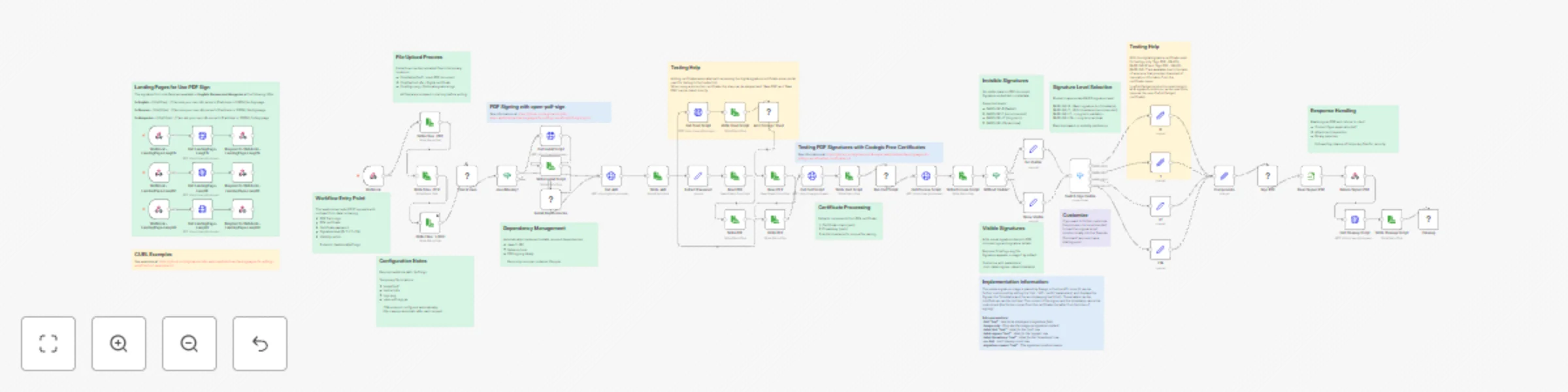
Sign PDF documents with X.509 certificates using PAdES standards

# PDF Digital Signature API with PAdES Compliance Sign PDF documents with legally-compliant digital signatures using X.509 certificates. Supports multiple PAdES signature levels (B, T, LT, LTA) with optional visible stamps. ## What this workflow does This workflow creates a professional PDF signing service that: - Accepts PDF files via webhook API - Signs documents using X.509 certificates (PFX format) - Returns cryptographically signed PDFs compliant with EU eIDAS standards - Supports both visible and invisible signatures - Provides multi-language landing pages for easy testing Perfect for contracts, invoices, legal documents, and any PDF requiring digital authentication. ## Use Cases - **Legal Document Signing**: Sign contracts and agreements with legally-binding digital signatures - **Invoice Authentication**: Add cryptographic signatures to invoices for validation - **Regulatory Compliance**: Meet EU eIDAS and other digital signature requirements - **Document Archival**: Create long-term valid signatures for permanent storage - **Automated Signing Pipeline**: Integrate PDF signing into your existing workflows ## How it Works ### Workflow Process 1. **File Upload**: Receives PDF, certificate (PFX), and password via webhook 2. **Dependency Check**: Automatically installs Java and signing tool if needed 3. **Certificate Processing**: Extracts certificate and private key from PFX 4. **Signature Selection**: Routes to appropriate signing method based on level 5. **PDF Signing**: Signs document using open-pdf-sign tool 6. **Response**: Returns signed PDF and cleans up temporary files ### Signature Levels Explained Choose the signature level based on your needs: **BASELINE-B** (Basic, 2-3 seconds) - Fastest option - Short-term validity (months) - Best for: Testing, internal documents **BASELINE-T** (Timestamp, 3-5 seconds) - Recommended - Includes trusted timestamp - Medium-term validity (years) - Best for: Contracts, invoices, business documents **BASELINE-LT** (Long-Term, 5-10 seconds) - Includes revocation information - Long-term validity (decades) - Best for: Banking, healthcare, government **BASELINE-LTA** (Archival, 8-12 seconds) - Maximum compliance level - Permanent validity - Best for: Critical legal documents ### Visible vs Invisible Signatures **Invisible** (default): - No visual mark on document - Preserves original appearance - Signature in document metadata **Visible**: - Shows signature stamp on PDF - Includes logo and signature details - More reassuring for recipients - Add `isVisible=true` and `logoFile` to request ## Customization ### Change Signature Level Modify the `signLevel` parameter in your request: - `B` - Basic - `T` - Timestamp (default) - `LT` - Long-term - `LTA` - Archival ### Customize Visible Signature Upload a logo and add customization parameters to the signing command nodes: ```bash --hint "Digitally Signed" # Custom text --page 2 # Sign on page 2 --label-signee "Signed by" # Custom label --label-timestamp "Date" # Custom timestamp label --no-hint # Hide hint row --signature-reason "Contract Approval" # Reason text ``` ### Adjust File Paths Modify these nodes to change temporary file locations: - `Write Files : PDF` - PDF storage path - `Write Files : PFX` - Certificate storage path - `Write Files : LOGO` - Logo storage path ### Add Authentication For production use, add authentication before the webhook: 1. Insert HTTP Request node to validate API key 2. Add rate limiting 3. Log signature operations ## Technical Details ### What Gets Installed The workflow automatically installs: - OpenJDK 11 JRE (Java runtime) - curl (for downloading) - open-pdf-sign v0.3.0 (signing tool) ### Certificate Processing Uses OpenSSL to extract: - X.509 certificate chain (.pem) - Private key (.pem) All files use timestamped names to prevent conflicts. ### Security Features - Automatic cleanup of sensitive files after each request - No persistent storage of certificates or keys - HTTPS recommended for production - Supports password-protected certificates ### Standards Compliance Implements ETSI EN 319 142 PAdES standards: - EU eIDAS regulation compliant - Validates in Adobe Acrobat Reader - Verifiable at EU DSS Demo webapp ## FAQ **Q: Where do I get certificates?** A: For testing, use free certificates from Codegic. For production, purchase from DigiCert, GlobalSign, or Sectigo. **Q: What PDF sizes are supported?** A: Up to 50MB by default. Adjust n8n configuration for larger files. **Q: Can I sign multiple PDFs at once?** A: Call the API once per PDF, or modify the workflow to accept multiple files. **Q: Will signatures work in Adobe Reader?** A: Yes, if using certificates from trusted CAs. Self-signed certificates will show warnings. **Q: How do I verify signed PDFs?** A: Open in Adobe Acrobat Reader and check the signature panel, or use the EU DSS validation tool webapp. **Q: Can I use this commercially?** A: Yes, the workflow is free for personal and commercial use. ## Support - **Documentation**: See workflow sticky notes for detailed information - **Tool Source**: open-pdf-sign on GitHub - **Standards**: ETSI PAdES specifications - **Community**: n8n Community Forum --- **License**: Free for personal and commercial use **Dependencies**: OpenJDK 11, OpenSSL, curl, open-pdf-sign v0.3.0 (Apache 2.0)

V
Vigh Sandor
Document Extraction
8 Nov 2025
96
0
Workflow preview: Automated Kubernetes testing with Robot Framework, ArgoCD & with KinD lifecycle
Free advanced

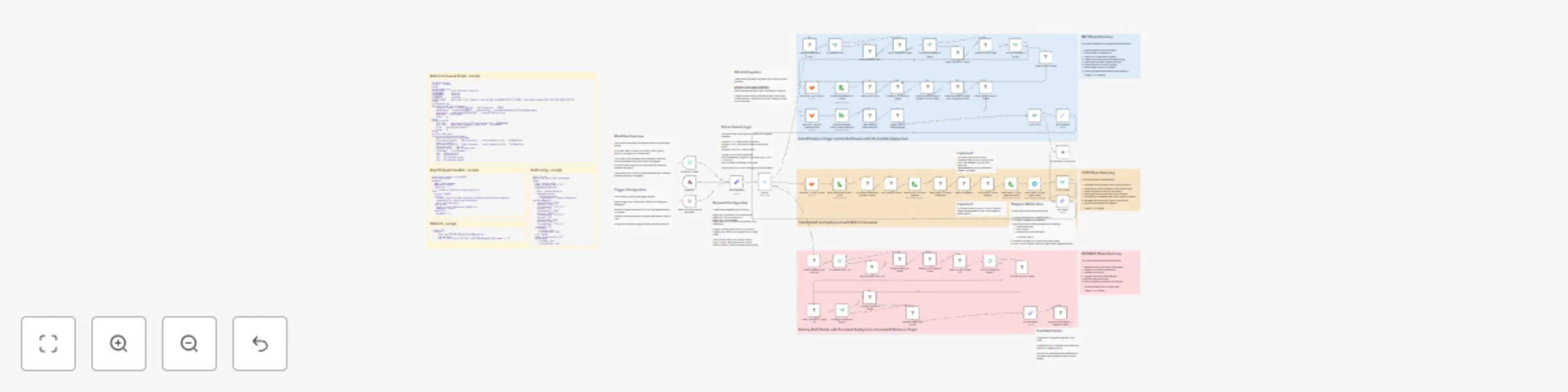
Automated Kubernetes testing with Robot Framework, ArgoCD & with KinD lifecycle

## Overview This n8n workflow provides **automated CI/CD testing** for Kubernetes applications using **KinD (Kubernetes in Docker)**. It creates temporary infrastructure, runs tests, and cleans up everything automatically. --- ## Three-Phase Lifecycle ### INIT Phase - Infrastructure Setup - Installs dependencies (sshpass, Docker, KinD) - Creates KinD cluster - Installs Helm and Nginx Ingress - Installs HAProxy for port forwarding - Deploys ArgoCD - Applies ApplicationSet ### TEST Phase - Automated Testing - Downloads Robot Framework test script from GitLab - Installs Robot Framework and Browser library - Executes automated browser tests - Packages test results - Sends results via Telegram ### DESTROY Phase - Complete Cleanup - Removes HAProxy - Deletes KinD cluster - Uninstalls KinD - Uninstalls Docker - Sends completion notification --- ## Execution Modes **Full Pipeline Mode** (`progress_only = false`) &gt; Automatically progresses through all phases: INIT → TEST → DESTROY **Single Phase Mode** (`progress_only = true`) &gt; Executes only the specified phase and stops --- ## Prerequisites ### Local Environment (n8n Host) - n8n instance **version 1.0 or higher** - Community node `n8n-nodes-robotframework` installed - Network access to target host and GitLab - Minimum **4 GB RAM**, **20 GB disk space** ### Remote Target Host - Linux server (Ubuntu, Debian, CentOS, Fedora, or Alpine) - SSH access with **sudo privileges** - Minimum **8 GB RAM** (16 GB recommended) - **20 GB** free disk space - Open ports: `22`, `80`, `60080`, `60443`, `56443` ### External Services - **GitLab** account with OAuth2 application - Repository with test files (`test.robot`, `config.yaml`, `demo-applicationSet.yaml`) - **Telegram Bot** for notifications - Telegram **Chat ID** --- ## Setup Instructions ### Step 1: Install Community Node 1. In n8n web interface, navigate to **Settings** → **Community Nodes** 2. Install `n8n-nodes-robotframework` 3. Restart n8n if prompted ### Step 2: Configure GitLab OAuth2 #### Create GitLab OAuth2 Application 1. Log in to GitLab 2. Navigate to **User Settings** → **Applications** 3. Create new application with redirect URI: `https://your-n8n-instance.com/rest/oauth2-credential/callback` 4. Grant scopes: `read_api`, `read_repository`, `read_user` 5. Copy **Application ID** and **Secret** #### Configure in n8n 1. Create new **GitLab OAuth2 API** credential 2. Enter GitLab server URL, Client ID, and Secret 3. Connect and authorize ### Step 3: Prepare GitLab Repository Create repository structure: ``` your-repo/ ├── test.robot ├── config.yaml ├── demo-applicationSet.yaml └── .gitlab-ci.yml ``` Upload your: - Robot Framework test script - KinD cluster configuration - ArgoCD ApplicationSet manifest ### Step 4: Configure Telegram Bot #### Create Bot 1. Open Telegram, search for **@BotFather** 2. Send `/newbot` command 3. Save the **API token** #### Get Chat ID **For personal chat:** - Send message to your bot - Visit: `https://api.telegram.org/bot&lt;YOUR_TOKEN&gt;/getUpdates` - Copy the chat ID (positive number) **For group chat:** - Add bot to group - Send message mentioning the bot - Visit getUpdates endpoint - Copy group chat ID (negative number) #### Configure in n8n 1. Create **Telegram API** credential 2. Enter bot token 3. Save credential ### Step 5: Prepare Target Host Verify SSH access: - Test connection: `ssh -p &lt;port&gt; &lt;username&gt;@&lt;host_ip&gt;` - Verify sudo: `sudo -v` The workflow will automatically install dependencies. ### Step 6: Import and Configure Workflow #### Import Workflow 1. Copy workflow JSON 2. In n8n, click **Workflows** → **Import from File/URL** 3. Import the JSON #### Configure Parameters Open **Set Parameters** node and update: | Parameter | Description | Example | |-----------|-------------|---------| | `target_host` | IP address of remote host | `192.168.1.100` | | `target_port` | SSH port | `22` | | `target_user` | SSH username | `ubuntu` | | `target_password` | SSH password | `your_password` | | `progress` | Starting phase | `INIT`, `TEST`, or `DESTROY` | | `progress_only` | Execution mode | `true` or `false` | | `KIND_CONFIG` | Path to config.yaml | `config.yaml` | | `ROBOT_SCRIPT` | Path to test.robot | `test.robot` | | `ARGOCD_APPSET` | Path to ApplicationSet | `demo-applicationSet.yaml` | &gt; **Security:** Use n8n credentials or environment variables instead of storing passwords in the workflow. #### Configure GitLab Nodes For each of the three GitLab nodes: - Set **Owner** (username or organization) - Set **Repository** name - Set **File Path** (uses parameter from Set Parameters) - Set **Reference** (branch: `main` or `master`) - Select **Credentials** (GitLab OAuth2) #### Configure Telegram Nodes 1. **Send ROBOT Script Export Pack** node: - Set **Chat ID** - Select **Credentials** 2. **Process Finish Report** node: - Update chat ID in command ### Step 7: Test and Execute 1. Test individual components first 2. Run full workflow 3. Monitor execution (30-60 minutes total) --- ## How to Use ### Execution Examples #### Complete Testing Pipeline - `progress = "INIT"` - `progress_only = "false"` - Flow: INIT → TEST → DESTROY #### Setup Infrastructure Only - `progress = "INIT"` - `progress_only = "true"` - Flow: INIT → Stop #### Test Existing Infrastructure - `progress = "TEST"` - `progress_only = "false"` - Flow: TEST → DESTROY #### Cleanup Only - `progress = "DESTROY"` - Flow: DESTROY → Complete ### Trigger Methods #### 1. Manual Execution - Open workflow in n8n - Set parameters - Click **Execute Workflow** #### 2. Scheduled Execution - Open **Schedule Trigger** node - Configure time (default: 1 AM daily) - Ensure workflow is **Active** #### 3. Webhook Trigger - Configure webhook in GitLab repository - Add webhook URL to GitLab CI ### Monitoring Execution **In n8n Interface:** - View progress in **Executions** tab - Watch node-by-node execution - Check output details **Via Telegram:** - Receive test results after TEST phase - Receive completion notification after DESTROY phase **Execution Timeline:** | Phase | Duration | |-------|----------| | INIT | 15-25 minutes | | TEST | 5-10 minutes | | DESTROY | 5-10 minutes | ### Understanding Test Results After TEST phase, receive `testing-export-pack.tar.gz` via Telegram containing: - `log.html` - Detailed test execution log - `report.html` - Test summary report - `output.xml` - Machine-readable results - `screenshots/` - Browser screenshots **To view:** 1. Download `.tar.gz` from Telegram 2. Extract: `tar -xzf testing-export-pack.tar.gz` 3. Open `report.html` for summary 4. Open `log.html` for detailed steps **Success indicators:** - All tests marked **PASS** - Screenshots show expected UI states - No error messages in logs **Failure indicators:** - Tests marked **FAIL** - Error messages in logs - Unexpected UI states in screenshots --- ## Configuration Files ### test.robot Robot Framework test script structure: - Uses **Browser** library - Connects to `http://autotest.innersite` - Logs in with `autotest/autotest` - Takes screenshots - Runs in **headless Chromium** ### config.yaml KinD cluster configuration: - **1 control-plane node** - **1 worker node** - Port mappings: `60080` (HTTP), `60443` (HTTPS), `56443` (API) - Kubernetes version: `v1.30.2` ### demo-applicationSet.yaml ArgoCD Application manifest: - Points to Git repository - Automatic sync enabled - Deploys to default namespace ### gitlab-ci.yml Triggers n8n workflow on commits: - Installs curl - Sends POST request to webhook --- ## Troubleshooting ### SSH Permission Denied **Symptoms:** ``` Error: Permission denied (publickey,password) ``` **Solutions:** - Verify password is correct - Check SSH authentication method - Ensure user has sudo privileges - Use SSH keys instead of passwords ### Docker Installation Fails **Symptoms:** ``` Error: Package docker-ce is not available ``` **Solutions:** - Check OS version compatibility - Verify network connectivity - Manually add Docker repository ### KinD Cluster Creation Timeout **Symptoms:** ``` Error: Failed to create cluster: timed out ``` **Solutions:** - Check available resources (RAM/CPU/disk) - Verify Docker daemon status - Pre-pull images - Increase timeout ### ArgoCD Not Accessible **Symptoms:** ``` Error: Failed to connect to autotest.innersite ``` **Solutions:** - Check HAProxy status: `systemctl status haproxy` - Verify `/etc/hosts` entry - Check Ingress: `kubectl get ingress -n argocd` - Test port forwarding: `curl http://127.0.0.1:60080` ### Robot Framework Tests Fail **Symptoms:** ``` Error: Chrome failed to start ``` **Solutions:** - Verify Chromium installation - Check Browser library: `rfbrowser show-trace` - Ensure correct `executablePath` in test.robot - Install missing dependencies ### Telegram Notification Not Received **Symptoms:** - Workflow completes but no message **Solutions:** - Verify Chat ID - Test Telegram API manually - Check bot status - Re-add bot to group ### Workflow Hangs **Symptoms:** - Node shows "Executing..." indefinitely **Solutions:** - Check n8n logs - Test SSH connection manually - Verify target host status - Add timeouts to commands --- ## Best Practices ### Development Workflow 1. **Test locally first** - Run Robot Framework tests on local machine - Verify test script syntax 2. **Version control** - Keep all files in Git - Use branches for experiments - Tag stable versions 3. **Incremental changes** - Make small testable changes - Test each change separately 4. **Backup data** - Export workflow regularly - Save test results - Store credentials securely ### Production Deployment 1. **Separate environments** - Dev: Frequent testing - Staging: Pre-production validation - Production: Stable scheduled runs 2. **Monitoring** - Set up execution alerts - Monitor host resources - Track success/failure rates 3. **Disaster recovery** - Document cleanup procedures - Keep backup host ready - Test restoration process 4. **Security** - Use SSH keys - Rotate credentials quarterly - Implement network segmentation ### Maintenance Schedule | Frequency | Tasks | |-----------|-------| | **Daily** | Review logs, check notifications | | **Weekly** | Review failures, check disk space | | **Monthly** | Update dependencies, test recovery | | **Quarterly** | Rotate credentials, security audit | --- ## Advanced Topics ### Custom Configurations **Multi-node clusters:** - Add more worker nodes for production-like environments - Configure resource limits - Add custom port mappings **Advanced testing:** - Load testing with multiple iterations - Integration testing for full deployment pipeline - Chaos engineering with failure injection ### Integration with Other Tools **Monitoring:** - Prometheus for metrics collection - Grafana for visualization **Logging:** - ELK stack for log aggregation - Custom dashboards **CI/CD Integration:** - Jenkins pipelines - GitHub Actions - Custom webhooks --- ## Resource Requirements ### Minimum | Component | CPU | RAM | Disk | |-----------|-----|-----|------| | n8n Host | 2 | 4 GB | 20 GB | | Target Host | 4 | 8 GB | 20 GB | ### Recommended | Component | CPU | RAM | Disk | |-----------|-----|-----|------| | n8n Host | 4 | 8 GB | 50 GB | | Target Host | 8 | 16 GB | 50 GB | --- ## Useful Commands ### KinD - List clusters: `kind get clusters` - Get kubeconfig: `kind get kubeconfig --name automate-tst` - Export logs: `kind export logs --name automate-tst` ### Docker - List containers: `docker ps -a --filter "name=automate-tst"` - Enter control plane: `docker exec -it automate-tst-control-plane bash` - View logs: `docker logs automate-tst-control-plane` ### Kubernetes - Get all resources: `kubectl get all -A` - Describe pod: `kubectl describe pod -n argocd &lt;pod-name&gt;` - View logs: `kubectl logs -n argocd &lt;pod-name&gt; --follow` - Port forward: `kubectl port-forward -n argocd svc/argocd-server 8080:80` ### Robot Framework - Run tests: `robot test.robot` - Run specific test: `robot -t "Test Name" test.robot` - Generate report: `robot --outputdir results test.robot` --- ## Additional Resources ### Official Documentation - **n8n**: https://docs.n8n.io - **KinD**: https://kind.sigs.k8s.io - **ArgoCD**: https://argo-cd.readthedocs.io - **Robot Framework**: https://robotframework.org - **Browser Library**: https://marketsquare.github.io/robotframework-browser ### Community - **n8n Community**: https://community.n8n.io - **Kubernetes Slack**: https://kubernetes.slack.com - **ArgoCD Slack**: https://argoproj.github.io/community/join-slack - **Robot Framework Forum**: https://forum.robotframework.org ### Related Projects - **k3s**: Lightweight Kubernetes distribution - **minikube**: Local Kubernetes alternative - **Flux CD**: Alternative GitOps tool - **Playwright**: Alternative browser automation

V
Vigh Sandor
DevOps
30 Oct 2025
142
0
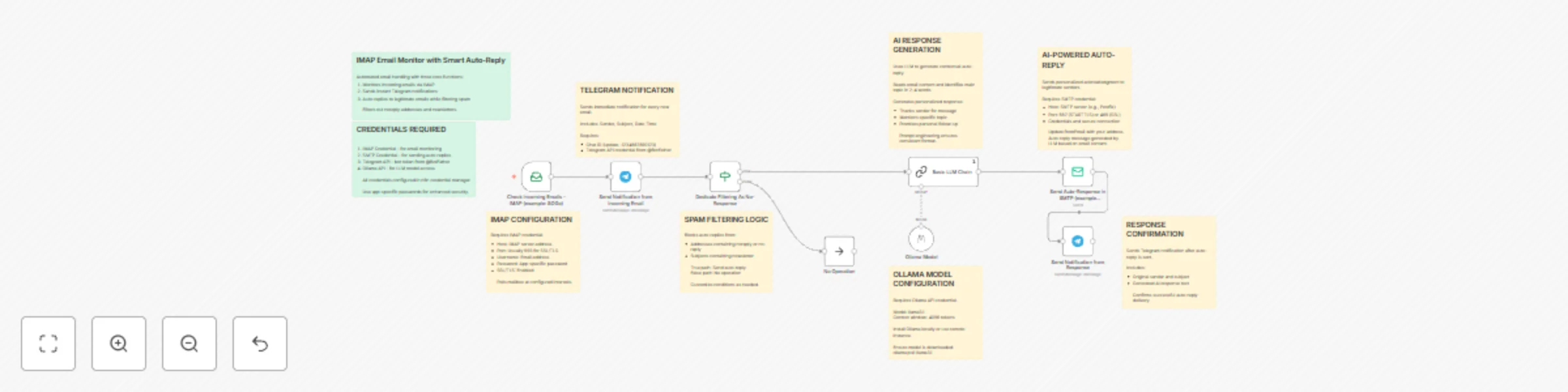
Workflow preview: Monitor emails & send AI-generated auto-replies with Ollama & Telegram alerts
Free advanced

Monitor emails & send AI-generated auto-replies with Ollama & Telegram alerts

## Workflow Overview This advanced n8n workflow provides intelligent email automation with AI-generated responses. It combines four core functions: 1. Monitors incoming emails via IMAP (e.g., SOGo) 2. Sends instant Telegram notifications for all new emails 3. Uses AI (Ollama LLM) to generate contextual, personalized auto-replies 4. Sends confirmation notifications when auto-replies are sent Unlike traditional auto-responders, this workflow analyzes email content and creates unique, relevant responses for each message. --- ## Setup Instructions ### Prerequisites Before setting up this workflow, ensure you have: - An n8n instance (self-hosted or cloud) with AI/LangChain nodes enabled - IMAP email account credentials (e.g., SOGo, Gmail, Outlook) - SMTP server access for sending emails - Telegram Bot API credentials - Telegram Chat ID where notifications will be sent - Ollama installed locally or accessible via network (for AI model) - The llama3.1 model downloaded in Ollama ### Step 1: Install and Configure Ollama #### Local Installation 1. Install Ollama on your system: - Visit https://ollama.ai and download the installer for your OS - Follow installation instructions for your platform 2. Download the llama3.1 model: ```bash ollama pull llama3.1 ``` 3. Verify the model is available: ```bash ollama list ``` 4. Start Ollama service (if not already running): ```bash ollama serve ``` 5. Test the model: ```bash ollama run llama3.1 "Hello, world!" ``` #### Remote Ollama Instance If using a remote Ollama server: - Note the server URL (e.g., http://192.168.1.100:11434) - Ensure network connectivity between n8n and Ollama server - Verify firewall allows connections on port 11434 ### Step 2: Configure IMAP Credentials 1. Navigate to n8n Credentials section 2. Create a new IMAP credential with the following information: - Host: Your IMAP server address - Port: Usually 993 for SSL/TLS - Username: Your email address - Password: Your email password or app-specific password - Enable SSL/TLS: Yes (recommended) - Security: Use STARTTLS or SSL/TLS ### Step 3: Configure SMTP Credentials 1. Create a new SMTP credential in n8n 2. Enter the following details: - Host: Your SMTP server address (e.g., Postfix server) - Port: Usually 587 (STARTTLS) or 465 (SSL) - Username: Your email address - Password: Your email password or app-specific password - Secure connection: Enable based on your server configuration - Allow unauthorized certificates: Enable if using self-signed certificates ### Step 4: Configure Telegram Bot 1. Create a Telegram bot via BotFather: - Open Telegram and search for @BotFather - Send `/newbot` command - Follow instructions to create your bot - Save the API token provided by BotFather 2. Obtain your Chat ID: - Method 1: Send a message to your bot, then visit: `https://api.telegram.org/bot&lt;YOUR_BOT_TOKEN&gt;/getUpdates` - Method 2: Use a Telegram Chat ID bot like @userinfobot - Method 3: For group chats, add the bot to the group and check the updates - Note: Group chat IDs are negative numbers (e.g., -1234567890123) 3. Add Telegram API credential in n8n: - Credential Type: Telegram API - Access Token: Your bot token from BotFather ### Step 5: Configure Ollama API Credential 1. In n8n Credentials section, create a new Ollama API credential 2. Configure based on your setup: - For local Ollama: Base URL is usually `http://localhost:11434` - For remote Ollama: Enter the server URL (e.g., `http://192.168.1.100:11434`) 3. Test the connection to ensure n8n can reach Ollama ### Step 6: Import and Configure Workflow 1. Import the workflow JSON into your n8n instance 2. Update the following nodes with your specific information: #### Check Incoming Emails Node - Verify IMAP credentials are connected - Configure polling interval (optional): - Default behavior checks on workflow trigger schedule - Can be set to check every N minutes - Set mailbox folder if needed (default is INBOX) #### Send Notification from Incoming Email Node - Update `chatId` parameter with your Telegram Chat ID - Replace `-1234567890123` with your actual chat ID - Customize notification message template if desired - Current format includes: Sender, Subject, Date-Time #### Dedicate Filtering As No-Response Node - Review spam filter conditions: - Blocks emails from addresses containing "noreply" or "no-reply" - Blocks emails with "newsletter" in subject line (case-insensitive) - Add additional filtering rules as needed: - Block specific domains - Filter by keywords - Whitelist/blacklist specific senders #### Ollama Model Node - Verify Ollama API credential is connected - Confirm model name: `llama3.1:bf230501` (or adjust to your installed version) - Context window set to 4096 tokens (sufficient for most emails) - Can be adjusted based on your needs and hardware capabilities #### Basic LLM Chain Node - Review the AI prompt engineering (pre-configured but customizable) - Current prompt instructs the AI to: - Read the email content - Identify main topic in 2-4 words - Generate a professional acknowledgment response - Keep responses consistent and concise - Modify prompt if you want different response styles #### Send Auto-Response in SMTP Node - Verify SMTP credentials are connected - Check `fromEmail` uses correct email address: - Currently set to `{{ $('Check Incoming Emails - IMAP (example: SOGo)').item.json.to }}` - This automatically uses the recipient address (your mailbox) - Subject automatically includes "Re: " prefix with original subject - Message text comes from AI-generated content #### Send Notification from Response Node - Update `chatId` parameter (same as first notification node) - This sends confirmation that auto-reply was sent - Includes original email details and the AI-generated response text ### Step 7: Test the Workflow 1. Perform initial configuration test: - Test Ollama connectivity: `curl http://localhost:11434/api/tags` - Verify all credentials are properly configured - Check n8n has access to required network endpoints 2. Execute a test run: - Click "Execute Workflow" button in n8n - Send a test email to your monitored inbox - Use a clear subject and body for better AI response 3. Verify workflow execution: - First Telegram notification received (incoming email alert) - AI processes the email content - Auto-reply is sent to the original sender - Second Telegram notification received (confirmation with AI response) - Check n8n execution log for any errors 4. Verify email delivery: - Check if auto-reply arrived at sender's inbox - Verify it's not marked as spam - Review AI-generated content for appropriateness ### Step 8: Fine-Tune AI Responses 1. Send various types of test emails: - Different topics (inquiry, complaint, information request) - Various email lengths (short, medium, long) - Different languages if applicable 2. Review AI-generated responses: - Check if topic identification is accurate - Verify response appropriateness - Ensure tone is professional 3. Adjust the prompt if needed: - Modify topic word count (currently 2-4 words) - Change response template - Add language-specific instructions - Include custom sign-offs or branding ### Step 9: Activate the Workflow 1. Once testing is successful and AI responses are satisfactory: - Toggle the workflow to "Active" state - The workflow will now run automatically on the configured schedule 2. Monitor initial production runs: - Review first few auto-replies carefully - Check Telegram notifications for any issues - Verify SMTP delivery rates 3. Set up monitoring: - Enable n8n workflow error notifications - Monitor Ollama resource usage - Check email server logs periodically --- ## How to Use ### Normal Operation Once activated, the workflow operates fully automatically: 1. **Email Monitoring**: The workflow continuously checks your IMAP inbox for new messages based on the configured polling interval or trigger schedule. 2. **Immediate Incoming Notification**: When a new email arrives, you receive an instant Telegram notification containing: - Sender's email address - Email subject line - Date and time received - Note indicating it's from IMAP mailbox 3. **Intelligent Filtering**: The workflow evaluates each email against spam filter criteria: - Emails from "noreply" or "no-reply" addresses are filtered out - Emails with "newsletter" in the subject line are filtered out - Filtered emails receive notification but no auto-reply - Legitimate emails proceed to AI response generation 4. **AI Response Generation**: For emails that pass the filter: - The AI reads the full email content - Analyzes the main topic or purpose - Generates a personalized acknowledgment - Creates a professional response that: - Thanks the sender - References the specific topic - Promises a personal follow-up - Maintains professional tone 5. **Automatic Reply Delivery**: The AI-generated response is sent via SMTP to the original sender with: - Subject line: "Re: [Original Subject]" - From address: Your monitored mailbox - Body: AI-generated contextual message 6. **Response Confirmation**: After the auto-reply is sent, you receive a second Telegram notification showing: - Original email details (sender, subject, date) - The complete AI-generated response text - Confirmation of successful delivery ### Understanding AI Response Generation The AI analyzes emails intelligently: **Example 1: Business Inquiry** ``` Incoming Email: "I'm interested in your consulting services for our Q4 project..." AI Topic Identification: "consulting services" Generated Response: "Dear Correspondent! Thank you for your message regarding consulting services. I will respond with a personal message as soon as possible. Have a nice day!" ``` **Example 2: Technical Support** ``` Incoming Email: "We're experiencing issues with the API integration..." AI Topic Identification: "API integration issues" Generated Response: "Dear Correspondent! Thank you for your message regarding API integration issues. I will respond with a personal message as soon as possible. Have a nice day!" ``` **Example 3: General Question** ``` Incoming Email: "Could you provide more information about pricing?" AI Topic Identification: "pricing information" Generated Response: "Dear Correspondent! Thank you for your message regarding pricing information. I will respond with a personal message as soon as possible. Have a nice day!" ``` ### Customizing Filter Rules To modify which emails receive AI-generated auto-replies: 1. Open the "Dedicate Filtering As No-Response" node 2. Modify existing conditions or add new ones: **Block specific domains:** ```javascript {{ $json.from.value[0].address }} Operation: does not contain Value: @spam-domain.com ``` **Whitelist VIP senders (only respond to specific people):** ```javascript {{ $json.from.value[0].address }} Operation: contains Value: @important-client.com ``` **Filter by subject keywords:** ```javascript {{ $json.subject.toLowerCase() }} Operation: does not contain Value: unsubscribe ``` **Combine multiple conditions:** - Use AND logic (all must be true) for stricter filtering - Use OR logic (any can be true) for more permissive filtering ### Customizing AI Prompt To change how the AI generates responses: 1. Open the "Basic LLM Chain" node 2. Modify the prompt text in the "text" parameter 3. Current structure: - Context setting (read email, identify topic) - Output format specification - Rules for AI behavior **Example modifications:** **Add company branding:** ``` Return only this response, filling in the [TOPIC]: Dear Correspondent! Thank you for reaching out to [Your Company Name] regarding [TOPIC]. I will respond with a personal message as soon as possible. Best regards, [Your Name] [Your Company Name] ``` **Make it more casual:** ``` Return only this response, filling in the [TOPIC]: Hi there! Thanks for your email about [TOPIC]. I'll get back to you personally soon. Cheers! ``` **Add urgency classification:** ``` Read the email and classify urgency (Low/Medium/High). Identify the main topic. Return: Dear Correspondent! Thank you for your message regarding [TOPIC]. Priority: [URGENCY] I will respond with a personal message as soon as possible. ``` ### Customizing Telegram Notifications **Incoming Email Notification:** 1. Open "Send Notification from Incoming Email" node 2. Modify the "text" parameter 3. Available variables: - `{{ $json.from }}` - Full sender info - `{{ $json.from.value[0].address }}` - Sender email only - `{{ $json.from.value[0].name }}` - Sender name (if available) - `{{ $json.subject }}` - Email subject - `{{ $json.date }}` - Date received - `{{ $json.textPlain }}` - Email body (use cautiously for privacy) - `{{ $json.to }}` - Recipient address **Response Confirmation Notification:** 1. Open "Send Notification from Response" node 2. Modify to include additional information 3. Reference AI response: `{{ $('Basic LLM Chain').item.json.text }}` ### Monitoring and Maintenance #### Daily Monitoring - **Check Telegram Notifications**: Review incoming email alerts and response confirmations - **Verify AI Quality**: Spot-check AI-generated responses for appropriateness - **Email Delivery**: Confirm auto-replies are being delivered (not caught in spam) #### Weekly Maintenance - **Review Execution Logs**: Check n8n execution history for errors or warnings - **Ollama Performance**: Monitor resource usage (CPU, RAM, disk space) - **Filter Effectiveness**: Assess if spam filters are working correctly - **Response Quality**: Review multiple AI responses for consistency #### Monthly Maintenance - **Update Ollama Model**: Check for new llama3.1 versions or alternative models - **Prompt Optimization**: Refine AI prompt based on response quality observations - **Credential Rotation**: Update passwords and API tokens for security - **Backup Configuration**: Export workflow and credentials (securely) ### Advanced Usage #### Multi-Language Support If you receive emails in multiple languages: 1. Modify the AI prompt to detect language: ``` Detect the email language. Generate response in the SAME language as the email. If English: [English template] If Hungarian: [Hungarian template] If German: [German template] ``` 2. Or use language-specific conditions in the filtering node #### Priority-Based Responses Generate different responses based on sender importance: 1. Add an IF node after filtering to check sender domain 2. Route VIP emails to a different LLM chain with priority messaging 3. Standard emails use the normal AI chain #### Response Logging To maintain a record of all AI interactions: 1. Add a database node (PostgreSQL, MySQL, etc.) after the auto-reply node 2. Store: timestamp, sender, subject, AI response, delivery status 3. Use for compliance, analytics, or training data #### A/B Testing AI Prompts Test different prompt variations: 1. Create multiple LLM Chain nodes with different prompts 2. Use a randomizer or round-robin approach 3. Compare response quality and user feedback 4. Optimize based on results ### Troubleshooting #### Notifications Not Received **Problem**: Telegram notifications not appearing **Solutions**: - Verify Chat ID is correct (positive for personal chats, negative for groups) - Check if bot has permissions to send messages - Ensure bot wasn't blocked or removed from group - Test Telegram API credential independently - Review n8n execution logs for Telegram API errors #### AI Responses Not Generated **Problem**: Auto-replies sent but content is empty or error messages **Solutions**: - Check Ollama service is running: `ollama list` - Verify llama3.1 model is downloaded: `ollama list` - Test Ollama directly: `ollama run llama3.1 "Test message"` - Review Ollama API credential URL in n8n - Check network connectivity between n8n and Ollama - Increase context window if emails are very long - Monitor Ollama logs for errors #### Poor Quality AI Responses **Problem**: AI generates irrelevant or inappropriate responses **Solutions**: - Review and refine the prompt engineering - Add more specific rules and constraints - Provide examples in the prompt of good vs bad responses - Adjust topic word count (increase from 2-4 to 3-6 words) - Test with different Ollama models (e.g., llama3.1:70b for better quality) - Ensure email content is being passed correctly to AI #### Auto-Replies Not Sent **Problem**: Workflow executes but emails not delivered **Solutions**: - Verify SMTP credentials and server connectivity - Check fromEmail address is correct - Review SMTP server logs for errors - Test SMTP sending independently - Ensure "Allow unauthorized certificates" is enabled if needed - Check if emails are being filtered by spam filters - Verify SPF/DKIM records for your domain #### High Resource Usage **Problem**: Ollama consuming excessive CPU/RAM **Solutions**: - Reduce context window size (from 4096 to 2048) - Use a smaller model variant (llama3.1:8b instead of default) - Limit concurrent workflow executions in n8n - Add delay/throttling between email processing - Consider using a remote Ollama instance with better hardware - Monitor email volume and processing time #### IMAP Connection Failures **Problem**: Workflow can't connect to email server **Solutions**: - Verify IMAP credentials are correct - Check if IMAP is enabled on email account - Ensure SSL/TLS settings match server requirements - For Gmail: enable "Less secure app access" or use App Passwords - Check firewall allows outbound connections on IMAP port (993) - Test IMAP connection using email client (Thunderbird, Outlook) #### Workflow Not Triggering **Problem**: Workflow doesn't execute automatically **Solutions**: - Verify workflow is in "Active" state - Check trigger node configuration and schedule - Review n8n system logs for scheduler issues - Ensure n8n instance has sufficient resources - Test manual execution to isolate trigger issues - Check if n8n workflow execution queue is backed up --- ## Workflow Architecture ### Node Descriptions 1. **Check Incoming Emails - IMAP**: Polls email server at regular intervals to retrieve new messages from the configured mailbox. 2. **Send Notification from Incoming Email**: Immediately sends formatted notification to Telegram for every new email detected, regardless of spam status. 3. **Dedicate Filtering As No-Response**: Evaluates emails against spam filter criteria to determine if AI processing should occur. 4. **No Operation**: Placeholder node for filtered emails that should not receive an auto-reply (spam, newsletters, automated messages). 5. **Ollama Model**: Provides the AI language model (llama3.1) used for natural language processing and response generation. 6. **Basic LLM Chain**: Executes the AI prompt against the email content to generate contextual auto-reply text. 7. **Send Auto-Response in SMTP**: Sends the AI-generated acknowledgment email back to the original sender via SMTP server. 8. **Send Notification from Response**: Sends confirmation to Telegram showing the auto-reply was successfully sent, including the AI-generated content. ### AI Processing Pipeline 1. **Email Content Extraction**: Email body text is extracted from IMAP data 2. **Context Loading**: Email content is passed to LLM with prompt instructions 3. **Topic Analysis**: AI identifies main subject or purpose in 2-4 words 4. **Template Population**: AI fills response template with identified topic 5. **Output Formatting**: Response is formatted and cleaned for email delivery 6. **Quality Assurance**: n8n validates response before sending

V
Vigh Sandor
Ticket Management
23 Oct 2025
249
0
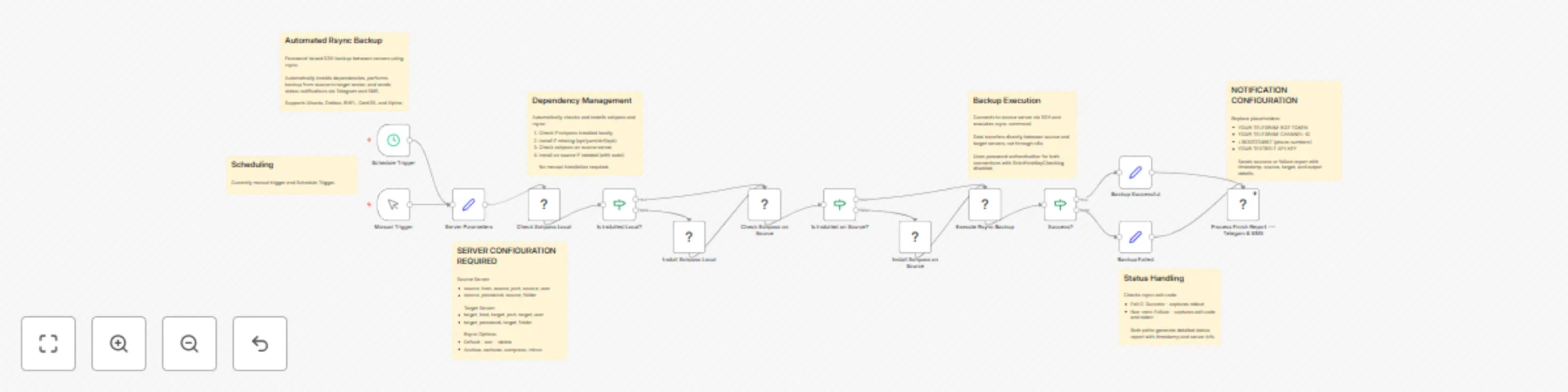
Workflow preview: Automated rsync backup with password auth & alert system
Free advanced

Automated rsync backup with password auth & alert system

# Automated Rsync Backup with Password Auth & Alert System ## Overview This n8n workflow provides automated rsync backup capabilities between servers using password authentication. It automatically installs required dependencies, performs the backup operation from a source server to a target server, and sends status notifications via Telegram and SMS. ## Features - Password-based SSH authentication (no key management required) - Automatic dependency installation (sshpass, rsync) - Cross-platform support (Ubuntu/Debian, RHEL/CentOS, Alpine) - Source-to-target backup execution - Multi-channel notifications (Telegram and SMS) - Detailed success/failure reporting - Manual trigger for on-demand backups ## Setup Instructions ### Prerequisites 1. **n8n Instance**: Running n8n with Linux environment 2. **Server Access**: SSH access to both source and target servers 3. **Telegram Bot**: Created via @BotFather (optional) 4. **Textbelt API Key**: For SMS notifications (optional) 5. **Network**: Connectivity between n8n, source, and target servers ### Server Requirements **Source Server:** - SSH access enabled - User with sudo privileges (for package installation) - Read access to source folder **Target Server:** - SSH access enabled - Write access to target folder - Sufficient storage space ### Configuration Steps #### 1. Server Parameters Configuration Open the **Server Parameters** node and configure: **Source Server Settings:** - `source_host`: IP address or hostname of source server - `source_port`: SSH port (typically 22) - `source_user`: Username for source server - `source_password`: Password for source user - `source_folder`: Full path to folder to backup (e.g., `/home/user/data`) **Target Server Settings:** - `target_host`: IP address or hostname of target server - `target_port`: SSH port (typically 22) - `target_user`: Username for target server - `target_password`: Password for target user - `target_folder`: Full path to destination folder (e.g., `/backup/data`) **Rsync Options:** - `rsync_options`: Default is `-avz --delete` - `-a`: Archive mode (preserves permissions, timestamps, etc.) - `-v`: Verbose output - `-z`: Compression during transfer - `--delete`: Remove files from target that don't exist in source #### 2. Notification Setup (Optional) **Telegram Configuration:** 1. Create bot via @BotFather on Telegram 2. Get bot token (format: `1234567890:ABCdefGHIjklMNOpqrsTUVwxyz`) 3. Create notification channel 4. Add bot as administrator 5. Get channel ID: - Send test message to channel - Visit: `https://api.telegram.org/bot&lt;YOUR_BOT_TOKEN&gt;/getUpdates` - Find `"chat":{"id":-100XXXXXXXXXX}` **SMS Configuration:** 1. Register at https://textbelt.com 2. Purchase credits 3. Obtain API key **Update Notification Node:** Edit **Process Finish Report --- Telegram & SMS** node: - Replace `YOUR-TELEGRAM-BOT-TOKEN` with bot token - Replace `YOUR-TELEGRAM-CHANNEL-ID` with channel ID - Replace `+36301234567` with target phone number(s) - Replace `YOUR-TEXTBELT-API-KEY` with Textbelt key #### 3. Security Considerations **Password Storage:** - Consider using n8n credentials for sensitive passwords - Avoid hardcoding passwords in workflow - Use environment variables where possible **SSH Security:** - Workflow uses `StrictHostKeyChecking=no` for automation - Consider adding known hosts manually for production - Review firewall rules between servers ### Testing 1. Start with small test folder 2. Verify network connectivity: `ping source_host` and `ping target_host` 3. Test SSH access manually first 4. Run workflow with test data 5. Verify backup completion on target server ## How to Use ### Automatic Operation Once activated, the workflow runs automatically: - **Frequency**: Every days midnight ### Manual Execution 1. Open the workflow in n8n 2. Click on **Manual Trigger** node 3. Click "Execute Workflow" 4. Monitor execution progress ### Scheduled Execution To automate backups: 1. Replace **Manual Trigger** with **Schedule Trigger** node 2. Configure schedule (e.g., daily at 2 AM) 3. Save and activate workflow ### Workflow Process #### Step 1: Dependency Check The workflow automatically: 1. Checks if sshpass is installed locally 2. Installs if missing (supports apt, yum, dnf, apk) 3. Checks sshpass on source server 4. Installs on source if needed (with sudo) #### Step 2: Backup Execution - Connects to source server via SSH - Executes rsync command from source to target - Uses password authentication for both connections - Transfers data directly between servers (not through n8n) #### Step 3: Status Reporting **Success Message Format:** ``` [Timestamp] -- SUCCESS :: source_host:/path -&gt; target_host:/path :: [rsync output] ``` **Failure Message Format:** ``` [Timestamp] -- ERROR :: source_host -&gt; target_host :: [exit code] -- [error message] ``` ### Rsync Options Guide **Common Options:** - `-a`: Archive mode (recommended) - `-v`: Verbose output for monitoring - `-z`: Compression (useful for slow networks) - `--delete`: Mirror source (removes extra files from target) - `--exclude`: Skip specific files/folders - `--dry-run`: Test without actual transfer - `--progress`: Show transfer progress - `--bwlimit`: Limit bandwidth usage **Example Configurations:** ```bash # Basic backup -avz # Mirror with deletion -avz --delete # Exclude temporary files -avz --exclude='*.tmp' --exclude='*.cache' # Bandwidth limited (1MB/s) -avz --bwlimit=1000 # Dry run test -avzn --delete ``` ### Monitoring #### Execution Logs - Check n8n Executions tab - Review stdout for rsync details - Check stderr for error messages #### Verification After backup: 1. SSH to target server 2. Check folder size: `du -sh /target/folder` 3. Verify file count: `find /target/folder -type f | wc -l` 4. Compare with source: `ls -la /target/folder` ### Troubleshooting #### Connection Issues **"Connection refused" error:** - Verify SSH port is correct - Check firewall rules - Ensure SSH service is running **"Permission denied" error:** - Verify username/password - Check user has required permissions - Ensure sudo works (for installation) #### Installation Failures **"Unsupported package manager":** - Workflow supports: apt, yum, dnf, apk - Manual installation may be required for others **"sudo: password required":** - User needs passwordless sudo or - Modify installation commands #### Rsync Errors **"rsync error: some files/attrs were not transferred":** - Usually permission issues - Check file ownership - Review excluded files **"No space left on device":** - Check target server storage - Clean up old backups - Consider compression options #### Notification Issues **No Telegram message:** - Verify bot token and channel ID - Check bot is admin in channel - Test with curl command manually **SMS not received:** - Check Textbelt credit balance - Verify phone number format - Review API key validity ### Best Practices #### Backup Strategy 1. **Test First**: Always test with small datasets 2. **Schedule Wisely**: Run during low-traffic periods 3. **Monitor Space**: Ensure adequate storage on target 4. **Verify Backups**: Regularly test restore procedures 5. **Rotate Backups**: Implement retention policies #### Security 1. **Use Strong Passwords**: Complex passwords for all accounts 2. **Limit Permissions**: Use dedicated backup users 3. **Network Security**: Consider VPN for internet transfers 4. **Audit Access**: Log all backup operations 5. **Encrypt Sensitive Data**: Consider rsync with encryption #### Performance 1. **Compression**: Use `-z` for slow networks 2. **Bandwidth Limits**: Prevent network saturation 3. **Incremental Backups**: Rsync only transfers changes 4. **Parallel Transfers**: Consider multiple workflows for different folders 5. **Off-Peak Hours**: Schedule during quiet periods ### Advanced Configuration #### Multiple Backup Jobs Create separate workflows for: - Different server pairs - Various schedules - Distinct retention policies #### Backup Rotation Implement versioning: ```bash # Add timestamp to target folder target_folder="/backup/data_$(date +%Y%m%d)" ``` #### Pre/Post Scripts Add nodes for: - Database dumps before backup - Service stops/starts - Cleanup operations - Verification scripts #### Error Handling Enhance workflow with: - Retry mechanisms - Fallback servers - Detailed error logging - Escalation procedures ### Maintenance #### Regular Tasks - **Daily**: Check backup completion - **Weekly**: Verify backup integrity - **Monthly**: Test restore procedure - **Quarterly**: Review and optimize rsync options - **Annually**: Audit security settings #### Monitoring Metrics Track: - Backup duration - Transfer size - Success/failure rate - Storage utilization - Network bandwidth usage ## Recovery Procedures ### Restore from Backup To restore files: ```bash # Reverse the rsync direction rsync -avz target_server:/backup/folder/ source_server:/restore/location/ ``` ### Disaster Recovery 1. Document server configurations 2. Maintain backup access credentials 3. Test restore procedures regularly 4. Keep workflow exports as backup ## Support Resources - Rsync documentation: https://rsync.samba.org/ - n8n community: https://community.n8n.io/ - SSH troubleshooting guides - Network diagnostics tools

V
Vigh Sandor
DevOps
19 Oct 2025
80
0
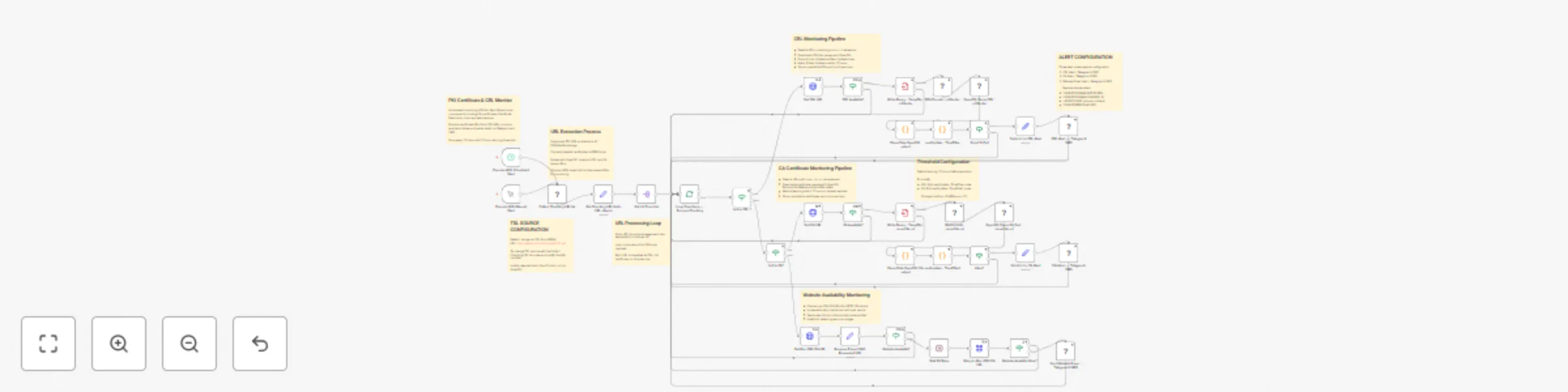
Workflow preview: Monitor PKI certificates & CRLs for expiration with Telegram & SMS alerts
Free advanced

Monitor PKI certificates & CRLs for expiration with Telegram & SMS alerts

# PKI Certificate & CRL Monitor - Auto Expiration Alert System ## Overview This n8n workflow provides automated monitoring of Public Key Infrastructure (PKI) components including CA certificates, Certificate Revocation Lists (CRLs), and associated web services. It extracts certificate information from the TSL (Trusted Service List) -- the Hungarian is the example list as default in the workflow -- , monitors expiration dates, and sends alerts via Telegram and SMS when critical thresholds are reached. ## Features - Automated extraction of certificate URLs from TSL XML - CA certificate expiration monitoring - CRL expiration tracking - Website availability monitoring with retry mechanism - Multi-channel alerting (Telegram and SMS) - Scheduled execution every 12 hours - 17-hour warning threshold for expirations ## Setup Instructions ### Prerequisites 1. **n8n Instance**: Running n8n installation with Linux environment 2. **Telegram Bot**: Created via @BotFather 3. **Textbelt API Key**: For SMS notifications (optional) 4. **Network Access**: To reach TSL source and certificate URLs 5. **Linux Tools**: OpenSSL, curl, libxml2-utils, jq (auto-installed) ### Configuration Steps #### 1. Telegram Setup **Create Telegram Bot:** - Open Telegram and search for @BotFather - Send `/newbot` and follow prompts - Save the bot token (format: `1234567890:ABCdefGHIjklMNOpqrsTUVwxyz`) **Create Alert Channel:** - Create a new Telegram channel for alerts - Add your bot as administrator - Get channel ID: - Send a test message to the channel - Visit: `https://api.telegram.org/bot&lt;YOUR_BOT_TOKEN&gt;/getUpdates` - Find `"chat":{"id":-100XXXXXXXXXX}` - this is your channel ID #### 2. SMS Setup (Optional) **Textbelt Configuration:** - Register at https://textbelt.com - Purchase credits and obtain API key - Note: Free tier allows 1 SMS/day for testing #### 3. Configure Alert Nodes Update these nodes with your credentials: **CRL Alert Node:** - Open **CRL Alert --- Telegram & SMS** node - Replace `YOUR-TELEGRAM-BOT-TOKEN` with your bot token - Replace `YOUR-TELEGRAM-CHANNEL-ID` with your channel ID - Replace `+36301234567` with target phone number(s) - Replace `YOUR-TEXTBELT-API-KEY` with your Textbelt key **CA Alert Node:** - Open **CA Alert --- Telegram & SMS** node - Apply same replacements as above **Website Down Alert Node:** - Open **Send Website Down - Telegram & SMS** node - Apply same replacements as above #### 4. TSL Source Configuration The workflow defaults to Hungarian TSL: - URL: `http://www.nmhh.hu/tl/pub/HU_TL.xml` - To change, edit the **Collect Checking URL list** node - Trust list references: https://ec.europa.eu/tools/lotl/eu-lotl.xml (to find more TSL list to change the default), and https://www.etsi.org/deliver/etsi_ts/119600_119699/119615/01.02.01_60/ts_119615v010201p.pdf (to Technical Specification of the Trust Lists) #### 5. Threshold Configuration Default warning threshold: 17 hours before expiration - To modify CRL threshold: Edit **nextUpdate - TimeFilter** node - To modify CA threshold: Edit **nextUpdate - TimeFilter1** node - Change value in condition: `if (diffHours &lt; 17)` ### Activation 1. Save all configuration changes 2. Test with **Execute With Manual Start** trigger 3. Verify alerts are received 4. Toggle workflow to **Active** status for scheduled operation ## How to Use ### Automatic Operation Once activated, the workflow runs automatically: - **Frequency**: Every 12 hours - **Process**: 1. Downloads TSL XML 2. Extracts all certificate URLs 3. Checks each URL type (CRL, CA, or other) 4. Validates expiration dates 5. Sends alerts for critical items ### Manual Execution For immediate checks: 1. Open the workflow 2. Click **Execute With Manual Start** node 3. Click "Execute Node" 4. Monitor execution progress ### Understanding Alerts #### CRL Expiration Alert **Message Format:** ``` ALERT! with [Issuer CN] !!!CRL EXPIRATION!!! Will be under 17 hour ([Next Update Time])! Last updated: [Last Update Time] ``` **Trigger Conditions:** - CRL expires in less than 17 hours - CRL download successful but expiration imminent #### CA Certificate Alert **Message Format:** ``` ALERT!/EXPIRED! with [Subject CN] !!!CA EXPIRATION PROBLEM!!! The expiration time: ([Not After Date]) Last updated: ([Not Before Date]) ``` **Trigger Conditions:** - Certificate expires in less than 17 hours (ALERT!) - Certificate already expired (EXPIRED!) #### Website Down Alert **Message Format:** ``` ALERT! The [URL] !!!NOT AVAILABLE!!! Service outage probable! Intervention required! ``` **Trigger Conditions:** - Initial HTTP request fails - Retry after wait period also fails - HTTP status code not 200 ### Monitoring Dashboard #### Execution History - Navigate to n8n Executions tab - Filter by workflow name - Review successful/failed runs #### Alert History Check Telegram channel for: - Alert timestamps - Affected certificates/services - Expiration details ### Troubleshooting #### No Alerts Received 1. **Check Telegram Bot:** - Verify bot is admin in channel - Test with manual message via API - Confirm channel ID is correct 2. **Check Workflow Execution:** - Review execution logs in n8n - Look for error nodes (red indicators) - Verify TSL URL is accessible #### False Positives - Verify system time is correct - Check timezone settings - Review threshold values #### Missing Certificates - Some certificates may not have URLs - TSL may be temporarily unavailable - Check XML parsing in logs #### Performance Issues **Slow Execution:** - Large TSL files take time to parse - Network latency affects URL checks - Consider increasing timeout values **Memory Issues:** - Workflow processes many URLs sequentially - Monitor n8n server resources - Consider increasing batch intervals ### Advanced Configuration #### Modify Check Frequency Edit **Execute With Scheduled Start** node: - Change interval type (hours/days/weeks) - Adjust interval value - Consider peak/off-peak scheduling #### Add Custom TSL Sources In **Collect Checking URL list** node: ```bash URL="https://your-tsl-source.com/tsl.xml" ``` #### Customize Alert Messages Edit alert nodes to modify message templates: - Add organization name - Include escalation contacts - Add remediation instructions #### Filter Certificate Types Modify URL detection patterns: - **Is this CRL?** node: Adjust CRL detection - **Is this CA?** node: Adjust CA detection - Add new patterns as needed #### Adjust Retry Logic **Wait B4 Retry** node: - Default: Immediate retry - Can add delay (seconds/minutes) - Useful for transient network issues ## Maintenance ### Regular Tasks - **Weekly**: Review alert frequency - **Monthly**: Validate phone numbers/channels - **Quarterly**: Update TSL source URLs - **Annually**: Review threshold values ### Log Management - Clear old execution logs periodically - Archive alert history from Telegram - Document false positives for tuning ### Updates - Keep n8n updated for security patches - Monitor OpenSSL versions for compatibility - Update notification service APIs as needed ## Security Considerations - Store API keys in n8n credentials manager - Use environment variables for sensitive data - Restrict workflow edit access - Monitor for unauthorized changes - Regularly rotate API keys - Use HTTPS for TSL sources when available ## Compliance Notes - Ensure monitoring aligns with PKI policies - Document alert response procedures - Maintain audit trail of certificate issues - Consider regulatory requirements for uptime ## Integration Options - Connect to ticketing systems for alert tracking - Add database logging for compliance - Integrate with monitoring dashboards - Create escalation workflows for critical alerts ## Best Practices 1. Test alerts monthly to ensure delivery 2. Maintain multiple notification channels 3. Document response procedures for each alert type 4. Set up redundant monitoring if critical 5. Review and tune thresholds based on operational needs 6. Keep contact lists updated 7. Consider time zones for global operations

V
Vigh Sandor
SecOps
19 Oct 2025
8
0
Workflow preview: Generate text & image responses in Telegram channels with GPT-4 and TGPT
Free advanced

Generate text & image responses in Telegram channels with GPT-4 and TGPT

# Telegram AI Channel Bot - Text & Image Response Generator with TGPT ## Overview This n8n workflow creates an automated Telegram channel bot that responds to messages with AI-generated text or images using TGPT. The bot monitors a specific Telegram channel and generates responses based on message prefixes. ## Features - Automated text response generation using TGPT - Image generation capabilities with customizable dimensions (1920x1080) - Duplicate message prevention - Time-window filtering (15 seconds) to process only recent messages - Continuous polling with 10-second intervals ## Setup Instructions ### Prerequisites 1. **n8n Instance**: Ensure you have n8n installed and running 2. **Telegram Bot**: Create a new bot via @BotFather on Telegram 3. **Telegram Channel**: Create or have admin access to a Telegram channel 4. **Linux Environment**: The workflow requires Linux for command execution ### Configuration Steps #### 1. Obtain Telegram Bot Token - Open Telegram and search for @BotFather - Send `/newbot` and follow the prompts - Save the bot token provided (format: `1234567890:ABCdefGHIjklMNOpqrsTUVwxyz`) #### 2. Get Channel ID - Add your bot as an administrator to your Telegram channel - Send a test message to the channel - Visit: `https://api.telegram.org/bot&lt;YOUR_BOT_TOKEN&gt;/getUpdates` - Look for `"chat":{"id":-100XXXXXXXXXX}` - this is your channel ID #### 3. Configure the Workflow - Import the workflow JSON into n8n - Open the **Config** node - Replace `your_telegram_token` with your actual bot token - Replace `your_telegram_channel_id` with your channel ID - Save the changes #### 4. Set Up Telegram Credentials in n8n - Navigate to the **Send Telegram Text Response** node - Click on the credentials field - Create new Telegram credentials using your bot token - Apply the same credentials to **Send Telegram Image Response** node #### 5. System Requirements The workflow automatically installs required packages: - `util-linux-misc` (for script command) - `curl` (for downloading TGPT) - TGPT binary (downloaded automatically from GitHub) ### Activation - Save all configuration changes - Toggle the workflow to **Active** status - The bot will start polling every 10 seconds ## How to Use ### Sending Commands to the Bot #### Text Generation To generate a text response, send a message to your Telegram channel with the following format: ``` am# Your prompt here ``` **Example:** ``` am# Explain quantum computing in simple terms ``` The bot will: 1. Remove the `am#` prefix 2. Send the prompt to TGPT with GPT-4 model 3. Generate a response with temperature 0.3 (more focused/deterministic) 4. Reply with the generated text in the channel #### Image Generation To generate an image, send a message with this format: ``` ami# Your image description here ``` **Example:** ``` ami# A futuristic city with flying cars at sunset ``` The bot will: 1. Remove the `ami#` prefix 2. Use TGPT to generate an image (1920x1080 resolution) 3. Save the image temporarily 4. Send the generated image to the channel ### Important Usage Notes #### Response Time - The bot checks for new messages every 10 seconds - Messages older than 15 seconds are ignored - Expect a delay of 10-30 seconds for responses depending on generation time #### Message Processing - Only messages from the configured channel are processed - The bot maintains a list of processed message IDs to avoid duplicates - Maximum of 15 messages are retrieved per polling cycle #### Limitations - Text generation uses temperature 0.3 (less creative, more accurate) - Image generation uses temperature 0.7 (more creative) - Images are generated at 1920x1080 resolution - The bot requires continuous n8n execution ### Troubleshooting #### Bot Not Responding 1. Verify the workflow is active 2. Check that the bot is an admin in the channel 3. Confirm the channel ID is correct (negative number for channels) 4. Ensure messages start with exact prefixes: `am# ` or `ami# ` #### Duplicate Responses - The workflow includes duplicate prevention - If issues persist, restart the workflow to clear the processed IDs cache #### Missing Dependencies - The workflow automatically downloads TGPT on first run - If errors occur, check the Execute nodes' output for installation issues #### Performance Issues - Consider increasing the polling interval if server resources are limited - Monitor the n8n execution logs for timeout errors ### Advanced Configuration #### Modify Polling Interval Edit the **Schedule** node to change the 10-second interval #### Adjust Time Window In the **Process Offset** node, modify `timeWindowSeconds` variable (default: 15) #### Change AI Model Parameters - Text generation: Edit `--temperature "0.3"` in **Execute - Text** node - Image generation: Edit `--temperature "0.7"` in **Execute - Image** node - Both use `--model "gtp-4"` by default #### Customize Image Dimensions In **Execute - Image** node, modify: - `--height=1080` - `--width=1920` ## Security Considerations - Keep your bot token private - Use private channels to prevent unauthorized access - Regularly monitor bot activity through Telegram's BotFather - Consider implementing rate limiting for production use ## Maintenance - Regularly check n8n logs for errors - Update TGPT version URL in Execute nodes when new versions are released - Clear `/tmp/` directory periodically to remove temporary files - Monitor disk space for image generation temporary files

V
Vigh Sandor
Support Chatbot
17 Oct 2025
219
0
Workflow preview: Proxmox system monitor - VM status, host resources & temperature alerts via Telegram
Free advanced

Proxmox system monitor - VM status, host resources & temperature alerts via Telegram

# Setup Instructions ## Overview This n8n workflow monitors your Proxmox VE server and sends automated reports to Telegram every 15 minutes. It tracks VM status, host resource usage, temperature sensors, and detects recently stopped VMs. ## Prerequisites ### Required Software - n8n instance (self-hosted or cloud) - Proxmox VE server with API access - Telegram account with bot created via BotFather - lm-sensors package installed on Proxmox host ### Required Access - Proxmox admin credentials (username and password) - SSH access to Proxmox server - Telegram Bot API token - Telegram Chat ID ## Installation Steps ### Step 1: Install Temperature Sensors on Proxmox SSH into your Proxmox server and run: ```bash apt-get update apt-get install -y lm-sensors sensors-detect ``` Press ENTER to accept default answers during sensors-detect setup. Test that sensors work: ```bash sensors | grep -E 'Package|Core' ``` ### Step 2: Create Telegram Bot 1. Open Telegram and search for BotFather 2. Send `/newbot` command 3. Follow prompts to create your bot 4. Save the API token provided 5. Get your Chat ID by sending a message to your bot, then visiting: ``` https://api.telegram.org/bot&lt;YOUR_TOKEN&gt;/getUpdates ``` 6. Look for "chat":{"id": YOUR_CHAT_ID in the response ### Step 3: Configure n8n Credentials #### SSH Password Credential 1. In n8n, go to Credentials menu 2. Create new credential: SSH Password 3. Enter: - Host: Your Proxmox IP address - Port: 22 - Username: root (or your admin user) - Password: Your Proxmox password #### Telegram API Credential 1. Create new credential: Telegram API 2. Enter the Bot Token from BotFather ### Step 4: Import and Configure Workflow 1. Import the JSON workflow into n8n 2. Open the "Set Variables" node 3. Update the following values: - PROXMOX_IP: Your Proxmox server IP address - PROXMOX_PORT: API port (default: 8006) - PROXMOX_NODE: Node name (default: pve) - TELEGRAM_CHAT_ID: Your Telegram chat ID - PROXMOX_USER: Proxmox username with realm (e.g., root@pam) - PROXMOX_PASSWORD: Proxmox password 4. Connect credentials: - SSH - Get Sensors node: Select your SSH credential - Send Telegram Report node: Select your Telegram credential 5. Save the workflow 6. Activate the workflow ## Configuration Options ### Adjust Monitoring Interval Edit the "Schedule Every 15min" node: - Change `minutesInterval` value to desired interval (in minutes) - Recommended: 5-30 minutes ### Adjust Recently Stopped VM Detection Window Edit the "Process Data" node: - Find line: `const fifteenMinutesAgo = now - 900;` - Change 900 to desired seconds (900 = 15 minutes) ### Modify Temperature Warning Threshold The workflow uses the "high" threshold defined by sensors. To manually set threshold, edit "Process Data" node: - Modify the temperature parsing logic - Change comparison: `if (current &gt;= high)` to use custom value ## Testing ### Test Individual Components 1. Execute "Set Variables" node manually - verify output 2. Execute "Proxmox Login" node - check for valid ticket 3. Execute "API - VM List" - confirm VM data received 4. Execute complete workflow - check Telegram for message ### Troubleshooting **Login fails:** - Verify PROXMOX_USER format includes realm (e.g., root@pam) - Check password is correct - Ensure allowUnauthorizedCerts is enabled for self-signed certificates **No temperature data:** - Verify lm-sensors is installed on Proxmox - Run `sensors` command manually via SSH - Check SSH credentials are correct **Recently stopped VMs not detected:** - Check task log API endpoint returns data - Verify VM was stopped within detection window - Ensure task types qmstop or qmshutdown are logged **Telegram not receiving messages:** - Verify bot token is correct - Confirm chat ID is accurate - Check bot was started (send /start to bot) - Verify parse_mode is set to HTML in Telegram node --- # How It Works ## Workflow Architecture The workflow executes in a sequential chain of nodes that gather data from multiple sources, process it, and deliver a formatted report. ### Execution Flow ``` Schedule Trigger (15min) - Set Variables - Proxmox Login (get authentication ticket) - Prepare Auth (prepare credentials for API calls) - API - VM List (get all VMs and their status) - API - Node Tasks (get recent task log) - API - Node Status (get host CPU, memory, uptime) - SSH - Get Sensors (get temperature data) - Process Data (analyze and structure all data) - Generate Formatted Message (create Telegram message) - Send Telegram Report (deliver via Telegram) ``` ## Data Collection ### VM Information (Proxmox API) Endpoint: `/api2/json/nodes/{node}/qemu` Retrieves: - Total VM count - Running VM count - Stopped VM count - VM names and IDs ### Task Log (Proxmox API) Endpoint: `/api2/json/nodes/{node}/tasks?limit=100` Retrieves recent tasks to detect: - qmstop operations (VM stop commands) - qmshutdown operations (VM shutdown commands) - Task timestamps - Task status ### Host Status (Proxmox API) Endpoint: `/api2/json/nodes/{node}/status` Retrieves: - CPU usage percentage - Memory total and used (in GB) - System uptime (in seconds) ### Temperature Data (SSH) Command: `sensors | grep -E 'Package|Core'` Retrieves: - CPU package temperature - Individual core temperatures - High and critical thresholds ## Data Processing ### VM Status Analysis 1. Counts total, running, and stopped VMs 2. Queries task log for stop/shutdown operations 3. Filters tasks within 15-minute window 4. Extracts VM ID from task UPID string 5. Matches VM ID to VM name from VM list 6. Calculates time elapsed since stop operation ### Temperature Intelligence The workflow implements smart temperature reporting: **Normal Operation (all temps below high threshold):** - Calculates average temperature across all cores - Displays min, max, and average values - Example: "Average: 47.5 C (Min: 44.0 C, Max: 52.0 C)" **Warning State (any temp at or above high threshold):** - Displays all temperature readings in detail - Shows full sensor output with thresholds - Changes section title to "Temperature Warning" - Adds fire emoji indicator ### Resource Calculation **CPU Usage:** - API returns decimal (0.0 to 1.0) - Converted to percentage: `cpu * 100` **Memory:** - API returns bytes - Converted to GB: `bytes / (1024^3)` - Calculates percentage: `(used / total) * 100` **Uptime:** - API returns seconds - Converted to days and hours: `days = seconds / 86400`, `hours = (seconds % 86400) / 3600` ## Report Generation ### Message Structure The Telegram message uses HTML formatting for structure: 1. **Header Section** - Report title - Generation timestamp 2. **Virtual Machines Section** - Total VM count - Running VMs with checkmark - Stopped VMs with stop sign - Recently stopped count with warning - Detailed list if VMs stopped in last 15 minutes 3. **Host Resources Section** - CPU usage percentage - Memory used/total with percentage - Host uptime in days and hours 4. **Temperature Section** - Smart display (summary or detailed) - Warning indicator if thresholds exceeded - Monospace formatting for sensor output ### HTML Formatting Features - Bold tags for headers and labels - Italic for timestamps - Code blocks for temperature data - Unicode separators for visual structure - Emoji indicators for status (checkmark, stop, warning, fire) ## Security Considerations ### Credential Storage - Passwords stored in n8n Set node (encrypted in database) - Alternative: Use n8n environment variables - Recommendation: Use Proxmox API tokens instead of passwords ### API Communication - HTTPS with self-signed certificate acceptance - Authentication via session tickets (15-minute validity) - CSRF token validation for API requests ### SSH Access - Password-based authentication (can use key-based) - Commands limited to read-only operations - No privilege escalation required ## Performance Impact ### API Load - 3 API calls per execution (VM list, tasks, status) - Lightweight endpoints with minimal data - 15-minute interval reduces server load ### Execution Time Typical workflow execution: 5-10 seconds - Login: 1-2 seconds - API calls: 2-3 seconds - SSH command: 1-2 seconds - Processing: less than 1 second ### Resource Usage - Minimal CPU impact on Proxmox - Small memory footprint - Negligible network bandwidth ## Extensibility ### Adding Additional Metrics To monitor additional data points: 1. Add new API call node after "Prepare Auth" 2. Update "Process Data" node to include new data 3. Modify "Generate Formatted Message" for display ### Integration with Other Services The workflow can be extended to: - Send to Discord, Slack, or email - Write to database or log file - Trigger alerts based on thresholds - Generate charts or graphs ### Multi-Node Monitoring To monitor multiple Proxmox nodes: 1. Duplicate API call nodes 2. Update node names in URLs 3. Merge data in processing step 4. Generate combined report

V
Vigh Sandor
DevOps
16 Oct 2025
1100
0
Workflow preview: Kubernetes deployment & pod monitoring with Telegram alerts
Free intermediate

Kubernetes deployment & pod monitoring with Telegram alerts

## SETUP INSTRUCTIONS ### 1. Configure Kubeconfig - Open the **"Kubeconfig Setup"** node - Paste your entire kubeconfig file content into the `kubeconfigContent` variable - Set your target namespace in the `namespace` variable (default: 'production') **Example kubeconfig format:** ```yaml apiVersion: v1 kind: Config clusters: - cluster: certificate-authority-data: LS0tLS1CRUd... server: https://your-cluster.example.com:6443 name: your-cluster contexts: - context: cluster: your-cluster user: your-user name: your-context current-context: your-context users: - name: your-user user: token: eyJhbGciOiJSUzI1... ``` ### 2. Telegram Configuration - Create a Telegram bot via [@BotFather](https://t.me/BotFather) - Get your bot token and add it as a credential in n8n (Telegram API) - Find your chat ID: - Message your bot - Visit: `https://api.telegram.org/bot&lt;YourBotToken&gt;/getUpdates` - Look for `"chat":{"id":...}` - Open the **"Send Telegram Alert"** node - Replace `YOUR_TELEGRAM_CHAT_ID` with your actual chat ID - Select your Telegram API credential ### 3. Schedule Configuration - Open the **"Schedule Trigger"** node - Default: runs every 1 minute - Adjust the interval based on your monitoring needs: - Every 5 minutes: Change `field` to `minutes` and set `minutesInterval` to `5` - Every hour: Change `field` to `hours` and set `hoursInterval` to `1` - Cron expression: Use custom cron schedule ### 4. kubectl Installation - The workflow automatically downloads kubectl (v1.34.0) during execution - No pre-installation required on the n8n host - kubectl is downloaded and used temporarily for each execution ## HOW IT WORKS ### Workflow Steps 1. **Schedule Trigger** - Runs automatically based on configured interval - Initiates the monitoring cycle 2. **Kubeconfig Setup** - Loads the kubeconfig and namespace configuration - Passes credentials to kubectl commands 3. **Parallel Data Collection** - **Get Pods**: Fetches all pods from the specified namespace - **Get Deployments**: Fetches all deployments from the specified namespace - Both commands run in parallel for efficiency 4. **Process & Generate Report** - Parses pod and deployment data - Groups pods by their owner (Deployment, DaemonSet, StatefulSet, or Node) - Calculates readiness statistics for each workload - Detects alerts: workloads with 0 ready pods - Generates a comprehensive Markdown report including: - Deployments with replica counts and pod details - Other workloads (DaemonSets, StatefulSets, Static Pods) - Standalone pods (if any) - Pod-level details: status, node, restart count 5. **Has Alerts?** - Checks if any workloads have 0 ready pods - Routes to appropriate action 6. **Send Telegram Alert** (if alerts exist) - Sends formatted alert message to Telegram - Includes: - Namespace information - List of problematic workloads - Full status report 7. **Save Report** - Saves the Markdown report to a file - Filename format: `k8s-report-YYYY-MM-DD-HHmmss.md` - Always executes, regardless of alert status ### Security Features - **Temporary kubectl**: Downloaded and used only during execution - **Temporary kubeconfig**: Written to `/tmp/kubeconfig-&lt;random&gt;.yaml` - **Automatic cleanup**: Kubeconfig file is deleted after each kubectl command - **No persistent credentials**: Nothing stored on disk between executions ### Alert Logic Alerts are triggered when any workload has **zero ready pods**: - Deployments with `readyReplicas &lt; 1` - DaemonSets with `numberReady &lt; 1` - StatefulSets with `readyReplicas &lt; 1` - Static Pods (Node-owned) with no ready instances ### Report Sections 1. **Deployments**: All Deployment-managed pods (via ReplicaSets) 2. **Other Workloads**: DaemonSets, StatefulSets, and Static Pods (kube-system components) 3. **Standalone Pods**: Pods without recognized owners (rare) 4. **Alerts**: Summary of workloads requiring attention ## KEY FEATURES - **Automatic kubectl management** - No pre-installation needed - **Multi-workload support** - Deployments, DaemonSets, StatefulSets, Static Pods - **Smart pod grouping** - Uses Kubernetes ownerReferences - **Conditional alerting** - Only notifies when issues detected - **Detailed reporting** - Pod-level status, node placement, restart counts - **Secure credential handling** - Temporary files, automatic cleanup - **Markdown format** - Easy to read and store ## TROUBLESHOOTING **Issue: "Cannot read properties of undefined"** - Ensure both "Get Pods" and "Get Deployments" nodes execute successfully - Check that kubectl can access your cluster with the provided kubeconfig **Issue: No alerts when there should be** - Verify the namespace contains deployments or workloads - Check that pods are actually not ready (use `kubectl get pods -n &lt;namespace&gt;`) **Issue: Telegram message not sent** - Verify Telegram API credential is configured correctly - Confirm chat ID is correct and the bot has permission to message you - Check that the bot was started (send `/start` to the bot) **Issue: kubectl download fails** - Check internet connectivity from n8n host - Verify access to dl.k8s.io domain - Consider pre-installing kubectl on the host and removing the download commands ## CUSTOMIZATION ### Change Alert Threshold Edit the `Process & Generate Report` node to change when alerts trigger: ```javascript // Change from "&lt; 1" to your desired threshold if (readyReplicas &lt; 2) { // Alert if less than 2 ready pods alerts.push({...}); } ``` ### Monitor Multiple Namespaces - Duplicate the workflow for each namespace - Or modify "Kubeconfig Setup" to loop through multiple namespaces ### Custom Report Format Edit the markdown generation in `Process & Generate Report` node to customize: - Section order - Information displayed - Formatting style ### Additional Notification Channels Add nodes after "Has Alerts?" to send notifications via: - Email (SMTP node) - Slack (Slack node) - Discord (Discord node) - Webhook (HTTP Request node)

V
Vigh Sandor
SecOps
14 Oct 2025
198
0