U

Usman Liaqat

7
Workflows

Workflows by Usman Liaqat

Workflow preview: Auto generate & post LinkedIn content for Amazon sellers with GPT-4o & Apify
Free advanced

Auto generate & post LinkedIn content for Amazon sellers with GPT-4o & Apify

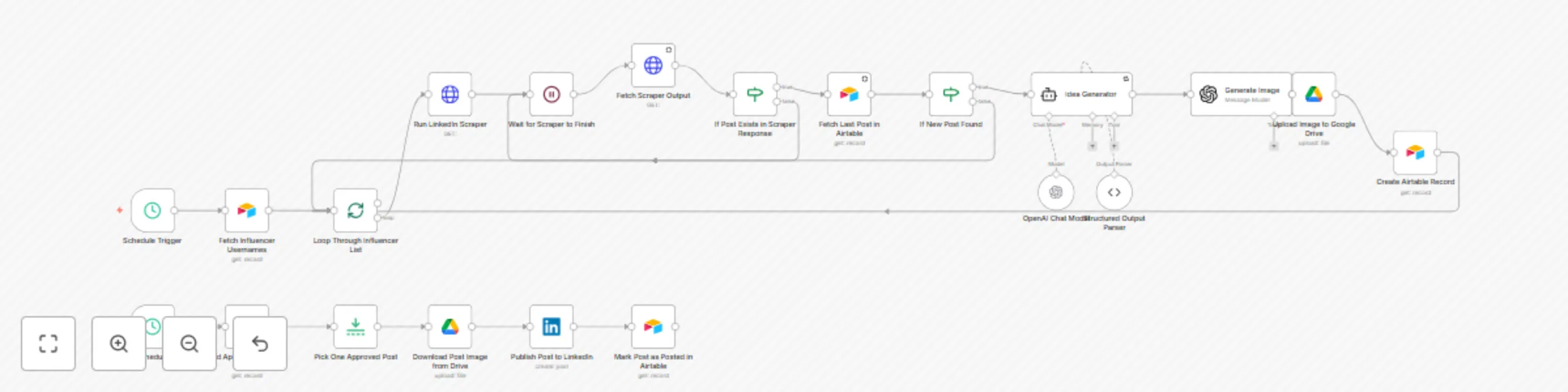
### **How it works** This powerful automation turns LinkedIn influencer activity into high performing Amazon seller content, fully hands-off. It runs in two phases: 1. **AI Content Generator** * Retrieves influencer usernames from Airtable * Scrapes their most recent LinkedIn post via Apify * Uses OpenAI (GPT-4o) to generate **original** Amazon focused post content * Generates a branded LinkedIn image using AI (WeSpark visual identity) * Saves content & image link to Google Drive * Creates a record in Airtable with `Status = In review` 2. **Scheduled Publisher** * Every day at **4 PM**, one post from Airtable with `Status = Approved` is: * Downloaded from Drive * Published on LinkedIn * Marked as `Posted` in Airtable --- ### ⚙️ Set Up Steps * **Time to set up:** 15–20 minutes * Create two Airtable tables: * `influencers` with `UserName` (LinkedIn usernames only) * `posts` with fields: * `Description` (text) * `Image` (Drive link) * `InfluencerUsername` * `InfluencerPost` * `InfluencerPostCreatedAt` * `Status` (`In review`, `Approved`, `Posted`, `Rejected`) * Add **Google Drive OAuth2 credentials** for saving & downloading images * Configure **OpenAI GPT-4o key** (for text + image generation) * Set up **Apify LinkedIn scraper** and add header credentials * Link your **LinkedIn account** (company or personal profile) --- ### Workflow Phases #### 1. **AI Generator** (Triggered manually) * Loops over influencer usernames * Scrapes latest LinkedIn post * Skips if already stored * Uses GPT-4o to: * Rewrite the post uniquely for Amazon sellers * Generate JSON with text + image prompt * Saves AI-generated image to Google Drive * Logs post to Airtable with `In review` status #### 2. **Daily Publisher** (Scheduled) * Runs every day at 4 PM * Filters Airtable for `Status = Approved` * Picks 1 record, downloads image from Drive * Publishes to LinkedIn * Updates Airtable status to `Posted` --- ## Airtable Setup Example ### `influencers` Table: | UserName | | ----------- | | jon-derkits | --- ### `posts` Table: | Description | Image | InfluencerUsername | InfluencerPost | InfluencerPostCreatedAt | Status | | ------------------------------ | ------------- | ------------------ | --------------- | ----------------------- | --------- | | Amazon Listing Optimization... | \[Drive Link] | jon-derkits | \[LinkedIn URL] | 2025-06-18 19:30:01 | In review | Status field options: * `In review` * `Approved` * `Posted` * `Rejected` --- ## Example LinkedIn Visuals | Caption | Image | | -------------------------------------------------------------------------------------------------- | --------------------------------------------------------------------------------------------------- | | **Boost Your Amazon ROI!** <br> *Data-driven strategies are your secret weapon...* | [View Image](https://drive.google.com/file/d/19RNMI3G-gb6N6JtjIwuSwKHlMOOdbUZL/view?usp=sharing) | | **Boost Sales with 5–10% Higher Conversions!** <br> *Utilize Enhanced Brand Content and Smart PPC...* | [View Image](https://drive.google.com/file/d/1hUbsKAzNZJjTWqggF_qEIq8pVI3Ah6y9/view?usp=sharing) | | **Grow Your Amazon Business** <br> *WeSpark – Amazon Consulting Agency...* | [View Image](https://drive.google.com/file/d/10vihhsNblwA6lrJMSWAwf1v-clekDFi9/view?usp=sharing) | | **Amazon Growth Strategies** <br> *Embrace the power of smart optimization...* | [View Image](https://drive.google.com/file/d/1Id_OtzKPHgB1svkHTGmlT3JzCre4xjbZ/view?usp=sharing) | --- ## ✅ Best For: * Amazon agencies and FBA consultants * B2B SaaS tools targeting eCommerce * LinkedIn ghostwriters and creators * Content marketing teams for Amazon sellers ---

U
Usman Liaqat
Content Creation
2 Jul 2025
461
0
Workflow preview: Automated AI cold calling system with VAPI.ai, Airtable, and smart follow-ups
Free advanced

Automated AI cold calling system with VAPI.ai, Airtable, and smart follow-ups

**Automate your cold calling process with AI-powered conversation handling, smart scheduling, and comprehensive call tracking** ## How it works This comprehensive cold calling system automates your entire outbound calling workflow in 4 high-level steps: 1. **Automated Dialing** - System automatically calls prospects from your Airtable database at scheduled intervals 2. **AI Conversation Handling** - Advanced AI assistant conducts natural conversations, handles objections, and books appointments 3. **Smart Call Processing** - Real-time call analysis determines outcomes (answered, voicemail, busy) and updates prospect status 4. **Intelligent Follow-up** - Automatically schedules callbacks, creates calendar appointments, and maintains detailed call records ## Key Features - **Automated Prospect Management** - Pulls contacts from Airtable and manages call status - **AI-Powered Conversations** - Uses VAPI.ai for natural, human-like phone interactions - **Research Integration** - AI can research prospects using Wikipedia, Hacker News, and web search - **Calendar Integration** - Automatically books meetings in Google Calendar - **Call Analytics** - Tracks costs, duration, transcripts, and outcomes - **Smart Routing** - Different workflows for successful calls vs. callbacks ## Set up steps **Total setup time: ~30 minutes** ### Prerequisites - Airtable account with prospect database - VAPI.ai account for AI calling - Google Calendar (for appointment booking) - OpenAI API key - SerpAPI key (for web research) ### Quick Setup (5 steps) 1. **Import workflows** - Import all 4 workflow files into your n8n instance 2. **Configure Airtable** - Connect your Airtable base with prospect data (Name, Mobile, Status columns) 3. **Set up VAPI.ai** - Configure AI assistant and phone number in VAPI dashboard 4. **Connect integrations** - Add credentials for Google Calendar, OpenAI, and SerpAPI 5. **Test & Launch** - Run a test call and activate the scheduler ### Database Structure Your Airtable should include these tables: - **Data** - Main prospect list (Name, Mobile, Status) - **Recordings** - Call logs and transcripts - **Call Later** - Scheduled callbacks *Detailed configuration notes are included within each workflow as sticky notes*

U
Usman Liaqat
Lead Nurturing
15 Jun 2025
364
0
Workflow preview: Automate LinkedIn posts with Claude AI, DALL-E images & Google Sheets approval
Free advanced

Automate LinkedIn posts with Claude AI, DALL-E images & Google Sheets approval

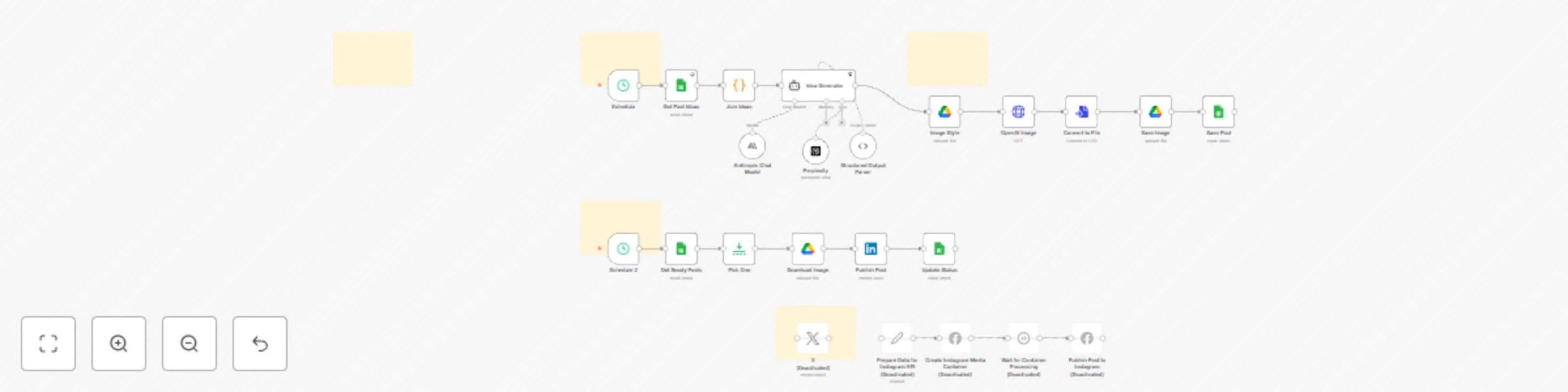
**How it works** This workflow automates your entire LinkedIn content strategy, from ideation to publishing. * **Daily Idea Generation:** Every day, the workflow uses an advanced AI agent (Anthropic's Claude model) to generate a new, viral-optimized LinkedIn post idea, complete with a title, full text, and a detailed image description. It analyzes your past posts from a Google Sheet to ensure content is fresh and aligns with one of your four content pillars: timeless principles, case studies, growth hacks, or controversial ads. * **AI Image Creation:** It then uses OpenAI's DALL-E to create a custom, high-quality image based on the generated description and a style reference image you provide, ensuring brand consistency. * **Review & Approval Workflow:** The generated post and its accompanying image are automatically saved as a new row in a Google Sheet, marked with a "review" status. This gives you full editorial control. * **Automated Publishing:** Once you approve a post by changing its status to "ready" in the Google Sheet, a separate part of the workflow picks it up and automatically publishes it to your LinkedIn profile at a scheduled time. * **Status Tracking:** After publishing, the workflow updates the status in your Google Sheet to "posted," so you always have a clear overview of your content pipeline. **Set up steps** This workflow integrates several services. Follow these steps to get it running: 1. **Copy the Google Sheet:** Make a copy of the [AI Posts Content Machine Google Sheet template](https://docs.google.com/spreadsheets/d/1-F3ZioIs3oWOKMyDPMuquaH-qiuaZs6qdZXP-yNeRbs/edit?usp=sharing) and select your copy in the `Get Past Ideas`, `Save Post`, `Get Ready Posts`, and `Update Status` nodes. 2. **Set Up Credentials:** You will need to create and add API credentials for the following services within the corresponding n8n nodes: * **Google Sheets & Google Drive:** Create a Google credential. * **Anthropic:** Add your API key in the `Anthropic Chat Model` node. * **OpenAI:** Add your API key as a Header Auth credential in the `OpenAI Image` node. * **Perplexity AI:** Add your API key as a Header Auth credential inside the `Perplexity Research` sub-workflow. * **LinkedIn:** Create a LinkedIn credential. 3. **Customize Your Content:** * In the `Idea Generator` node, adjust the system prompt to reflect your specific audience, topics, and content style. * Create a folder in Google Drive for your post images. Add a reference image to this folder that defines your desired visual style. * Paste the shareable link to your style reference image into the `Image Style` node. 4. **Activate the Workflow:** Enable the workflow to start the automated content creation and publishing process.

U
Usman Liaqat
Content Creation
8 Jun 2025
3545
0
Workflow preview: Cold email outreach with Gmail and Google Sheets status tracking
Free intermediate

Cold email outreach with Gmail and Google Sheets status tracking

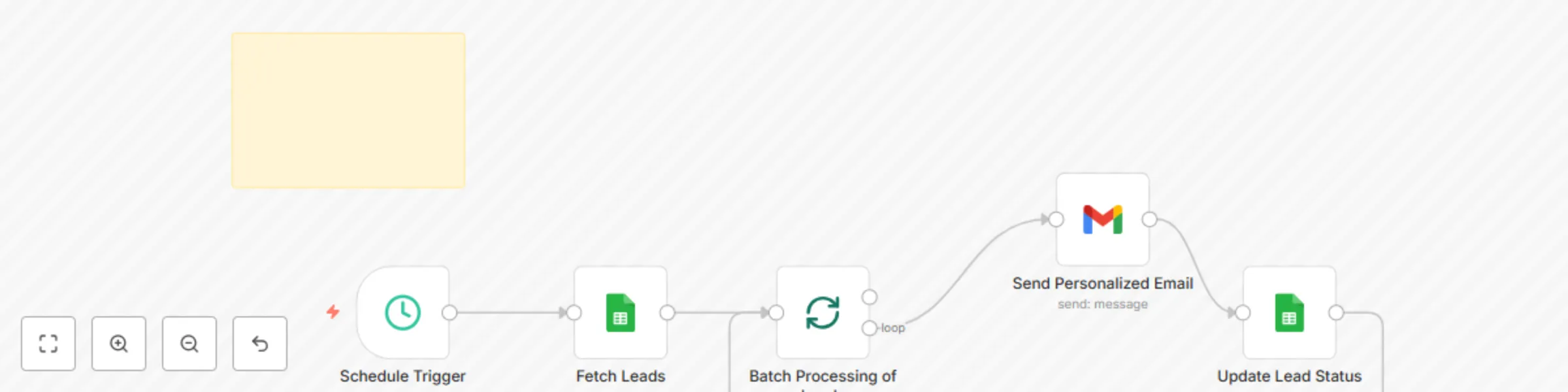
### This workflow automates personalized cold email outreach by pulling lead data from a Google Sheet, sending emails via Gmail, and updating the sheet to track who has been contacted. ## Features - **Automated Scheduling** – Runs daily at a specified hour via the **Schedule Trigger** node. - **Google Sheets Integration** – Fetches leads whose `"Is Email Sent"` value is empty. - **Batch Processing** – Processes leads in manageable batches. - **Personalized Gmail Outreach** – Sends custom emails using a pre-written template. - **Status Tracking** – Updates each lead’s row after an email is sent to prevent duplicates. --- ## Requirements - **Google Sheets OAuth2 credentials** - **Gmail account with OAuth2** - Access to n8n with a deployed instance --- ## Setup Instructions ### 1. Connect Accounts Authenticate **Google Sheets** and **Gmail** nodes via OAuth2 in your n8n credentials settings. ### 2. Prepare Your Google Sheet Your Google Sheet must contain the following columns: ``` Email Name (or WF Full Name (metadata)) Is Email Sent ```` #### Example: | Email | Name | Is Email Sent | |--------------------|---------------|----------------| | [email protected] | John Doe | | | [email protected] | Jane Smith | yes | Only rows where `"Is Email Sent"` is **not** marked as `"yes"` will be processed. ### 3. Customize the Email Template Open the **“Send Personalized Email”** node and update the `message` field. You can use variables like: ```handlebars {{ $json.Name }} {{ $json['WF Full Name (metadata)'] }} ```` #### Example Message: ```text Hello {{ $json.Name || $json['WF Full Name (metadata)'] }}, I’m a software developer and automation expert. I work with businesses and individuals to build websites, mobile apps, and powerful digital solutions that help save time and grow online. I offer a range of services including: - Website & App Development - SEO & Digital Marketing - Business Process Automation If you’re looking to start a new project or improve your current setup, I’d love to connect and see how I can help. Are you interested in discussing any of these services? Best regards, Software Developer | Automation Expert ``` ### 4. Schedule the Workflow Edit the **Schedule Trigger** node to your preferred time (currently set to 2 PM daily): --- ## Customization Tips * Replace the email copy with your branding or offer. * Add more fields (like company or industry) and update the message for deeper personalization. * Modify the batch size in the **Split In Batches** node for rate control. --- ## Notes & Limitations * **Gmail Quotas:** Gmail has sending limits (e.g., 500 emails/day for free accounts). * **OAuth2 Scope Approval:** Ensure the necessary scopes (e.g., Gmail send and Sheets read/write) are granted. * **Rate Limiting:** If working with large lists, consider time delays or throttle controls. --- ## Google Sheet Template You can [make a copy of this sample Google Sheet](https://docs.google.com/spreadsheets/d/1qKwg2L7EUFF5idMMNxywX3Y3Iv7oW0hm6qoF3yzQluM/edit?usp=sharing) to get started. ---

U
Usman Liaqat
Lead Nurturing
19 May 2025
4631
0
Workflow preview: Automatic media download from WhatsApp Business messages with HTTP storage
Free intermediate

Automatic media download from WhatsApp Business messages with HTTP storage

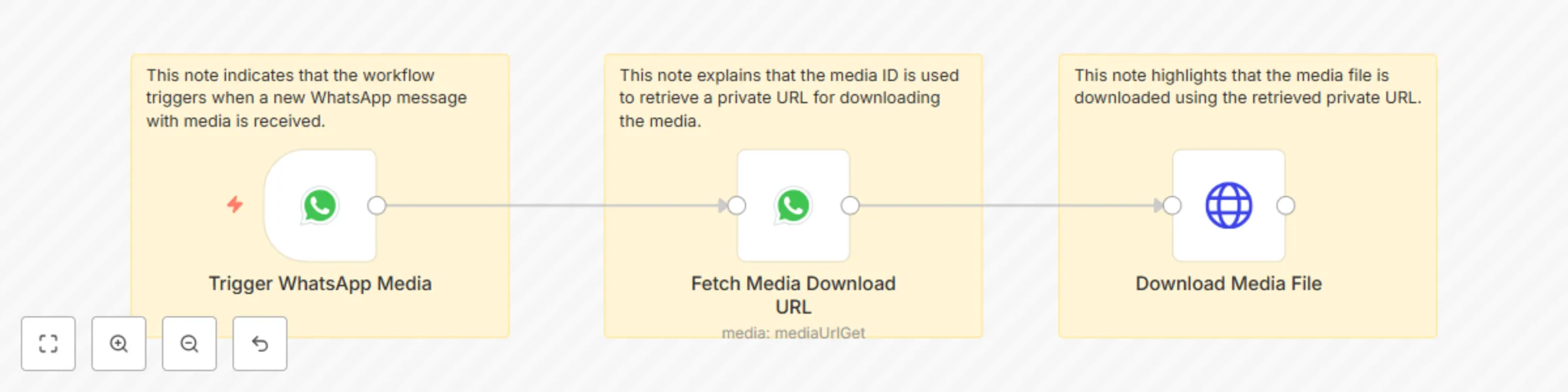
This workflow listens for incoming WhatsApp messages that contain media (e.g., images) and automatically downloads the media file using WhatsApp's private media URL. - The trigger node activates when a WhatsApp message with media is received. - The media ID is extracted from the message payload. - A private media URL is retrieved using the media ID. - The media file is downloaded using an authenticated HTTP request. Ideal for: - Archiving WhatsApp media to external systems. - Triggering further automations based on received media. - Integrating with cloud storage like Google Drive, Dropbox, or Amazon S3. Set up steps - Connect your WhatsApp Business API account. - Add HTTP credentials for downloading media via private URL. - Set up the webhook in your WhatsApp Business account. - Extend the workflow as needed for your use case (e.g., file storage, alerts).

U
Usman Liaqat
File Management
19 May 2025
2342
0
Workflow preview: Download media files from Slack messages
Free beginner

Download media files from Slack messages

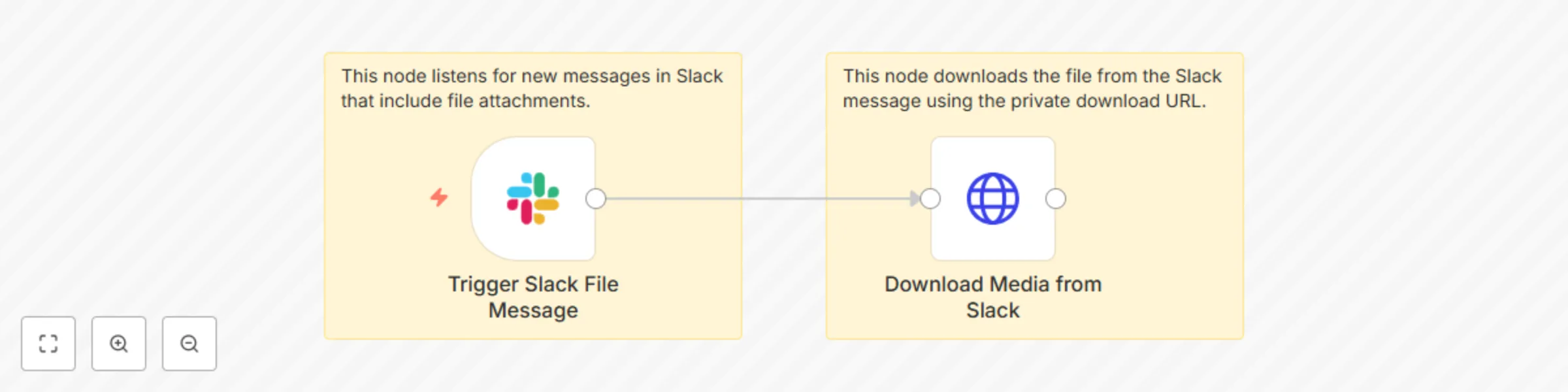
**Description:** This n8n workflow helps you capture Slack messages via a webhook and download attached media files (like images, documents, or videos) directly from those messages. **How it works:** - Slack Trigger (Webhook) – Listens for new messages in a Slack channel where the app is added. - HTTP Request – Uses the file's private download URL to retrieve the media securely. **Use cases:** - Download files shared by team members in a Slack channel. - Capture and process media from specific project or support channels. - Prepare media for later processing, archiving, or review. **Requirements:** - Slack app with appropriate permissions (files:read, channels:history, etc.). - Slack webhook set up to listen to channel messages. - - Authenticated HTTP request to handle private Slack file URLs. This template is ideal for users who want full control over file handling triggered by real-time Slack messages.

U
Usman Liaqat
File Management
14 May 2025
1607
0
Workflow preview: Manage WhatsApp chats centrally on Slack
Free advanced

Manage WhatsApp chats centrally on Slack

This workflow enables seamless, bidirectional communication between WhatsApp and Slack using n8n. It automates the reception, processing, and forwarding of messages (text, media, and documents) between users on WhatsApp and private Slack channels. **Key Features & Flow:** **1. WhatsApp to Slack Flow** - Trigger: The workflow starts with a WhatsApp Trigger node that listens for new incoming messages via a webhook. - Channel Handling: It checks if a Slack channel with the WhatsApp sender’s number exists - If not, it creates a private Slack channel with the sender's number as the name. - Message Type Routing: A Switch Node (Message Type) inspects the message type (text, image, audio, document). - Based on type: Text: Sends the message directly to Slack. - Image/Audio/Document: Retrieves media URL via WhatsApp API → downloads the media → uploads it to the appropriate Slack channel. **2. Slack to WhatsApp Flow** - Trigger: A Slack Trigger listens for new messages or file uploads in Slack. - Message Type Routing: A second Switch Node (Checking Message Type) checks if the message is text or media. - Routing Logic: Text Message: Extracts and forwards it to the WhatsApp contact (identified by the Slack channel name). - Media/File Message: Retrieves media file URL from Slack → downloads it → sends it as a document via WhatsApp API. **Key Integrations:** - WhatsApp Cloud API: For receiving messages, downloading media, and sending messages. - Slack API: For creating/getting channels, posting messages, and uploading files. - HTTP Request Node: Used to securely download media from Slack and WhatsApp servers with proper authentication. **Automation Use Case:** This workflow is ideal for businesses that handle customer support or conversations over WhatsApp and wish to log, respond, and collaborate using Slack as their internal communication tool.

U
Usman Liaqat
Support Chatbot
14 May 2025
1684
0