S

satoshi

3
Workflows

Workflows by satoshi
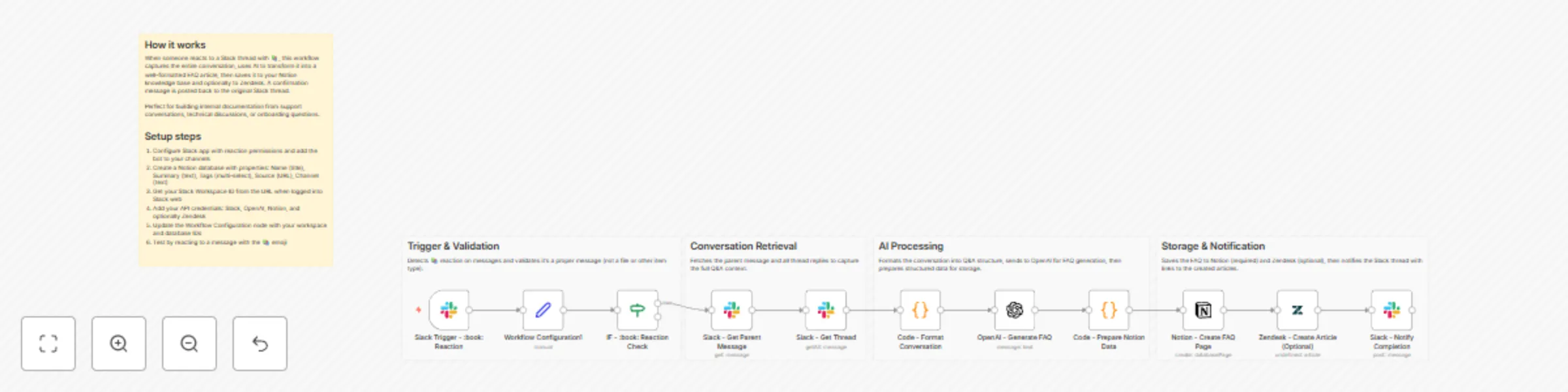
Workflow preview: Create AI FAQ articles from Slack threads into Notion and Zendesk
Free advanced

Create AI FAQ articles from Slack threads into Notion and Zendesk

# Create FAQ articles from Slack threads to Notion and Zendesk This workflow helps you capture "tribal knowledge" shared in Slack conversations and automatically converts it into structured documentation. By simply adding a specific reaction (default: 📚) to a message, the workflow aggregates the thread, uses AI to summarize it into a Q&A format, and publishes it to your knowledge base (Notion and Zendesk). ## Who is this for? - **Customer Support Teams** who want to turn internal troubleshooting discussions into public help articles. - **Knowledge Managers** looking to reduce the friction of documentation. - **Development Teams** wanting to archive technical decisions made in Slack threads. ## What it does 1. **Trigger:** Watches for a specific emoji reaction (📚 `:book:`) on a Slack message. 2. **Data Collection:** Fetches the parent message and all replies in the thread to get the full context. 3. **AI Processing:** Uses **OpenAI** to analyze the conversation, summarize the solution, and format it into a clear Question & Answer structure. 4. **Publishing:** - Creates a new page in a **Notion** database with tags and summaries. - (Optional) Drafts a new article in **Zendesk**. 5. **Notification:** Replies to the original Slack thread with links to the newly created documentation. ## Requirements - **n8n** (Self-hosted or Cloud) - **Slack** workspace (with an App installed that has permissions to read channels and reactions). - **OpenAI** API Key. - **Notion** account with an Integration Token. - **Zendesk** account (optional, can be removed if not needed). ## How to set up 1. **Configure Credentials:** Set up authentication for Slack, OpenAI, Notion, and Zendesk in n8n. 2. **Setup Notion:** Create a database in Notion with the following properties: - `Name` (Title) - `Summary` (Text/Rich Text) - `Tags` (Multi-select) - `Source` (URL) - `Channel` (Select or Text) 3. **Update Configuration Node:** Open the **Workflow Configuration1** node (Set node) and replace the placeholder values: - `slackWorkspaceId`: Your Slack Workspace ID (e.g., T01234567). - `notionDatabaseId`: The ID of your Notion database. - `zendeskSectionId`: (Optional) The ID of the section where articles should be created. 4. **Slack App Scopes:** Ensure your Slack App has the following scopes: `reactions:read`, `channels:history`, `groups:history`, `chat:write`. ## How to customize - **Change the Trigger:** If you prefer a different emoji (e.g., 📝 or 💡), update the "Right Value" in the **IF - :book: Reaction Check** node. - **Modify the Prompt:** Edit the **OpenAI** node to change how the AI formats the answer (e.g., ask it to be more technical or more casual). - **Remove Zendesk:** If you don't use Zendesk, simply delete the **Zendesk** node and remove the reference to it in the final **Slack - Notify Completion** node.

s
satoshi
Internal Wiki
22 Dec 2025
3
0

Workflow preview: AI-powered productivity coach using Google Calendar, Todoist, Slack and Sheets
Free advanced

AI-powered productivity coach using Google Calendar, Todoist, Slack and Sheets

# Analyze productivity metrics from Google Calendar and Todoist to Slack This workflow acts as an automated personal productivity coach. It aggregates data from your daily tools (Google Calendar, Todoist, and Slack) to provide AI-driven insights into your work habits. It runs daily to log metrics to Google Sheets and sends a summary to Slack. Additionally, every Friday, it generates a comprehensive strategic weekly review. ## Who is this for? - **Remote Workers & Freelancers** who want to track their focus time and meeting load. - **Productivity Enthusiasts** looking to automate their "Quantified Self" data collection. - **Managers** who want a high-level overview of their weekly throughput and communication volume without manual tracking. ## What it does 1. **Daily Trigger:** Runs automatically every weekday morning (default: 8 AM). 2. **Data Collection:** - Fetches today's meetings from **Google Calendar**. - Retrieves high-priority and overdue tasks from **Todoist**. - Analyzes recent message activity from **Slack**. 3. **AI Analysis:** Uses **OpenAI** to analyze the data, identifying focus blocks and potential overload risks. 4. **Logging:** Saves raw metrics (meeting hours, task counts, message volume) to a **Google Sheet** for historical tracking. 5. **Reporting:** - Sends a "Daily Productivity Summary" to Slack with actionable advice. - On Fridays, it pulls the last 7 days of data from Google Sheets to generate and send a **Weekly Strategic Report** to Slack. ## Requirements - **n8n** (Self-hosted or Cloud) - **Google Cloud Console** project with Calendar and Sheets APIs enabled. - **Todoist** account. - **Slack** workspace. - **OpenAI** API Key (GPT-4 is recommended for better analysis). ## How to set up 1. **Configure Credentials:** Set up your credentials in n8n for Google (OAuth2), Todoist, Slack, and OpenAI. 2. **Prepare Google Sheet:** - Create a new Google Sheet. - Create the following header columns in the first row: `date`, `meetingHours`, `tasksCount`, `slackMessages`. 3. **Update Nodes:** - **Log Daily Metrics** node: Select your Spreadsheet and Sheet name. - **Fetch Last 7 Days Data** node: Select the same Spreadsheet. - **Slack** nodes: Select the channel where you want to receive reports. 4. **Activate:** Toggle the workflow to **Active**. ## How to customize - **Adjust Schedule:** Change the *Schedule Daily Execution* node to fit your preferred reporting time. - **Modify AI Persona:** Edit the system prompt in the *AI Analysis* node to change the tone of the report (e.g., make it more strict or more encouraging). - **Add Data Sources:** You can easily chain additional nodes (like GitHub or Jira) into the *Aggregate Data* code node to include coding or project management metrics.

s
satoshi
Personal Productivity
22 Dec 2025
40
0
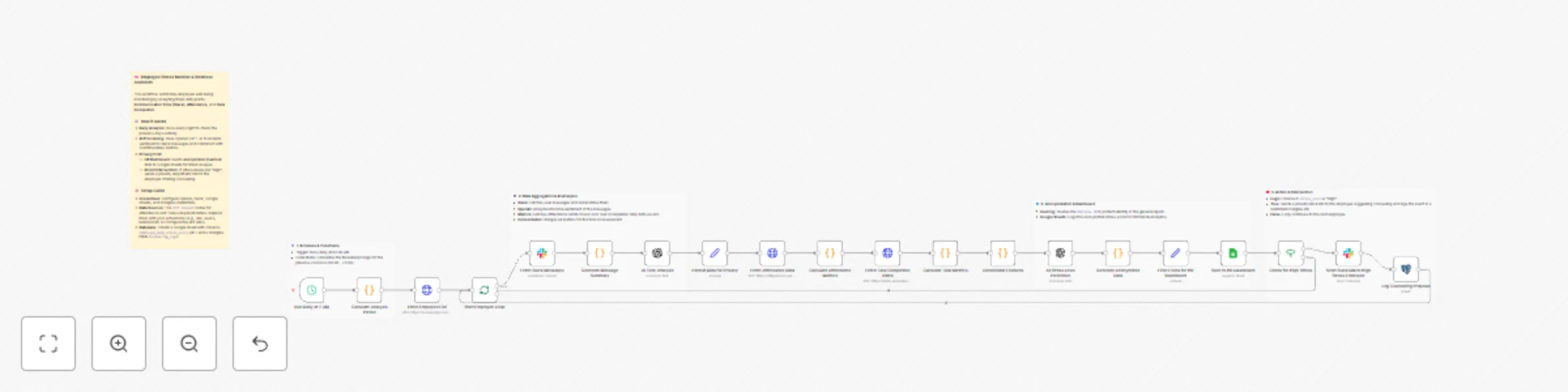
Workflow preview: Prevent employee burnout with AI analysis of Slack and tasks data to Google Sheets
Free advanced

Prevent employee burnout with AI analysis of Slack and tasks data to Google Sheets

# Monitor employee stress levels from Slack and tasks to Google Sheets This workflow functions as an automated "Chief Wellness Officer," helping HR teams and managers prevent employee burnout before it happens. It aggregates data from communication channels and work tools to provide an AI-driven daily assessment of employee well-being, while prioritizing privacy through data anonymization. ## Who is this for - **HR & People Operations Teams** wanting to track organizational health trends without invading personal privacy. - **Remote-first Companies** where physical cues of burnout are harder to spot. - **Team Managers** looking for data-backed insights to support their direct reports. ## What it does 1. **Daily Trigger:** Runs automatically every morning (default: 2 AM) to analyze the previous day's activity. 2. **Data Collection:** * Fetches public Slack messages to analyze communication tone. * Retrieves attendance data (work hours, late arrivals) and task completion rates via API. 3. **AI Analysis:** Uses **OpenAI** to process the data, predicting a "Stress Level" based on sentiment and workload metrics. 4. **Privacy-First Reporting:** Hashes employee IDs to anonymize data, then logs stress scores to **Google Sheets** for trend analysis. 5. **Direct Intervention:** If the AI detects "High" stress, it sends a private, empathetic DM to the employee on **Slack** offering support or counseling resources. ## Requirements - **n8n** (Self-hosted or Cloud) - **Slack** Workspace (with a Bot User OAuth Token). - **OpenAI** API Key. - **Google Sheets** (for the dashboard). - **Postgres** (optional, for logging counseling actions). - **HR/Task Management Tools** (e.g., Jira, Asana, BambooHR) accessible via API. ## How to set up 1. **Configure Credentials:** Set up your credentials for Slack, OpenAI, Google Sheets, and Postgres in n8n. 2. **Prepare Google Sheet:** Create a sheet with headers: `employee_hash`, `department`, `stress_score`, `stress_level`, and `analysis_date`. 3. **Connect Data Sources:** * The workflow uses **HTTP Request** nodes as placeholders for Attendance and Task data. You must update these URLs to point to your specific HRIS or Project Management tool APIs (or replace them with native n8n nodes like Asana or Jira). 4. **Update Slack Settings:** Ensure the Slack node has the correct permissions (`channels:history`, `chat:write`, `users:read`) and target channel/user mapping. ## How to customize - **Adjust Sensitivity:** Modify the system prompt in the *AI Stress Level Prediction* node to change how "High" stress is defined. - **Change Data Sources:** Replace the generic HTTP Request nodes with specific n8n nodes for services like **Harvest**, **Jira**, or **Trello** depending on your stack. - **Modify Action:** Instead of a direct DM, you can change the final step to alert a manager or create a ticket in a sensitive HR service desk.

s
satoshi
HR
22 Dec 2025
23
0