Eddy Medina
Workflows by Eddy Medina
Delete Dialogflow intents via Telegram commands
## Delete a Dialogflow Intent via Telegram 🗑️ This workflow allows you to delete a specific Dialogflow intent simply by sending the keyword `delete` through Telegram. It’s designed for quick and safe deletions from your mobile device, without needing to access the Dialogflow console. --- ### 🔧 What does this workflow do? 1. **Listens for Telegram messages** using the `Telegram Trigger` node. 2. **Validates the user ID** through the `User validation by ID` node, ensuring only authorized users can trigger the deletion. 3. **Checks if the message equals `delete`** using the `Keyword validation` node. 4. If both checks pass: - Performs an HTTP GET request via `HTTP Request GET NAME` to **retrieve the name of the intent** (used in the confirmation message). - Adds a small delay using `simulated delay`. - Then executes a DELETE request to the Dialogflow API via the `HTTP Request ELIMINAR` node to **delete the intent**. - Sends a Telegram confirmation message through the `Confirmation message` node. 5. If the user ID or keyword is invalid: - Responds with a custom message using either `Invalid user message` or `Invalid keyword message`. --- ### 📌 Requirements - A valid **Google API credential** (Service Account) set up in n8n. - Obtain your `PROJECT_ID` and `INTENT_ID` from the URL of the intent in Dialogflow: --- ### ✅ Use Cases - Delete test or unused intents **without opening Dialogflow**. - Automate cleanup of outdated intents. - Allow controlled Telegram-based access for specific users to delete intents remotely.
Update Dialogflow intent responses via Telegram bot commands
## Update a Dialogflow Intent's Response via Telegram This template allows you to easily update the response of a Dialogflow intent by simply typing a keyword in Telegram. Ideal for those who need to edit responses without accessing the Dialogflow console. --- ### 🔧 What does this flow do? 1. **Listens for incoming messages** from a Telegram bot using the `Telegram Trigger` node. 2. **Validates the user** by ID through the `User validation by ID` node to ensure only authorized people can execute the action. 3. **Checks if the message contains the keyword** `update` using the `Keyword validation` node. 4. If both conditions are met: - Executes an **HTTP GET** request using the `HTTP Request GET` node to fetch the full intent in JSON format from the Dialogflow API. - The user copies that JSON, edits the response content, and pastes it into the `HTTP Request UPDATE` node (`PATCH`). - Finally, the flow sends a **confirmation message** via Telegram using the `Mensaje de confirmación` node. 5. If the user or keyword is invalid, the bot replies with an **error message** using the `Invalid user message` or `Invalid keyword message` nodes. --- ### 📌 Requirements - A configured **Google API credential** (Service Account). - Obtain the `PROJECT_ID` and `INTENT_ID` from the intent's URL in Dialogflow. - Edit the `jsonBody` content in the `HTTP Request UPDATE` node, **removing the outer curly braces `{}`**. --- ### ✅ Use Cases - Quickly modify responses in production without accessing Dialogflow. - Allow non-technical users to update intents from Telegram. - Foundation for more advanced flows that dynamically manage multiple intents.
Export Dialogflow intents with priority levels to Google Sheets via Telegram
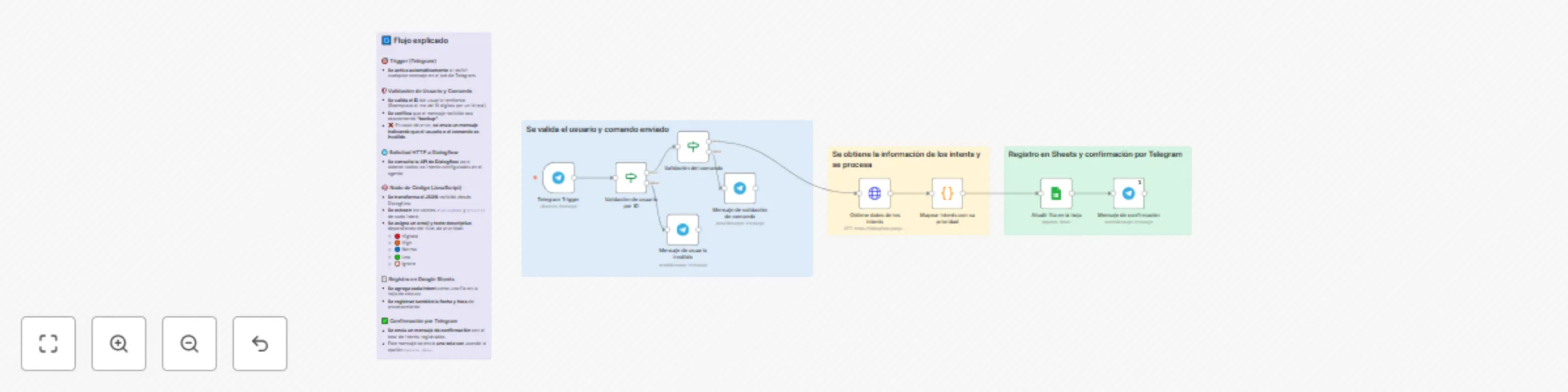
## What does this workflow do? This workflow **exports the names of all Dialogflow intents** from your agent, **together with their priority levels**, directly into a **Google Sheets** spreadsheet. It is triggered via **Telegram** and includes **visual indicators (emojis)** for priority levels. --- ## 📜 Overview - **🔔 Activation**: Triggered when a **validated user** sends the keyword (e.g. `"backup"`) via Telegram. - **📥 Data Retrieval**: Fetches all intents of the specified Dialogflow agent using the **Dialogflow API**. - **⚙️ Processing**: - Transforms each intent into an **n8n-compatible item**. - Extracts the `displayName` and `priority` of each intent. - Assigns an **emoji and descriptive label** based on priority tier: 🔴 Highest, 🟠 High, 🔵 Normal, 🟢 Low, 🚫 Ignore. - **📑 Storage**: Appends each intent (name, priority number, emoji, and description), along with **current date and time**, to a **Google Sheets** document. - **📩 Notification**: Sends a **single confirmation message** to the Telegram user once insertion is complete *(using Execute Once)*. --- ## 🛠️ How to install and configure 1. **Import the workflow**: Upload the `.json` into your n8n instance. 2. **Connect Telegram**: Add your Telegram bot credentials and configure the node `Validación de usuario por ID` with your **Telegram ID**. 3. **Configure Dialogflow**: Authenticate using a **Google Service Account API Credential**. Then, in the **Obtiene datos de los intents** node, replace the example **project ID** (`TU_PROJECT_ID`) with your actual Dialogflow agent's project ID. 4. **Connect Google Sheets**: Authorize Google Sheets via **OAuth2** and select your destination document/sheet in the node `Añadir fila en la hoja`. 5. **Customize trigger keyword**: Adjust the command text (default `"backup"`) if needed. 6. **Activate workflow**: Ensure the **webhook** is correctly set up in Telegram before enabling the workflow. --- ## 👥 Who is this for? - 🤖 Bot administrators who need **quick backups** of Dialogflow intent names. - 🌐 Teams managing **multilingual or multi-intent** agents wanting **priority oversight**. - 💻 Development teams needing an **automated way to audit** or **version** intent configurations regularly. --- ## 💡 Use Cases - ⚙️ Backup intents **periodically** to monitor changes over time. - 📊 Visualize priority assignment in a **spreadsheet** for analysis or team discussion. - 📖 Document conversational structure for **onboarding** or **knowledge transfer**.