Krishna Sharma
Workflows by Krishna Sharma
Stripe → Pipedrive: Auto create contacts and deals from payments
# Stripe → Pipedrive (Automatic Person + Deal Creation) ## Prerequisites / Requirements - n8n instance (cloud or self-hosted) with HTTPS reachable webhook endpoint - Stripe account and secret API key - Pipedrive account with API access and custom fields defined - Users should create custom fields in Pipedrive and copy their field IDs (e.g. amount, payment method, status, Stripe Event ID) ## How it works (Step-by-Step) **Stripe Webhook:** n8n triggers on payment events from Stripe via an HTTP POST. **Edit / Set node:** Extracts eventId, eventType, and payload. **HTTP Request:** Confirms Stripe event via Stripe API (adds security). **Search Person:** Looks up Pipedrive contact by email from the Stripe payload. **IF:** Checks whether the person exists. - If exists → skip to deal creation. - If node - Check if Event id is not the same - If same - Skip the deal creation - If different - Create a deal linked to that person with the payment amount - If not → create new Person. **Create Person:** Adds new Pipedrive contact, populates custom fields (amount, payment method, status, source). **Create Deal:** Creates a deal linked to that person with the payment amount. ## Description **This workflow connects Stripe to Pipedrive. Whenever a new payment (or checkout success) occurs in Stripe, this automation will: - Fetch the full Stripe event data - Find or create a customer (“Person”) in Pipedrive - Create a “Deal” record corresponding to that payment - Log custom fields like amount, source, payment method, status ### It’s ideal for - SaaS - Subscription businesses - Agencies, or - Teams who want payments mirrored inside their CRM without manual work. ## Modification Notes / Extensions You can extend this workflow by: - Adding Slack or Gmail notifications after deal creation. - Logging every event in Google Sheets or Notion for audit. - Enriching the customer using OpenAI / CRM data. - Handling refunds, subscription cancellations, etc.
Typeform lead capture to HubSpot with scoring and Slack alerts
**📄 Smart Lead Capture, Scoring & Slack Alerts** This workflow captures new leads from Typeform, checks for duplicates in HubSpot CRM, enriches and scores them, assigns priority tiers (Cold, Warm, Hot), and instantly notifies your sales team in Slack. **🔧 How It Works** Typeform Trigger → Monitors form submissions and passes lead details into the workflow. HubSpot Deduplication → Searches HubSpot by email before creating a new record. **Conditional Routing →** If no match → Creates a new contact in HubSpot. If match found → Updates the existing contact with fresh data. **Lead Scoring (Function Node)** → Custom JavaScript assigns a score based on your rules (e.g. company email, job title, engagement signals, enrichment data). **Tier Assignment** → Categorizes the lead as ❄️ Cold, 🌡 Warm, or 🔥 Hot based on score thresholds. **Slack Notification** → Sends formatted lead alerts to a dedicated sales channel with priority indicators. **👤 Who Is This For?** - Sales teams who need to prioritize hot leads in real-time. - Marketing teams running inbound lead capture campaigns with Typeform. RevOps teams that want custom scoring beyond HubSpot defaults. Founders/SMBs looking to tighten lead-to-revenue pipeline with automation. **💡 Use Case / Problem Solved** ❌ Duplicate contacts clogging HubSpot CRM. ❌ Manual lead triage slows down response time. ❌ HubSpot’s default scoring is rigid. ✅ Automates lead creation + scoring + notification in one flow. ✅ Sales teams get immediate Slack alerts with context to act fast. **⚙️ What This Workflow Does** Captures lead data directly from Typeform. Cleans & deduplicates contacts before pushing to HubSpot CRM. Scores and categorizes leads via custom logic. Sends structured lead alerts to Slack, tagged by priority. Provides a scalable foundation you can extend with data enrichment (e.g., Clearbit, Apollo). **🛠️ Setup Instructions** **🔑 Prerequisites** Typeform account with API access → Typeform Developer Docs HubSpot CRM account with API key or OAuth → HubSpot API Docs Slack workspace & API access → Slack API Docs (Optional) n8n automation platform to build & run → n8n Hub **📝 Steps to Configure** **Typeform Node (Trigger)** - Connect your Typeform account in n8n. - Select the form to track submissions. - Fields typically include: first name, last name, email, company, phone. **HubSpot Node (Search Contact)** Configure a search by email. Route outcomes: - Not Found → Create Contact - Found → Update Contact **HubSpot Node (Create/Update Contact)** - Map Typeform fields into HubSpot (email, name, phone, company). Ensure you capture both standard and custom properties. Function Node (Lead Scoring) Example JavaScript: // Simple lead scoring example const email = $json.email || ""; let score = 0; if (email.endsWith("@company.com")) score += 30; if ($json.company && $json.company.length > 2) score += 20; if ($json.phone) score += 10; let tier = "❄️ Cold"; if (score >= 60) tier = "🔥 Hot"; else if (score >= 30) tier = "🌡 Warm"; return { ...$json, leadScore: score, leadTier: tier }; Customize rules based on your GTM strategy. **Reference** → n8n Function Node Docs Slack Node (Send Message) Example Slack message template: 🚀 New Lead Alert! 👤 {{ $json.firstname }} {{ $json.lastname }} 📧 {{ $json.email }} | 🏢 {{ $json.company }} 📊 Score: {{ $json.leadScore }} — {{ $json.leadTier }} Send to dedicated #sales-leads channel. Reference → Slack Node in n8n **📌 Notes & Extensions** 🔄 Add enrichment with Clearbit or Apollo.io before scoring. 📊 Use HubSpot workflows to trigger nurturing campaigns for ❄️ Cold leads. ⏱ For 🔥 Hot leads, auto-assign to an SDR using HubSpot deal automation. 🧩 Export data to Google Sheets or Airtable for analytics.
Summarize Google Docs & PDFs with GPT-4 and send to Slack or email
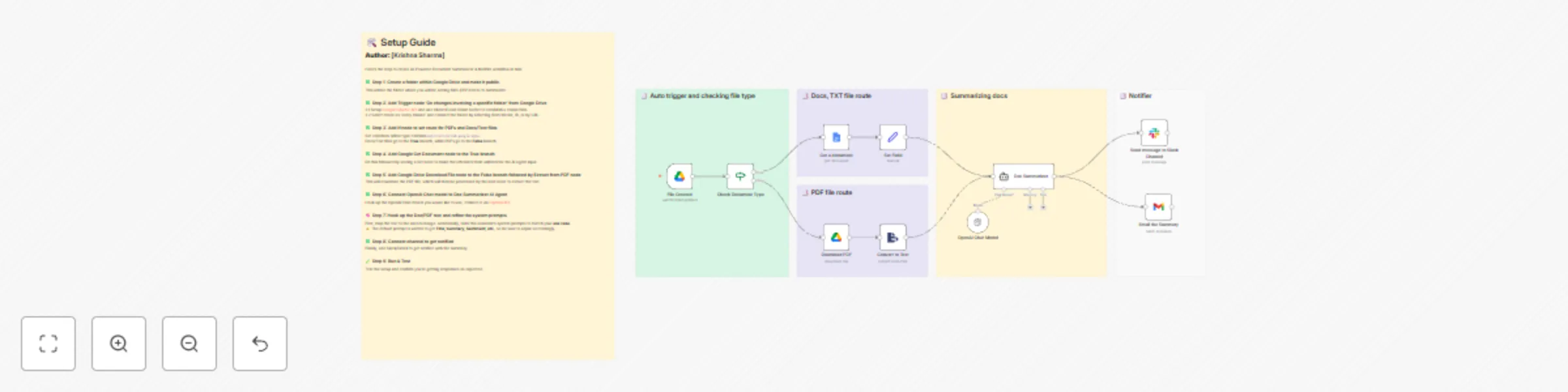
# 📄 AI-Powered Document Summarizer & Notifier This workflow monitors a Google Drive folder for new files (Google Docs or PDFs), extracts text, summarizes content with OpenAI, and sends results to Slack or Email. --- ## 🔧 How It Works 1. **Monitors** a Google Drive folder for new files. 2. **Detects file type** → Google Doc vs PDF. 3. **Extracts text** (via Google Docs API or PDF extractor). 4. **Summarizes & analyzes** content using OpenAI. 5. **Sends results** to Slack and/or Email. --- ## 👤 Who Is This For? - Business teams → Quick digests of reports, proposals, contracts. - Educators / researchers → Summaries of long study materials. - Founders / managers → Daily summaries without opening every file. - Operations teams → Compliance and documentation tracking. --- ## 💡 Use Case / Problem Solved - Reading long documents is time-consuming. - Sharing key points across teams requires manual effort. - Important context (sentiment, action items) is often missed. 👉 This workflow solves it by **auto-summarizing documents and notifying teams instantly**. --- ## ⚙️ What This Workflow Does - Monitors Google Drive for new Google Docs or PDFs. - Extracts text automatically. - Uses OpenAI to generate: - Title - Summary - Key Points - Suggested Action Items - Language detection - Sentiment (positive, neutral, negative) - Pushes output to Slack channel and/or Email inbox. --- ## 🛠️ Setup Instructions ### **Prerequisites** - [Google Drive (OAuth2)](https://docs.n8n.io/integrations/builtin/credentials/google/oauth-single-service) - [Google Docs (OAuth2)](https://docs.n8n.io/integrations/builtin/credentials/google/) - [OpenAI API Key](https://docs.n8n.io/integrations/builtin/credentials/openAi/) - Slack (OAuth2) or Gmail (OAuth2) ### **Steps to Configure** 1. **Connect Google Drive** - Choose the folder you want to monitor. 2. **Set up file type routing** - Use an `IF` node to split Docs vs PDFs. 3. **For Google Docs** - Use **Google Docs Get** → extract text. 4. **For PDFs** - Use **Google Drive Download** → **Extract PDF**. 5. **Send text to OpenAI** - Connect to your OpenAI model. - Customize the system prompt to generate title, summary, sentiment, etc. 6. **Notify** - Send output to Slack channel or Gmail. 7. **Save & activate** your workflow. --- ## 📌 Notes - Adjust OpenAI prompt to suit your context. - For large PDFs, consider splitting into smaller chunks.