Thiago Vazzoler Loureiro
Workflows by Thiago Vazzoler Loureiro
AI secretary for scheduling with WhatsApp and Telegram
# 🏥 AI secretary for scheduling with WhatsApp and Telegram > ⚠️ **Community Disclaimer** > This workflow is community-maintained and self-hosted. > It is **not officially affiliated with or supported by n8n GmbH, OpenAI, or Google**. > Users are responsible for their own configuration, security, and data compliance (e.g., HIPAA, LGPD, GDPR). > Always secure API keys and ensure compliance with your local privacy regulations. --- ## 🧠 Description This template deploys an **AI-powered virtual medical secretary** that automates appointment **scheduling, rescheduling, and cancellations** for clinics and healthcare professionals. It seamlessly integrates **OpenAI** for natural language understanding, **Google Calendar** for real-time booking, and **Evolution API (WhatsApp)** or **Telegram** for patient communication. Patients can chat naturally via WhatsApp or Telegram, receiving **empathetic, professional, and human-like responses** — while your calendar stays automatically synchronized in real time.  --- ## 💡 What Problem Does This Solve? Managing appointments manually is **time-consuming** and **error-prone**, often requiring staff to handle repetitive tasks like checking availability, confirming times, or rescheduling. Traditional systems lack conversational capabilities, forcing patients to call or text staff directly. This template solves that by creating a **conversational AI assistant** that interacts with patients through familiar messaging channels, reducing administrative workload and ensuring accurate real-time scheduling through Google Calendar. --- ## ⚙️ Key Features - 📅 **Google Calendar Integration** — Real-time synchronization of consultations and exams - 🤖 **AI Assistant Powered by OpenAI** — Understands patient intent and replies naturally - 💬 **Multi-Channel Support** — Works with **WhatsApp (via Evolution API)** and **Telegram** - 🔄 **Automated Workflow** — Handles booking, rescheduling, and cancellations - 🏥 **Healthcare-Focused Design** — Tailored for clinics, doctors, and medical secretaries - ✅ **Customizable Responses** — Modify prompts, message flows, and confirmation texts - ⏰ **Reminders & Follow-ups** — Reduce no-shows with automated notifications --- ## 🧩 Setup Instructions (Step-by-Step) 1. **Obtain Required Credentials:** - OpenAI API Key - Google Calendar API Credentials (OAuth or Service Account) - Evolution API Token (for WhatsApp) - Telegram Bot Token (if using Telegram) 2. **Configure n8n Environment:** - Add your credentials under *Settings → Credentials*. - Ensure your n8n instance has internet access to the APIs. 3. **Configure Node “Variables Config” & Update Nodes:** - Set **nm_Clinic** → Name of the clinic - Set **nm_Agent** → Name of the AI agent - Set **ds_Address_Clinic** → Address of the clinic - Set **nm_Health_Plan** → Name of the health insurance provider - Set **nm_Evolution_Instance** → Name of your Evolution API instance - Set **nm_City_Clinic** → City where the clinic is located  4. **Customize the Conversation Flow:** - Edit OpenAI prompt nodes to match your clinic’s tone of voice. - Update Google Calendar event templates with your preferred titles and descriptions. 5. **Deploy and Test:** - Test both WhatsApp and Telegram channels. - Verify that appointments appear correctly in Google Calendar. - Review conversation logs to fine-tune the responses. --- ## 🚀 Suggested Use Cases Ideal for: - Clinics and medical offices wanting 24/7 automated appointment management - Healthcare professionals reducing manual scheduling and follow-ups - Multi-channel (WhatsApp + Telegram) patient interaction - Reducing no-shows with reminders and confirmations - Clinics seeking to modernize patient communication and optimize staff time This assistant ensures every patient request is handled naturally — while **Google Calendar remains the single source of truth** for scheduling.
Build a GLPI knowledge base RAG pipeline with Google Gemini and PostgreSQL
## Description This workflow automates the creation of a Retrieval-Augmented Generation (RAG) pipeline using content from the GLPI Knowledge Base. It retrieves and processes FAQ articles directly via the GLPI API, cleans and vectorizes the content using pgvector in PostgreSQL, and prepares the data for use by LLM-powered AI agents. ## What Problem Does This Solve? Manually building a RAG pipeline from a GLPI knowledge base requires integrating multiple tools, cleaning data, and managing embeddings—tasks that are often complex and repetitive. This subworkflow simplifies the entire process by automating data retrieval, transformation, and vector storage, allowing you to focus on building intelligent support agents or chatbots powered by your internal documentation. ## Features Connects to GLPI via API to fetch FAQ articles Cleans and normalizes content for better embedding quality Generates vector embeddings using Google Gemini (or another model) Stores embeddings in a PostgreSQL database with pgvector Fully modular: easily integrate with any RAG-ready LLM pipeline ## Prerequisites Before using this subworkflow, make sure you have: A GLPI instance installed on a Linux server with API access enabled A PostgreSQL database with the pgvector extension installed An OpenAI API key (or alternative embedding provider) n8n instance (self-hosted or cloud) ## Suggested Usage This subworkflow is intended to be part of a larger AI pipeline. Attach it to a scheduled workflow (e.g. daily sync) or use it in response to updates in your GLPI base. Ideal for internal support bots, IT documentation assistants, and help desk AI agents that rely on up-to-date knowledge.
WhatsApp to Chatwoot message forwarder with media support
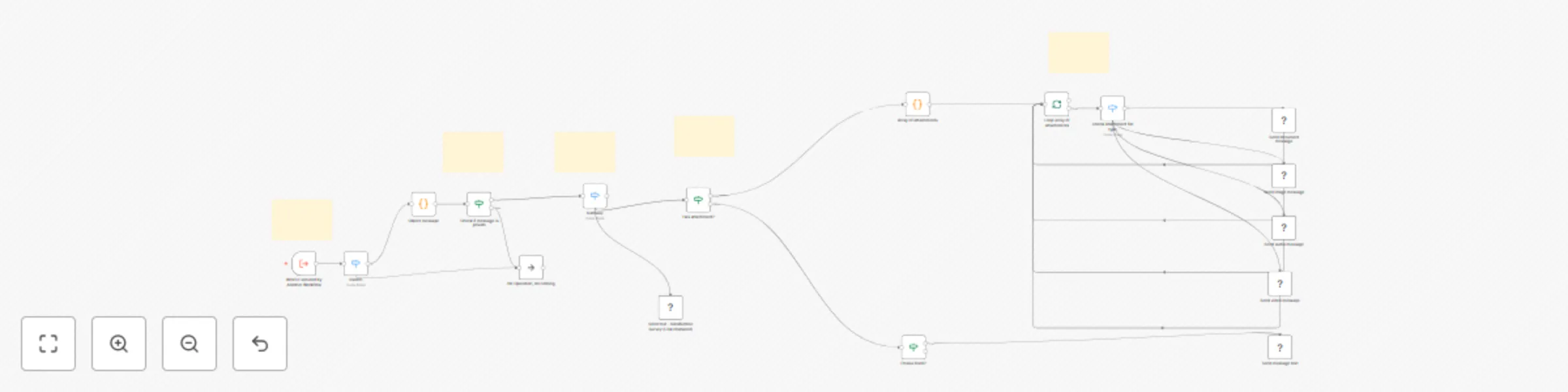
## Description Automates the forwarding of messages from WhatsApp (via Evolution API) to Chatwoot, enabling seamless integration between external WhatsApp users and internal Chatwoot agents. It supports both text and media messages, ensuring that customer conversations are centralized and accessible for support teams. ## What Problem Does This Solve? Managing conversations across multiple platforms can lead to fragmented support and lost context. This subworkflow bridges the gap between WhatsApp and Chatwoot, automatically forwarding messages received via the Evolution API to a Chatwoot inbox. It simplifies communication flow, centralizes conversations, and enhances the support team's productivity. ### Features - Support for plain text messages - Support for media messages: images, videos, documents, and audio - Automatic media upload to Chatwoot with proper attachment rendering - Automatic contact association using WhatsApp number and Chatwoot API - Designed to work with Evolution API webhooks or any message source ## Prerequisites Before using this automate, make sure you have: - Evolution API credentials with incoming message webhook configured - A Chatwoot instance with access token and API endpoint - An existing Chatwoot inbox (preferably API channel) - A configured HTTP Request node in n8n for Chatwoot API calls ## Suggested Usage This subworkflow should be attached to a parent workflow that receives WhatsApp messages via the Evolution API webhook. Ideal for: Centralized customer service operations WhatsApp-to-CRM/chat routing Hybrid automation workflows where human agents need to reply from Chatwoot It ensures that all incoming WhatsApp messages are properly converted and forwarded to Chatwoot, preserving message content and structure.
Forward Chatwoot Messages to WhatsApp via Evolution API with Media Support
## Description This workflow automates forwarding messages received in Chatwoot to WhatsApp using the Evolution API. It provides full support for different types of messages, ensuring rich and seamless communication with the end user. ## What Problem Does This Solve? Manually forwarding messages from Chatwoot to WhatsApp can be time-consuming and error-prone, especially when handling diverse message types like media files. This subworkflow streamlines the process, automating message delivery while maintaining message fidelity and media compatibility. ## Features - Support for plain text messages; - Support for media messages including images, videos, documents, and audio; - Automatic detection of media type based on the content_type field; - Automatic processing of incoming messages from Chatwoot via webhook or native integration ## Prerequisites Before using this subworkflow, make sure you have: 1. Evolution API key and URL; 2. Incoming messages from Chatwoot via webhook or native integration; 3. Configured HTTP Request node in n8n ## Suggested Usage This subworkflow should be attached to a main workflow that receives messages from Chatwoot. It is ideal for automated customer service, help desks, or hybrid bots (human + automated), enabling messages originating from Chatwoot to be faithfully redirected to WhatsApp. 
Vectorize Medical Procedures for Semantic Search with TUSS, Gemini & pgVector
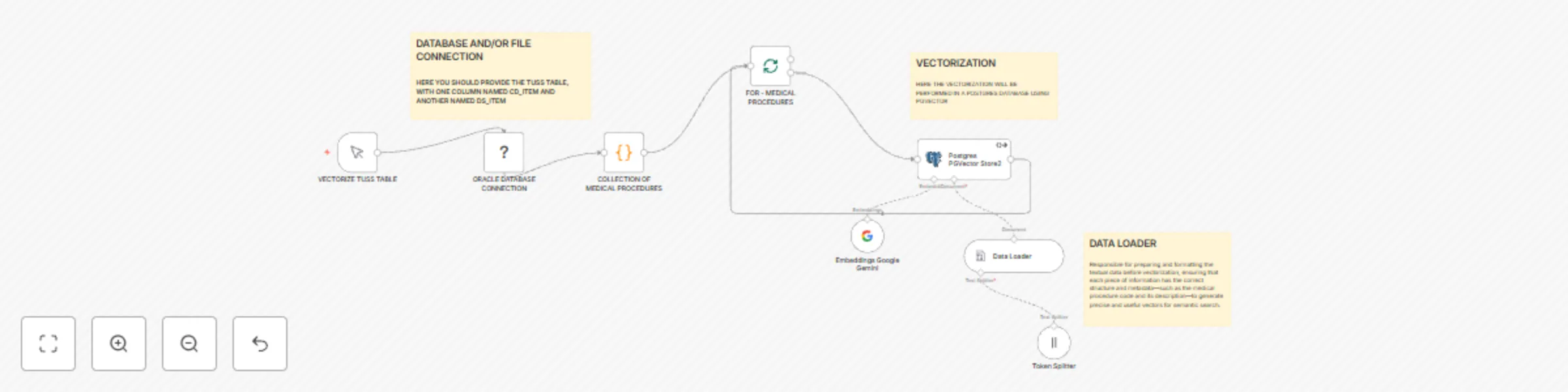
## Description This workflow vectorizes the TUSS (Terminologia Unificada da Saúde Suplementar) table by transforming medical procedures into vector embeddings ready for semantic search. It automates the import of TUSS data, performs text preprocessing, and uses Google Gemini to generate vector embeddings. The resulting vectors can be stored in a vector database, such as PostgreSQL with pgvector, enabling efficient semantic queries across healthcare data. ## What Problem Does This Solve? Searching for medical procedures using traditional keyword matching is often imprecise. This workflow enhances the search experience by enabling semantic similarity search, which can retrieve more relevant results based on the meaning of the query instead of exact word matches. ## How It Works 1. Import TUSS data: Load medical procedure entries from the TUSS table. 2. Preprocess text: Clean and prepare the text for embedding. 3. Generate embeddings: Use Google Gemini to convert each procedure into a semantic vector. 4. Store vectors: Save the output in a PostgreSQL database with the pgvector extension. ## Prerequisites 1. An n8n instance (self-hosted). 2. A PostgreSQL database with the pgvector extension enabled. 3. Access to the Google Gemini API. 4. TUSS data in a structured format (CSV, database, or API source). ## Customization Tips You can adapt the preprocessing logic to your own language or domain-specific terms. Swap Google Gemini with another embedding model, such as OpenAI or Cohere. Adjust the chunking logic to control the granularity of semantic representation. ## Setup Instructions Prepare a source (database or CSV) with TUSS data. You need at least two fields: - CD_ITEM (Medical procedure code) - DS_ITEM (Medical procedure description) Configure your Oracle or PostgreSQL database credentials in the Credentials section of n8n. Make sure your PostgreSQL database has pgVector installed. Replace the placeholder table and column names with your actual TUSS table. Connect your Google Gemini credentials (via OpenAI proxy or official connector). Run the workflow to vectorize all medical procedure descriptions.