Theo Marcadet
Workflows by Theo Marcadet
Slack AI ChatBot : context-aware, replies to mentions AND also DMs
**[Click here to access this Workflow for free](https://www.bonzai.pro/auth?action=buyPrice%2Cpri_zmMq_5350)**. --- # Get your own custom ChatGPT inside your Slack Workspace  ## Description This n8n workflow enables a fully autonomous AI assistant within your Slack Workspace. It listens for both public mentions and direct messages (DMs), and replies in real-time using a large language model (OpenAI's GPT-4o by default). The assistant can dynamically fetch previous messages for better context, providing smart, coherent, and personalized responses. --- ### 🔧 **Key Features** - **Dual Trigger**: Reacts to both public bot mentions and private DMs. - **Context-Aware AI**: Dynamically fetches the last 20 messages from either public or private conversations. - **Smart Routing**: Replies either in the original public channel or via DM, depending on where the message came from. - **Custom Prompting**: Easily modify the system prompt to define the AI’s tone, behavior, and personality. - **Fully Autonomous**: No manual intervention required — the bot always replies instantly. --- ### ✅ Requirements - An operational **n8n instance**. - A Slack workspace (you can create one for free [here](https://slack.com/get-started?entry_point=workspaces)) - A Slack account with **Admin** or **Owner** privileges (required to install apps) --- ### 🧰 **Setup Instructions** #### **Slack Bot Setup** - Create a Slack App with the necessary permissions and configurations > You will find in the next step a complete tutorial to craft your own bot with the right confirguration and permissions for this workflow to work - Set your Slack bot token in n8n's credential manager. --- ### 🤖 **How It Works** - When a **public mention** is detected, the bot replies directly in the channel, referencing the original message. - When a **DM** is received, it responds privately. - The AI uses a tool to **read the latest 20 public or private messages** to build accurate context before replying. --- ### 🛠 **Customization Options** - **Change LLM**: Swap out OpenAI with any LLM that has an API. - **Edit Prompt Behavior**: Modify the system prompt to control tone and personality. --- ### If you just need a tutorial on setting up your Slack bot, be my guest ➡️ [Here](https://www.bonzai.pro/theo_marcadet/posts/xZ18_21698/slack-bot-setup-tutorial) --- ### And if you need any help, or have any question, feel free to come discuss about it on **[Telegram](https://www.bonzai.pro/theo_marcadet/lp/7018/)**
Discord AI ChatBot : Context-Aware, Replies to Mentions AND also DMs
**[Click here to access this Workflow for free](https://www.bonzai.pro/auth?action=buyPrice%2Cpri_XVAx_5246)**. --- # Get your own custom ChatGPT inside your Discord Server  ## Description This n8n workflow enables a fully autonomous AI assistant within your Discord server. It listens for both public mentions and direct messages (DMs), and replies in real-time using a language model (OpenAI's GPT-4o by default). The assistant can dynamically fetch previous messages for better context, providing smart, coherent, and personalized responses. --- ### 🔧 **Key Features** - **Dual Trigger**: Reacts to both public bot mentions and private DMs. - **Context-Aware AI**: Dynamically fetches the last 30 messages from either public or private conversations. - **Smart Routing**: Replies either in the original public channel or via DM, depending on where the message came from. - **Custom Prompting**: Easily modify the system prompt to define the AI’s tone, behavior, and personality. - **Fully Autonomous**: No manual intervention required — the bot always replies instantly. --- ### ✅ Requirements - An operational **n8n instance**. - A **Discord bot** with at least these permissions: - Send Messages - Read Message History - Manage Messages - **OpenAI API key** (or compatible LLM credentials). - The community package: `n8n-nodes-discord-trigger`. --- ### 🧰 **Setup Instructions** #### 1. **Discord Bot Setup** - Create and invite your Discord bot to your server with required permissions. > You will find in the next step a complete tutorial to craft your own bot with the right code and permissions for this workflow to work - Set your Discord bot token in n8n's credential manager. #### 2. **Install the Community Node** (please read ⚠️ Disclaimer first) - Go to `Settings > Community Nodes > Install` - Paste: `n8n-nodes-discord-trigger` and install. #### 3. **Configure the Workflow** - Add your Discord bot credentials. - Update the LLM credentials with your OpenAI key or alternative. - Customize the AI agent system prompt if needed. --- ### 🤖 **How It Works** - When a **public mention** is detected, the bot replies directly in the channel, referencing the original message. - When a **DM** is received, it responds privately. - The AI uses tools to **read the latest 30 public or private messages** to build accurate context before replying. --- ### 🛠 **Customization Options** - **Change LLM**: Swap out OpenAI with any LLM that has an API. - **Edit Prompt Behavior**: Modify the system prompt to control tone and personality. - **Adjust Trigger Filters**: Choose which roles, channels, or patterns activate the flow. --- ### If you just need a tutorial on setting up your Discord bot, be my guest ➡️ [Here](https://www.bonzai.pro/theo_marcadet/posts/oNz0_19715/discord-bot-setup-tutorial) --- ### And if you need any help, or have any question, feel free to come discuss about it on **[Telegram](https://www.bonzai.pro/theo_marcadet/lp/7018/)**
Automated n8n workflow backup system with Google Drive and archiving
**[Click here to access this Workflow for free](https://www.bonzai.pro/auth?action=buyPrice%2Cpri_KlOK_5247)**. --- # Automatically save and archive your workflows  This workflow provides a fully automated system for backing up your n8n workflows to Google Drive. It runs on a schedule (which you can customize) and saves each workflow as a `.json` file, named after the workflow itself. All active workflows are backed up by default and stored in a specified Google Drive folder of your choice. A special feature of this workflow is its ability to archive and clean up old workflows. If you tag a workflow with `ARCHIVE` (case-sensitive), the workflow will be backed up into a designated `Archive` subfolder inside your main Google Drive folder — and then **automatically deleted from your n8n instance**. This keeps your workspace clean and reduces clutter while ensuring everything is safely stored. ### Requirements - A Google Drive account connected to n8n (via OAuth2 or preferred method) - An n8n instance with access to your workflows - A folder in Google Drive for storing backups - Inside this folder, create a subfolder named `Archive` - **Folder IDs for both the main and archive folders** (*Find it in folder's URL e.g. https://drive.google.com/drive/u/0/folders/**1F7Exr2xkZQFvmHmjdFD43K0jfd***) ### Setup 1. In your Google Drive, create a main folder for storing backups. 2. Inside it, create a subfolder called `Archive`. 3. **Retrieve the folder IDs for both folders** 4. In n8n, connect your Google Drive credentials. 5. Open the workflow and insert the folder IDs in the appropriate nodes. 6. Optionally, edit the schedule trigger to set your preferred backup frequency. ### Usage Once configured, the workflow will: - Run automatically on the defined schedule - Back up all existing workflows into your Drive - For workflows tagged with `ARCHIVE`: - Save them into the `Archive` subfolder - Delete them from your n8n instance The workflow ensures your automation logic is safely versioned, with optional cleanup for outdated or unused flows. ### Customization You can modify the schedule to run daily, weekly, or at any custom interval using the built-in Cron node. You can also change the folder structure or naming conventions in the Google Drive nodes to match your personal or team preferences. Workflows are archived only if they are explicitly tagged with `ARCHIVE` — this tag is **case-sensitive**. --- ### If you need any help, or have any question, feel free to come discuss about it on **[Telegram](https://www.bonzai.pro/theo_marcadet/lp/7018)**
Autonomous customizable support chatbot on Intercom + Discord thread reports
**[Click here to access this Workflow for free](https://www.bonzai.pro/auth?action=buyPrice%2Cpri_NdDM_5249)**. --- # Connect your own LLM-boosted chatbot to Intercom (f*** their overly priced FlN Agent), and stay in touch on Discord  This workflow connects your Intercom chat system with your own AI Agent and sends a complete log of each conversation to Discord using threads. It allows you to run a fully automated support system while maintaining full visibility of the bot's behavior in real time. For every new conversation in Intercom, a thread is created in a specified Discord channel. Each message from the user, the AI, and even manual human responses is logged to the thread, offering full traceability and transparency. You also have fine-grained control over the AI agent. By simply clicking the ⭐️ star in Intercom’s UI, support agents can instantly pause or resume AI responses for a specific chat — no coding or config changes needed. --- ## Requirements - A working n8n instance - An Intercom account with permission to set up webhooks - A Discord bot with the following permissions: - `Send Messages` - `Create Public/Private Threads` - `Manage Threads` - API credentials for your preferred LLM (OpenAI is used by default) - Google Chrome or any browser to access Intercom’s UI --- ## Setup 1. **Intercom:** - Go to Intercom’s webhook settings. - Add a webhook that listens to new incoming messages and points to the Webhook URL in this n8n workflow. - Make sure to send full conversation data. 2. **Discord:** - Create a Discord bot and invite it to your server with the required permissions. - In the Discord + Token node at the top of the workflow: - Add your bot token - Add the ID of the channel where threads should be created 3. **LLM / AI Agent:** - By default, the workflow uses OpenAI via HTTP Request. - You can substitute it with any LLM provider of your choice. - Make sure to set up your credentials in n8n and select them in the HTTP nodes. 4. **HTTP Authentication Tips:** - For both Intercom and Discord API calls, it's recommended to create credentials in n8n's Credential Manager. - Then, assign those credentials inside each HTTP Request node for a cleaner setup. --- ## Usage - When a new conversation starts in Intercom, a Discord thread is created automatically. - Each message — user input, AI response, and human reply — is logged into the Discord thread in real time. - The AI replies automatically **unless the ⭐️ star is checked** in Intercom: - ☆ **Unchecked** = AI replies **enabled** - ⭐️ **Checked** = AI replies **disabled**, human takeover enabled  This gives you on-the-fly control of each conversation’s automation level directly from the Intercom inbox. --- ## Customization - You can replace OpenAI with any LLM that provides a compatible API. - Discord channel ID, thread naming, and message formatting can be customized to match your team’s preferences. - You can expand the workflow to handle events like conversation closure or satisfaction ratings for deeper analytics. --- ### If you need any help, or have any question, feel free to come discuss about it on **[Telegram](https://www.bonzai.pro/theo_marcadet/lp/7018)**
Export Wordpress to PineCone vector store
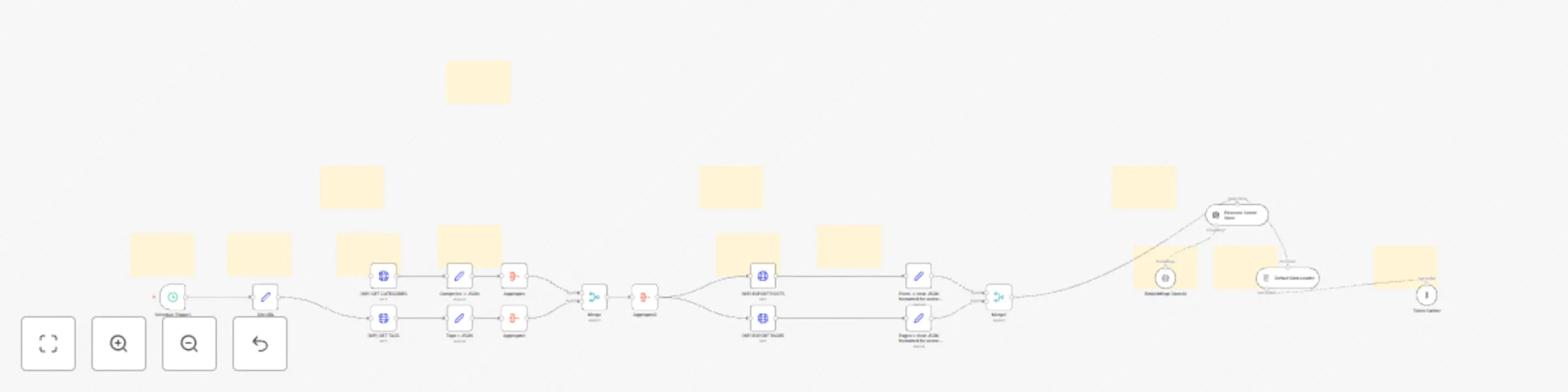
**[Click here to access this Workflow for free](https://www.bonzai.pro/auth?action=buyPrice%2Cpri_2mR5_5248)**. --- # Make your website the knowledge base of your LLM chatbot  This workflow automatically syncs your WordPress content (Pages and Posts) into a vector database like Pinecone, making it searchable and usable by AI agents through embeddings. This allows your AI chatbot to stay continuously up to date with your latest site content — without manual uploads or retraining steps. It pulls all published and private content via WordPress's REST API, processes the data into clean JSON, and sends it to Pinecone using vector embeddings (OpenAI by default, but swappable). This enables a dynamic AI knowledge base that grows with your website. Best of all, you don’t need to modify your workflow: keep managing your content in WordPress — this automation takes care of the rest. --- ## Requirements - A WordPress site with API access - Pinecone account credentials (API Key + Environment) - OpenAI account (or any LLM with embedding capabilities) - An n8n instance (cloud or self-hosted) --- ## Setup 1. **Configure WordPress Access:** - Create HTTP credentials in n8n with your WordPress site's base URL and authentication. - This workflow uses the REST API to fetch `pages` and `posts`. 2. **Connect Pinecone and OpenAI:** - Set up credentials for both Pinecone and OpenAI in n8n's Credentials Manager. - The workflow automatically uses them in the relevant nodes. 3. **Set Your Schedule:** - The workflow starts with a Schedule node. Open it to adjust how often the sync runs (e.g., daily, weekly). 4. **Check the Nodes:** - Make sure your folder structure and API URLs match your WordPress setup. - Adjust filters if needed (only published and private content is fetched by default). --- ## Usage Once the workflow is active: - It runs on a defined schedule. - It fetches all WordPress Pages and Posts. - It converts them into structured JSON, including metadata (title, tags, URL, categories, etc.). - It generates embeddings (via OpenAI) and sends them to Pinecone. - All vectors are stored with rich metadata for easy use in search/chat-based AI tools. You’ll have a continuously refreshed, vectorized copy of your WordPress site content. --- ## Customization - **Replace Pinecone:** You can swap Pinecone for any other vector database by updating the vector node. - **Swap Embedding Provider:** You’re not limited to OpenAI — just replace the embedding step with your LLM of choice. - **Selective Sync:** If you want to sync only posts or only pages: - Delete the node that fetches the type you don’t want. - Remove the associated Merge node. - **Schedule:** Edit the first node to control how often the automation runs. --- ### If you need any help, or have any question, feel free to come discuss about it on **[Telegram](https://www.bonzai.pro/theo_marcadet/lp/7018)**