jason
Workflows by jason

User enablement demo
This workflow was originally presented at the [February 2022 n8n Meetup](https://youtu.be/jG2aCOF0ICg?t=2994). [](https://youtu.be/jG2aCOF0ICg?t=2994 "Enabling End-Users to Configure Workflows") ## Requirements In order to use this workflow, you will need the following in place: - A configured [Baserow](https://baserow.io/) account - A group in Baserow called *User Empowerment Demo* - A database in the *User Empowerment Demo* called *Office Shopping List* - Inside the *Office Shopping List* database, you will need two tables: - *Shopping List*: - Column 1 - Single line text column named *Item* - *Shopper*: - Column 1 - Single line text column named *Name* - Column 2 - Email column named *Email* - An email account for sending out alerts ## Customization To make this workflow work for you, please customize the following items: - All Baserow nodes will need to be updated with your own credentials, database, tables and fields - The *Send Shopping List* node will need to be configured with your email credentials and email addresses - The *Create Shopper Form* Set node will need to have the code in the HTML *value* modified to reflect your Production URL from the *Submit Shopper* node (See [instructions below](#Changing_the_Webhook_URL_the_Webform_Posts_To_39)) - The Cron node will need to be modified to reflect the timing that you wish to use ## Modifying the Webform The webform is the piece that people normally want to customize but is often the most complex because it is raw HTML. Here are some quick tips for making changes to the form. ### Webform Nodes There are two nodes that control what you see in the form: - *Create Shopper Form* - displays the form and submits it to the correct webhook - *Create Response Page* - displays the results when the form is submitted ### Editing the Webform The easiest way that I have found to edit the webform is to: 1. Open up the Set node (*Create Shopper Form* or *Create Response Page*) that contains the HTML you wish to edit. 2. Copy the contents of the HTML value to your favourite HTML editor 3. Make your changes 4. Paste the updated HTML back into the Set node ### Changing the Webhook URL the Webform Posts To In order for the webform to work properly, do the following: 1. Determine the Production URL for the *Submit Shopper* webhook node 2. In the *Create Shopper Form* node, look for the following line in the HTML value: `form action="https://tephlon.app.n8n.cloud/webhook/submit-shopper" method="POST"` 3. Replace `https://tephlon.app.n8n.cloud/webhook/submit-shopper` with your Production URL ### Changing the Webform Image The image that is in the webform is actually embedded in the HTML in each of the *Create Shopper Form* or *Create Response Page* Set nodes and can be modified from there using these steps: 1. Open up the appropriate Set node 2. In the HTML value, find the line that starts with `background-image:`. It will be followed by a long string that looks like random characters 3. Using a tool like [Image to Base64 Converter](https://codebeautify.org/image-to-base64-converter), upload your image and generate a new CSS background source 4. Replace the original `background-image:` line (including all the "random" characters) with the new generated CSS background source
Use REGEX to select date
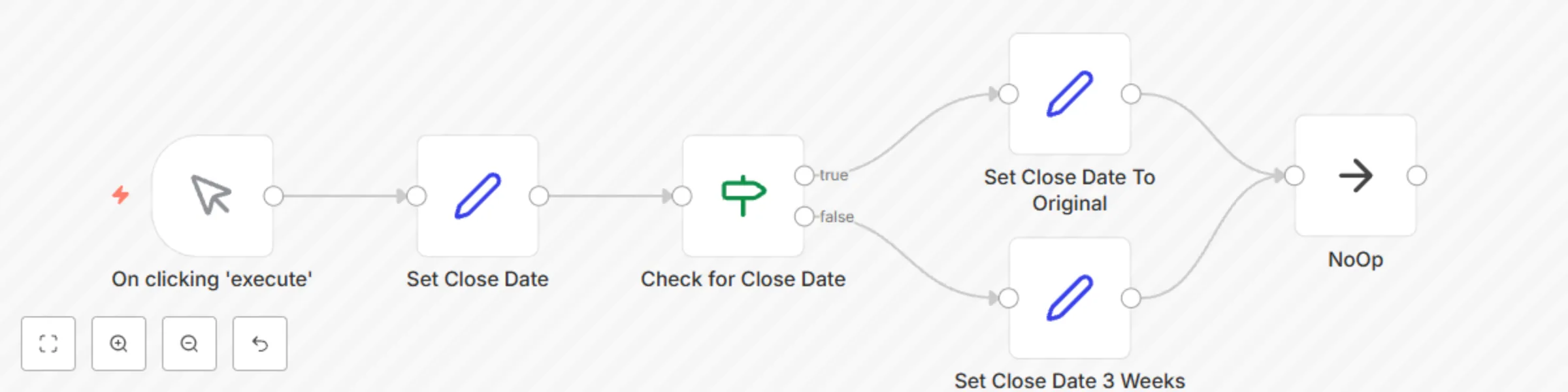
This workflow looks for a Close Date value using REGEX in the IF node. If it finds the correct value, it will pass that value on. If it does not find the correct value, it will generate a value based on the present time plus three weeks. The final result will show up in the NoOps node. You can text this execution by enabling and disabling the Set node when you run the execution.
Clean out unwanted emails from Gmail
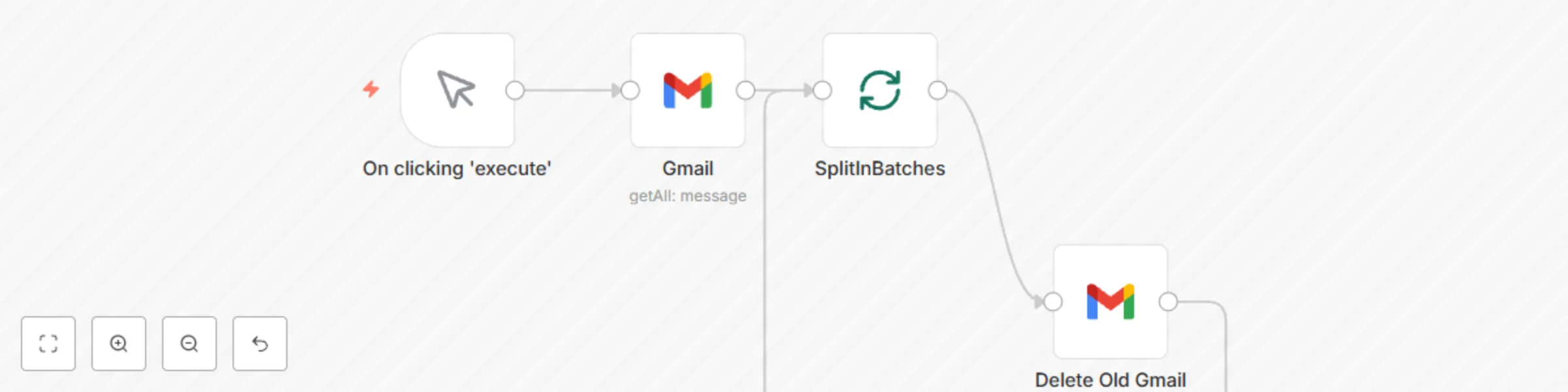
Workflow to clean out unwanted email from Gmail. Further information [here](https://t5n.xyz/cleaning-17-years-of-email/).
Manage newsletter signups in Baserow
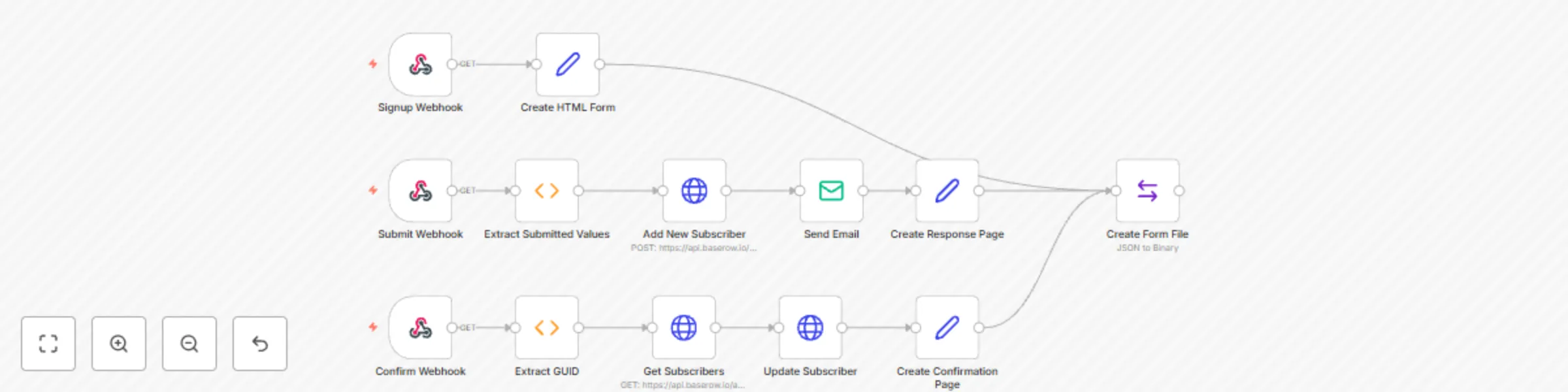
This is the workflow that I presented at the April 9, 2021 n8n Meetup. This workflow uses [Baserow.io](https://baserow.io) to store registration information collected using n8n as both the web server and the data processor. To get this workflow working properly, you will either need to run it on n8n.cloud or using the on premise version with people having the ability to connect to n8n externally. You will need an account on [Baserow.io](https://baserow.io) to store your subscriptions with a table with the following fields: - GUID - First Name - Last Name - Email - Confirmed
Execute multiple command lines based on text file inputs
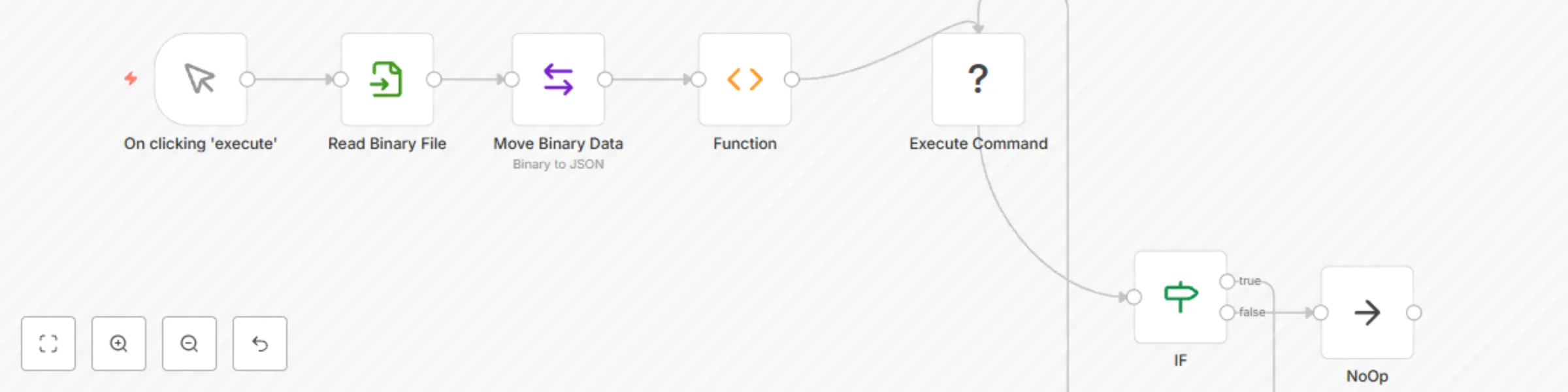
This workflow takes a text file as input. It pulls the information from the text file and used it as a parameter to execute a command for each text line. This workflow references a file */home/n8n/filelist.txt* in the *Read Binary File* node which will need to be changed to work properly. You can also edit the *Execute Command* node to modify what happens for each of these lines of text.  **Note:** This workflow requires the Execute Command node which is only available on the on-premise version of n8n.
Access data from bubble application
This is a proof of concept workflow showing how you would connect n8n to a Bubble data collection.
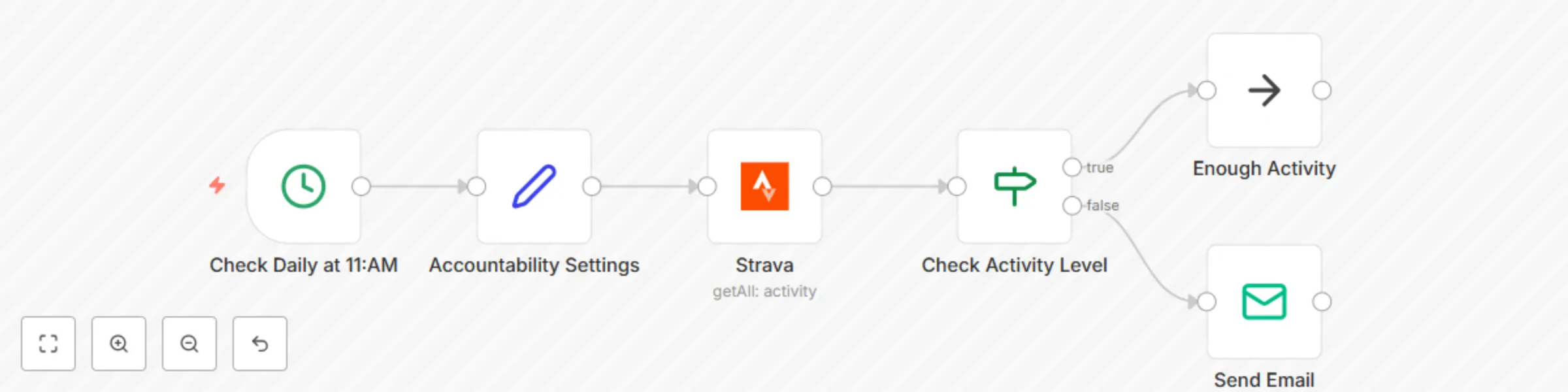
Monitor Strava and send email updates
Allow your friends to get updates when you do not meet your workout goals so that they can help you get to where you need to be! Monitors your [Strava](https://www.strava.com/) account and sends an email to three accountability partners each day if you have not had enough activity so that they can reach out to you with some encouragement.  Make sure that you configure the Accountability Settings to meet your needs along with the *Strava* and *Send Email* credentials.
Find a new book recommendations
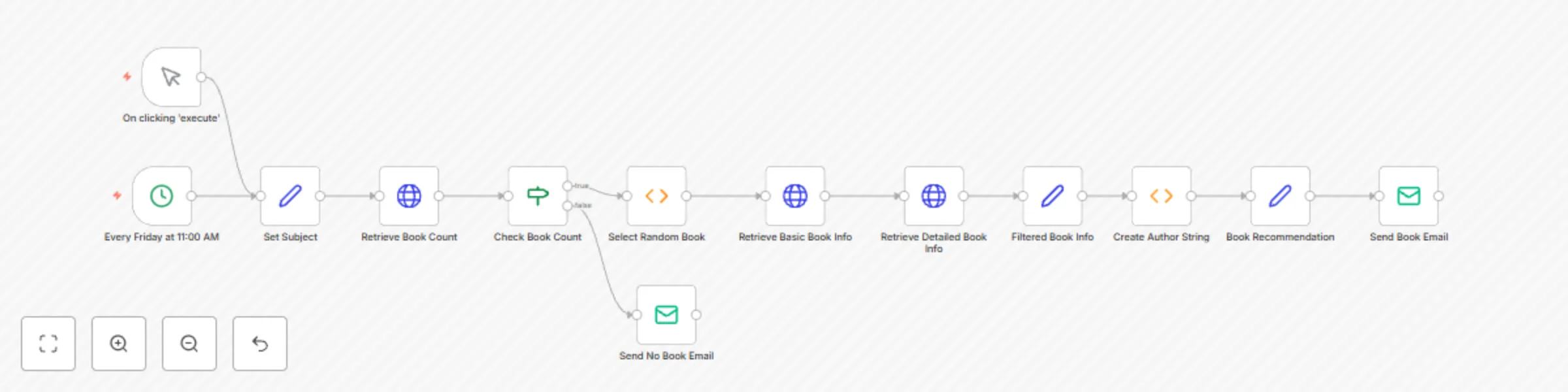
Receive a new book recommendation each Friday from [Open Library](https://openlibrary.org/). You can select the subject from [thousands of options](https://openlibrary.org/subjects) and have a new recommendation delivered to you automatically. 
Gathering tasks in Typeform and send to ClickUp
Using Typeform to push task requests to an n8n webhook that then categorizes the request and assigns it in ClickUp accordingly.  In order to get his workflow working for yourself, you will need: - ClickUp account - Typeform account - Credentials for these services - ClickUp configured with appropriate lists - Typeform setup with options that correspond with ClickUp lists. You may modify this workflow to meet your specific needs and configuration. This is a very simple version of this workflow and you can make it as complicated as you wish to meet your requirements.
Tracking your crypto portfolio in Airtable
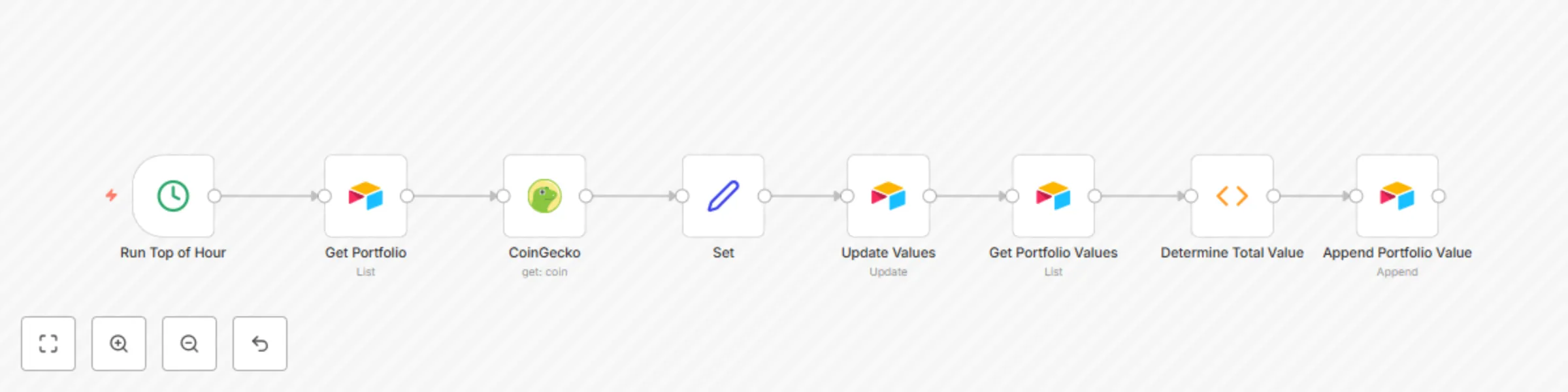
If you have made some investments in cryptocurrency, this workflow will allow you to create an [Airtable base](https://airtable.com/shrVzSe6GMNYsZ2Zx) that will update the value of your portfolio every hour. You can then track how well your investments are doing.  You can check out my [Airtable base](https://airtable.com/shrVzSe6GMNYsZ2Zx) to see how it works or even copy my base so that you can customize this workflow for yourself. To implement this workflow, you will need to update the Airtable nodes with your own credentials and make sure that they are pointing to your Airtable
Send daily recipe emails automatically
Not sure what to eat tonight? Have recipes emailed to you daily based on your criterial. To run this workflow, you will need to have: 1. A Recipe Search API key from [Edamam](https://developer.edamam.com/edamam-recipe-api) 2. An active email account with configured credentials To set up your credentials: 1. Set your Edamam *AppID* and *AppKey* in the *Search Criteria* node 2. Select (or create) your email credentials in the *Send Recipes* node (and set up the *to:* and *from:* email addresses while you are at it) To customize the recipes that you receive, open up the *Search Criteria* node and modify one or more of the following: - **RecipeCount** - the numner of recipes you would like to receive - **IngredientCount** - the maximum number of ingredients you would like each recipe to have - **CaloriesMin** - the minimum number of calories the recipe will have - **CaloriesMax** - the maximum number of calories the recipe will have - **TimeMin** - the minimum amount of time (in minutes) the recipe will take to prepare - **TimeMax** - the maximum amount of time (in minutes) the recipe will take to prepare - **Diet** - Select one of the following options: - *balanced* - Protein/Fat/Carb values in 15/35/50 ratio - *high-fiber* - More than 5g fiber per serving - *high-protein* - More than 50% of total calories from proteins - *low-carb* - Less than 20% of total calories from carbs - *low-fat* - Less than 15% of total calories from fat - *low-sodium* - Less than 140mg Na per serving - *random* - selects a different random diet each day - **Health** - Select one of the following options: - *alcohol-free* - No alcohol used or contained - *immuno-supportive* - Recipes which fit a science-based approach to eating to strengthen the immune system - *celery-free* - does not contain celery or derivatives - *crustacean-free* - does not contain crustaceans (shrimp, lobster etc.) or derivatives - *dairy-free* - No dairy; no lactose - *egg-free* - No eggs or products containing eggs - *fish-free* - No fish or fish derivatives - *fodmap-free* - Does not contain FODMAP foods - *gluten-free* - No ingredients containing gluten - *keto-friendly* - Maximum 7 grams of net carbs per serving - *kidney-friendly* - per serving – phosphorus less than 250 mg AND potassium less than 500 mg AND sodium: less than 500 mg - *kosher* - contains only ingredients allowed by the kosher diet. However it does not guarantee kosher preparation of the ingredients themselves - *low-potassium* - Less than 150mg per serving - *lupine-free* - does not contain lupine or derivatives - *mustard-free* - does not contain mustard or derivatives - *low-fat-abs* - Less than 3g of fat per serving - *no-oil-added* - No oil added except to what is contained in the basic ingredients - *low-sugar* - No simple sugars – glucose, dextrose, galactose, fructose, sucrose, lactose, maltose - *paleo* - Excludes what are perceived to be agricultural products; grains, legumes, dairy products, potatoes, refined salt, refined sugar, and processed oils - *peanut-free* - No peanuts or products containing peanuts - *pecatarian* - Does not contain meat or meat based products, can contain dairy and fish - *pork-free* - does not contain pork or derivatives - *red-meat-free* - does not contain beef, lamb, pork, duck, goose, game, horse, and other types of red meat or products containing red meat. - *sesame-free* - does not contain sesame seed or derivatives - *shellfish-free* - No shellfish or shellfish derivatives - *soy-free* - No soy or products containing soy - *sugar-conscious* - Less than 4g of sugar per serving - *tree-nut-free* - No tree nuts or products containing tree nuts - *vegan* - No meat, poultry, fish, dairy, eggs or honey - *vegetarian* - No meat, poultry, or fish - *wheat-free* - No wheat, can have gluten though - *random* - selects a different random health option each day - **SearchItem** - the general term that you are looking for e.g. *chicken*
Weekly coffee chat (Matrix version)
A workflow to automatically create groups of three based on a Matrix room and send out invitations to each group member.
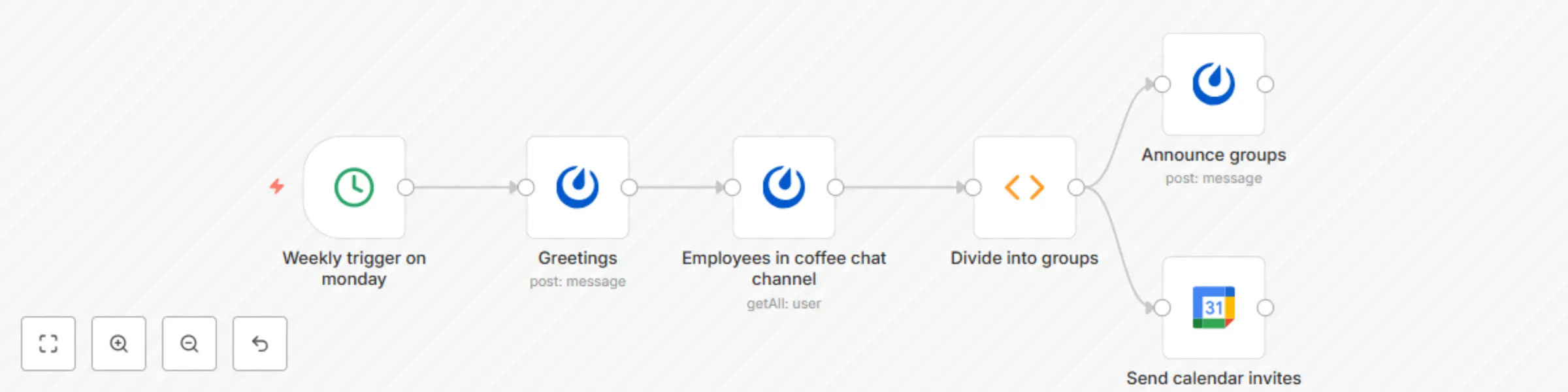
Weekly coffee chat (Mattermost version)
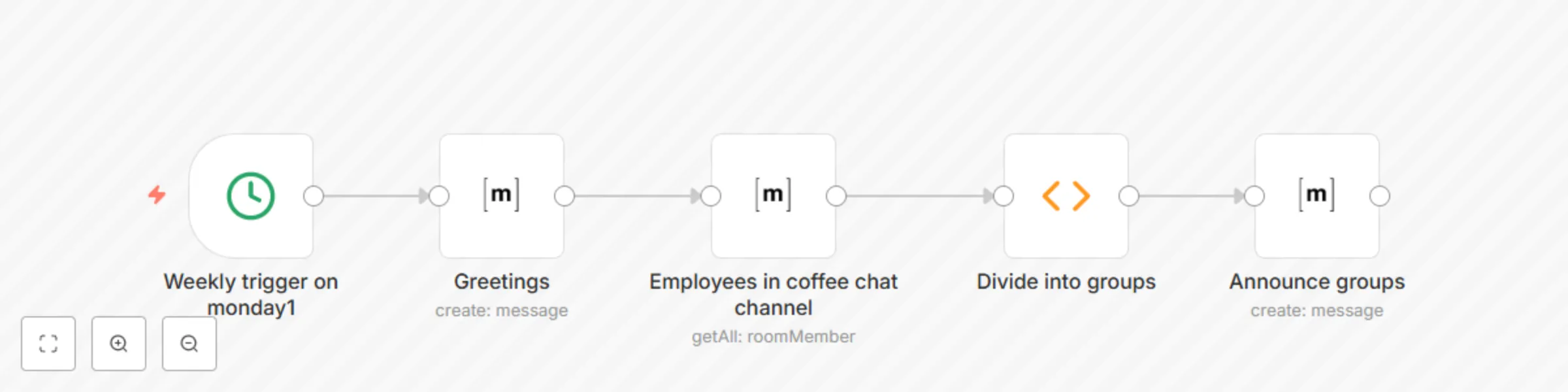
A workflow to automatically create groups of three based on a Mattermost channel and send out invitations to each group member.
Display project data on a smashing dashboard
This workflow will gather data every minute from the GitHub (https://github.com), Docker (https://www.docker.com/), npm (https://www.npmjs.com/) and Product Hunt (https://www.producthunt.com/) website APIs and display select information on a Smashing (https://smashing.github.io/) dashboard. For convenience sake, the dashboard piece can be easily downloaded as a docker container (https://hub.docker.com/r/tephlon/n8n_dashboard) and installed into your docker environment.
Nathan: Your n8n personal assistant
Nathan is a proof of concept framework for creating a personal assistant who can handle various day to day functions for you.