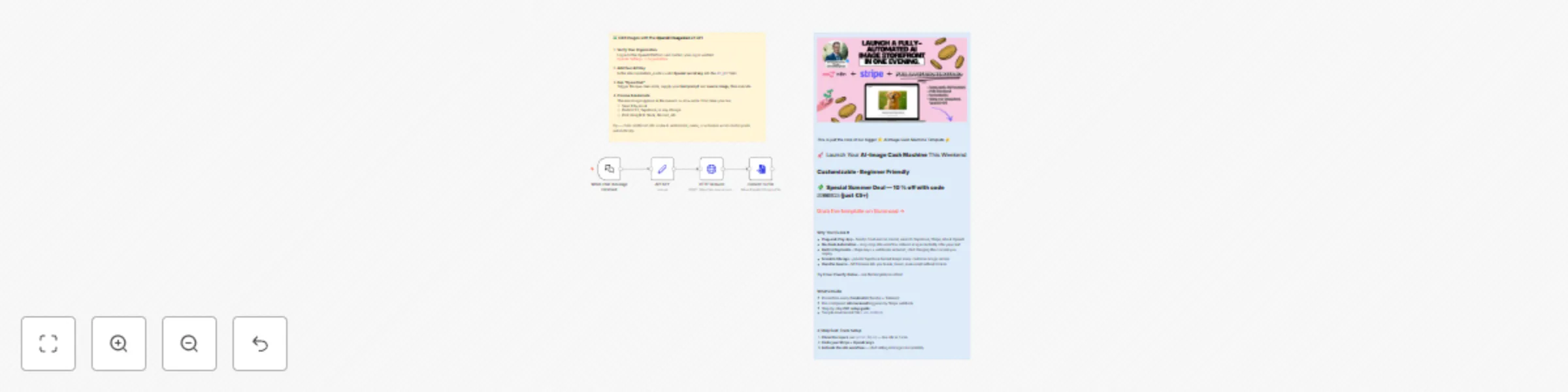
OpenAI ImageGen1 via HTTP request (edit image)
# Edit an existing image with OpenAI ImageGen1 via API Request
Transform your creative pipeline by letting **n8n** call **OpenAI ImageGen1’s _edit image_ endpoint**, automatically replacing or augmenting parts of any image you supply and returning a brand-new version in seconds. Designers, marketers, and product teams can eliminate repetitive manual edits and test more variations, faster.
### Who is this for?
- Content creators who need quick, on-brand image tweaks
- Marketers running A/B visual tests at scale
- Developers exploring the new ImageGen1 API inside low-code automations
### Use case / problem solved
Opening design software to mask, fill, or swap objects is slow and error-prone. This workflow feeds an input image plus a prompt to **OpenAI ImageGen1**, receives the edited output, and passes it on to any service you like—perfect for bulk-editing product shots, social visuals, or UI mocks.
### What this workflow does
1. **Read or receive** the source image (Webhook → Binary Data).
2. **Call OpenAI ImageGen1** with an **HTTP Request** node, sending the image and edit prompt.
3. **Parse** the JSON response to capture the returned image URL.
4. **Download & hand off** the edited file (e.g., upload to S3, post to Slack, or store in Drive).
### Setup
1. Add your **OpenAI API key** in the API KEY node.
2. Follow the notes on the workflow for more information.
3. (Optional) Point the final node to your preferred storage or chat tool.
> 📝 A sticky note in the workflow summarizes these steps and links to the OpenAI documentation.
### How to customize this workflow
- **Trigger alternatives**: Replace the Chat with Google Drive, Airtable, etc.
- **Chained edits**: Loop the output back for successive prompts.
- **Conditional flows**: Add an If node to branch actions by image size or category.
With renamed nodes, color-coded sticky notes, and a concise setup guide, you’ll be editing images via **OpenAI ImageGen1** in under five minutes—no code, maximum creativity.