kota
Workflows by kota
Send AI-generated Gmail auto replies with GPT-4o-mini and Google Sheets
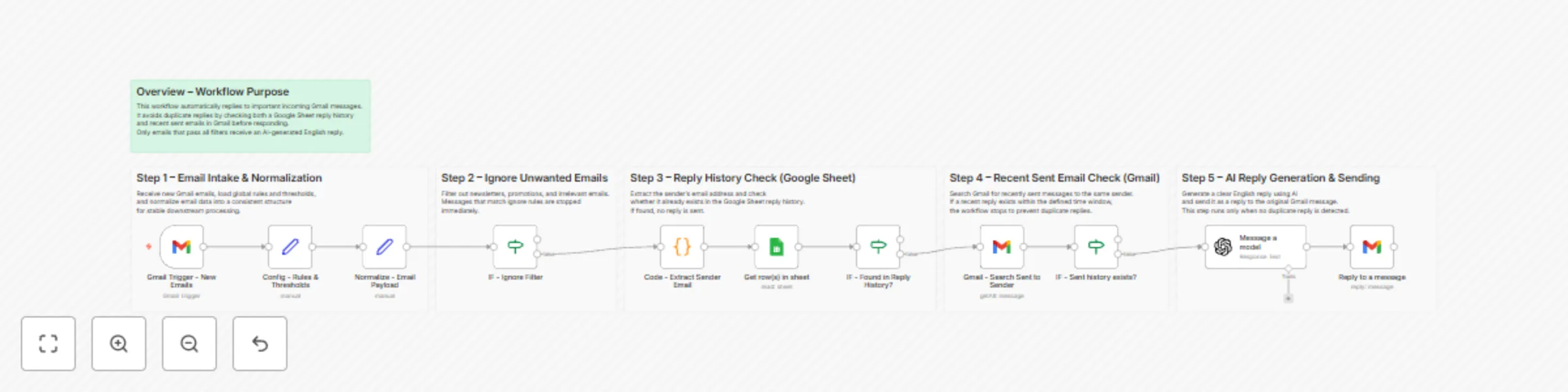
## Overview This workflow automatically replies to important incoming Gmail messages using AI, while preventing duplicate or unnecessary replies. It applies multiple safety checks (filters, Google Sheets history, and Gmail sent history) to ensure replies are sent only when appropriate. This template is designed for creators, freelancers, and teams who want a reliable and maintainable AI-powered email auto-reply system. --- ## How it works 1. New Gmail messages are received and normalized into a consistent structure. 2. Unwanted emails (newsletters, promotions, no-reply senders) are filtered out. 3. The sender’s email is checked against a Google Sheets reply history. 4. Gmail is searched to confirm no recent reply was already sent. 5. If no duplicate is found, an AI-generated English reply is created and sent. --- ## Setup steps 1. Connect your Gmail account. 2. Connect a Google Sheet for reply history tracking. 3. Review the ignore rules and thresholds in the config node. 4. Customize the AI prompt if needed. 5. Activate the workflow. Estimated setup time: 5–10 minutes. --- ## Notes - Sticky notes inside the workflow explain each processing step in detail. - No hardcoded API keys are used. - The workflow is intentionally linear for clarity and easy maintenance.
Handle Gmail reply-based scheduling with Google Calendar and GPT-4o-mini
Reply Handling (Optional Extension) This optional workflow handles email replies after availability options have been sent. It extends the main scheduling flow by enabling two-way, email-based confirmation. What this extension does Listens for user replies via Gmail Normalizes free-text replies into structured data Detects whether the user confirmed a proposed slot or requested alternatives Automatically creates a Google Calendar event on confirmation Sends a confirmation or follow-up email accordingly Why this matters Most scheduling automations stop after sending availability. This extension closes the loop by turning email replies into real actions — without requiring booking links or manual follow-ups. Typical reply examples 1 → Confirms the suggested time and creates the calendar event 2 → Requests alternative time slots and continues the scheduling flow When to use this Email-first scheduling (no Calendly / booking pages) High-touch or human-like scheduling flows Sales calls, interviews, consultations, internal meetings
Auto-draft professional email replies with Gmail, AI, and Slack
## What this workflow does This workflow monitors your Gmail inbox for new, unreplied emails and automatically generates a professional reply draft using AI. Instead of sending the email automatically, the draft is sent to Slack so a human can review and decide whether to send it. This makes it ideal for teams that want to save time on email replies while keeping full control over outgoing communication. --- ## How it works 1. Checks Gmail on a schedule for new, unreplied emails 2. Limits the number of emails processed per run to avoid overload 3. Extracts the email body and sends it to an AI model 4. Generates a polite, professional reply draft 5. Sends the draft to a Slack channel for review 6. Adds a Gmail label to prevent duplicate processing --- ## Setup time ~10–15 minutes --- ## Who this is for - Customer support teams - Freelancers and consultants - Small businesses handling frequent email inquiries - Anyone who wants AI-assisted email replies with human approval --- ## Requirements - Gmail account - Slack workspace - OpenAI (or compatible AI) credentials