O

Olaf Titel

1
Workflow

Workflows by Olaf Titel

Workflow preview: fluidX THE EYE — Create & invite via SMS for live camera session
Free advanced

fluidX THE EYE — Create & invite via SMS for live camera session

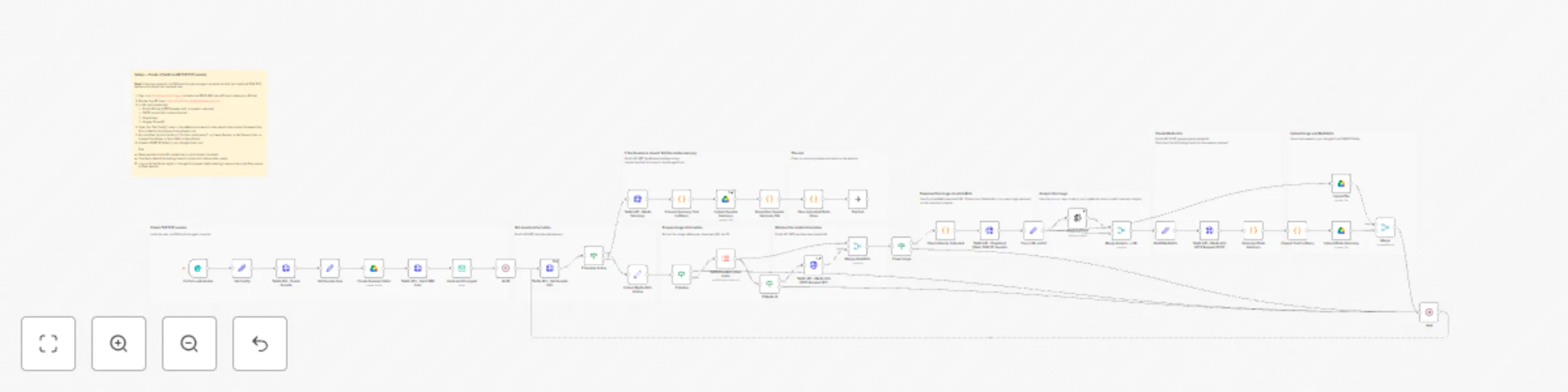
### Setup & Instructions — fluidX: Create Session, Analyze & Notify **Goal:** This workflow demonstrates the full **fluidX THE EYE** integration — starting a live session, inviting both the **customer** (via SMS) and the **service agent** (via email), and then accessing the media (photos and videos) created during the session. Captured images are automatically analyzed with AI, uploaded to an external storage (such as **Google Drive**), and a media summary for the session is generated at the end. ![THEEYE.png](fileId:3276) - The **agent** receives an email with a link to join the live session. - The **customer** receives an SMS with a link to start sharing their camera. - Once both are connected, the agent can view the live feed, and the system automatically stores uploaded images and videos in Google Drive. - When the session ends, the workflow collects all media and creates a complete AI-powered **session summary** (stored and updated in Google Drive). Below is an example screenshot from the customer’s phone: ![User.jpeg](fileId:3278) --- ### Prerequisites - **Developer account:** [https://live.fluidx.digital](https://live.fluidx.digital) (activate the **TEST plan**, €0) - **API docs (Swagger):** [fluidX.digital API](https://live.fluidx.digital/api/swagger.html) --- ### 🔐 Required Credentials **1️⃣ fluidX API key (HTTP Header Auth)** • Credential name in n8n: `fluidx API key` • Header name: `x-api-key` • Header value: `YOUR_API_KEY` **2️⃣ SMTP account (for outbound email)** • Credential name in n8n: `SMTP account` • Configure `host`, `port`, `username`, and `password` according to your provider • Enable TLS/SSL as required **3️⃣ Google Drive account** • Used to store photos, videos, and automatically update the session summary files. **4️⃣ OpenAI API (for AI analysis & summary)** •Used in the Analyze Images (AI) and Generate Summary parts of the workflow. • Credential type: OpenAI • Credential name (suggested): OpenAI account • API Key: your OpenAI API key • Model: e.g. gpt-4.1, gpt-4o, or similar (choose in the OpenAI node settings) --- ### ⚙️ Configuration (in the “Set Config” node) - `BASE_URL`: `https://live.fluidx.digital` - `company` / `project` / `billingcode` / `sku`: adjust as needed - `emailAgent`: **set before running** (empty in template) - `phoneNumberUser`: **set before running** (empty in template) --- ### Flow Overview `Form Trigger → Create Session → Set Session Vars → Send SMS (User) → Send Email (Agent) → Monitor Media → Analyze Images (AI) → Upload Files to Google Drive → Generate Summary → Update Summary File` The workflow starts automatically when a **Form submission** is received. Users enter the **customer’s phone number** and **agent’s email**, and the system creates a new **fluidX THE EYE session**. As media is uploaded during the session, the workflow automatically retrieves, stores, analyzes, and summarizes it — providing a complete end-to-end automation example for remote inspection, support, or field-service use cases. --- ### Notes - Do not store real personal data inside the template. - Manage API keys and secrets via n8n **Credentials** or environment variables. - Log out of [https://live.fluidx.digital](https://live.fluidx.digital) in the agent’s browser before testing, to ensure a clean invite flow and session creation.

O
Olaf Titel
Support Chatbot
11 Nov 2025
28
0