SuS
Workflows by SuS
Generate & publish AI faceless videos to YouTube Shorts using Sora 2
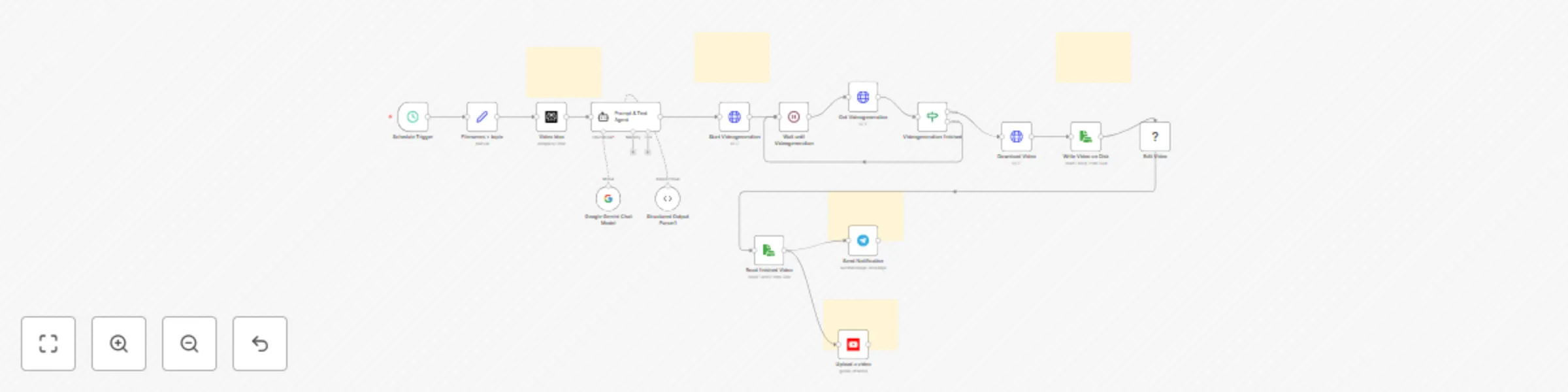
## How it Works This workflow lets you **auto-generate cinematic faceless YouTube Shorts** — completely on autopilot. It uses a **custom automation setup** to create short-form AI videos much **cheaper than the standard Sora 2 video generation process**. Perfect for running a **fully automated Shorts or Reels channel** that posts new videos daily — without showing your face or editing manually. ### Workflow Overview 1. **Schedule Trigger** - Automatically runs at your chosen times (e.g., twice per day). 2. **AI Prompt Generator** - Creates detailed, creative video ideas based on your chosen niche. - You only need to adjust the system prompt (e.g., *Travel Facts, Tech Visuals, Dream Loops, Mini-Facts, Nature Illusions*). - Output includes: - **Video Prompt** (for Sora 2) - **AI-Generated Title & Description** - **Social Caption** with hashtags 3. **AI Video Generation** - Generates **9:16 vertical short-form videos** optimized for YouTube Shorts, TikTok, and Instagram Reels. - Runs via a **cost-efficient automation layer**, offering **cinematic results at a fraction of Sora 2’s standard cost**. 4. **Publishing Automation** - Uploads automatically to **YouTube Shorts** (title, description, and hashtags included). - Can also post to **Telegram** or **Instagram Reels** with a small modification. --- ## Why Use This Workflow? - 🎬 **Faceless Content Made Easy** - Ideal for **automated channels** that post AI-generated visuals and storytelling — no filming or voice needed. - 💸 **Cheaper Than Sora 2’s Direct API** - Uses a custom route that drastically reduces costs while keeping near-cinematic quality. - ⚙️ **Full Automation** - From idea → video → upload — all handled automatically. - You decide the posting frequency (e.g., 1–5 Shorts per day). - 🌍 **Multi-Niche Ready** - Works for any theme — *facts, surreal visuals, art loops, mini documentaries, motivational clips*, and more. - 🚀 **Cross-Platform Scaling** - Native support for YouTube & Telegram. - Optional integrations for Instagram Reels or TikTok uploads. --- ## Setup Steps 1. **API Keys & Credentials** - Sora 2 access (or connected API key) - YouTube API credentials - (Optional) Telegram or Instagram API 2. **Define Schedule** - Choose how many videos to post per day. 3. **Adjust Prompts** - Customize the AI agent prompt to your niche. 4. **Launch & Scale** - Watch your faceless channel grow while everything runs automatically. --- ## Tips & Notes - Start with one niche to test engagement, then duplicate the workflow for more channels. - Add subtitles or trending sound layers for higher virality. - The workflow is built for **long-term, hands-off scalability** — ideal for faceless automation entrepreneurs. --- ⚡ **Summary** Create an **AI-powered faceless Shorts machine** that works 24/7. Just pick your niche, adjust the prompt, and let automation handle **video generation, upload, and growth** — **smarter and cheaper** than doing it manually with Sora 2.
GPT 4.1 - Freelancer.com job alert system with auto proposal generator
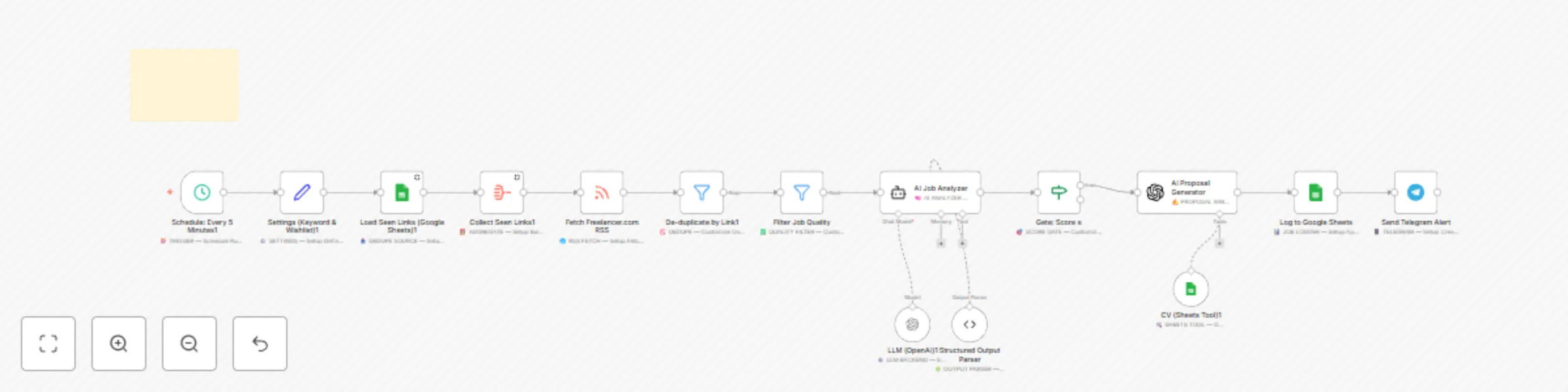
**Be first. Be relevant. Get hired.** This ready-to-import **n8n workflow** automates your entire Freelancer.com job search: it **scans new listings**, **filters the best ones with AI**, **writes proposal drafts**, and **sends them to Telegram instantly** — all while **logging every opportunity** into Google Sheets. --- ## 💡 Why Freelancers Love It - ⚡ **Instant Alerts:** Get notified within minutes of new high-quality jobs. - 🧠 **AI-Powered Scoring:** Filters scams, vague clients, and low-value gigs automatically. - ✍️ **Smart Proposal Drafts:** GPT-4.1 crafts 150–200 word personalized proposals for you. - 📱 **Telegram Integration:** See job details + AI proposal in one alert message. - 📊 **Auto Tracking:** Logs every lead in Google Sheets with scores, notes, and timestamps. **Spend less time searching — and more time winning projects.** --- ## 🧩 What’s Included - ✅ **n8n Workflow (.json)** — ready to import and launch - ✅ **Setup Guide (Markdown)** — complete 5-step configuration walkthrough --- ## 🧰 Requirements - Free **n8n Cloud** account (or self-hosted instance) - **OpenAI API key** (GPT-4.1 or GPT-4-mini) - **Telegram bot** + Chat ID (takes 2 minutes to create) - **Google Sheets** account --- ## 🪜 5-Step Setup Guide (Detailed) ### 1️⃣ Prepare Your Tools - Get your **OpenAI key** → [platform.openai.com](https://platform.openai.com) - Create a **Telegram bot** via **@BotFather** → copy your token - Use **@userinfobot** to get your **Chat ID** - Create a **Google Sheet** with headers: `Timestamp | Job | Description | Link | AI Score | Reasoning | Red Flags | Client Type | AI Proposal | Alert Timestamp` - Keep all keys and URLs ready. --- ### 2️⃣ Import the Workflow in n8n - Open n8n → **+ Workflow → Import from File** → choose the `.json` provided below. - Once imported, open these nodes and connect your credentials: - **OpenAI nodes** → add your API key - **Google Sheets nodes** → sign in with Google - **Telegram node** → paste your bot token + chat ID - Confirm the **Schedule Trigger** runs every **5 minutes** (default). --- ### 3️⃣ Personalize Your Keywords & Filters - Open **Settings (Keyword & Wishlist)**: - `Job Keyword`: e.g., `react`, `seo`, `logo design`, `automation` - `Wishlist`: e.g., `Budget > $500, clear brief, long-term clients` - The RSS node auto-fetches new jobs from Freelancer.com: ``` https://www.freelancer.com/rss.xml?keyword={{$json['Job Keyword']}} ``` Optional filters: - `&min_price=500` → only projects $500+ - `&max_price=5000` → skip mega-projects - Adjust **Filter Job Quality**: - Description > 100 chars - Posted within the last 2 hours - Tune **AI Score Threshold (Gate Node)** to `>= 7` for balanced alerts. --- ### 4️⃣ Test Your Automation - Click **Execute Workflow** once. - If everything is set: - 🟢 Nodes turn green (success) - 📩 Telegram shows your first job alert - 📊 Google Sheet updates with a new job entry - If empty, try: - Broader keyword (e.g., `python` instead of `python scraper`) - Increase freshness (2 → 6 hours) --- ### 5️⃣ Go Live & Expand - Activate your workflow. - Let it run for 24–48 hours, then refine: - Raise **score threshold** to 8–9 for higher quality - Add **RSS nodes** for new categories (design, dev, content) - Extend alerts to **Slack, Discord, or Email** - Replace Google Sheets with **Airtable** or **Notion** - **Pro Tip:** Use **Apify** to scrape Upwork, Fiverr, or niche job boards → feed results into the same analyzer chain. --- ## ⚙️ How It Works (Behind the Scenes) ``` Schedule → Fetch RSS → Filter → AI Analyze (score 1–10) → If score ≥ 7 → AI Proposal → Log to Sheets → Send Telegram Alert ``` You still review and apply manually (TOS-safe), but you’ll always be among the **first 5 applicants**. --- ## 🔌 Future-Proof Extensions | Extension | Description | |------------|--------------| | **Apify Integration** | Scrape Upwork, Fiverr, or niche boards with structured data | | **Multi-Channel Alerts** | Add Slack, Discord, or email digests | | **Team Routing** | Send design jobs to one chat, dev jobs to another | | **Advanced Scoring** | Add client history or location weighting | | **Database Sync** | Replace Sheets with Notion, Airtable, or PostgreSQL | ## 🧾 Terms & Notes - Manual review required (no auto-apply) - API costs: OpenAI ~$5–10/month - Respects Freelancer.com Terms of Service - All keys stored securely inside n8n credentials --- ## 🏁 Summary **Automate your freelancing workflow.** This system finds, filters, and drafts proposals for you while you sleep. ⚙️ Plug it into n8n → 🔑 Add keys → 🎯 Go live → 💰 Start winning faster.
Transform product photos into studio-quality visuals with Nano Banana & Telegram
Turn a single product photo into **scroll-stopping, studio-quality visuals** in minutes. Perfect for **Shopify / WooCommerce / Amazon / Etsy** sellers, agencies, and UGC creators who want **consistent**, **on-brand** images without costly photoshoots or endless editing. --- ## Why you’ll love it - **Sell more, faster:** Professional, consistent visuals boost trust and conversions. - **Save time & money:** No studio, no photographer, no retouching marathon. - **Multiple looks instantly:** Get up to **3 variants** per product (great for A/B testing). - **On-brand results:** Subtle **brand color grading** for a polished, consistent look. - **Zero friction delivery:** Images are sent straight to your **Telegram** for instant review. --- ## Perfect for - D2C brands, marketplace sellers, and dropshippers - Agencies producing UGC for clients - Creators who need ad-ready product images *today* - Teams that want reliable results without learning complex tools --- ## What’s included - **n8n workflow (template)** that automates: form input → prompt creation → image rendering → delivery - **Built-in guidance** (sticky notes) to keep you moving fast - **Prompt logic** tuned for product realism (camera, lighting, materials, subtle brand grading) --- ## Step-by-Step — How it works 1. **Open the form** Enter: - **Product Name** & **Product Description** (material, finish, color, USP) - **Product Image** (required) - Optional: **Background Image**, or describe it (Background Type + Background Description) - Choose **Camera Angle**, **Lighting Style**, **Aperture (Depth of Field)** - Set **Aspect Ratio**, **Variants (1–3)**, and your **TG_Chat ID** (Telegram target) 2. **Click “Submit”** The workflow automatically: - Uploads your images - Writes **photography-accurate prompts** (focal length, aperture, lighting, surface/shadows) - Renders each variant into clean **PNG** results 3. **Receive your images** - Finished images land in your **Telegram** chat/group for instant feedback and use That’s it. No manual editing, no waiting, no hassle. --- ## Real problems solved - **Inconsistent brand look?** Get uniform, polished visuals across your store and ads. - **No time for shoots?** Generate studio/lifestyle shots from one upload. - **Need options fast?** Produce multiple variants (A/B/C) in a single run. - **Limited budget?** Cut studio and retouching costs to nearly zero. --- ## Customize it to your stack - Swap Telegram for email, Slack, Google Drive, Dropbox, or S3 - Save prompts & URLs to Notion/Airtable for tracking - Add an approval step before delivery - Map aspect ratios to fixed pixel sizes for ad platforms --- ## Requirements - **n8n** (self-hosted or cloud) - Access to **OpenAI** and **Kie.ai** (API creds) - A **Telegram bot** added to your target chat (for delivery) *You control which assets and metadata are sent to external APIs. Always ensure you have rights to the images you upload.* --- ## FAQs **Do I need a background image?** No. If you skip it, the workflow builds a realistic scene from your background description. **How many images do I get?** Up to **3 variants** per run (you choose 1–3). **Are the results on-brand?** Yes—subtle grading honors your **brand colors** without over-saturation. **Can I change the delivery channel?** Absolutely. Replace Telegram with your preferred destination (email, storage, chat). --- ## Use cases - PDP images, marketplace listings, social ads, story posts, influencer kits, quick mockups for pitch decks and client approvals. --- ### Ready to level up your product visuals? **Add to cart**, upload your first product image, and get **studio-quality results**—today.
Generate newsletter images with Nano Banana & Post Human-Approved Tweets to X
## What this is A ready-to-use **n8n workflow** that turns new Google Sheets rows (title + summary) into **brand-safe images** using **Nano Banana (via KIE.ai)**, writes the **image URL** back to your sheet, generates a **tweet text**, requests **human approval** in Telegram, and—on approval—**posts to X (Twitter)** automatically. ## Why you need it - **Save time**: no more waiting for ad-hoc graphics—get on-brand visuals in seconds. - **Stay consistent**: one prompt style, predictable output, brand-safe negative prompts. - **Ship daily**: scale newsletter/blog distribution without ballooning costs or headcount. - **Human in the loop**: you keep creative control before anything goes live. ## How it works (high level) 1. New/updated row in Google Sheets (e.g., `title`, `blogpost_summary`, `status=pending`). 2. Prompt builder creates a **short, safe image prompt** (CI friendly). 3. **Nano Banana (KIE.ai)** generates the image (PNG) → URL saved back to the sheet. 4. A **tweet** (<280 chars) is generated from the row. 5. Telegram sends **image + text** for **approval** (Approve/Reject). 6. On **Approve**, the image is uploaded and the tweet is posted to X → `tweet_url` + `status=posted` saved to the sheet. ## Who it’s for - Content & marketing teams, solo creators, agencies, and founders running lean editorial calendars. ## Extend it (ideas) - **Multi-variant** images (A/B) with auto-selection based on CTR. - **Brand controls**: fixed color palettes, fonts, or stylistic anchors in prompts. - **Auto-publish** to LinkedIn/Instagram (via Buffer/Hootsuite or native APIs). - **Asset storage**: push originals to S3/Drive and auto-rename by slug/date. - **Analytics**: log posts + clicks to a database and feed learnings back into prompts. ## Pricing & Advantage - **Nano Banana (via KIE.ai)** is typically **~$0.02–$0.04 per image** (plan-dependent). - **Posting to X** has no per-post cost (API plan limits may apply). - **Why KIE.ai vs “classic” Google API?** Lower practical unit costs for this image-gen use case, **simpler integration** (same vendor for image + video), and task/status flows that fit **n8n polling** perfectly. > Always check your KIE.ai dashboard for current pricing/limits. ## Quick setup (Step-by-Step) 1. **Accounts/credentials**: create a KIE.ai account & API key; set up Google Sheets access; create a Telegram bot with @BotFather (copy token & get Chat ID); enable X (Twitter) API (OAuth). 2. **Import the n8n template** and connect credentials (KIE.ai header: `Authorization: Bearer {{ $env.KIE_API_KEY }}`). 3. Point the **Google Sheets Trigger** at your sheet/tab; use `status=pending` as the starting condition. 4. Verify the **Prompt Generator** (short, brand-safe prompt + negative prompt). 5. Test **Image Gen** → ensure `image_url` is written back to the sheet. 6. Test **Telegram approval** (image + tweet text). 7. On approve, confirm the **tweet** posts and `tweet_url` + `status` update in the sheet. ## Quick usage (Step-by-Step) 1. Add a row in your sheet with `title`, `blogpost_summary`, (`status=pending`). 2. Wait for the bot: you’ll get **image + tweet text** in Telegram. 3. **Approve** to post to X, or **Reject/Regenerate** to try a new style. 4. Find `tweet_url` and `status` updated in your sheet. --- **Questions?** Email: [email protected]
AI video automation engine - generate & publish YT shorts with Veo-3 or Sora 2
# Product Overview Scale short-form content without scaling your team. This template turns **idea discovery → prompt & text generation → Veo-3 video rendering → vertical formatting → multi-channel publishing** into one cohesive pipeline. It’s built natively on **n8n**, so you keep full control, self-host if you want, and extend every step with your own logic. --- ## What’s Inside (Modular Building Blocks) - **Idea Engine** – AI generates concise, surprising facts and a visual metaphor per topic (swappable LLM/provider). - **Prompt & Text Composer** – Crafts an 8-second, cinematic Veo-3 prompt + title, caption, description, hashtags, tags in a consistent brand voice. - **Renderer Integration** – Kie.ai → Veo-3 (16:9, 1080p) for fast, cinematic clips. - **Vertical Formatter** – FFmpeg pipeline converts to 1080×1920, adds top/bottom text bands (15–20 words), and preserves loop smoothness. - **Multi-Channel Distribution** – Uploads to YouTube Shorts and Telegram for internal review/approvals. - **Scheduler & Orchestration** – CRON triggers, retries, and lightweight polling make the system dependable for daily publishing. --- ## Why These Components (and why they work together) - **Veo-3 via Kie.ai** provides a sweet spot of **quality + speed**, ideal for short loops where style coherence matters. - **n8n** brings **vendor-neutral orchestration**: swap LLMs, add rate limits, branch flows, or trigger on events—without rewriting your stack. - **FFmpeg** ensures a **platform-native look** (9:16, crisp text bands, no blurry hacks). - **Separation of concerns** (idea → text → render → edit → publish) makes it easy to **A/B test** any stage independently. --- ## Key Benefits - **Hands-Free Consistency** – Daily output with a repeatable creative pattern that audiences recognize. - **Brand-Safe Copy** – Titles, descriptions, and hashtags follow a controlled structure—polished by design. - **Time Savings** – Replace fragmented tooling with one pipeline; no manual re-formatting, captioning, or re-uploads. - **Creator-Grade Quality** – Cinematic loops optimized for watch time and retention on Shorts/Reels. - **Own Your Stack** – Self-hosted orchestration and storage; no lock-in. --- ## Reuse & Extension Ideas - **Topic CMS** – Feed topics from Google Sheets / Notion and mark each as “published”—perfect for content calendars. - **Multi-Language** – Duplicate the text composer for EN/DE outputs; upload the same clip with localized metadata. - **Thumbnail/Preview Track** – Add an image generator step for platform cards or YouTube custom thumbnails. - **Analytics Feedback Loop** – Fetch video performance, score ideas, and prioritize winning angles automatically. - **Compliance & Fact Trails** – Store sources next to each post for quick audits and edits. - **Storage & Delivery** – Push masters to S3/Backblaze, serve via CDN for faster IG ingestion. - **More Channels** – Add TikTok, X, LinkedIn publishers or a newsletter export. - **A/B Creative** – Render multiple Veo-3 seeds, rotate captions/CTAs, and compare retention. --- ## Who It’s For - **Agencies** wanting repeatable, branded Shorts at scale. - **Creators & Media Teams** who need daily output with minimal overhead. - **Product Marketing** looking to convert docs/reports into snackable, evergreen video facts. - **Startups** building audience fast without adding headcount. --- ## Technical Notes (at a glance) - **Orchestration:** n8n (self-hosted or cloud) - **Video:** Veo-3 via Kie.ai (16:9 render → FFmpeg vertical remaster 1080×1920) - **Text Stack:** Any LLM provider (swappable); outputs normalized for each platform - **Distribution:** YouTube Data API v3, Telegram Bot API - **Security:** API keys via n8n credentials/ENV; public URL endpoint only serves whitelisted `.mp4` filenames with proper headers - **Reliability:** CRON triggers, bounded retries/polling, and safe fallbacks to avoid stuck runs --- ## Who to use it To enhance the completeness, add specific **step-by-step setup instructions** for users to implement the workflow easily: 1. **Install Prerequisites** - Set up **n8n** on your server or local machine (production mode with reverse proxy). - Install **FFmpeg** and ensure fonts (e.g., *DejaVu Sans*) are available. 2. **Configure API Credentials** - Get a **Perplexity API key** for idea generation. - Request a **Kie.ai API key** for Veo-3 video rendering. - Set up **YouTube OAuth2** (enable YouTube Data API v3 in Google Cloud Console). - Create a **Telegram bot token** via BotFather. - Store all keys as **environment variables** in n8n (avoid hardcoding). 3. **Prepare Storage** - Create a working directory accessible by n8n with read/write rights. - Ensure enough disk space for video caching (approx. 50–200 MB per run). 4. **Set Scheduling** - Add **CRON triggers** for automatic execution (e.g., twice daily). - Example: ``` 0 12 04 * * * → 04:12 AM daily 0 12 16 * * * → 04:12 PM daily ``` 5. **Define Variables** - File naming conventions: - `name_vorher` = raw 16:9 video - `name_nachher` = final 9:16 video - Set `topic` = content niche (e.g., *history, ocean, futurism*). 6. **Build Workflow Steps in n8n** - **Idea Generation:** Perplexity node for viral fact. - **Prompt Agent:** Expand into full package (prompt, caption, hashtags). - **Video Generation:** Kie.ai Veo-3 API request (poll until success). - **Download & Edit:** Save raw file, convert to 9:16 with FFmpeg overlays. - **Notifications & Uploads:** - Telegram node → send video. - YouTube node → upload with title, description, tags. 7. **Test End-to-End** - Run the workflow manually once. - Verify video rendering, FFmpeg subtitles, Telegram message, YouTube & IG uploads. 8. **Go Live** - Enable CRON triggers. - Monitor first runs for errors (API limits, FFmpeg paths, token expiry). --- ## Why Buy This Template You’re not buying a script—you’re buying a **production-ready system** with a deliberate creative pattern, best-practice formatting, and shipping-grade integrations. It reduces ramp-up from weeks to hours and gives you a flexible base you can keep evolving. ---
Generate AI videos from Telegram messages with Nano Banana & Veo-3
**How to use the provided n8n workflow (step‑by‑step), what matters, what it’s good for, and costs per run.** --- ## What this workflow does (in simple terms) 1) You write (or speak) your idea **in Telegram**. 2) The workflow builds two short prompts: - **Image prompt** → generates **one thumbnail** via **KIE.ai – Nano Banana (Gemini 2.5 Flash Image)**. - **Video prompt** → starts a **Veo‑3** (KIE.ai) video job **using the thumbnail as init image**. 3) You receive the **thumbnail first**, then the **short video** back in Telegram once rendering completes. **Typical output**: 1 PNG thumbnail + 1 short MP4 video (e.g., 8–12 s, 9:16). --- ## Why this is useful - **Rapid ideation**: Turn a quick text/voice idea into a ready‑to‑post thumbnail + matching short video. - **Consistent look**: The video uses the thumbnail as **init image**, keeping colors, objects and mood consistent. - **One chat = full pipeline**: Everything happens directly inside Telegram—no context switches. - **Agency‑ready**: Collect ideas from clients/team chats, and deliver outputs quickly. --- ## What you need before importing 1) **KIE.ai account & API key** - Sign up/in at KIE.ai, go to **Dashboard → API / Keys**. - Copy your **KIE_API_KEY** (keep it private). 2) **Telegram Bot (BotFather)** - In Telegram, open **@BotFather** → command **/newbot**. - Choose a **name** and a unique **username** (must end with `bot`). - Copy your **Bot Token** (keep it private). 3) **Your Telegram Chat ID (browser method)** - Send any message to your bot so you have a active chat - Open Telegram web and the chat with the bot - Find the chatid in the URL --- ## Import & minimal configuration (n8n) 1) **Import** the provided workflow JSON in n8n. 2) Create **Credentials**: - **Telegram API**: paste your **Bot Token**. - **HTTP (KIE.ai)**: usually you’ll pass `Authorization: Bearer {{ $env.KIE_API_KEY }}` directly in the HTTP Request node headers, or make a generic HTTP credential that injects the header. 3) **Replace hardcoded values** in the template: - **Chat ID**: use an **Expression** like `{{$json.message.chat.id}}` from the Telegram Trigger (prefer dynamic over hardcoded IDs). - **Authorization headers**: **never** in query params—always in **Headers**. - **Content‑Type** spelling: `Content-Type` (no typos). ` --- ## How to run it (basic flow) 1) **Start** the workflow (activate trigger). 2) Send a message to your bot, e.g. `glass hourglass on a black mirror floor, minimal, elegant` 3) The bot replies with the **thumbnail (PNG)**, then the **Veo‑3 video (MP4)**. If you send a **voice message**, the flow will **download & transcribe** it first, then proceed as above. --- ## Pricing (rule of thumb) - **Image (Nano Banana via KIE.ai):** ~ **$0.02–$0.04** per image (plan‑dependent). - **Video (Veo‑3 via KIE.ai):** - **Fast**: ~ **$0.40** per 8 seconds (~$0.05/s) - **Quality**: ~ **$2.00** per 8 seconds (~$0.25/s) **Typical run (1 image + 8 s Fast video)** ≈ **$0.42–$0.44**. > These are indicative values. Check your KIE.ai dashboard for the latest pricing/quotas. --- ## Why KIE.ai over the “classic” Google API? - **Cheaper in practice** for short video clips and image gen in this pipeline. - **One vendor** for both image & video (same auth, similar responses) = less integration hassle. - **Quick start**: Playground/tasks/status endpoints are n8n‑friendly for polling workflows. --- ## Security & reliability tips - **Never hardcode** API keys or Chat IDs into nodes—use **Credentials** or **Environment variables**. - Add **IF + error paths** after each HTTP node: - If status != 200 → Send friendly Telegram message (“Please try again”) + log to admin. - If you use **callback URLs** for video completion, ensure the URL is **publicly reachable** (n8n Webhook URL). Otherwise, stick to **polling**. - For **rate limits**, add a **Wait** node and limit **concurrency** in workflow settings. - Keep **aspect & duration** consistent across prompt + API calls to avoid unexpected crops. --- ## Advanced: voice input (optional) - The template supports **voice** via a Switch → Download → Transcribe (Whisper/OpenAI). - Ensure your **OpenAI credential** is set and your n8n instance can fetch the audio file from Telegram. --- ## Example prompt patterns (keep it short & generic) - **Thumbnail prompt**: “Minimal, elegant, surreal [OBJECT], clean composition, 9:16” - **Video prompt**: “Cinematic [OBJECT]. slow camera move, elegant reflections, minimal & surreal mood, 9:16, 8–12s.” You can later replace the simple prompt builder with a dedicated LLM step or a fixed style guide for your brand. --- ## Final notes - This template focuses on a **solid, reliable pipeline** first. You can always refine prompts later. - Start with **Veo‑3 Fast** to keep iteration costs low; switch to **Quality** for final renders. - Consider saving outputs (S3/Drive) and logging prompts/URLs to a sheet for audit & analytics.
Automatically collect & process Google News articles to Google Sheets
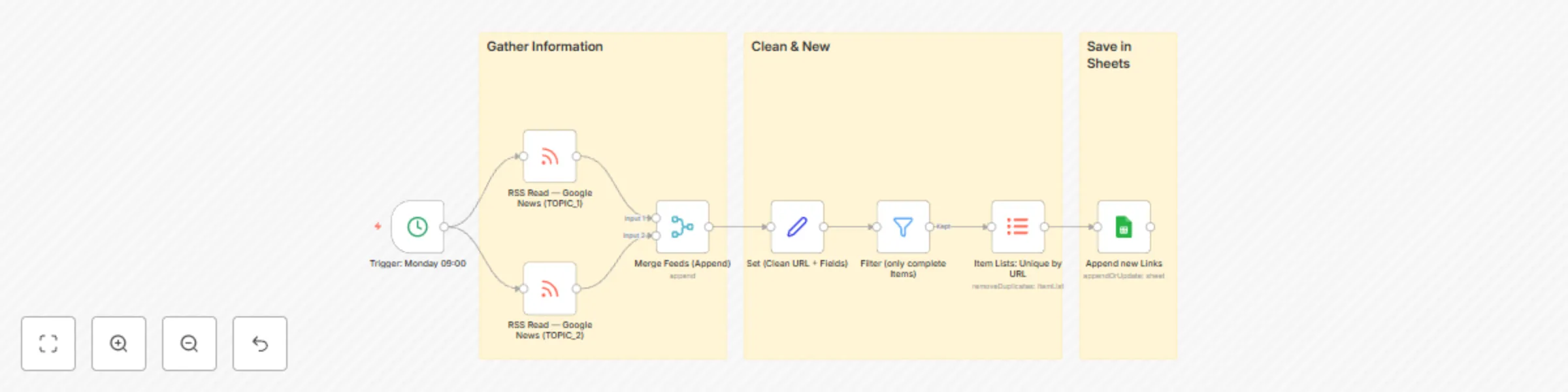
## Overview This workflow automatically collects the latest articles from Google News RSS feeds, cleans and deduplicates them, and stores them neatly in a Google Sheet. It runs on a set schedule (every Monday at 09:00 by default) and helps you build a fresh pool of content ideas for newsletters, blogs, or social media. --- ## What you can do with it - 🔎 **Research faster** – pull in fresh articles from multiple RSS sources without manual searching. - 🧼 **Clean & normalize** – extract the real article URL (instead of Google redirects), keep only the title, summary, and date. - 🗑 **No duplicates** – filter out empty or repeated entries before they ever reach your sheet. - 📊 **Central storage** – append all new, unique links into a Google Sheet for review or further automation. --- ## How it works 1. **Trigger** – Cron starts the flow every Monday at 09:00 (you can change the schedule). 2. **RSS Read** – Fetches articles from multiple Google News queries (e.g., “AI”, “AI Automation”). 3. **Merge** – Combines all feed results into one list. 4. **Set (Clean URL)** – Extracts the real URL, title, summary, and publication date. 5. **Filter** – Ensures only items with a valid title and URL continue. 6. **Unique by URL** – Removes duplicate articles across feeds. 7. **Google Sheets Append** – Saves new links into your chosen Sheet for review and later use. --- ## Setup Instructions 1. **Import workflow** into your n8n instance. 2. **Update RSS feeds**: - Replace the example Google News RSS URLs (`AI`, `AI Automation`) with your own queries. - Format: ``` https://news.google.com/rss/search?q=YOUR_QUERY&hl=de&gl=DE&ceid=DE:de ``` 3. **Connect Google Sheets**: - Add your Google Sheets credentials. - Select the `documentId` (the spreadsheet) and `sheetName` (the tab) in the `Append new Links` node. - Recommended columns: `date`, `title`, `url`, `summary`. 4. **Adjust schedule**: - In the `Trigger: Montag 09:00` node, change the cron expression to daily or multiple times per day if you want. 5. **Run test**: - Execute once manually. - Check your sheet for the first rows. --- ## Tips & Extensions - ✅ Add more RSS Read nodes for additional sources (blogs, media outlets, niche topics). - ✅ Chain this workflow with an AI node (OpenAI/GPT) to automatically generate post ideas from the collected articles. - ✅ Notify yourself in Slack/Telegram when new articles are added. - ✅ Use a status column (`Draft`, `Approved`, `Posted`) to manage a simple content pipeline directly from the sheet. --- 👉 With this template you’ll never run out of content ideas – everything flows into one place, ready to inspire your next posts, newsletters, or campaigns.
Automated Instagram Reels posting from Airtable content calendar
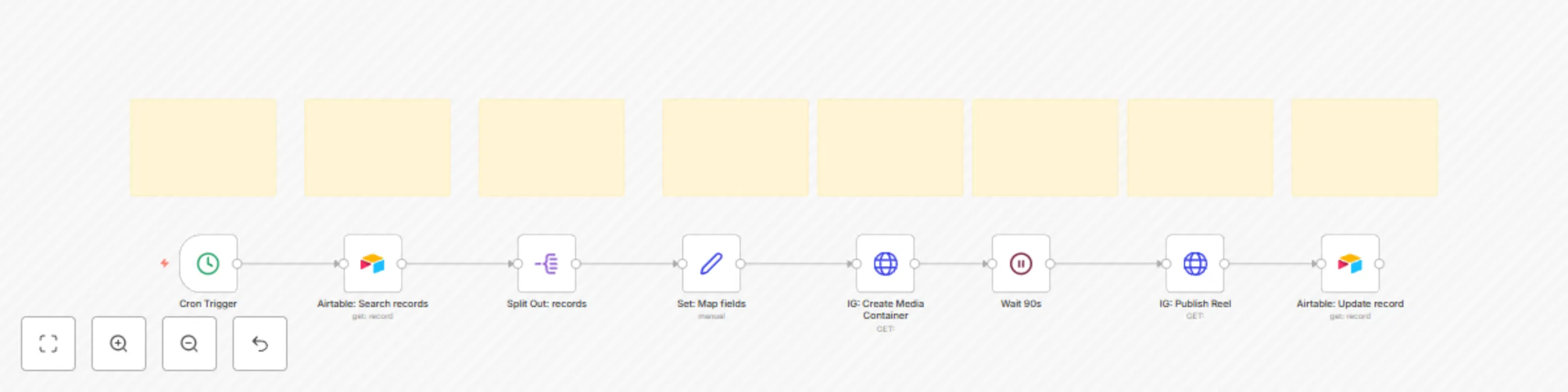
*A guide to understand, operate, and extend the workflow.* --- ## 1) What this workflow does (and why it’s useful) **Goal:** Turn a simple Airtable sheet into a **content calendar** that automatically publishes **Instagram Reels** via the **Instagram Graph API**, on a schedule you control in n8n. **Why this matters:** - Your team plans everything in **Airtable** (user-friendly, collaborative). - **n8n** posts for you at the right time, every time. - You keep full control (no third-party SaaS lock-in, no manual uploads). - Later, you can reuse the same queue to post **YouTube Shorts** / **TikTok** (omnichannel). **Core flow (one row = one post):** 1. **Cron** starts the workflow at a set time. 2. **Airtable – Search** grabs due rows: `status = "To Post" AND scheduled_at <= NOW() AND platform = "IG"`. 3. **Split Out** processes each row individually. 4. **Set (Map fields)** normalizes Airtable fields → `video_url`, `caption`, `recordId`. 5. **IG: Create Media Container** registers your video as **REEL**. 6. **Wait 90s** lets IG process the video. 7. **IG: Publish Reel** publishes the container. 8. **Airtable – Update** marks the row as **Posted**, stores `ig_media_id`, and timestamp. --- ## 2) Architecture at a glance ``` [Cron] → [Airtable: Search records] → [Split Out: records] → [Set: Map fields] → [IG: Create Media Container] → [Wait 90s] → [IG: Publish Reel] → [Airtable: Update record] ``` Sticky Notes inside the workflow explain each step (they’re rendered from `parameters.content` with Markdown). --- ## 3) Airtable schema (recommended) Create a table (e.g., `Posts`) with these fields: | Field | Type | Purpose | |---------------|-----------------|-------------------------------------------------------| | `video_url` | URL or Text | Directly accessible (public) URL to your MP4 | | `caption` | Long text | Final caption (hashtags, line breaks, emojis) | | `platform` | Single select | Set `IG` for this workflow | | `status` | Single select | `To Post` → will be picked up; `Posted` later | | `scheduled_at`| Date/Time (UTC) | When to post | | `ig_media_id` | Text (optional) | Filled by n8n after publishing | | `posted_at` | Date/Time | Filled by n8n after publishing | **Filter used in the Airtable “Search records” node:** ``` AND({status}='To Post', {scheduled_at}<=NOW(), {platform}='IG') ``` > Tip: If you localize/rename fields, update the filter accordingly. --- ## 4) Prerequisites & credentials - **Instagram Business/Creator** account connected to a **Facebook Page**. - **IG User ID** for the connected account. - **Long-lived IG Access Token** with permissions to create and publish content. - **n8n environment variables** (Settings → Environments): - `IG_API_VERSION` (e.g., `v21.0`) - `IG_USER_ID` - `IG_ACCESS_TOKEN` - **Airtable credential** in n8n using a **Personal Access Token** (as in your example). - A **publicly accessible** `video_url` (e.g., S3/GCS signed URL, public CDN, Drive/Dropbox direct link). The API pulls from your URL; it cannot fetch files behind logins. --- ## 5) Node-by-node deep dive (what each node expects/returns) ### A) Cron Trigger - **What it does:** Starts the workflow on a schedule (daily at 09:00 in the template). - **How to use:** Adjust hours/minutes to your cadence (hourly, twice a day, etc.). ### B) Airtable: Search records - **Operation:** `search` - **Base/Table:** Select from dropdowns (matches your account). - **Options → filterByFormula:** `AND({status}='To Post', {scheduled_at}<=NOW(), {platform}='IG')` - **Return:** An array under `records[]`. Each `record` has `id` and `fields`. ### C) Split Out: records - **What it does:** Turns the `records[]` array into individual items. - **Why:** Downstream steps can then act on each post separately. ### D) Set: Map fields - **What it does:** Normalizes data to predictable keys and keeps the `recordId`. - **Outputs:** - `recordId` = `{{$json.id}}` - `video_url` = `{{$json.fields.video_url}}` - `caption` = `{{$json.fields.caption}}` - `scheduled_at` = `{{$json.fields.scheduled_at}}` ### E) IG: Create Media Container (REELS) - **Endpoint:** `POST https://graph.facebook.com/{v}/{ig-user-id}/media` - **Body params:** - `video_url` = `{{$json.video_url}}` - `caption` = `{{$json.caption}}` - `media_type=REELS` - `share_to_feed=true` (optional) - `access_token=${IG_ACCESS_TOKEN}` - **Return:** JSON with **container id** under `id` (this is your `creation_id` for publishing). ### F) Wait 90s - **Why:** IG needs time to process the video behind `video_url`. - **Tip:** If your videos are large or high bitrate, you may increase to `120–180s`. ### G) IG: Publish Reel - **Endpoint:** `POST https://graph.facebook.com/{v}/{ig-user-id}/media_publish` - **Body params:** - `creation_id = {{$json.id}}` (the container id from step E) - `access_token = ${IG_ACCESS_TOKEN}` - **Return:** JSON with **`id` = ig_media_id** (the published media). ### H) Airtable: Update record - **What it does:** Writes results back to the same row. - **Fields updated (example):** - `status = "Posted"` - `ig_media_id = {{$json.id}}` - `posted_at = {{$now}}` --- ## 6) First-run checklist (do this once) 1. In **both Airtable nodes**, pick your **Base** and **Table** (via dropdown). 2. Confirm **filterByFormula** matches your field names exactly. 3. Add **one test row** in Airtable: - `video_url` = a public MP4 URL - `caption` = a small caption - `platform` = `IG` - `status` = `To Post` - `scheduled_at` = in the past (so it’s due now) 4. Set **Cron** to run in the next minute (or click *Execute Workflow* manually). 5. Confirm the flow: - Airtable search → returns 1 record - Container created → you get an `id` - After 90s → Publish returns a `media id` - Airtable updated → row becomes `Posted` with `ig_media_id` and `posted_at` --- ## 7) Daily operations (how to use it day-to-day) - Your team fills **Airtable** with upcoming posts. - Keep `status = To Post`, set accurate `scheduled_at` in **UTC**. - n8n’s **Cron** checks regularly and posts due items. - After publishing, the row is marked **Posted** (so it won’t re-post). **Backfilling:** If you need to post a bunch of older content, set `scheduled_at` in the past for those rows and let Cron pick them up. If needed, run the workflow manually.
Extract high-engagement YouTube keyword trends for content strategy
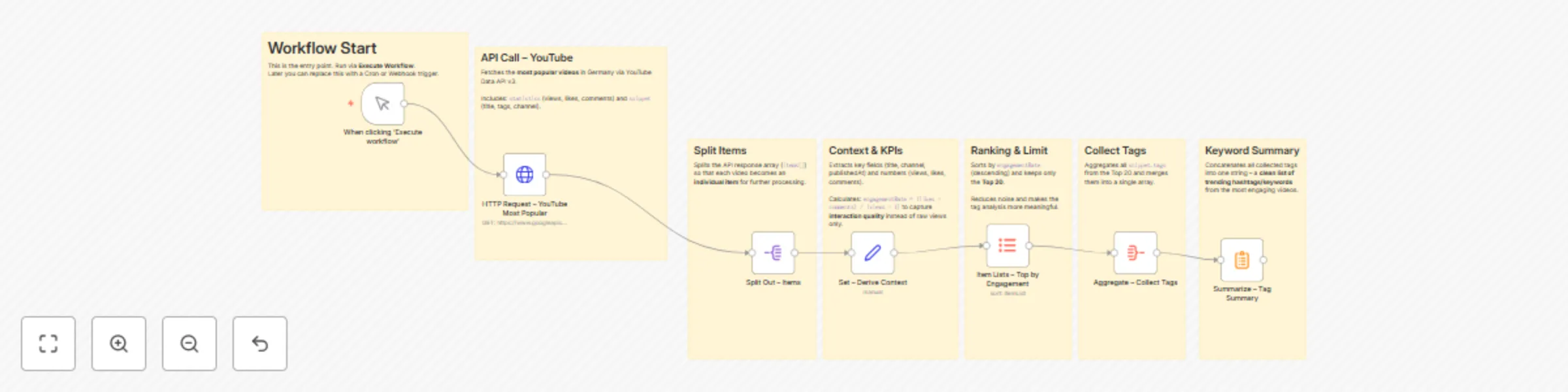
# 📊 YouTube Trends Workflow in n8n ## 🎯 Goal of the Workflow This workflow fetches the **most popular YouTube videos in Germany** and transforms them into a **clean list of trending hashtags/keywords**. It’s not just raw data – it highlights **qualitative insights** about which topics and keywords drive real engagement. Useful for: - **Content creators & marketers** → quick inspiration for viral topics - **SEO/hashtag research** → discover high-performing keywords - **Social media teams** → automated trend reporting --- ## ⚙️ How It Works – Step by Step ### 1. **Trigger** - **Node:** `Manual Trigger` - Entry point of the workflow. → Can later be replaced with a Cron or Webhook trigger to run automatically. --- ### 2. **API Call – YouTube** - **Node:** `HTTP Request` - Calls the **YouTube Data API v3** with: - `chart=mostPopular` - `regionCode=DE` - `maxResults=50` - Returns a list of trending videos in Germany, including title, channel, views, likes, comments, and tags. --- ### 3. **Split Items** - **Node:** `Split Out` - Splits the API response (`items[]`) into **individual items**, so each video is processed separately. --- ### 4. **Context & KPIs** - **Node:** `Set` - Extracts key fields: - `title`, `channel`, `publishedAt` - `views`, `likes`, `comments` - Calculates: - `engagementRate = (likes + comments) / (views + 1)` **Why?** Looking at views alone is misleading. Engagement rate reveals which videos truly **resonate with the audience**. --- ### 5. **Ranking & Limit** - **Node:** `Item Lists` - Sorts videos by **highest engagement rate** (descending). - Limits results to the **Top 20 videos**. **Why?** This reduces noise and focuses only on the **most relevant trends**. --- ### 6. **Collect Tags** - **Node:** `Aggregate` - Collects all `snippet.tags` from the top videos. - Merges them into a **single keyword list**. --- ### 7. **Keyword Summary** - **Node:** `Summarize` - Concatenates all collected tags into one string. **Result:** A **compact hashtag/keyword list** → ready to use for: - Content ideas - SEO/hashtag strategies - Social media planning --- ## 📈 Why This Workflow Is Useful - **Automated trend analysis**: no need to manually browse YouTube. - **Quality focus**: uses engagement rate, not just views. - **Reusable**: results can be: - stored in Google Sheets or Airtable, - sent to Slack/Telegram, - or used in a dashboard. --- ## 🚀 Possible Extensions - **Cron Trigger** → run daily for automated reports. - **Notifier** → send results directly to Slack, Discord, or Telegram. - **Storage** → save trends in a database for historical analysis. - **AI Node** → use GPT to summarize trends into “3 key insights of the day.” --- ## ✅ Conclusion With a few smartly combined nodes, this workflow: - fetches external API data (YouTube), - cleans and enriches it, - calculates qualitative KPIs, - and delivers actionable **trend insights**. Perfect as a **community showcase** or a **practical tool** for creators and marketers.
Generate & publish AI cinematic videos to YouTube Shorts using VEO3 & Gemini
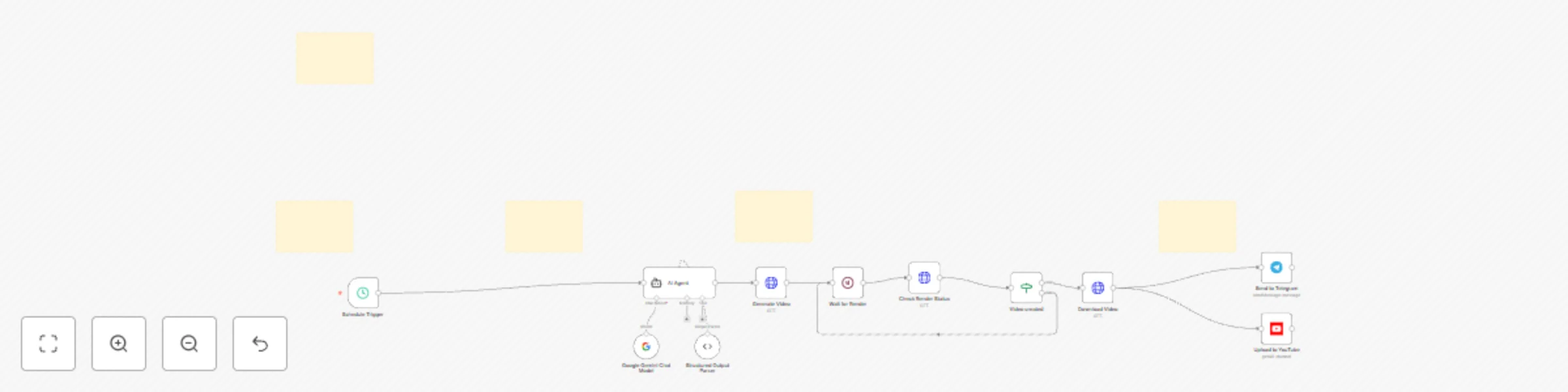
## How it Works This workflow uses **VEO3** to generate **surreal cinematic AI videos** at a fraction of the cost compared to Google’s standard video generation APIs. With it, you can automatically run a **YouTube Shorts channel** (and optionally Instagram uploads) that posts **new AI videos every day** completely automated. ### Workflow Overview 1. **Schedule Trigger** - Runs automatically at your chosen times (e.g., twice per day). 2. **AI Prompt Generator** - Creates a detailed video idea based on your chosen niche. - You only need to adapt the system prompt to your theme (e.g., *Travel Facts, Tech Visuals, Mini-Facts, Impossible Realities, Food Illusions*). - Output includes: - **Video Prompt** (for VEO3 API) - **Social Caption** with hashtags - **YouTube Title** - **YouTube Description** 3. **VEO3 Video Generation** - Sends the prompt to **KIE AI VEO3** (model: `veo3_fast`). - Produces **9:16 vertical short-form videos** optimized for YouTube Shorts, TikTok, Instagram Reels. - Significantly **cheaper than Google’s Video AI** while delivering cinematic quality. 4. **Publishing** - Uploads automatically to **YouTube Shorts** (with AI-generated titles, descriptions, tags). - In parallel, posts the same video to a **Telegram channel** (Instagram upload possible with a small modification). --- ## Why Use This Workflow? - **Cost Advantage:** - Google’s video generation is very expensive. - **VEO3 costs are much lower**, making it possible to publish **multiple Shorts every day** without breaking your budget. - **Automated Channel Growth:** - Build a **fully automated YouTube Shorts channel**. - Post fresh videos daily → more reach, more chances to go viral. - **Flexible Niches:** - Simply edit the system prompt to match your niche. - Examples: - *Mini Facts Channel* - *Surreal Visual Loops* - *Tech Explainers in Visual Form* - *Food or Nature Illusions* - The AI adapts automatically to your theme. - **Cross-Platform:** - Out of the box: YouTube + Telegram. - With small adjustments: Instagram Reels, TikTok uploads possible. --- ## Setup Steps 1. **Get API Keys:** - KIE AI VEO3 API key. - YouTube API credentials (OAuth2). - (Optional) Telegram Bot API or Instagram Graph API. 2. **Configure Schedule:** - Define how often you want new videos (e.g., 1–5 per day). 3. **Adapt Prompts:** - Change the AI Agent system prompt to your target niche. 4. **Run & Scale:** - Let the workflow run automatically. - Watch your channel fill with new daily Shorts. --- ## Tips & Notes - With VEO3 you can **experiment with higher volume** since costs are predictable and far lower than Google. - Start with one niche channel → once it works, clone the workflow to build multiple parallel AI-driven channels. - Always respect YouTube/Instagram guidelines when posting automated content. - Adding background music layers or captions can further increase virality. --- ⚡ **Summary:** With this template you can create an **AI-powered YouTube Shorts machine** that runs on autopilot. Just choose your niche, adjust the prompt, and let VEO3 + n8n handle **video creation, uploading, and scaling** — **cheaper, faster, and smarter** than traditional Google Video AI. **Questions or custom requests?** 📩 **[email protected]**
Google Maps to Airtable lead scraper with GPT contact extraction from impressum
## How it Works This workflow automates the process of discovering companies in different cities, extracting their contact data, and storing it in Airtable. 1. **City Loop (Airtable → Google Maps API)** - Reads a list of cities from Airtable. - Uses each city combined with a search term (e.g., *SEO Agency, Berlin*) to query Google Maps. - Marks processed cities as “checked” to allow safe restarts if interrupted. 2. **Business Discovery & Deduplication** - Searches for businesses via Google Maps Text Search. - Checks Airtable to avoid scraping the same company multiple times. - Fetches detailed info for each business via Google Maps Place Details API. 3. **Impressum Extraction (Website → HTML Parsing)** - Builds an *Impressum* page URL for each business. - Requests the HTML and cleans out ads, headers, footers, etc. - Extracts relevant contact info using an AI extractor (OpenAI node). 4. **Contact Information Extraction** - Pulls out: - **Decision Maker** (Name + Position in one string, if available). - **Email address** (must be valid, containing `@`). - **Phone number** (international format if possible). - Filters out incomplete results (e.g., empty email). 5. **Database Storage** - Writes company data back into Airtable: - Company name - Address - Website - Email - Phone number - Decision Maker (Name + Position) - Search term & city used --- ## Setup Steps ### 1. Prerequisites - Google Maps API Key with access to: - Places API → Text Search + Place Details - Airtable base with at least two tables: - `Cities` (with columns: ID, City, Country, Status) - `Companies` (for scraped results) - OpenAI API key (for decision maker + contact extraction). ### 2. Authentication - Configure your Airtable API credentials in n8n. - Set up HTTP Query Auth with your Google Maps API key. - Add your OpenAI API key in the `OpenAI Chat` node. ### 3. Configuration - In the Airtable “Cities” table, list all cities you want to scrape. - Define your search term in the “Execute Workflow” node (e.g., `SEO Agency`). - Adjust the batch sizes and wait intervals if you want faster/slower scraping (Google API has strict rate limits). ### 4. Execution - Start manually or from another workflow. - The workflow will scrape all companies in each city step by step. - It can be safely stopped and resumed — cities already marked as processed will be skipped. ### 5. Results - Enriched company dataset stored in Airtable, ready for CRM import, lead generation, or further automation. --- ## Tips & Notes - Always respect GDPR and local laws when handling scraped data. - The workflow is modular → you can swap Airtable with Google Sheets, Notion, or a database of your choice. - Add custom filters to limit results (e.g., only companies with websites). - Use sticky notes inside the workflow to understand each step (mandatory for template publishing). - **Keep an eye on Google Places API costs** — queries are billed after the free quota. If you are still within the first 2 months of the Google Cloud Developer free trial, you can benefit from free credits. **