J

JPres

5
Workflows

Workflows by JPres
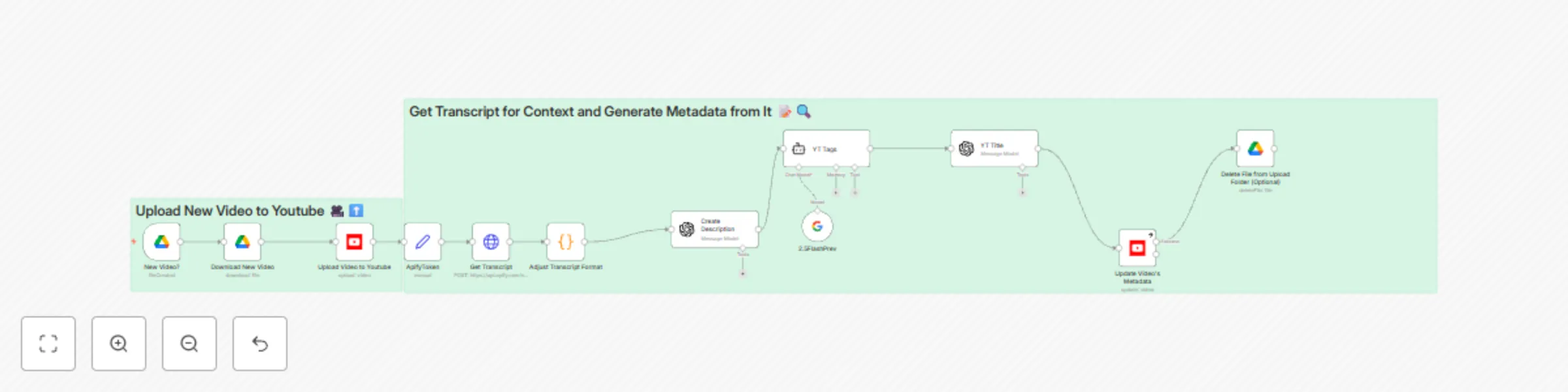
Workflow preview: Automate YouTube uploads with AI-generated metadata from Google Drive
Free intermediate

Automate YouTube uploads with AI-generated metadata from Google Drive

### 👥 Who Is This For? Content creators, marketing teams, and channel managers who want a simple, hands‑off solution to upload videos and automatically generate optimized metadata from video transcripts. ### 🛠 What Problem Does This Solve? Manual video uploads with proper metadata creation is time‑consuming and repetitive. This workflow fully automates: * Monitoring a specific Google Drive folder for new video uploads * Seamless YouTube upload processing * Transcript extraction for context understanding * AI‑powered generation of titles, descriptions, and tags * Metadata application to uploaded videos without manual intervention ### 🔄 Node‑by‑Node Breakdown | Step | Node Purpose | |------|---------------------------------------------------------------------| | 1 | New Video? (Trigger) – Monitors specified Google Drive folder | | 2 | Download New Video – Retrieves the video file from Google Drive | | 3 | Upload to YouTube – Uploads the video to YouTube with initial settings | | 4 | Get Transcript – Extracts transcript from the uploaded video | | 5 | Adjust Transcript Format – Formats raw transcript for processing | | 6 | Create Description – Generates SEO‑optimized description | | 7 | YT Tags (Message Model) – Creates relevant tags based on content | | 8 | YT Title (Message Model) – Generates compelling title | | 9 | Define File Path Upload Format (Optional) – Structures data paths | | 10 | Update Video’s Metadata – Applies generated title, description, tags| ### ⚙️ Pre‑conditions / Requirements * n8n with Google Drive and YouTube API credentials configured (stored as n8n credentials/variables; no hard‑coded IDs) * Dedicated Google Drive folder for video uploads * YouTube channel with proper upload permissions * AI service access for transcript processing and metadata generation * Sufficient storage for temporary video handling ### ⚙️ Setup Instructions 1. Import this workflow into your n8n instance. 2. Configure Google Drive credentials; reference folder ID via n8n variable (do not hard‑code). 3. Set up YouTube API credentials with upload and edit permissions. 4. Specify the target Google Drive folder ID in the New Video? trigger node (via variable). 5. Configure AI service credentials for transcript and metadata generation. 6. Adjust message templates for title, description, and tag creation. 7. Test with a small video file before production use. ### 🎨 How to Customize * Modify AI prompts to match your channel’s tone and style. * Add conditional logic based on video categories or naming conventions. * Implement notification systems to alert when uploads complete. * Create custom metadata templates for different content types. * Include timestamps or chapter markers based on transcript analysis. * Add social media sharing nodes to announce new uploads. ### ⚠️ Important Notes * Video quality is preserved through the upload process. * Consider YouTube API quotas when handling multiple uploads. * Transcript quality affects metadata generation results. * Videos are initially uploaded without visibility adjustments. * Processing time depends on video length and transcript complexity. ### 🔐 Security and Privacy * Store API credentials and folder IDs as n8n Credentials/Variables—remove any hard‑coded tokens or IDs. * Video files are processed temporarily and not stored permanently. * Limit Google Drive folder access to authorized users only. * Manage YouTube upload permissions carefully (use OAuth/service accounts). * Ensure compliance with organizational data‑handling policies.

J
JPres
Social Media
7 May 2025
12943
0

Workflow preview: Automated YouTube video scheduling & AI metadata generation 🎬
Free advanced

Automated YouTube video scheduling & AI metadata generation 🎬

## 👥 Who Is This For? Content creators, marketing teams, and channel managers who need to streamline video publishing with optimized metadata and scheduled releases across multiple videos. ## 🛠 What Problem Does This Solve? Manual YouTube video publishing is time-consuming and often results in inconsistent descriptions, tags, and scheduling. This workflow fully automates: * Extracting video transcripts via Apify for metadata generation * Creating SEO-optimized descriptions and tags for each video * Setting videos to private during initial upload (critical for scheduling) * Implementing scheduled publishing at strategic times * Maintaining consistent branding and formatting across all content ## 🔄 Node-by-Node Breakdown | Step | Node Purpose | |------|--------------| | 1 | Every Day (Scheduler) | Trigger workflow on a regular schedule | | 2 | Get Videos to Harmonize | Retrieve videos requiring metadata enhancement | | 3 | Get Video IDs (Unpublished) | Filter for videos that need publishing | | 4 | Loop over Video IDs | Process each video individually | | 5 | Get Video Data | Retrieve metadata for the current video | | 6 | Loop over Videos with Parameter IS | Set parameters for processing | | 7 | Set Videos to Private | Ensure videos are private (required for scheduling) | | 8 | Apify: Get Transcript | Extract video transcript via Apify | | 9 | Fetch Latest Videos | Get most recent channel content | | 10 | Loop Over Items | Process each video item | | 11 | Generate Description, Tags, etc. | Create optimized metadata from transcript | | 12 | AP Clean ID | Format identifiers | | 13 | Retrieve Generated Data | Collect the enhanced metadata | | 14 | Adjust Transcript Format | Format transcript for better processing | | 15 | Update Video's Metadata | Apply generated description and tags to video | ## ⚙️ Pre-conditions / Requirements * n8n with YouTube API credentials configured * Apify account with API access for transcript extraction * YouTube channel with upload permissions * Master templates for description formatting * Videos must be initially set to private for scheduling to work ## ⚙️ Setup Instructions 1. Import this workflow into your n8n instance. 2. Configure YouTube API credentials with proper channel access. 3. Set up Apify integration with appropriate actor for transcript extraction. 4. Define scheduling parameters in the Every Day node. 5. Configure description templates with placeholders for dynamic content. 6. Set default tags and customize tag generation rules. 7. Test with a single video before batch processing. ## 🎨 How to Customize * Adjust prompt templates for description generation to match your brand voice. * Modify tag selection algorithms based on your channel's SEO strategy. * Create multiple publishing schedules for different content categories. * Integrate with analytics tools to optimize publishing times. * Add notification nodes to alert when videos are successfully scheduled. ## ⚠️ Important Notes * Videos MUST be uploaded as private initially - the Publish At logic only works for private videos that haven't been published before. * Publishing schedules require videos to remain private until their scheduled time. * Transcript quality affects metadata generation results. * Consider YouTube API quotas when scheduling large batches of videos. ## 🔐 Security and Privacy * API credentials are stored securely within n8n. * Transcripts are processed temporarily and not stored permanently. * Webhook URLs should be protected to prevent unauthorized triggering. * Access to the workflow should be limited to authorized team members only.

J
JPres
Content Creation
6 May 2025
32840
0
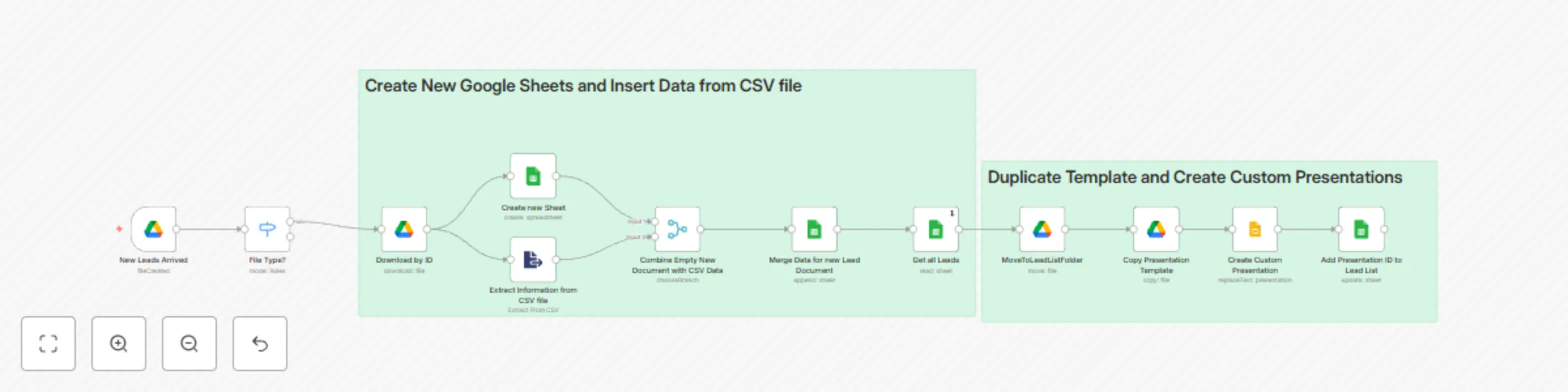
Workflow preview: Create customized Google Slides presentations from CSV data for cold outreach 🚀
Free intermediate

Create customized Google Slides presentations from CSV data for cold outreach 🚀

### 👥 Who Is This For? Sales and marketing teams seeking efficient, hands‑free generation of personalized slide decks for each prospect from CSV lead lists. ### 🛠 What Problem Does This Solve? Manually editing presentation decks for large lead lists is slow and error‑prone. This workflow fully automates: * Importing and parsing CSV lead data * Logging leads and outputs in Google Sheets * Duplicating a master Slides template per lead * Injecting lead‑specific variables into slides ### 🔄 Node‑by‑Node Breakdown | Step | Node | Purpose | | ---- | ---------------------------------------- | -------------------------------------------------------- | | 1 | New Leads Arrived | Detect new CSV uploads in Drive | | 2 | File Type? | Filter for `.csv` files only | | 3 | Download by ID | Download the CSV content | | 4 | Create new Sheet | Create a Google Sheet to record lead data | | 5 | Combine Empty New Document with CSV Data | Structure each lead record for slide creation | | 6 | Merge Data for new Lead Document | Map template placeholders to lead values | | 7 | Get all Leads | Retrieve sheet rows to iterate through each lead | | 8 | MoveToLeadListFolder | Move processed CSV to an archive folder | | 9 | Copy Slides Template | Make a copy of the master Slides deck | | 10 | Create Custom Presentation | Replace placeholders in the copied deck with lead data | | 11 | Add Presentation ID to Lead | Write the generated presentation URL back into the Sheet | ### ⚙️ Pre‑conditions / Requirements * n8n with Google Drive, Sheets, and Slides credentials * A master Google Slides deck with placeholder tokens (e.g. {{Name}}, {{Company}}) * A Drive folder for incoming CSV lead files ### ⚙️ Setup Instructions 1. Import this workflow into your n8n instance. 2. Configure the New Leads Arrived node to watch your CSV folder. 3. Enter your Google credentials in the Drive, Sheets, and Slides nodes. 4. Specify the master Slides template ID in the Copy Slides Template node. 5. In Create Custom Presentation, map slide tokens to sheet column names. 6. Disable “Keep Binary Data” in Copy Slides Template to conserve memory. 7. Upload a sample CSV (with headers like Name, Company, Metric) to test. ### 🎨 How to Customize * Add or remove variables by editing the CSV headers and updating the mapping in Merge Data for new Lead Document. * Insert an AI/natural‑language node before slide creation to generate more advanced and personalized text blocks. * Use SplitInBatches to throttle API calls and avoid rate‑limit errors. * Add error‑handling branches to capture and log failed operations. ### 🔐 Security and Privacy * The workflow uses placeholder variables for file and folder IDs, so no actual IDs are exposed in the template. * Ensure OAuth scopes are limited to only the required Google APIs.

J
JPres
Content Creation
6 May 2025
3481
0
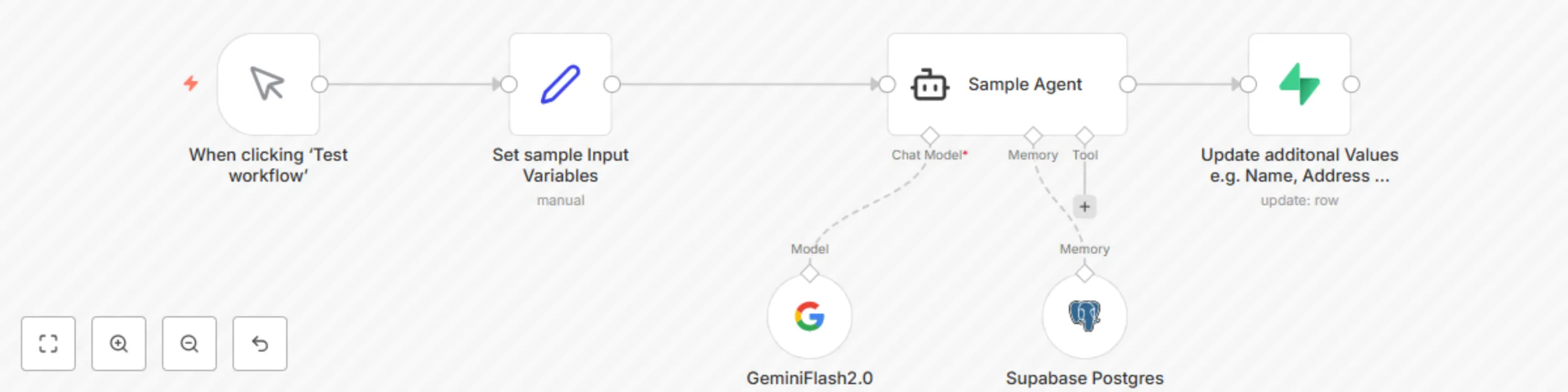
Workflow preview: Store chat data in Supabase PostgreSQL for WhatsApp/Slack chatbot
Free intermediate

Store chat data in Supabase PostgreSQL for WhatsApp/Slack chatbot

# n8n Template: Store Chat Data in Supabase PostgreSQL for WhatsApp/Slack Integration This n8n template captures chat data (like user ID, name, or address) and saves it to a Supabase PostgreSQL database. It’s built for testing now but designed to work with WhatsApp, Slack, or similar platforms later, where chat inputs aren’t predefined. Guide with images can be found on: https://github.com/JimPresting/Supabase-n8n-Self-Hosted-Integration/ ## Step 1: Configure Firewall Rules in Your VPC Network To let your n8n instance talk to Supabase, add a firewall rule in your VPC network settings (e.g., Google Cloud, AWS, etc.). 1. Go to **VPC Network** settings. 2. Add a new firewall rule: - **Name**: `allow-postgres-outbound` - **Direction**: Egress (outbound traffic) - **Destination Filter**: IPv4 ranges - **Destination IPv4 Ranges**: `0.0.0.0/0` (allows all; restrict to Supabase IPs for security) - **Source Filter**: - Pick `IPv4 ranges` and add the n8n VM’s IP range, or - Pick `None` if any VM can connect - **Protocols and Ports**: - Protocol: `TCP` - Port: `5432` (default PostgreSQL port) 3. Save the rule. ## Step 2: Get the Supabase Connection String 1. Log into your **Supabase Dashboard**. 2. Go to your project, click the **Connect** button in the header. 3. Copy the PostgreSQL connection string: ``` postgresql://postgres.fheraruzdahjd:[YOUR-PASSWORD]@aws-0-eu-central-1.pooler.supabase.com:6543/postgres ``` - Replace `[YOUR-PASSWORD]` with your Supabase account password (no brackets) and replace the string before that with your actual unique identifier. - Note the port (`6543` or `5432`)—use what’s in the string. ## Step 3: Set Up the n8n Workflow This workflow takes chat data, maps it to variables, and stores it in Supabase. It’s built to handle messy chat inputs from platforms like WhatsApp or Slack in production. ### Workflow Steps 1. **Trigger Node**: "When clicking 'Test workflow'" (manual trigger). - For now, it’s manual. In production, this will be a WhatsApp or Slack message trigger, which won’t have a fixed input format. 2. **Set Node**: "Set sample input variables (manual)". - This node sets variables like `id`, `name`, `address` to mimic chat data. - **Why?** Chat platforms send unstructured data (e.g., a message with a user’s name or address). We map it to variables so we can store it properly. The `id` will be something unique like a phone number, account ID, or account number. 3. **Sample Agent Node**: Uses a model (e.g., GeminiFlash2.0 but doesn't matter). - This is a placeholder to process data (e.g., clean or validate it) before saving. You can skip or customize it. 4. **Supabase PostgreSQL Node**: "Supabase PostgreSQL Database". - Connects to Supabase using the connection string from Step 2. - Saves the variables (`id`, `name`, `address`) to a table. - **Why store extra fields?** The `id` (like a phone number or account ID) is the key. Extra fields like `name` or `address` let us keep all user info in one place for later use (e.g., analytics or replies). 5. **Output Node**: "Update additional values e.g., name, address". - Confirms the data is saved. In production, this could send a reply to the chat platform. ### Why This Design? - **Handles Unstructured Chat Data**: WhatsApp or Slack messages don’t have a fixed format. The "Set" node lets us map any incoming data (e.g., `id`, `name`) to our database fields. - **Scales for Production**: Using `id` as a key (phone number, account ID, etc.) with extra fields like `name` makes this workflow flexible for many use cases, like user profiles or support logs. - **Future-Ready**: It’s built to swap the manual trigger for a real chat platform trigger without breaking. ## Step 4: Configure the Supabase PostgreSQL Node 1. In the n8n workflow, set up the **Supabase PostgreSQL** node: - **Host**: `aws-0-eu-central-1.pooler.supabase.com` (from the connection string) - **Port**: `6543` (or what’s in the connection string) - **Database**: `postgres` - **User**: `postgres.fhspudlibstmpgwqmumo` (from the connection string) - **Password**: Your Supabase password - **SSL**: Enable (Supabase usually requires it) 2. Set the node to **Insert** or **Update**: - Map `id` to a unique column in your Supabase table (e.g., phone number, account ID). - Map fields like `name`, `address` to their columns. 3. Test the workflow to confirm data saves correctly. ## Security Tips - **Limit Firewall Rules**: Don’t use `0.0.0.0/0`. Find Supabase’s IP ranges in their docs and use those. - **Hide Passwords**: Store your Supabase password in n8n’s environment variables. - **Use SSL**: Enable SSL in the n8n node for secure data transfer.

J
JPres
Support Chatbot
5 May 2025
1081
0
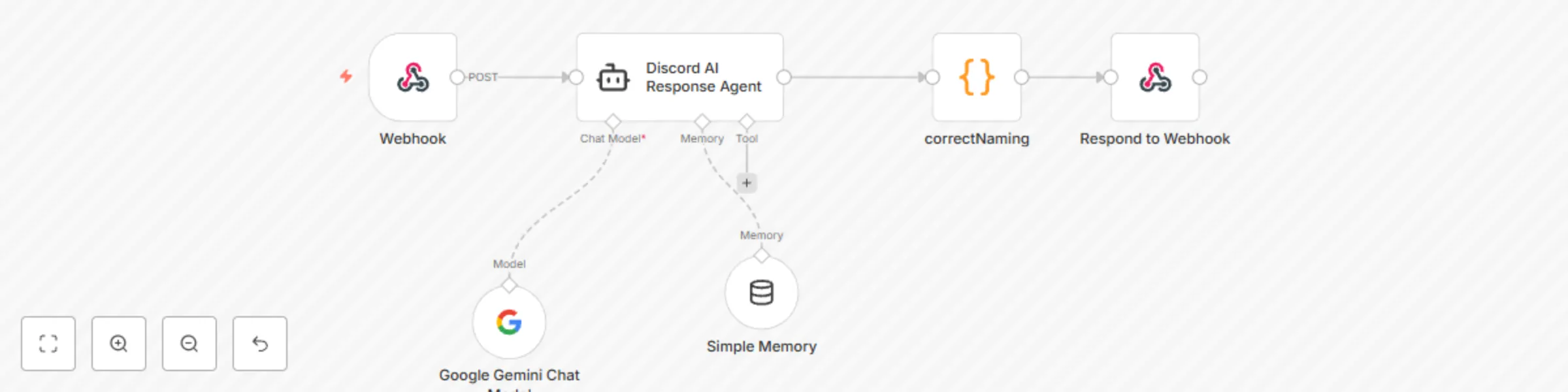
Workflow preview: Automated Discord chatbot for chat interaction in channel using Gemini 2.0 Flash
Free intermediate

Automated Discord chatbot for chat interaction in channel using Gemini 2.0 Flash

A Discord bot that responds to mentions by sending messages to n8n workflows and returning the responses. Connects Discord conversations with custom automations, APIs, and AI services through n8n. Full guide on: https://github.com/JimPresting/AI-Discord-Bot/blob/main/README.md # Discord Bot Summary ## Overview The Discord bot listens for mentions, forwards questions to an n8n workflow, processes responses, and replies in Discord. This workflow is intended for all Discord users who want to offer AI interactions with their respective channels. ## What do you need? - You need a Discord account as well as a Google Cloud Project ## Key Features ### 1. Listens for Mentions - The bot monitors Discord channels for messages that mention it. - **Optional Configuration**: Can be set to respond only in a specific channel. ### 2. Forwards Questions to n8n - When a user mentions the bot and asks a question: - The bot extracts the question. - Sends the question, along with channel and user information, to an n8n webhook URL. ### 3. Processes Data in n8n - The n8n workflow receives the question and can: - Interact with AI services (e.g., generating responses). - Access databases or external APIs. - Perform custom logic. - n8n formats the response and sends it back to the bot. ### 4. Replies to Discord with n8n's Response - The bot receives the response from n8n. - It replies to the user's message in the Discord channel with the answer. - **Long Responses**: Handles responses exceeding Discord's 2000-character limit by chunking them into multiple messages. ### 5. Error Handling - Includes error handling for: - Issues with n8n communication. - Response formatting problems. - Manages cases where: - No question is asked. - An invalid response is received from n8n. ### 6. Typing Indicator - While waiting for n8n's response, the bot sends a "typing..." indicator to the Discord channel. ### 7. Status Update - For lengthy n8n processes, the bot sends a message to the Discord channel to inform the user that it is still processing their request. ## Step-by-Step Setup Guide as per Github Instructions **Key Takeaways** - You’ll configure an n8n webhook to receive Discord messages, process them with your workflow, and respond. - You’ll set up a Discord application and bot, grant the right permissions/intents, and invite it to your server. - You’ll prepare your server environment (Node.js), scaffold the project, and wire up environment variables. - You’ll implement message‐chunking, “typing…” indicators, and robust error handling in your bot code. - You’ll deploy with PM2 for persistence and know how to test and troubleshoot common issues. --- ## 1. n8n: Create & Expose Your Webhook 1. **New Workflow** - Log into your n8n instance. - Click **Create Workflow** (➕), name it e.g. `Discord Bot Handler`. 2. **Webhook Trigger** - Add a node (➕) → search **Webhook**. - Set: - **Authentication**: None (or your choice) - **HTTP Method**: `POST` - **Path**: e.g. `/discord-bot` - Click **Execute Node** to activate. 3. **Copy Webhook URL** - After execution, copy the **Production Webhook URL**. - You’ll paste this into your bot’s `.env`. 4. **Build Your Logic** - Chain additional nodes (AI, database lookups, etc.) as required. 5. **Format the JSON Response** - Insert a **Function** node before the end: ```javascript return { json: { answer: "Your processed reply" } }; ``` 6. **Respond to Webhook** - Add **Respond to Webhook** as the final node. - Point it at your Function node’s output (with the `answer` field). 7. **Activate** - Toggle **Active** in the top‐right and **Save**. --- ## 2. Discord Developer Portal: App & Bot 1. **New Application** - Visit the [Discord Developer Portal](https://discord.com/developers/applications). - Click **New Application**, name it. - Go to **Bot** → **Add Bot**. 2. **Enable Intents & Permissions** - Under **Privileged Gateway Intents**, toggle **Message Content Intent**. - Under **Bot Permissions**, check: - Read Messages/View Channels - Send Messages - Read Message History 3. **Grab Your Token** - In **Bot** → click **Copy** (or **Reset Token**). - Store it securely. 4. **Invite Link (OAuth2 URL)** - Go to **OAuth2** → **URL Generator**. - Select scopes: `bot`, `applications.commands`. - Under Bot Permissions, select the same permissions as above. - Copy the generated URL, open it in your browser, and invite your bot. --- ## 3. Server Prep: Node.js & Project Setup 1. **Install Node.js v20.x** ```bash sudo apt purge nodejs npm sudo apt autoremove curl -fsSL https://deb.nodesource.com/setup_20.x | sudo -E bash - sudo apt install -y nodejs node -v # Expect v20.x.x npm -v # Expect 10.x.x ``` 2. **Project Folder** ```bash mkdir discord-bot cd discord-bot ``` 3. **Initialize & Dependencies** ```bash npm init -y npm install discord.js axios dotenv ``` --- ## 4. Bot Code & Configuration 1. **Environment Variables** - Create `.env`: ```bash nano .env ``` - Populate: ``` DISCORD_BOT_TOKEN=your_bot_token N8N_WEBHOOK_URL=https://your-n8n-instance.com/webhook/discord-bot # Optional: restrict to one channel # TARGET_CHANNEL_ID=123456789012345678 ``` 2. **Bot Script** - Create `index.js`: ```bash nano index.js ``` - Implement: - Import `dotenv`, `discord.js`, `axios`. - Set up client with `MessageContent` intent. - On `messageCreate`: 1. Ignore bots or non‐mentions. 2. (Optional) Filter by channel ID. 3. Extract and validate the user’s question. 4. Send “typing…” every 5 s; after 20 s send a status update if still processing. 5. POST to your n8n webhook with `question`, `channelId`, `userId`, `userName`. 6. Parse various response shapes to find `answer`. 7. If `answer.length ≤ 2000`, `message.reply(answer)`. 8. Else, split into ~1900‑char chunks at sentence/paragraph breaks and send sequentially. 9. On errors, clear intervals, log details, and reply with an error message. 3. **Login** ```javascript client.login(process.env.DISCORD_BOT_TOKEN); ``` --- ## 5. Deployment: Keep It Alive with PM2 1. **Install PM2** ```bash npm install -g pm2 ``` 2. **Start & Monitor** ```bash pm2 start index.js --name discord-bot pm2 status pm2 logs discord-bot ``` 3. **Auto‐Start on Boot** ```bash pm2 startup # Follow the printed command (e.g. sudo env PATH=$PATH:/usr/bin pm2 startup systemd -u your_user --hp /home/your_user) pm2 save ``` --- ## 6. Test & Troubleshoot 1. **Functional Test** - In your Discord server: ``` @YourBot What’s the weather like? ``` - Expect a reply from your n8n workflow. 2. **Common Pitfalls** - **No reply** → check `pm2 logs discord-bot`. - **Intent Errors** → verify **Message Content Intent** in Portal. - **Webhook failures** → ensure workflow is active and URL is correct. - **Formatting issues** → confirm your Function node returns `json.answer`. 3. **Inspect Raw Data** - Search your logs for **Complete response from n8n:** to debug payload shapes. --- ```

J
JPres
Miscellaneous
7 Apr 2025
3341
0