I

Immanuel

8
Workflows

Workflows by Immanuel

Workflow preview: Generate videos with AI, ElevenLabs,PIAPI Shotstack/Creatomate & post to Youtube
Free advanced

Generate videos with AI, ElevenLabs,PIAPI Shotstack/Creatomate & post to Youtube

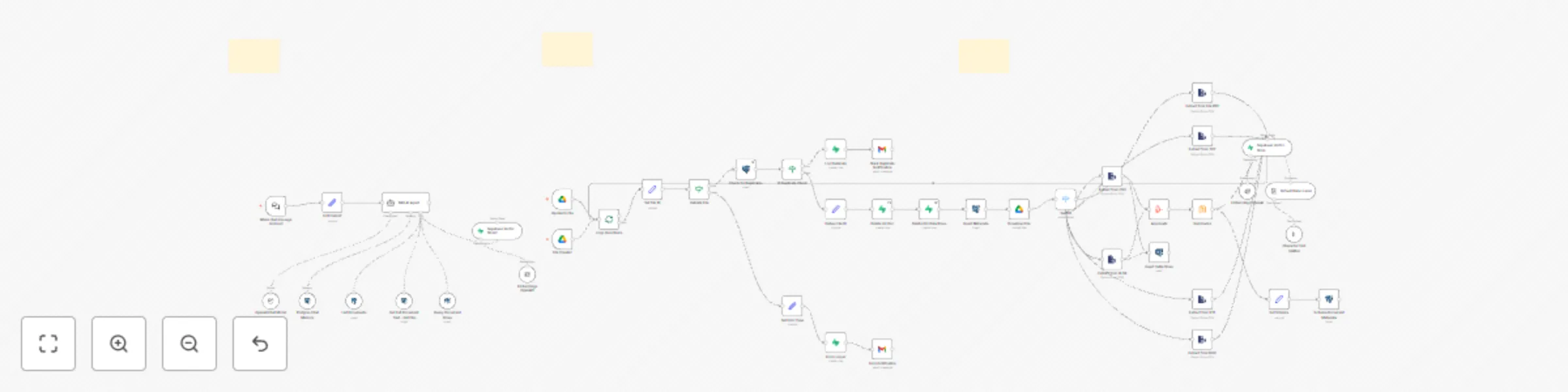
# Auto-Generate Long Videos with AI, ElevenLabs,PIAPI,Shotstack/Creatomate & Post to Youtube ![Youtube.png](fileId:1443) ## Overview This n8n automation workflow automates the creation, scripting, production, and posting of YouTube videos. It leverages AI (OpenAI), image generation (PIAPI), video rendering (Shotstack), and platform integrations (Airtable, Google Sheets, YouTube) to streamline the process. ## Target Audience - **Content creators, video producers, and YouTubers** seeking to automate video content creation. - **Digital marketing teams** managing video campaigns for travel or history niches. - **Users familiar with n8n, Airtable, Google Sheets, YouTube, and API integrations**. ## Problem Solved Manually managing YouTube video production, from ideation to posting, is time-consuming and prone to errors. This workflow addresses: - **Content Sourcing**: Generates video ideas using AI based on "domain of choice". - **Content Formatting**: Automatically creates detailed scripts and scene structures. - **Visual Production**: Produces high-quality images and renders videos with minimal manual input. - **Multi-Platform Integration**: Publishes to YouTube with status tracking in Airtable and Google Sheets. - **Status Tracking**: Monitors progress (Generated, Scripted, Produced, Published) across platforms. ## Prerequisites Before setting up, ensure you have: 1. An n8n instance (self-hosted or cloud) 2. API credentials for: - OpenAI (for idea generation) - PIAPI.ai (for image and video generation) - ElevenLabs (for audio generation) - Shotstack (for video rendering) - Creatomate (for video rendering) - Airtable & Google Sheets and Drive (for storage and tracking) - Gmail (for notifications) - YouTube API (for posting to YouTube) ## How the Automation Works (Step by Step) 1. **Trigger (Schedule Trigger)** - Initiates the workflow daily - Connects to "Generate Idea" 2. **Generate Idea** - Uses OpenAI to create a unique 4-minute video idea with a title, description, keywords, scene structure, and intrigue note - Checks Airtable "Ideas" table via `searchAirtable` to avoid duplicates - Connects to "Parse Ideas" 3. **Parse Ideas** - Extracts title, description, and notes from the OpenAI output using JavaScript - Connects to "Add Ideas" 4. **Add Ideas** - Stores the initial idea in Google Sheets "Ideas" sheet with fields like "Idea", "Description", and "Progress" (set to "Generated") - Connects to "Store in Airtable" 5. **Store in Airtable** - Saves the idea to Airtable "Ideas" table with mapped fields and `typecast` enabled - Connects to "Generate Script" 6. **Generate Script** - Creates a 500-600 word script with 8-10 scenes using OpenAI, based on the latest "Generated" idea - Uses `Structured Output Parser` to format output - Connects to "Parse Script Output" 7. **Parse Script Output** - Formats the script into readable text and JSON, extracting scenes and closing question - Connects to "Store Script" 8. **Store Script** - Saves the script to Google Sheets "Production" sheet with "Script", "Scenes", and "Status" (set to "Scripted") - Connects to "Store Script in Airtable" 9. **Store Script in Airtable** - Saves the script to Airtable "Production" table with mapped fields and `typecast` enabled - Connects to "Updated Idea to Scripted" 10. **Updated Idea to Scripted** - Updates the idea status to "Scripted" in Google Sheets "Ideas" sheet - Connects to "Update Status Ideas Table" 11. **Update Status Ideas Table** - Updates the idea status to "Scripted" in Airtable "Ideas" table, matching by "Idea ID" - Connects to "Extract Scenes" 12. **Extract Scenes** - Parses scene data from Airtable "Production" table for image generation - Connects to "Text-to-Image" 13. **Text-to-Image** - Generates images for each scene using PIAPI - Connects to "Wait for 4 Min" 14. **Wait for 4 Min** - Waits 3 minutes to allow image generation to complete - Connects to "Get Images" 15. **Trigger (Schedule Trigger1)** - Initiates the posting process daily - Connects to "Search for Latest Ready Video" 16. **Search for Latest Ready Video** - Searches Airtable "Production" table for the latest video with "Status" = "Ready" - Connects to "If Ready?" 17. **If Ready?** - Checks if a video is ready (condition: `Status contains Ready`) - If true, connects to "Download Video" and "Update Production Table" 18. **Download Video** - Downloads the video file using the `VideoURL` from Airtable - Connects to "Post YouTube" 19. **Post YouTube** - Uploads the video to YouTube with title and description, using YouTube OAuth2 20. **Update Production Table** - Updates the "Production" sheet in Google Sheets, setting "Status" to "Published" and matching by "Production ID" ## Additional Nodes and Processes - **OpenAI Chat Model**: Powers "Generate Idea" and "Generate Script" with `GPT` - **Structured Output Parser**: Ensures proper JSON output for scripts - **Get Images**: Retrieves generated images - **Extract Narration**: Prepares narration for voice generation - **Voice Generation**: Generates voiceovers - **Generate Music Prompt**: Creates music prompts using OpenAI - **Text-to-Music**: Generates music - **Build Shotstack Timeline**: Constructs video timeline - **ShotStack Render Video**: Renders the final video - **Poll Rendered Videos**: Checks video rendering status - **Final Video**: Updates Airtable "Production" with final video details - **Final Video Update**: Updates Google Sheets "Production" with video URL - **Music Urls**: Adds music URLs to the process ## Setup Requirements Before starting, ensure you have the following 1 **n8n Instance** - A self-hosted or cloud-based n8n instance to run the workflow 2 **API Credentials** - **OpenAI**: API key - **Airtable**: Personal Access Token (e.g, "Airtable Personal Access Token - **Google Sheets**: OAuth2 credentials - **PIAPI**: HTTP Header Auth key - **YouTube**: OAuth2 credentials 3 **Airtable Configuration** - Base: "Youtube Videos" - Tables: - "Ideas" - "Production" - Share with the Airtable token 4 **Google Sheets Configuration** - Document: "Youtube Videos" - Sheets: - "Ideas" - "Production" - Share with the Google Sheets credential email 5. **Shotstack Configuration** (Assumed) - API key and endpoint for video rendering (not specified in JSON) ## Setup Instructions 1. **Import the Workflow** - Import the provided JSON file into your n8n instance 2. **Configure Credentials** - Add OpenAI, Airtable, Google Sheets, PIAPI, and YouTube credentials in n8n’s credential manager 3. **Set Up Airtable** - Create or update the "Ideas" and "Production" tables with the specified fields - Ensure proper permissions with the Airtable token 4. **Configure Google Sheets** - Create or update the "Ideas" and "Production" sheets with the specified columns - Share the document with the Google Sheets credential email 5. **Schedule Triggers** - Set "Schedule Trigger" to trigger 6. **Test the Workflow** - Run manually to verify each node’s functionality - Check Airtable, Google Sheets, and YouTube for updates - Ensure PIAPI image generation completes (wait 4 minutes) 7. **Monitor and Adjust** - Monitor API rate limits (e.g, PIAPI, YouTube) - Adjust wait times if image or video generation delays occur - Verify connections for unlinked nodes ## Benefits - **Efficiency**: Automates the entire process from idea to posting - **Scalability**: Handles daily video production - **Quality**: Ensures cinematic scripts and visuals - **Tracking**: Provides detailed progress monitoring ## Notes - **Rate Limits**: Be aware of PIAPI (150,000 units per task) and YouTube API limits - **Timing**: Adjust wait nodes (e.g, "Wait for 4 Min") based on API response times ## Conclusion and Suggestions to Improve the Automation ### Conclusion This workflow streamlines YouTube video production, making it ideal for busy content creators, video producers, and marketing teams. Customize it by adding more platforms, adjusting wait delays for image/video generation, or enhancing notifications for status updates. Share your feedback in the n8n community to help others benefit from this automation. ### Suggestions to Improve - **Customization**: Adjust prompts, timings, and API parameters based on your needs - **Expand "Text-to-Music**" with multiple music styles or integrate a royalty-free music API for variety. - **Improve Video Rendering**: Optimize "Build Shotstack Timeline" and "ShotStack Render Video" with predefined templates to reduce rendering time. - **Add Analytics Tracking**: Include a node to fetch YouTube Analytics post-upload for performance monitoring. - **Error Handling**: Add error-catching nodes (e.g., "If" nodes) to retry failed image or video generations. - **Notification System**: Incorporate email or Slack notifications for key milestones (e.g., script completion, video upload).

I
Immanuel
Content Creation
4 Jun 2025
4319
0
Workflow preview: Automate RSS content to blog posts with GPT-4o, WordPress & LinkedIn publishing
Free advanced

Automate RSS content to blog posts with GPT-4o, WordPress & LinkedIn publishing

# Automated Blog Post Review and Multi-Platform Publishing Workflow with RSS Feeds ![RSS.png](fileId:1344) ## Description This workflow automates the process of generating, reviewing, and publishing blog posts across multiple platforms, now enhanced with support for RSS Feeds as a content source. It streamlines the management of blog posts by fetching content from RSS Feeds, formatting, storing, reviewing, templating, and publishing to platforms like LinkedIn and WordPress. The workflow is split into three key flows: - **Initial Flow**: Fetches content from RSS Feeds, prepares and stores blog post data, sends a review email with approval/rejection links. - **Approval Flow**: Handles review actions via a webhook to update the status in Google Sheets. - **Status Update Flow**: Monitors status changes and publishes approved posts. **Target Audience** - Content creators, bloggers, and digital marketers. - Teams managing multi-platform content publishing. - Users familiar with n8n, Google Sheets, LinkedIn, and RSS Feeds. ## Problem Solved Manually managing blog posts, especially when sourcing content from RSS Feeds, can be time-consuming and error-prone This workflow addresses: - **Content Sourcing**: Fetches blog posts from RSS Feeds for automated processing - **Content Formatting**: Automatically formats and stores blog posts. - **Review Process**: Simplifies approval with email notifications and webhook triggers. - **Multi-Platform Publishing**: Publishes to LinkedIn, WordPress and optionally Medium) with delays to avoid rate limits - **Status Tracking**: Tracks approval and publishing status in Google Sheets. ## Setup Instructions ### Prerequisites - **n8n Instance**: Ensure you have an active n8n instance - **RSS Feed URL**: Identify an RSS Feed URL (e.g., a blog’s feed like `https://example.com/feed`) - **Google Sheets**: Create a spreadsheet with columns: `Title`, `Blogpost`, `Publication Date`, `Keywords`, `Status`, `Published`, `Featured Image`, `articleUrl`, `Rendered Blog`. - Sheet Name: `Posts Initial` - Add a dropdown for `Status`: `Pending, Approved, Rejected`. - **Gmail Account**: For sending review and notification emails. - **LinkedIn Account**: For publishing posts (OAuth credentials needed). - **Optional**: WordPress.com or Medium account for additional publishing. ### Customization Guidance Below is a detailed breakdown of each flow and node, including setup instructions. #### 🔹 Initial Flow: Fetch from RSS Feeds, Prepare, and Send for Review. **Purpose**: Fetches blog posts from an RSS Feed, formats them, extracts images, stores data, and sends a review email. 1. **Fetch from RSS Feed** - **Type**: RSS Feed - **Purpose**: Retrieves blog posts from an RSS Feed - **Configuration**: - **URL**: `https://example.com/feed` (replace with your RSS Feed URL) - **Limit**: 1 (or adjust based on your needs) - **Setup**: Ensure the RSS Feed URL is valid and accessible; test the node to verify it fetches posts 2. **Set Fields** - **Type**: Set - **Purpose**: Maps RSS Feed data to blog post fields - **Setup**: Adjust field mappings based on your RSS Feed’s structure 3. **Format Blog Post for Storage** - **Type**: Code - **Purpose**: Cleans up the blog post content. 4. **Extract Featured Image** - **Type**: Code - **Purpose**: Extracts or generates a featured image URL. - **Setup**: Ensure `originalHtml` contains image data; otherwise, it uses a placeholder. 5. **Store Blog Posts Initial** - **Type**: Google Sheets - **Purpose**: Stores initial blog post data - **Setup**: Ensure Google Sheets credentials are set up and the spreadsheet has the required columns. 6. **Set Fields for Email** - **Type**: Set - **Purpose**: Prepares fields for the review email. - **Setup**: Replace `https://your-n8n-instance` with your n8n instance URL. 7. **Prepare Email HTML** - **Type**: Code - **Purpose**: Generates HTML email content with conditional image display - **Setup**: No additional configuration needed 8. **Notify for Review (Gmail)** - **Type**: Gmail - **Purpose**: Sends a review email with approval/rejection links #### 🔹 Approval Flow: Handle Review Actions **Purpose**: Updates the blog post status based on approval/rejection 1. **Webhook Trigger** - **Type**: Webhook - **Purpose**: Triggers on approval/rejection link clicks - **Configuration**: - **HTTP Method**: GET - **Path**: `approve-post` - **Response Code**: 200 - **Response Data**: `{"message": "Status updated"}` - **Setup**: Ensure the webhook URL matches the one in **Set Fields for Email** 2. **Find Row to Update** - **Type**: Google Sheets - **Purpose**: Retrieves all rows to find the matching blog post 3. **Filter Row by Title** - **Type**: Code - **Purpose**: Filters the row matching the blog post title - **Setup**: No additional configuration needed 4. **Update Status on Approval** - **Type**: Google Sheets - **Purpose**: Updates the status to `Approved` or `Rejected` #### 🔹 Status Update Flow: Publish Approved Posts **Purpose**: Monitors status changes and publishes approved posts 1. **Google Sheets Trigger (Fetch Row)** - **Type**: Google Sheets Trigger - **Purpose**: Triggers when a row’s status is updated - **Configuration**: - **Event**: Update - **Sheet Name**: `Posts Initial` - **Output Fields**: `title`, `status`, `published`, `featuredImage`, `articleUrl` - **Setup**: Ensure Google Sheets credentials are set up 2. **Router (Check Status)** - **Type**: Router - **Purpose**: Routes based on status and published state - **Configuration**: - **Route 1**: Approved and Not Published - **Condition**: `status` equals `Approved` AND `published` equals `NO` - **Route 2**: Rejected - **Condition**: `status` equals `Rejected` - **Route 3**: Pending - **Condition**: `status` equals `Pending` - **Setup**: No additional configuration needed 3. **Apply Blog Template** 4. **Store Blog Posts Final** - **Type**: Google Sheets - **Purpose**: Stores the final HTML content - **Configuration**: - **Operation**: Update Row - **Setup**: Ensure the `Rendered Blog` column exists 5. **Loop Over Blog Posts** - **Type**: Split in Batches - **Purpose**: Processes each blog post individually - **Configuration**: Default settings - **Setup**: No additional configuration needed 6. **Delay Between Posts** - **Type**: Wait - **Purpose**: Adds a delay to avoid rate limits - **Configuration**: - **Wait Type**: Delay - **Amount**: 1 second - **Setup**: Adjust delay as needed for LinkedIn rate limits 7. **Publish to LinkedIn** - **Type**: LinkedIn - **Purpose**: Publishes the blog post to LinkedIn - **Configuration**: - **Operation**: Share Post - **Author**: `urn:li:person:YOUR_PERSONAL_URN` - **Setup**: Set up LinkedIn OAuth credentials and replace `YOUR_PERSONAL_URN` with your LinkedIn URN 8. **Update Published State** - **Type**: Google Sheets - **Purpose**: Updates the published status - **Configuration**: - **Operation**: Update Row - **Setup**: Ensure the `Published` column exists 9. **Notify Team** - **Type**: Gmail - **Purpose**: Notifies the team of successful publishing - **Configuration**: The blog post "{{ $json.title }}" has been successfully published - **Setup**: Set up Gmail credentials; replace `[Link]` with the LinkedIn URL if captured 10. **Notify Rejection (Gmail)** (Route 2) - **Type**: Gmail - **Purpose**: Notifies on rejection The blog post "{{ $json.title }}" has been rejected Suggestions: Rewrite with more engaging content, adjust keywords, or verify facts Please update the status in Google Sheets if you wish to revise and resubmit - **Setup**: Set up Gmail credentials 11. **Wait for Status Update** (Route 3) - **Type**: Wait - **Purpose**: Delays for status recheck - **Configuration**: - **Wait Type**: Delay - **Duration**: `24h` - **Setup**: Adjust delay as needed ## Conclusion - This workflow streamlines blog post management with RSS Feeds, making it ideal for busy content creators and teams. - Customize it by adding more platforms adjusting delays, or enhancing notifications. - Share your feedback in the n8n community to help others benefit from this automation.

I
Immanuel
Content Creation
19 May 2025
1872
0
Workflow preview: Create & approve POV videos with AI, ElevenLabs & multi-posting (TikTok/IG/YT)
Free advanced

Create & approve POV videos with AI, ElevenLabs & multi-posting (TikTok/IG/YT)

# POV Video Creator: Automating TikTok-Style Instagram Video Automation, Approval, and Multi-Platform Posting Using AI, ElevenLabs, Google Sheets, and Social Media APIs ![POV Videos Automation.png](fileId:1313) ## Description ### What Problem Does This Solve? 🎥 This workflow automates the creation, rendering, approval, and posting of TikTok-style POV (Point of View) videos to Instagram, with cross-posting to Facebook and YouTube. It eliminates manual video production, approval delays, and inconsistent posting schedules. It ensures high-quality content creation and distribution for social media managers and content creators **Target audience**: Social media managers, content creators, small to medium-sized businesses, and n8n users familiar with AI tools, Google Sheets, and social media APIs ### What Does It Do? 🌟 - Generates daily POV video ideas using OpenAI - Creates images, videos, and audio with PIAPI.ai and ElevenLabs - Renders final videos with Creatomate - Manages approvals via email and Google Sheets - Posts approved videos to Instagram, Facebook, and YouTube - Tracks progress in a Google Sheet for transparency ### Key Features - AI-driven idea generation and script creation - Automated media production with image, video, and audio synthesis - Email-based approval system for quality control - Cross-platform posting to Instagram, Facebook, and YouTube - Real-time tracking in Google Sheets and Google Drive - Error handling for rendering and posting failures ## Setup Instructions ### Prerequisites - **n8n Instance**: Self-hosted or cloud n8n instance - **API Credentials**: - **OpenAI API**: API key for idea generation, stored in n8n credentials - **PIAPI.ai API**: API key for image and video generation, stored in n8n credentials - **ElevenLabs API**: API key for audio generation, stored in n8n credentials - **Creatomate API**: API key for video rendering, stored in n8n credentials - **Google Sheets/Drive API**: OAuth2 credentials from Google Cloud Console with Sheets and Drive scopes - **Gmail API**: OAuth2 credentials from Google Cloud Console with Gmail scope - **Instagram Graph API**: User Access Token with `instagram_content_publish` permission from a Facebook App - **Facebook Graph API**: Access Token from the same Facebook App - **YouTube API**: OAuth2 credentials for YouTube uploads - **Google Sheet**: A sheet named "POV Videos" with a tab "Instagram" and columns: `Timestamp`, `ID`, `Subject`, `Topic`, `Caption`, `POV_Status`, `Prompt`, `Publish_Status`, `Link`, `Final Video`, `Approval`, `row_number` - **Creatomate Template**: A pre-configured template with video, audio, and text elements ### Installation Steps 1. **Import the Workflow**: - Copy the workflow JSON from the “Template Code” section (to be provided) - Import it into n8n via “Import from File” or “Import from URL” 2. **Configure Credentials**: - Add API credentials in n8n’s Credentials section for OpenAI, PIAPI.ai, ElevenLabs, Creatomate, Google Sheets/Drive, Gmail, Instagram Graph, Facebook Graph, and YouTube - Assign credentials to respective nodes. For example: - In "Text-to-Image", use PIAPI.ai credentials: `{{ $credentials.PIAPI }}` - In "Render with Creatomate", use Creatomate credentials: `{{ $credentials.Creatomate }}` - In "Send Approval Request", use Gmail credentials 3. **Set Up Nodes**: - **Schedule Trigger**: Configure to run daily - **Approval Email (Send Approval Request)**: Customize the HTML email template with approval/rejection links - **Post to Social Media Nodes (Instagram Container, Facebook Posts, Post YouTube)**: Configure with your Instagram Business Account ID, Facebook Page ID, and YouTube channel details 4. **Configure Google Sheet and Drive**: - Create "POV Videos" Google Sheet with "Instagram" tab and specified columns - Share the sheet with your Google Sheets credential email - Create "Audio" and "Video" folders in Google Drive, noting their IDs 5. **Test the Workflow**: - Run manually to verify idea generation, media creation, and posting - Check email notifications, Google Sheet updates, and social media posts 6. **Schedule the Workflow**: - Enable "Schedule Trigger" and "Schedule Trigger1" for daily runs - Enable "Get Latest Approved Video" to poll at 7 PM daily ## How It Works ### High-Level Steps 1. **Generate Video Ideas**: Creates daily POV video concepts with OpenAI 2. **Create Media**: Produces images, videos, and audio using AI tools 3. **Render Video**: Combines media into a final video with Creatomate 4. **Manage Approvals**: Sends approval emails and processes decisions 5. **Post to Platforms**: Publishes approved videos to Instagram, Facebook, and YouTube ### Detailed Descriptions Detailed node descriptions are available in the sticky notes within the workflow (to be provided). Below is a summary of key actions ## Node Names and Actions ### Video Idea Generation and Script Creation - **Schedule Trigger**: Initiates daily workflow - **Get Title**: Fetches pending video ideas from Google Sheet - **Generate Topics**: Uses OpenAI to create a new video idea - **Format Row**: Structures the idea into a Google Sheet row - **Insert new Prompt, Caption and Title/Topic**: Adds the idea to Google Sheet - **Generate Ideas**: Produces 3 POV sequences - **Generate Script**: Expands a sequence into a detailed script - **Set Topics**: Stores the script for media creation ### Media Creation - **Text-to-Image**: Generates an image with PIAPI.ai - **Get Image**: Retrieves the generated image - **Generate Video Prompt**: Creates a video prompt from the image - **Generate Video**: Produces a 5-second video with PIAPI.ai - **Access Videos**: Retrieves the video URL - **Store Video**: Updates Google Sheet with video URL - **Generate Sound Prompt**: Creates an audio prompt - **Text-to-Sound**: Generates a 20-second audio clip with ElevenLabs - **Store Sound**: Uploads audio to Google Drive - **Allow Access**: Sets audio file permissions ### Video Rendering - **Merge**: Combines script, video, and audio data - **List Elements**: Formats data for Creatomate - **Render with Creatomate**: Renders the final video - **Check Video Status**: Routes based on render success/failure ### Storage and Notification - **Google Drive**: Uploads the rendered video - **New Render Video Alert**: Sends success email - **Failed Render**: Sends failure email - **Render Video Link**: Updates Google Sheet with final video URL ### Approval Process - **Approval Email**: Sends approval request email - **Handle Approval/Rejection1**: Processes approval/rejection via webhook - **Video Update1**: Updates Google Sheet with approval status ### Social Media Posting - **Get Latest Approved Video**: Polls for approved videos - **Check Approval**: Routes based on approval status - **Instagram Container**: Creates Instagram media container - **Post to Instagram**: Publishes to Instagram - **Facebook Posts**: Posts to Facebook - **Download Video**: Downloads video for YouTube - **Post YouTube**: Uploads to YouTube - **Mark Rejected**: Updates status for rejected videos - **Update Google Sheet**: Updates publish status ## Customization Tips - **Expand Platforms**: Add nodes to post to other platforms - **Modify Approval Email**: Update the Send Approval Request node to customize the HTML template - **Alternative Notifications**: Add nodes for Slack or Telegram alerts - **Adjust Video Duration**: Modify Generate Video node to change duration (default: 5 seconds)

I
Immanuel
Content Creation
14 May 2025
2785
0
Workflow preview: Raw materials inventory management with Google Sheets, Supabase and approvals
Free advanced

Raw materials inventory management with Google Sheets, Supabase and approvals

# Automated Raw Materials Inventory Management with Google Sheets, Supabase, and Gmail using n8n Webhooks ![Screenshot 20250514 at 14.02.15.png](fileId:1312) ## Description ### What Problem Does This Solve? 🛠️ This workflow automates raw materials inventory management for businesses, eliminating manual stock updates, delayed material issue approvals, and missed low stock alerts. It ensures real-time stock tracking, streamlined approvals, and timely notifications. **Target audience**: Small to medium-sized businesses, inventory managers, and n8n users familiar with Google Sheets, Supabase, and Gmail integrations. ### What Does It Do? 🌟 - Receives raw material data and issue requests via form submissions. - Updates stock levels in Google Sheets and Supabase. - Manages approvals for material issue requests with email notifications. - Detects low stock levels and sends alerts via Gmail. - Maintains data consistency across Google Sheets and Supabase. ### Key Features - Real-time stock updates from form submissions. - Automated approval process for material issuance. - Low stock detection with Gmail notifications. - Dual storage in Google Sheets and Supabase for redundancy. - Error handling for robust data validation. ## Setup Instructions ### Prerequisites - **n8n Instance**: Self-hosted or cloud n8n instance. - **API Credentials**: - **Google Sheets API**: Credentials from Google Cloud Console with Sheets scope, stored in n8n credentials. - **Supabase API**: API key and URL from Supabase project, stored in n8n credentials (do not hardcode in nodes). - **Gmail API**: Credentials from Google Cloud Console with Gmail scope. - **Forms**: A form (e.g., Google Form) to submit raw material receipts and issue requests, configured to send data to n8n webhooks. ### Installation Steps 1. **Import the Workflow**: - Copy the workflow JSON from the “Template Code” section (to be provided). - Import it into n8n via “Import from File” or “Import from URL”. 2. **Configure Credentials**: - Add API credentials in n8n’s Credentials section for Google Sheets, Supabase, and Gmail. - Assign credentials to respective nodes. For example: - In the Append Raw Materials node, use Google Sheets credentials: `{{ $credentials.GoogleSheets }}`. - In the Current Stock Update node, use Supabase credentials: `{{ $credentials.Supabase }}`. - In the Send Low Stock Email Alert node, use Gmail credentials. 3. **Set Up Nodes**: - **Webhook Nodes (Receive Raw Materials Webhook, Receive Material Issue Webhook)**: Configure webhook URLs and link them to your form submissions. - **Approval Email (Send Approval Request)**: Customize the HTML email template if needed. - **Low Stock Alerts (Send Low Stock Email Alert, Send Low Stock Email After Issue)**: Configure recipient email addresses. 4. **Test the Workflow**: - Submit a test form for raw material receipt and verify stock updates in Google Sheets/Supabase. - Submit a material issue request, approve/reject it, and confirm stock updates and notifications. ## How It Works ### High-Level Steps 1. **Receive Raw Materials**: Processes form submissions for raw material receipts. 2. **Update Stock**: Updates stock levels in Google Sheets and Supabase. 3. **Handle Issue Requests**: Processes material issue requests via forms. 4. **Manage Approvals**: Sends approval requests and processes decisions. 5. **Monitor Stock Levels**: Detects low stock and sends Gmail alerts. ### Detailed Descriptions Detailed node descriptions are available in the sticky notes within the workflow screenshot (to be provided). Below is a summary of key actions. ## Node Names and Actions ### Raw Materials Receiving and Stock Update - **Receive Raw Materials Webhook**: Receives raw material data from a form submission. - **Standardize Raw Material Data**: Maps form data into a consistent format. - **Calculate Total Price**: Computes `Total Price` (Quantity Received * Unit Price). - **Append Raw Materials**: Records receipt in Google Sheets. - **Check Quantity Received Validity**: Ensures `Quantity Received` is valid. - **Lookup Existing Stock**: Retrieves current stock for the `Product ID`. - **Check If Product Exists**: Branches based on `Product ID` existence. - **Calculate Updated Current Stock**: Adds `Quantity Received` to stock (True branch). - **Update Current Stock**: Updates stock in Google Sheets (True branch). - **Retrieve Updated Stock for Check**: Retrieves updated stock for low stock check. - **Detect Low Stock Level**: Flags if stock is below minimum. - **Trigger Low Stock Alert**: Triggers email if stock is low. - **Send Low Stock Email Alert**: Sends low stock alert via Gmail. - **Add New Product to Stock**: Adds new product to stock (False branch). - **Current Stock Update**: Updates Supabase `Current Stock` table. - **New Row Current Stock**: Inserts new product into Supabase. - **Search Current Stock**: Retrieves Supabase stock records. - **New Record Raw**: Inserts raw material record into Supabase. - **Format Response**: Removes duplicates from Supabase response. - **Combine Stock Update Branches**: Merges branches for existing/new products. ### Material Issue Request and Approval - **Receive Material Issue Webhook**: Receives issue request from a form submission. - **Standardize Data**: Normalizes request data and adds `Approval Link`. - **Validate Issue Request Data**: Ensures `Quantity Requested` is valid. - **Verify Requested Quantity**: Validates `Product ID` and `Submission ID`. - **Append Material Request**: Records request in Google Sheets. - **Check Available Stock for Issue**: Retrieves current stock for the request. - **Prepare Approval**: Checks stock sufficiency for the request. - **Send Approval Request**: Emails approver with Approve/Reject options. - **Receive Approval Response**: Captures approver’s decision via webhook. - **Format Approval Response**: Processes approval data with `Approval Date`. - **Verify Approval Data**: Validates the approval response. - **Retrieve Issue Request Details**: Retrieves original request from Google Sheets. - **Process Approval Decision**: Branches based on approval action. - **Get Stock for Issue Update**: Retrieves stock before update (Approved). - **Deduct Issued Stock**: Reduces stock by `Approved Quantity` (Approved). - **Update Stock After Issue**: Updates stock in Google Sheets (Approved). - **Retrieve Stock After Issue**: Retrieves updated stock for low stock check. - **Detect Low Stock After Issue**: Flags low stock after issuance. - **Trigger Low Stock Alert After Issue**: Triggers email if stock is low. - **Send Low Stock Email After Issue**: Sends low stock alert via Gmail. - **Update Issue Request Status**: Updates request status (Approved/Rejected). - **Combine Stock Lookup Results**: Merges stock lookup branches. - **Create Record Issue**: Inserts issue request into Supabase. - **Search Stock by Product ID**: Retrieves Supabase stock records. - **Issues Table Update**: Updates Supabase `Materials Issued` table. - **Update Current Stock**: Updates Supabase stock after issuance. - **Combine Issue Lookup Branches**: Merges issue lookup branches. - **Search Issue by Submission ID**: Retrieves Supabase issue records. ## Customization Tips - **Expand Storage Options **: Add nodes to store data in other databases (e.g., Airtable) alongside Google Sheets and Supabase. - **Modify Approval Email **: Update the Send Approval Request node to customize the HTML email template (e.g., adjust styling or add branding). - **Alternative Notifications **: Add nodes to send low stock alerts via other platforms (e.g., Slack or Telegram). - **Adjust Low Stock Threshold **: Modify the Detect Low Stock Level node to change the `Minimum Stock Level` (default: 50).!

I
Immanuel
Miscellaneous
11 May 2025
4887
0
Workflow preview: Interactive knowledge base chat with Supabase RAG using AI 📚💬
Free advanced

Interactive knowledge base chat with Supabase RAG using AI 📚💬

# Google Drive File Ingestion to Supabase for Knowledge Base 📂💾 ## Overview 🌟 This n8n workflow automates the process of ingesting files from **Google Drive** into a **Supabase** database, preparing them for a knowledge base system. It supports **text-based files** (PDF, DOCX, TXT, etc.) and **tabular data** (XLSX, CSV, Google Sheets), extracting content, generating embeddings, and storing data in structured tables. This is a foundational workflow for building a **company knowledge base** that can be queried via a chat interface (e.g., using a RAG workflow). 🚀 ### Problem Solved 🎯 Manually managing a knowledge base with files from Google Drive is time-consuming and error-prone. This workflow solves that by: - Automatically **ingesting files** from Google Drive as they are created or updated. - **Extracting content** from various file types (text and tabular). - Generating **embeddings** for text-based files to enable vector search. - Storing data in **Supabase** for efficient retrieval. - Handling **duplicates** and errors to ensure data consistency. **Target Audience**: - **Knowledge Managers**: Build a centralized knowledge base from company files. - **Data Teams**: Automate the ingestion of spreadsheets and documents. - **Developers**: Integrate with other workflows (e.g., RAG for querying the knowledge base). ## Workflow Description 🔍 This workflow listens for new or updated files in Google Drive, processes them based on their type, and stores the extracted data in Supabase tables for later retrieval. Here’s how it works: 1. **File Detection**: Triggers when a file is created or updated in Google Drive. 2. **File Processing**: Loops through each file, extracts metadata, and validates the file type. 3. **Duplicate Check**: Ensures the file hasn’t been processed before. 4. **Content Extraction**: - **Text-based Files**: Downloads the file, extracts text, splits it into chunks, generates embeddings, and stores the chunks in Supabase. - **Tabular Files**: Extracts data from spreadsheets and stores it as rows in Supabase. 5. **Metadata Storage**: Stores file metadata and basic info in Supabase tables. 6. **Error Handling**: Logs errors for unsupported formats or duplicates. ## Nodes Breakdown 🛠️ ### 1. Detect New File 🔔 - **Type**: Google Drive Trigger - **Purpose**: Triggers the workflow when a new file is created in Google Drive. - **Configuration**: - Credential: Google Drive OAuth2 - Event: `File Created` - **Customization**: - Specify a folder to monitor specific directories. ### 2. Detect Updated File 🔔 - **Type**: Google Drive Trigger - **Purpose**: Triggers the workflow when a file is updated in Google Drive. - **Configuration**: - Credential: Google Drive OAuth2 - Event: `File Updated` - **Customization**: - Currently disconnected; reconnect if updates need to be processed. ### 3. Process Each File 🔄 - **Type**: Loop Over Items - **Purpose**: Processes each file individually from the Google Drive trigger. - **Configuration**: - Input: `{{ $json.files }}` - **Customization**: - Adjust the batch size if processing multiple files at once. ### 4. Extract File Metadata 🆔 - **Type**: Set - **Purpose**: Extracts metadata like `file_id`, `file_name`, `mime_type`, and `web_view_link`. - **Configuration**: - Fields: - `file_id`: `{{ $json.id }}` - `file_name`: `{{ $json.name }}` - `mime_type`: `{{ $json.mimeType }}` - `web_view_link`: `{{ $json.webViewLink }}` - **Customization**: - Add more metadata fields if needed (e.g., `size`, `createdTime`). ### 5. Check File Type ✅ - **Type**: IF - **Purpose**: Validates the file type by checking the MIME type. - **Configuration**: - Condition: `mime_type` contains supported types (e.g., `application/pdf`, `application/vnd.openxmlformats-officedocument.spreadsheetml.sheet`). - **Customization**: - Add more supported MIME types as needed. ### 6. Find Duplicates 🔍 - **Type**: Supabase - **Purpose**: Checks if the file has already been processed by querying `knowledge_base`. - **Configuration**: - Operation: Select - Table: `knowledge_base` - Filter: `file_id = {{ $node['Extract File Metadata'].json.file_id }}` - **Customization**: - Add additional duplicate checks (e.g., by file name). ### 7. Handle Duplicates 🔄 - **Type**: IF - **Purpose**: Routes the workflow based on whether a duplicate is found. - **Configuration**: - Condition: `{{ $node['Find Duplicates'].json.length > 0 }}` - **Customization**: - Add notifications for duplicates if desired. ### 8. Remove Old Text Data 🗑️ - **Type**: Supabase - **Purpose**: Deletes old text data from `documents` if the file is a duplicate. - **Configuration**: - Operation: Delete - Table: `documents` - Filter: `metadata->>'file_id' = {{ $node['Extract File Metadata'].json.file_id }}` - **Customization**: - Add logging before deletion. ### 9. Remove Old Data 🗑️ - **Type**: Supabase - **Purpose**: Deletes old tabular data from `document_rows` if the file is a duplicate. - **Configuration**: - Operation: Delete - Table: `document_rows` - Filter: `dataset_id = {{ $node['Extract File Metadata'].json.file_id }}` - **Customization**: - Add logging before deletion. ### 10. Route by File Type 🔀 - **Type**: Switch - **Purpose**: Routes the workflow based on the file’s MIME type (text-based or tabular). - **Configuration**: - Rules: Based on `mime_type` (e.g., `application/pdf` for text, `application/vnd.openxmlformats-officedocument.spreadsheetml.sheet` for tabular). - **Customization**: - Add more routes for additional file types. ### 11. Download File Content 📥 - **Type**: Google Drive - **Purpose**: Downloads the file content for text-based files. - **Configuration**: - Credential: Google Drive OAuth2 - File ID: `{{ $node['Extract File Metadata'].json.file_id }}` - **Customization**: - Add error handling for download failures. ### 12. Extract PDF Text 📜 - **Type**: Extract from File (PDF) - **Purpose**: Extracts text from PDF files. - **Configuration**: - File Content: `{{ $node['Download File Content'].binary.data }}` - **Customization**: - Adjust extraction settings for better accuracy. ### 13. Extract DOCX Text 📜 - **Type**: Extract from File (DOCX) - **Purpose**: Extracts text from DOCX files. - **Configuration**: - File Content: `{{ $node['Download File Content'].binary.data }}` - **Customization**: - Add support for other text formats (e.g., TXT, RTF). ### 14. Extract XLSX Data 📊 - **Type**: Extract from File (XLSX) - **Purpose**: Extracts tabular data from XLSX files. - **Configuration**: - File ID: `{{ $node['Extract File Metadata'].json.file_id }}` - **Customization**: - Add support for CSV or Google Sheets. ### 15. Split Text into Chunks ✂️ - **Type**: Text Splitter - **Purpose**: Splits extracted text into manageable chunks for embedding. - **Configuration**: - Chunk Size: `1000` - Chunk Overlap: `200` - **Customization**: - Adjust chunk size and overlap based on document length. ### 16. Generate Text Embeddings 🌐 - **Type**: OpenAI - **Purpose**: Generates embeddings for text chunks using OpenAI. - **Configuration**: - Credential: OpenAI API key - Operation: Embedding - Model: `text-embedding-ada-002` - **Customization**: - Switch to a different embedding model if needed. ### 17. Store Text in Supabase 💾 - **Type**: Supabase Vector Store - **Purpose**: Stores text chunks and embeddings in the `documents` table. - **Configuration**: - Credential: Supabase credentials - Operation: Insert Documents - Table Name: `documents` - **Customization**: - Add metadata fields to store additional context. ### 18. Store Tabular Data 💾 - **Type**: Supabase - **Purpose**: Stores tabular data in the `document_rows` table. - **Configuration**: - Operation: Insert - Table: `document_rows` - Columns: `dataset_id`, `row_data` - **Customization**: - Add validation for tabular data structure. ### 19. Store File Metadata 📋 - **Type**: Supabase - **Purpose**: Stores file metadata in the `document_metadata` table. - **Configuration**: - Operation: Insert - Table: `document_metadata` - Columns: `file_id`, `file_name`, `file_type`, `file_url` - **Customization**: - Add more metadata fields as needed. ### 20. Record in Knowledge Base 📚 - **Type**: Supabase - **Purpose**: Stores basic file info in the `knowledge_base` table. - **Configuration**: - Operation: Insert - Table: `knowledge_base` - Columns: `file_id`, `file_name`, `file_type`, `file_url`, `upload_date` - **Customization**: - Add indexes for faster lookups. ### 21. Log File Errors ⚠️ - **Type**: Supabase - **Purpose**: Logs errors for unsupported file types. - **Configuration**: - Operation: Insert - Table: `error_log` - Columns: `error_type`, `error_message` - **Customization**: - Add notifications for errors. ### 22. Log Duplicate Errors ⚠️ - **Type**: Supabase - **Purpose**: Logs errors for duplicate files. - **Configuration**: - Operation: Insert - Table: `error_log` - Columns: `error_type`, `error_message` - **Customization**: - Add notifications for duplicates. # Interactive Knowledge Base Chat with Supabase RAG using GPT-4o-mini 📚💬 ## Introduction 🌟 This n8n workflow creates an **interactive chat interface** that allows users to query a company knowledge base using **Retrieval-Augmented Generation (RAG)**. It retrieves relevant information from text documents and tabular data stored in **Supabase**, then generates natural language responses using **OpenAI’s GPT-4o-mini** model. Designed for teams managing internal knowledge, this workflow enables users to ask questions like “What’s the remote work policy?” or “Show me the latest budget data” and receive accurate, context-aware responses in a conversational format. 🚀 ## Problem Statement 🎯 Managing a company knowledge base can be a daunting task—employees often struggle to find specific information buried in documents or spreadsheets, leading to wasted time and inefficiencies. Traditional search methods may not understand natural language queries or provide contextually relevant results. This workflow solves these issues by: - Offering a **chat-based interface** for natural language queries, making it easy for users to ask questions in their own words. - Leveraging **RAG** to retrieve relevant text and tabular data from Supabase, ensuring responses are accurate and context-aware. - Supporting diverse file types, including **text-based files** (e.g., PDFs, DOCX) and **tabular data** (e.g., XLSX, CSV), for comprehensive knowledge access. - Maintaining **conversation history** to provide context during interactions, improving the user experience. ## Target Audience 👥 This workflow is ideal for: - **HR Teams**: Quickly access company policies, employee handbooks, or benefits documents. - **Finance Teams**: Retrieve budget data, expense reports, or financial summaries from spreadsheets. - **Knowledge Managers**: Build a centralized assistant for internal documentation, streamlining information access. - **Developers**: Extend the workflow with additional tools or integrations for custom use cases. ## Workflow Description 🔍 This workflow consists of a chat interface powered by n8n’s Chat Trigger node, an AI Agent node for RAG, and several tools to retrieve data from Supabase. Here’s how it works step-by-step: 1. **User Initiates a Chat**: The user interacts with a chat interface, sending queries like “Summarize our remote work policy” or “Show budget data for Q1 2025.” 2. **Query Processing with RAG**: The AI Agent processes the query using RAG, retrieving relevant data from Supabase tables and generating a response with OpenAI’s GPT-4o-mini model. 3. **Data Retrieval and Response Generation**: The workflow uses multiple tools to fetch data: - Retrieves text chunks from the `documents` table using vector search. - Fetches tabular data from the `document_rows` table based on file IDs. - Extracts full document text or lists available files as needed. - Generates a natural language response combining the retrieved data. 4. **Conversation History Management**: Stores the conversation history in Supabase to maintain context for follow-up questions. 5. **Response Delivery**: Formats and sends the response back to the chat interface for the user to view. ## Nodes Breakdown 🛠️ ### 1. Start Chat Interface 💬 - **Type**: Chat Trigger - **Purpose**: Provides the interactive chat interface for users to input queries and receive responses. - **Configuration**: - Chat Title: `Company Knowledge Base Assistant` - Chat Subtitle: `Ask me anything about company documents!` - Welcome Message: `Hello! I’m your Company Knowledge Base Assistant. How can I help you today?` - Suggestions: `What is the company policy on remote work?`, `Show me the latest budget data.`, `List all policy documents.` - Output Chat Session ID: `true` - Output User Message: `true` - **Customization**: - Update the title and welcome message to align with your company branding (e.g., `HR Knowledge Assistant`). - Add more suggestions relevant to your use case (e.g., `What are the company benefits?`). ### 2. Process Query with RAG 🧠 - **Type**: AI Agent - **Purpose**: Orchestrates the RAG process by retrieving relevant data using tools and generating responses with OpenAI’s GPT-4o-mini. - **Configuration**: - Credential: OpenAI API key - Model: `gpt-4o-mini` - System Prompt: `You are a helpful assistant for a company knowledge base. Use the provided tools to retrieve relevant information from documents and tabular data. If the query involves tabular data, format it clearly in your response. If no relevant data is found, respond with "I couldn’t find any relevant information. Can you provide more details?"` - Input Field: `{{ $node['Start Chat Interface'].json.message }}` - **Customization**: - Switch to a different model (e.g., `gpt-3.5-turbo`) to adjust cost or performance. - Modify the system prompt to change the tone (e.g., more formal for HR use cases). ### 3. Retrieve Text Chunks 📄 - **Type**: Supabase Vector Store (Tool) - **Purpose**: Retrieves relevant text chunks from the `documents` table using vector search. - **Configuration**: - Credential: Supabase credentials - Operation Mode: Retrieve Documents (As Tool for AI Agent) - Table Name: `documents` - Embedding Field: `embedding` - Content Field: `content_text` - Metadata Field: `metadata` - Embedding Model: OpenAI `text-embedding-ada-002` - Top K: `10` - **Customization**: - Adjust `Top K` to retrieve more or fewer results (e.g., `5` for faster responses). - Ensure the `match_documents` function (see prerequisites) is defined in Supabase. ### 4. Fetch Tabular Data 📊 - **Type**: Supabase (Tool, Execute Query) - **Purpose**: Retrieves tabular data from the `document_rows` table based on a file ID. - **Configuration**: - Credential: Supabase credentials - Operation: Execute Query - Query: `SELECT row_data FROM document_rows WHERE dataset_id = $1 LIMIT 10` - Tool Description: `Run a SQL query - use this to query from the document_rows table once you know the file ID you are querying. dataset_id is the file_id and you are always using the row_data for filtering, which is a jsonb field that has all the keys from the file schema given in the document_metadata table.` - **Customization**: - Modify the query to filter specific columns or add conditions (e.g., `WHERE dataset_id = $1 AND row_data->>'year' = '2025'`). - Increase the `LIMIT` for larger datasets. ### 5. Extract Full Document Text 📜 - **Type**: Supabase (Tool, Execute Query) - **Purpose**: Fetches the full text of a document by concatenating all text chunks for a given `file_id`. - **Configuration**: - Credential: Supabase credentials - Operation: Execute Query - Query: `SELECT string_agg(content_text, ' ') as document_text FROM documents WHERE metadata->>'file_id' = $1 GROUP BY metadata->>'file_id'` - Tool Description: `Given file id fetch the text from the documents` - **Customization**: - Add filters to the query if needed (e.g., limit to specific metadata fields). ### 6. List Available Files 📋 - **Type**: Supabase (Tool, Select) - **Purpose**: Lists all files in the knowledge base from the `document_metadata` table. - **Configuration**: - Credential: Supabase credentials - Operation: Select - Schema: `public` - Table: `document_metadata` - Tool Description: `Use this tool to fetch all documents including the table schema if the file is csv, excel or xlsx` - **Customization**: - Add filters to list specific file types (e.g., `WHERE file_type = 'application/pdf'`). - Modify the columns selected to include additional metadata (e.g., `file_size`). ### 7. Manage Chat History 💾 - **Type**: Postgres Chat Memory (Tool) - **Purpose**: Stores and retrieves conversation history to maintain context. - **Configuration**: - Credential: Supabase credentials (Postgres-compatible) - Table Name: `n8n_chat_history` - Session ID Field: `session_id` - Session ID Value: `{{ $node['Start Chat Interface'].json.sessionId }}` - Message Field: `message` - Sender Field: `sender` - Timestamp Field: `timestamp` - Context Window Length: `5` - **Customization**: - Increase the context window length for longer conversations (e.g., `10` messages). - Add indexes on `session_id` and `timestamp` in Supabase for better performance. ### 8. Format and Send Response 📤 - **Type**: Set - **Purpose**: Formats the AI Agent’s response and sends it back to the chat interface. - **Configuration**: - Fields: - `response`: `{{ $node['Process Query with RAG'].json.output }}` - **Customization**: - Add additional formatting to the response if needed (e.g., prepend with a timestamp or apply markdown formatting). ## Setup Instructions 🛠️ ### Prerequisites 📋 1. **n8n Setup**: - Ensure you’re using n8n version 1.0 or higher. - Enable the AI features in n8n settings. 2. **Supabase**: - Create a Supabase project and set up the following tables: - `documents`: `id (uuid)`, `content_text (text)`, `embedding (vector(1536))`, `metadata (jsonb)` - `document_rows`: `id (uuid)`, `dataset_id (varchar)`, `row_data (jsonb)` - `document_metadata`: `file_id (varchar)`, `file_name (varchar)`, `file_type (varchar)`, `file_url (text)` - `knowledge_base`: `id (serial)`, `file_id (varchar)`, `file_name (varchar)`, `file_type (varchar)`, `file_url (text)`, `upload_date (timestamp)` - `n8n_chat_history`: `id (serial)`, `session_id (varchar)`, `message (text)`, `sender (varchar)`, `timestamp (timestamp)` - Add the `match_documents` function to Supabase to enable vector search: ```sql CREATE OR REPLACE FUNCTION match_documents ( query_embedding vector(1536), match_count int DEFAULT 5, filter jsonb DEFAULT '{}' ) RETURNS TABLE ( id uuid, content_text text, metadata jsonb, similarity float ) LANGUAGE plpgsql AS $$ BEGIN RETURN QUERY SELECT documents.id, documents.content_text, documents.metadata, 1 - (documents.embedding <=> query_embedding) as similarity FROM documents WHERE documents.metadata @> filter ORDER BY similarity DESC LIMIT match_count; END; $$;

I
Immanuel
Internal Wiki
30 Apr 2025
5272
0
Workflow preview: Automated research report generation with AI, Wiki, Search & Gmail/Telegram
Free advanced

Automated research report generation with AI, Wiki, Search & Gmail/Telegram

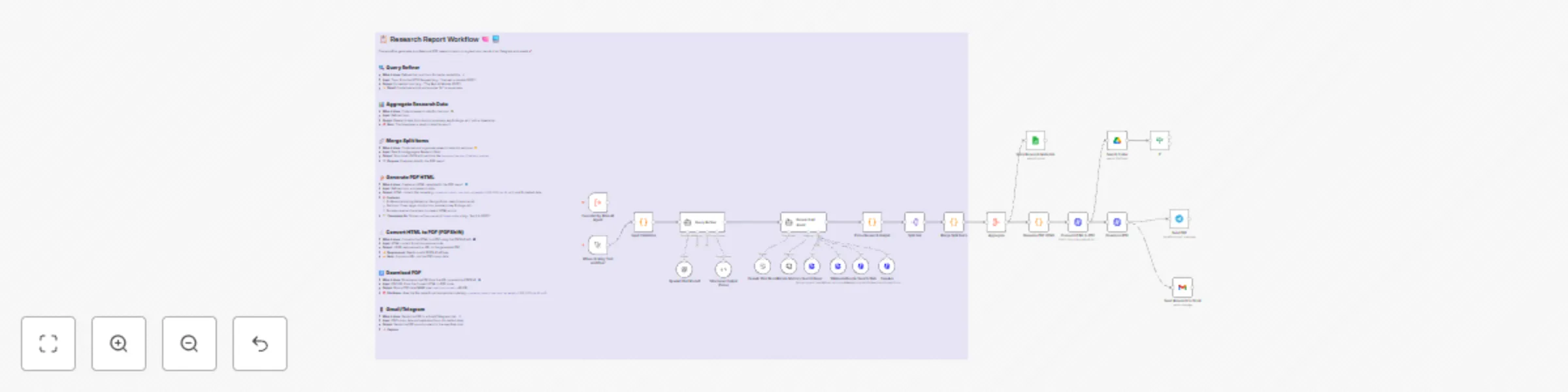
# Automated Research Report Generation with OpenAI, Wikipedia, Google Search, Gmail/Telegram and PDF Output --- ## Description ### What Problem Does This Solve? 🛠️ This workflow automates the process of **generating professional research reports** for researchers, students, and professionals. It eliminates manual research and report formatting by aggregating data, generating content with AI, and delivering the report as a PDF via Gmail or Telegram. **Target audience**: Researchers, students, educators, and professionals needing quick, formatted research reports. ### What Does It Do? 🌟 - Aggregates research data from Wikipedia, Google Search, and SerpApi. - Refines user queries and generates structured content using OpenAI. - Converts the content into a professional HTML report, then to PDF. - Sends the PDF report via Gmail or Telegram. ### Key Features 📋 - Real-time data aggregation from multiple sources. - AI-driven content generation with OpenAI. - Automated HTML-to-PDF conversion for professional reports. - Flexible delivery via Gmail or Telegram. - Error handling for robust execution. --- ## Setup Instructions ### Prerequisites ⚙️ - **n8n Instance**: Self-hosted or cloud n8n instance. - **API Credentials**: - **OpenAI API**: API key with GPT model access, stored in n8n credentials. - **SerpApi (Google Search)**: API key from SerpApi, stored in n8n credentials (do not hardcode in nodes). - **Gmail API**: Credentials from Google Cloud Console with Gmail scope. - **Telegram API**: Bot token from BotFather on Telegram. ### Installation Steps 📦 1. **Import the Workflow**: - Copy the workflow JSON from the "Template Code" section below. - Import it into n8n via "Import from File" or "Import from URL". 2. **Configure Credentials**: - Add API credentials in n8n’s Credentials section for OpenAI, SerpApi, Gmail, and Telegram. - Assign credentials to respective nodes. For example: - In the `SerpApi Google Search` node, use n8n credentials for SerpApi: `api_key={{ $credentials.SerpApiKey }}`. - In the `Send Research PDF on Gmail` node, use Gmail credentials. - In the `Send PDF to Telegram` node, use Telegram bot credentials. 3. **Set Up Nodes**: - **OpenAI Nodes** (`Research AI Agent`, `OpenAI Chat Model`, `OpenAI Chat Middle Memory`): Update the model (e.g., `gpt-4o`) and prompt as needed. - **Input Validation** (`Input Validation` node): Ensure your input query format matches the expected structure (e.g., `topic: "AI ethics"`). - **Delivery Options** (`Send Research PDF on Gmail`, `Send PDF to Telegram`): Configure recipient email or Telegram chat ID. 4. **Test the Workflow**: - Run the workflow by clicking the "Test Workflow" node. - Verify that the research report PDF is generated and sent via Gmail or Telegram. --- ## How It Works ### High-Level Steps 🔍 - **Query Refinement**: Refines the input query for better research. - **Aggregate Data**: Fetches data from Wikipedia, Google Search, and SerpApi. - **Generate Report**: Uses OpenAI to create a structured report. - **Convert to PDF**: Converts the report to HTML, then PDF. - **Deliver Report**: Sends the PDF via Gmail or Telegram. *Detailed descriptions are available in the sticky notes within the workflow screenshot above.* --- ## Node Names and Actions ### Research and Report Generation - `Test Workflow`: Triggers the workflow for testing. - `Input Validation`: Validates the input query. - `Query Refiner`: Refines the query for better results. - `Research AI Agent`: Coordinates research using OpenAI. - `OpenAI Chat Model`: Generates content for the report. - `Structured Output Parser`: Parses OpenAI output into structured data. - `OpenAI Chat Middle Memory`: Retains context during research. - `Wikipedia Google Search`: Fetches data from Wikipedia. - `SerpApi Google Search`: Fetches data via SerpApi. - `Merge Split Items`: Merges data from multiple sources. - `Aggregate`: Aggregates all research data. - `Generate PDF HTML`: Creates an HTML report. - `Convert HTML to PDF`: Converts HTML to PDF. - `Download PDF`: Downloads the PDF file. - `Send PDF to Telegram`: Sends the PDF via Telegram. - `Send Research PDF on Gmail`: Sends the PDF via Gmail. --- ## Customization Tips - **Expand Data Sources** 📡: Add more sources (e.g., academic databases) by adding nodes to `Merge Split Items`. - **Change Report Style** ✍️: Update the `Generate PDF HTML` node to modify the HTML template (e.g., adjust styling or sections). - **Alternative Delivery** 📧: Add nodes to send the PDF via other platforms (e.g., Slack). - **Adjust AI Model** 🧠: Modify the `OpenAI Chat Model` node to use a different model (e.g., `gpt-3.5-turbo`). ---

I
Immanuel
Content Creation
17 Apr 2025
6305
0
Workflow preview: Extract trends, auto-generate social content with AI, Reddit, Google & post
Free advanced

Extract trends, auto-generate social content with AI, Reddit, Google & post

# Extract Trends and Auto-Generate Social Media Content with OpenAI, Reddit, and Google Trends: Approve and Post to Instagram, TikTok, and More --- ## Description ### What Problem Does This Solve? 🛠️ This workflow automates **trend extraction** and **social media content creation** for businesses and marketers. It eliminates manual trend research and content generation by fetching trends, scoring them with AI, and posting tailored content to multiple platforms. **Target audience**: Social media managers, digital marketers, and businesses aiming to streamline content strategies. ### What Does It Do? 🌟 - Fetches trending topics from Reddit, X and Google Trends - Scores trends for relevance using OpenAI. - Generates content for Twitter/X, LinkedIn, Instagram and Facebook - Posts to supported platforms - Stores results in Google Sheets for tracking ### Key Features 📋 - Real-time trend fetching from Reddit and Google Trends. - AI-driven trend scoring and content generation (OpenAI). - Automated posting to Twitter/X, LinkedIn, Instagram, and Facebook. - Persistent storage in Google Sheets. --- ## Setup Instructions ### Prerequisites ⚙️ - **n8n Instance**: Self-hosted or cloud n8n instance. - **API Credentials**: - **Reddit API**: Client ID and secret from Reddit. - **SerpApi (Google Trends)**: API key from SerpApi, stored in n8n credentials - **OpenAI API**: API key with GPT model access. - **Twitter/X API**: OAuth 1.0a credentials with write permissions. - **LinkedIn API**: OAuth 2.0 credentials with `w_organization_social` scope. - **Instagram/Facebook API**: Meta Developer app with posting permissions. - **Google Sheets API**: Credentials from Google Cloud Console. ### Installation Steps 📦 1. **Import the Workflow**: - Copy the workflow JSON from the "Template Code" section below. - Import it into n8n via "Import from File" or "Import from URL". 2. **Configure Credentials**: - Add API credentials in n8n’s Credentials section for Reddit, SerpApi, OpenAI, Twitter/X, LinkedIn, Instagram/Facebook, and Google Sheets. - Assign credentials to respective nodes. For example: - In the `Fetch Google Trends` node (HTTP Request), use n8n credentials for SerpApi instead of hardcoding the API key. - Example: Set the API key in n8n credentials as `SerpApiKey` and reference it in the node’s query parameter: `api_key={{ $credentials.SerpApiKey }}`. 3. **Set Up Google Sheets** with the following columns (exact column names are case-sensitive) -Timestamp | Trend | Score | BrandVoice | AudienceMood | 4. **Customize Nodes**: - **OpenAI Nodes** (`Trend Relevance Scoring`, `Generate Social Media Content`): Update the model (e.g., `gpt-4o`) and prompt as needed. - **HTTP Request Nodes** (`Post to Twitter/X`, `Post to LinkedIn`, etc.): Verify URLs, authentication, and payloads. - **Brand Voice/Audience Mood**: Adjust `Prepare Trend Scoring Input` for your desired `brand_voice` (e.g., "casual") and `audience_mood` (e.g., "curious"). 5. **Test the Workflow**: - `Fetch Reddit Trends` to `Store Selected Trends`- to score and store trends. - `Retrieve Latest Trends` to end) to generate and post content - Check Google Sheets for posting statuses --- ## How It Works ### High-Level Steps 🔍 - **Fetch Trends**: Pulls trends from Reddit,X and Google Trends. - **Score Trends**: Uses OpenAI to score trends for relevance. - **Generate Content**: Creates platform-specific social media content. - **Post Content**: Posts to LinkedIn, Facebook or X *Detailed descriptions are available in the sticky notes within the workflow screenshot above.* --- ## Node Names and Actions ### Trend Extraction and Scoring - `Daily Trigger Idea`: Triggers the workflow daily. - `Set Default Inputs`: Sets default `brand_voice` and inputs. - `Fetch Reddit Trends`: Fetches Reddit posts. - `Extract Reddit Trends`: Extracts trends from Reddit. - `Fetch Google Trends`: Fetches Google Trends via SerpApi. - `Extract Google Trends2`: Processes Google Trends data. - `Fetch Twitter Mentions`: Fetches Twitter mentions. - `Translate Tweets to English`: Translates tweets. - `Fix Tweet Translation Output`: Fixes translation format. - `Detect Audience Mood`: Detects audience mood. - `Fix Audience Mood Output`: Fixes mood output format. - `Analyze News Sentiment`: Analyzes news sentiment. - `Combine Data (Merge)`: Merges all data sources. - `Merge Items into Single Item`: Combines data into one item. - `Combine Trends and UGC`: Combines trends with UGC. - `Prepare Trend Scoring Input`: Prepares data for scoring. - `Trend Relevance Scoring`: Scores trends with OpenAI. - `Parse Trend Scores`: Parses scoring output. - `Store Selected Trends`: Stores trends in Google Sheets. ### Content Generation and Posting - `Retrieve Latest Trends`: Retrieves trends from Google Sheets. - `Parse Retrieved Trends`: Parses retrieved trends. - `Select Top Trends`: Selects the top trend. - `Generate Social Media Content`: Generates platform-specific content. - `Parse Social Media Content`: Parses generated content. - `Generate Images`: Generates images for posts (if applicable). -`Handle Approvals/Rejection before Posting` - `Post to Instagram`: Posts to Instagram. - `Post to Facebook`: Posts to Facebook. - `Post to LinkedIn`: Posts to LinkedIn. --- ## Customization Tips - **Add Trend Sources** 📡: Include more sources (e.g., Instagram trends) by adding nodes to `Combine Data (Merge)`. - **Change Content Tone** ✍️: Update the `Generate Social Media Content` prompt for a different tone (e.g., "humorous"). - **Adjust Schedule** ⏰: Modify `Daily Trigger Idea` to run hourly or weekly. - **Automate TikTok/YouTube** 🎥: Add video generation (e.g., FFMPEG) to post TikTok and YouTube Shorts ---

I
Immanuel
Social Media
15 Apr 2025
20161
0
Workflow preview: Analyze Telegram messages with OpenAI and send notifications via Gmail & Telegram
Free intermediate

Analyze Telegram messages with OpenAI and send notifications via Gmail & Telegram

# AI-powered Telegram message analysis with multi-tool notifications (Gmail, Telegram) *This workflow triggers on Telegram updates, analyzes messages with an AI Agent using MCP tools, and sends notifications via Gmail and Telegram.* ## Detailed Description ### Who is this for? This template is for teams, businesses, or individuals using Telegram for communication who need automated, AI-driven insights and notifications. It’s ideal for customer support teams, project managers, or tech enthusiasts wanting to process Telegram messages intelligently and receive alerts via Gmail and Telegram. ### What problem is this workflow solving? Use case This workflow solves the challenge of manually monitoring Telegram messages by automating message analysis and notifications. For example, a support team can use it to analyze customer queries on Telegram with AI tools (OpenAI, Airbnb, Brave, FireCrawl) and get notified via Gmail and Telegram for quick responses. ### What this workflow does The workflow: 1. Triggers on a Telegram update (e.g., a new message) using the **Listen for Telegram Updates** node. 2. Processes the message with the **Analyze Message with AI** node, an AI Agent using MCP tools like OpenAI Chat, Airbnb search, Brave search, and FireCrawl. 3. Sends notifications via the **Send Gmail Notification** and **Send Telegram Alert** nodes, including AI-generated insights. ### Setup **Prerequisites:** - Telegram bot token for the trigger and notification nodes. - Gmail API credentials for sending emails. - API keys for OpenAI, Airbnb, Brave, and FireCrawl (used in the AI Agent). **Steps:** 1. Configure the **Listen for Telegram Updates** node with your Telegram bot token. 2. Set up the **Analyze Message with AI** node with your OpenAI API key and other tool credentials. 3. Configure the **Send Gmail Notification** node with your Gmail credentials. 4. Set up the **Send Telegram Alert** node with your Telegram bot token. 5. Test by sending a Telegram message to trigger the workflow. Setup takes ~15-30 minutes. Detailed instructions are in sticky notes within the workflow. ### How to customize this workflow to your needs - Add more AI tools (e.g., sentiment analysis) in the **Analyze Message with AI** node. - Modify the notification message in the **Send Gmail Notification** and **Send Telegram Alert** nodes to include specific AI outputs. - Add nodes for other channels like Slack or SMS after the AI Agent. ### Disclaimer *This workflow uses Community nodes (e.g., Airbnb, Brave, FireCrawl), which are available only in self-hosted n8n instances. Ensure your n8n setup supports Community nodes before using this template.*

I
Immanuel
Ticket Management
24 Mar 2025
853
0