Karol Otręba
Workflows by Karol Otręba
Enrich HubSpot companies with Polish CEIDG data using NIP identifiers
This workflow automatically enriches HubSpot company records with official data from the Polish CEIDG (Central Register and Information on Economic Activity) database when a NIP (Polish Tax ID) is added or updated. ## Who's it for Polish sales teams, marketing agencies, and CRM administrators who work with Polish companies in HubSpot and want to save time on manual data entry while ensuring data accuracy. ## How it works 1. **Trigger**: Monitors HubSpot for changes to the "NIP" property on company records 2. **Validation**: Checks if the NIP field is not empty 3. **API Query**: Fetches official company data from the Polish CEIDG database using the provided NIP 4. **Data Check**: Verifies if company data was successfully retrieved 5. **Transform**: Maps CEIDG data to HubSpot company properties 6. **Update**: Enriches the HubSpot company record with: - Company name - Full address (street, city, postal code, state) - Phone number - Website URL - NIP and REGON numbers - Business start date 7. **Error Handling**: If NIP is invalid or no data found, adds a note to the company record ## Requirements - **HubSpot account** with: - Custom property "nip" created for companies - Custom property "ceidg_notes" created for companies (optional, for storing API notes) - App token or developer API credentials - **CEIDG API Token** (free registration at https://dane.biznes.gov.pl/) - **n8n instance** (self-hosted or cloud) ## How to set up 1. **Create HubSpot custom properties**: - Go to HubSpot Settings > Properties > Company Properties - Create a "nip" property (single-line text) - Create a "ceidg_notes" property (multi-line text) for storing API responses 2. **Get CEIDG API Token**: - Register at https://dane.biznes.gov.pl/ - Navigate to API section and generate your token - Add token to n8n credentials (HTTP Bearer Auth) 3. **Configure HubSpot credentials**: - Add your HubSpot App Token in n8n credentials - Or use HubSpot Developer API credentials 4. **Activate the workflow**: - Import this workflow to your n8n instance - Configure the credentials in all HubSpot and HTTP nodes - Activate the workflow 5. **Test**: - Add or update a NIP value in any HubSpot company record - Check if the company data gets automatically populated ## How to customize - **Add more fields**: Modify the "Transform data for HubSpot" Code node to map additional CEIDG fields - **Change trigger property**: Update the HubSpot Trigger to monitor a different property name - **Notification**: Add an email or Slack notification node after successful updates - **Batch processing**: Add a schedule trigger to process multiple companies at once - **Data validation**: Add nodes to validate NIP format before making the API call - **Logging**: Add a Google Sheets or database node to log all enrichment activities ## Notes - CEIDG database contains data for sole proprietorships registered in Poland - For limited liability companies (sp. z o.o.) and other entities, you'll need to use KRS (National Court Register) API instead - The workflow processes one company at a time as they are updated - API rate limits apply based on your CEIDG API plan
Customer support & lead collection chatbot with RAG, GPT-4o, Sheets & Telegram
Who’s it for This template is designed for small and medium businesses, startups, and agencies that want to automate customer inquiries, provide instant support, and capture leads without losing valuable conversations. It’s especially useful for teams that get many repetitive questions about products, services, or locations but don’t want to miss out on collecting contact details for follow-up. What it does / How it works The workflow creates a 24/7 AI-powered chatbot that answers company-related questions and collects customer information. It uses: • GPT-4o for natural conversations • Pinecone Vector Store for Retrieval-Augmented Generation (RAG) with your company knowledge base • Google Sheets to store structured lead data • Telegram to instantly notify your team When a customer asks about products, services, or hours, the AI answers using the Pinecone database. Afterwards, it politely asks for their name, email, phone number, and interest. The details are saved to Google Sheets and your team receives a Telegram message with a summary. How to set up 1. Connect your OpenAI account. 2. Create a Pinecone index with company FAQs, documents, or policies. 3. Link your Google Sheet with columns: Name, Email, Phone, Interested in. 4. Add your Telegram bot token and chat/group ID. 5. Replace [INSERT_YOUR_COMPANY_NAME_HERE] in the system prompt with your company name. Requirements • OpenAI API key • Pinecone account • Google Sheets access • Telegram bot & chat ID How to customize • Change the system prompt to match your brand’s tone. • Update the Pinecone namespace and embeddings model if needed. • Add extra fields in Google Sheets (e.g., “Budget” or “Preferred product”). • Extend the flow with CRM integrations or automated email follow-ups. With this setup, you get a smart, RAG-powered chatbot that not only answers questions but also turns every conversation into a potential lead.
Automate RSS-to-social media with AI summaries and image generation
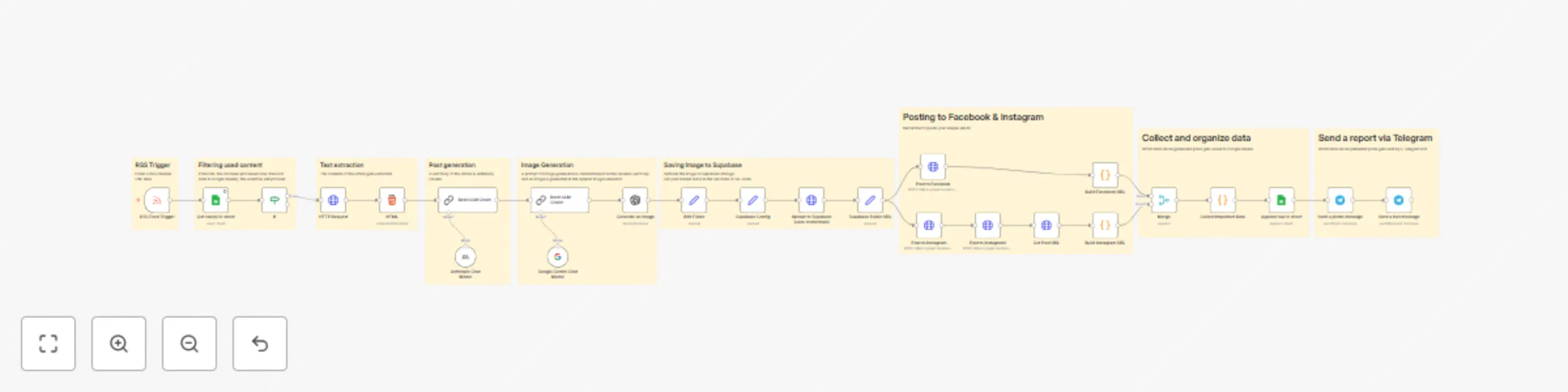
## How it works This workflow automates publishing content from any RSS feed directly to Facebook and Instagram. It reads new RSS entries, extracts the article content, generates a short social-media-friendly summary using an AI model, and then creates an AI-generated image based on the topic. The post is uploaded to Facebook and Instagram (via Graph API) and logged in Google Sheets for reference. Finally, a Telegram bot sends you a notification with links to the published posts. ## Set up steps 1. Insert your RSS feed URL in the RSS Feed Trigger node. 2. Configure Google Sheets credentials and replace the example sheet with your own. 3. In Supabase Config, insert your Supabase URL and bucket name. 4. In Facebook/Instagram nodes, replace [INSERT_YOUR_SITE_ID] with your own page or account ID. 5. Connect your Facebook Graph API credentials (remove hardcoded tokens). 6. Connect your OpenAI / Anthropic / Gemini credentials for text and image generation. 7. Set up your Telegram Bot credentials if you want to receive notifications. ## Notes • Sticky notes inside the workflow explain each section (RSS trigger, filtering, content generation, posting, logging, notifications). • No credentials are saved in the template – you must connect your own before running. • All generated content (text + images) is fully automated but can be customized (e.g. change AI prompts for your preferred style).
Auto-generate social media posts from URLs with AI, Telegram & multi-platform posting
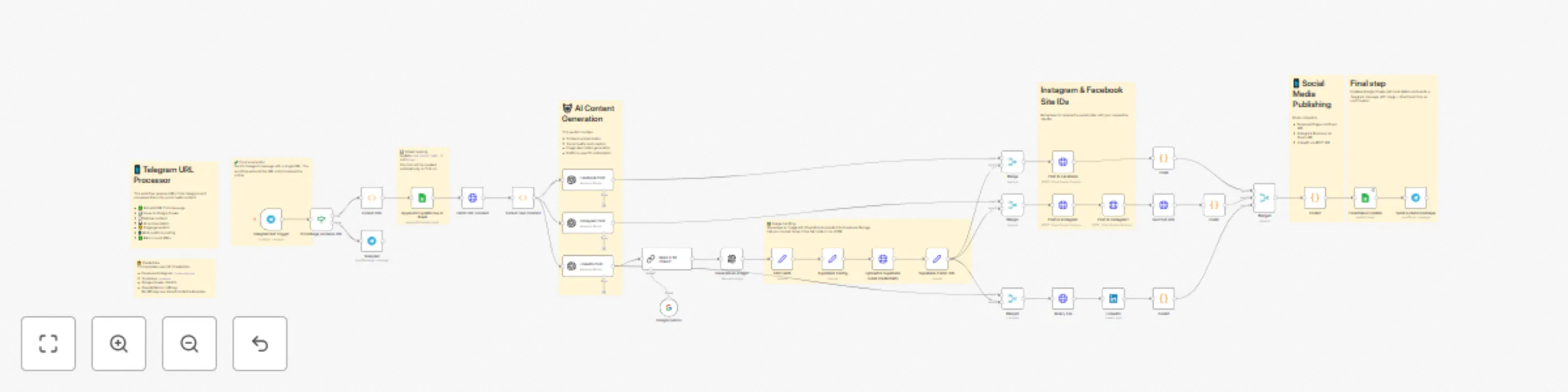
## How it works This workflow turns any URL sent to a Telegram bot into ready-to-publish social posts: 1. Trigger: Telegram message (checks if it contains a URL). 2. Fetch & parse: Downloads the page and extracts readable text + title. 3. AI writing: Generates platform-specific copy (Facebook, Instagram, LinkedIn). 4. Image: Creates an AI image and stores it in Supabase Storage. 5. Publish: Posts to Facebook Pages, Instagram Business, LinkedIn. 6. Logging: Updates Google Sheets with post URLs and sends a Telegram confirmation (image + links). ## Setup 1. Telegram – create a bot, connect via n8n Telegram credentials. 2. OpenAI / Gemini – add API key in n8n Credentials and select it in the AI nodes. 3. Facebook/Instagram (Graph API) – create a credential called facebookGraph with: • accessToken (page-scoped or system user) • pageId (for Facebook Page photos) • igUserId (Instagram Business account ID) • optional fbApiVersion (default v19.0) 4. LinkedIn – connect with OAuth2 in the LinkedIn node (leave as credential). 5. Supabase – credential supabase with url and apiKey. Ensure a bucket exists (default used in the Set node is social-media). 6. Google Sheets – replace YOUR_GOOGLE_SHEET_ID and Sheet1. Grant your n8n Google OAuth2 access. ## Notes • No API keys are stored in the template. Everything runs via n8n Credentials. • You can change bucket name, image size/quality, and AI prompts in the respective nodes. • The confirmation message on Telegram includes direct permalinks to the published posts. ## Required credentials • Telegram Bot • OpenAI (or Gemini) • Facebook/Instagram Graph • LinkedIn OAuth2 • Supabase (url + apiKey) • Google Sheets OAuth2 ## Inputs • A Telegram message that contains a URL. ## Outputs • Social posts published on Facebook, Instagram, LinkedIn. • Row appended/updated in Google Sheets with post URLs and image link. • Telegram confirmation with the generated image + post links.