S

Shiv Gupta

3
Workflows

Workflows by Shiv Gupta

Workflow preview: Pinterest keyword-based content scraper with AI agent & BrightData automation
Free advanced

Pinterest keyword-based content scraper with AI agent & BrightData automation

# Pinterest Keyword-Based Content Scraper with AI Agent & BrightData Automation ## Overview This n8n workflow automates Pinterest content scraping based on user-provided keywords using BrightData's API and Claude Sonnet 4 AI agent. The system intelligently processes keywords, initiates scraping jobs, monitors progress, and formats the extracted data into structured outputs. ## Architecture Components ### 🧠 AI-Powered Controller - **Claude Sonnet 4 Model**: Processes and understands keywords before initiating scrape - **AI Agent**: Acts as the intelligent controller coordinating all scraping steps ### 📥 Data Input - **Form Trigger**: User-friendly keyword input interface - **Keywords Field**: Required input field for Pinterest search terms ### 🚀 Scraping Pipeline 1. **Launch Scraping Job**: Sends keywords to BrightData API 2. **Status Monitoring**: Continuously checks scraping progress 3. **Data Retrieval**: Downloads completed scraped content 4. **Data Processing**: Formats and structures the raw data 5. **Storage**: Saves results to Google Sheets ## Workflow Nodes ### 1. Pinterest Keyword Input - **Type**: Form Trigger - **Purpose**: Entry point for user keyword submission - **Configuration**: - Form title: "Pinterest" - Required field: "Keywords" ### 2. Anthropic Chat Model - **Type**: Language Model (Claude Sonnet 4) - **Model**: `claude-sonnet-4-20250514` - **Purpose**: AI-powered keyword processing and workflow orchestration ### 3. Keyword-based Scraping Agent - **Type**: AI Agent - **Purpose**: Orchestrates the entire scraping process - **Instructions**: - Initiates Pinterest scraping with provided keywords - Monitors scraping status until completion - Downloads final scraped data - Presents raw scraped data as output ### 4. BrightData Pinterest Scraping - **Type**: HTTP Request Tool - **Method**: POST - **Endpoint**: `https://api.brightdata.com/datasets/v3/trigger` - **Parameters**: - `dataset_id`: `gd_lk0sjs4d21kdr7cnlv` - `include_errors`: `true` - `type`: `discover_new` - `discover_by`: `keyword` - `limit_per_input`: `2` - **Purpose**: Creates new scraping snapshot based on keywords ### 5. Check Scraping Status - **Type**: HTTP Request Tool - **Method**: GET - **Endpoint**: `https://api.brightdata.com/datasets/v3/progress/{snapshot_id}` - **Purpose**: Monitors scraping job progress - **Returns**: Status values like "running" or "ready" ### 6. Fetch Pinterest Snapshot Data - **Type**: HTTP Request Tool - **Method**: GET - **Endpoint**: `https://api.brightdata.com/datasets/v3/snapshot/{snapshot_id}` - **Purpose**: Downloads completed scraped data - **Trigger**: Executes when status is "ready" ### 7. Format & Extract Pinterest Content - **Type**: Code Node (JavaScript) - **Purpose**: Parses and structures raw scraped data - **Extracted Fields**: - URL - Post ID - Title - Content - Date Posted - User - Likes & Comments - Media - Image URL - Categories - Hashtags ### 8. Save Pinterest Data to Google Sheets - **Type**: Google Sheets Node - **Operation**: Append - **Mapped Columns**: - Post URL - Title - Content - Image URL ### 9. Wait for 1 Minute (Disabled) - **Type**: Code Tool - **Purpose**: Adds delay between status checks (currently disabled) - **Duration**: 60 seconds ## Setup Requirements ### Required Credentials 1. **Anthropic API** - Credential ID: `ANTHROPIC_CREDENTIAL_ID` - Required for Claude Sonnet 4 access 2. **BrightData API** - API Key: `BRIGHT_DATA_API_KEY` - Required for Pinterest scraping service 3. **Google Sheets OAuth2** - Credential ID: `GOOGLE_SHEETS_CREDENTIAL_ID` - Required for data storage ### Configuration Placeholders Replace the following placeholders with actual values: - `WEBHOOK_ID_PLACEHOLDER`: Form trigger webhook ID - `GOOGLE_SHEET_ID_PLACEHOLDER`: Target Google Sheets document ID - `WORKFLOW_VERSION_ID`: n8n workflow version - `INSTANCE_ID_PLACEHOLDER`: n8n instance identifier - `WORKFLOW_ID_PLACEHOLDER`: Unique workflow identifier ## Data Flow ``` User Input (Keywords) ↓ AI Agent Processing (Claude) ↓ BrightData Scraping Job Creation ↓ Status Monitoring Loop ↓ Data Retrieval (when ready) ↓ Content Formatting & Extraction ↓ Google Sheets Storage ``` ## Output Data Structure Each scraped Pinterest pin contains: - **URL**: Direct link to Pinterest pin - **Post ID**: Unique Pinterest identifier - **Title**: Pin title/heading - **Content**: Pin description text - **Date Posted**: Publication timestamp - **User**: Pinterest username - **Engagement**: Likes and comments count - **Media**: Media type information - **Image URL**: Direct image link - **Categories**: Pin categorization tags - **Hashtags**: Associated hashtags - **Comments**: User comments text ## Usage Instructions 1. **Initial Setup**: - Configure all required API credentials - Replace placeholder values with actual IDs - Create target Google Sheets document 2. **Running the Workflow**: - Access the form trigger URL - Enter desired Pinterest keywords - Submit the form to initiate scraping 3. **Monitoring Progress**: - The AI agent will automatically handle status monitoring - No manual intervention required during scraping 4. **Accessing Results**: - Structured data will be automatically saved to Google Sheets - Each run appends new data to existing sheet ## Technical Notes - **Rate Limiting**: BrightData API has built-in rate limiting - **Data Limits**: Current configuration limits 2 pins per keyword - **Status Polling**: Automatic status checking until completion - **Error Handling**: Includes error capture in scraping requests - **Async Processing**: Supports long-running scraping jobs ## Customization Options - **Adjust Data Limits**: Modify `limit_per_input` parameter - **Enable Wait Timer**: Activate the disabled wait node for longer jobs - **Custom Data Fields**: Modify the formatting code for additional fields - **Alternative Storage**: Replace Google Sheets with other storage options ## Sample Google Sheets Template Create a copy of the sample sheet structure: ``` https://docs.google.com/spreadsheets/d/SAMPLE_SHEET_ID/edit ``` Required columns: - Post URL - Title - Content - Image URL ## Troubleshooting - **Authentication Errors**: Verify all API credentials are correctly configured - **Scraping Failures**: Check BrightData API status and rate limits - **Data Formatting Issues**: Review the JavaScript formatting code for parsing errors - **Google Sheets Errors**: Ensure proper OAuth2 permissions and sheet access For any questions or support, please contact: [Email](mailto:[email protected]) or [fill out this form](https://www.incrementors.com/contact-us/)

S
Shiv Gupta
Market Research
24 Jun 2025
1743
0
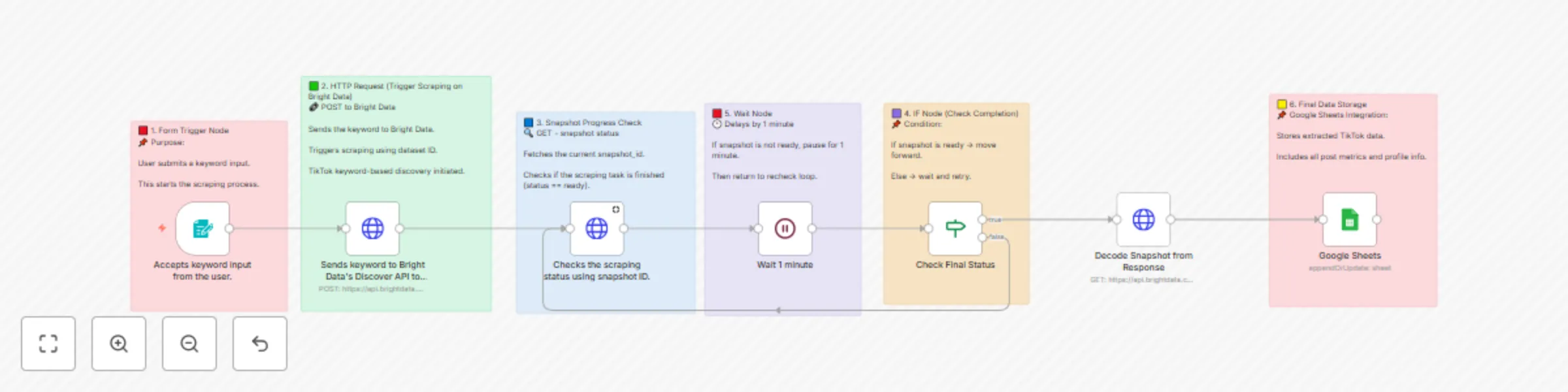
Workflow preview: TikTok post scraper via keywords | Bright Data + Sheets integration
Free intermediate

TikTok post scraper via keywords | Bright Data + Sheets integration

# 🎵 TikTok Post Scraper via Keywords | Bright Data + Sheets Integration ## 📝 Workflow Description Automatically scrapes TikTok posts based on keyword search using Bright Data API and stores comprehensive data in Google Sheets for analysis and monitoring. --- ## 🔄 How It Works This workflow operates through a simple, automated process: - **Keyword Input:** User submits search keywords through a web form - **Data Scraping:** Bright Data API searches TikTok for posts matching the keywords - **Processing Loop:** Monitors scraping progress and waits for completion - **Data Storage:** Automatically saves all extracted data to Google Sheets - **Result Delivery:** Provides comprehensive post data including metrics, user info, and media URLs --- ## ⏱️ Setup Information **Estimated Setup Time:** 10-15 minutes This includes importing the workflow, configuring credentials, and testing the integration. Most of the process is automated once properly configured. --- ## ✨ Key Features ### 📝 Keyword-Based Search Search TikTok posts using specific keywords ### 📊 Comprehensive Data Extraction Captures post metrics, user profiles, and media URLs ### 📋 Google Sheets Integration Automatically organizes data in spreadsheets ### 🔄 Automated Processing Handles scraping progress monitoring ### 🛡️ Reliable Scraping Uses Bright Data's professional infrastructure ### ⚡ Real-time Updates Live status monitoring and data processing --- ## 📊 Data Extracted | Field | Description | Example | |-------|-------------|---------| | url | TikTok post URL | https://www.tiktok.com/@user/video/123456 | | post_id | Unique post identifier | 7234567890123456789 | | description | Post caption/description | Check out this amazing content! #viral | | digg_count | Number of likes | 15400 | | share_count | Number of shares | 892 | | comment_count | Number of comments | 1250 | | play_count | Number of views | 125000 | | profile_username | Creator's username | @creativity_master | | profile_followers | Creator's follower count | 50000 | | hashtags | Post hashtags | #viral #trending #fyp | | create_time | Post creation timestamp | 2025-01-15T10:30:00Z | | video_url | Direct video URL | https://video.tiktok.com/tos/... | --- ## 🚀 Setup Instructions ### Step 1: Prerequisites - n8n instance (self-hosted or cloud) - Bright Data account with TikTok scraping dataset access - Google account with Sheets access - Basic understanding of n8n workflows ### Step 2: Import Workflow 1. Copy the provided JSON workflow code 2. In n8n: Go to **Workflows → + Add workflow → Import from JSON** 3. Paste the JSON code and click **Import** 4. The workflow will appear in your n8n interface ### Step 3: Configure Bright Data 1. In n8n: Navigate to **Credentials → + Add credential → Bright Data API** 2. Enter your Bright Data API credentials 3. Test the connection to ensure it's working 4. Update the workflow nodes with your dataset ID: `gd_lu702nij2f790tmv9h` 5. Replace `BRIGHT_DATA_API_KEY` with your actual API key ### Step 4: Configure Google Sheets 1. Create a new Google Sheet or use an existing one 2. Copy the Sheet ID from the URL 3. In n8n: **Credentials → + Add credential → Google Sheets OAuth2 API** 4. Complete OAuth setup and test connection 5. Update the Google Sheets node with your Sheet ID 6. Ensure the sheet has a tab named "Tiktok by keyword" ### Step 5: Test the Workflow 1. Activate the workflow using the toggle switch 2. Access the form trigger URL to submit a test keyword 3. Monitor the workflow execution in n8n 4. Verify data appears in your Google Sheet 5. Check that all fields are populated correctly --- ## ⚙️ Configuration Details ### Bright Data API Settings - **Dataset ID:** `gd_lu702nij2f790tmv9h` - **Discovery Type:** `discover_new` - **Search Method:** `keyword` - **Results per Input:** 2 posts per keyword - **Include Errors:** true ### Workflow Parameters - **Wait Time:** 1 minute between status checks - **Status Check:** Monitors until scraping is complete - **Data Format:** JSON response from Bright Data - **Error Handling:** Automatic retry on incomplete scraping --- ## 📋 Usage Guide ### Running the Workflow 1. Access the form trigger URL provided by n8n 2. Enter your desired keyword (e.g., "viral dance", "cooking tips") 3. Submit the form to start the scraping process 4. Wait for the workflow to complete (typically 2-5 minutes) 5. Check your Google Sheet for the extracted data ### Best Practices - Use specific, relevant keywords for better results - Monitor your Bright Data usage to stay within limits - Regularly backup your Google Sheets data - Test with simple keywords before complex searches - Review extracted data for accuracy and completeness --- ## 🔧 Troubleshooting ### Common Issues #### 🚨 Scraping Not Starting - Verify Bright Data API credentials are correct - Check dataset ID matches your account - Ensure sufficient credits in Bright Data account #### 🚨 No Data in Google Sheets - Confirm Google Sheets credentials are authenticated - Verify sheet ID is correct - Check that the "Tiktok by keyword" tab exists #### 🚨 Workflow Timeout - Increase wait time if scraping takes longer - Check Bright Data dashboard for scraping status - Verify keyword produces available results --- ## 📈 Use Cases ### Content Research Research trending content and hashtags in your niche to inform your content strategy. ### Competitor Analysis Monitor competitor posts and engagement metrics to understand market trends. ### Influencer Discovery Find influencers and creators in specific topics or industries. ### Market Intelligence Gather data on trending topics, hashtags, and user engagement patterns. --- ## 🔒 Security Notes - Keep your Bright Data API credentials secure - Use appropriate Google Sheets sharing permissions - Monitor API usage to prevent unexpected charges - Regularly rotate API keys for better security - Comply with TikTok's terms of service and data usage policies --- ## 🎉 Ready to Use! Your TikTok scraper is now configured and ready to extract valuable data. Start with simple keywords and gradually expand your research as you become familiar with the workflow. **Need Help?** Visit the n8n community forum or check the Bright Data documentation for additional support and advanced configuration options. --- For any questions or support, please contact: [Email](mailto:[email protected]) or [fill out this form](https://www.incrementors.com/contact-us/)

S
Shiv Gupta
Market Research
23 Jun 2025
3669
0
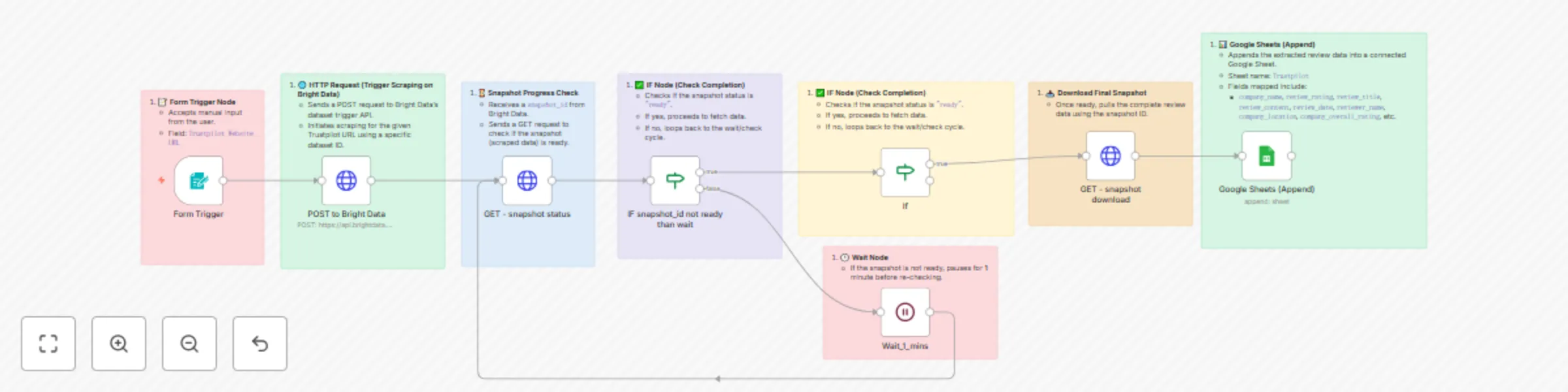
Workflow preview: Trustpilot insights scraper: Auto reviews via Bright Data + Google Sheets sync
Free advanced

Trustpilot insights scraper: Auto reviews via Bright Data + Google Sheets sync

# Trustpilot Insights Scraper: Auto Reviews via Bright Data + Google Sheets Sync ## Overview A comprehensive n8n automation that scrapes Trustpilot business reviews using Bright Data and automatically stores structured data in Google Sheets. ## Workflow Architecture ### 1. 📝 Form Trigger Node **Purpose**: Manual input interface for users - **Type**: `n8n-nodes-base.formTrigger` - **Configuration**: - Form Title: "Website URL" - Field: "Trustpilot Website URL" - **Function**: Accepts Trustpilot URL input from users to initiate the scraping process ### 2. 🌐 HTTP Request (Trigger Scraping) **Purpose**: Initiates scraping on Bright Data platform - **Type**: `n8n-nodes-base.httpRequest` - **Method**: POST - **Endpoint**: `https://api.brightdata.com/datasets/v3/trigger` - **Configuration**: - **Query Parameters**: - `dataset_id`: `gd_lm5zmhwd2sni130p` - `include_errors`: `true` - `limit_multiple_results`: `2` - **Headers**: - `Authorization`: `Bearer BRIGHT_DATA_API_KEY` - **Body**: JSON with input URL and 35+ custom output fields #### Custom Output Fields The workflow extracts the following data points: - **Company Information**: `company_name`, `company_logo`, `company_overall_rating`, `company_total_reviews`, `company_about`, `company_email`, `company_phone`, `company_location`, `company_country`, `company_category`, `company_id`, `company_website` - **Review Data**: `review_id`, `review_date`, `review_rating`, `review_title`, `review_content`, `review_date_of_experience`, `review_url`, `date_posted` - **Reviewer Information**: `reviewer_name`, `reviewer_location`, `reviews_posted_overall` - **Review Metadata**: `is_verified_review`, `review_replies`, `review_useful_count` - **Rating Distribution**: `5_star`, `4_star`, `3_star`, `2_star`, `1_star` - **Additional Fields**: `url`, `company_rating_name`, `is_verified_company`, `breadcrumbs`, `company_other_categories` ### 3. ⌛ Snapshot Progress Check **Purpose**: Monitors scraping job status - **Type**: `n8n-nodes-base.httpRequest` - **Method**: GET - **Endpoint**: `https://api.brightdata.com/datasets/v3/progress/{{ $json.snapshot_id }}` - **Configuration**: - **Query Parameters**: `format=json` - **Headers**: `Authorization: Bearer BRIGHT_DATA_API_KEY` - **Function**: Receives snapshot_id from previous step and checks if data is ready ### 4. ✅ IF Node (Status Check) **Purpose**: Determines next action based on scraping status - **Type**: `n8n-nodes-base.if` - **Condition**: `$json.status === "ready"` - **Logic**: - **If True**: Proceeds to data download - **If False**: Triggers wait cycle ### 5. 🕒 Wait Node **Purpose**: Implements polling delay for incomplete jobs - **Type**: `n8n-nodes-base.wait` - **Duration**: 1 minute - **Function**: Pauses execution before re-checking snapshot status ### 6. 🔄 Loop Logic **Purpose**: Continuous monitoring until completion - **Flow**: Wait → Check Status → Evaluate → (Loop or Proceed) - **Prevents**: API rate limiting and unnecessary requests ### 7. 📥 Snapshot Download **Purpose**: Retrieves completed scraped data - **Type**: `n8n-nodes-base.httpRequest` - **Method**: GET - **Endpoint**: `https://api.brightdata.com/datasets/v3/snapshot/{{ $json.snapshot_id }}` - **Configuration**: - **Query Parameters**: `format=json` - **Headers**: `Authorization: Bearer BRIGHT_DATA_API_KEY` ### 8. 📊 Google Sheets Integration **Purpose**: Stores extracted data in spreadsheet - **Type**: `n8n-nodes-base.googleSheets` - **Operation**: Append - **Configuration**: - **Document ID**: `1yQ10Q2qSjm-hhafHF2sXu-hohurW5_KD8fIv4IXEA3I` - **Sheet Name**: "Trustpilot" - **Mapping**: Auto-map all 35+ fields - **Credentials**: Google OAuth2 integration ## Data Flow ``` User Input (URL) ↓ Bright Data API Call ↓ Snapshot ID Generated ↓ Status Check Loop ↓ Data Ready Check ↓ Download Complete Dataset ↓ Append to Google Sheets ``` ## Technical Specifications ### Authentication - **Bright Data**: Bearer token authentication - **Google Sheets**: OAuth2 integration ### Error Handling - Includes error tracking in Bright Data requests - Conditional logic prevents infinite loops - Wait periods prevent API rate limiting ### Data Processing - **Mapping Mode**: Auto-map input data - **Schema**: 35+ predefined fields with string types - **Conversion**: No type conversion (preserves raw data) ## Setup Requirements ### Prerequisites 1. **Bright Data Account**: Active account with API access 2. **Google Account**: With Sheets API enabled 3. **n8n Instance**: Self-hosted or cloud version ### Configuration Steps 1. **API Keys**: Configure Bright Data bearer token 2. **OAuth Setup**: Connect Google Sheets credentials 3. **Dataset ID**: Verify correct Bright Data dataset ID 4. **Sheet Access**: Ensure proper permissions for target spreadsheet ### Environment Variables - `BRIGHT_DATA_API_KEY`: Your Bright Data API authentication token ## Use Cases ### Business Intelligence - Competitor analysis and market research - Customer sentiment monitoring - Brand reputation tracking ### Data Analytics - Review trend analysis - Rating distribution studies - Customer feedback aggregation ### Automation Benefits - **Scalability**: Handle multiple URLs sequentially - **Reliability**: Built-in error handling and retry logic - **Efficiency**: Automated data collection and storage - **Consistency**: Standardized data format across all scrapes ## Limitations and Considerations ### Rate Limits - Bright Data API has usage limitations - 1-minute wait periods help manage request frequency ### Data Volume - Limited to 2 results per request (configurable) - Large datasets may require multiple workflow runs ### Compliance - Ensure compliance with Trustpilot's terms of service - Respect robots.txt and rate limiting guidelines ## Monitoring and Maintenance ### Status Tracking - Monitor workflow execution logs - Check Google Sheets for data accuracy - Review Bright Data usage statistics ### Regular Updates - Update API keys as needed - Verify dataset ID remains valid - Test workflow functionality periodically ## Workflow Metadata - **Version ID**: `dd3afc3c-91fc-474e-99e0-1b25e62ab392` - **Instance ID**: `bc8ca75c203589705ae2e446cad7181d6f2a7cc1766f958ef9f34810e53b8cb2` - **Execution Order**: v1 - **Active Status**: Currently inactive (requires manual activation) - **Template Status**: Credentials setup completed For any questions or support, please contact: [Email](mailto:[email protected]) [or fill out this form](https://www.incrementors.com/contact-us/)

S
Shiv Gupta
Market Research
23 Jun 2025
277
0