Seb
Workflows by Seb
Automate Gmail email categorization with GPT-4o AI and reasoning
An AI inbox labelling manager that has reasoning attached to the ChatGPT inbox manager within n8n. Super simple yet highly effective automation. ## How it works: • Monitors Gmail inbox → triggers workflow when a new unread email is received. • Fetches email details including subject, body, and sender information. • Sends email content to OpenAI → uses AI to determine the most relevant label based on predefined rules. • AI uses a think tool → justifies why it selected that specific label. • Retrieves Gmail label IDs → matches AI’s choice to correct Gmail label for that email. • Adds the chosen label (e.g., Positive reply, priority email, etc) to the email automatically → optionally marks it as read/starred. • Continues monitoring → every new email is processed automatically, keeping the inbox organized. ## Set Up Steps • Connect Gmail account to the Gmail Node • Create OpenAI account & API key → go to OpenAI and sign up or log in. Once logged in, click Dashboard in the top menu. On the left sidebar, find API Keys and click Create new key. Copy this key — you’ll need it for n8n. Check your account balance → in the top-right, click your profile icon → Your Profile → Billing. Make sure your account has funds (e.g., $5 USD is enough for testing) so the API requests can run. **Do these steps through this link:** https://platform.openai.com/ • Retrieve Gmail label IDs → use the Gmail “get labels” node to fetch IDs for all labels you want the AI to use. • Use OpenAI (ChatGPT) node → set up system and user prompts with rules describing each label, and include the **label IDs (Important)**. • Test the workflow → send example emails, check labeling, and refine AI prompt or label rules if needed. • Tip: Pin trigger data for testing (Gmail node "Watch Incoming Emails") → re-use the same email record to speed up testing without sending multiple emails. ## About this automation Handles multiple labels → adding new labels only requires updating the AI prompt (no extra nodes). Scales easily → works for any number of Gmail labels without cluttering the workflow. For a complete rundown on how to set this up watch my YouTube tutorial linked below ### See full video tutorial here: https://www.youtube.com/watch?v=7nda4drHcWw #### My LinkedIn: https://www.linkedin.com/in/seb-gardner-5b439a260/
Automate Stripe Invoicing Workflow with ClickUp & Gmail Notifications
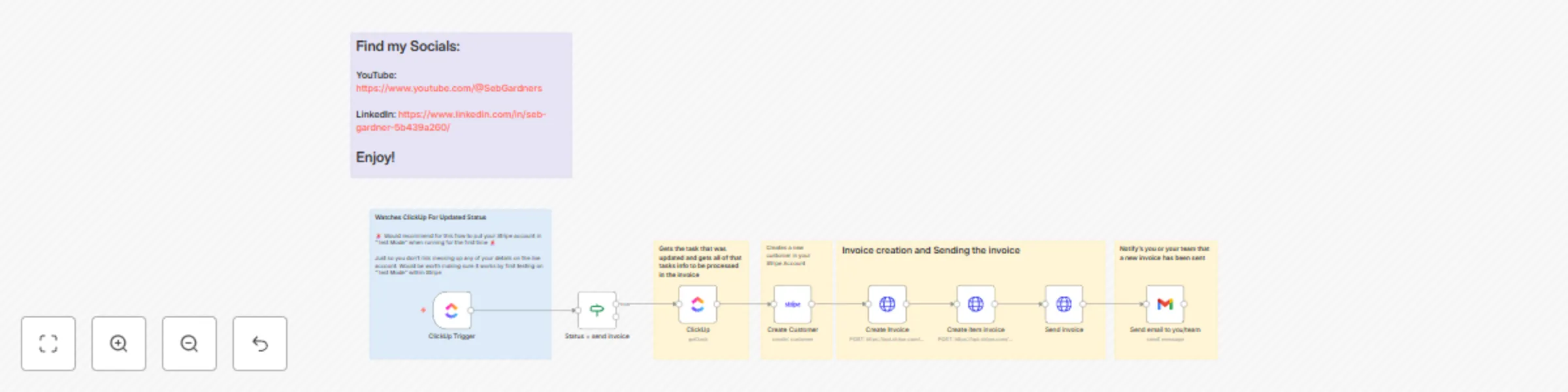
Stripe invoicing automation that is connected to your CRM, in this example, it is ClickUp. At the end of the flow, once your lead has been sent an invoice, you (or your team) will be sent an email notifying you of the newly sent invoice with all relevant details. ### How it works: • Monitors ClickUp task status → triggers workflow when status changes to send invoice. • Fetches task details from ClickUp, including customer name, email, and project cost. • Creates a Stripe customer using the fetched information. • Generates a Stripe invoice via HTTP request, including description, footer, and due date (calculated in Unix timestamp). • Adds invoice items automatically with correct amounts (converted to cents for Stripe). • Sends the invoice to the customer automatically (manual or auto-charge option). • Sends notification emails to team members with a link to the ClickUp task. Works with other CRMs like Monday or HubSpot, not just ClickUp. Test mode is available in Stripe to validate the workflow without sending real invoices. ### Setup steps: • You will need to connect your ClickUp Account • Connect your Stripe Account via HTTP Request (Shown in YouTube Video Linked Below) • You will need to connect your email account to N8N (Gmail, Outlook etc) for sending the emails to your team and the client ### Important Have your Stripe account and **PUT IT IN TEST/DEVELOPER MODE** when testing and developing the automation. Alternatively, set up an entirely separate account from your main Stripe account. This is only up until the point where you want to send the invoice, as you cannot send an invoice when your Stripe account is in test/developer mode For a complete rundown on how to set this up watch my YouTube tutorial linked below #### See full video tutorial here: https://youtu.be/vthK5I8x33k?si=W0Nreu403pDs-ud3 #### My LinkedIn: https://www.linkedin.com/in/seb-gardner-5b439a260/