Satoshi
Workflows by Satoshi
Automated marketing campaign email system with GPT-4 and HubSpot customer tracking
## Overview * This workflow automates customer outreach for marketing campaigns, including customer prioritization, AI-generated emails, automated sending, reply tracking, and meeting scheduling. --- ## How It Works 1. **Data Synchronization** * Customer and campaign data are periodically synchronized from Google Sheets and internal data tables. * New customers and campaigns are inserted into the system if they do not already exist. 2. **Customer Evaluation and Prioritization** * Customers are evaluated based on revenue, industry, capital, and location. * Each customer is classified into High / Medium / Low priority using AI. * Only high-priority customers are selected for campaign outreach. 3. **Campaign Detection** * The workflow checks for new, unsent marketing campaigns. * Campaigns marked as already sent are excluded. 4. **Personalized Email Generation** * For each eligible customer, past email history is retrieved. * An AI agent generates a personalized campaign email: * Uses historical interaction data when available. * Uses customer interests and keywords for new customers. * Produces a professional, friendly email proposing a meeting. 5. **Automated Email Sending** * Emails are sent automatically via Gmail. * Sent emails are logged into the message history database. * Campaign status is updated to “sent” after completion. 6. **Reply Handling** * Incoming customer replies are detected via Gmail triggers. * Replies are matched with previous messages and stored in the database. * AI generates an appropriate follow-up reply when required. 7. **Reply Classification and Scheduling** * Customer replies are classified as Positive / Pending / Negative. * If a reply includes scheduling information, meeting details are extracted. * Calendar events are automatically created in Google Calendar. --- ## Setup Steps 1. **Prepare Data Sources** * Set up Google Sheets for: * Customer master data Format includes the following columns: #/メール/ 氏名/ 会社名/ 所在地/ 売上(万円)/ 資本金(万円)/ 業界/関心/ Hubspot同期 * Campaign data Format includes the following columns: No / campaign_name / description / sent * Prepare internal data tables for: * Campaign records * Email message histories 2. **Create Data table** * Campaign table: * campaign_name: String * description: String * is_sent: boolean * Mail Histories table: * customer_email: String * email_subject: String * message: String * reply: String * reply_category: String 3. **Configure Credentials** * Google Sheets API * Gmail OAuth * Google Calendar API * HubSpot App Token (for customer synchronization) * OpenAI API (for AI agents)
Daily team progress checks & reports with Slack, ChatGPT and Google Sheets
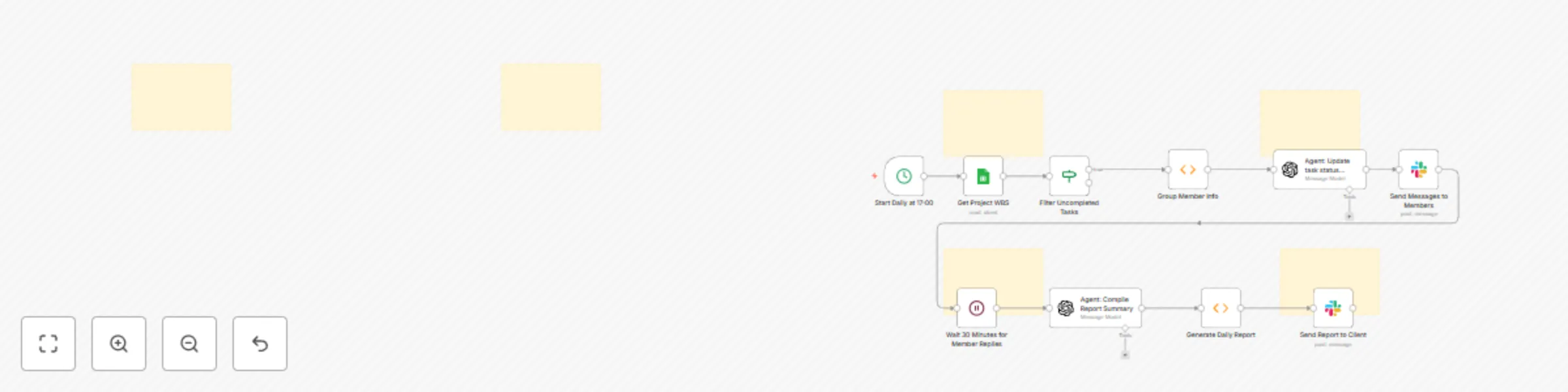
## Overview This workflow is a **daily progress check flow that runs automatically at 17:00**. It integrates Google Sheets, Slack, and ChatGPT to automate progress inquiries to team members and generate daily reports. --- ## Overall Workflow Steps * Triggered **every day at 17:00**. * Reads the specified WBS management sheet. * Automatically sends a Slack DM to each member based on their Slack ID. * After 30 minutes, retrieves and aggregates progress information for the day. * Sending Report to Slack Channel (e.g., "#daily-report"). * The report includes the date, each member’s progress, comments, etc. --- ## Sample Output * **Individual Member DM** “Hello Sato-san, could you briefly share today’s progress?” * **Team Report Sample** ``` 📅 2025/10/20 Daily Progress Report ✅ Sato: Task A completed, B at 80% ✅ Suzuki: Design review completed ⚠️ Tanaka: API test delayed (Reason: data not received) ``` --- ## Maintenance Tips * To avoid Slack rate limits, it is recommended to add a few seconds delay between messages * Update node settings when Google Sheets column names change * When using ChatGPT API, adjust `temperature` and `max_tokens` as needed --- ## Setup Instructions 1. **Google Sheets API** authenticated (OAuth2) * Obtain the Spreadsheet ID of the target sheet. 2. **Slack Bot Token** with `chat:write`, `users:read`, `im:write` permissions 3. **OpenAI API Key** registered 4. WBS sheet must include the following columns: * `Name` * `Slack ID` or `Email` * `Today Progress` * `Remarks` --- --- # 日次進捗チェック自動化フロー ## 概要 本ワークフローは、**毎日 17:00 に自動実行される日次進捗チェックフロー** です。Google Sheets・Slack・ChatGPT を連携させ、チームメンバーへの進捗確認と報告作成を自動化します。 --- ## フロー全体の流れ * トリガーは **毎日 17:00 に実行**。 * 指定された WBS 管理シートを読み込み。 * 各メンバーの Slack ID を元に、Slack の DM を自動送信。 * 全メンバーへの送信完了後、**30分間待機**。 * メンバーが Slack 上で進捗を入力する時間を確保。 * Slack グループへの報告送信(例:「#daily-report」など)。 * 投稿には日付・メンバーごとの進捗・コメントなどが含まれます。 --- ## 実行結果のイメージ * **メンバー個別DM** 「こんにちは佐藤さん、今日の進捗を簡単に教えてくださいね😊」 * **チーム報告投稿(例)** ``` 📅 2025/10/20 日次進捗報告 ✅ 佐藤:タスクA完了、Bは80% ✅ 鈴木:設計レビュー完了 ⚠️ 田中:APIテスト遅延(原因:データ未受領) ``` --- ## メンテナンスTips * Slack rate limit 回避のため、メッセージ間に数秒の遅延を設定推奨 * Google Sheets の列名変更時はノード設定を更新 * ChatGPT API 使用時は `temperature` や `max_tokens` を調整可 --- ## セットアップ手順 1. **Google Sheets API** 認証済み(OAuth2) * 対象シートの Spreadsheet ID を取得しておく。 2. **Slack Bot Token**(`chat:write`, `users:read`, `im:write` 権限付与) 3. **OpenAI API Key** 登録済み。 4. WBS シートに以下の列が存在すること: * `Name` * `Slack ID` または `Email` * `Today Progress` * `Remarks`
Send pre-meeting attendee context with OpenAI, Google Calendar, and Slack
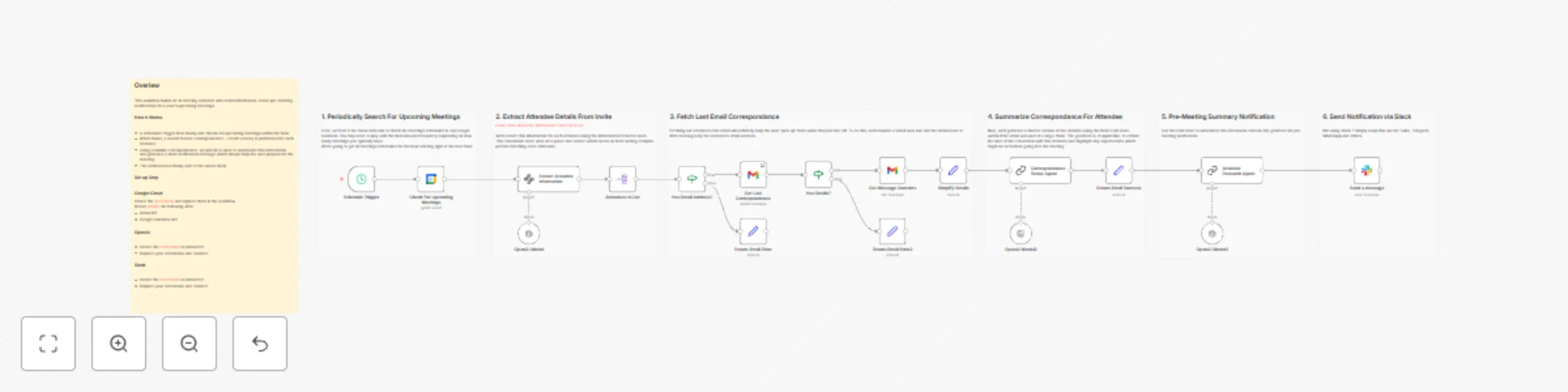
## Overiew This workflow builds an AI meeting assistant who sends information-dense pre-meeting notifications for a user's upcoming meetings. ### How It Works * A scheduled trigger fires hourly and checks for upcoming meetings within the hour. * When found, a search for last correspondence + recent activity is performed for each attendee. * Using available correspondance, an AI/LLM is used to summarize this information and generate a short notification message which should help the user prepare for the meeting. * The notification is finally sent to the user's Slack. ### Set up Steps #### Google Cloud Create the [credentials](https://console.cloud.google.com/apis/credentials) and replace them in the workflow. Please [enable](https://console.cloud.google.com/apis/dashboard) the following APIs: - Gmail API - Google Calendar API #### OpenAI - Create the [credentials](https://docs.n8n.io/integrations/builtin/credentials/openai/) as instructed - Replace your credentials and connect. #### Slack - Create the [credentials](https://docs.n8n.io/integrations/builtin/credentials/slack/?utm_source=n8n_app&utm_medium=credential_settings&utm_campaign=create_new_credentials_modal) as instructed - Replace your credentials and connect.
Weekly Google Analytics report with GPT-4o analysis & email delivery
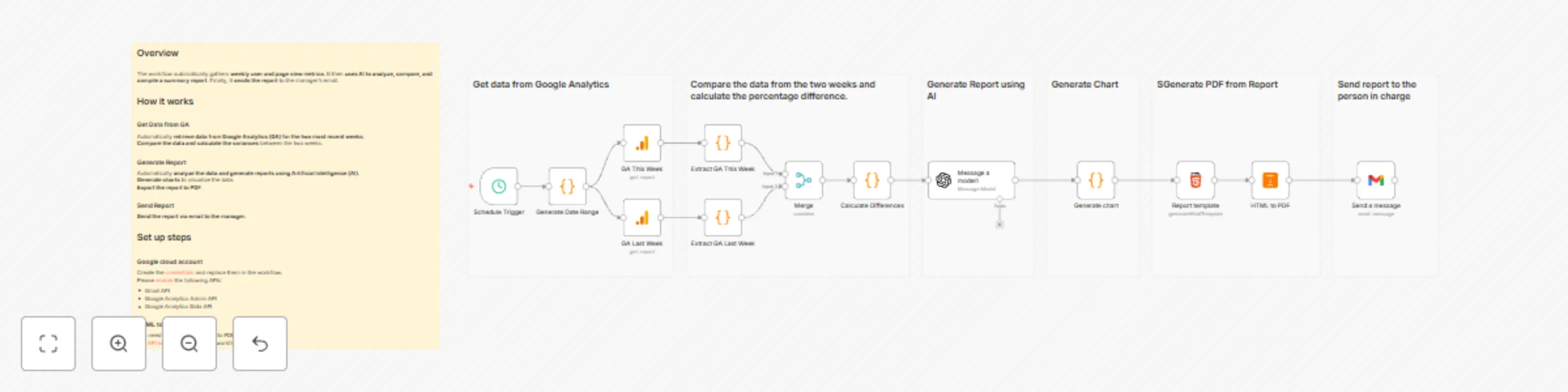
## Overview The workflow automatically gathers **weekly user and page view metrics**. It then **uses AI to analyze, compare, and compile a summary report**. Finally, it **sends the report** to the manager's email. ## How it works ### Get Data from GA Automatically **retrieve data from Google Analytics (GA) for the two most recent weeks**. **Compare the data and calculate the variances** between the two weeks. ### Generate Report Automatically **analyze the data and generate reports using Artificial Intelligence (AI)**. **Generate charts** to visualize the data. **Export the report to PDF**. ### Send Report **Send the report via email to the manager.** ## Set up steps ### Google cloud account Create the [credentials](https://console.cloud.google.com/apis/credentials) and replace them in the workflow. Please [enable](https://console.cloud.google.com/apis/dashboard) the following APIs: - Gmail API - Google Analytics Admin API - Google Analytics Data API ### HTML to PDF account You need to install node HTML to PDF. Get [API key](https://pdfmunk.com/) and replace in the workflow.
Order processing with Google Sheets and Slack: inventory checks and alerts
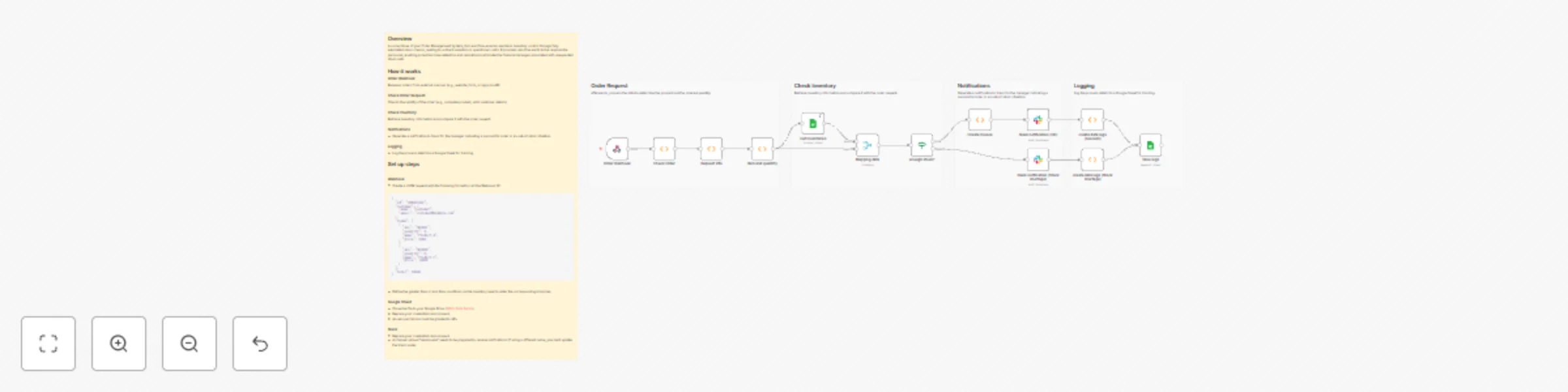
## Overview A cornerstone of your Order Management System, this workflow ensures seamless inventory control through fully automated stock checks, leading to a direct reduction in operational costs. It provides real-time alerts to the responsible personnel, enabling proactive issue detection and resolution to eliminate the financial damages associated with unexpected stock-outs. ## How it works ### Order Webhook Receives orders from external sources (e.g., website, form, or app) via API. ### Check Order Request Checks the validity of the order (e.g., complete product, valid customer details) ### Check Inventory Retrieve inventory information and compare it with the order request. ### Notifications - Generate a notification to Slack for the manager indicating a successful order or an out-of-stock situation. ### Logging - Log the process details to a Google Sheet for tracking. ## Set up steps ### Webhook - Create a JSON request with the following format to call the Webhook Url ``` { "id": "ORDER1001", "customer": { "name": "Customer", "email": "[email protected]" }, "items": [ { "sku": "SKU001", "quantity": 2, "name": "Product A", "price": 5000 }, { "sku": "SKU002", "quantity": 2, "name": "Product C", "price": 10000 } ], "total": 30000 } ``` - Define the greater than or less than conditions on the inventory level to enter the corresponding branches. ### Google Sheet - Clone the file to your Google Drive. ([WMS Data Demo](https://docs.google.com/spreadsheets/d/1sgTaHwbTWrVCDiSwuvqFVJr0-Ez2t3LTlJaLU4cBcuU/edit?usp=sharing)) - Replace your credentials and connect. - Access permission must be granted to n8n. ### Slack - Replace your credentials and connect. - A channel named "warehouse" needs to be prepared to receive notifications (if using a different name, you must update the Slack node).