Sarfaraz Muhammad Sajib
Workflows by Sarfaraz Muhammad Sajib
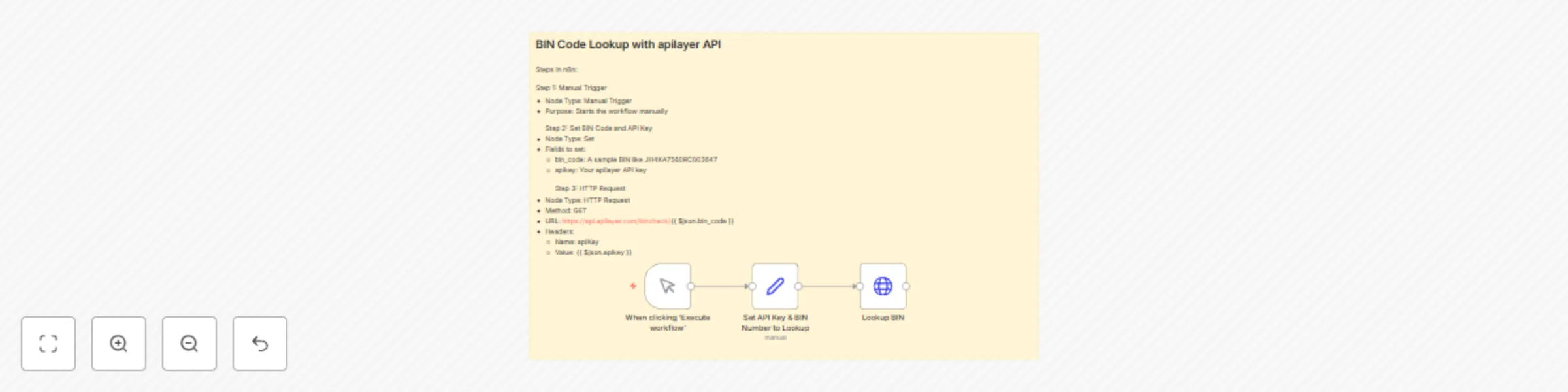
BIN code lookup with apilayer API
This workflow is designed to validate and fetch information about a card using the BIN code. It utilizes apilayer's BIN Check API and provides details like the card brand, type, issuing bank, and country. Prerequisites: - An apilayer account - API Key for the BIN Check API --- Steps in n8n: Step 1: Manual Trigger - Node Type: Manual Trigger - Purpose: Starts the workflow manually Step 2: Set BIN Code and API Key - Node Type: Set - Fields to set: - bin_code: A sample BIN like JH4KA7560RC003647 - apikey: Your apilayer API key Step 3: HTTP Request - Node Type: HTTP Request - Method: GET - URL: https://api.apilayer.com/bincheck/{{ $json.bin_code }} - Headers: - Name: apiKey - Value: {{ $json.apikey }} (Optional) Step 4: Handle the Output - Add nodes to store, parse, or visualize the API response. --- Expected Output: The response from apilayer contains detailed information about the provided BIN: - Card scheme (e.g., VISA, MasterCard) - Type (credit, debit, prepaid) - Issuing bank - Country of issuance --- Example Use Case: Use this to build a fraud prevention microservice, pre-validate card data before sending to payment gateways, or enrich card-related logs.
Validate email addresses with APILayer API
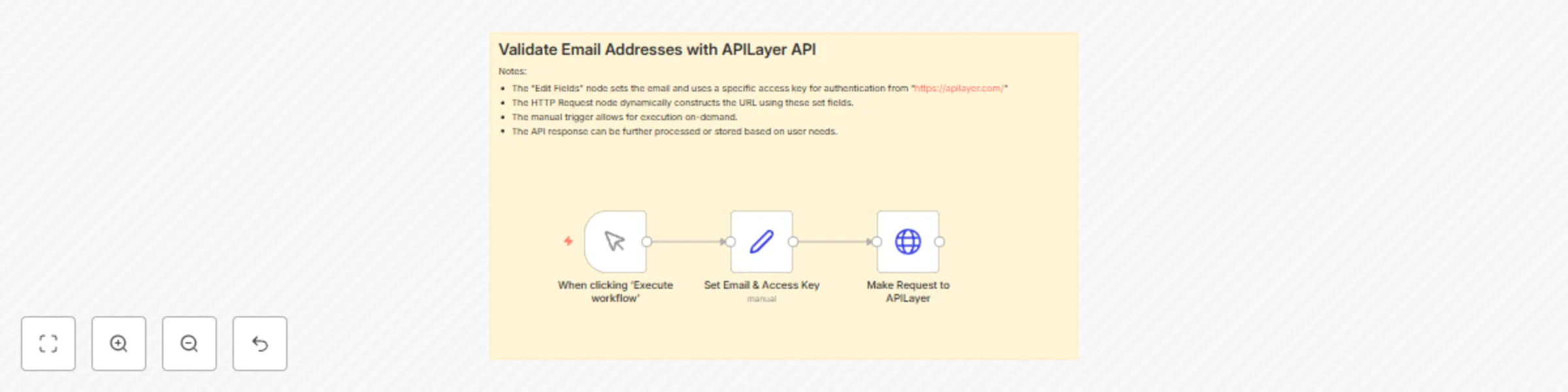
## 📧 Email Validation Workflow Using APILayer API This **n8n workflow** enables users to validate email addresses in real time using the [APILayer Email Verification API](https://apilayer.com/). It's particularly useful for preventing invalid email submissions during lead generation, user registration, or newsletter sign-ups, ultimately improving data quality and reducing bounce rates. --- ## ⚙️ Step-by-Step Setup Instructions 1. **Trigger the Workflow Manually:** - The workflow starts with the `Manual Trigger` node, allowing you to test it on demand from the n8n editor. 2. **Set Required Fields:** - The `Set Email & Access Key` node allows you to enter: - `email`: The target email address to validate. - `access_key`: Your personal API key from [apilayer.net](https://apilayer.com/). 3. **Make the API Call:** - The `HTTP Request` node dynamically constructs the URL: ```bash https://apilayer.net/api/check?access_key={{ $json.access_key }}&email={{ $json.email }} ``` - It sends a GET request to the APILayer endpoint and returns a detailed response about the email's validity. 4. *(Optional)*: You can add additional nodes to filter, store, or react to the results depending on your needs. --- ## 🔧 How to Customize - Replace the **manual trigger** with a webhook or schedule trigger to automate validations. - Dynamically map the `email` and `access_key` values from previous nodes or external data sources. - Add conditional logic to **filter out invalid emails**, log them into a database, or send alerts via Slack or Email. --- ## 💡 Use Case & Benefits Email validation is crucial in maintaining a clean and functional mailing list. This workflow is especially valuable in: - Sign-up forms where real-time email checks prevent fake or disposable emails. - CRM systems to ensure user-entered emails are valid before saving them. - Marketing pipelines to **minimize email bounce rates** and increase campaign deliverability. Using APILayer’s trusted validation service, you can verify whether an email exists, check if it’s a role-based address (like `info@` or `support@`), and identify disposable email services—all with a simple workflow. --- **Keywords**: email validation, n8n workflow, APILayer API, verify email, real-time email check, clean email list, reduce bounce rate, data accuracy, API integration, no-code automation
Generate news videos from RSS feeds with HeyGen avatar
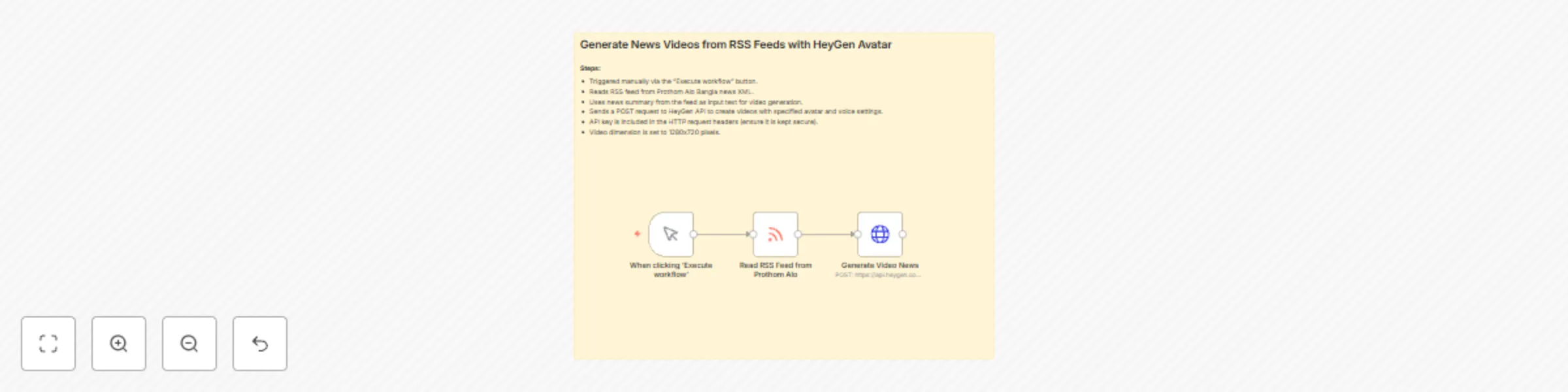
## Overview This n8n workflow automates the generation of short news videos using the **HeyGen video API** and **RSS feeds** from a Bangla news source, *Prothom Alo*. It is ideal for content creators, media publishers, or developers who want to create daily video summaries from text-based news feeds using AI avatars. The workflow reads the latest news summaries from an RSS feed and sends each item to the HeyGen API to create a video with a realistic avatar and voice narration. The resulting video is suitable for publishing on platforms like YouTube, Instagram, or TikTok. ## Requirements * A [HeyGen](https://www.heygen.com/) account with access to the API. * HeyGen API key (kept securely in your environment). * n8n (self-hosted or cloud instance). * Basic understanding of using HTTP request nodes in n8n. ## Setup Instructions 1. **Clone this Workflow** into your n8n instance. 2. Replace the placeholder value in the `X-Api-Key` header with your **HeyGen API key**. 3. Confirm the RSS feed URL is correct and live: `https://prod-qt-images.s3.amazonaws.com/production/prothomalo-bangla/feed.xml` 4. The HTTP Request body references `{{$json.summary}}` from each RSS item. Make sure this field exists. 5. Run the workflow manually or configure a CRON trigger if you want to automate it. ## Customization * **Avatar ID** and **Voice ID** can be changed in the `HTTP Request` body. Use your HeyGen dashboard to get available IDs. * Change the video **dimensions** (`1280x720`) to suit your platform’s requirements. * You can replace the RSS feed with any other news source that supports XML format. * Add nodes to upload the video to YouTube, Dropbox, etc., after generation. ## What It Does * Triggers manually. * Reads an RSS feed. * Extracts summary from each news item. * Sends a request to HeyGen to generate a video. * Returns the video generation response.
Simple SMS messaging system with Textbelt API integration
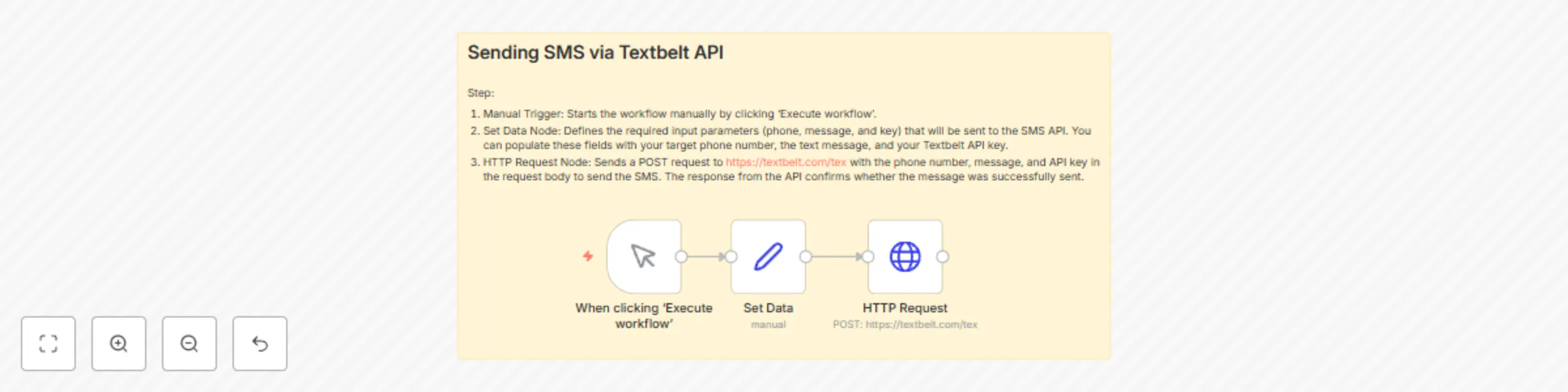
This n8n workflow sends SMS messages through the Textbelt API by accepting phone numbers, messages, and API keys as inputs. It uses a manual trigger to start the process, sets the necessary data, and executes an HTTP POST request to deliver the SMS. Step-by-Step Explanation: 1. Manual Trigger: Starts the workflow manually by clicking ‘Execute workflow’. 2. Set Data Node: Defines the required input parameters (phone, message, and key) that will be sent to the SMS API. You can populate these fields with your target phone number, the text message, and your Textbelt API key. 3. HTTP Request Node: Sends a POST request to https://textbelt.com/tex with the phone number, message, and API key in the request body to send the SMS. The response from the API confirms whether the message was successfully sent.
Analyze and chat with XML files using GPT and LangChain
## This workflow allows interactive conversation with the content of an XML file using OpenAI and LangChain. It fetches an XML feed from a specified URL, parses the XML, and enables an AI agent to respond to user queries based on the XML's structure and data. ## What It Does: - Triggered via webhook or manual execution. - Sets and fetches an external XML feed URL. - Parses the XML into a readable format. - Connects OpenAI GPT via LangChain for intelligent chat. - AI agent answers questions like extracting nodes, attributes, or structure from the XML.
Send scheduled RSS news digest emails with formatted HTML in Gmail
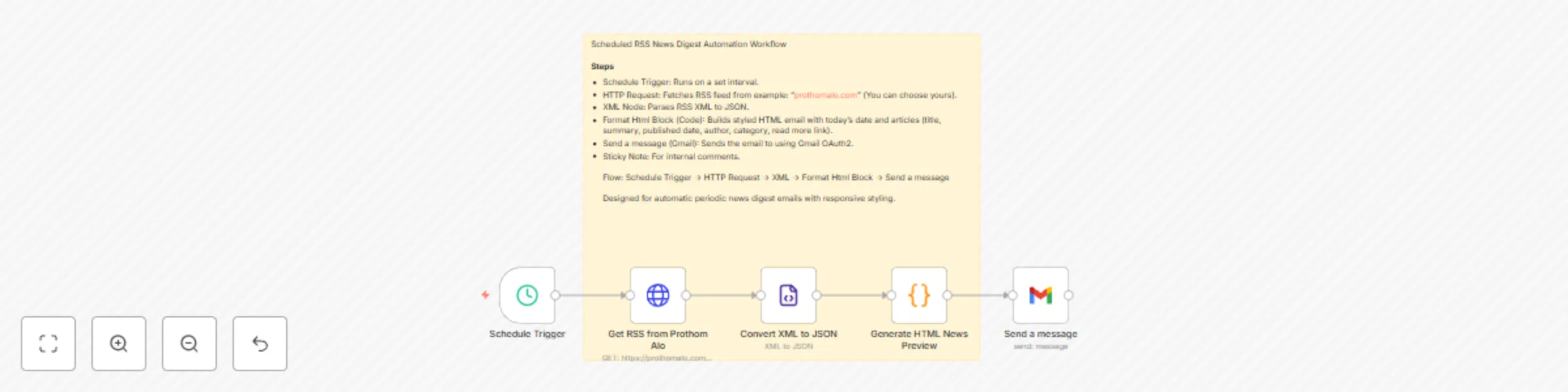
## 📬 Scheduled RSS News Digest Emails with Gmail Automatically send beautifully formatted news digests from any RSS feed (e.g., Prothom Alo) directly to your Gmail inbox on a schedule using this n8n workflow. Ideal for news curators, bloggers, media professionals, or anyone who wants a daily/weekly news summary in their email. --- ## ✅ Prerequisites Before using this workflow, ensure you have the following: * An active **Gmail account** with OAuth2 credentials set up in n8n. * A public **RSS feed URL** (e.g., [https://prothomalo.com/feed](https://prothomalo.com/feed)). * An instance of **n8n** running (self-hosted or via n8n cloud). * Basic familiarity with how n8n workflows function. --- ## ⚙️ Setup Instructions ### 1. **Schedule Trigger** * Triggers the workflow at your chosen interval (e.g., daily at 8 AM). * You can configure this under the `interval` section of the Schedule Trigger node. ### 2. **HTTP Request – Get RSS from Prothom Alo** * Fetches the latest RSS feed from your preferred news source. * Set the `URL` field to your desired RSS feed, such as `https://prothomalo.com/feed`. ### 3. **Convert XML to JSON** * Uses the XML node to parse the fetched XML into JSON format for further processing. ### 4. **Code Node – Generate HTML News Preview** * Transforms the parsed JSON into a styled HTML template. * Includes dynamic data like the article title, summary, author, category, and a “Read More” button. * The date is formatted to `bn-BD` locale for regional display. ### 5. **Gmail Node – Send a message** * Sends the generated HTML as an email. * Requires **Gmail OAuth2** credentials to be configured. * Set the recipient address. * Use the generated HTML inside the `message` field. * Make sure to use Gmail OAuth2 credentials (you can set this under "Credentials"). --- ## 🛠 Customization Options * **RSS Feed Source**: Replace `https://prothomalo.com/feed` with any RSS/Atom feed of your choice. * **Email Design**: Modify the embedded HTML/CSS in the Gmail node and code block to reflect your brand/theme. * **Language & Locale**: Adjust the date and formatting based on your preferred locale (e.g., `en-US`, `bn-BD`, etc.). * **Email Frequency**: Set your schedule to send digests hourly, daily, or weekly. --- ## 🧹 Flow Overview ``` Schedule Trigger → HTTP Request → XML → Code (HTML Builder) → Gmail Send ``` --- ## 💡 Use Cases * **Daily Newsletters** * **Team Updates from Blogs** * **Industry Trends Monitoring** * **Client Briefings with Custom Feeds** --- This automated workflow ensures timely delivery of curated news in a mobile-responsive, branded HTML format. No manual copy-pasting — just scheduled insights, beautifully delivered.
Send chat message notifications from Tawk.to to Gmail
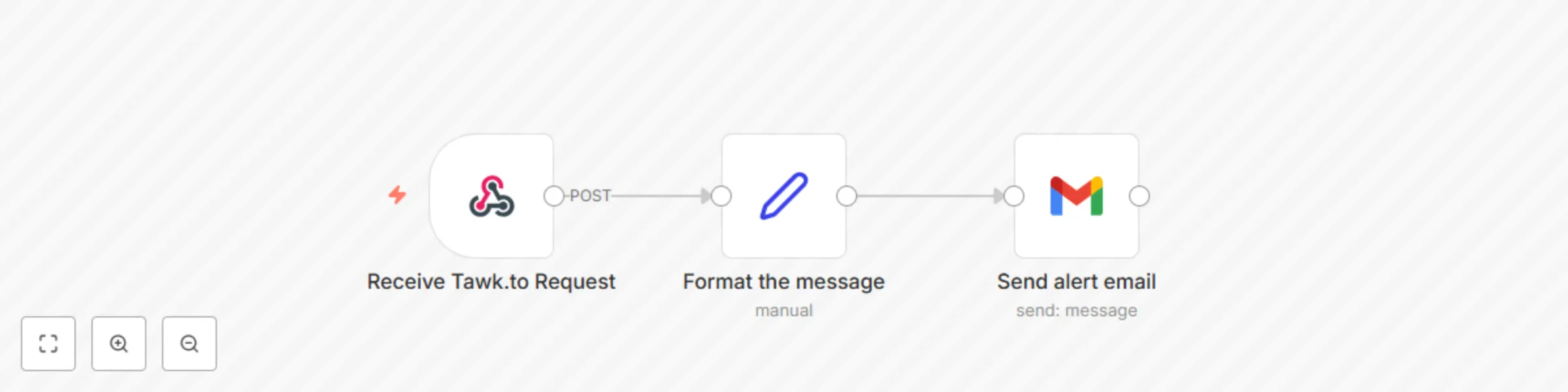
This automation workflow captures incoming chat messages from your **Tawk.to** live chat widget and sends alert emails via **Gmail** to notify your support team instantly. It is designed to help you respond promptly to visitors and improve your customer support experience. --- ### Prerequisites - **Tawk.to account:** You must have an active Tawk.to account with a configured live chat widget on your website. - **Gmail account:** A Gmail account with API access enabled and configured in n8n for sending emails. - **n8n instance:** Access to an n8n workflow automation instance where you will import and configure this workflow. --- ### Step-by-Step Setup Instructions #### 1. Configure Tawk.to Webhook - Log in to your Tawk.to dashboard. - Navigate to **Administration > Webhooks**. - Click **Add Webhook** and enter the following: - **URL:** Your n8n webhook URL from the **Receive Tawk.to Request** node (e.g., `https://your-n8n-instance.com/webhook/a4bf95cd-a30a-4ae0-bd2a-6d96e6cca3b4`) - **Method:** POST - **Events:** Select the chat message event (e.g., `Visitor Message` or `Chat Message Received`) - Save the webhook configuration. #### 2. Configure Gmail Credentials in n8n - In your n8n instance, go to **Credentials**. - Add a new **Gmail OAuth2** credential: - Follow Google's instructions to create a project, enable Gmail API, and obtain client ID and secret. - Authenticate and authorize n8n to send emails via your Gmail account. #### 3. Import and Activate Workflow - Import the provided workflow JSON into n8n. - Verify the **Receive Tawk.to Request** webhook node path matches the webhook URL configured in Tawk.to. - Enter the email address you want the alerts sent to in the **Send alert email** node’s `sendTo` parameter. - Activate the workflow. --- ### Workflow Explanation 1. **Receive Tawk.to Request:** This webhook node listens for POST requests from Tawk.to containing chat message data. 2. **Format the message:** Extracts relevant data from the incoming payload such as chat ID, visitor name, country, and message text, and assigns them to new fields for easy use downstream. 3. **Send alert email:** Uses Gmail node to send a notification email to your support team with all relevant chat details formatted in a clear, concise text email. --- ### Customization Guidance - **Email Recipient:** Update the `sendTo` field in the **Send alert email** node to specify your support team’s email address. - **Email Content:** Modify the message template in the **Send alert email** node’s `message` parameter to suit your tone or include additional details like timestamps or chat URLs. - **Additional Processing:** You can extend the workflow by adding nodes for logging chats, triggering Slack notifications, or storing messages in a database. --- By following these instructions, your support team will receive immediate email alerts whenever a new chat message arrives on your website, improving response times and customer satisfaction. ---
Chat with AI models via OpenRouter using Mistral
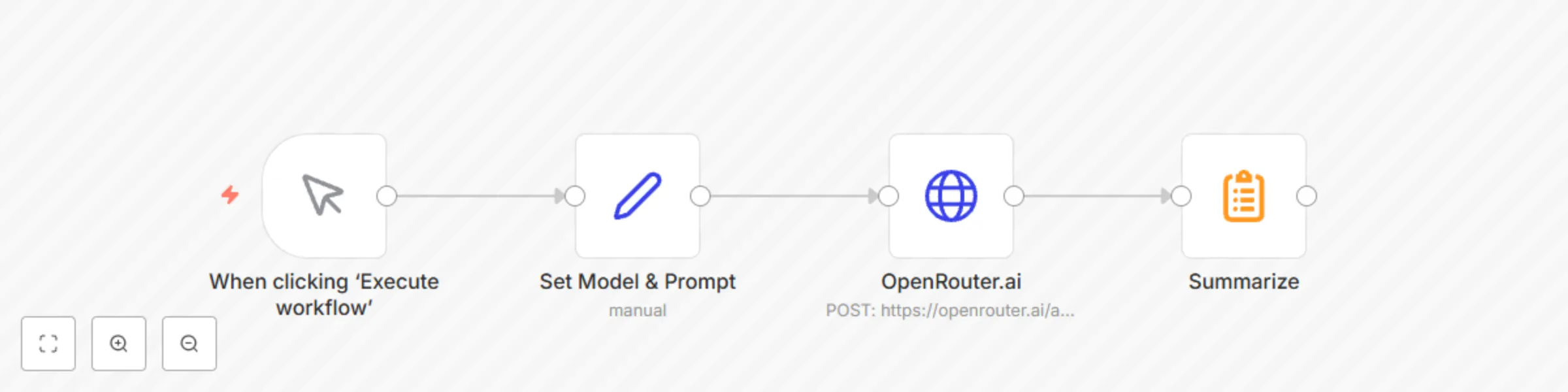
This n8n workflow demonstrates how to build an automated AI chat system using OpenRouter.ai. It includes a manual trigger, sets a model and user message, sends a POST request to the OpenRouter chat API, and summarizes the response. Workflow Steps: 1. Manual Trigger – Starts the workflow when executed manually. 2. Set Node – Defines: - Model: mistralai/mistral-small-3.2-24b-instruct:free - Message: What is the meaning of life? 3. HTTP Request – Sends a POST request to https://openrouter.ai/api/v1/chat/completions using Bearer Token Authentication with the model and message as JSON. 4. Summarize – Extracts and summarizes the AI’s response (choices[0].message.content). Use Cases: - AI chatbot automation - Content summarization - Testing AI prompts in real-time - Educational demos using OpenRouter.ai - Lightweight conversational tools with no external server
Send daily currency exchange rate updates via CurrencyFreaks API and Gmail
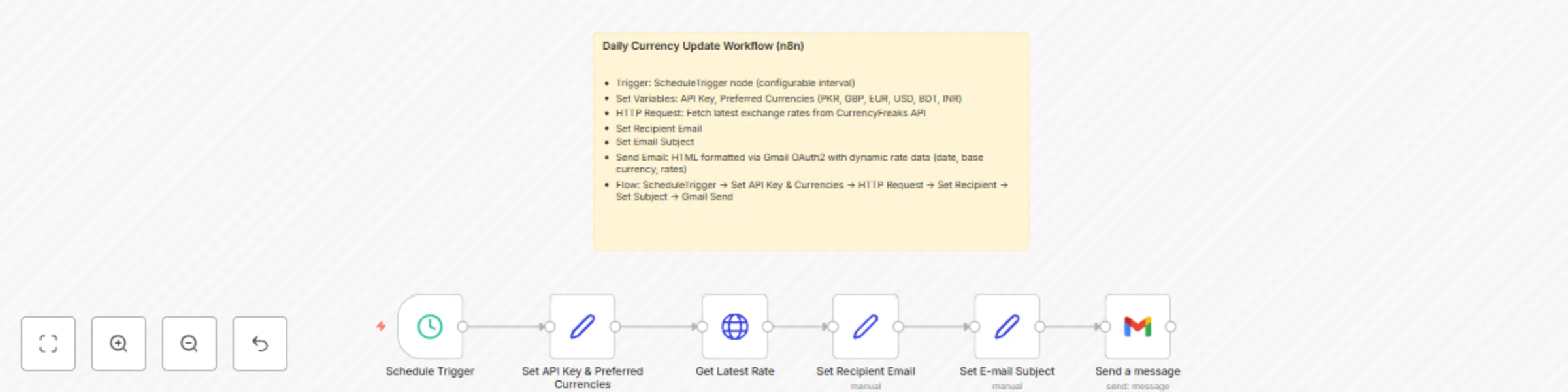
# Daily Currency Update Workflow (n8n) - Trigger: ScheduleTrigger node (configurable interval) - Set Variables: API Key, Preferred Currencies (PKR, GBP, EUR, USD, BDT, INR) - HTTP Request: Fetch latest exchange rates from CurrencyFreaks API - Set Recipient Email - Set Email Subject - Send Email: HTML formatted via Gmail OAuth2 with dynamic rate data (date, base currency, rates) - Flow: ScheduleTrigger → Set API Key & Currencies → HTTP Request → Set Recipient → Set Subject → Gmail Send
AI-powered automated outreach with scheduling, Gemini, Gmail & Google Sheets
# AI-Powered Automated Outreach Scheduling with Gemini, Gmail & Google Sheets Automate your lead generation and outreach process seamlessly using AI, Gmail, and Google Sheets—all within n8n. No complicated setup—just import, activate, and start reaching prospects with personalized messages generated by Google Gemini’s AI model. --- ## Quick Setup 1. **Import the Workflow** Download and import the provided workflow into your n8n instance. 2. **Connect Your Accounts** * Authenticate your **Google Sheets** account. * Connect your **Gmail** account for sending emails. 3. **Prepare the Spreadsheet** Use [this template](https://docs.google.com/spreadsheets/d/1lSulp8T77dbrnSo5EGQVGZvo0wJkBTho5r7i8r-Mjzc/edit?usp=sharing) to set up your leads and tracking sheet. 4. **Configure the Gemini API** * Obtain your Gemini API key. [Here](https://aistudio.google.com/prompts/new_chat) * Add it to the Gemini API credentials within n8n. 5. **Set Scheduling Preferences** Customize the **Schedule Trigger** node to control when the workflow runs. 6. **Edit Email Prompts** Update the **initial** and **follow-up** email prompts to match your outreach tone and goals. 7. **Set Rate Limits** Configure the rate limiting settings to comply with Gmail sending limits and avoid spam filters. 8. **Activate the Workflow** Enable the workflow to begin automated outreach to your leads. 9. **Track and Manage Leads** Monitor responses and update lead statuses directly in your Google Sheet. --- ## How It Works - **Schedule Trigger:** Automatically starts outreach based on your defined schedule - **Google Sheets Integration:** Fetches leads and updates their status after outreach - **Email Validation:** Checks if lead emails are valid before sending - **Website Scraper:** Gathers info from lead websites to personalize messages - **Google Gemini AI:** Generates tailored cold outreach messages optimized for high response - **Gmail Node:** Sends personalized emails directly from your Gmail account --- ## Core Features - Pull leads automatically from Google Sheets - Validate emails to avoid bounces - Scrape lead websites for custom messaging context - Generate AI-crafted outreach emails with dynamic personalization - Send emails on schedule without manual intervention - Update lead status to track outreach progress --- ## AI Integration - Uses Google Gemini AI to create professional, friendly, and engaging outreach emails - Dynamic prompt templates tailored to each lead’s company and website content - Structured JSON output to easily map subject, greeting, and body content --- ## 💡 Usage Examples - B2B cold outreach campaigns with personalized emails - Automated follow-ups based on lead engagement - Lead nurturing with context-aware messaging - Sales prospecting workflows integrated into your CRM --- ## ✨ Benefits - Save hours by automating personalized outreach - Increase response rates with AI-optimized messaging - Keep lead data organized and updated in Google Sheets - Fully scalable and customizable n8n workflow - Minimal setup, ready to run out-of-the-box
Screen applicants with AI, notify HR and save them in a Google Sheet
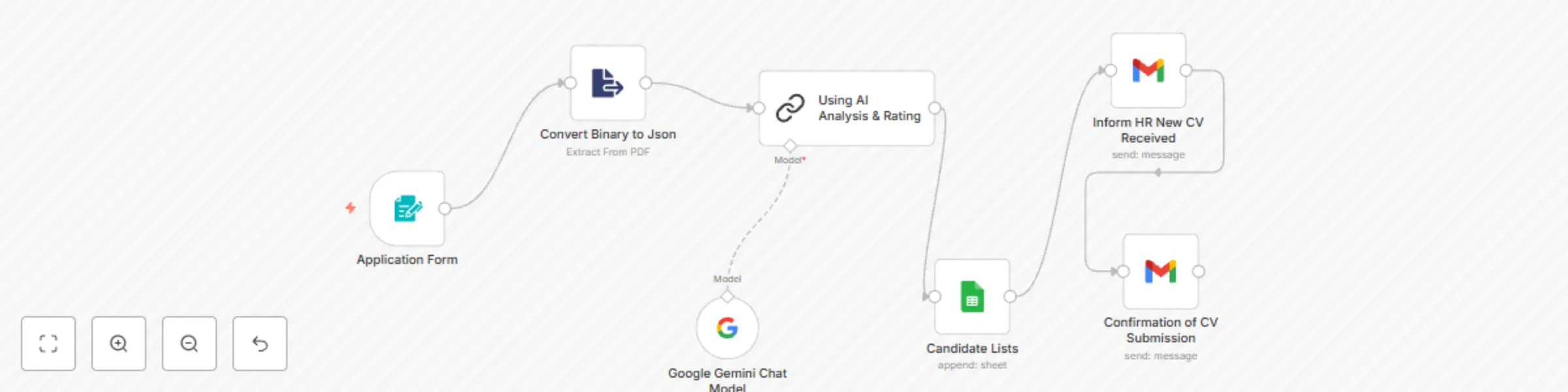
## What this workflow does This workflow helps HR teams screen CVs with AI, store compatibility ratings in Google Sheets, and send email notifications to candidates and HR. It simplifies the recruitment process. 1. CV Submission Form: Candidates submit their details and CV (PDF) through a web form, triggering the workflow in n8n. 2. PDF Extraction & AI Rating: The submitted CV is processed to extract text, and AI analyzes it to generate a compatibility rating. 3. Results Storage & Notifications: Ratings are stored in a Google Sheet for easy access and organization. 10. Confirmation emails are automatically sent to both HR and the candidate. ## Setup - Use the provided template to configure your form and connect it to n8n. - Ensure your Google Sheets and email service integrations are active. ## Customization Instructions: - Modify the email template to match your organization’s branding. - Adjust the AI compatibility rating thresholds based on your requirements. - Ensure you have updated the prompt for cv screening.