Rui Borges
Workflows by Rui Borges
Automatically triage & improve Todoist tasks with GPT-4.1-mini
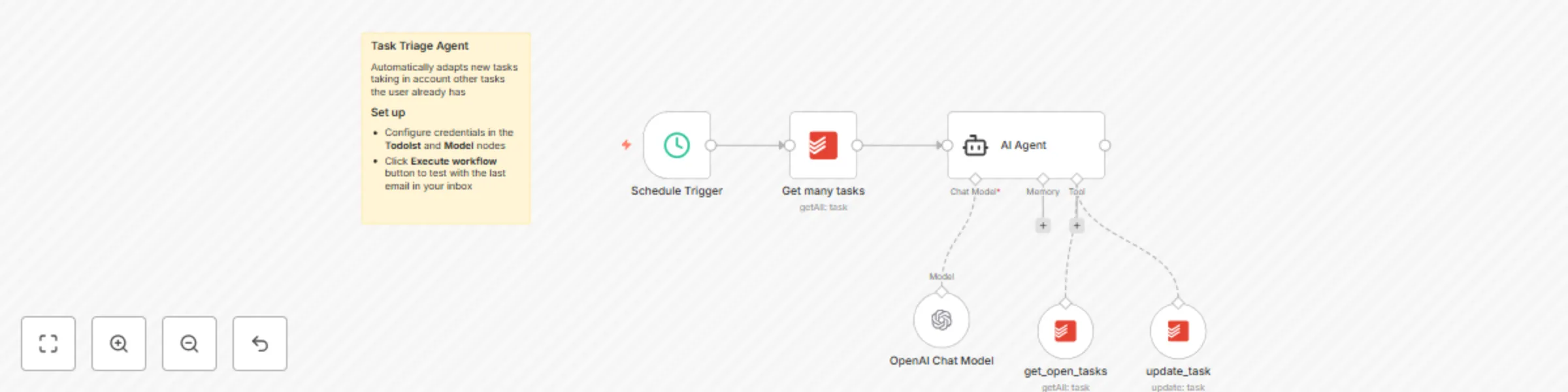
**How it works (high-level)** This workflow automatically triages new tasks created in Todoist in the last 5 minutes. It improves the task description, assigns a priority (P1–P4), and sets a realistic due date based on your current workload. **Main flow steps** - Schedule Trigger — runs at a chosen interval. - Get many tasks (Todoist) — fetches all tasks created in the last 5 minutes. - AI Agent (LLM) — receives the new task plus clear rules to: - Rewrite the task description in an imperative style. - Score and set the priority (1–4) using Impact × Urgency × Risk. - Schedule a due date that respects workload and avoids overbooking. - get_open_tasks — provides the agent with the full list of open tasks to check daily capacity. - update_task — applies the improved description, chosen priority, and due date back into Todoist. **Setup steps** Time required: ~5-10 minutes. - Configure Todoist credentials (API token) and OpenAI credentials in the respective nodes. - Adjust the Schedule Trigger to how often you want the system to check for new tasks. - Optionally, fine-tune the scoring and scheduling rules inside the AI Agent system prompt. ℹ️ More detailed instructions, reasoning frameworks, and constraints are already included as sticky notes inside the workflow itself.
Automated work attendance with location triggers
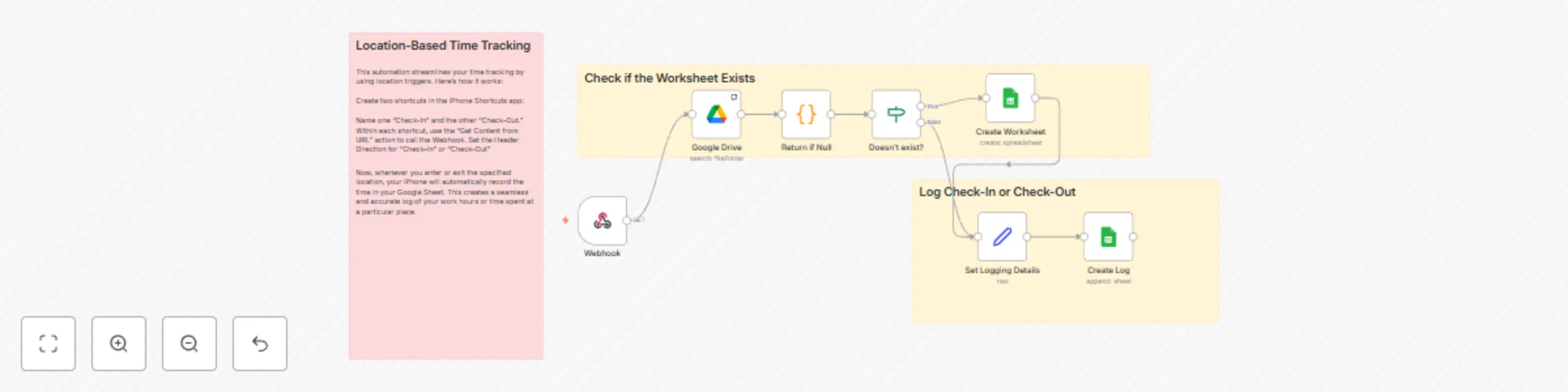
his workflow automates time tracking using location-based triggers. ## How it works - Trigger: It starts when you enter or exit a specified location, triggering a shortcut on your iPhone. - Webhook: The shortcut sends a request to a webhook in n8n. - Check-In/Check-Out: The webhook receives the request and records the time and whether it was a "Check-In" or "Check-Out" event. - Google Sheets: This data is then logged into a Google Sheet, creating a record of your work hours. ## Set up steps 1. Google Drive: Connect your Google Drive account. 2. Google Sheets: Connect your Google Sheets account. 3. Webhook: Set up a webhook node in n8n. 4. iPhone Shortcuts: Create two shortcuts on your iPhone, one for "Check-In" and one for "Check-Out." 5. Configure Shortcuts: Configure each shortcut to send a request to the webhook with the appropriate "Direction" header. It's easy to setup, around 5 minutes.
Monitor if a page is alive and notify via Twilio SMS if not
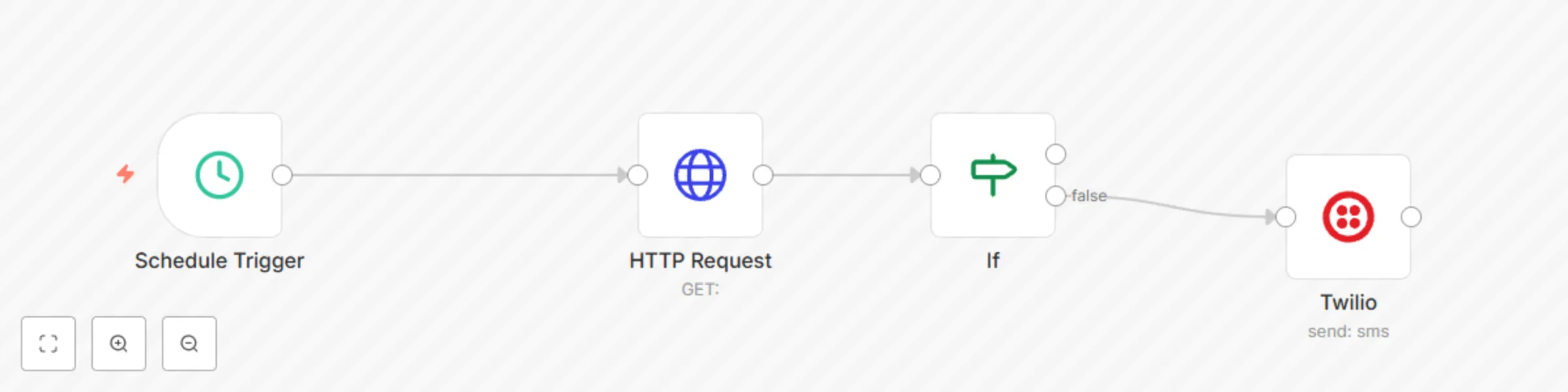
## Workflow Purpose This workflow periodically checks a service's availability and sends an SMS notification if the service is down. ## High-Level Steps Schedule Trigger: The workflow is triggered at a specified interval, such as every minute. HTTP Request: An HTTP request is sent to the URL of the service being monitored. If: The HTTP status code of the response is checked. If the status code is 200 (OK), the workflow ends. If the status code is not 200, indicating a potential issue, an SMS notification is sent using Twilio. ## Setup Setting up this workflow is relatively straightforward and should only take a few minutes: 1. Create a new n8n workflow. 2. Add the nodes: Schedule Trigger, HTTP Request, If, and Twilio. 3. Configure the nodes: - Schedule Trigger: Specify the desired interval. - HTTP Request: Enter the URL of the service to be monitored. - If: Set the condition to check for a status code other than 200. 4. Twilio: Enter the Twilio account credentials and the phone numbers for sending and receiving the SMS notification. 5. Connect the nodes: Connect the nodes as shown in the workflow diagram. 6. Activate the workflow: Save the workflow and activate it. ## Additional Notes - The workflow can be customized by changing the interval, the URL, the Twilio credentials, and the SMS message. - This workflow is a simple example, and more complex workflows can be created to meet specific needs.