R

Roman Rozenberger

3
Workflows

Workflows by Roman Rozenberger

Workflow preview: Automated RSS monitoring with Gemini AI summaries and deduplication to Google Sheets
Free advanced

Automated RSS monitoring with Gemini AI summaries and deduplication to Google Sheets

*This workflow contains community nodes that are only compatible with the self-hosted version of n8n.* ## Who's it for Content creators, marketers, and researchers who need to monitor multiple RSS feeds and get AI-generated summaries without manual work. ## How it works This workflow automatically monitors RSS feeds, filters new articles from the last X days, checks for duplicates, and generates structured AI summaries. It fetches full article content, converts HTML to markdown, and uses Gemini AI to create consistent summaries with quick takeaways, key points, and practical insights. All data is saved to Google Sheets for easy access and sharing. The system processes RSS feeds in batches, ensuring no duplicate articles are processed twice by checking existing URLs in your Google Sheets. Each new article gets a comprehensive AI summary that includes the main message, key takeaways, important points, and practical applications. ## Requirements - Google Sheets access - OpenRouter API key for Gemini AI model or other language model - RSS feed URLs to monitor ## How to set up Copy the template Google Sheet, add your RSS feeds in the "RSS FEEDS" tab, configure Google Sheets and OpenRouter credentials in n8n, and adjust the time filter in the Settings node. The workflow can run manually or on schedule every hour. ## How to customize Modify AI prompts for different summary styles, change the time filter duration, add more data fields to Google Sheets, or switch to a different AI model in the LLM Chat Model node.

R
Roman Rozenberger
Market Research
8 Jul 2025
3395
0
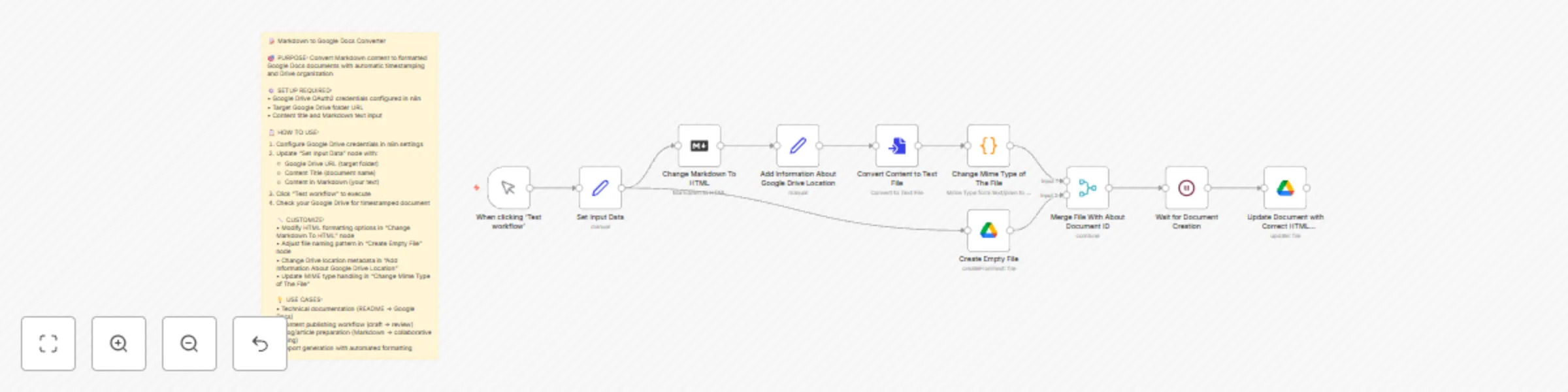
Workflow preview: Convert markdown content to Google Docs document with automatic formatting
Free intermediate

Convert markdown content to Google Docs document with automatic formatting

This workflow is perfect for **technical writers**, **content creators**, **marketers**, and **developers** who write in Markdown but need to collaborate or publish using Google Docs format. Ideal for teams that want to streamline their content creation and review process. ## What problem does this workflow solve? Manual conversion from Markdown to Google Docs is time-consuming and often loses formatting. This workflow eliminates the tedious copy-paste process, automatically preserves formatting, and creates organized, timestamped documents in your Google Drive. Perfect for content teams who write in Markdown but need Google Docs for collaboration and review. ## What this workflow does - **Converts Markdown to HTML** with proper formatting preservation (headers, lists, links, tables) - **Creates timestamped Google Docs** documents with automatic naming - **Adds Drive location metadata** for better organization and reference - **Maintains document structure** including emojis, tables, and text formatting - **Automates file creation** in specified Google Drive folders ## Setup - Google Drive OAuth2 credentials configured in n8n - Target Google Drive folder URL - Input your content title and Markdown text in the "Set Input Data" node ## How to customize this workflow to your needs - **Modify HTML formatting options** in the Markdown conversion node - **Change file naming patterns** to match your organization system - **Adjust Drive folder structure** and metadata inclusion - **Update MIME type handling** for different output requirements - **Add additional processing steps** like notifications or integrations Perfect for technical documentation workflows, content publishing pipelines, blog preparation, and automated report generation. # Setup Instructions - Markdown to Google Docs Converter ## Prerequisites - **n8n instance** (local or cloud) - **Google account** with Google Drive access - **Basic understanding** of n8n workflow configuration ## Step 1: Import the Workflow 1. **Open n8n** and navigate to `Workflows` 2. **Click** "Add workflow" → "Import from JSON" 3. **Upload** the `Export_Markdown_Content_do_Google_Docs_Document.json` file 4. **Save** the workflow with a descriptive name ## Step 2: Configure Google Drive Credentials ### Create Google Drive OAuth2 Credentials 1. **In n8n**, go to `Settings` → `Credentials` 2. **Click** "Add credential" → "Google Drive OAuth2 API" 3. **Follow the OAuth setup** to authorize n8n access to Google Drive: - Visit Google Cloud Console - Create or select a project - Enable Google Drive API - Create OAuth2 credentials - Add authorized redirect URI for your n8n instance 4. **Name the credential** (e.g., "Google Drive - Markdown Converter") ### Configure Google Drive Nodes **Update these nodes with your Google Drive credentials:** - `Create Empty File` - `Update Document with Correct HTML Formatting` **In each node:** 1. **Select your Google Drive credential** from the dropdown 2. **Test the connection** to ensure it works properly ## Step 3: Prepare Your Google Drive ### Create Target Folder 1. **Go to Google Drive** (drive.google.com) 2. **Create a new folder** for your converted documents 3. **Copy the folder URL** (will look like: `https://drive.google.com/drive/folders/FOLDER_ID`) 4. **Ensure the folder has proper permissions** for your Google account ## Step 4: Configure Input Data ### Set Your Default Values 1. **Open the "Set Input Data" node** 2. **Update the assignments** with your preferences: **Google Drive URL:** - Replace the example URL with your target folder URL - Format: `https://drive.google.com/drive/folders/YOUR_FOLDER_ID` **Content Title:** - Set a default title or leave placeholder text - This will be used in the document filename **Content in Markdown:** - Add your Markdown content or keep example for testing - Supports standard Markdown syntax (headers, lists, links, tables) ## Step 5: Test the Workflow ### Initial Test Run 1. **Ensure all credentials are configured** 2. **Click the "Test workflow" button** on the Manual Trigger node 3. **Monitor the execution** - check for any errors in node outputs 4. **Verify the result**: - Check your Google Drive folder - Look for a new document with timestamp in the name - Open the document to verify formatting ### Troubleshooting Common Issues **Google Drive Permission Errors:** - Verify OAuth2 credentials are properly configured - Check that the target folder exists and is accessible - Ensure Google Drive API is enabled in Google Cloud Console **Markdown Conversion Issues:** - Check that your Markdown syntax is valid - Test with simple content first (headers, paragraphs, lists) - Verify the "Change Markdown To HTML" node settings **File Creation Problems:** - Confirm the Google Drive folder URL format is correct - Check that the folder ID in the URL is valid - Ensure your Google account has write permissions to the folder ## Step 6: Customize for Your Needs ### Modify HTML Formatting Options **In the "Change Markdown To HTML" node:** - **Enable/disable emoji support** (currently enabled) - **Adjust table formatting** (currently enabled) - **Modify header ID generation** (currently disabled) - **Configure space requirements** for headers ### Update File Naming Pattern **In the "Create Empty File" node:** - **Change the naming convention**: Currently uses `_PUB {Content Title} {timestamp}` - **Modify timestamp format**: Currently `yyyy-MM-dd HH:mm:ss` - **Add prefixes or suffixes** as needed for your organization ## Step 7: Production Usage ### Regular Workflow Execution 1. **Update the "Set Input Data" node** with new content 2. **Execute the workflow** manually or set up triggers 3. **Monitor execution logs** for any issues 4. **Check Google Drive** for generated documents ### Integration Options **Webhook Integration:** - Add a Webhook trigger to accept external Markdown content - Useful for automated content publishing workflows **Email Integration:** - Add email notifications when documents are created - Include links to generated Google Docs ## Advanced Configuration ### Error Handling - Add error handling nodes after critical operations - Implement retry logic for API failures - Set up notifications for failed executions ### Performance Optimization - Adjust the "Wait for Document Creation" timing if needed - Consider file size limits for Google Docs ## Support and Troubleshooting ### Common Solutions - **Timeout errors**: Increase wait time in "Wait for Document Creation" - **Authentication failures**: Refresh Google OAuth2 credentials - **Formatting issues**: Test with simpler Markdown first ### Getting Help - Check n8n community forums for Google Drive integration issues - Review Google Drive API documentation for rate limits - Test with minimal Markdown content to isolate problems --- **Total setup time: ~15-20 minutes** **Difficulty level: Intermediate** **Requirements: Google account, n8n instance, basic OAuth2 setup knowledge**

R
Roman Rozenberger
Document Extraction
23 Jun 2025
3892
0

Workflow preview: Extract and analyze Google AI overviews with LLM for SEO recommendations
Free advanced

Extract and analyze Google AI overviews with LLM for SEO recommendations

# How it works • **Extract AI Overviews from Google Search** - Receives data from browser extension via webhook • **Convert HTML to Markdown** - Automatically processes and cleans AI Overview content • **Store in Google Sheets** - Archives all extracted AI Overviews with metadata and sources • **Generate SEO Guidelines** - AI analyzes page content vs AI Overview to suggest improvements • **Automate Analysis** - Batch process multiple URLs and schedule regular checks # Set up steps • **Import workflow** - Load the JSON template into your n8n instance (2 minutes) • **Configure Google Sheets** - Set up OAuth connection and create spreadsheet with required columns (5 minutes) • **Set up AI provider** - Add OpenRouter API credentials for Gemini 2.5 Pro (3 minutes) • **Install browser extension** - Deploy the companion Chrome/Firefox extension for data extraction (5 minutes) • **Test webhook endpoint** - Verify the connection between extension and n8n workflow (2 minutes) **Total setup time: ~15 minutes** ## What you'll need: - Google account for Sheets integration - [Google Sheet template](https://docs.google.com/spreadsheets/d/15xqZ2dTiLMoyICYnnnRV-HPvXfdgVeXowr8a7kU4uHk/edit?gid=0#gid=0) with required columns - OpenRouter API key for Gemini 2.5 Pro model access - Browser extension: [Chrome Extension](https://chromewebstore.google.com/detail/ai-overview-extractor/cbkdfibgmhicgnmmdanlhnebbgonhjje) or [Firefox Add-on](https://addons.mozilla.org/en-US/firefox/addon/ai-overview-extractor/) - n8n instance (local or cloud) ## Use cases: - **SEO agencies** - Monitor AI Overview presence for client keywords - **Content marketers** - Analyze what content gets featured in AI Overviews - **E-commerce** - Track AI Overview coverage for product-related searches - **Research** - Build datasets of AI Overview content across different topics The workflow comes with a free browser extension ([Chrome](https://chromewebstore.google.com/detail/ai-overview-extractor/cbkdfibgmhicgnmmdanlhnebbgonhjje) | [Firefox](https://addons.mozilla.org/en-US/firefox/addon/ai-overview-extractor/)) that automatically extracts AI Overview content from Google Search and sends it via webhook to your n8n workflow for processing and analysis. **GitHub Repository:** https://github.com/romek-rozen/ai-overview-extractor/ # Detailed Setup Instructions - AI Overview Extractor ## Prerequisites - **n8n instance** (local or cloud) - version 1.95.3+ - **Google account** for Sheets integration - **OpenRouter API account** for Gemini 2.5 Pro access - **Browser** (Chrome/Firefox) for the extension ## Step 1: Import the Workflow 1. **Open n8n** and navigate to `Workflows` 2. **Click** "Add workflow" → "Import from JSON" 3. **Upload** the `AI_OVERVIES_EXTRACTOR_TEMPLATE.json` file 4. **Save** the workflow ## Step 2: Configure Google Sheets ### Create Google Sheets Document 1. **Create new Google Sheet** with these columns: ``` extractedAt | searchQuery | sources | markdown | myURL | task | guidelines | key ``` Here is public google sheet template: https://docs.google.com/spreadsheets/d/15xqZ2dTiLMoyICYnnnRV-HPvXfdgVeXowr8a7kU4uHk/edit?gid=0#gid=0 2. **Copy the Google Sheets URL** (you'll need it for the workflow) ### Set up Google Sheets Credentials 1. **In n8n**, go to `Settings` → `Credentials` 2. **Click** "Add credential" → "Google Sheets OAuth2 API" 3. **Follow the OAuth setup** to authorize n8n access to Google Sheets 4. **Name the credential** (e.g., "Google Sheets AI Overview") ### Configure Google Sheets Nodes **Update these nodes with your Google Sheets URL:** - `Get URLs to Analyze` - `Save AI Overview to Sheets` - `Save SEO Guidelines to Sheets` **In each node:** 1. Set `documentId` to your Google Sheets URL 2. Set `sheetName` to your Google Sheets URL 3. Select your Google Sheets credential ## Step 3: Configure AI Provider (OpenRouter) ### Get OpenRouter API Key 1. **Sign up** at https://openrouter.ai/ 2. **Generate API key** in your account settings 3. **Add credits** to your account ### Set up OpenRouter Credentials 1. **In n8n**, go to `Settings` → `Credentials` 2. **Click** "Add credential" → "OpenRouter API" 3. **Enter your API key** 4. **Name the credential** (e.g., "OpenRouter AI Overview") ### Configure OpenRouter Node 1. **Select the Gemini 2.5 Pro Model node** 2. **Choose your credential** from the dropdown 3. **Verify the model** (default: `google/gemini-2.5-pro-preview`) ## Step 4: Install Browser Extension ### Install in Chrome **Official Extension (Recommended)** 1. **Visit**: https://chromewebstore.google.com/detail/ai-overview-extractor/cbkdfibgmhicgnmmdanlhnebbgonhjje 2. **Click "Add to Chrome"** ### Install in Firefox **Official Add-on** 1. **Visit**: https://addons.mozilla.org/en-US/firefox/addon/ai-overview-extractor/ 2. **Click "Add to Firefox"** ## Step 5: Configure Webhook Connection ### Get Webhook URL 1. **In n8n workflow**, click on the `Webhook` node 2. **Copy the webhook URL** (should be like: `http://localhost:5678/webhook/ai-overview-extractor-template-123456789`) ### Configure Extension 1. **Go to Google Search** and perform any search with AI Overview 2. **Click the browser extension button** (AI Overview Extractor) 3. **In webhook configuration section**, paste your webhook URL 4. **Click "Test"** - should show ✅ Test successful 5. **Click "Save"** to store the configuration ## Step 6: Activate and Test ### Activate Workflow 1. **In n8n**, toggle the workflow to "Active" (top right switch) 2. **Verify** all nodes are properly configured ### Test End-to-End 1. **Go to Google Search** 2. **Search for something** that shows AI Overview 3. **Use the extension** to extract AI Overview 4. **Send via webhook** - check your Google Sheets for the data 5. **Verify** the markdown conversion worked correctly ## Optional: Batch Analysis Setup ### For SEO Analysis Features 1. **In your Google Sheets**, add URLs in the `myURL` column 2. **Set `task` column** to "create guidelines" 3. **Run the workflow manually** or wait for the 15-minute scheduler 4. **Check `guidelines` column** for AI-generated SEO recommendations ## Troubleshooting ### Webhook Issues - Ensure n8n is running on port 5678 - Check if workflow is activated - Verify webhook URL format ### Google Sheets Errors - Confirm OAuth credentials are working - Check sheet URL format - Verify column names match exactly - Ensure nodes `Get URLs to Analyze`, `Save AI Overview to Sheets`, and `Save SEO Guidelines to Sheets` are properly configured ### OpenRouter Issues - Check API key validity - Ensure sufficient account credits - Try different models if Gemini 2.5 Pro fails - Verify the `Gemini 2.5 Pro Model` node is properly connected ### Extension Problems - Check browser console for errors - Verify extension is properly installed - Ensure you're on google.com/search pages - Confirm webhook URL is correctly configured in extension ## Next Steps - **Customize AI prompts** in the `Generate SEO Recommendations` node for your specific needs - **Adjust scheduler frequency** (default: 15 minutes) - **Add more URL analysis** by populating Google Sheets - **Monitor usage** and API costs ## Support - **GitHub Issues**: https://github.com/romek-rozen/ai-overview-extractor/issues - **n8n Community**: https://community.n8n.io/ - **Template Documentation**: Check the included README files

R
Roman Rozenberger
Market Research
9 Jun 2025
2360
0