Rodrigo
Workflows by Rodrigo
Generate personalized cold email icebreakers with GPT-4O-mini and Google Sheets
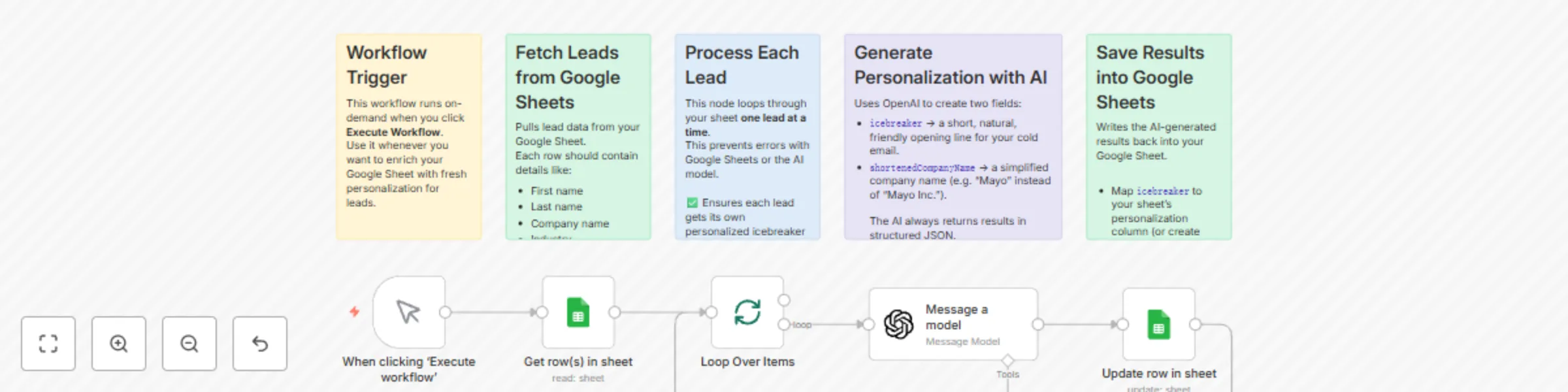
## How it works This workflow helps you supercharge your cold email campaigns by enriching leads in Google Sheets with AI-generated personalization. For every lead in your sheet, the workflow: 1. Fetches rows from Google Sheets 2. Loops through each lead one by one 3. Uses OpenAI to generate: - A personalized cold email icebreaker - A shortened version of the company name 4. Saves the results back into your Google Sheet The result: a lead list that’s instantly ready for highly personalized cold outreach. ## Setup steps 1. Connect your **Google Sheets account** and select the sheet with your leads. - Your sheet should have columns like: first name, last name, company name, industry, city, etc. - Adjust the column mapping in the “Update Row in Sheet” node to match your sheet’s structure. 2. Connect your **OpenAI account** in the “Message a Model” node. 3. Optionally, tweak the AI prompt to match your preferred tone of voice for icebreakers. 4. Click **Execute Workflow** whenever you want to enrich your sheet with new personalized content. ## Requirements - OpenAI account (API key) - Google Sheets account with a lead list - n8n instance (self-hosted or cloud)
Generate and auto-publish LinkedIn posts with GPT-4 text and AI images
## How it works This workflow automates LinkedIn posting for businesses and personal brands. It starts with a form where you submit your post idea. Then: 1. **Message Model (OpenAI)** generates the LinkedIn post text in a professional and engaging style. 2. **Image Generation (OpenAI)** creates a custom visual to match the post idea and brand style. 3. **LinkedIn Node** publishes the text + image directly to your LinkedIn account. This way, you can go from idea → AI-written post → branded visual → live LinkedIn content, all in one automated flow. ## Setup steps - Connect your **Form Trigger** (or replace with Google Forms/Typeform/Notion etc. if you prefer). - Configure **OpenAI credentials** for text and image generation. - Adjust the AI prompts with your own details: `[business name]`, `[founder name]`, `[brand colors]`, `[tone of voice]`. - Connect your **LinkedIn account** in the final node. ## Requirements - OpenAI API key (for text + image generation) - LinkedIn account with API access - n8n instance (self-hosted or cloud)
AI-powered lead email classification & auto-reply with GPT-4o and Gmail
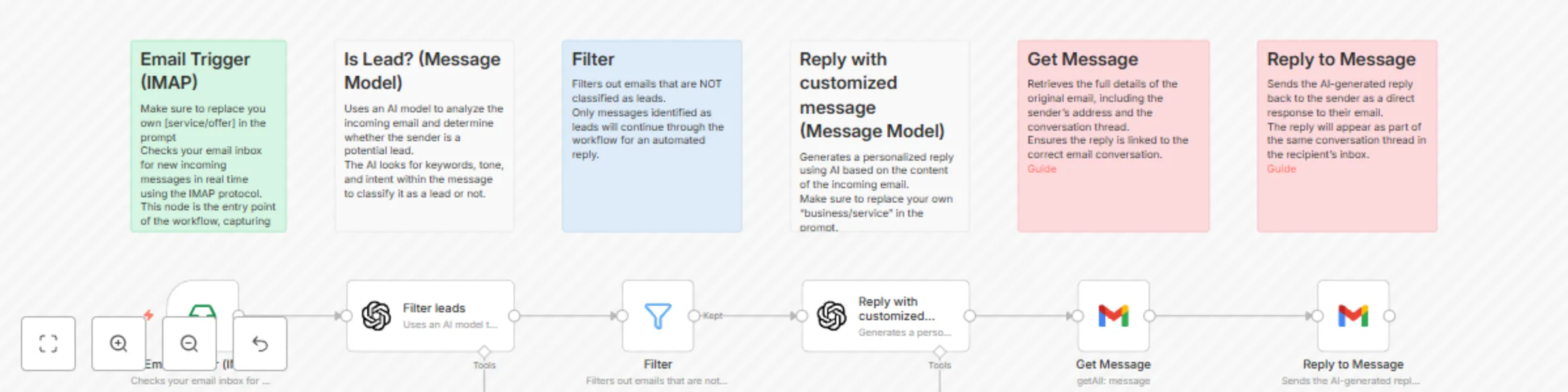
## How it works This workflow automatically responds to incoming emails identified as potential leads using AI-generated text. It connects to your email inbox via IMAP, classifies incoming messages with an AI model, filters out non-leads, and sends a personalized reply to relevant messages. ## Steps 1. **Email Trigger (IMAP):** Watches your inbox for new emails in real time. 2. **Is Lead? (Message Model):** Uses AI to determine whether the sender is a lead. 3. **Filter:** Passes only lead emails to the next step. 4. **Write Customized Reply (Message Model):** Generates a personalized response using AI. 5. **Get Message:** Retrieves original email details to ensure correct threading. 6. **Reply to Message:** Sends the AI-generated reply to the sender. ## Setup Instructions - Connect your **IMAP Email** credentials to the first node and set the folder to watch (e.g., INBOX). - In the "Filter leads" node, adjust the AI prompt to match your lead qualification criteria. - In the "Reply with customized message" node, edit the AI prompt to reflect your product, service, or business tone. - Connect your **Gmail** (or other email provider) credentials in the Get Message and Reply to Message nodes. - Test with a few sample emails before activating. ## Requirements - IMAP-enabled email account (for receiving messages) - Gmail API access (or modify to your email provider) - OpenAI or other AI model credentials for message analysis and reply generation This template is ready to use, with all steps documented inside sticky notes for easy customization.