Robin Geuens
Workflows by Robin Geuens
Daily LinkedIn job alerts with Apify scraper, Google Sheets & Gmail
## Overview Every day, this workflow scrapes LinkedIn jobs based on your keywords, saves them in a Google Sheet, and sends them by email. ## How it works - The workflow runs every day at noon. - The Apify node sends a request to a LinkedIn scraper actor on Apify, which scrapes and returns the data. - The code node formats the data we want and builds the HTML needed to make the emails look good. We use inline if statements for cases where the salary isn't listed or the job doesn’t say if it’s on-site, remote, or hybrid. - At the same time, we add the LinkedIn jobs we scraped to a Google Sheet so we can check them later. - We combine everything into one list. - The Gmail node uses the `map()` function to list all the items we scraped and formatted. It customizes the subject line and heading of the email to include the current date. ## Setup steps 1. Create a new Google Sheet and add the headers you want. Adjust the Google Sheets node to use your newly created Sheet. 2. Customize the JSON in the `Get LinkedIn jobs` node. Note that this workflow currently uses the [`LinkedIn Jobs Scraper - No Cookies`](https://apify.com/apimaestro/linkedin-jobs-scraper-api) actor on Apify. - Leave `date_posted` as is. - Adjust `keywords` to change the job you want to scrape. You can use Boolean operators like AND or NOT in your search. - Adjust `limit` to the number of jobs you want to scrape. - Adjust `location` to match your location. - Leave `sort` as is to get the most recent jobs first. 3. *(Optional)* Edit the HTML in the code node to change how the listings will look in the email. 4. Add your email to the Gmail node. ## Requirements - [Apify account](https://apify.com/) - Apify community node installed. If you don’t want to install the community node, you can use a regular HTTP node and call the HTTP directly. Check [their API docs](https://docs.apify.com/api/v2) to see what endpoint to call. - Google Sheets API enabled in Google Cloud Console and credentials added to n8n - Gmail API enabled in Google Cloud Console credentials added to n8n ## Possible customizations - Add full job descriptions to the Google Sheet and email - Continue the flow to create a tailored CV for each job - Use AI to read the job descriptions and pull out the key skills the job posting is asking for
Create a weekly LLM traffic report using Google Analytics, GPT-5, and Gmail
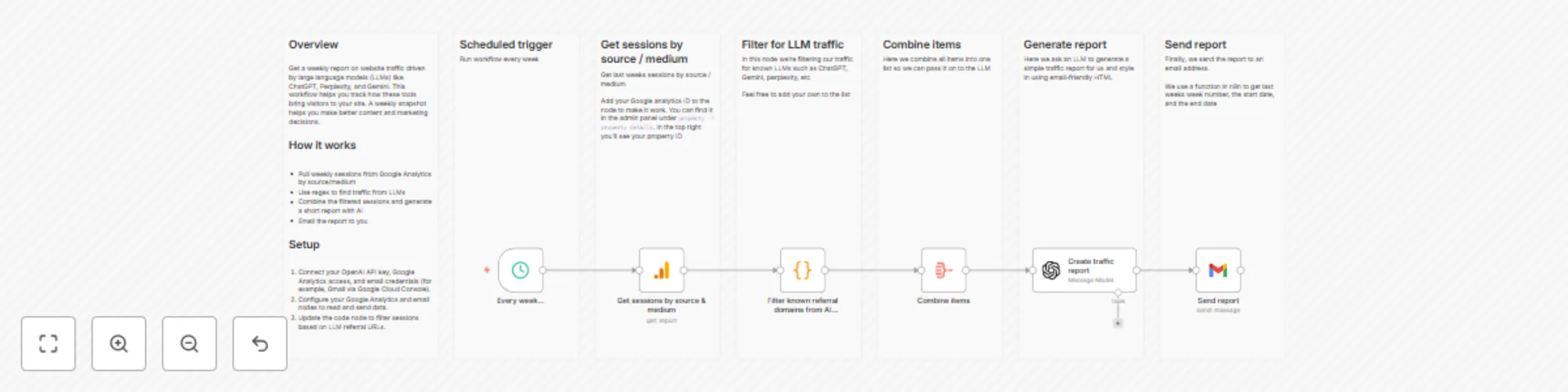
## Overview Get a weekly report on website traffic driven by large language models (LLMs) such as ChatGPT, Perplexity, and Gemini. This workflow helps you track how these tools bring visitors to your site. A weekly snapshot can guide better content and marketing decisions. ## How it works - The trigger runs every Monday. - Pull the number of sessions on your website by source/medium from Google Analytics. - The code node uses the following regex to filter referral traffic from AI providers like ChatGPT, Perplexity, and Gemini: ``` /^.openai.*|.*copilot.*|.*chatgpt.*|.*gemini.*|.*gpt.*|.*neeva.*|.*writesonic.*|.*nimble.*|.*outrider.*|.*perplexity.*|.*google.*bard.*|.*bard.*google.*|.*bard.*|.*edgeservices.*|.*astastic.*|.*copy.ai.*|.*bnngpt.*|.*gemini.*google.*$/i; ``` - Combine the filtered sessions into one list so they can be processed by an LLM. - Generate a short report using the filtered data. - Email the report to yourself. ## Setup 1. Get or connect your [OpenAI API key](https://platform.openai.com/api-keys) and set up your OpenAI credentials in n8n. 2. Enable Google Analytics and Gmail API access in the Google Cloud Console. ([Read more here](https://cloud.google.com/apis/docs/getting-started)). 3. Set up your Google Analytics and Gmail credentials in n8n. If you're using the cloud version of n8n, you can log in with your Google account to connect them easily. 4. In the Google Analytics node, add your credentials and select the property for the website you’re working with. Alternatively, you can use your property ID, which can be found in the Google Analytics admin panel under `Property > Property Details`. The property ID is shown in the top-right corner. Add this to the property field. 5. Under **Metrics**, select the metric you want to measure. This workflow is configured to use *sessions*, but you can choose others. Leave the dimension as-is, since we need the source/medium dimension to filter LLMs. 6. *(Optional)* To expand the list of LLMs being filtered, adjust the regex in the code node. You can do this by copying and pasting one of the existing patterns and modifying it. Example: `|.*example.*|` 7. The LLM node creates a basic report. If you’d like a more detailed version, adjust the system prompt to specify the details or formatting you want. 8. Add your email address to the Gmail node so the report is delivered to your inbox. ## Requirements - OpenAI API key for report generation - Google Analytics API enabled in Google Cloud Console - Gmail API enabled in Google Cloud Console ## Customizing this workflow - The regex used to filter LLM referral traffic can be expanded to include specific websites. - The system prompt in the AI node can be customized to create a more detailed or styled report.
Find internal linking opportunities with SerpAPI and Google Sheets
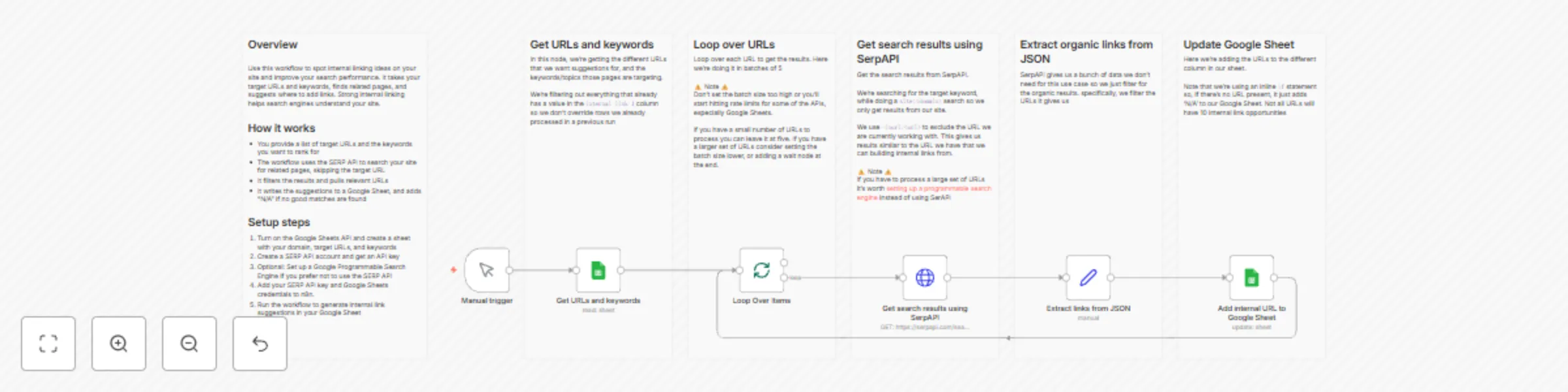
## Overview Use this workflow to spot internal linking ideas on your site and improve your search performance. It takes your target URLs and keywords, finds related pages, and suggests where to add links. Strong internal linking helps search engines understand your site. ## How it works - You provide a list of target URLs and the keywords you want to rank for - The workflow uses the SERP API to search your site for related pages, skipping the target URL - It filters the results and pulls relevant URLs - It writes the suggestions to a Google Sheet, and adds “N/A” if no good matches are found ## Setup steps 1. Turn on the Google Sheets API and create a sheet with your domain, target URLs, and keywords 2. Create a SERP API account and get an API key 3. Optional: Set up a Google Programmable Search Engine if you prefer not to use the SERP API 4. Add your SERP API key and Google Sheets credentials to n8n. 5. Run the workflow to generate internal link suggestions in your Google Sheet
Create fact-based blog outlines with GPT-4o & Tavily search data
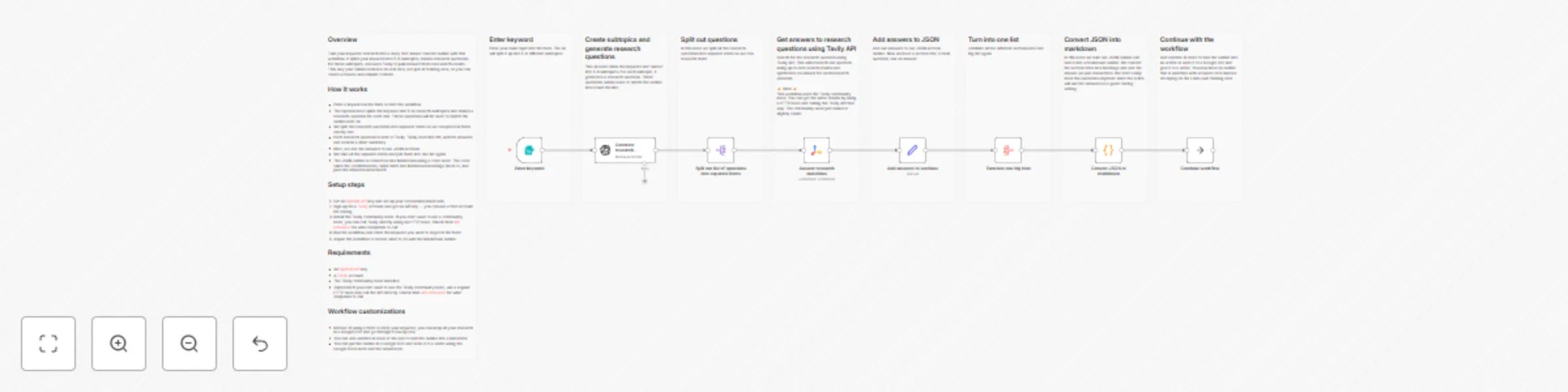
## Overview Turn your keyword research into a clear, fact-based content outline with this workflow. It splits your keyword into 5-6 subtopics, makes research questions for those subtopics, and uses Tavily to pull answers from real search results. This way your outline is based on real data, not just AI training data, so you can create accurate and reliable content. ## How it works - Enter a keyword in the form to start the workflow - The OpenAI node splits the keyword into 5-6 research subtopics and makes a research question for each one. These questions will be used to enrich the outline later on - We split the research questions into separate items so we can process them one by one - Each research question is sent to Tavily. Tavily searches the web for answers and returns a short summary - Next, we add the answers to our JSON sections - We take all the separate items and join them into one list again - The JSON outline is converted into Markdown using a code node. The code takes the JSON headers, turns them into Markdown headings (level 2), and puts the answers underneath ## Setup steps 1. Get an [OpenAI API](https://openai.com/api/) key and set up your credentials inside n8n 2. Sign up for a [Tavily](https://www.tavily.com/) account and get an API key — you can use a free account for testing 3. Install the Tavily community node. If you don’t want to use a community node, you can call Tavily directly using an HTTP node. Check their [API reference](https://docs.tavily.com/documentation/api-reference/endpoint/search) for what endpoints to call 4. Run the workflow and enter the keyword you want to target in the form 5. Adjust the workflow to decide what to do with the Markdown outline ## Requirements - An [OpenAI API](https://openai.com/api/) key - A [Tavily](https://www.tavily.com/) account - The Tavily community node installed - *(Optional)* If you don’t want to use the Tavily community node, use a regular HTTP node and call the API directly. Check their [API reference](https://docs.tavily.com/documentation/api-reference/endpoint/search) for what endpoints to call ## Workflow customizations - Instead of using a form to enter your keyword, you can keep all your research in a Google Doc and go through it row by row - You can add another AI node at the end to turn the outline into a full article - You can put the outline in a Google Doc and send it to a writer using the Google Docs node and the Gmail node
Create SEO outlines from top Google results with SerpAPI and GPT-4o
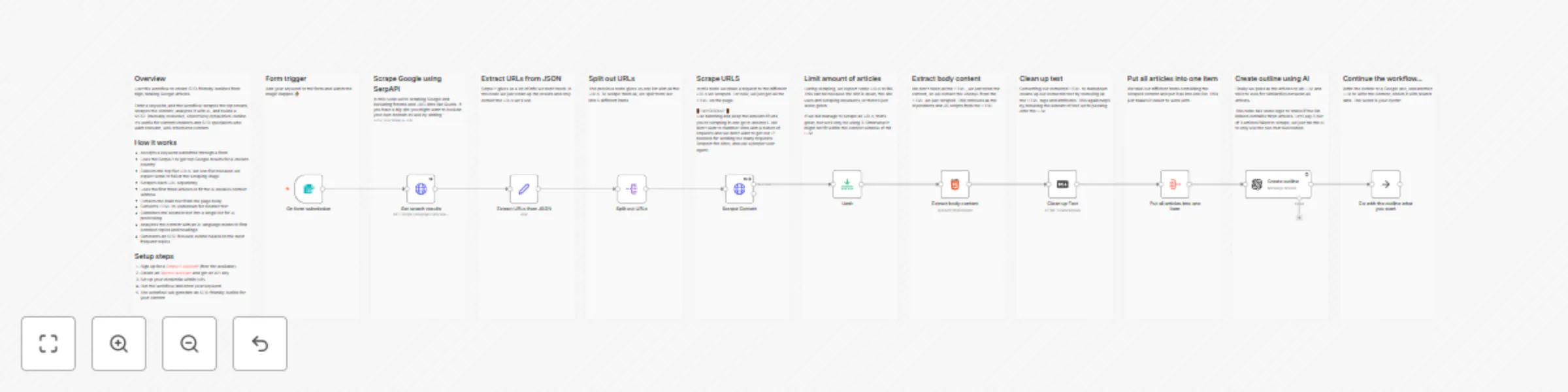
## Overview Use this workflow to create SEO-friendly outlines based on articles that do well in Google. Enter a keyword, and the workflow scrapes the top results, scrapes the content, analyzes it with AI, and builds a MECE (mutually exclusive, collectively exhaustive) outline. It’s useful for content creators and SEO specialists who want relevant, well-structured content. ## How it works - Accepts a keyword submitted through a form - Uses the SerpAPI to get top Google results for a chosen country - Collects the top five URLs. We use five because we expect some to fail at the scraping stage - Scrapes each URL separately - Uses the first three articles to fit the AI model’s context window - Extracts the main text from the page body - Converts HTML to Markdown to get rid of tags and attributes. - Combines the cleaned text into a single list for AI processing - Analyzes the content with an AI language model to find common topics and headings - Generates an SEO-focused outline based on the most frequent topics ## Setup steps 1. Sign up for a [SerpAPI account](https://serpapi.com/) (free tier available) 2. Create an [OpenAI account](https://openai.com/api/) and get an API key 3. Set up your credentials within N8N 4. Run the workflow and enter your keyword in the form. 5. The workflow will generate an SEO-friendly outline for your content ## Improvement ideas - Add another LLM to turn the outline into an article - Use the Google docs API to add the outline to a Google doc - Enright the outline with data from Perplexity or Tavily