N

NodeAlchemy

2
Workflows

Workflows by NodeAlchemy

Workflow preview: Automate customer support with GPT-4o, Slack, and CRM integration
Free advanced

Automate customer support with GPT-4o, Slack, and CRM integration

🧾 Short Description An AI-powered customer support workflow that automatically triages, summarizes, classifies, and routes tickets to the right Slack and CRM queues. It sends personalized auto-replies, logs results to Google Sheets, and uses a DLQ for failed cases. ⚙️ How It Works Trigger: Captures messages from email or form submissions. AI Triage: Summarizes and classifies issues, scores urgency, and suggests next steps. Routing: Directs to Slack or CRM queue based on type and priority. Logging: Records summaries, urgency, and responses in Google Sheets. Auto-Reply: Sends an acknowledgment email with ticket ID and SLA timeframe. Error Handling: Failed triage or delivery attempts are logged in a DLQ. 🧩 How to Use 1. Configure triggers (email or webhook) and connect credentials for OpenAI, Slack, Gmail, and Google Sheets. 2. In Workflow Configuration, set: * Slack Channel IDs * CRM Type (HubSpot, Salesforce, or custom) * Google Sheet URL * SLA thresholds (e.g., 2h, 6h, 24h) 3. Test with a sample ticket and verify routing and summaries in Slack and Sheets. 🔑 Requirements OpenAI API key (GPT-4o-mini or newer) Slack OAuth credentials Google Sheets API access Gmail/SMTP credentials CRM API (HubSpot, Salesforce, or custom endpoint) 💡 Customization Ideas Add sentiment detection for customer tone. Localize responses for multilingual support. Extend DLQ logging to Notion or Airtable. Add escalation alerts for SLA breaches.

N
NodeAlchemy
Ticket Management
26 Oct 2025
80
0
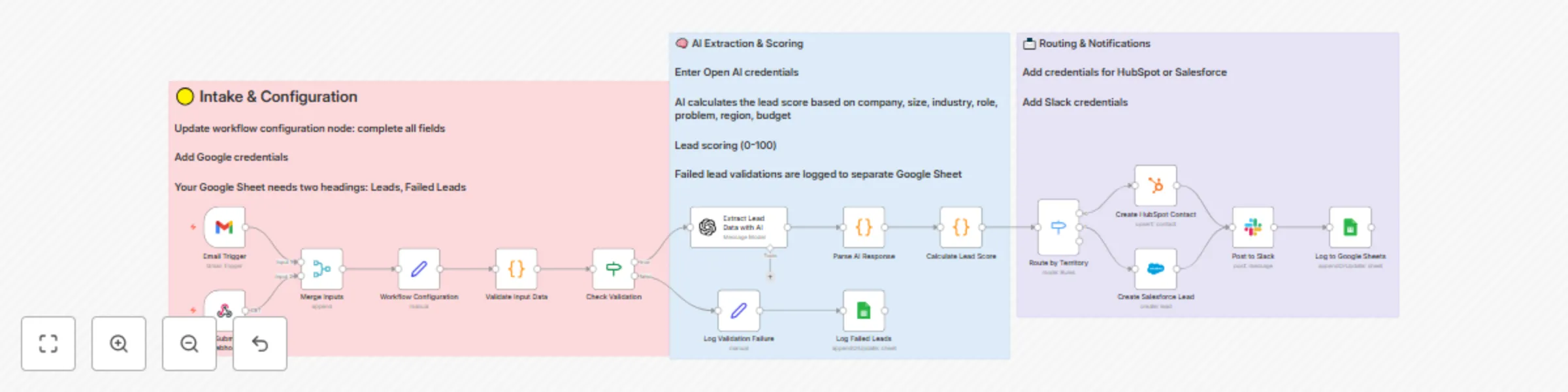
Workflow preview: Qualify & route leads across channels with GPT-4o, Slack & CRM integration
Free advanced

Qualify & route leads across channels with GPT-4o, Slack & CRM integration

## This n8n template demonstrates how to use AI to **capture, qualify, and route inbound leads** automatically from email or web forms. It extracts key business information using AI, scores the lead based on your ideal customer profile, creates CRM records, notifies your team on Slack, and logs all activity—including failures—to Google Sheets. **Use cases include:** automating sales inboxes, qualifying form leads for agencies or SaaS products, routing high-fit prospects to the right territory owner, and keeping your sales and ops teams aligned without manual data entry. --- ### Good to know * The OpenAI model is used for lead data extraction and will incur a small cost per run depending on volume. * This workflow supports either **Salesforce** or **HubSpot** as the CRM system—select which one in the configuration node. * You’ll need valid credentials for Gmail (or another email service), OpenAI, Slack, Google Sheets, and your chosen CRM before running. --- ### How it works 1. **Triggers:** * A Gmail trigger polls for new inbound emails. * A Webhook node receives submissions from any online form. Both sources merge into a single pipeline. 2. **Validation:** Incoming data is checked for required fields (email or text). Invalid entries are routed to the **Dead Letter Queue (DLQ)** for review. 3. **AI Extraction:** The OpenAI node extracts structured fields like company name, size, industry, role, region, problem statement, and budget signals from free-form text. 4. **Parsing & Scoring:** The AI output is parsed, then a code node calculates a **0–100 lead score** based on transparent criteria—industry, size, role, problem clarity, and budget mentions. It also assigns a lead tier (Hot, Warm, Cold, Unqualified). 5. **CRM Routing:** Depending on your configuration, the workflow creates a **Salesforce lead** (default) or can be easily adapted for HubSpot. Territory or CRM owner routing can be extended here. 6. **Slack Notification:** A rich Slack message summarizes the lead score and reasoning and includes a “Create intro email” button for quick action. 7. **Logging:** All successful leads are logged to Google Sheets for reporting. Any failed or invalid leads are logged separately to the DLQ tab for auditing. --- ### How to use * Configure your credentials for Gmail, OpenAI, Slack, Google Sheets, and your CRM. * Open the **Workflow Configuration** node and fill in your target industries, buyer roles, company size, Slack channel ID, Google Sheets URL, and CRM choice. * Create corresponding tabs in your Google Sheet for **Leads** and **DLQ**. * Test by sending a sample email or form submission, then watch the workflow extract, score, route, and notify automatically. --- ### Requirements * OpenAI account for text extraction * Gmail (or other email provider) for the email trigger * Slack for lead notifications * Google Sheets for logging leads and DLQ entries * Salesforce or HubSpot account for CRM integration --- ### Customizing this workflow This template can be expanded in many ways: * Add **HubSpot** routing on the first Switch output. * Integrate a **Slack button handler** to auto-generate intro emails. * Add **retry and backoff logic** for resilience. * Modify the scoring rubric in the code node to match your unique ICP. * Connect additional sources, such as LinkedIn forms or landing page builders, for omnichannel lead capture. ---

N
NodeAlchemy
Lead Nurturing
16 Oct 2025
197
0