S

Stephan Koning

9
Workflows

Workflows by Stephan Koning

Workflow preview: Generate pro construction quotes from jotform to email with Supabase CRM
Free advanced

Generate pro construction quotes from jotform to email with Supabase CRM

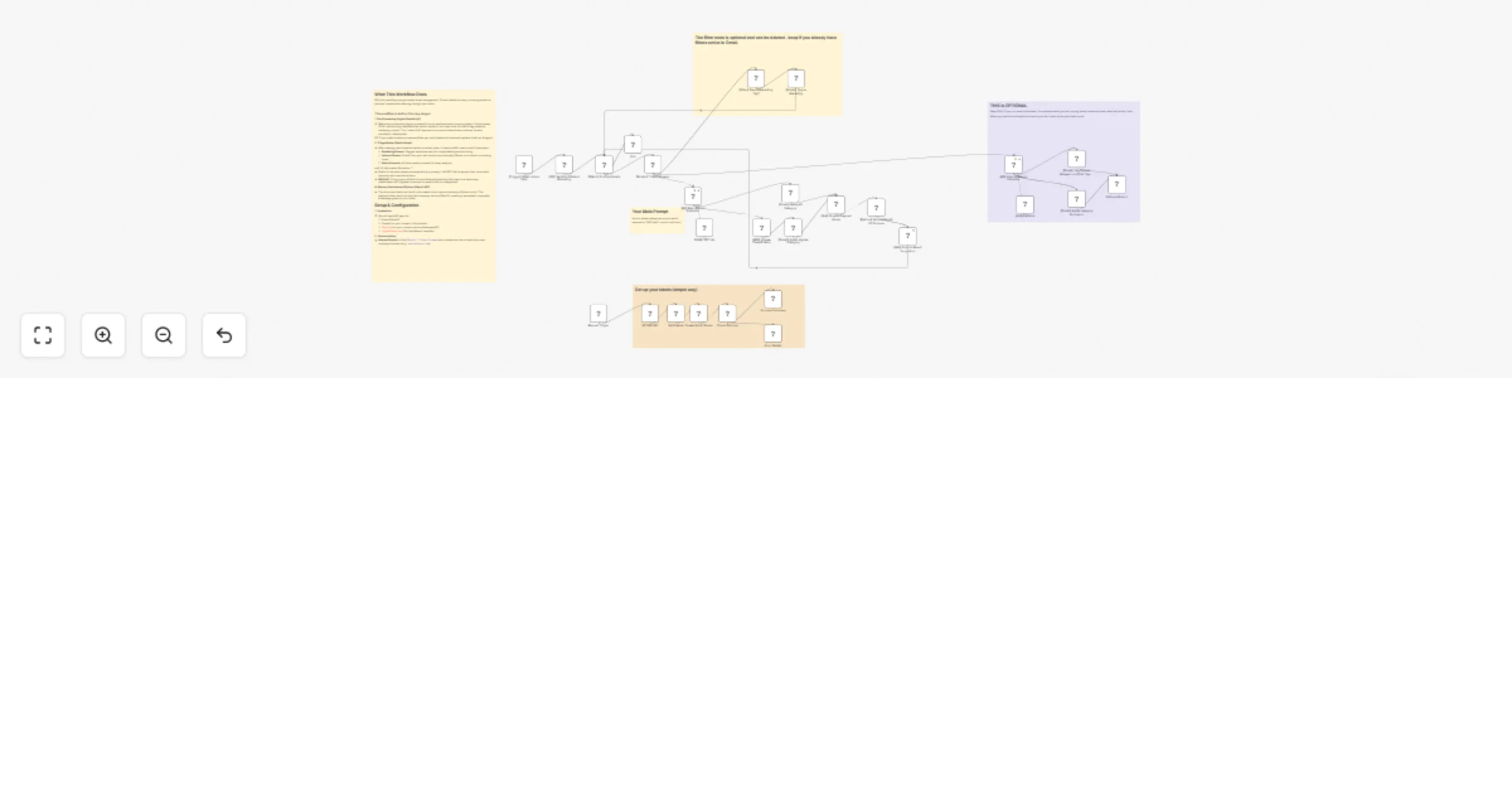
## Who it's for Construction and renovation businesses that need to generate detailed quotes from customer inquiries—plasterers, painters, contractors, renovation specialists, or any construction service provider handling quote requests through online forms. ## What it does Automatically transforms JotForm submissions into professional, itemized construction quotes with complete CRM tracking—**no subscription needed** (saving €200-500/year). When a customer fills your project request form (specifying wall/ceiling areas, finish types, ceiling heights, wet areas, prep work), the workflow extracts measurements, normalizes service selections, applies intelligent pricing rules from your Supabase catalog, calculates line items with material and labor costs plus proper VAT handling, stores everything in a structured CRM pipeline (customer → project deal → estimate), and generates a branded HTML email ready for delivery. This **self-hosted pricing engine** replaces paid invoicing software for quote generation, saving thousands over time while eliminating manual takeoffs and quote preparation— from 30-60 minutes to under 30 seconds. ## How it works **Stage 1:** JotForm webhook triggers → Parser extracts project data (m² measurements, service types, property details) → Normalize Dutch construction terms to database values → Save raw submission for audit trail **Stage 2:** Upsert customer record (idempotent on email) → Create project deal → Link to form submission **Stage 3:** Fetch active pricing rules → Calculate line items based on square meters, service type (smooth plaster vs decorative), ceiling height premiums, property status (new build vs renovation), wet area requirements → Apply conditional logic (high ceilings = price multiplier, prep work charges, finish level) → Group duplicate items → Save estimate header + individual lines **Stage 4:** Query optimized view (single call, all data) → Generate professional HTML email with logo, itemized services table (description, m², unit price, totals), VAT breakdown, CTA buttons, legal disclaimer ## Setup requirements - **Supabase account** (free tier sufficient) - Database for CRM + pricing catalog - **JotForm account** (free tier works) - Form builder with webhook support - **Email service** - Gmail, SendGrid, or similar (add your own email node) ## How to set up **1. Database setup (2 minutes):** - Run this workflow's "SQL Generator" node to output complete schema - Copy output → Paste in Supabase SQL Editor → Click Run - Creates 9 tables + 1 optimized view + sample construction services (plastering €21-32/m², painting €12-15/m², ornamental work, ceiling finishes) **2. Credentials:** - Add Supabase credentials to n8n (Project URL + Service Role Key from Supabase Settings → API) - No JotForm credentials needed (uses webhook) **3. JotForm webhook:** - Clone demo construction form: [jotform stucco planet demo](https://form.jotform.com/252844786304060 )- Form fields: Property type, postcode, services needed, wall/ceiling m², finish level, ornament quantities, molding meters, wet areas, ceiling heights, prep removal, start date, customer contact - Settings → Integrations → Webhooks → Add your n8n webhook URL - Test with preview submission **4. Customize email:** - Update company info in "Generate Email HTML" node (logo, business address, contact details, Chamber of Commerce number, VAT number) - Adjust colors/branding in HTML template - Available in Dutch and English versions ## How to customize **Add your construction services:** Edit `price_catalog` table in Supabase (no code changes): ```sql INSERT INTO price_catalog (item_code, name, unit_price, vat_rate, unit_type) VALUES ('DRYWALL_INSTALL', 'Drywall Installation', 18.50, 9, 'm²');

S
Stephan Koning
CRM
14 Oct 2025
194
0
Workflow preview: Classify & extract data from floorplans with Mistral AI OCR & JigsawStack
Free advanced

Classify & extract data from floorplans with Mistral AI OCR & JigsawStack

<section> <h2>🌊 What it Does</h2> <p> This workflow <strong>automatically classifies uploaded files</strong> (PDFs or images) as <span>floorplans</span> or <span>non‑floorplans</span>. It filters out junk files, then analyzes valid floorplans to extract <em>room sizes</em> and <em>measurements</em>. </p> <h2>👥 Who it’s For</h2> <p> Built for <strong>real estate platforms, property managers, and automation builders</strong> who need a trustworthy way to detect invalid uploads while quickly turning true floorplans into structured, reusable data. </p> <h2>⚙️ How it Works</h2> <ol> <li>User uploads a file (<code>PDF</code>, <code>JPG</code>, <code>PNG</code>, etc.).</li> <li>Workflow routes the file based on type for specialized processing.</li> <li>A two‑layer quality check is applied using heuristics and AI classification.</li> <li>A confidence score determines if the file is a valid floorplan.</li> <li>Valid floorplans are passed to a powerful OCR/AI for deep analysis.</li> <li>Results are returned as <strong>JSON</strong> and a user-friendly <strong>HTML table</strong>.</li> </ol> <h2>🧠 The Technology Behind the Demo</h2> <p> This MVP is a glimpse into a more advanced commercial system. It runs on a custom <strong>n8n workflow</strong> that leverages <strong>Mistral AI's</strong> latest OCR technology. Here’s what makes it powerful: </p> <ul> <li> <strong>Structured Data Extraction:</strong> The AI is forced to return data in a clean, predictable <code>JSON Schema</code>. This isn't just text scraping; it’s a reliable data pipeline. </li> <li> <strong>Intelligent Data Enrichment:</strong> The workflow doesn't just extract data—it enriches it. A custom script automatically calculates crucial metrics like <strong>wall surface area</strong> from the floor dimensions, even using fallback estimates if needed. </li> <li> <strong>Automated Aggregation:</strong> It goes beyond individual rooms by automatically calculating totals per floor level and per room type, providing immediate, actionable insights. </li> </ul> <p> While this demo shows the core classification and measurement (Step 1), the full commercial version includes <strong>Step 2 & 3 (Automated Offer Generation)</strong>, currently in use by a client in the construction industry. </p> <div> <a href="https://form0.app/forms/drTI6g" target="_blank"> Test the Live MVP </a> </div> <h2>📋 Requirements</h2> <ul> <li>Jigsaw Stack API Key</li> <li>n8n Instance</li> <li>Webhook Endpoint</li> </ul> <h2>🎨 Customization</h2> <p> Adjust thresholds, fine‑tune heuristics, or swap OCR providers to better match your business needs and downstream integrations. </p> </section>

S
Stephan Koning
Document Extraction
9 Sep 2025
174
0
Workflow preview: Compare LinkedIn profiles against job descriptions with Groq AI & GhostGenius
Free advanced

Compare LinkedIn profiles against job descriptions with Groq AI & GhostGenius

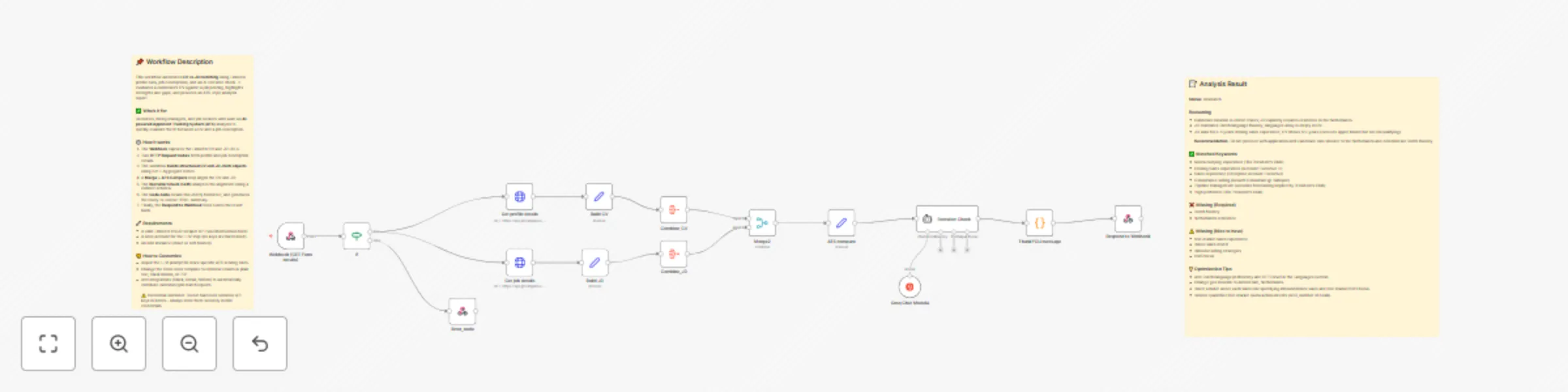
Recruiter Mirror is a proof‑of‑concept ATS analysis tool for SDRs/BDRs. Compare your LinkedIn or CV to job descriptions and get recruiter‑ready insights. By comparing candidate profiles against job descriptions, it highlights strengths, flags missing keywords, and generates actionable optimization tips. Designed as a practical proof of concept for breaking into tech sales, it shows how automation and AI prompts can turn LinkedIn into a recruiter‑ready magnet. Got it ✅ — based on your workflow (Webhook → LinkedIn CV/JD fetch → GhostGenius API → n8n parsing/transform → Groq LLM → Output to Webhook), here’s a clear **list of tools & APIs required** to set up your **Recruiter Mirror (Proof of Concept)** project: --- ## 🔧 Tools & APIs Required ### 1. **n8n (Automation Platform)** - Either **n8n Cloud** or **self‑hosted n8n** instance. - Used to orchestrate the workflow, manage nodes, and handle credentials securely. ### 2. **Webhook Node (Form Intake)** - Captures LinkedIn profile (`LinkedIn_CV`) and job posting (`LinkedIn_JD`) links submitted by the user. - Acts as the starting point for the workflow. ### 3. **GhostGenius API** - Endpoints Used: - `/v2/profile` → Scrapes and returns structured **CV/LinkedIn data**. - `/v2/job` → Scrapes and returns structured **job description data**. - **Auth**: Requires valid credentials (e.g., API key / header auth). ### 4. **Groq LLM API (via n8n node)** - Model Used: `moonshotai/kimi-k2-instruct` (via **Groq Chat Model node**). - Purpose: Runs the **ATS Recruiter Check**, comparing CV JSON vs JD JSON, then outputs a structured JSON per the ATS schema. - **Auth**: Groq account + saved API credentials in n8n. ### 5. **Code Node (JavaScript Transformation)** - Parses Groq’s JSON output safely (`JSON.parse`). - Generates clean, recruiter‑ready **HTML summaries** with structured sections: - Status - Reasoning - Recommendation - Matched keywords / Missing keywords - Optimization tips ### 6. **n8n Native Nodes** - **Set & Aggregate Nodes** → Rebuild structured CV & JD objects. - **Merge Node** → Combine CV data with job description for comparison. - **If Node** → Validates LinkedIn URL before processing (fallback to error messaging). - **Respond to Webhook Node** → Sends back the final recruiter‑ready insights in JSON (or HTML). --- ⚠️ **Important Notes** - **Credentials**: Store API keys & auth headers securely inside n8n Credentials Manager (never hardcode inside nodes). - **Proof of Concept**: This workflow demonstrates feasibility but is **not production‑ready** (scraping stability, LinkedIn terms of use, and API limits should be considered before real deployments).

S
Stephan Koning
HR
4 Sep 2025
169
0
Workflow preview: Email parser for RAG agent powered by Gmail and Mem0
Free intermediate

Email parser for RAG agent powered by Gmail and Mem0

*This workflow contains community nodes that are only compatible with the self-hosted version of n8n.* **Alternatively, you can delete the community node and use the HTTP node instead. ** Most email agent templates are fundamentally broken. They're stateless—they have no long-term memory. An agent that can't remember past conversations is just a glorified auto-responder, not an intelligent system. This workflow is Part 1 of building a truly agentic system: creating the brain. Before you can have an agent that replies intelligently, you need a knowledge base for it to draw from. This system uses a sophisticated parser to automatically read, analyze, and structure every incoming email. It then logs that intelligence into a persistent, long-term memory powered by mem0. ### The Problem This Solves Your inbox is a goldmine of client data, but it's unstructured, and manually monitoring it is a full-time job. This constant, reactive work prevents you from scaling. This workflow solves that "system problem" by creating an "always-on" engine that automatically processes, analyzes, and structures every incoming email, turning raw communication into a single source of truth for growth. --- ### How It Works This is an autonomous, multi-stage intelligence engine. It runs in the background, turning every new email into a valuable data asset. 1. **Real-Time Ingest & Prep:** The system is kicked off by the **Gmail Trigger**, which constantly watches your inbox. The moment a new email arrives, the workflow fires. That email is immediately passed to the **Set Target Email** node, which strips it down to the essentials: the sender's address, the subject, and the core text of the message (I prefer using the plain text or HTML-as-text for reliability). While this step is optional, it's a good practice for keeping the data clean and orderly for the AI. 2. **AI Analysis (The Brain):** The prepared text is fed to the core of the system: the **AI Agent**. This agent, powered by the **LLM of your choice** (e.g., GPT-4), reads and understands the email's content. It's not just reading; it's performing analysis to: * Extract the core message. * Determine the sentiment (Positive, Negative, Neutral). * Identify potential red flags. * Pull out key topics and keywords. * The agent uses **Window Buffer Memory** to recall the last 10 messages within the same conversation thread, giving it the context to provide a much smarter analysis. 3. **Quality Control (The Parser):** We don't trust the AI's first draft blindly. The analysis is sent to an **Auto-fixing Output Parser**. If the initial output isn't in a perfect JSON format, a second **Parsing LLM** (e.g., Mistral) automatically corrects it. This is our "twist" that guarantees your data is always perfectly structured and reliable. 4. **Create a Permanent Client Record:** This is the most critical step. The clean, structured data is sent to **mem0**. The analysis is now logged against the **sender's email address**. This moves beyond just tracking conversations; it builds a complete, historical intelligence file on every person you communicate with, creating an invaluable, long-term asset. **Optional Use:** For back-filling historical data, you can disable the Gmail Trigger and temporarily connect a **Gmail "Get Many"** node to the `Set Target Email` node to process your backlog in batches. --- ### Setup Requirements To deploy this system, you'll need the following: * An active **n8n** instance. * **Gmail** API credentials. * An API key for your primary LLM (e.g., **OpenAI**). * An API key for your parsing LLM (e.g., **Mistral AI**). * An account with **mem0.ai** for the memory layer.

S
Stephan Koning
Document Extraction
8 Aug 2025
542
0
Workflow preview: Automate meeting intelligence with VEXA, OpenAI & Mem0 for conversation insights
Free advanced

Automate meeting intelligence with VEXA, OpenAI & Mem0 for conversation insights

### VEXA: AI-Powered Meeting Intelligence I'll be honest, I built this because I was getting lazy in meetings and missing key details. I started with a simple VEXA integration for transcripts, then added AI to pull out summaries and tasks. But that just solved part of the problem. The real breakthrough came when we integrated Mem0, creating a persistent memory of every conversation. Now, you can stop taking notes and actually focus on the person you're talking to, knowing a system is tracking everything that matters. This is the playbook for how we built it. ### How It Works This isn't just one workflow; it's a two-part system designed to manage the entire meeting lifecycle from start to finish. 1. **Bot Management:** It starts when you flick a switch in your CRM (Baserow). A command deploys or removes an AI bot from Google Meet. No fluff—it's there when you need it, gone when you don't. The workflow uses a quick "digital sticky note" in Redis to remember who the meeting is with and instantly updates the status in your Baserow table. 2. **AI Analysis & Memory:** Once the meeting ends, VEXA sends the transcript over. Using the client ID (thank god for redis) , we feed the conversation to an AI model (OpenAI). It doesn't just summarize; it extracts actionable next steps and potential risks. All this structured data is then logged into a memory layer (Mem0), creating a permanent, searchable record of every client conversation. ### Setup Steps: Your Action Plan This is designed for rapid deployment. Here's what you do: 1. **Register Webhook:** Run the manual trigger in the workflow once. This sends your n8n webhook URL to VEXA, telling it where to dump transcripts after a call. 2. **Connect Your CRM:** Copy the `vexa-start` webhook URL from n8n. Paste it into your Baserow automation so it triggers when you set the "Send Bot" field to `Start_Bot`. 3. **Integrate Your Tools:** Plug your VEXA, Mem0, Redis, and OpenAI API credentials into n8n. 4. **Use the Baserow Template:** I've created a free Baserow template to act as your control panel. Grab it here: `https://baserow.io/public/grid/t5kYjovKEHjNix2-6Rijk99y4SDeyQY4rmQISciC14w`. It has all the fields you need to command the bot. ### Requirements * An active n8n instance or cloud account. * Accounts for VEXA.ai, Mem0.ai, Baserow, and OpenAI. * A Redis database . * Your Baserow table must have these fields: `Meeting Link`, `Bot Name`, `Send Bot`, and `Status`. ### Next Steps: Getting More ROI This workflow is the foundation. The real value comes from what you build on top of it. * **Automate Follow-ups:** Use the AI-identified next steps to automatically trigger follow-up emails or create tasks in your project management tool. * **Create a Unified Client Memory:** Connect your email and other communication platforms. Use Mem0 to parse and store every engagement, building a complete, holistic view of every client relationship. * **Build a Headless CRM:** Combine these workflows to build a fully AI-powered system that handles everything from lead capture to client management without any manual data entry. *Copy the workflow and stop taking notes*

S
Stephan Koning
Document Extraction
6 Aug 2025
402
0
Workflow preview: Real-time ClickUp time tracking to HubSpot project sync
Free intermediate

Real-time ClickUp time tracking to HubSpot project sync

### **Real-Time ClickUp Time Tracking to HubSpot Project Sync** This workflow automates the synchronization of time tracked on ClickUp tasks directly to a custom project object in HubSpot, ensuring your project metrics are always accurate and up-to-date. --- ### **Use Case & Problem** This workflow is designed for teams that use a **custom object in HubSpot** for high-level project overviews (tracking scoped vs. actual hours per sprint) but manage daily tasks and time logging in **ClickUp**. The primary challenge is the constant, manual effort required to transfer tracked hours from ClickUp to HubSpot, a process that is both time-consuming and prone to errors. This automation eliminates that manual work entirely. --- ### **How It Works** * **Triggers on Time Entry:** The workflow instantly starts whenever a user updates the time tracked on any task in a specified ClickUp space. ⏱️ * **Fetches Task & Time Details:** It immediately retrieves all relevant data about the task (like its name and custom fields) and the specific time entry that was just updated. * **Identifies the Project & Sprint:** The workflow processes the task data to determine which HubSpot project it belongs to and categorizes the work into the correct sprint (e.g., Sprint 1, Sprint 2, Additional Requests). * **Updates HubSpot in Real-Time:** It finds the corresponding project record in HubSpot and updates the master `actual_hours_tracked` property. It then intelligently updates the specific field for the corresponding sprint (e.g., `actual_sprint_1_hours`), ensuring your reporting remains granular and accurate. --- ### **Requirements** ✅ **ClickUp Account** with the following custom fields on your tasks: * A **Dropdown** custom field named `Sprint` to categorize tasks. * A **Short Text** custom field named `HubSpot Deal ID` or similar to link to the HubSpot record. ✅ **HubSpot Account** with: * A **Custom Object** used for project tracking. * **Custom Properties** on that object to store total and sprint-specific hours (e.g., `actual_hours_tracked`, `actual_sprint_1_hours`, `total_time_remaining`, etc.). &gt; **Note:** Since this workflow interacts with a **custom HubSpot object**, it uses flexible HTTP Request nodes instead of the standard n8n HubSpot nodes. --- ### **Setup Instructions** 1. **Configure Credentials:** Add your ClickUp (OAuth2) and HubSpot (Header Auth with a Private App Token) credentials to the respective nodes in the workflow. 2. **Set ClickUp Trigger:** In the **`Time Tracked Update Trigger`** node, select your ClickUp team and the specific space you want to monitor for time updates. 3. **Update HubSpot Object ID:** Find the ID of your custom project object in HubSpot. In the HubSpot HTTP Request nodes (e.g., `OnProjectFolder`), replace the placeholder ID `objectTypeId` in the URL with your own objectTypeId --- ### **How to Customize** * Adjust the **`Code: Extract Sprint & Task Data`** node to change how sprint names are mapped or how time is calculated. * Update the URLs in the HubSpot HTTP Request nodes if your custom object or property names differ.

S
Stephan Koning
Project Management
2 Aug 2025
194
0
Workflow preview: Prevent duplicate processing with Redis item state tracking
Free advanced

Prevent duplicate processing with Redis item state tracking

I built this tool because we faced a real, recurring problem: managing hundreds of client projects in a weekly automated loop. There was a time when a single error in that process could create a complete data mess, forcing us to manually clean and re-run everything. The Item Tracker was our solution. It proved that something simple, when used correctly, can be a game-changer for maintaining order and reliability in your workflows (at least it was for us). --- ### How the System Works: A Story of Order from Chaos Our main automation, which fetches and summarizes data, is where the heavy lifting happens. But its newfound stability comes from a simple, critical collaboration with the Item Tracker. It's like a two-step handshake that happens for every single project. * Our main workflow starts by getting a long list of active projects. * For each project, it first asks the Item Tracker: "Is this one already being worked on?" * If the answer is no, the Item Tracker immediately puts a temporary "in-progress" note on the project * Once our main workflow successfully completes its task for that project, it tells the Item Tracker to remove the "in-progress" note and set a "completed" note. This simple process is our safety net. If a task fails, that "in-progress" note will eventually disappear, allowing the system to confidently pick up and re-run only that specific item later. ++This saves us from having to start the entire job over from scratch.++ ### Key Components & Their Purpose * **Main Workflow:** This is the primary automation that does the heavy lifting, like getting a list of projects and connecting to HubSpot. * **Item Tracker Utility:** The smart part of the system. This separate tool keeps a simple record of what each project's status is at any given moment. * **Redis Database:** This is the fast, central hub where all of the Item Tracker's notes are stored. It's the engine that makes the entire system reliable. --- ### The Item Tracker in Action: Your Digital To-Do List For beginners, the names of the tracking notes (called "keys") might seem confusing, but the idea is actually simple. Imagine a digital to-do list for every project. A key is just the project's name on that list. Every key has three parts that tell you everything you need to know: * **The Group:** The first part groups all similar items together, like all your HubSpot projects. * **The ID:** The middle part is the project's unique ID, so you know exactly which project you're talking about. * **The Status:** The last part is a simple word that shows its status, like `in_progress` or `completed`. This simple naming system is the secret to keeping hundreds of projects organized, so you can easily see what's happening and what needs attention. --- ### Overall Business Value This solution directly addresses the pain of large-scale automation failures. It gave us a new level of confidence in our automated processes. Instead of facing the chaos of a messy run, this system provides immediate visibility into which project failed and why. It eliminates the need for manual cleanup and allows us to confidently re-run a specific item without risking data corruption across the entire set. The result is a highly reliable and scalable process that saves time, reduces frustration, and maintains data integrity.

S
Stephan Koning
Engineering
2 Aug 2025
154
0
Workflow preview: WhatsApp outbound messaging with Baserow & WasenderAPI
Free intermediate

WhatsApp outbound messaging with Baserow & WasenderAPI

## Master Outbound WhatsApp: Baserow & WasenderAPI This workflow integrates with your Baserow 'Messages' table, triggering on 'Sent' status. Messages fire via WasenderAPI, rigorously logged as 'Outbound' in Baserow. Gain total control; drive results. ## How it works * Monitors Baserow 'Messages' table for 'Sent' status. * Sends messages via WasenderAPI. * Logs outbound details in Baserow. ## Who's it for For teams dominating outbound WhatsApp and centralizing Baserow logging. Demand communication efficiency? This is your solution. ## Setup Steps Rapid implementation. Action plan: 1. Activate all critical workflow nodes. 2. Copy `Sent_whatsapp` webhook URL. Configure Baserow automation (on 'Sent' status) to trigger webhook. 3. Ensure Baserow 'Messages' table includes 'Status' ('Sent' option), linked 'WhatsApp Number', and 'Message Content' fields. (Optional: [Baserow Message Form](https://baserow.io/form/B2TUPV0S_Fx3PKyNiKOQR4YAdo77RnvAxZyMw8jN7Uc) for input). 4. Embed WasenderAPI and Baserow API tokens in n8n Credentials. Security is non-negotiable. ## Requirements * Active n8n instance (self-hosted/cloud). * WasenderAPI.com trial/subscription. * Baserow account with pre-configured 'Contacts' ([link](https://baserow.io/public/grid/a5iWkAQpu8QljUlgwgm_pour_Au5BKd3mtkfu-B6N7Y)) and 'Messages' ([link](https://baserow.io/public/grid/0H22XZitFDWnrVNnKwBfiI7M6XX5CugHrXHEzdCY4xY)) tables.

S
Stephan Koning
Lead Nurturing
29 Jul 2025
260
0
Workflow preview: WhatsApp micro-CRM with Baserow & WasenderAPI
Free advanced

WhatsApp micro-CRM with Baserow & WasenderAPI

## WhatsApp Micro-CRM with Baserow & WasenderAPI Struggling to manage WhatsApp client communications? This n8n workflow isn't just automation; it's your centralized CRM solution for small businesses and freelancers. **How it works** * **Capture Every Message:** Integrates WhatsApp messages directly via WasenderAPI. * **Effortless Contact Management:** Automates contact data standardization and intelligently manages records (creating new or updating existing profiles). * **Rich Client Profiles:** Retrieves profile pictures and decrypts image media, giving you full context. * **Unified Data Hub:** Centralizes all conversations and media in Baserow, no more scattered interactions. **Setup Steps** Setup is incredibly fast; you can deploy this in under 15 minutes. Here's what you'll do: * **Link WasenderAPI:** Connect your WasenderAPI webhooks directly to n8n. * **Set up Baserow:** Duplicate our pre-built 'Contacts' ([link](https://baserow.io/public/grid/a5iWkAQpu8QljUlgwgm_pour_Au5BKd3mtkfu-B6N7Y)) and 'Messages' ([link](https://baserow.io/public/grid/0H22XZitFDWnrVNnKwBfiI7M6XX5CugHrXHEzdCY4xY)) Baserow table templates. * **Secure Your Data:** Input your API credentials (WasenderAPI and Baserow) directly into n8n. Every single step is fully detailed in the workflow's sticky notes – we've made it foolproof. **Requirements** What do you need to get started? * An active n8n instance (self-hosted or cloud). * A WasenderAPI.com subscription or trial. * A Baserow account. **Note:** Keep the flow layout as is! This will ensure that the flow is running in the correct order.

S
Stephan Koning
CRM
28 Jul 2025
418
0