RedOne
Workflows by RedOne
🎙️ VoiceFlow AI: Telegram + Deepgram + OpenAI + Supabase audio assistant
## 🎙️ AI Audio Assistant with Voice-to-Voice Response **Who is this for?** Businesses, customer service teams, content creators, and organizations who want to provide intelligent voice-based interactions through Telegram. Perfect for accessibility-focused services, multilingual support, or hands-free customer assistance. **What problem does this solve?** - Enables natural voice conversations with AI - Breaks down language and accessibility barriers - Provides instant voice responses to customer queries - Reduces typing requirements for users - Offers 24/7 voice-based customer support - Maintains conversation context across voice interactions **What this workflow does:** 1. Receives voice messages via Telegram bot 2. Transcribes audio using Deepgram's advanced speech-to-text 3. Processes transcribed text through AI agent with knowledge base access 4. Generates intelligent responses based on conversation context 5. Converts AI response to natural-sounding speech using Deepgram TTS 6. Sends audio response back to user via Telegram 7. Maintains conversation memory for contextual interactions ## 🔧 Technical Architecture **Core Components:** - **Telegram Bot**: Receives and sends voice messages - **Deepgram STT**: Transcribes voice to text with high accuracy - **OpenAI GPT**: Processes queries and generates responses - **Supabase Knowledge Base**: Stores and retrieves business information - **Memory Management**: Maintains conversation context - **Deepgram TTS**: Converts text responses to natural speech **Data Flow:** 1. Voice Message → Telegram API → File Download 2. Audio File → Deepgram STT → Transcript 3. Transcript → AI Agent → Response Generation 4. Response → Deepgram TTS → Audio File 5. Audio Response → Telegram → User ## 🛠️ Setup Instructions ### Prerequisites 1. **Telegram Bot Token** - Create bot via @BotFather - Get bot token and configure webhook 2. **Deepgram API Key** - Sign up at deepgram.com - Get API key for STT and TTS services - Note: Currently hardcoded in workflow 3. **OpenAI API Key** - OpenAI account with API access - Configure in OpenAI Chat Model node 4. **Supabase Database** - Create Supabase project - Set up knowledge_base table - Configure API credentials ### Step-by-Step Setup 1. **Configure Telegram Bot** ``` - Update telegramToken in "Prepare Voice Message Data" node - Set correct bot token in Telegram nodes - Test bot connectivity ``` 2. **Set Up Deepgram Integration** ``` - Replace API key in "Transcribe with Deepgram" node - Update TTS endpoint in "HTTP Request" node - Test voice transcription accuracy ``` 3. **Configure Knowledge Base** ```sql -- Create knowledge_base table in Supabase CREATE TABLE knowledge_base ( id UUID DEFAULT gen_random_uuid() PRIMARY KEY, question TEXT NOT NULL, answer TEXT NOT NULL, category VARCHAR(100), keywords TEXT[], created_at TIMESTAMP WITH TIME ZONE DEFAULT NOW() ); ``` 4. **Customize AI Prompts** - Update system message in "Telegram AI Agent" node - Adjust temperature and max tokens in OpenAI model - Configure memory session keys 5. **Test End-to-End Flow** - Send test voice message to bot - Verify transcription accuracy - Check AI response quality - Validate audio output clarity ## 🎛️ Configuration Options ### Voice Recognition Settings - **Model**: nova-2 (Deepgram's latest model) - **Language**: English (en) - can be changed - **Smart Format**: Enabled for better punctuation ### AI Response Settings - **Temperature**: 0.3 (conservative responses) - **Max Tokens**: 100 (adjust based on needs) - **Memory**: Session-based conversation context ### Text-to-Speech Settings - **Model**: aura-2-thalia-en (natural female voice) - **Alternative voices**: Available in Deepgram TTS API - **Audio Format**: Optimized for Telegram ## 🔒 Security Considerations ### API Key Management ```javascript // Current implementation has hardcoded tokens // Recommended: Use environment variables const telegramToken = process.env.TELEGRAM_BOT_TOKEN; const deepgramKey = process.env.DEEPGRAM_API_KEY; ``` ### Data Privacy - Voice messages are processed by external APIs - Consider data retention policies - Implement user consent mechanisms - Ensure GDPR compliance if applicable ## 📊 Monitoring & Analytics ### Key Metrics to Track - Voice message processing time - Transcription accuracy rates - AI response quality scores - User engagement metrics - Error rates and failure points ### Recommended Logging ```javascript // Add to workflow for monitoring console.log({ timestamp: new Date().toISOString(), user_id: userData.user_id, transcript_confidence: transcriptData.confidence, response_length: aiResponse.length, processing_time: processingTime }); ``` ## 🚀 Customization Ideas ### Enhanced Features 1. **Multi-language Support** - Add language detection - Support multiple TTS voices - Translate responses 2. **Voice Commands** - Implement wake words - Add voice shortcuts - Create voice menus 3. **Advanced AI Features** - Sentiment analysis - Intent classification - Escalation triggers 4. **Integration Expansions** - Connect to CRM systems - Add calendar scheduling - Integrate with help desk tools ### Performance Optimizations - Implement audio preprocessing - Add response caching - Optimize API call sequences - Implement retry mechanisms ## 🐛 Troubleshooting ### Common Issues **Voice Not Transcribing** - Check Deepgram API key validity - Verify audio format compatibility - Test with shorter voice messages **Poor Audio Quality** - Adjust TTS model settings - Check network connectivity - Verify Telegram audio limits **AI Responses Too Generic** - Improve knowledge base content - Adjust system prompts - Increase context window **Memory Not Working** - Check session key configuration - Verify user ID extraction - Test conversation continuity ## 💡 Best Practices ### Voice Interface Design - Keep responses concise and clear - Use natural speech patterns - Avoid technical jargon - Provide clear next steps ### Knowledge Base Management - Regular content updates - Clear categorization - Keyword optimization - Quality assurance testing ### User Experience - Fast response times (<5 seconds) - Consistent voice personality - Graceful error handling - Clear capability communication ## 📈 Success Metrics ### Technical KPIs - Response time: <3 seconds average - Transcription accuracy: >95% - User satisfaction: >4.5/5 - Uptime: >99.5% ### Business KPIs - Customer query resolution rate - Support ticket reduction - User engagement increase - Cost per interaction decrease ## 🔄 Maintenance Schedule ### Daily - Monitor error logs - Check API rate limits - Verify service uptime ### Weekly - Review conversation quality - Update knowledge base - Analyze usage patterns ### Monthly - Performance optimization - Security audit - Feature updates - User feedback review ## 📚 Additional Resources ### Documentation Links - [Deepgram STT API](https://developers.deepgram.com/reference/listen-live) - [Deepgram TTS API](https://developers.deepgram.com/reference/text-to-speech-api) - [Telegram Bot API](https://core.telegram.org/bots/api) - [OpenAI API](https://platform.openai.com/docs) - [Supabase Documentation](https://supabase.com/docs) ### Community Support - n8n Community Forum - Telegram Bot Developers Group - Deepgram Developer Discord - OpenAI Developer Community --- **Note**: This template requires active API subscriptions for Deepgram and OpenAI services. Costs may apply based on usage volume.
Automate multi-channel customer support with Gmail, Telegram, and GPT AI
# Smart Customer Support AI Agent with Gmail and Telegram ## Who is this for? This workflow is perfect for: - **Small to medium businesses** looking to automate customer support - **E-commerce stores** handling order inquiries and customer questions - **SaaS companies** providing technical support to users - **Service providers** managing appointment bookings and general inquiries - **Startups** wanting to provide 24/7 customer service without hiring full-time staff - **Agencies** managing client communications across multiple channels ## What problem is this workflow solving? Customer support is essential but resource-intensive. Common challenges include: - **Slow response times** leading to frustrated customers - **Repetitive questions** consuming valuable staff time - **Inconsistent responses** across different support agents - **Limited availability** outside business hours - **Scaling support costs** as business grows - **Context loss** when customers switch between channels This workflow eliminates these pain points by providing instant, consistent, and intelligent responses 24/7. ## What this workflow does ### Core Functionality 1. **Multi-Channel Monitoring**: Simultaneously watches Gmail and Telegram for customer inquiries 2. **Intelligent Processing**: Uses AI to understand customer intent and context 3. **Knowledge Base Integration**: Accesses your company's FAQ and support information 4. **Contextual Responses**: Provides personalized, helpful replies maintaining conversation history 5. **Smart Escalation**: Automatically escalates complex issues to human agents 6. **Comprehensive Logging**: Tracks all interactions for analytics and improvement ### AI Agent Capabilities - **Natural Language Understanding**: Comprehends customer questions in plain English - **Context Awareness**: Remembers previous conversations with each customer - **Knowledge Retrieval**: Searches your knowledge base for accurate information - **Response Generation**: Creates professional, brand-appropriate responses - **Escalation Decision**: Identifies when human intervention is needed - **Multi-Channel Support**: Handles Gmail and Telegram with channel-specific formatting ### Automation Features - **Auto-Response**: Replies to customers within seconds - **Email Management**: Marks processed emails as read - **Conversation Threading**: Maintains context in email threads and Telegram chats - **Error Handling**: Gracefully handles failures with admin notifications - **Analytics Tracking**: Logs interactions for performance monitoring ## Setup ### Prerequisites - Active Google Workspace or Gmail account - Telegram account for bot creation - OpenAI API access - Google Sheets access - n8n instance (cloud or self-hosted) ### Step 1: Credential Setup #### Gmail OAuth2 Configuration 1. Go to [Google Cloud Console](https://console.cloud.google.com) 2. Create new project or select existing one 3. Enable Gmail API 4. Create OAuth 2.0 credentials 5. Add authorized redirect URIs for n8n 6. In n8n: Settings → Credentials → Add Gmail OAuth2 7. Enter Client ID and Client Secret 8. Complete OAuth flow #### Telegram Bot Setup 1. Message [@BotFather](https://t.me/BotFather) on Telegram 2. Create new bot with `/newbot` command 3. Choose bot name and username 4. Copy the bot token 5. In n8n: Settings → Credentials → Add Telegram 6. Enter bot token 7. Set webhook URL in bot settings #### OpenAI API Configuration 1. Sign up at [OpenAI Platform](https://platform.openai.com) 2. Generate API key in API Keys section 3. In n8n: Settings → Credentials → Add OpenAI 4. Enter API key 5. Choose appropriate model (gpt-4o-mini recommended) #### Google Sheets Setup 1. Use existing Google account from Gmail setup 2. In n8n: Settings → Credentials → Add Google Sheets OAuth2 3. Complete authorization flow ### Step 2: Google Sheets Preparation Create three Google Sheets in your Google Drive: #### Knowledge Base Sheet - **Sheet Name**: "Knowledge Base" - **Columns**: ID, Category, Question/Topic, Answer/Response, Keywords, Last_Updated - Import sample data from the Knowledge Base example - Customize with your company's FAQs and policies #### Escalation Tracker Sheet - **Sheet Name**: "Escalations" - **Columns**: Timestamp, Customer_Name, Customer_Contact, Inquiry_Summary, Escalation_Reason, Priority, Status, Assigned_To - This will be auto-populated by the AI agent #### Interaction Log Sheet - **Sheet Name**: "Interaction Log" - **Columns**: Timestamp, Channel, Customer_Name, Customer_Contact, Inquiry_Subject, Customer_Message, AI_Response, Response_Time, Status - This tracks all customer interactions for analytics ### Step 3: Workflow Configuration #### Import Template 1. Copy the workflow JSON from the template 2. In n8n: Import workflow from JSON 3. Replace placeholder Sheet IDs with your actual Google Sheet IDs #### Update Sheet References 1. Open each Google Sheets node 2. Select your created sheets from the dropdown 3. Verify column mappings match your sheet structure #### Customize AI Prompts 1. Edit the "Customer Support AI Agent" node 2. Update system message with: - Your company name and description - Brand voice and tone guidelines - Specific policies and procedures - Escalation criteria #### Configure Error Notifications (Optional) 1. Set up Slack webhook or email notifications 2. Update error notification node with your webhook URL 3. Customize error message format ### Step 4: Testing #### Test Gmail Integration 1. Send test email to your support Gmail account 2. Check workflow execution in n8n 3. Verify response is sent and email marked as read 4. Check interaction logging in Google Sheets #### Test Telegram Integration 1. Send message to your Telegram bot 2. Verify bot responds appropriately 3. Test conversation memory with follow-up messages 4. Check escalation functionality with complex request #### Test Knowledge Base 1. Ask questions covered in your knowledge base 2. Verify AI retrieves and uses correct information 3. Test with variations of the same question 4. Ensure responses are consistent and helpful ## How to customize this workflow to your needs ### Brand Voice Customization ``` Update the AI system prompt to include: - Your company's tone (formal, casual, friendly) - Key phrases and terminology you use - Brand personality traits - Communication style preferences ``` ### Knowledge Base Expansion - Add industry-specific FAQs - Include product documentation - Add troubleshooting guides - Create category-specific responses ### Escalation Rules Customize when to escalate by modifying the AI agent instructions: - Billing disputes over $X amount - Technical issues requiring developer help - Angry or dissatisfied customers - Requests outside standard services - Legal or compliance questions ### Additional Channels Extend the workflow to support: - **Slack**: Add Slack triggers and response nodes - **WhatsApp**: Integrate WhatsApp Business API - **Web Chat**: Add webhook triggers for website chat - **Discord**: Connect Discord bot integration ### Analytics Enhancement - Add sentiment analysis to customer messages - Implement customer satisfaction scoring - Create automated reporting dashboards - Set up alert thresholds for escalation rates ### Integration Opportunities - **CRM Integration**: Connect to HubSpot, Salesforce, or Pipedrive - **Ticketing System**: Link to Zendesk, Freshdesk, or Jira Service Desk - **E-commerce Platform**: Integrate with Shopify, WooCommerce, or Magento - **Calendar Booking**: Connect to Calendly or Acuity for appointment scheduling ### Advanced Features - **Multi-language Support**: Add translation capabilities - **Voice Messages**: Integrate speech-to-text for Telegram voice notes - **Image Recognition**: Process customer screenshots for technical support - **Proactive Outreach**: Send follow-up messages based on customer behavior ## Workflow Maintenance ### Daily Tasks - Review escalation queue - Monitor error notifications - Check response quality in interaction log ### Weekly Reviews - Analyze customer interaction patterns - Update knowledge base with new common questions - Review escalation reasons and optimize AI prompts ### Monthly Optimization - Export interaction data for detailed analysis - Calculate key metrics (response time, resolution rate, escalation rate) - Update AI model parameters based on performance - Expand knowledge base with seasonal or trending topics ## Key Metrics to Track - **Response Time**: Average time from customer message to AI response - **Resolution Rate**: Percentage of inquiries resolved without escalation - **Customer Satisfaction**: Based on follow-up surveys or sentiment analysis - **Escalation Rate**: Percentage of conversations requiring human intervention - **Channel Performance**: Effectiveness of Gmail vs Telegram vs other channels - **Knowledge Base Usage**: Which topics are accessed most frequently - **Peak Hours**: When customers contact support most often ## Troubleshooting ### Common Issues - **Gmail not triggering**: Check OAuth permissions and API quotas - **Telegram bot not responding**: Verify bot token and webhook configuration - **AI responses seem off**: Review and update system prompts - **Escalations not logging**: Check Google Sheets permissions and column mapping - **High escalation rate**: Expand knowledge base and refine AI instructions ### Performance Optimization - Monitor OpenAI API usage and costs - Adjust AI model temperature for response consistency - Optimize knowledge base for faster searches - Set appropriate conversation memory limits This workflow provides a solid foundation for automated customer support that can be extensively customized to match your specific business needs and grow with your company.
Automatically store Shopify orders in Google Sheets with Telegram notifications
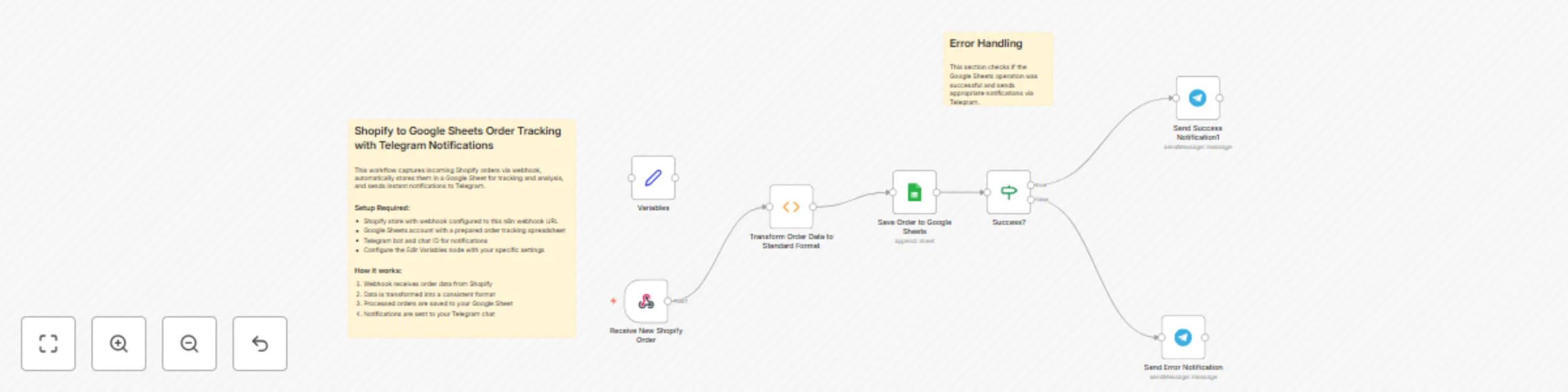
This workflow is designed for **e-commerce store owners, operations managers, and developers** who use Shopify as their e-commerce platform and want an automated way to track and analyze their order data. It is particularly useful for businesses that: * Need a centralized view of all Shopify orders * Want to analyze order trends without logging into Shopify * Need to share order data with team members who don't have Shopify access * Want to build custom reports based on order information --- ### What Problem Is This Workflow Solving? While Shopify provides excellent order management within its platform, many businesses need their order data available in other systems for various purposes: * **Data accessibility**: Not everyone in your organization may have access to Shopify's admin interface * **Custom reporting**: Google Sheets allows for flexible analysis and report creation * **Data integration**: Having orders in Google Sheets makes it easier to combine with other business data * **Backup**: Creates an additional backup of your critical order information --- ### What This Workflow Does This n8n workflow creates an automated bridge between your Shopify store and Google Sheets: * Listens for new order notifications from your Shopify store via webhooks * Processes the incoming order data and transforms it into a structured format * Stores each new order in a dedicated Google Sheets spreadsheet * Sends real-time notifications to Telegram when new orders are received or errors occur --- ### Setup #### Create a Google Sheet * Create a new Google Sheet to store your orders * Add a sheet named `"orders"` with the following columns: * `orderId` * `orderNumber` * `created_at` * `processed` * `processed_at` * `json` * `customer` * `shippingAddress` * `lineItems` * `totalPrice` * `currency` #### Set Up Telegram Bot * Create a Telegram bot using **BotFather** (send `/newbot` to [@BotFather](https://t.me/BotFather)) * Save your bot token for use in n8n credentials * Start a chat with your bot and get your chat ID (you can use [@userinfobot](https://t.me/userinfobot)) #### Configure the Workflow * Set your **Google Sheet ID** in the "Edit Variables" node * Enter your **Telegram chat ID** in the "Edit Variables" node * Set up your **Telegram API credentials** in n8n #### Configure Shopify Webhook * In your Shopify admin, go to: `Settings > Notifications > Webhooks` * Create a new webhook for **"Order creation"** * Set the URL to your **n8n webhook URL** (from the "Receive New Shopify Order" node) * Set the format to **JSON** --- ### How to Customize This Workflow to Your Needs * **Additional data**: Modify the "Transform Order Data to Standard Format" function to extract more Shopify data * **Multiple sheets**: Duplicate the Google Sheets node to store different aspects of orders in separate sheets * **Telegram messages**: Customize the text in Telegram nodes to include more details or rich formatting * **Data processing**: Add nodes to perform calculations or transformations on order data * **Additional notifications**: Add more channels like Slack, Discord, or SMS * **Integrations**: Extend the workflow to send order data to other systems like CRMs, ERPs, or accounting software --- ### Final Notes This workflow serves as a **foundation** that you can build upon to create a **comprehensive order management system** tailored to your specific business needs.