R

RamS

3
Workflows

Workflows by RamS
Workflow preview: Monitor GitHub repo access and push events with GitHub and Slack alerts
Free advanced

Monitor GitHub repo access and push events with GitHub and Slack alerts

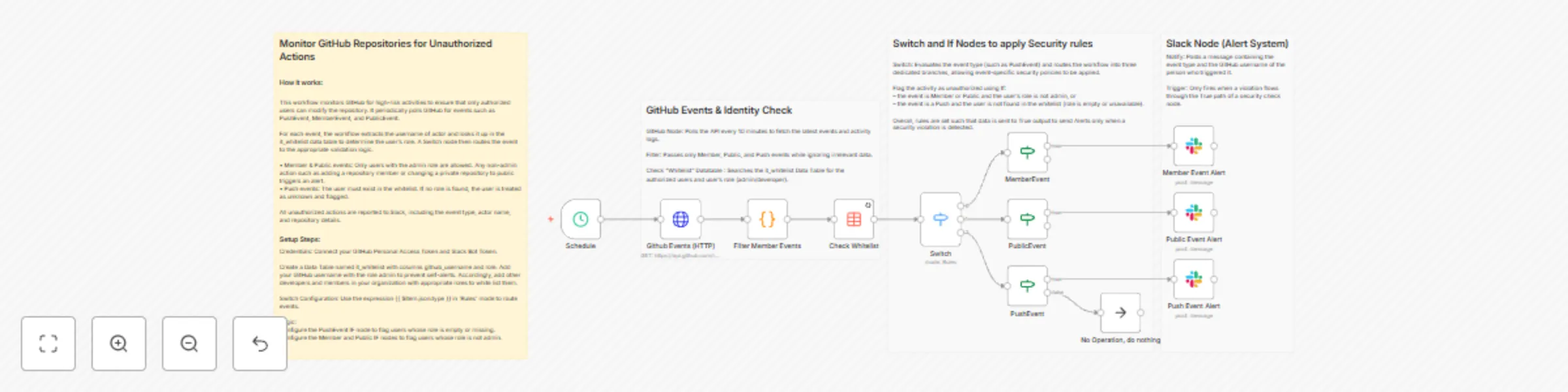
## Monitor GitHub Repositories for Unauthorized Actions ### How it works: This workflow monitors GitHub for high-risk activities to ensure that only authorized users can modify the repository. It periodically polls GitHub for events such as PushEvent, MemberEvent, and PublicEvent. For each event, the workflow extracts the username of actor and looks it up in the it_whitelist data table to determine the user’s role. A Switch node then routes the event to the appropriate validation logic. • Member & Public events: Only users with the admin role are allowed. Any non-admin action such as adding a repository member or changing a private repository to public triggers an alert. • Push events: The user must exist in the whitelist. If no role is found, the user is treated as unknown and flagged. All unauthorized actions are reported to Slack, including the event type, actor name, and repository details. ### Setup steps: Credentials: Connect your GitHub Personal Access Token and Slack Bot Token. Create a Data Table named it_whitelist with columns github_username and role. Add your GitHub username with the role admin to prevent self-alerts. Accordingly, add other developers and members in your organization with appropriate roles to white list them. Switch Configuration: Use the expression {{ $item.json.type }} in 'Rules' mode to route events. Logic: Configure the PushEvent IF node to flag users whose role is empty or missing. Configure the Member and Public IF nodes to flag users whose role is not admin. ![image.png](fileId:3885)

R
RamS
SecOps
1 Jan 2026
3
0
Workflow preview: Monitor SSL certificates for brand-impersonating domains with crt.sh, Urlscan.io and Slack
Free intermediate

Monitor SSL certificates for brand-impersonating domains with crt.sh, Urlscan.io and Slack

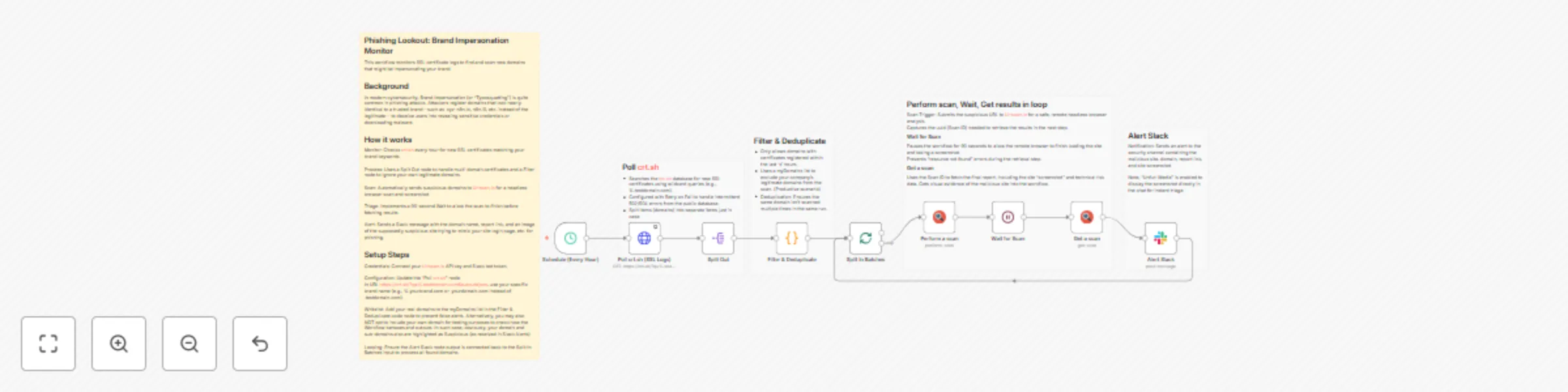
## Phishing Lookout (Typosquatting) and Brand Domain Monitor This workflow monitors SSL certificate logs to find and scan new domains that might be impersonating your brand. ## Background In modern cybersecurity, Brand Impersonation (or "Typosquatting") is quite common in phishing attacks. Attackers register domains that look nearly identical to a trusted brand—such as .input-n8n.io, n8n.i0, etc. instead of the legitimate— to deceive users into revealing sensitive credentials or downloading malware. ## How it works Monitor: Checks crt.sh every hour for new SSL certificates matching your brand keywords. Process: Uses a Split Out node to handle multi-domain certificates and a Filter node to ignore your own legitimate domains bringing only most recent certificates. Scan: Automatically sends suspicious domains to Urlscan.io for a headless browser scan and screenshot. Loop & Triage: Implements a 30-second Wait to allow the scan in loop to finish before fetching results. Alert: Sends a Slack message with the domain name, report link, and an image of the supposedly suspicious site trying to mimic your site login page, etc. alerting potentially a phishing case. ## Setup Steps Credentials: Connect your Urlscan.io API key and Slack bot token. Configuration: Update the "Poll crt.sh" node. In URL https://crt.sh/?q=%.testdomain.com&output=json, use your specific brand name (e.g., %.yourbrand.com or .yourdomain.com instead of .testdomain.com). Whitelist: Add your real domains to the myDomains list in the Filter & Deduplicate code node to prevent false alerts. Alternatively, you may also NOT opt to include your own domain for testing purposes to check how the Workflow behaves and outputs. In such case, obviously, your domain and sub-domains also are highlighted as Suspicious (as received in Slack Alerts) Looping: Ensure the Alert Slack node output is connected back to the Split In Batches input to process all found domains. ![Phishing alert workflow image.png](fileId:3844)

R
RamS
SecOps
27 Dec 2025
76
0
Workflow preview: Automated customer support system with Gemini AI, RAG & security guardrails
Free advanced

Automated customer support system with Gemini AI, RAG & security guardrails

## Description This workflow acts as an autonomous Tier 2 Customer Support Agent. It doesn't just answer questions; it manages the entire lifecycle of a support ticket—from triage to resolution with Guardrails to deal with prompt injections, PII information blocking, etc. enabling such threats are blocked and logged in Airtable. Unlike standard auto-responders, this system uses a "Master Orchestrator" architecture to coordinate specialized sub-agents. It creates a safe, human-like support experience by combining RAG (Knowledge Base retrieval) with a safety-first state machine. ## How it works The workflow operates on a strict "Hub and Spoke" model managed by a Master Orchestrator: 1. Security Guardrails (The Gatekeeper) Before the AI even sees the message, a hard-coded security layer scans for Prompt Injection attacks, Profanity, and PII. If a threat is detected, the workflow locks down, logs the incident to Airtable, and stops execution immediately. 2. Orchestration & Triage Once the message passes safety checks, the Master Orchestrator takes over. Its first action is to call the Ticket Analyser Agent. 3. Analysis & Scoring The Ticket Analyser classifies the issue (e.g., "Technical," "Billing") and scores the customer's sentiment. It returns a priority_score to the Master Orchestrator. 4. The Decision Logic (Circuit Breaker) The Master Orchestrator evaluates the score: Escalation: If the customer is "Furious" or the score is high, it bypasses AI drafting and immediately alerts a human manager via Slack. Resolution Path: If the request is standard, it proceeds to the next steps. 5. Knowledge Retrieval (RAG) The Orchestrator calls the Knowledge Worker Agent. This agent searches your Supabase vector store to find specific, verified company policies or troubleshooting steps relevant to the user's issue. 6. Resolution Drafting Armed with the analysis and the retrieved facts, the Orchestrator calls the Resolution Agent. This agent synthesizes a polite, professional email draft. 7. Final Execution The Master Orchestrator reviews the final draft and sends the email via Gmail. ## Set up This is multi-agent system. Please follow these steps to configure the environment: ⚠️ IMPORTANT: This template contains the Main Orchestrator AND the Sub-Agents in a single view. You must separate them for the system to function: Separate the Agents: Copy the nodes for each sub-agent (Ticket Analyser, Knowledge Worker, Resolution Agent) into their own new workflows. Link the Tools: In the Main Orchestrator workflow, open the "Call [Agent Name]" tool nodes and update the Workflow ID to point to the new workflows you just created. Configure Credentials: You will need credentials for Gmail (or your preferred email provider), Slack, Airtable, Supabase (for the vector store), and Google Gemini (or OpenAI). Initialize the Knowledge Base: Open the "One time Document Loader" section in the workflow. Upload your policy document (PDF/Text) to the "Upload your file here" node. Run this branch once to vectorize your documents into Supabase. Setup Airtable: Create a simple table with columns for Sender Email, Incident Type, and Flagged Content to log security threats caught by the guardrails. Customize the Trigger: Update the Gmail Trigger node to watch for your specific support alias (e.g., [email protected]) and ensure it only picks up "Unread" emails. Adjust the Escalation Sensitivity: In the Orchestrator Agent node, you can tweak the "Phase 2" logic to change what triggers a human hand-off (currently set to priority_score >= 0.9). Good to go! ![image.png](fileId:3643)

R
RamS
Support Chatbot
7 Dec 2025
200
0