M

Muhammad Qaisar Mehmood

3
Workflows

Workflows by Muhammad Qaisar Mehmood
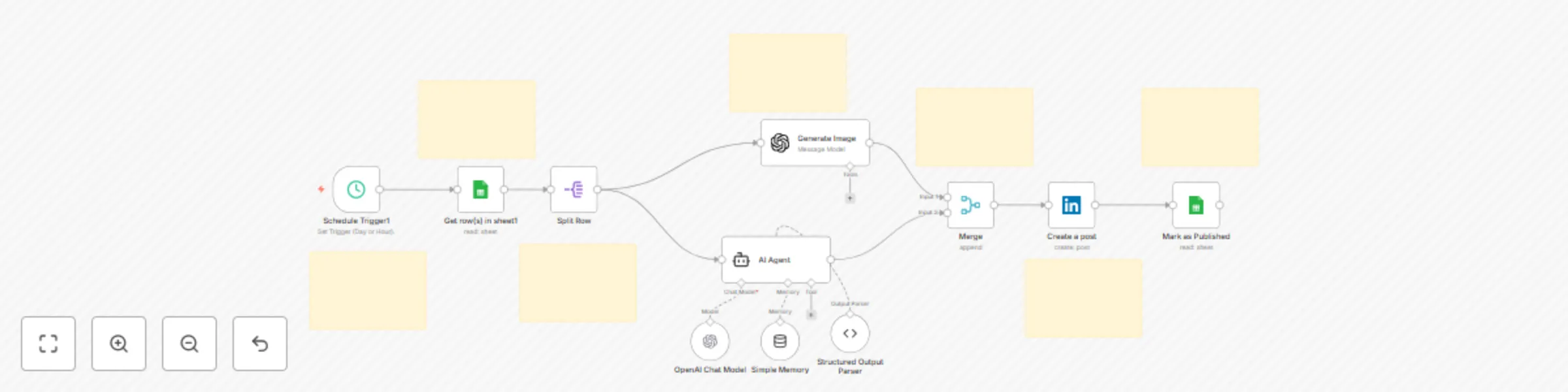
Workflow preview: Automate LinkedIn content creation with OpenAI, Google Sheets & LinkedIn API
Free advanced

Automate LinkedIn content creation with OpenAI, Google Sheets & LinkedIn API

Build a completely automated LinkedIn content engine using n8n, OpenAI, Google Sheets, and the LinkedIn API. This workflow reads unpublished topics from a Google Sheet, generates engaging AI-powered post content and a relevant image, and publishes directly to LinkedIn — no manual effort required. ## How It Works 1. This system uses a scheduled trigger (e.g., daily at 9 AM) to: 3. Fetch the first **Unpublished** topic from your Google Sheet. 5. Generate a compelling, SEO-optimized post description using OpenAI. 7. Create a marketing image that includes the topic title visually. 9. Merge the content and image. 11. Publish the post to your LinkedIn profile. 13. Update the sheet to mark the topic as **Published**. ## Prerequisites 1.A Google Sheet with two columns: Topics and Status 2.A verified LinkedIn developer account and app 3.OpenAI API key 4.n8n cloud or self-hosted instance 5.LinkedIn OAuth2 credentials in n8n 6.Google Sheets OAuth2 credentials in n8n ## Google Sheet Example | Topics | Status | | -------------------------- | ----------- | | How to Automate LinkedIn | Unpublished | | Top AI Tools for Marketers | Unpublished | ## Step-by-Step Setup 1. Clone or import the provided n8n workflow. 2. Create a Google Sheet with your post topics and mark them as Unpublished 3. Set up OAuth2 credentials in n8n for Google Sheets and LinkedIn. 4. Use the Schedule Trigger node to control posting frequency. 5. Adjust the OpenAI prompt to better match your tone. 6. Add a test topic and verify it generates, posts, and updates correctly. ## Customization Tips 1. Change posting frequency (daily/hourly) in the Schedule Trigger. 2. Modify the OpenAI prompt for different tones (professional, fun, educational). 3. Use a different image generation model or remove image generation if not needed. 4. Add approval steps before publishing, using Telegram/Slack/email nodes.

M
Muhammad Qaisar Mehmood
Social Media
20 Jul 2025
101
0
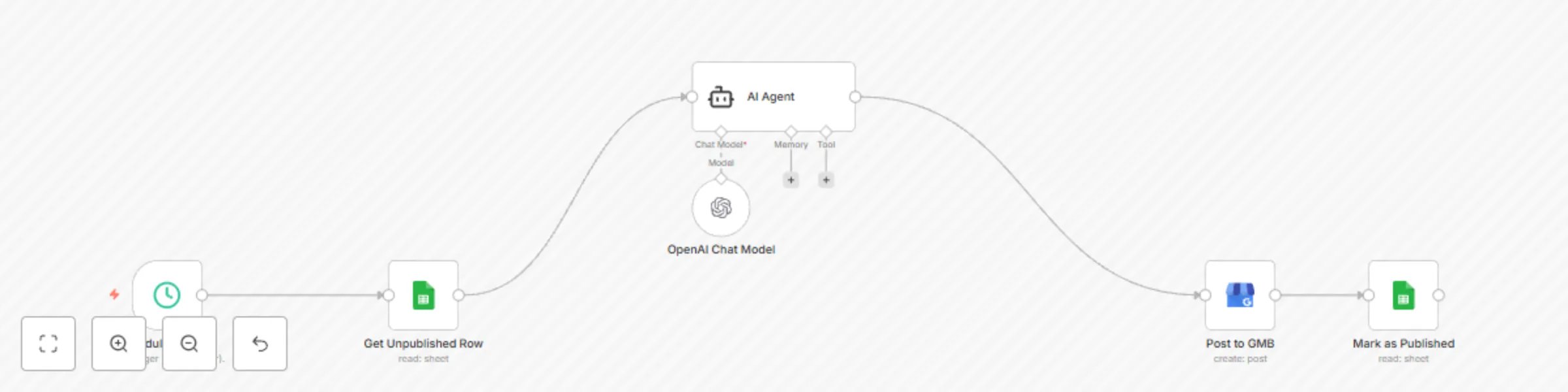
Workflow preview: Automate Google Business Profile posts with GPT-4 & Google Sheets
Free intermediate

Automate Google Business Profile posts with GPT-4 & Google Sheets

This powerful n8n workflow automatically generates and publishes Google Business Profile (GMB) posts using topics listed in a Google Sheet. It uses **OpenAI** to write SEO-optimized post descriptions and generate **AI images** based on the topic — then posts them directly to your **GMB profile** and marks them as published in the sheet. --- ## 🎯 Use Case Perfect for: - Digital marketers managing local SEO - Agencies automating content for clients - Businesses regularly posting to GMB - Teams managing editorial calendars via Google Sheets --- ## ⚙️ Workflow Overview | 🧩 Node | 🔧 Purpose | |-------------------------------|------------| | 🕘 **Schedule Trigger** | Runs daily at 9AM (configurable) | | 📄 **Get Unpublished Row** | Reads a row from Google Sheet where Status is not marked "Published" | | ✍️ **Generate Post Text** | Uses OpenAI (GPT-4) to write a compelling, local-business optimized post | | 🖼 **Generate Post Image** | Uses DALL·E or similar to create an image matching the topic | | 📬 **Post to GMB** | Publishes the generated content to your Google Business Profile | | ✅ **Update Sheet** | Marks the status as "Published" in the Google Sheet | --- ## 📄 Google Sheet Format | Column Name | Description | |-------------|-------------| | Topic | The subject or idea for the GMB post | | Status | Should be blank or "Unpublished" to trigger the flow | | Date | (Optional) Posting schedule or note | | Notes | (Optional) Internal info — not used in the automation | --- ## 🔐 Google My Business API Setup ### 1. Google Cloud Configuration - Go to [Google Cloud Console](https://console.cloud.google.com/) - Enable the **Google My Business API** - Create **OAuth2 Client ID** and **Client Secret** - Add this required scope: ``` ### 2. Request for GMB Quota - You need to request for GMB (Google Business Profile) API Quota from here, beacuse by deafult it sets to zero: https://support.google.com/business/contact/api_default ``` ### 3. n8n Credential Setup - In n8n, go to **Credentials > Google OAuth2** - Use your **Client ID** and **Client Secret** - Use this credential in GMB-related nodes --- ## 🧠 OpenAI Prompt Customization Modify the prompt in the OpenAI node to match your brand’s voice: ### Example Prompt ```text Write a short, engaging Google Business Post about: "{{ $json.topic }}". Make it suitable for a local audience and include a subtle call to action. ``` --- ## 🧪 Optional Enhancements - Add **If** node to delay publishing on certain days - Use **Slack or Email** notifications to alert before/after posting - Use **Multiple Businesses** by adding a Router or Switch node per GMB account --- ## ✅ Benefits - 🔁 Fully automated GMB posting - ✍️ SEO-optimized, AI-written content - 🖼 Matching images for visual engagement - 📊 Maintains a content log via Google Sheets - 🧠 Easily customizable prompt logic and schedule

M
Muhammad Qaisar Mehmood
Social Media
19 Jul 2025
385
0
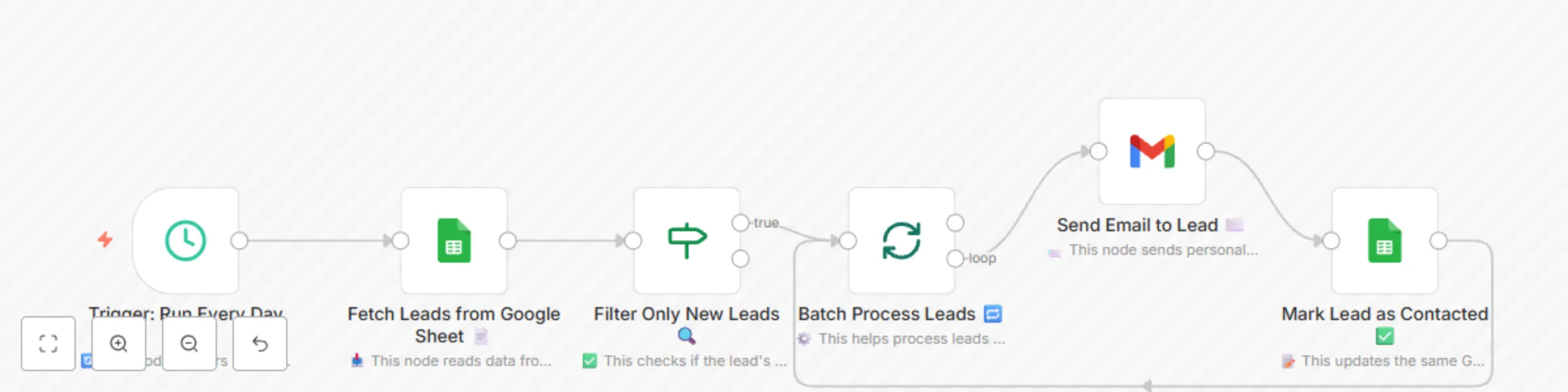
Workflow preview: Lead outreach automation with Google Sheets, Gmail, and n8n workflow
Free intermediate

Lead outreach automation with Google Sheets, Gmail, and n8n workflow

# 🎯 Goal Every 60 minutes: - Fetch only “New” leads from a Google Sheet - Send them a personalized email - Update their status to “Contacted” in the same sheet ## 🧩 Step-by-Step Explanation ### 1️⃣ 🕒 Trigger: Run Every Day **Node Name:** Schedule Trigger **What it does:** Automatically starts the workflow every 60 minutes (or your chosen interval). **Why it's needed:** You don’t need to run the workflow manually — it runs on a timer, like a robot doing your follow-up. --- ### 2️⃣ 📄 Fetch Leads from Google Sheet **Node Name:** Fetch Leads from Google Sheet **What it does:** Connects to your Google Sheet and pulls all the rows of leads. **Expected columns:** - Name - Email - Status (should be "New" if not yet emailed) --- ### 3️⃣ 🔍 Filter Only New Leads **Node Name:** Filter Only New Leads **What it does:** Filters only rows where `Status = New`. **Why it's needed:** Prevents emailing the same lead twice. Old leads are ignored. --- ### 4️⃣ 🔁 Batch Process Leads **Node Name:** Batch Process Leads **What it does:** Splits filtered leads into individual batches (usually one-by-one). **Why it's useful:** Helps avoid API rate limits or spam blocks by sending emails one at a time. --- ### 5️⃣ ✉️ Send Email to Lead **Node Name:** Send Email to Lead **What it does:** Sends a personalized email to each lead using their name and email. **How personalization works:** Use variables like `{{ $json["Name"] }}` in the subject/body. --- ### 6️⃣ ✅ Mark Lead as Contacted **Node Name:** Mark Lead as Contacted **What it does:** Updates the row in Google Sheet, changing Status from `New` to `Contacted`. **Why it's important:** Ensures this lead won't be processed again next time. --- ## 🔁 Loop Back After updating the lead status, the flow loops back to process the next lead from the batch. --- ## ✨ Bonus Touch This automation is clean, efficient, and scalable. You can later enhance it by: - Adding AI to write emails dynamically - Sending follow-up reminders - Tracking performance stats in another sheet

M
Muhammad Qaisar Mehmood
Lead Nurturing
17 Jul 2025
1506
0