P

Punit

4
Workflows

Workflows by Punit
Workflow preview: Automate LinkedIn engagement with GPT-4o sentiment analysis & smart comments
Free advanced

Automate LinkedIn engagement with GPT-4o sentiment analysis & smart comments

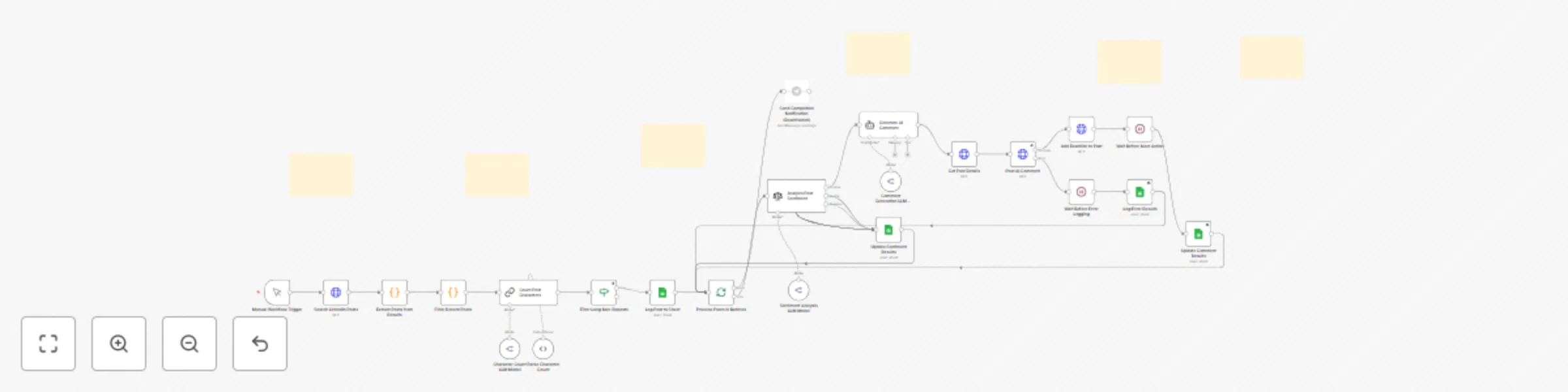
# LinkedIn Auto-Engagement AI Agent **Automatically find, analyze, and engage with relevant LinkedIn posts using AI-powered sentiment analysis and comment generation** ## 📋 Template Overview This workflow automates LinkedIn engagement by searching for relevant posts, analyzing their sentiment, generating contextual comments using AI, and posting them automatically. Perfect for DevOps professionals, cloud architects, and automation enthusiasts who want to maintain an active LinkedIn presence without spending hours manually commenting. ## 🎯 What This Workflow Does 1. **Searches LinkedIn** for posts from the last 24 hours based on your chosen keywords (Kubernetes, Azure, AWS, AI, Automation, SaaS, n8n) 2. **Filters quality content** - Only engages with posts over 350 characters that are original (not reposts) 3. **Analyzes sentiment** using AI to categorize posts into 7 types: - Informational/Educational Content - Happy Announcement - Sad/Negative Feelings - Hiring Posts - Not English Language - Neutral - None of the Above 4. **Generates contextual comments** using AI that are witty, professional, and add genuine value 5. **Posts comments** and adds reactions to the LinkedIn posts 6. **Logs everything** to Google Sheets for tracking and analysis 7. **Sends Telegram notifications** when the workflow completes ## 🔧 Prerequisites Before you can use this workflow, you'll need: ### Required Accounts & Credentials 1. **n8n Account** (Cloud or Self-hosted) 2. **Unipile Account** - For LinkedIn API access - Sign up at: https://unipile.com - Get your API key - Connect your LinkedIn account to Unipile 3. **OpenRouter Account** - For AI capabilities - Sign up at: https://openrouter.ai - Get your API key - Recommended model: `openai/gpt-4o-mini` (cost-effective) 4. **Google Account** - For Google Sheets logging 5. **Telegram Account** - For notifications (optional but recommended) ### Technical Requirements - Basic understanding of n8n workflows - Ability to create and manage Google Sheets - Ability to create a Telegram bot (5 minutes, step-by-step below) ## 📦 Setup Instructions ### Step 1: Import the Workflow 1. Copy the workflow JSON 2. In n8n, click **+ Add workflow** 3. Click the three dots (**...**) in the top right 4. Select **Import from File** or **Import from URL** 5. Paste the JSON ### Step 2: Set Up Google Sheets 1. **Create a new Google Sheet** with these exact column headers in Row 1: | Post URL | Post Content | Name of Author | Author's Profile Headline | Profile URL of Author | ID | Sentiment of Post | Comment Generated by AI | Error | |----------|--------------|----------------|---------------------------|----------------------|-------|-------------------|------------------------|--------| 2. **Name the sheet tab**: "Open - New n Random Niche Posts Comment" 3. **Share the sheet** with your Google account connected to n8n 4. **Copy the Sheet ID** from the URL (between `/d/` and `/edit`) ### Step 3: Configure Google Sheets Nodes Update the Sheet ID in these 4 nodes: - `Append row in sheet2` - `Update row in sheet9` - `Update row in sheet10` - `Update row in sheet11` For each node: 1. Click the node 2. Find the **Document** field 3. Either select your sheet from the dropdown OR paste your Sheet ID 4. Click the **Refresh** icon to load columns 5. Save ### Step 4: Set Up Unipile (LinkedIn API) 1. **Sign up at Unipile**: https://unipile.com 2. **Connect your LinkedIn account** in the Unipile dashboard 3. **Get your Account ID** and **API Key** 4. **Update these nodes** with your credentials: - `LinkedIn Search` - `Get Post from LinkedIn2` - `Comment On Post2` - `Leave Reaction on Post2` For each node: - Find the `X-API-KEY` header parameter - Paste your Unipile API key - Find the `account_id` parameter - Paste your Unipile account ID ### Step 5: Set Up OpenRouter (AI) 1. **Sign up at OpenRouter**: https://openrouter.ai 2. **Get your API key** from the dashboard 3. **Add credits** to your account ($5-10 is plenty to start) 4. **Configure these nodes**: - `OpenRouter Chat Model6` - `OpenRouter Chat Model7` - `OpenRouter Chat Model8` For each node: 1. Click the node 2. Click **Credentials** dropdown 3. Select **Create New** 4. Paste your OpenRouter API key 5. Save ### Step 6: Set Up Telegram Notifications (Optional) 1. **Create a Telegram Bot**: - Open Telegram and search for `@BotFather` - Send `/newbot` - Choose a name (e.g., "LinkedIn Bot") - Choose a username (must end in 'bot') - Save the **API Token** BotFather gives you 2. **Get Your Chat ID**: - Start a chat with your bot - Send any message - Visit: `https://api.telegram.org/botYOUR_TOKEN/getUpdates` - Find your Chat ID in the JSON response 3. **Configure the Telegram Node**: - Open `Send a text message2` node - Add your Bot Token in credentials - Replace the `chatId` with your Chat ID ### Step 7: Customize Keywords (Optional) Want to search for different topics? Update the LinkedIn Search URL: Current keywords: `Kubernetes, Azure, n8n, AWS, AI, Automation, SaaS` To change: 1. Open `LinkedIn Search` node 2. Find the `url` parameter under Body Parameters 3. Modify the `keywords=` section Example for DevOps tools: ``` keywords=%22Terraform%22%20OR%20%22Docker%22%20OR%20%22Kubernetes%22%20OR%20%22Jenkins%22 ``` ### Step 8: Test the Workflow 1. Click **Execute Workflow** (or use Manual Trigger) 2. Watch each node execute 3. Check for any errors (red nodes) 4. Verify data appears in your Google Sheet 5. Check your Telegram for the completion message ## 🎨 Customization Options ### Modify AI Comment Style Edit the `AI Agent2` node prompt to change comment style: ``` You're an expert on [YOUR EXPERTISE]. Look at this post and drop in a thoughtful comment - {{ $json['Post Content'] }} Guidelines: - Write like a [YOUR STYLE] - [YOUR RULES] - Maximum 2 sentences Only export the response and nothing else. ``` ### Change Sentiment Categories Edit the `Sentiment Analysis2` node to add/remove categories based on your needs. ### Adjust Filtering Criteria Modify the `If2` node to change: - Minimum character count (currently 350) - Post type filters - Date range filters ### Schedule Automation Add a **Schedule Trigger** node to run automatically: - Recommended: 2-3 times per day (morning, afternoon, evening) - Avoid running too frequently to prevent spam detection ## 📊 Workflow Nodes Explained ### Core Processing Flow 1. **LinkedIn Search** - Fetches posts from LinkedIn via Unipile API 2. **Code4** - Parses the API response into individual posts 3. **Code5** - Filters posts to last 24 hours only 4. **Basic LLM Chain2** - Counts characters in each post 5. **If2** - Filters posts (350+ chars, original content only) 6. **Append row in sheet2** - Logs qualifying posts to Google Sheets 7. **Loop Over Items4** - Processes each post one by one ### Analysis & Generation 8. **Sentiment Analysis2** - AI categorizes post sentiment 9. **AI Agent2** - Generates contextual comment 10. **Get Post from LinkedIn2** - Fetches fresh post data 11. **Comment On Post2** - Posts the AI-generated comment 12. **Leave Reaction on Post2** - Adds a like to the post ### Logging & Notifications 13. **Update row in sheet9/10/11** - Updates Google Sheet with results 14. **Wait** nodes - Adds delays to avoid rate limiting 15. **Send a text message2** - Telegram notification on completion ## ⚙️ Advanced Features ### Rate Limiting The workflow includes 1-minute wait times between actions to avoid LinkedIn's spam detection. You can adjust these in the `Wait` nodes. ### Error Handling - Failed comments are logged in the "Error" column - Retry logic built into update nodes (5 retries, 5-second intervals) - Errors don't stop the workflow from processing other posts ### Multi-Niche Support To engage with multiple niches: 1. Duplicate the `LinkedIn Search` node 2. Change keywords in each duplicate 3. Add a `Merge` node to combine results 4. Connect to the rest of the workflow ## 🚀 Usage Tips ### Best Practices - **Start slow**: Run manually 2-3 times to ensure everything works - **Monitor results**: Check your Google Sheet daily - **Refine prompts**: Adjust AI prompts based on comment quality - **Vary timing**: Schedule runs at different times of day - **Stay authentic**: Review and approve comments if needed ### What to Avoid - ❌ Running too frequently (max 3-4 times per day) - ❌ Using generic keywords that return spam - ❌ Commenting on your own posts - ❌ Using the same comment style repeatedly - ❌ Engaging with low-quality content ### LinkedIn Best Practices - Focus on adding genuine value - Engage with diverse content (not just one niche) - Avoid hashtags in comments - Keep comments concise (2 sentences max) - Build relationships, not just visibility ## 📈 Performance & Costs ### Expected Results - **Posts found**: 20-100 per run (depending on keywords) - **Posts filtered**: 10-30 qualifying posts - **Comments posted**: 5-15 per run (after sentiment filtering) - **Time saved**: 1-2 hours of manual engagement per day ### API Costs (Approximate) - **Unipile**: ~$29/month for LinkedIn API access - **OpenRouter**: Free - **n8n**: Free (self-hosted)~Subscript~ - **Google Sheets**: Free - **Telegram**: Free **Total estimated cost**: $30-50/month for full automation ## 🐛 Troubleshooting ### Common Issues **Issue**: "Column names were updated" error - **Solution**: Refresh columns in Google Sheets nodes **Issue**: LinkedIn API returns 403 error - **Solution**: Check Unipile account status and API limits **Issue**: AI comments are generic or low quality - **Solution**: Refine the AI Agent2 prompt with more specific guidelines **Issue**: No posts found - **Solution**: Check keyword relevance and time range settings **Issue**: Workflow hangs on Loop Over Items - **Solution**: Check wait times and ensure all nodes are properly connected ### Getting Help - Join the n8n community: https://community.n8n.io - Check n8n docs: https://docs.n8n.io - Unipile documentation: https://docs.unipile.com ## 🔐 Security & Privacy ### Data Protection - All LinkedIn credentials are handled by Unipile (OAuth) - API keys are stored securely in n8n credentials - Google Sheets data is private to your account - No third-party data sharing ### Compliance - Respects LinkedIn's rate limits - Follows LinkedIn's Terms of Service - Only engages with public posts - No scraping of private data ### Ethical Use This workflow is designed for: ✅ Authentic professional networking ✅ Adding value to discussions ✅ Saving time on routine engagement Please avoid: ❌ Spamming or aggressive self-promotion ❌ Misleading or deceptive comments ❌ Violating LinkedIn's community guidelines ## 📝 Changelog & Updates ### Version 1.0 (Current) - Initial release - Core functionality: search, filter, analyze, comment - Google Sheets logging - Telegram notifications - Multi-keyword support ### Planned Features - Multi-account support - Advanced scheduling options - Comment approval workflow - Analytics dashboard - A/B testing for comment styles ## 👨‍💻 About the Creator This workflow was created to solve the challenge of maintaining consistent LinkedIn engagement while focusing on actual work. After spending too many hours manually commenting, I built this automation to handle the repetitive parts while keeping comments authentic and valuable. ## 📄 License This workflow template is free to use and modify for personal and commercial purposes. Attribution is appreciated but not required. ## 🤝 Contributing Found a bug? Have an improvement idea? Feel free to: - Share your modifications - Report issues in the n8n community - Suggest new features - Create your own variations ## 🙏 Acknowledgments Built with: - n8n - The workflow automation platform - Unipile - LinkedIn API integration - OpenRouter - AI model access - Google Sheets - Data logging - Telegram - Notifications --- **Ready to automate your LinkedIn engagement? Import this workflow and start building your professional network on autopilot!** *Last updated: October 2025*

P
Punit
Social Media
9 Oct 2025
54
0
Workflow preview: Automated customer onboarding with HubSpot, Gmail, and AI-powered scheduling
Free advanced

Automated customer onboarding with HubSpot, Gmail, and AI-powered scheduling

# HubSpot Customer Onboarding Automation ## Overview Streamline your customer onboarding process with this intelligent automation that triggers when new contacts are created in HubSpot. The workflow automatically sends personalized welcome emails, schedules onboarding calls, and assigns customer success managers - ensuring every new customer receives immediate attention and proper support. ## What This Workflow Does ### Core Features - **Real-time Contact Detection**: Monitors HubSpot for new contact creation events via webhooks - **Intelligent Email Generation**: Uses AI to create personalized welcome emails based on contact information - **Automated Calendar Scheduling**: Finds available time slots and schedules onboarding calls with new contacts - **Smart CSM Assignment**: Automatically assigns contacts to appropriate customer success managers - **Multi-channel Communication**: Sends HTML-formatted emails with professional styling - **Calendar Integration**: Full Google Calendar management with attendee invitations ### Business Value - **Instant Response**: New customers receive immediate welcome communication - **Personalization at Scale**: Each email is uniquely crafted based on contact details and company information - **Process Consistency**: Ensures every new contact follows the same high-quality onboarding process - **Resource Optimization**: Automatically schedules meetings in available time slots - **Customer Experience**: Professional, timely communication builds trust from day one ## Prerequisites ### Required Accounts & Credentials 1. **HubSpot Account** with Developer API access for webhooks 2. **HubSpot Pro/Enterprise** for OAuth2 API access 3. **OpenAI API** access for AI-powered email generation 4. **Google Calendar** account for meeting scheduling 5. **Gmail** account for email delivery 6. **Public-facing n8n instance** or n8n Cloud for webhook reception ### Technical Requirements - HubSpot webhook subscription capabilities - Google Workspace or personal Google account - OpenAI API with GPT-4o access - n8n instance with LangChain nodes package installed ## Setup Instructions ### Step 1: HubSpot Developer Setup 1. **Create HubSpot Developer Account**: - Go to [HubSpot Developer Portal](https://developers.hubspot.com/) - Create or access your developer account - Navigate to Apps section 2. **Create Webhook Subscription**: - In HubSpot Developer Portal: Apps > Create App - Configure webhook subscription for `contact.creation` events - Set webhook URL to your n8n webhook endpoint - Note the App ID and Developer API key 3. **Add HubSpot Developer Credentials**: - In n8n: Settings > Credentials > "HubSpot Developer API" - Enter Developer API key and App ID ### Step 2: HubSpot OAuth2 Configuration 1. **Create OAuth2 App**: - In HubSpot Developer Portal: Create OAuth2 app - Add required scopes: - `contacts.read` - `contacts.write` - `crm.objects.owners.read` 2. **Add HubSpot OAuth2 Credentials**: - In n8n: Settings > Credentials > "HubSpot OAuth2 API" - Complete OAuth authorization flow ### Step 3: OpenAI Configuration 1. **Get OpenAI API Key**: - Visit [OpenAI Platform](https://platform.openai.com/) - Create API key with GPT-4o model access 2. **Add OpenAI Credentials**: - In n8n: Settings > Credentials > "OpenAI API" - Enter your API key ### Step 4: Google Calendar Setup 1. **Enable Google Calendar API**: - Go to [Google Cloud Console](https://console.cloud.google.com/) - Enable Google Calendar API - Create OAuth2 credentials 2. **Add Google Calendar Credentials**: - In n8n: Settings > Credentials > "Google Calendar OAuth2 API" - Complete OAuth authorization flow ### Step 5: Gmail Configuration 1. **Enable Gmail API**: - In Google Cloud Console: Enable Gmail API - Use same OAuth2 credentials as Calendar 2. **Add Gmail Credentials**: - In n8n: Settings > Credentials > "Gmail OAuth2" - Complete OAuth authorization ### Step 6: Customize Company Information 1. **Update "Enter your company data here" Node**: ``` company_name: "Your Company Name" sender_name: "Your Name" sender_email: "[email protected]" company_activity: "Your company description" ``` 2. **Important**: The `sender_email` must match your HubSpot user email and Google account email ### Step 7: Configure Calendar Settings 1. **Update Calendar Agent Tool**: - Verify calendar ID matches your Google Calendar - Ensure proper timezone settings - Test calendar access permissions ## Configuration Details ### Webhook Event Handling The workflow processes HubSpot webhook events: - **Event Type**: `contact.creation` - **Data Processing**: Extracts contact ID and subscription type - **Validation**: Ensures event is contact creation before proceeding ### AI Email Generation System The email generation process uses: - **Model**: GPT-4o-mini for cost-effective, high-quality content - **Structured Output**: JSON format with subject and body fields - **Personalization Variables**: Contact name, email, company information - **Template Consistency**: Maintains professional tone and branding ### Calendar Management Features The calendar agent provides: - **Event Creation**: With and without attendees - **Event Retrieval**: Find available time slots - **Event Updates**: Modify existing appointments - **Event Deletion**: Remove canceled meetings - **Smart Scheduling**: Automatically finds next available slot ### Contact Assignment Logic The CSM assignment process: - **Owner Lookup**: Retrieves all HubSpot owners - **Sender Matching**: Finds owner matching the configured sender email - **Contact Assignment**: Updates contact record with owner ID ## Usage Instructions ### Automatic Operation 1. **Activate Workflow**: - Toggle workflow to "Active" status - Webhook automatically registers with HubSpot 2. **Test with New Contact**: - Create test contact in HubSpot - Monitor n8n execution log - Verify email delivery and calendar event creation 3. **Monitor Performance**: - Check HubSpot webhook delivery logs - Review email delivery success rates - Validate calendar event creation ### Manual Testing 1. **Create Test Contact**: - Add new contact in HubSpot with complete information - Ensure contact has valid email address - Monitor workflow execution 2. **Validate Outputs**: - **Email**: Check recipient inbox for welcome email - **Calendar**: Verify meeting invitation sent and accepted - **HubSpot**: Confirm contact owner assignment - **Logs**: Review n8n execution for any errors ## Expected Outputs ### Personalized Welcome Email AI-generated email featuring: - **Subject Line**: Customized based on company and contact information - **Personalized Greeting**: Uses contact's first name and relevant details - **Company Introduction**: Includes sender name, company name, and business description - **Meeting Notification**: Mentions upcoming scheduled onboarding call - **Professional Formatting**: HTML-styled for professional appearance ### Scheduled Onboarding Call Google Calendar event with: - **Title**: Descriptive meeting title including contact name - **Attendees**: New contact automatically invited - **Timing**: Next available 1-hour slot in sender's calendar - **Location**: Virtual meeting details (if configured) - **Description**: Meeting purpose and agenda ### HubSpot Contact Updates Automated contact management: - **Owner Assignment**: Contact assigned to appropriate CSM - **Activity Logging**: Webhook event recorded in contact timeline - **Data Enrichment**: Additional contact information if available ### Calendar Tool Responses Structured responses from calendar operations: - **Success Confirmations**: Meeting created successfully - **Error Handling**: Clear error messages for failed operations - **Event Details**: Complete information about created/modified events ## Troubleshooting ### Common Issues #### HubSpot Webhook Not Triggering **Cause**: Webhook subscription not properly configured or n8n endpoint not accessible **Solutions**: - Verify n8n webhook URL is publicly accessible - Check HubSpot webhook subscription settings - Confirm webhook is active in HubSpot Developer Portal - Test webhook delivery using HubSpot's testing tools #### Contact Information Not Retrieved **Cause**: Insufficient HubSpot API permissions or invalid contact ID **Solutions**: - Verify HubSpot OAuth2 scopes include contact read permissions - Check contact ID extraction from webhook payload - Ensure contact exists and is accessible via API - Test contact retrieval manually #### Email Generation Failed **Cause**: OpenAI API issues or insufficient token limits **Solutions**: - Check OpenAI API key validity and usage limits - Verify GPT-4o model access permissions - Review prompt complexity and token requirements - Test AI generation with simpler prompts #### Calendar Event Creation Failed **Cause**: Google Calendar permissions or invalid calendar ID **Solutions**: - Verify Google Calendar OAuth2 permissions - Check calendar ID configuration matches sender email - Ensure calendar is accessible and not restricted - Test calendar operations manually #### Gmail Delivery Problems **Cause**: Authentication issues or email formatting problems **Solutions**: - Check Gmail OAuth2 token validity - Verify sender email matches authenticated account - Review HTML formatting for email compatibility - Test email delivery with simple text format ### Performance Optimization #### High Contact Volume - Implement rate limiting for API calls - Add error retry mechanisms with exponential backoff - Monitor token usage and API quotas - Consider batch processing for multiple contacts #### Large Calendar Schedules - Optimize calendar queries with specific date ranges - Implement caching for frequently accessed calendar data - Add timeout handling for slow calendar operations - Consider pagination for large event lists ## Customization Examples ### Different CRM Systems Replace HubSpot with alternative CRMs: - **Salesforce**: Use Salesforce webhook and contact management - **Pipedrive**: Implement Pipedrive person creation triggers - **Zoho CRM**: Configure Zoho webhook subscriptions - **Airtable**: Use Airtable as simple CRM with webhooks ### Alternative Email Providers Replace Gmail with other email services: - **SendGrid**: Use SendGrid for transactional emails - **Mailgun**: Implement Mailgun email delivery - **Microsoft Outlook**: Use Outlook for business email - **AWS SES**: Configure Amazon Simple Email Service ### Enhanced Email Content Improve email personalization: - **Company Research**: Add web scraping for company information - **Industry-Specific Templates**: Different emails for different industries - **Multi-language Support**: Detect contact language and localize content - **Dynamic Content**: Include relevant resources based on contact properties ### Advanced Calendar Features Extend calendar functionality: - **Buffer Time**: Automatically add buffer between meetings - **Meeting Types**: Different durations for different contact types - **Timezone Handling**: Automatic timezone detection and conversion - **Recurring Meetings**: Schedule follow-up meetings automatically ### Workflow Branching Add conditional logic: - **Contact Source**: Different flows for different lead sources - **Company Size**: Tailored onboarding for enterprise vs SMB - **Geographic Routing**: Regional CSM assignment - **Product Interest**: Specialized onboarding based on product selection ## Security Considerations ### API Security - Store all credentials securely in n8n credential system - Use OAuth2 authentication where available - Regularly rotate API keys and refresh tokens - Monitor API usage for unauthorized access ### Data Privacy - Ensure compliance with data protection regulations (GDPR, CCPA) - Implement data retention policies for contact information - Consider data encryption for sensitive customer data - Document data flows for privacy audits ### Webhook Security - Implement webhook signature verification where supported - Use HTTPS endpoints for all webhook URLs - Monitor webhook delivery logs for suspicious activity - Consider IP whitelisting for webhook sources ## Integration Considerations ### HubSpot Best Practices - **Rate Limiting**: Respect HubSpot API rate limits - **Error Handling**: Implement proper error responses for webhooks - **Data Sync**: Ensure data consistency between systems - **Backup Procedures**: Regular backup of workflow configurations ### Email Deliverability - **Authentication**: Implement SPF, DKIM, and DMARC records - **Content Quality**: Avoid spam triggers in email content - **List Management**: Respect unsubscribe requests - **Monitoring**: Track email delivery and engagement metrics ## Business Process Integration ### Sales Handoff - **Lead Qualification**: Integrate with lead scoring systems - **Sales Notification**: Alert sales team of high-value prospects - **CRM Updates**: Sync onboarding status with sales pipeline - **Activity Tracking**: Log all onboarding activities in CRM ### Customer Success Workflows - **Milestone Tracking**: Monitor onboarding progress - **Health Scoring**: Assess customer engagement levels - **Escalation Procedures**: Flag at-risk customers for intervention - **Success Metrics**: Track onboarding completion rates ## Support and Maintenance ### Regular Maintenance - Monitor webhook delivery success rates - Review email open and response rates - Update AI prompts based on feedback - Audit calendar scheduling efficiency ### Performance Monitoring - Track workflow execution times and success rates - Monitor API usage and costs across all services - Review customer feedback on onboarding experience - Analyze conversion rates from onboarding to activation ### Updates and Improvements - Stay updated with API changes from integrated services - Test workflow compatibility with platform updates - Implement customer feedback and feature requests - Document all customizations for team reference ## Cost Optimization ### API Usage Management - Monitor OpenAI token consumption patterns - Optimize prompts for efficiency and effectiveness - Track Google API usage for calendar and email operations - Implement usage alerts and budgets ### Alternative Approaches - Consider using local AI models for email generation - Implement template-based emails for cost reduction - Use free tiers where available and appropriate - Regular cost-benefit analysis of integrated services ## License and Attribution This workflow template is provided under MIT license. Calendar agent implementation inspired by [Nate Herk's YouTube channel](https://www.youtube.com/@nateherk). Attribution to original creators appreciated when sharing or modifying. Users are responsible for compliance with all integrated services' terms of service and data handling requirements. ## Support Contact For customizations, troubleshooting, or additional workflow development: - **Email**: [email protected] - **Creator Profile**: [n8n Creator Profile](https://n8n.io/creators/punitkumar/) - **Specializations**: n8n, Make, LangChain, and LangGraph workflow development

P
Punit
Lead Nurturing
28 Sep 2025
208
0

Workflow preview: Automated blog post generator with GPT-4, DALL-E, and Wikipedia for WordPress
Free advanced

Automated blog post generator with GPT-4, DALL-E, and Wikipedia for WordPress

# WordPress AI Content Creator ## Overview Transform a few keywords into professionally written, SEO-optimized WordPress blog posts with custom featured images. This workflow leverages AI to research topics, structure content, write engaging articles, and publish them directly to your WordPress site as drafts ready for review. ## What This Workflow Does ### Core Features - **Keyword-to-Article Generation**: Converts simple keywords into comprehensive, well-structured articles - **Intelligent Content Planning**: Uses AI to create logical chapter structures and content flow - **Wikipedia Integration**: Researches factual information to ensure content accuracy and depth - **Multi-Chapter Writing**: Generates coherent, contextually-aware content across multiple sections - **Custom Image Creation**: Generates relevant featured images using DALL-E based on article content - **SEO Optimization**: Creates titles, subtitles, and content optimized for search engines - **WordPress Integration**: Automatically publishes articles as drafts with proper formatting and featured images ### Business Value - **Content Scale**: Produce high-quality blog posts in minutes instead of hours - **Research Efficiency**: Automatically incorporates factual information from reliable sources - **Consistency**: Maintains professional tone and structure across all generated content - **SEO Benefits**: Creates search-engine friendly content with proper HTML formatting - **Cost Savings**: Reduces need for external content creation services ## Prerequisites ### Required Accounts & Credentials 1. **WordPress Site** with REST API enabled 2. **OpenAI API** access (GPT-4 and DALL-E models) 3. **WordPress Application Password** or JWT authentication 4. **Public-facing n8n instance** for form access (or n8n Cloud) ### Technical Requirements - WordPress REST API v2 enabled (standard on most WordPress sites) - WordPress user account with publishing permissions - n8n instance with LangChain nodes package installed ## Setup Instructions ### Step 1: WordPress Configuration 1. **Enable REST API** (usually enabled by default): - Check that `yoursite.com/wp-json/wp/v2/` returns JSON data - If not, contact hosting provider or install REST API plugin 2. **Create Application Password**: - In WordPress Admin: Users > Profile - Scroll to "Application Passwords" - Add new password with name "n8n Integration" - Copy the generated password (save securely) 3. **Get WordPress Site URL**: - Note your full WordPress site URL (e.g., `https://yourdomain.com`) ### Step 2: OpenAI Configuration 1. **Obtain OpenAI API Key**: - Visit [OpenAI Platform](https://platform.openai.com/) - Create API key with access to: - GPT-4 models (for content generation) - DALL-E (for image creation) 2. **Add OpenAI Credentials in n8n**: - Navigate to Settings > Credentials - Add "OpenAI API" credential - Enter your API key ### Step 3: WordPress Credentials in n8n 1. **Add WordPress API Credentials**: - In n8n: Settings > Credentials > "WordPress API" - **URL**: Your WordPress site URL - **Username**: Your WordPress username - **Password**: Application password from Step 1 ### Step 4: Update Workflow Settings 1. **Configure Settings Node**: - Open the "Settings" node - Replace `wordpress_url` value with your actual WordPress URL - Keep other settings as default or customize as needed 2. **Update Credential References**: - Ensure all WordPress nodes reference your WordPress credentials - Verify OpenAI nodes use your OpenAI credentials ### Step 5: Deploy Form (Production Use) 1. **Activate Workflow**: - Toggle workflow to "Active" status - Note the webhook URL from Form Trigger node 2. **Test Form Access**: - Copy the form URL - Test form submission with sample data - Verify workflow execution completes successfully ## Configuration Details ### Form Customization The form accepts three key inputs: - **Keywords**: Comma-separated topics for article generation - **Number of Chapters**: 1-10 chapters for content structure - **Max Word Count**: Total article length control You can modify form fields by editing the "Form" trigger node: - Add additional input fields (category, author, publish date) - Change field types (dropdown, checkboxes, file upload) - Modify validation rules and requirements ### AI Content Parameters #### Article Structure Generation The "Create post title and structure" node uses these parameters: - **Model**: GPT-4-1106-preview for enhanced reasoning - **Max Tokens**: 2048 for comprehensive structure planning - **JSON Output**: Structured data for subsequent processing #### Chapter Writing The "Create chapters text" node configuration: - **Model**: GPT-4-0125-preview for consistent writing quality - **Context Awareness**: Each chapter knows about preceding/following content - **Word Count Distribution**: Automatically calculates per-chapter length - **Coherence Checking**: Ensures smooth transitions between sections ### Image Generation Settings DALL-E parameters in "Generate featured image": - **Size**: 1792x1024 (optimized for WordPress featured images) - **Style**: Natural (photographic look) - **Quality**: HD (higher quality output) - **Prompt Enhancement**: Adds photography keywords for better results ## Usage Instructions ### Basic Workflow 1. **Access the Form**: - Navigate to the form URL provided by the Form Trigger - Enter your desired keywords (e.g., "artificial intelligence, machine learning, automation") - Select number of chapters (3-5 recommended for most topics) - Set word count (1000-2000 words typical) 2. **Submit and Wait**: - Click submit to trigger the workflow - Processing takes 2-5 minutes depending on article length - Monitor n8n execution log for progress 3. **Review Generated Content**: - Check WordPress admin for new draft post - Review article structure and content quality - Verify featured image is properly attached - Edit as needed before publishing ### Advanced Usage #### Custom Prompts Modify AI prompts to change: - **Writing Style**: Formal, casual, technical, conversational - **Target Audience**: Beginners, experts, general public - **Content Focus**: How-to guides, opinion pieces, news analysis - **SEO Strategy**: Keyword density, meta descriptions, heading structure #### Bulk Content Creation For multiple articles: 1. Create separate form submissions for each topic 2. Schedule workflow executions with different keywords 3. Use CSV upload to process multiple keyword sets 4. Implement queue system for high-volume processing ## Expected Outputs ### Article Structure Generated articles include: - **SEO-Optimized Title**: Compelling, keyword-rich headline - **Descriptive Subtitle**: Supporting context for the main title - **Introduction**: ~60 words introducing the topic - **Chapter Sections**: Logical flow with HTML formatting - **Conclusions**: ~60 words summarizing key points - **Featured Image**: Custom DALL-E generated visual ### Content Quality Features - **Factual Accuracy**: Wikipedia integration ensures reliable information - **Proper HTML Formatting**: Bold, italic, and list elements for readability - **Logical Flow**: Chapters build upon each other coherently - **SEO Elements**: Optimized for search engine visibility - **Professional Tone**: Consistent, engaging writing style ### WordPress Integration - **Draft Status**: Articles saved as drafts for review - **Featured Image**: Automatically uploaded and assigned - **Proper Formatting**: HTML preserved in WordPress editor - **Metadata**: Title and content properly structured ## Troubleshooting ### Common Issues #### "No Article Structure Generated" **Cause**: AI couldn't create valid structure from keywords **Solutions**: - Use more specific, descriptive keywords - Reduce number of chapters requested - Check OpenAI API quotas and usage - Verify keywords are in English (default language) #### "Chapter Content Missing" **Cause**: Individual chapter generation failed **Solutions**: - Increase max tokens in chapter generation node - Simplify chapter prompts - Check for API rate limiting - Verify internet connectivity for Wikipedia tool #### "WordPress Publication Failed" **Cause**: Authentication or permission issues **Solutions**: - Verify WordPress credentials are correct - Check WordPress user has publishing permissions - Ensure WordPress REST API is accessible - Test WordPress URL accessibility #### "Featured Image Not Attached" **Cause**: Image generation or upload failure **Solutions**: - Check DALL-E API access and quotas - Verify image upload permissions in WordPress - Review image file size and format compatibility - Test manual image upload to WordPress ### Performance Optimization #### Large Articles (2000+ words) - Increase timeout values in HTTP request nodes - Consider splitting very long articles into multiple posts - Implement progress tracking for user feedback - Add retry mechanisms for failed API calls #### High-Volume Usage - Implement queue system for multiple simultaneous requests - Add rate limiting to respect OpenAI API limits - Consider batch processing for efficiency - Monitor and optimize token usage ## Customization Examples ### Different Content Types #### Product Reviews Modify prompts to include: - Pros and cons sections - Feature comparisons - Rating systems - Purchase recommendations #### Technical Tutorials Adjust structure for: - Step-by-step instructions - Code examples - Prerequisites sections - Troubleshooting guides #### News Articles Configure for: - Who, what, when, where, why structure - Quote integration - Fact checking emphasis - Timeline organization ### Alternative Platforms #### Replace WordPress with Other CMS - **Ghost**: Use Ghost API for publishing - **Webflow**: Integrate with Webflow CMS - **Strapi**: Connect to headless CMS - **Medium**: Publish to Medium platform #### Different AI Models - **Claude**: Replace OpenAI with Anthropic's Claude - **Gemini**: Use Google's Gemini for content generation - **Local Models**: Integrate with self-hosted AI models - **Multiple Models**: Use different models for different tasks ### Enhanced Features #### SEO Optimization Add nodes for: - **Meta Description Generation**: AI-created descriptions - **Tag Suggestions**: Relevant WordPress tags - **Internal Linking**: Suggest related content links - **Schema Markup**: Add structured data #### Content Enhancement Include additional processing: - **Plagiarism Checking**: Verify content originality - **Readability Analysis**: Assess content accessibility - **Fact Verification**: Multiple source confirmation - **Image Optimization**: Compress and optimize images ## Security Considerations ### API Security - Store all credentials securely in n8n credential system - Use environment variables for sensitive configuration - Regularly rotate API keys and passwords - Monitor API usage for unusual activity ### Content Moderation - Review generated content before publishing - Implement content filtering for inappropriate material - Consider legal implications of auto-generated content - Maintain editorial oversight and fact-checking ### WordPress Security - Use application passwords instead of main account password - Limit WordPress user permissions to minimum required - Keep WordPress and plugins updated - Monitor for unauthorized access attempts ## Legal and Ethical Considerations ### Content Ownership - Understand OpenAI's terms regarding generated content - Consider copyright implications for Wikipedia-sourced information - Implement proper attribution where required - Review content licensing requirements ### Disclosure Requirements - Consider disclosing AI-generated content to readers - Follow platform-specific guidelines for automated content - Ensure compliance with advertising and content standards - Respect intellectual property rights ## Support and Maintenance ### Regular Maintenance - Monitor OpenAI API usage and costs - Update AI prompts based on output quality - Review and update Wikipedia search strategies - Optimize workflow performance based on usage patterns ### Quality Assurance - Regularly review generated content quality - Implement feedback loops for improvement - Test workflow with diverse keyword sets - Monitor WordPress site performance impact ### Updates and Improvements - Stay updated with OpenAI model improvements - Monitor n8n platform updates for new features - Engage with community for workflow enhancements - Document custom modifications for future reference ## Cost Optimization ### OpenAI Usage - Monitor token consumption patterns - Optimize prompts for efficiency - Consider using different models for different tasks - Implement usage limits and budgets ### Alternative Approaches - Use local AI models for cost reduction - Implement caching for repeated topics - Batch similar requests for efficiency - Consider hybrid human-AI content creation ## License and Attribution This workflow template is provided under MIT license. Attribution to original creator appreciated when sharing or modifying. Generated content is subject to OpenAI's usage policies and terms of service.

P
Punit
Content Creation
28 Sep 2025
1124
0
Workflow preview: LinkedIn auto-posting with GPT-4o content & image generation + Telegram alerts
Free intermediate

LinkedIn auto-posting with GPT-4o content & image generation + Telegram alerts

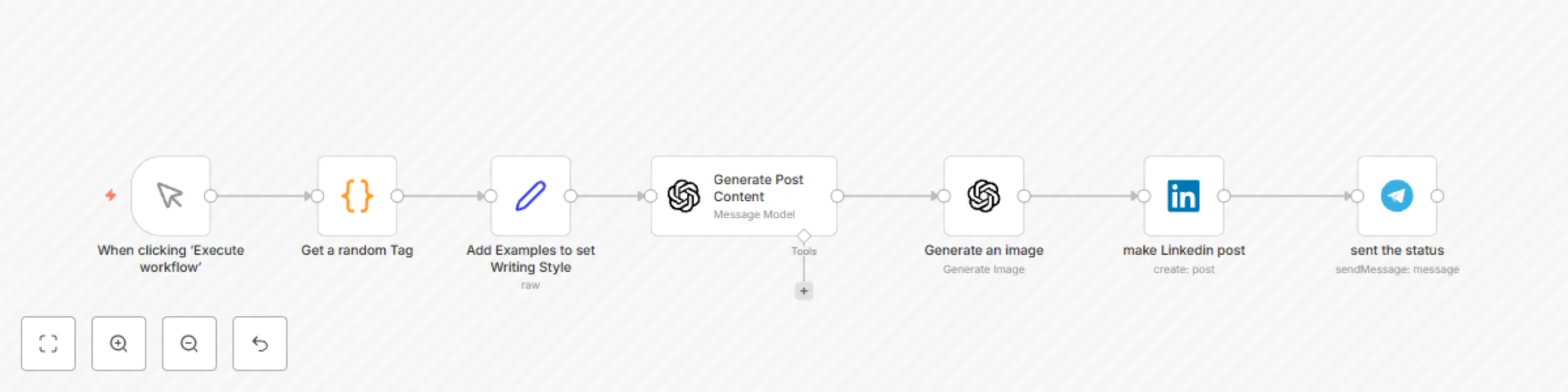
This n8n workflow automates the process of generating and publishing LinkedIn posts that align with your personal brand tone and trending tech topics. It uses OpenAI to create engaging content and matching visuals, posts it directly to LinkedIn, and sends a confirmation via Telegram with post details. ### 🔑 Key Features - 🏷️ **Random Hashtag Selection** Picks a trending tag from a custom list for post inspiration. - ✍️ **AI-Generated Content** GPT-4o crafts a LinkedIn-optimized post in your personal writing style. - 🖼️ **Custom Image Generation** Uses OpenAI to generate a relevant image for visual appeal. - 📤 **Direct LinkedIn Publishing** Posts are made automatically to your profile with public visibility. - 📩 **Telegram Notification** You get a real-time Telegram alert with the post URL, tag, and timestamp. - 📚 **Writing Style Alignment** Past posts are injected as examples to maintain a consistent tone. --- **Ideal Use Case**: Automate your daily or weekly LinkedIn presence with minimal manual effort while maintaining high-quality, relevant, and visually engaging posts.

P
Punit
Social Media
5 Aug 2025
1816
0