Paul Taylor
Workflows by Paul Taylor
Extract email tasks with Gmail, ChatGPT-4o and Supabase
# 📩 Gmail → GPT → Supabase | Task Extractor This n8n workflow automates the extraction of actionable tasks from unread Gmail messages using OpenAI's GPT API, stores the resulting task metadata in Supabase, and avoids re-processing previously handled emails. --- ## ✅ What It Does 1. **Triggers on a schedule** to check for unread emails in your Gmail inbox. 2. **Loops through each email individually** using `SplitInBatches`. 3. **Checks Supabase** to see if the email has already been processed. 4. If it's a new email: - Formats the email content into a structured GPT prompt - Calls **ChatGPT-4o** to extract structured task data - Inserts the result into your `emails` table in Supabase --- ## 🧰 Prerequisites Before using this workflow, you must have: - An active **n8n Cloud or self-hosted instance** - A connected **Gmail account** with OAuth credentials in n8n - A **Supabase project** with an `emails` table and: ```sql ALTER TABLE emails ADD CONSTRAINT unique_email_id UNIQUE (email_id); ``` - An **OpenAI API key** with access to GPT-4o or GPT-3.5-turbo --- ## 🔐 Required Credentials | Name | Type | Description | |-----------------|------------|-----------------------------------| | Gmail OAuth | Gmail | To pull unread messages | | OpenAI API Key | OpenAI | To generate task summaries | | Supabase API | HTTP | For inserting rows via REST API | --- ## 🔁 Environment Variables or Replacements - `Supabase_TaskManagement_URI` → e.g., `https://your-project.supabase.co` - `Supabase_TaskManagement_ANON_KEY` → Your Supabase anon key These are used in the HTTP request to Supabase. --- ## ⏰ Scheduling / Trigger - Triggered using a **Schedule node** - Default: every X minutes (adjust to your preference) - Uses a Gmail API filter: **unread emails with label = INBOX** --- ## 🧠 Intended Use Case > Designed for productivity-minded professionals who want to extract, summarize, and store actionable tasks from incoming email — without processing the same email twice or wasting GPT API credits. This is part of a larger system integrating GPT, calendar scheduling, and optional task platforms (like ClickUp). --- ## 📦 Output (Stored in Supabase) Each processed email includes: - `email_id` - `subject` - `sender` - `received_at` - `body` (email snippet) - `gpt_summary` (structured task) - `requires_deep_work` (from GPT logic) - `deleted` (initially false)
Post new articles from feeds to Slack channel
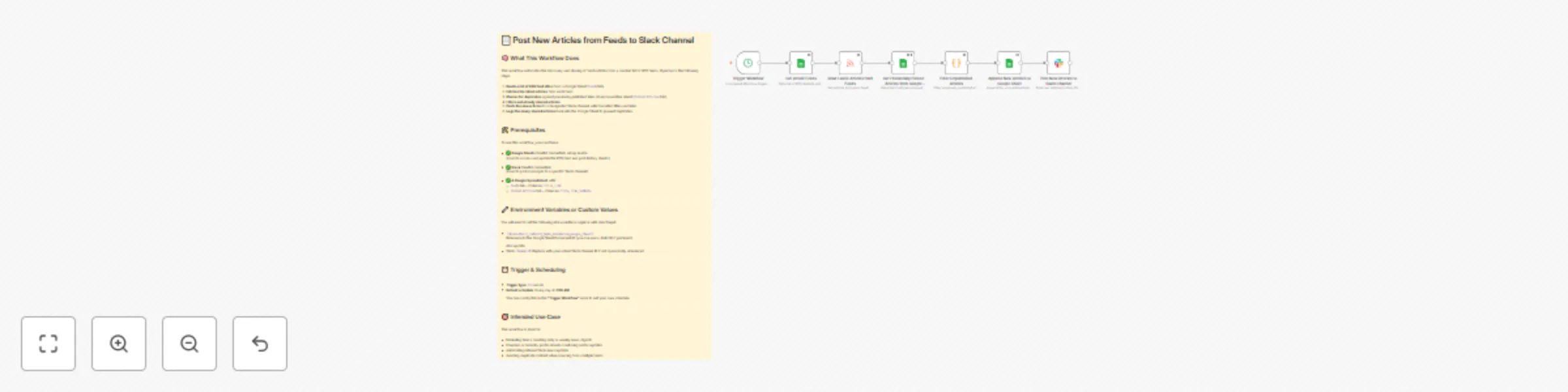
*This workflow contains community nodes that are only compatible with the self-hosted version of n8n.* # 📄 Post New Articles from Feeds to Slack Channel ## 🧠 What This Workflow Does This workflow automates the discovery and sharing of fresh articles from a curated list of RSS feeds. It performs the following steps: 1. **Reads a list of RSS feed URLs** from a Google Sheet (`Feeds` tab). 2. **Fetches the latest articles** from each feed. 3. **Checks for duplicates** against previously published links stored in another sheet (`Posted Articles` tab). 4. **Filters out already shared articles**. 5. **Posts the new articles** to a designated Slack channel with formatted titles and links. 6. **Logs the newly shared articles** back into the Google Sheet to prevent duplicates. --- ## 🛠️ Prerequisites To use this workflow, you must have: - ✅ **Google Sheets** OAuth2 credentials set up in n8n (Used to access and update the RSS feed and post history sheets) - ✅ **Slack** OAuth2 credentials (Used to post messages to a specific Slack channel) - ✅ **A Google Spreadsheet** with: - `Feeds` tab – Columns: `title`, `link` - `Posted Articles` tab – Columns: `title`, `link`, `pubDate` --- ## 🔧 Environment Variables or Custom Values You will need to set the following n8n variable or replace with direct input: - `{{$vars.Daily_Industry_News_Automation_Google_Sheet}}`: Reference to the Google Sheet Document ID (you can use a static ID if preferred) Also update: - Slack `channelId`: Replace with your actual Slack channel ID if not dynamically referenced --- ## ⏰ Trigger & Scheduling - **Trigger type**: `Cron` node - **Default schedule**: Every day at **7:00 AM** You can modify this in the **“Trigger Workflow”** node to suit your own schedule. --- ## 🎯 Intended Use Case This workflow is ideal for: - Marketing teams curating daily or weekly news digests - Founders or industry professionals monitoring sector updates - Automating internal Slack news updates - Avoiding duplicate content when sourcing from multiple feeds