Polina Medvedieva
Workflows by Polina Medvedieva
Fetch keyword from Google Sheet and classify them using AI
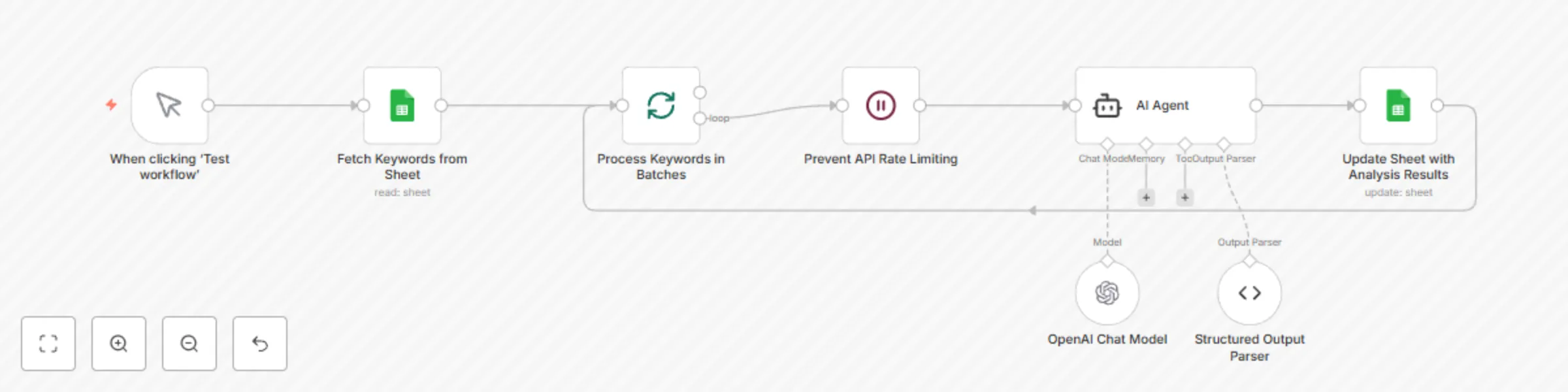
## Who is this template for This template is for marketers, SEO specialists, or content managers who need to analyze keywords to identify which ones contain references to a specific area or topic, in this case – IT software, services, tools, or apps. ## Use case Automating the process of scanning a large list of keywords to determine if they reference known IT products or services (like ServiceNow, Salesforce, etc.), and updating a Google Sheet with this classification. This helps in categorizing keywords for targeted SEO campaigns, content creation, or market analysis. ## How this workflow works 1. Fetches keyword data from a Google Sheet 2. Processes keywords in batches to prevent rate limiting 3. Uses an AI agent (OpenAI) to analyze each keyword and determine if it contains a reference to an IT service/software 4. Updates the original Google Sheet with the results in a "Service?" column 5. Continues processing until all keywords are analyzed ## Set up steps 1. Connect your Google Sheets account credentials 2. Set the Google Sheet document ID (currently using "Copy of Sheet1 1") 3. Configure the OpenAI API credentials for the AI agent 4. Adjust the batch size (currently 6) if needed based on your API rate limits 5. Ensure the Google Sheet has the required columns: "Number", "Keyword", and "Service?"  The AI agent's prompt is highly customizable to match different identification needs. For example, instead of looking for IT software/services, you could modify the prompt to identify: - Industry-specific terms (healthcare, finance, education) - Geographic references (cities, countries, regions) - Product categories (electronics, clothing, food) - Competitor brand mentions Here's how you could modify the prompt for different use cases: ``` Copy // For identifying educational content keywords "Check the keyword I provided and define if this keyword relates to educational content, courses, or learning materials and return yes or no." // For identifying local service keywords "Check the keyword I provided and determine if it contains location-specific terms (city names, neighborhoods, regions) that suggest local service intent and return yes or no." // For identifying competitor mentions "Check the keyword I provided and determine if it mentions any of our competitors (CompetitorA, CompetitorB, CompetitorC) and return yes or no." ```
Api schema extractor
This workflow automates the process of discovering and extracting APIs from various services, followed by generating custom schemas. It works in three distinct stages: research, extraction, and schema generation, with each stage tracking progress in a Google Sheet. 🙏 [Jim Le](https://n8n.io/creators/jimleuk/) deserves major kudos for helping to build this sophisticated three-stage workflow that cleverly automates API documentation processing using a smart combination of web scraping, vector search, and LLM technologies. ## How it works ### Stage 1 - Research: - Fetches pending services from a Google Sheet - Uses Google search to find API documentation - Employs Apify for web scraping to filter relevant pages - Stores webpage contents and metadata in Qdrant (vector database) - Updates progress status in Google Sheet (pending, ok, or error) ### Stage 2 - Extraction: - Processes services that completed research successfully - Queries vector store to identify products and offerings - Further queries for relevant API documentation - Uses Gemini (LLM) to extract API operations - Records extracted operations in Google Sheet - Updates progress status (pending, ok, or error) ### Stage 3 - Generation: - Takes services with successful extraction - Retrieves all API operations from the database - Combines and groups operations into a custom schema - Uploads final schema to Google Drive - Updates final status in sheet with file location ## Ideal for: - Development teams needing to catalog multiple APIs - API documentation initiatives - Creating standardized API schema collections - Automating API discovery and documentation ## Accounts required: - Google account (for Sheets and Drive access) - Apify account (for web scraping) - Qdrant database - Gemini API access ## Set up instructions: - Prepare your Google Sheets document with the services information. [Here's an example of a Google Sheet](https://docs.google.com/spreadsheets/d/1UJtksHQV0NRNhsDdVdkdIoNssuvoTWso/edit?usp=sharing&ouid=108234606433343029350&rtpof=true&sd=true) – you can copy it and change or remove the values under the columns. Also, make sure to update Google Sheets nodes with the correct Google Sheet ID. - Configure Google Sheets OAuth2 credentials, required third-party services (Apify, Qdrant) and Gemini. - Ensure proper permissions for Google Drive access.
Enrich FAQ sections on your website pages at scale with AI
This n8n workflow template lets you easily generate comprehensive FAQ (Frequently Asked Questions) content for multiple services (or any items or pages you need to add the FAQs to). Simply provide the Google Sheets document containing the items to scrape, and the workflow automatically creates detailed, AI-enhanced FAQ documents. ## How it works * The workflow reads data from a Google Sheets document containing information about different services and categories (again, in your case - whatever objects you need). * For each service and category, it generates a set of standard questions and answers covering setup, permissions, integrations, use cases, and pricing benefits. * An AI model (OpenAI's GPT) is used to enhance or complete some of the answers, making the content more comprehensive and natural-sounding. * The workflow formats the Q&A pairs, combining AI-generated content with predefined answers where applicable. * It creates a text file (JSON) for each service or category, containing the formatted Q&A pairs. * The generated files are saved to specific folders in Google Drive, organized by the type of integration (native, credential-only, non-native) or category. * After processing each service or category, it updates the status in the original Google Sheets document to mark it as completed. ## Ideal for: * Marketing teams: Rapidly create comprehensive FAQ documents for multiple products or services. * Customer support: Generate consistent and detailed answers for common customer queries. * Product managers: Easily maintain up-to-date documentation as products evolve. * Content creators: Streamline the process of creating informative content about various offerings. ## Accounts required * Google account (for Google Sheets and Google Drive) * OpenAI API account (for AI-enhanced content generation) * n8n.io account (for workflow execution) ## Set up instructions 1. Set up the required credentials for Google Sheets, Google Drive, and OpenAI when you first open the workflow. 2. Prepare your Google Sheets document with the service/category information. [Here's an example of Google Sheet]( https://docs.google.com/spreadsheets/d/1DCf-phfLWvuTwu02bumx-qykVQeFANnacTTAkRj5tZk/edit?usp=sharing). 3. Fill the "Define Sheets" node with your sheets 4. Adjust the folder IDs in the "Prepare Job" node to match your Google Drive structure. 5. Configure the OpenAI model settings in the "OpenAI Chat Model" node if needed. 6. Test the workflow with a small subset of data before running it on your entire dataset. 7. Adjust the questions asked in the "Create your Q&A templates" section 8. After testing, activate your workflow for automated FAQ generation. 🙏 Big, big kudos to [Jim Le](https://n8n.io/creators/jimleuk/) for his ideas, input and support when building this workflow. Your approach to AI workflows is always super helpful!