plemeo
Workflows by plemeo

Automatic Microsoft Outlook attachment storage to OneDrive with Excel logging
# 📥 Save Email Attachments to OneDrive & Log Them in Excel This workflow watches your Outlook inbox, automatically downloads file attachments (for example invoices), saves them into a specific OneDrive folder, and logs each file name into an Excel table. Optionally, it also posts a Microsoft Teams message to let you know that a new attachment has been processed. --- ## ✨ What this workflow does - Monitors a Microsoft Outlook mailbox for new emails. - Fetches **all attachments** from each incoming message. - Processes attachments one by one so every file is handled cleanly. - Downloads each attachment as binary data. - Uploads the file into a OneDrive folder (looked up by name). - Appends a new row with the filename to an Excel table for tracking. - Sends a Teams chat notification once an attachment has been uploaded (optional). --- ## 🧑💼 Who this is for This workflow is ideal for: - Finance / accounting teams who receive invoices by email and want them stored centrally. - Anyone who wants an **“email → OneDrive → Excel log”** pipeline without manual downloading and renaming. - n8n users who work in a Microsoft 365 environment (Outlook, OneDrive, Excel, Teams). --- ## ✅ Requirements Before you run the workflow, you’ll need: - A **Microsoft Outlook** account with permissions to read emails and attachments. - A **OneDrive / SharePoint** drive with a target folder (the example uses a folder whose name matches the search in the `Get Folder ID` node, e.g. `Testn8n`). - An **Excel workbook** stored in OneDrive with: - A worksheet and table already created. - A column named `Filename` (or adjust the `Set Filename` + Excel node to match your column name). - n8n credentials set up for: - Microsoft Outlook - Microsoft OneDrive - Microsoft Excel - Microsoft Teams (optional but used in this template) --- ## 🛠️ Setup steps 1. **Import the workflow JSON** into your n8n instance. 2. **Configure credentials**: - Set your Outlook, OneDrive, Excel, and Teams credentials on the respective nodes. 3. **Adjust the mail trigger** (`On Mail Received`): - Optionally add filters (subject, sender, folder) if you only want to process invoices or a specific mailbox/folder. 4. **Set the OneDrive folder search** (`Get Folder ID`): - Update the `query` parameter to the exact name of the folder where attachments should be stored. 5. **Point the Excel node to your workbook** (`Append to Excel Log`): - Use the dropdowns to select your workbook, worksheet and table. - Ensure there’s a `Filename` column (or rename the field in `Set Filename` to match your actual column). 6. **Activate the workflow**: - Once active, every new email that hits the trigger will have its attachments stored in OneDrive and logged in Excel. --- ## 🔗 Integrations used - **Microsoft Outlook** – trigger on incoming emails and download attachments. - **Microsoft OneDrive** – search for folders and upload files. - **Microsoft Excel** – append rows to a table in a workbook. - **Microsoft Teams** – send notifications when attachments are processed.
Auto-like tweets from selected profiles with Phantombuster & SharePoint AI rotation
## Who’s it for Growth hackers, community builders, and marketers who want to keep their Twitter (X) accounts active by *liking posts from selected profiles* automatically. ## How it works / What it does 1. **Schedule Trigger** fires hourly. 2. **Profile Post Extractor** fetches up to 20 tweets for each profile in your CSV. 3. **Select Cookie** rotates Twitter session-cookies. 4. **Get Random Post** checks against `twitter_posts_already_liked.csv`. 5. Builds `twitter_posts_to_like.csv`, uploads to SharePoint. 6. **Phantombuster Autolike Agent** likes the tweet. 7. Logs the liked URL to avoid duplicates. ## How to set up - Add Phantombuster + SharePoint credentials. - In SharePoint “Phantombuster” folder: • `twitter_session_cookies.txt` • `twitter_posts_already_liked.csv` (header `postUrl`) • `profiles_twitter.csv` (list of profiles). ## Profile CSV format Your `profiles_twitter.csv` must contain a header `profileUrl` and direct links to the Twitter profiles. Example: ```csv profileUrl https://twitter.com/elonmusk https://twitter.com/openai
Automated Instagram commenting on selected profiles with GPT-4o and Phantombuster
## Who’s it for Influencers and social-media teams who want to *comment automatically on posts from selected Instagram profiles*—scaling engagement while staying within platform limits. ## How it works / What it does 1. **Schedule Trigger** runs every 2 h. 2. **Profile Post Extractor** fetches up to 20 posts per profile from your CSV. 3. **Select Cookie** rotates Instagram session-cookies. 4. **Get Random Post** selects one. 5. **Create Comment** (GPT-4o) writes ≤150-character reply in your chosen language. 6. Builds `instagram_post_to_comment.csv`, uploads to SharePoint. 7. **Phantombuster Autocomment Agent** posts it. 8. Logged in `instagram_posts_already_commented.csv` to prevent repeats. ## How to set up - Same as the auto-liker, but also add `instagram_posts_already_commented.csv` (header `postUrl`). - Define tracked profiles in `profiles_instagram.csv`. - Configure comment prompt & language in **Set ENV Variables**. ## Profile CSV format Your `profiles_instagram.csv` must contain a header `profileUrl` and valid Instagram profile URLs. Example: ```csv profileUrl https://www.instagram.com/brand_account/ https://www.instagram.com/influencer123/
Auto-like Instagram posts from chosen profiles with Phantombuster + SharePoint
## Who’s it for Social-media managers, growth hackers, and brands who want to keep their Instagram accounts active by auto-liking posts from *specific profiles* they track—without scrolling feeds manually. ## How it works / What it does 1. **Schedule Trigger** runs every 2 h. 2. **Profile Post Extractor** pulls up to 20 recent posts from each Instagram profile in your CSV. 3. **Select Cookie** rotates Instagram session-cookies. 4. **Get Random Post** picks one and checks against `instagram_posts_already_liked.csv`. 5. Builds `instagram_posts_to_like.csv`, uploads to SharePoint. 6. **Phantombuster Autolike Agent** likes the post. 7. Liked URLs are appended to prevent duplicates. 8. **Wait nodes** throttle activity (~12 likes/profile/day). ## How to set up 1. Add credentials: Phantombuster API, SharePoint OAuth2. 2. In SharePoint › “Phantombuster” folder create: • `instagram_session_cookies.txt` (one per line). • `instagram_posts_already_liked.csv` (header `postUrl`). • `profiles_instagram.csv` with profile URLs. 3. Adjust schedule if needed. 4. Activate the workflow—likes will run automatically. ## Requirements - n8n 1.33+ - Phantombuster Growth plan - Microsoft 365 SharePoint tenant ## How to customize - Add/remove tracked profiles in `profiles_instagram.csv`. - Adjust throttle by changing `Wait` intervals. - Swap SharePoint for Google Drive/Dropbox if needed.
Auto-comment on Instagram posts with GPT-4o, Phantombuster, and SharePoint
## Who’s it for Social-media teams and influencers who want to grow engagement by automatically posting short, relevant comments on new Instagram posts under rotating hashtags—while staying under platform limits. ## How it works / What it does 1. **Schedule Trigger** fires every 2 h at a specified minute. 2. **Select Cookie** chooses a rotating Instagram session-cookie by time slice. 3. **Generate Random Hashtag** (GPT-4o) outputs a realistic AI/BPA tag. 4. **Hashtag Agent** (Phantombuster) scrapes up to `ENV_MAX_POSTS_PER_HASHTAG` recent posts. 5. **Get Random Post** picks one; **Create Comment** (GPT-4o) crafts a ≤150-character reply in the chosen language. 6. Builds `instagram_post_to_comment.csv`, uploads to SharePoint, then launches the **Auto-comment Agent** which posts the reply. 7. Post URL is logged to `instagram_posts_already_commented.csv` to avoid duplicates. 8. **Wait** nodes throttle launches to ≈80 comments/day. ## How to set up 1. Add credentials: Phantombuster API, SharePoint OAuth2, OpenAI API key. 2. In SharePoint › “Phantombuster” folder create: • `instagram_session_cookies.txt` – one cookie per line. • `instagram_posts_already_commented.csv` with header `postUrl`. 3. Edit **Set ENV Variables** to set default language, prompt, and max posts per scrape. 4. Activate the workflow; it will comment every 2 h. ## Requirements - n8n 1.33 + - Phantombuster Growth plan (API access) - OpenAI account (GPT-4o) - Microsoft 365 SharePoint tenant ## How to customize - Change tone/length: tweak prompt in **Create Comment**. - Comment more often: raise `ENV_MAX_POSTS_PER_HASHTAG`, adjust cron, and agent limits. - Swap SharePoint for Drive/Dropbox by replacing storage nodes.
Auto-follow Instagram profiles via Phantombuster and SharePoint
## Who’s it for Community managers, growth hackers, and brands that want to grow their Instagram audience by automatically following new, relevant profiles— while respecting daily limits. ## How it works / What it does 1. **Schedule Trigger** runs hourly at a specified minute. 2. **Select Cookie** chooses a rotating Instagram session-cookie (time-slice logic). 3. **Get List of Accounts** downloads a CSV of seed profiles from SharePoint. 4. **Follower Collector Agent** (Phantombuster) fetches each seed profile’s followers (limit set by `ENV_AMOUNT_FOLLOWERS_PER_PROFILE`). 5. **Autofollow Agent** follows up to `ENV_PROFILES_TO_PROCESS` of those followers per launch. 6. **Wait** nodes pause between Phantombuster calls and poll until each run is complete. 7. Rate-limit configuration keeps follows between 1 and 40 per hour. ## How to set up 1. Add credentials: Phantombuster API, SharePoint OAuth2, (optional) OpenAI API key if you later add AI. 2. In SharePoint › “Phantombuster” folder add: • `instagram_session_cookies.txt` – one cookie per line. • `accounts_to_follow.csv` – header `profileUrl`, one seed profile per line. 3. Update **Set ENV Variables** to control profiles/launch and followers/profile. 4. Adjust schedule frequency or Wait durations to meet your plan limits. 5. Activate the workflow; it will follow new profiles every hour. ## Requirements - n8n 1.33 + - Phantombuster Growth plan (API access) - Microsoft 365 SharePoint tenant ## How to customize - Scrape hashtags instead of followers: replace the Follower Collector agent with a Hashtag‐to‐Profiles agent. - Increase speed: raise `ENV_PROFILES_TO_PROCESS` and cron frequency (ensure you stay within Instagram limits). - Swap SharePoint for Drive/Dropbox by replacing storage nodes.
Scheduled Instagram auto-liker with Phantombuster, GPT-4o & cookie rotation
## Who’s it for Social-media managers and brands that want to keep their Instagram accounts active by automatically liking fresh posts under selected hashtags—hands-free and rate-limited. ## How it works / What it does 1. **Schedule Trigger** runs every 2 hours at a specified minute. 2. **Select Cookie** chooses a rotating Instagram session-cookie (time-slice logic). 3. **Generate Random Hashtag** (GPT-4o) outputs a realistic AI/BPA hashtag. 4. **Instagram Hashtag Agent** (Phantombuster) scrapes up to `ENV_MAX_POSTS_PER_HASHTAG` recent posts. 5. **Get Random Post** selects one; **duplicate checker** ensures it hasn’t been liked before (SharePoint CSV). 6. Builds `instagram_posts_to_like.csv`, uploads to SharePoint, then launches the **Auto-like Agent** which likes the post. 7. Post URL is appended to `instagram_posts_already_liked.csv` to avoid duplicates. 8. **Wait** nodes throttle launches to ~12 likes per profile daily. ## How to set up 1. Add credentials: Phantombuster API, SharePoint OAuth2, OpenAI API key. 2. In SharePoint › “Phantombuster” folder create: • `instagram_session_cookies.txt` – one cookie per line. • `instagram_posts_already_liked.csv` with header `postUrl`. 3. Adjust **Set ENV Variables** to change max posts per scrape. 4. Activate the workflow; it will like one post every 2 hours. ## Requirements - n8n 1.33 + - Phantombuster Growth plan (API access) - OpenAI account - Microsoft 365 SharePoint tenant ## How to customize - Target a different niche: edit hashtag prompt in **Generate Random Hashtag**. - Like more posts: raise `ENV_MAX_POSTS_PER_HASHTAG`, `numberOfPostsPerLaunch`, or schedule frequency. - Replace SharePoint with Drive/Dropbox by swapping storage nodes.
Automatic LinkedIn engagement with AI comments using GPT-4o and Phantombuster
## Who’s it for B2B marketers, recruiters, and personal-brand builders who want to spark conversations on LinkedIn by automatically posting short, relevant comments on fresh industry content—while staying under daily limits. ## How it works / What it does 1. **Schedule Trigger** fires every hour. 2. **Select Cookie** picks a rotating LinkedIn session-cookie (time-slice logic). 3. **Generate Random Search Term** (GPT-4o) outputs a realistic AI/BPA keyword. 4. **LinkedIn Search Agent** (Phantombuster) scrapes recent posts. 5. **Get Random Post** chooses one post and passes its text to **Create Comment** (GPT-4o) which returns a ≤150-character reply in the chosen language. 6. Builds `linkedin_posts_to_comment.csv`, uploads to SharePoint, and launches the **Auto-comment Agent** to post the reply. 7. Post URL is logged to `linkedin_posts_already_commented.csv` to avoid duplicates. 8. **Wait** nodes throttle launches to ~120 comments/day. ## How to set up 1. Add credentials: Phantombuster API, SharePoint OAuth2, OpenAI API key. 2. In SharePoint › “Phantombuster” folder create: • `linkedin_session_cookies.txt` – one cookie per line. • `linkedin_posts_already_commented.csv` with header `postUrl`. 3. Edit **Set ENV Variables** to set default language, comment prompt, company ID, etc. 4. Adjust schedule or comments-per-launch as needed. 5. Activate the workflow; it will run hourly and comment on one new post each launch. ## Requirements - n8n 1.33 + - Phantombuster Growth plan (API access) - OpenAI account - Microsoft 365 SharePoint tenant ## How to customize - Change tone/length: edit the prompt in **Create Comment**. - Comment more often: raise `numberOfLinesPerLaunch` and schedule frequency. - Use Google Drive/Dropbox instead of SharePoint by swapping storage nodes.
Auto-like LinkedIn posts with GPT-4o, Phantombuster and SharePoint
## Who’s it for Recruiters, B2B marketers, and thought-leadership builders who want to boost their LinkedIn engagement by automatically liking fresh, relevant posts—while staying under LinkedIn’s daily limits. ## How it works / What it does 1. **Schedule Trigger** runs hourly at a specified minute. 2. **Select Cookie** chooses a rotating LinkedIn session-cookie (time-slice logic). 3. **Generate Random Search Term** (GPT-4o) outputs a realistic AI/BPA keyword. 4. **Phantombuster LinkedIn Content Search Agent** scrapes recent posts → **Get Posts**. 5. **Get Random Post** selects one post, checks it isn’t already liked (SharePoint CSV) and appends the company-ID query param. If a personal LinkedIn Account is used, no company-ID is needed. 6. Creates `linkedin_posts_to_like.csv`, uploads to SharePoint, and provides the URL to **Autolike Agent** which likes the post. 7. The post URL is added to `linkedin_posts_already_liked.csv` to avoid duplicates. 8. **Wait** nodes throttle launches to ≈400 likes/day. ## How to set up 1. Add credentials: Phantombuster API, SharePoint OAuth2, OpenAI API key. 2. In SharePoint › “Phantombuster” folder create: • `linkedin_session_cookies.txt` – one cookie per line. • `linkedin_posts_already_liked.csv` with header `postUrl`. 3. Update **Set ENV Variables** with your LinkedIn company ID (`ENV_COMPANY_ID_LINKEDIN`). 4. Adjust schedule or likes-per-launch as needed. 5. Activate the workflow; it will run hourly and like one new post per launch. ## Requirements - n8n 1.33 + - Phantombuster Growth plan (API access) - OpenAI account (GPT-4o) - Microsoft 365 SharePoint tenant ## How to customize - Change niche: edit the prompt in **Generate Random Search Term**. - Like more posts: raise `numberOfLinesPerLaunch` and schedule frequency. - Swap SharePoint for Google Drive/Dropbox: replace the upload/download nodes.
Auto-like Twitter posts with AI hashtags, cookie rotation & SharePoint
## Who’s it for Growth hackers, social-media managers, and brand builders who want to keep their Twitter (X) accounts active by automatically liking relevant posts on a set schedule—without manual scrolling. ## How it works / What it does 1. **Schedule Trigger** runs every hour at a specified minute. 2. **Select Cookie** chooses a rotating Twitter session-cookie (to stay under 1 000 likes/day). 3. **AI Agent** generates a realistic AI/BPA-related hashtag. 4. **Phantombuster Hashtag Agent** scrapes recent tweets for that hashtag → **Get Posts**. 5. **Get Random Post** picks one tweet, checks it isn’t already liked (SharePoint CSV), and uploads a one-row `twitter_posts_to_like.csv`. 6. **Phantombuster Autolike Agent** receives the CSV link and likes the tweet. 7. The tweet URL is appended to `twitter_posts_already_liked.csv` to prevent duplicates. ## How to set up 1. Create credentials: Phantombuster API key, SharePoint OAuth2, OpenAI API key. 2. In SharePoint › “Phantombuster” folder add: • `twitter_posts_already_liked.csv` (header `postUrl`). • `twitter_session_cookies.txt` – one cookie per line. 3. Adjust schedule if you need a different frequency. 4. Activate the workflow—likes will start automatically. ## Requirements - n8n 1.33+ - Phantombuster Growth plan (API access) - OpenAI account - Microsoft 365 SharePoint tenant ## How to customize - Change hashtag logic: edit the prompt in **AI Agent**. - Increase daily likes: add more cookies or shorten `Wait` nodes. - Swap SharePoint for Google Drive/Dropbox: replace the upload/download nodes.
Automated Twitter following with hashtag targeting, Phantombuster, and GPT-4o
## Who’s it for Growth marketers, community managers, and personal-brand builders who want to steadily grow their Twitter (X) network by following new, relevant accounts on autopilot—while respecting daily limits. ## How it works / What it does 1. **Schedule Trigger** fires every hour at a specified minute. 2. **Select Cookie** picks a rotating Twitter session-cookie based on time slices. 3. **AI Agent** creates a realistic AI/BPA hashtag. 4. **Phantombuster Hashtag Agent** scrapes recent tweets → extracts profile handles. 5. **Set Item** builds a small CSV with one profile; **Launch AF Agent** instructs the Phantombuster Auto-follow agent to follow it. 6. Rate-limit nodes cap follows to roughly 50-80 per day. ## How to set up 1. Add credentials: Phantombuster API, SharePoint OAuth2, OpenAI API key. 2. In SharePoint › “Phantombuster” folder create: • `twitter_session_cookies.txt` – one cookie per line. 3. Adjust schedule or search parameters as needed. 4. Activate the workflow; it will run hourly and follow 1 new profile each launch. ## Requirements - n8n 1.33 + - Phantombuster Growth plan (API access) - OpenAI account - Microsoft 365 SharePoint tenant ## How to customize - Change niche: edit hashtag prompt in **AI Agent**. - Follow more accounts: raise `numberOfAddsPerLaunch` and schedule frequency. - Use Google Drive/Dropbox instead of SharePoint: swap the cookie download node.
Auto-generate SEO content from trends with GPT-4o, FAL AI & multi-storage
## Who's it for Content creators, SEO specialists, and marketing teams who want to automatically generate SEO-optimized content based on trending topics—complete with AI-generated images, optional videos, and ready-to-publish HTML. ## How it works / What it does 1. **Webhook** receives a request with use case and video preferences. 2. **Get Trends XLSX** downloads a spreadsheet (created by the Social Media Trends workflow) from SharePoint. 3. **Select Topic from Trends** randomly picks one trending topic from the spreadsheet. 4. **AI Agent** (GPT-4o) generates bilingual newsletter content about the selected trend. 5. **Get Newsletter Template** fetches your HTML template; **Build Newsletter** injects the AI content. 6. Optional creative assets: • **Pollinations AI** → generates a 1080 × 1350 image. • **FAL AI** → creates video from the image + Lyria2 audio → merged via FFmpeg. 7. **Gmail Approval** sends the draft for review; continues only on approval. 8. **Upload** all files (HTML + JPG + video URL) to your chosen storage provider. ## How to set up 1. Import the template into n8n (cloud or self-hosted). 2. Create credentials: OpenAI, Microsoft 365 (SharePoint), Gmail, and FAL AI. 3. Upload your HTML newsletter template to SharePoint (see yellow sticky note for required placeholders). 4. Ensure you have a trends spreadsheet (from the Social Media Trends workflow) in your SharePoint folder. 5. Update **Configuration Settings** with your `ENV_*` variables. 6. Activate the workflow and POST to the webhook: `{ "text": "usecase: blog post, include_video: true" }`. ## Requirements - n8n 1.33 + - OpenAI account - Microsoft 365 tenant (SharePoint) - Gmail account - FAL AI API Key (for video generation) - A trends spreadsheet (from the Social Media Trends workflow) ## How to customize - Change storage provider: replace SharePoint upload nodes with Google Drive, Dropbox, or S3. - Modify topic selection: edit **Select Topic from Trends** for different selection logic. - Adjust content tone: tweak the prompt in **Prepare Newsletter Data**. - Skip video generation: set `include_video: false` in the webhook request.
Track top social media trends with Reddit, Twitter, and GPT-4o to SP/Drive
## Who’s it for Content creators, marketers, journalists, and product teams who need a quick, automated snapshot of what the internet is talking about—served as a ready-to-use spreadsheet every morning. ## How it works / What it does 1. **Manual Trigger / Cron** starts the flow. 2. **Set Config** picks today’s date and a topic keyword (default “Artificial Intelligence”). 3. **API calls** gather trend data: • **Reddit API** → /r/artificial “hot” posts. • **Twitter (X) Trends** via our own plemeo endpoint or any other social API. (Add additional sources before the **Merge Data** node—Instagram, YouTube, TikTok, etc.) 4. **Aggregate Content** concatenates raw titles; **AI Agent** (GPT-4o) analyses them and returns the top 5 trends in JSON. 5. **Prepare Excel** formats each trend into rows; **Create Excel** turns them into an `.xlsx` file. 6. **Upload** the file to **SharePoint** (swap for Google Drive, Dropbox, S3—just replace the node). ## How to set up 1. Import the template into n8n (cloud or self-hosted). 2. Create credentials: Reddit OAuth2, OpenAI, and your preferred storage (SharePoint, Drive, etc.). 3. In **Set Config** choose your default `topic`; adjust the cron schedule if required. 4. If you’re using Google Drive/Dropbox: delete the SharePoint node and add the corresponding upload node instead. 5. (Optional) Add more APIs—duplicate **Merge Data** inputs and map their results in **Aggregate Content**. 6. Save & activate. A spreadsheet called `social-media-trends.xls` appears in your target folder each run. ## Requirements - n8n 1.33 + - Reddit app (OAuth2) - OpenAI account - One storage credential: SharePoint, Google Drive, Dropbox, or any other supported provider ## How to customize - Change the number of trends: edit the limit in **Aggregate Content** and the prompt in **AI Agent**. - Want CSV instead of Excel? Swap **Create Excel** for **Spreadsheet File → to File (CSV)**. - Push trends to Slack/Teams: branch after **Prepare Excel** and add a chat node. - Fully serverless? Trigger via webhook instead of manual/cron.
Bilingual newsletters with GPT-4o, AI images & videos for HubSpot & SP
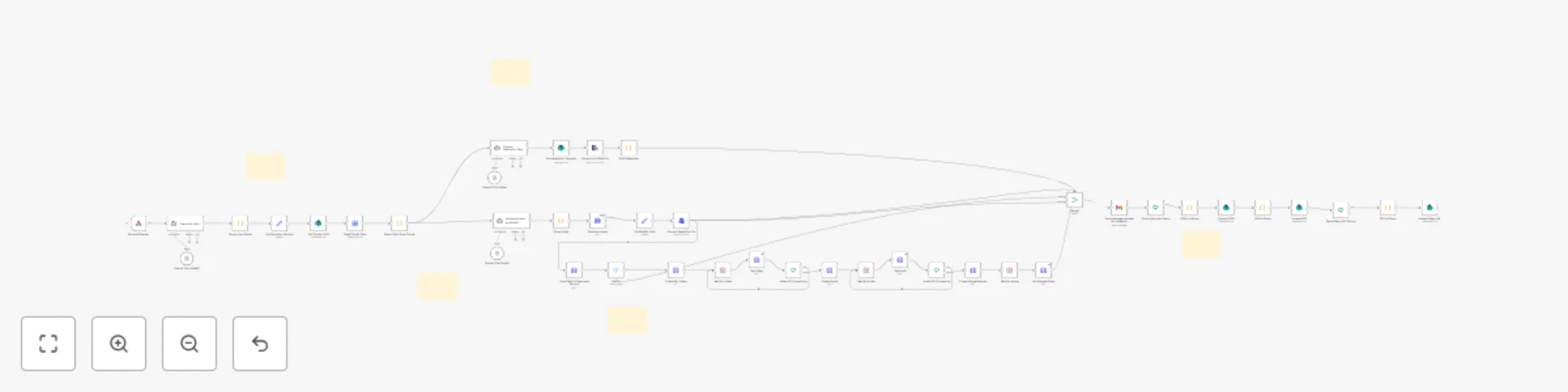
## Who’s it for Marketing, growth, and automation teams that need to ship polished bilingual newsletters—complete with images, optional video, and multi-channel distribution—without writing a line of code. ## How it works / What it does 1. A **Webhook** receives a plain-language request (e.g. “Create a newsletter about XYZ and store it in SharePoint”). The **Webhook** can be changed to another trigger, fr example **Manual Trigger**. 2. An **AI Agent** (OpenAI GPT-4o) drafts German & English newsletter copy following a strict JSON schema. 3. **SharePoint** fetches an HTML template; a **Code** node injects AI copy into the placeholders. 4. Optional creative assets: - **Pollinations AI** → image (resolution check & frame overlay) - **FAL AI** → short video + Lyria2 audio → merged via FFmpeg API 5. A **Gmail Approval** step sends the draft to an approver; the flow continues only on “Approve”. 6. Depending on user intent the workflow: - Emails the newsletter to **HubSpot** contacts, and/or - Saves HTML (+ JPG/Video URL) to a **SharePoint** library. ## How to set up 1. Import the template 2. Open the yellow sticky note and follow the checklist - Create credentials for OpenAI, HubSpot (App Token), Microsoft 365, Gmail, and FAL AI. - Enter them in n8n Credential Manager (never in the HTTP node). 3. Edit the **Configuration Settings** Set node with your ENV_* variables. 4. Activate the workflow, copy the production Webhook URL, and trigger it with JSON body `{ "text": "…" }` or with a desired trigger. ## Requirements - OpenAI account - Microsoft 365 tenant (SharePoint & Outlook) - HubSpot App Token - FAL AI API Key (video & audio generation) ## How to customize - Want a different language? Tweak the AI prompt inside **AI Agent**. - Want a different storage provider? Change the SharePoint nodes to Google Drive or Dropbox. - Skip video generation: set `include_video` to `false` in the incoming prompt. - Change the distribution logic by adjusting the **WF Result** Switch node. - Add more channels (e.g. Slack) by inserting additional branches after the Switch and modifying the intent determination at the beginning of the workflow.