P

Pixcels Themes

7
Workflows

Workflows by Pixcels Themes

Workflow preview: Audio transcription & chat bot with AssemblyAI, Gemini, and Pinecone RAG
Free advanced

Audio transcription & chat bot with AssemblyAI, Gemini, and Pinecone RAG

## Who’s it for This template is designed for podcasters, researchers, educators, product teams, and support teams who work with audio content and want to turn it into searchable knowledge. It is especially useful for users who need automated transcription, structured summaries, and conversational access to audio data. ## What it does / How it works This workflow starts with a public form where users upload an audio file. The audio is sent to AssemblyAI for speech-to-text processing, including speaker labels and bullet-point summarization. Once transcription is complete, the full text is converted into a document, split into chunks, and embedded using Google Gemini. The embeddings are stored in a Pinecone vector database along with metadata, making the content retrievable for future use. In parallel, the workflow logs uploaded file information into Google Sheets for tracking. A separate chat trigger allows users to ask questions about the uploaded audio files. An AI agent retrieves relevant context from Pinecone and responds using Gemini, enabling conversational search over audio transcripts. ## Requirements - AssemblyAI API credentials - Google Gemini (PaLM) API credentials - Pinecone API credentials - Google Sheets OAuth2 credentials - A Pinecone index for storing audio embeddings ## How to set up 1. Connect AssemblyAI, Gemini, Pinecone, and Google Sheets credentials in n8n. 2. Configure the Pinecone index for storing transcripts. 3. Verify the Google Sheet has columns for file name and status. 4. Test by uploading an audio file through the form. 5. Enable the workflow for continuous use. ## How to customize the workflow - Change summary style or transcript options in AssemblyAI - Adjust chunk size and overlap for better retrieval - Add email or Slack notifications after processing - Extend the chatbot to support multiple knowledge bases

P
Pixcels Themes
Document Extraction
17 Dec 2025
346
0
Workflow preview: Generate content strategy insights from Reddit & X using Gemini AI analysis
Free advanced

Generate content strategy insights from Reddit & X using Gemini AI analysis

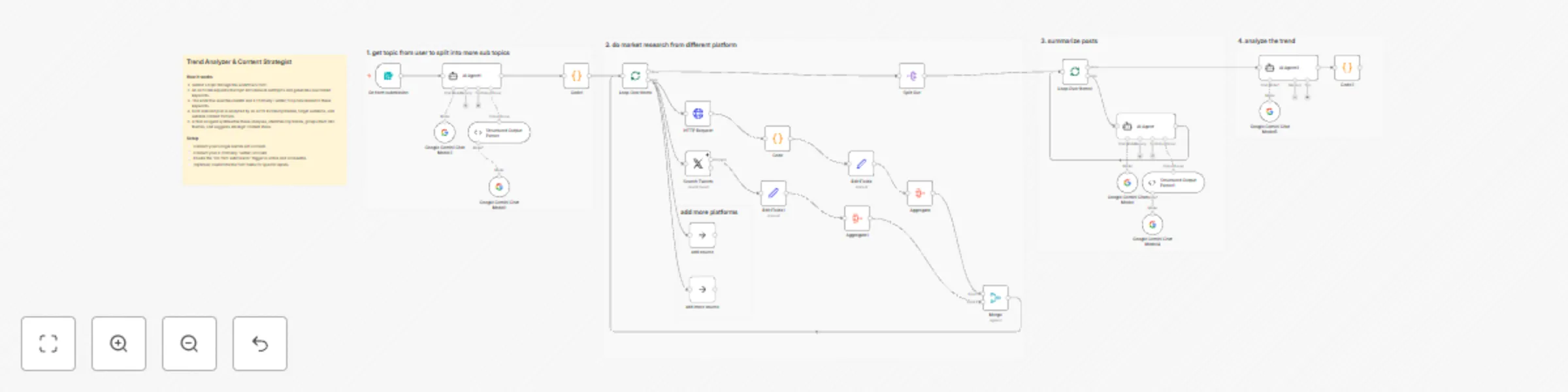
## Who’s it for This template is perfect for content creators, marketers, solopreneurs, agencies, and social media strategists who want to understand what audiences are talking about online. It helps teams quickly turn broad topics into structured insights, trend opportunities, and actionable content ideas. ## What it does / How it works This workflow begins with a form where the user enters a single topic. An AI agent expands the topic into subtopics and generates multiple relevant keywords. For each keyword, the workflow automatically gathers content from Reddit and X (formerly Twitter), extracting posts, titles, text, engagement metrics, and links. Each collected post is then analyzed by an AI model to determine: - Trend potential - Audience relevance - Platform suitability - Recommended content formats - Categories and keywords Once all posts are processed, a final AI agent synthesizes the results, identifies the strongest emerging trends, groups similar insights, and generates strategic content recommendations. ## Requirements - Google Gemini (PaLM) API credentials - X / Twitter OAuth2 credentials - Access to the n8n Form Trigger (publicly accessible URL) ## How to set up 1. Connect your Gemini API and Twitter API credentials. 2. Make sure the Form Trigger node is accessible. 3. Review and adjust the AI prompts if you want different output formats. 4. Run the form, enter a topic, and execute the workflow. ## How to customize the workflow - Add more platforms (YouTube, TikTok, Instagram, Hacker News) - Add sentiment scoring or engagement ranking - Export insights to Google Sheets or Notion - Generate ready-to-post content from the trends

P
Pixcels Themes
Market Research
11 Dec 2025
149
0
Workflow preview: Generate product descriptions from images and publish to Shopify using AI
Free intermediate

Generate product descriptions from images and publish to Shopify using AI

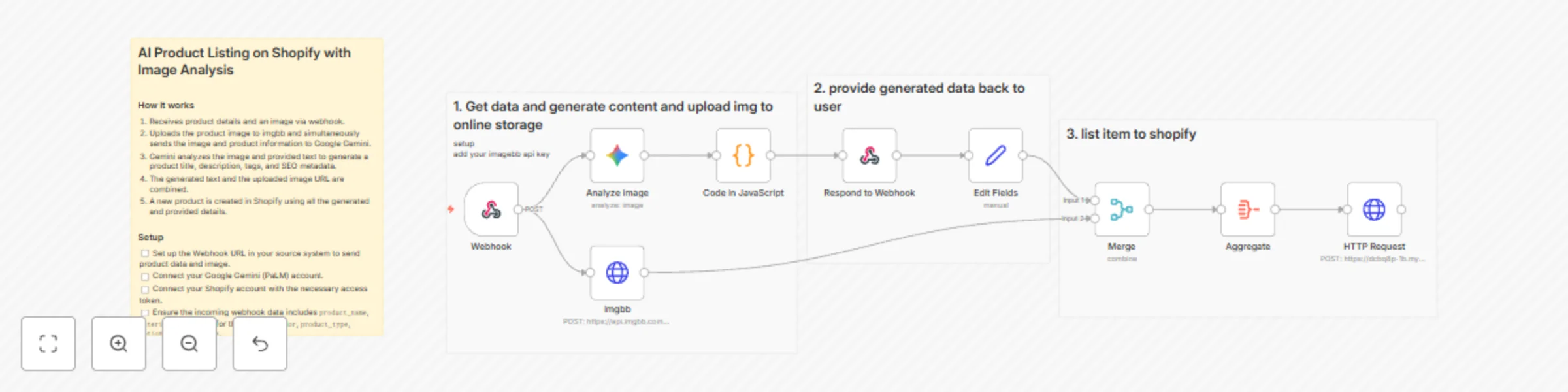
## Who’s it for This template is ideal for ecommerce founders, dropshippers, Shopify store owners, product managers, and agencies who want to automate product listing creation. It removes manual work by generating titles, descriptions, tags, bullet points, alt text, and SEO metadata directly from a product image and basic input fields. ## What it does / How it works This workflow starts with a webhook that receives product information along with an uploaded image. The image is uploaded to an online image host so it can be used inside Shopify. At the same time, the image is analyzed by Google Gemini using your provided product name, material type, and details. Gemini returns structured JSON containing: - Title - Description - Tags - Bullet points - Alt text - SEO title - SEO description The workflow cleans and parses the AI output, merges it with the uploaded image URL, and constructs a complete Shopify product payload. Finally, it creates a new product in Shopify automatically using the generated content and the provided product variants, vendor, options, and product type. ## Requirements - Google Gemini (PaLM) API credentials - Shopify private access token - Webhook endpoint for receiving data and files - An imgbb (or any image hosting) API key ## How to set up 1. Connect your Gemini and Shopify credentials. 2. Replace the imgbb API key and configure the hosting node. 3. Provide vendor, product type, variants, and options in the webhook payload. 4. Ensure your source system sends `file`, `product_name`, `material_type`, and extra fields. 5. Run the webhook URL and test with a sample product. ## How to customize the workflow - Change the AI prompt for different product categories - Add translation steps for multi-language stores - Add price calculation logic - Push listings to multiple Shopify stores - Save generated metadata into Google Sheets or Notion

P
Pixcels Themes
Content Creation
11 Dec 2025
141
0
Workflow preview: Scrape LinkedIn profiles into Google Sheets using Google Custom Search
Free intermediate

Scrape LinkedIn profiles into Google Sheets using Google Custom Search

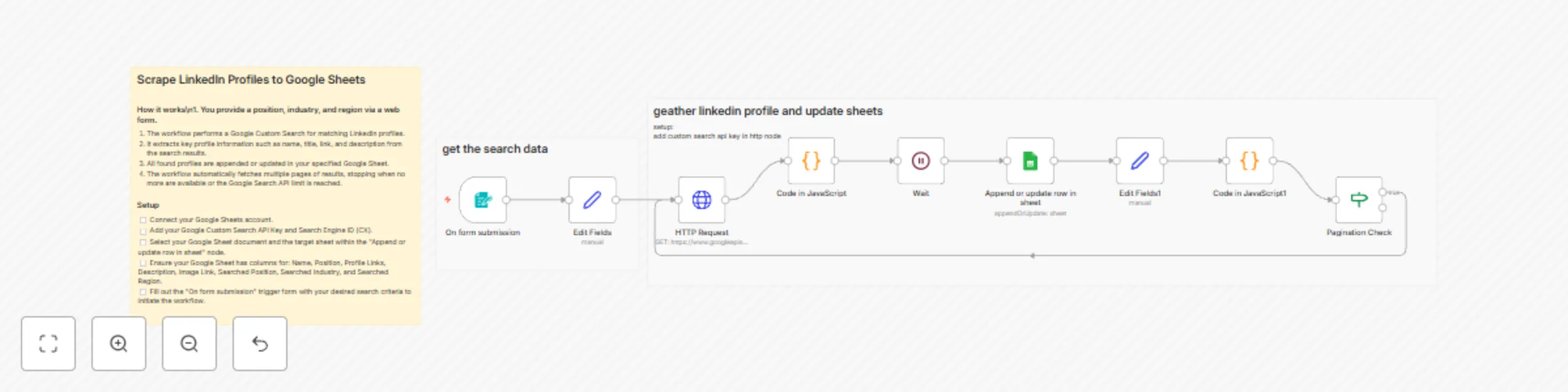
## Who’s it for This template is ideal for recruiters, founders, sales teams, and lead-generation specialists who want to quickly collect LinkedIn profiles based on role, industry, and region. It is perfect for users who want profile lists for outreach, research, hiring, or market analysis without manually searching LinkedIn. ## What it does / How it works This workflow begins with a web form where you enter three inputs: position, industry, and region. Once the form is submitted, the workflow performs a Google Custom Search query restricted to LinkedIn profile URLs. The results are processed to extract structured profile information such as: - Name - Job title (cleaned using custom logic) - LinkedIn profile link - Description / bio snippet - Profile image URL The workflow automatically handles pagination by detecting whether more results are available and continues fetching until the limit is reached. All extracted profiles are appended or updated in a Google Sheet so you always maintain an organized and deduplicated list. ## Requirements - Google Sheets OAuth2 credentials - Google Custom Search API key - Google CSE (Custom Search Engine) ID - A Google Sheet with the required columns (name, title, profile link, description, image link, searched position, searched industry, searched region) ## How to set up 1. Connect your Google Sheets credentials. 2. Add your Custom Search API key and CSE ID inside the HTTP Request node. 3. Select your target Google Sheet in the “Append or update row in sheet” node. 4. Open the form URL and submit your position, industry, and region. 5. Run the workflow to begin scraping profiles. ## How to customize the workflow - Modify search query structure for niche industries - Add enrichment tools (Hunter.io, Clearbit, People Data) - Expand pagination limit beyond the default - Add filters to remove non-relevant results - Output data to CRM tools like HubSpot, Notion, Airtable, or Sheets

P
Pixcels Themes
Lead Generation
11 Dec 2025
256
0
Workflow preview: LinkedIn email finder with AI domain detection using Google Sheets & Hunter.io
Free advanced

LinkedIn email finder with AI domain detection using Google Sheets & Hunter.io

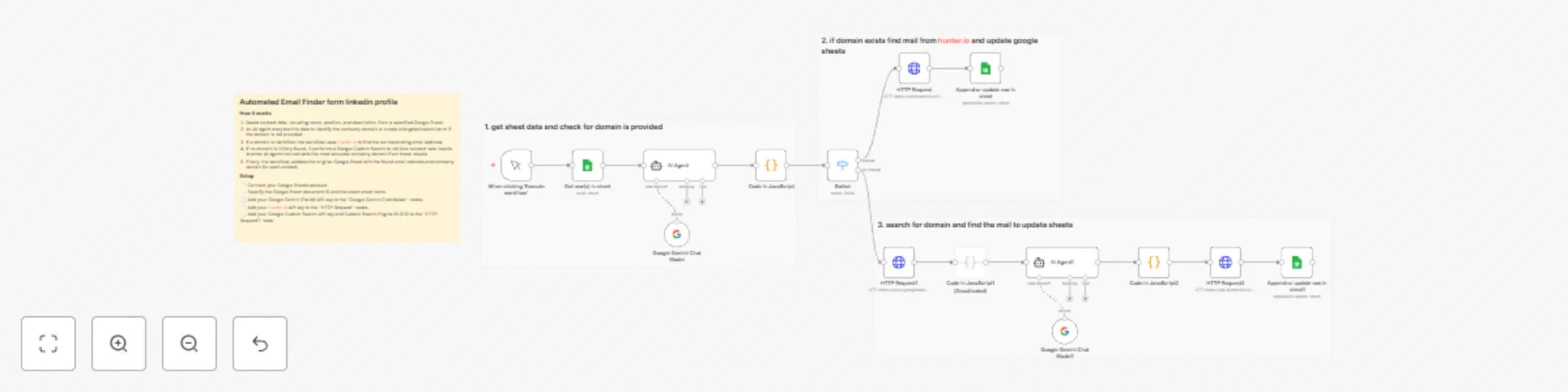
## Who’s it for This template is designed for recruiters, lead-generation teams, agency owners, and sales professionals who collect LinkedIn profile data and need to automate the process of finding verified company domains and email addresses. It is ideal for teams looking to eliminate manual research and streamline prospect enrichment. ## What it does / How it works This workflow reads contact records from a Google Sheet, including name, position, and description. An AI agent analyzes each profile to determine the company domain. If the domain is already identifiable from the description, it is used directly. If no domain is found, the workflow generates an intelligent search term and performs a Google Custom Search to extract the most accurate domain from real web results using another AI agent. Once the domain is confirmed, the workflow queries Hunter.io to find the best-matching email address for the contact. Finally, the enriched data—email and company domain—is appended back into the Google Sheet, updating each row automatically. ## Requirements - Google Sheets OAuth2 credentials - Google Gemini (PaLM) API credentials - Hunter.io API key - Google Custom Search API key and CSE ID - A Google Sheet with columns for name, position, description, and domain ## How to set up 1. Connect your Google Sheets, Gemini, Hunter.io, and Google Search credentials. 2. Replace the Google Sheet ID and sheet name with your own. 3. Add your API keys to the designated nodes. 4. Ensure column names match your sheet structure. 5. Execute the workflow to begin enrichment. ## How to customize the workflow - Modify AI prompts for better domain inference - Add additional enrichment steps (social profiles, industry tags) - Add fallback email providers (Snov, Apollo, etc.) - Change update logic to support multiple sheets or batch processing

P
Pixcels Themes
Lead Generation
11 Dec 2025
56
0
Workflow preview: Monitor website uptime with Google Sheets, Slack, Email & Phone Call alerts
Free advanced

Monitor website uptime with Google Sheets, Slack, Email & Phone Call alerts

## Who’s it for This template is ideal for developers, agencies, hosting providers, and website owners who need real-time alerts when a website goes down. It helps teams react quickly to downtime by sending multi-channel notifications and keeping a historical uptime log for tracking performance over time. ## What it does / How it works This workflow runs on a schedule and checks a list of websites stored in Google Sheets. For every website URL, it performs an HTTP status check and determines whether the site is **up** or **down**. If the website is up, the workflow logs the status and timestamp into a separate uptime log sheet. If the website is down, it sends immediate alerts through Slack and Gmail, and also triggers an automated phone call using a voice-call API service. All uptime and downtime events are logged automatically, enabling long-term monitoring and reporting. ## Requirements - Google Sheets OAuth2 credentials - Slack credentials - Gmail OAuth2 credentials - Voice-call API credentials (e.g., Vapi.ai) - A Google Sheet containing the list of website URLs - A second Google Sheet for logging uptime history ## How to set up 1. Connect your Google Sheets, Slack, Gmail, and call-API credentials. 2. Replace both Google Sheet IDs with your own. 3. Update the HTTP Request node to reference your sheet’s URL column. 4. Configure your Slack user or channel for downtime alerts. 5. Add your API Key, assistant ID, and phone number variables to the call alert node. 6. Adjust the schedule interval in the Schedule Trigger node. ## How to customize the workflow - Add SMS alerts (Twilio, Vonage) - Log uptime to a database instead of Sheets - Add retry logic for false positives - Monitor response time in addition to status codes - Connect alerts to your incident-management tools (PagerDuty, Jira, Discord)

P
Pixcels Themes
DevOps
10 Dec 2025
77
0
Workflow preview: Post-surgery patient triage & follow-up system with Gemini AI, Telegram & Google Suite
Free advanced

Post-surgery patient triage & follow-up system with Gemini AI, Telegram & Google Suite

## Who’s it for This template is for clinics, hospitals, care teams, and telemedicine providers who need a structured, automated system for post-surgery follow-up. It helps reduce manual workload while ensuring every patient gets timely check-ins and appropriate triage. ## What it does / How it works This workflow automates daily recovery monitoring using Google Sheets and Telegram. It sends scheduled check-in messages to all patients within their follow-up window. When a patient replies, the message is: - Captured by Telegram Trigger - Cleaned and structured - Summarized by an AI agent - Classified into **low**, **moderate**, or **high** intensity Based on the intensity level: - **Low:** Sends a supportive, non-urgent response - **Moderate:** Sends guidance + schedules a follow-up event in Google Calendar - **High:** Sends an alert email to the doctor via Gmail All logic runs automatically. ## Requirements - Google Sheets OAuth2 credentials - Gmail OAuth2 credentials - Google Calendar OAuth2 credentials - Telegram Bot credentials - Gemini API credentials - A Google Sheet with patient name, surgery type, follow-up duration, and doctor email ## How to set up 1. Connect all required credentials inside n8n. 2. Replace the Google Sheet ID with your own patient sheet. 3. Adjust column mappings if your sheet structure differs. 4. Test by sending a Telegram message to your bot. 5. Enable the Schedule Trigger to begin automated daily follow-ups. ## How to customize the workflow - Modify AI prompts inside the AI Agent nodes - Adjust triage logic for intensity levels - Change follow-up intervals in the Schedule Trigger - Add additional notification channels (SMS, Slack, CRM logging)

P
Pixcels Themes
Ticket Management
10 Dec 2025
52
0