Masaki Go
Workflows by Masaki Go
Analyze sales calls with GPT-4 and deliver coaching feedback via Slack & Sheets
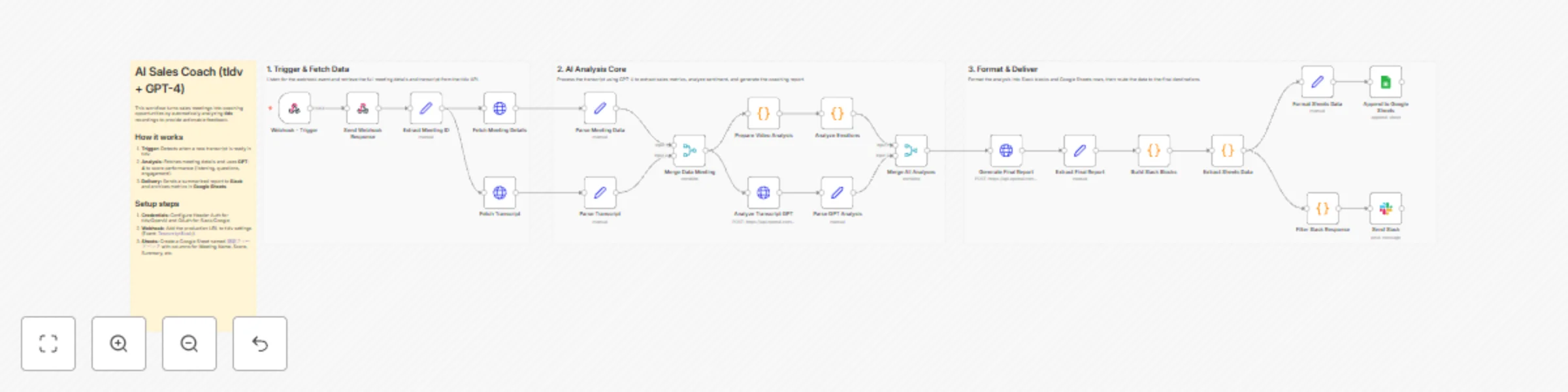
## About This Template Turn every sales meeting into a coaching opportunity. This workflow automatically analyzes **tldv** meeting recordings using **OpenAI (GPT-4)** to provide instant, actionable feedback to your sales team. It acts as a virtual sales coach, evaluating key performance metrics like listening skills, question quality, and customer engagement without requiring a manager to listen to every call. ## How It Works 1. **Trigger:** The workflow starts automatically when a meeting transcript is ready in tldv (via Webhook). 2. **Data Retrieval:** It fetches the full meeting details and transcript from the tldv API. 3. **AI Analysis:** GPT-4 analyzes the conversation to score the sales rep's performance (e.g., Speaking vs. Listening balance, Clarity, Next Steps). 4. **Delivery:** * **Slack:** Sends a summary notification and a detailed markdown report to the team channel. * **Google Sheets:** Archives the scores and meeting data for long-term tracking. ## Who It’s For * **Sales Managers:** To monitor team performance and identify coaching needs at scale. * **Account Executives:** To get immediate feedback on their calls and self-correct. * **Sales Enablement:** To track KPI trends over time. ## Requirements * **n8n** (Cloud or Self-hosted) * **tldv (Business Plan)** for API/Webhook access * **OpenAI API Key** (GPT-4 access recommended) * **Slack** Workspace * **Google Sheets** ## Setup Steps 1. **Credentials:** Configure "Header Auth" for tldv (`x-api-key`) and OpenAI (`Authorization`). Connect OAuth for Slack and Google Sheets. 2. **Webhook:** Copy the Production URL from the first node (Webhook) and add it to your tldv **Settings > Integrations > Webhooks** (select Event: `TranscriptReady`). 3. **Google Sheets:** Create a sheet (e.g., named `Sales Feedback`) with columns for `Meeting Name`, `Score`, `Summary`, etc. * *Note: Be sure to update the Google Sheets node in the workflow to match your specific Sheet Name and Column headers.*
Instant infographic generator (LINE + Nano Banana Pro)
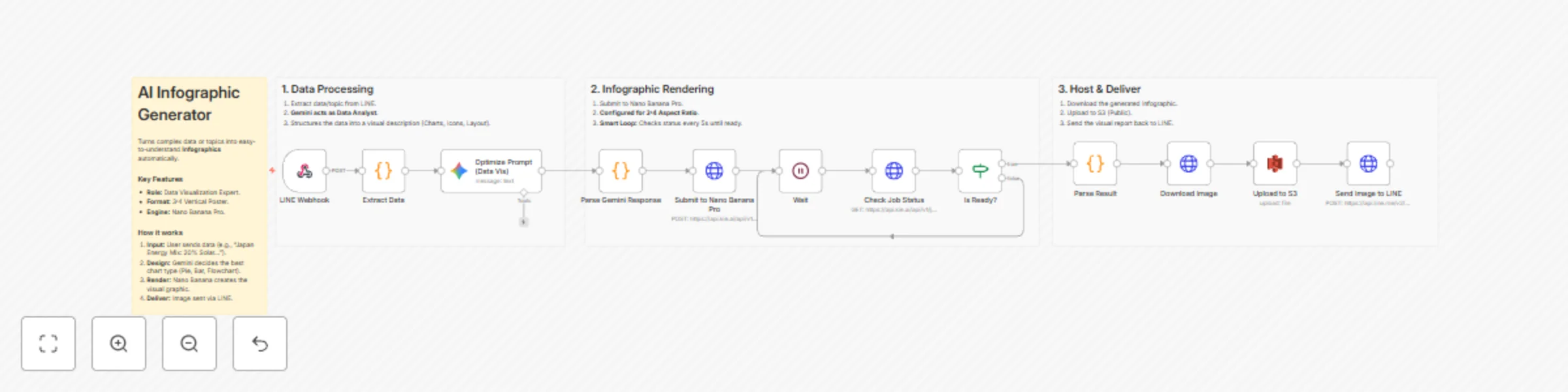
## About This Template This workflow turns complex data or topics sent via LINE into beautiful, easy-to-understand Infographics. It combines **Gemini** (to analyze data and structure the visual layout) and **Nano Banana Pro** (accessed via Kie.ai API) to generate high-quality, data-rich graphics (Charts, timelines, processes). ## How It Works 1. **Input:** User sends a topic or data points via LINE (e.g., "Japan's Energy Mix: 20% Solar, 10% Wind..."). 2. **Data Visualization Logic:** Gemini acts as an Information Designer, deciding the best chart type (Pie, Bar, Flow) and layout for the data. 3. **Render:** Nano Banana generates a professional **3:4 Vertical Infographic**. 4. **Smart Polling:** The workflow uses a loop to check the API status every 5 seconds, ensuring it waits exactly as long as needed. 5. **Delivery:** Uploads to S3 and sends the visual report back to LINE. ## Who It’s For * Social Media Managers needing quick visual content. * Educators and presenters summarizing data. * Consultants creating quick visual reports on the go. ## Requirements * **n8n** (Cloud or Self-hosted). * **Kie.ai API Key** (Nano Banana Pro). * **Google Gemini API Key**. * **AWS S3 Bucket** (Public access). * **LINE Official Account**. ## Setup Steps 1. **Credentials:** Configure Header Auth for Kie.ai and your other service credentials. 2. **Webhook:** Add the production URL to LINE Developers console.
Generate marketing ad banners with LINE, Gemini, and Nano Banana Pro
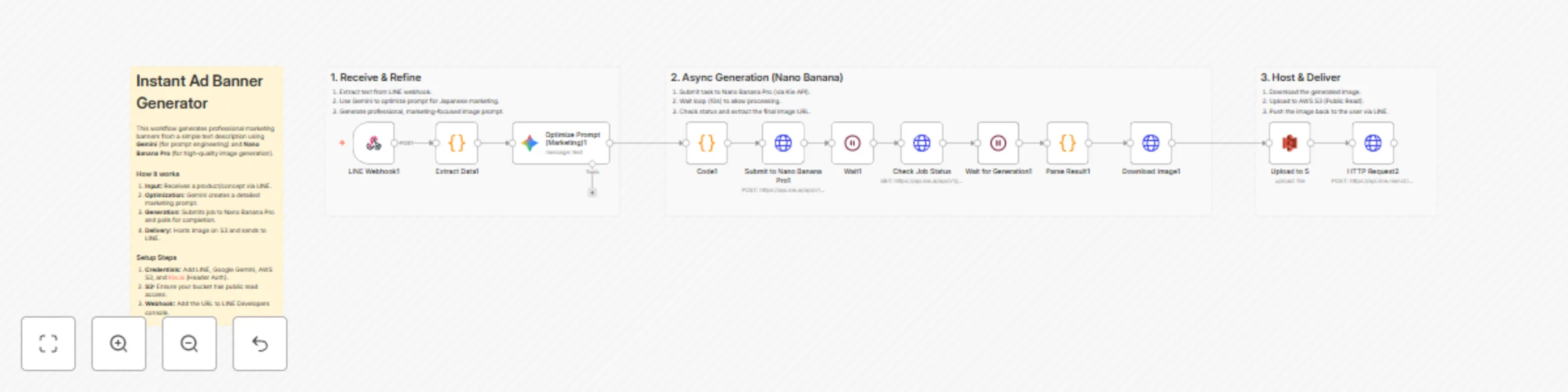
## About This Template This workflow creates high-quality, text-rich advertising banners from simple LINE messages. It combines **Google Gemini** (for marketing-focused prompt engineering) and **Nano Banana Pro** (accessed via Kie.ai API) to generate images with superior text rendering capabilities. It also handles the asynchronous API polling required for high-quality image generation. ## How It Works 1. **Input:** Users send a banner concept via LINE (e.g., "Coffee brand, morning vibe"). 2. **Prompt Engineering:** Gemini optimizes the request into a detailed prompt, specifying lighting, composition, and Japanese catch-copy placement. 3. **Async Generation:** The workflow submits a job to Nano Banana Pro (Kie API) and intelligently waits/polls until the image is ready. 4. **Hosting:** The final image is downloaded and uploaded to a public AWS S3 bucket. 5. **Delivery:** The image is pushed back to the user on LINE. ## Who It’s For * Marketing teams creating A/B test assets. * Japanese market advertisers needing accurate text rendering. * Developers looking for an example of **Async API Polling** patterns in n8n. ## Requirements * **n8n** (Cloud or Self-hosted). * **Kie.ai API Key** (for Nano Banana Pro model). * **Google Gemini API Key**. * **AWS S3 Bucket** (Public access enabled). * **LINE Official Account** (Messaging API). ## Setup Steps 1. **Credentials:** Configure the "Header Auth" credential for the Kie.ai nodes (Header: `Authorization`, Value: `Bearer YOUR_API_KEY`). 2. **AWS:** Ensure your S3 bucket allows public read access so LINE can display the image. 3. **Webhook:** Add the production webhook URL to your LINE Developers console.
Automatically send daily Nikkei 225 closing price to LINE
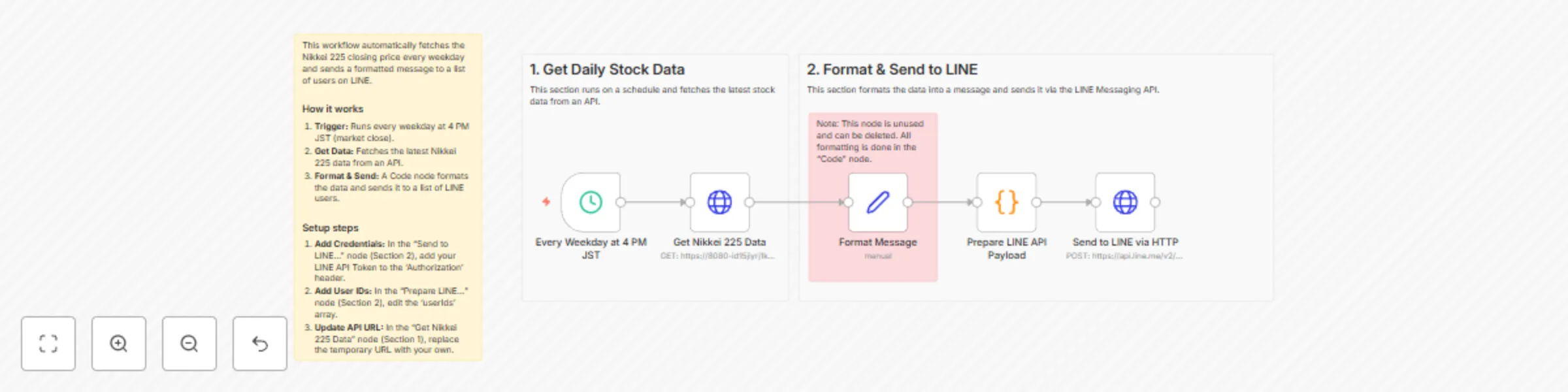
## About This Template This workflow automatically fetches the Nikkei 225 closing price every weekday and sends a formatted message to a list of users on LINE. This is perfect for individuals or teams who need to track the market's daily performance without manual data checking. ## How It Works 1. **Schedule Trigger:** Runs the workflow automatically every weekday at 4 PM JST (Tokyo time), just after the market closes. 2. **Get Data:** An HTTP Request node fetches the latest Nikkei 225 data (closing price, change, %) from a data API. 3. **Prepare Payload:** A Code node formats this data into a user-friendly message and prepares the JSON payload for the LINE Messaging API, including a list of user IDs. 4. **Send to LINE:** An HTTP Request node sends the formatted message to all specified users via the LINE multicast API endpoint. ## Who It’s For * Anyone who wants to receive daily stock market alerts. * Teams that need to share financial data internally. * Developers looking for a simple example of an API-to-LINE workflow. ## Requirements * An n8n account. * A LINE Official Account & Messaging API access token. * An API endpoint to get Nikkei 225 data. (The one in the template is a temporary example). ## Setup Steps 1. **Add LINE Credentials:** In the "Send to LINE via HTTP" node, edit the "Authorization" header to include your own LINE Messaging API Bearer Token. 2. **Add User IDs:** In the "Prepare LINE API Payload" (Code) node, edit the `userIds` array to add all the LINE User IDs you want to send messages to. 3. **Update Data API:** The URL in the "Get Nikkei 225 Data" node is a temporary example. Replace it with your own persistent API URL (e.g., from a public provider or your own server). ## Customization Options * **Change Schedule:** Edit the "Every Weekday at 4 PM JST" node to run at a different time. (Note: 4 PM JST is 07:00 UTC, which is what the Cron `0 7 * * 1-5` means). * **Change Message Format:** Edit the `message` variable inside the "Prepare LINE API Payload" (Code) node to change the text of the LINE message.
Scheduled auto-replies to targeted tweets using X (Twitter) API
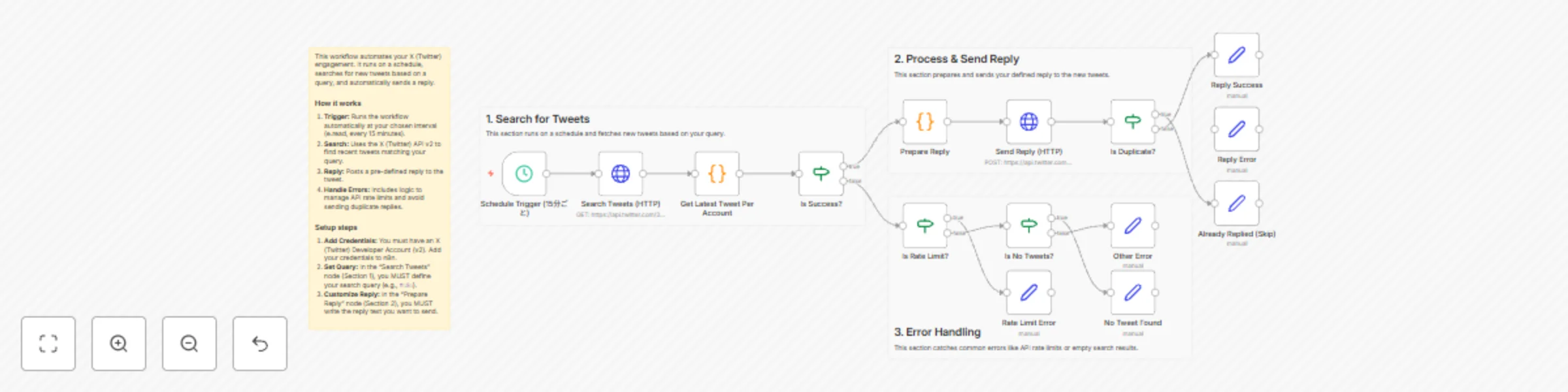
## What it does This workflow automates your X (Twitter) engagement by acting as an auto-responder. It runs on a schedule, searches for new tweets based on a specific query (like a hashtag, keyword, or mention), and automatically sends a reply. ## How it works 1. **Schedule Trigger:** Runs the workflow automatically at your chosen interval (e.g., every 15 minutes). 2. **Search Tweets (HTTP):** Uses the X (Twitter) API v2 to find recent tweets matching your search query. 3. **Error & Success Handling:** * If the search is successful, it proceeds to prepare a reply. * It includes error handling for common issues like **Rate Limits** or if **No Tweets** are found. 4. **Send Reply (HTTP):** Posts the reply to the tweet. 5. **Duplicate Check:** Includes logic to check if a reply has already been sent to avoid spamming. ## How to set up 1. **Credentials:** You must have an X (Twitter) Developer Account (v2). Add your credentials to n8n. 2. **Search Node:** In the "Search Tweets" node, update the `query` parameter with your own search terms (e.g., `#n8n` or `from:username`). 3. **Reply Node:** In the "Prepare Reply" node, customize the text you want to send. 4. **Activate:** Set your desired schedule in the "Schedule Trigger" node and activate the workflow. ## Requirements * An active n8n instance. * An X (Twitter) Developer Account with Elevated (v2) access. * X (Twitter) API v2 credentials. ## How to customize the workflow * **Change Schedule:** Modify the "Schedule Trigger" to run more or less frequently. * **Dynamic Replies:** Enhance the "Prepare Reply" node with an AI node (like OpenAI) to generate unique replies instead of static text. * **Add Filters:** Add an "IF" node after "Search Tweets" to filter out tweets you don't want to reply to.